Noções básicas do monitoramento de atividades
Quando um funcionário usa um aplicativo ou site durante o horário de trabalho, a funcionalidade de Monitoramento registra sua atividade no computador, incluindo o tempo ativo e inativo.
Esses dados são usados para calcular o índice de utilização , que mostra quanto do expediente o funcionário dedica a tarefas produtivas.
Este guia explica:
- Como as atividades no computador são registradas e categorizadas (Ativa, Inativa, Produtiva, Neutra)
- Como as configurações do espaço de trabalho e as programações do Clockify determinam a capacidade de trabalho esperada
- Como os índices de utilização de um ou vários dias são calculados
Entender as métricas do monitoramento de atividades #
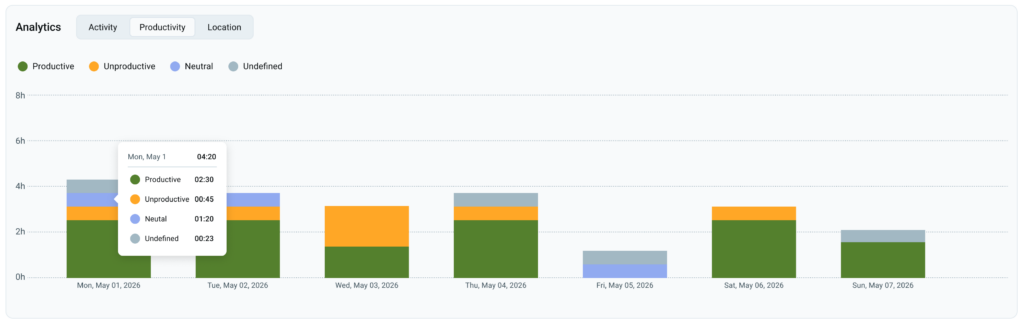
Para entender como a atividade de um funcionário é categorizada e medida, familiarize-se com os seguintes termos.
| Termo | Descrição |
| Ativo em chamada (tipo de atividade) | Essa regra de rastreamento mantém seu status como Ativo ao detectar quando um aplicativo usa o microfone ou a câmera do seu dispositivo. Pelo menos um deles deve estar em uso; caso contrário, nenhuma atividade é registrada se ambos estiverem desativados. Garante que você seja sempre reconhecido como ativo durante videoconferências, mesmo quando estiver apenas ouvindo uma apresentação sem interagir com o mouse ou o teclado. |
| Tempo ativo | Tempo real que você passa trabalhando no computador, medido pelos movimentos do mouse e do teclado. Isso não inclui pausas, almoços ou períodos em que você está longe da sua mesa.. TO monitoramento suporta vários dispositivos atribuídos por usuário. Se um usuário estiver trabalhando ativamente em vários dispositivos atribuídos simultaneamente, o tempo ativo de todos eles será somado, o que pode resultar em um número maior de horas ativas registradas. . |
| Sempre ativo (tipo de atividade) | Essa regra de rastreamento mantém seu status como "Ativo" sempre que você usa um aplicativo ou site específico, ignorando completamente os movimentos do mouse ou o uso do teclado. |
| Capacidade diária de trabalho | Número de horas que um funcionário deve trabalhar por dia (por exemplo, 8 horas). Isso é definido nas configurações do espaço de trabalho ou pode ser modificado com a capacidade de trabalho diária específica do usuário. |
| Tempo inativo | Período em que seu computador está ligado, mas não há atividade do mouse ou do teclado, ou quando você está longe da sua mesa. |
| Tempo produtivo | Tempo gasto usando aplicativos, programas ou sites marcados como relacionados ao trabalho (por exemplo, Figma, Word, Excel ou ferramentas de programação) pela sua empresa. |
| Tempo neutro | Uma categoria para aplicativos ou sites em "zona cinzenta" que a empresa opta por não classificar como estritamente relacionados ao trabalho ou completamente improdutivos. Por exemplo, o YouTube geralmente é mantido como neutro porque seu impacto depende do uso: um funcionário pode usá-lo para um tutorial de trabalho (Produtivo) ou simplesmente para ouvir música de fundo e se entreter (Improdutivo). |
| Padrão (Tipo de atividade) | Este é o modo de monitoramento padrão, em que a atividade é medida exclusivamente pelos movimentos do mouse e pelas entradas do teclado. O sistema classifica automaticamente qualquer período como Tempo ocioso se a atividade do teclado ou do mouse parar por mais tempo do que o limite (Período de inatividade) definido pela sua organização. |
| Tempo não produtivo | Tempo gasto em aplicativos ou sites que não são relevantes para suas tarefas de trabalho (por exemplo, redes sociais, aplicativos de streaming ou jogos). |
| Tempo de trabalho | Horas oficiais registradas para o dia de trabalho. Este é o tempo total registrado pelo Monitoramento de atividades, que soma o Tempo ativo e o Tempo de inatividade. |
Observação sobre múltiplos dispositivos: O tempo de atividade é somado caso um membro utilize mais de um dispositivo atribuído simultaneamente (exceto dispositivos móveis), desde que o aplicativo de monitoramento esteja instalado em todos eles. Por exemplo: se um usuário passar uma hora trabalhando ativamente em um desktop e em um notebook ao mesmo tempo, o tempo registrado para esse período será de duas horas.
Cálculo da taxa de utilização #
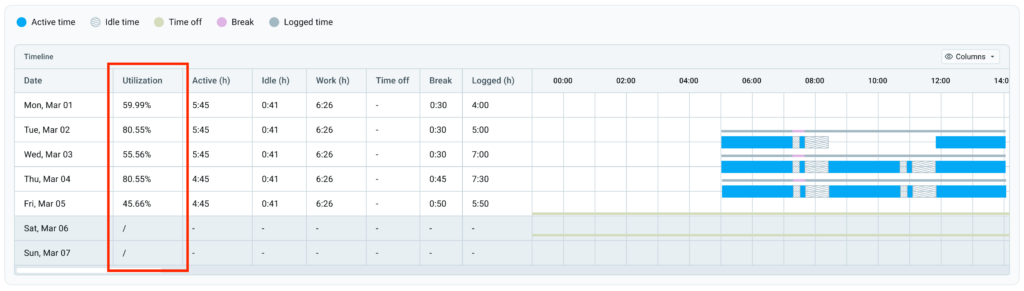
A utilização é um índice calculado que mostra a quantidade de tempo produtivo que um funcionário dedica em comparação com sua capacidade de trabalho planejada.
O monitoramento de atividades utiliza a seguinte fórmula para calcular a utilização:
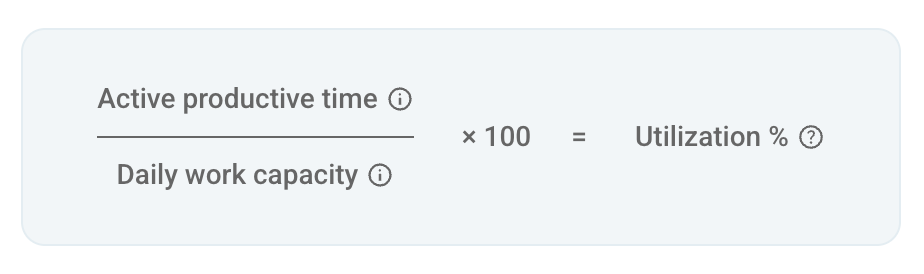
O tempo produtivo ativo é a soma dos períodos de tempo ativo registrados de acordo com as configurações do espaço de trabalho.
A capacidade diária de trabalho é a capacidade base atribuída a um funcionário no Clockify.
No entanto, embora a tela mostre o denominador como Capacidade diária de trabalho, a fórmula de utilização usa uma capacidade de trabalho planejada ajustada, que é a capacidade diária menos as folgas aprovadas para o dia ou intervalo de datas selecionado.
Por exemplo, um funcionário tem 7 horas de capacidade de trabalho diária e 4 horas de folga aprovado. A capacidade de trabalho planejada usada no denominador é de 7 horas - 4 horas = 3 horas.
Se os recursos de Folgas ou Intervalos estiverem desabilitados nas Configurações do espaço de trabalho, as colunas e os itens da legenda correspondentes serão ocultados automaticamente em todas as visualizações do relatório (linha do tempo, atividade, detalhes etc.).
Saiba como definir a Capacidade diária de trabalho neste artigo. Os horários de trabalho, as folgas aprovadas e os feriados são obtidos do perfil do funcionário no Clockify.
Exemplos de cenários de capacidade diária:
| Cenário | Capacidade diária | Folga | Capacidade esperada | Tempo de produtividade | Utilização |
| Dia normal de trabalho | 8 horas | 0 horas | 8 horas | 6 horas | 75% (6h/8h) |
| Meio-período (Folga remunerada) | 8 horas | 2 horas | 6 horas (8h - 2h) | 6 horas | 100% (6h/6h) |
| Horas extras | 8 horas | 0 horas | 8 horas | 10 horas | 125% (10h/8h) |
| Folga integral / fim de semana | 8 horas | 8 horas / Dia Não Útil | 0 horas | 3 horas | / |
Se a capacidade esperada for 0 horas (como em fins de semana ou dias de folga integral), a utilização é exibida como "/" porque nenhuma capacidade de trabalho é esperada. No entanto, qualquer tempo produtivo trabalhado ainda será registrado.
Utilização em vários dias #
Quando vários dias são selecionados para um período de relatório (por exemplo, uma semana), o sistema calcula a utilização somando o tempo produtivo ativo total e a capacidade diária total, em vez de calcular a média dos cálculos de utilização diária individuais. Isso garante cálculos precisos em períodos mais longos e evita que dias não úteis ou férias reduzam a utilização.
Exemplo (cálculo de 1 semana):
- Capacidade esperada total (seg.-sex.): 40 horas (8 horas/dia)
- Tempo produtivo total trabalhado (seg.-sáb.): 42 horas
- Utilização: 42/40 x 100 = 105%
O trabalho em dias não úteis (por exemplo, fins de semana) é adicionado ao tempo produtivo total, mas não aumenta a capacidade esperada.
O que contribui para o tempo produtivo ativo? #
Cada vez que um funcionário usa um aplicativo ou site, isso contribui para o tempo produtivo de acordo com a categoria atribuída. Um aplicativo ou site é categorizado por Produtividade e Tipo de atividade.
Produtividade
- Produtivo: Atividade relacionada ao trabalho.
- Neutro: Atividade dependente do contexto. Se ativada, conta como tempo produtivo.
- Não definido: Atividade em aplicativos ou sites ainda não foram categorizados. Se ativada, conta como tempo produtivo.
Tipo de atividade
- Padrão: Mantém o status ativo ao usar o mouse ou o teclado.
- Sempre ativo: Mantém o status ativo enquanto o aplicativo estiver em uso.
- Em uma chamada: Mantém o status ativo enquanto um aplicativo usa o microfone ou a câmera.
Essas categorias representam como os funcionários usam seu tempo durante o expediente e podem ser definidas na página Produtividade - Aplicativos e sites.
Certifique-se de categorizar os aplicativos e sites da sua organização para garantir o cálculo preciso das taxas de utilização dos funcionários. Para obter mais informações sobre como categorizar aplicativos e sites, consulte Classificar aplicativos e sites.
Configurar o que é incluído no tempo produtivo ativo #
Para selecionar quais categorias de aplicativos ou sites contam para o seu tempo produtivo ativo:
- Acesse Configurações gerais na barra lateral
- Role e Selecione quais atividades contam como tempo produtivo ativo
- Marque a caixa da categoria que deseja adicionar ao seu tempo produtivo ativo
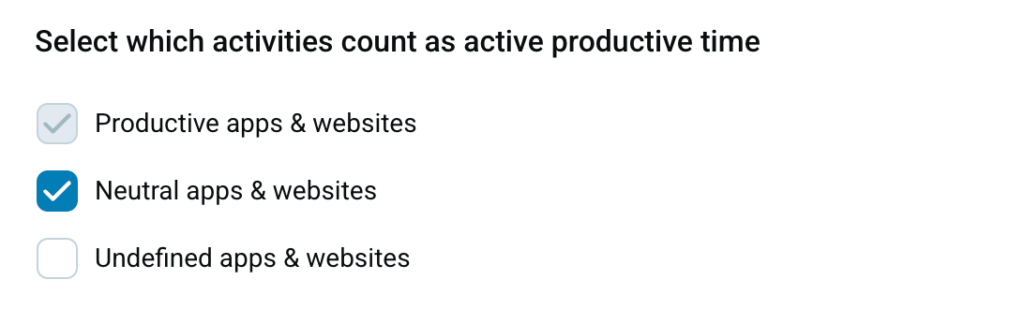
Os cálculos de tempo ativo sempre excluem o tempo de inatividade.
Perguntas frequentes #
Como o tempo produtivo ativo é calculado?
O tempo produtivo ativo é a soma dos períodos ativos registrados de acordo com as configurações do seu espaço de trabalho. O uso de aplicativos relacionados ao trabalho aumenta esse tempo produtivo, enquanto o uso de aplicativos não relacionados ao trabalho diminui. O tempo de inatividade é sempre excluído do cálculo do tempo ativo.
De onde o sistema obtém minha capacidade de trabalho esperada e os dados de folgas?
A capacidade de trabalho esperada, as horas trabalhadas, as folgas aprovadas (PTO), as folga de meio período e os feriados são obtidos automaticamente do seu perfil do Clockify.
Como o trabalho nos fins de semana ou feriados afeta a utilização semanal/mensal?
Qualquer tempo produtivo registrado em um dia não útil é adicionado ao seu total de horas produtivas ativas para o período selecionado, mas não adiciona horas à sua capacidade esperada total. Isso permite que o trabalho extra realizado fora do horário normal contribua positivamente para a taxa de utilização geral do período.
Como uma folga remunerada (PTO) aprovada afeta a capacidade de trabalho diária?
O PTO aprovado reduz sua capacidade de trabalho esperada naquele dia.
- PTO de dia inteiro: a capacidade diária esperada é reduzida para 0 horas.
- PTO de meio período ou parcial: as horas de PTO são subtraídas da capacidade diária padrão (por exemplo, uma jornada de trabalho de 8 horas menos 2 horas de PTO resulta em uma capacidade diária esperada de 6 horas).
O que significa uma barra (/) na coluna Utilização?
Uma barra (/) significa "Não aplicável". Isso ocorre quando o trabalho é registrado em um dia com capacidade planejada de 0 horas, como fins de semana, feriados ou dias de férias. O tempo produtivo é registrado e exibido, mas o sistema não calcula uma porcentagem diária porque não havia uma meta de referência.
A utilização pode exceder 100%? Qual é a pontuação máxima exibida?
Sim. Os funcionários podem exceder 100% de utilização trabalhando além de sua capacidade diária ou periódica planejada. Se a pontuação calculada exceder 999%, o sistema a exibirá como 999%+.