Não consigo adicionar tempo
Se você não estiver conseguindo adicionar tempo, há algumas coisas que você pode verificar para solucionar o problema.
A funcionalidade Forçar cronômetro está ativada #
Quando o recurso "Forçar cronômetro" está ativado, você só pode registrar o tempo usando o cronômetro; os registros manuais ficam desativados.
- Se você ver a mensagem de erro “O registro manual de tempo está desativado”, esta pode ser a causa.
- Você precisará usar o cronômetro ou solicitar ao administrador do seu espaço de trabalho que desative o recurso Forçar cronômetro.
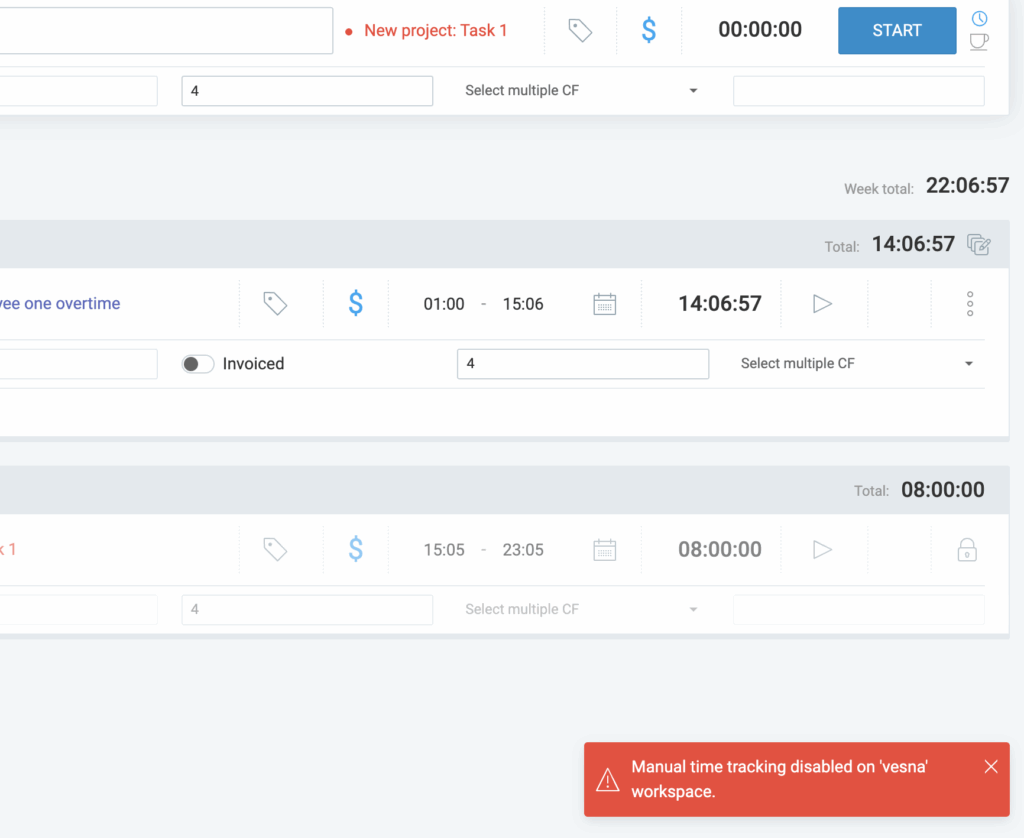
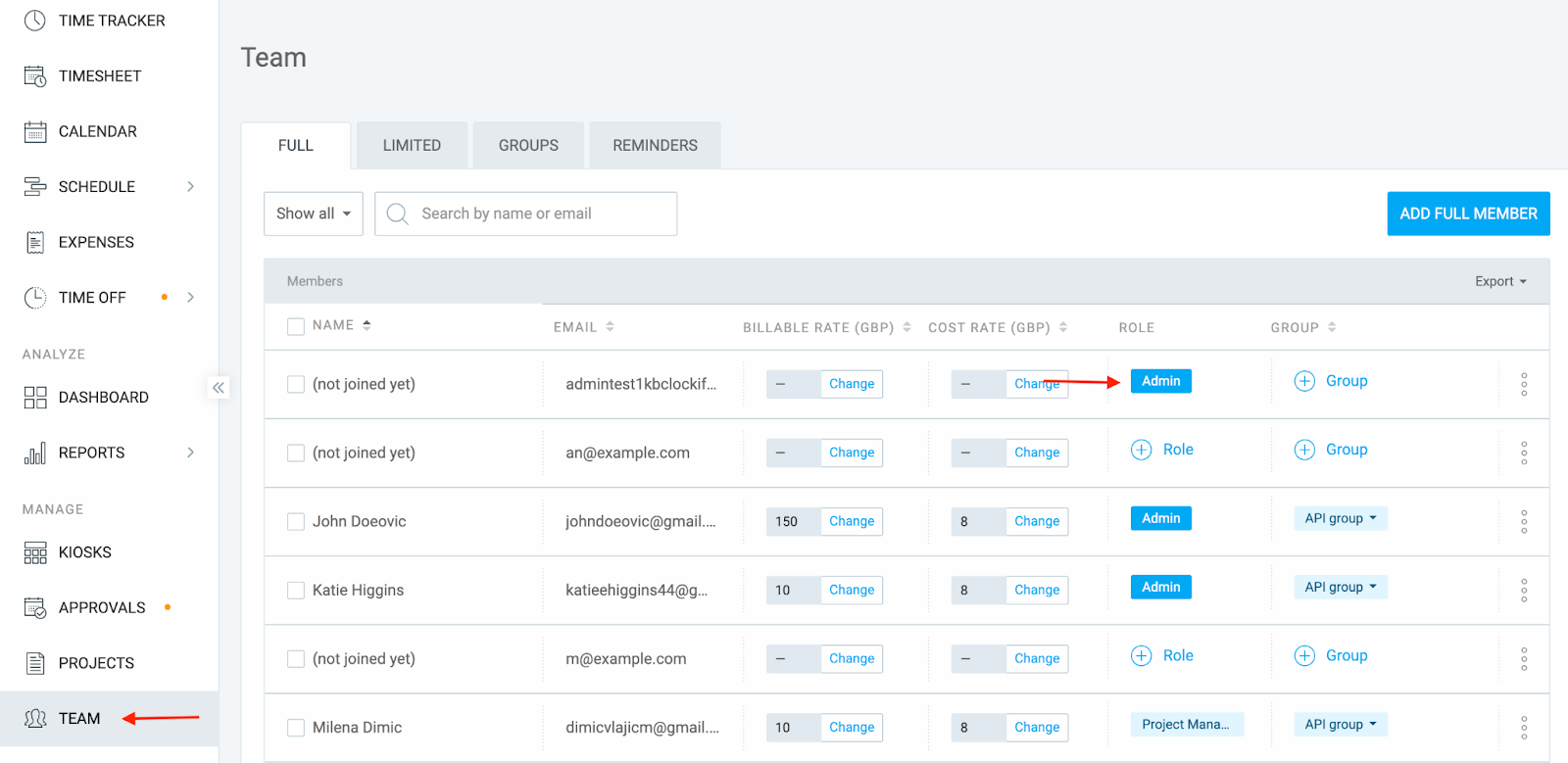
Como encontrar o administrador de um espaço de trabalho:
- Acesse a aba Equipe
- Procure um usuário com a função de administrador atribuída
O recurso de bloqueio de planilhas horas está ativado #
Se a opção "Bloquear planilhas de horas" estiver ativada nas configurações do espaço de trabalho, você não conseguirá editar o registro de horas referente a datas bloqueadas.
- Você verá uma mensagem informando que a data está bloqueada na planilha de horas.
- Você não conseguirá selecionar essa data específica na página de registro de tempo, pois ela aparecerá desabilitada (em cinza).
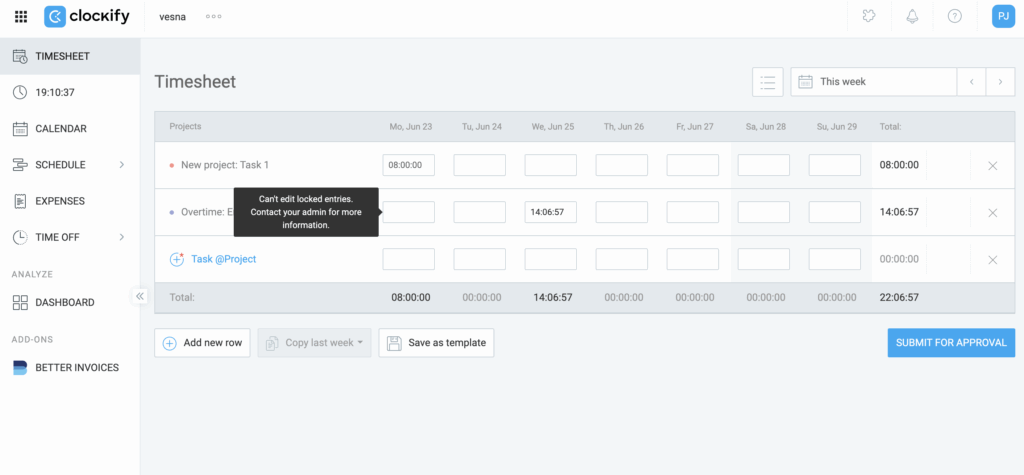
Nesse caso, peça ao administrador do seu espaço de trabalho que:
- Adicione o tempo manualmente para você
- Desative temporariamente o bloqueio de planilhas de horas para que você mesmo possa fazer o lançamento.
O tempo do dispositivo não está sincronizado #
Se o relógio do seu dispositivo não estiver sincronizado com o tempo real, o sistema poderá impedir que você adicione tempo.
- Acesse time.is para verificar se o horário do seu dispositivo está correto
- Se estiver incorreto, atualize o relógio do seu dispositivo
- Tente adicionar tempo novamente
Para administradores de espaço de trabalho
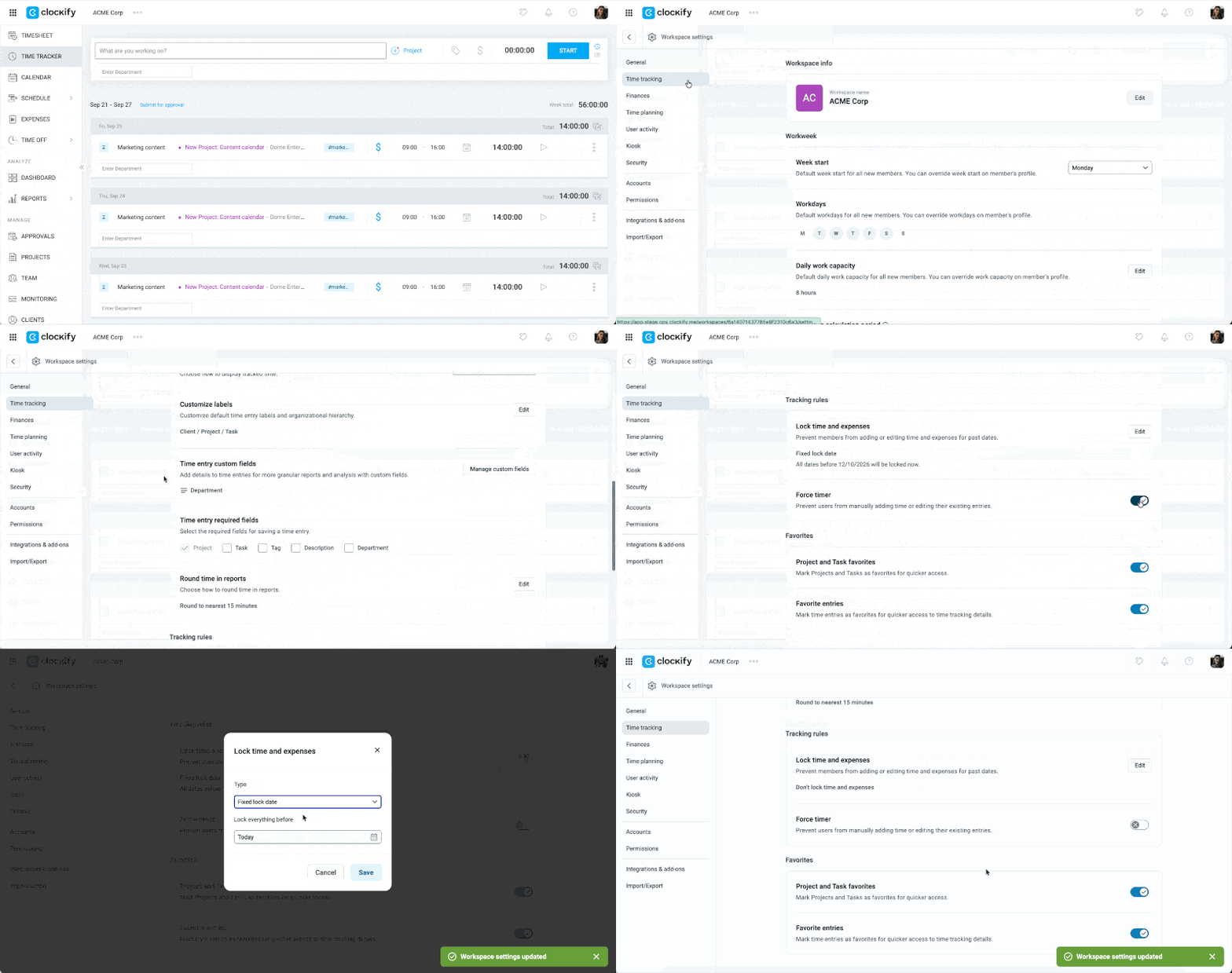
Passo 1: Habilitar a visualização de planilha de horas
- Clique no ícone de três pontos ao lado do nome do seu espaço de trabalho
- Selecione Configurações do espaço de trabalho
- Clique em Controle de tempo na barra lateral
- Ative a visualização de planilhas de horas
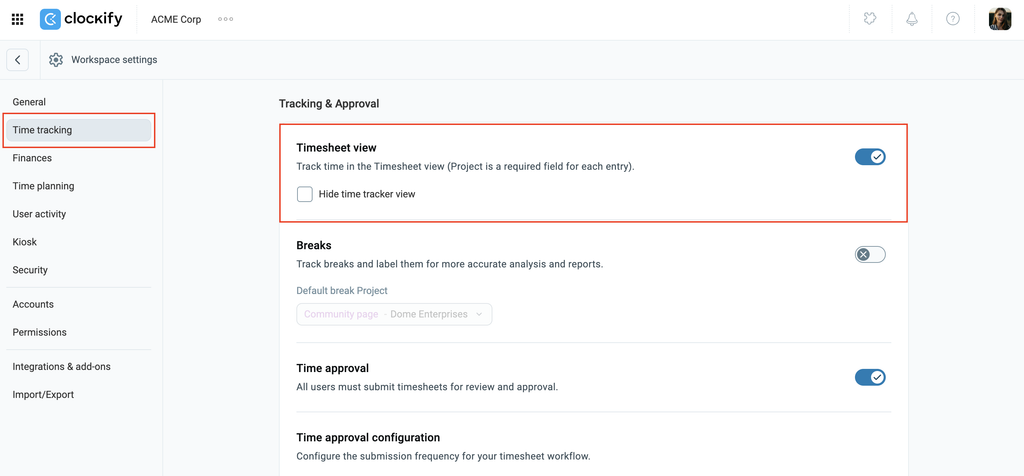
Passo 2: Desativar o recurso Forçar cronômetro
- Acesse Configurações do espaço de trabalho
- Clique em Controle de tempo na barra lateral
- Desative o Forçar cronômetro
- Clique no botão Editar ao lado de Bloquear tempo e despesas
- Selecione Não bloquear tempo e despesas no menu suspenso
- Clique em Salvar
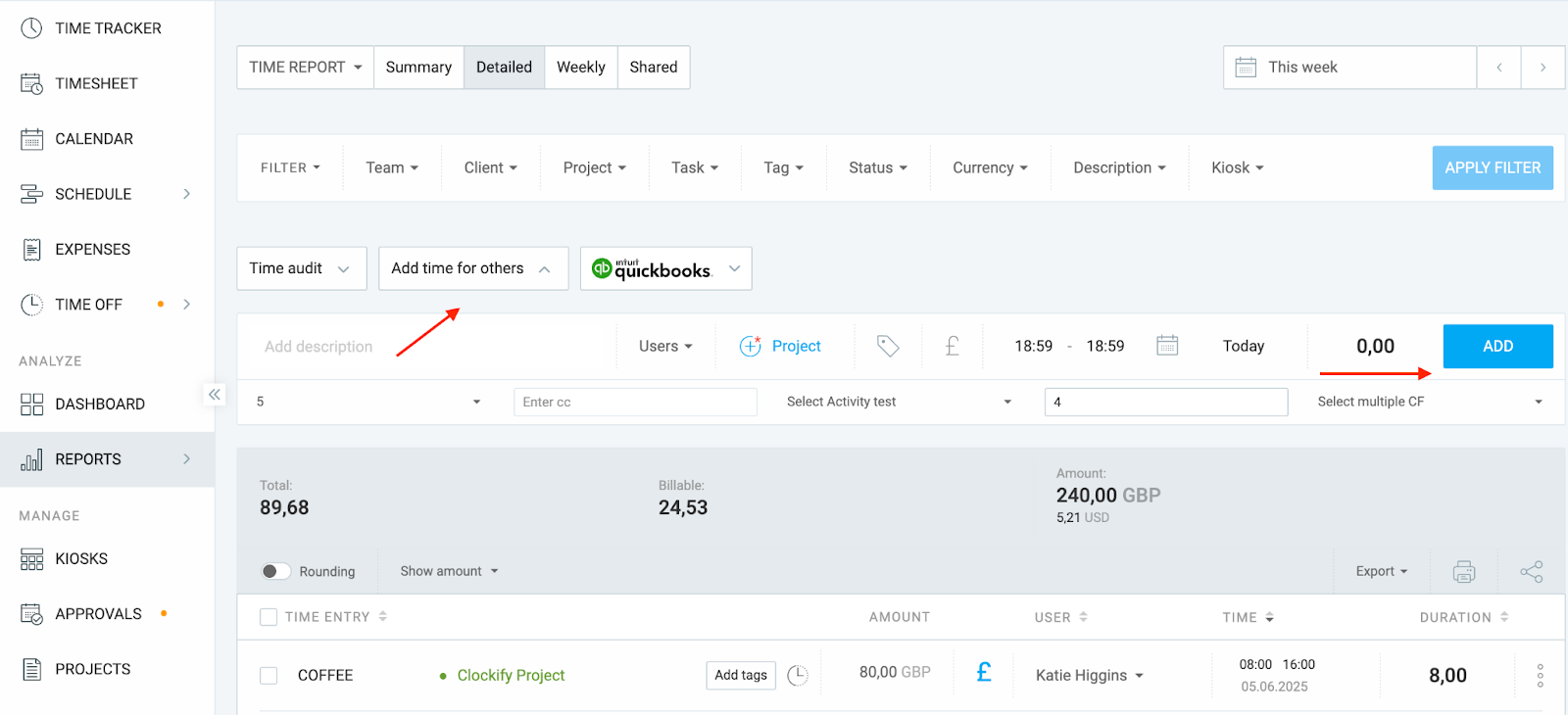
Para adicionar tempo para os membros da sua equipe:
- Acesse o relatório detalhado
- Selecione a opção “Adicionar tempo para outros”
- Selecione o membro da equipe e adicione tempo para ele
Ainda com problemas? A equipe de suporte do Clockify terá prazer em analisar e ajudar você. Entre em contato conosco pelo e-mail support@clockify.me e nos e nos forneça as seguintes informações:
- Sua função no espaço de trabalho
- Uma captura de tela do problema ou de uma mensagem de erro que você está vendo