Zapier: Integração com Clockify
Integrar o Clockify com o Zapier permite conectar o seu controle de tempo com outros aplicativos da web.
O poder dessa integração está nos Zaps, que são fluxos de trabalho automatizados compostos por um Gatilho (quando algo acontece) e uma Ação (o evento que ocorre em seguida).
Exemplos de integrações #
As formas mais comuns de integrar o Zapier ao Clockify são:
Sincronização com calendário: Quando você inicia um evento no Google Agenda ou no Outlook, um cronômetro é iniciado automaticamente no Clockify.
Em vez de iniciar e parar manualmente um cronômetro para cada chamada no Zoom, o Zapier detecta quando seu evento do seu Google Agenda começa e inicia automaticamente um cronômetro no Clockify com o título da reunião.
Gestão de projetos: Quando uma nova tarefa é criada no Asana, Trello ou ClickUp, uma tarefa correspondente é criada automaticamente no Clockify.
Seu gerente de projeto cria um novo quadro "Redesign do Site" no Trello ou Asana com vinte tarefas individuais. Em vez de digitar manualmente os nomes dessas vinte tarefas no Clockify para controlar o tempo gasto nelas, este Zap as espelha instantaneamente.
Comunicação: Envie uma mensagem no Slack ou uma notificação no Gmail sempre que um membro da equipe iniciar um novo cronômetro.
Quando um consultor inicia um cronômetro no Clockify, o Zapier envia uma notificação rápida para um canal dedicado no Slack. Isso mantém todos informados sobre os projetos em andamento e reduz a necessidade de reuniões de "atualização de status".
Relatórios: Adicione automaticamente novas entradas de tempo do Clockify a uma linha do Google Sheets para folha de pagamento personalizada ou relatórios.
Sempre que um registro de tempo é concluído no Clockify, os dados (usuário, duração, projeto e data) são adicionados a uma planilha no Google. Quando você precisar processar pagamentos ou faturar um cliente, sua planilha já estará preenchida e formatada para seus cálculos.
Gatilhos suportados (no Clockify) #
- Nova entrada de tempo: Executa quando uma nova entrada de tempo é adicionada.
- Novo projeto: Executa quando um novo projeto é criado.
- Novo cliente: Executa quando um novo cliente é adicionado a um espaço de trabalho.
- Nova tarefa: Executa quando uma nova tarefa é adicionada a um projeto.
- Cronômetro iniciado: Executa especificamente quando um cronômetro é iniciado e está em execução.
Ações suportadas (no Clockify) #
- Iniciar cronômetro: Inicia uma nova entrada de tempo com uma descrição e projetos específicos.
- Criar tarefa/projeto: Cria automaticamente novas estruturas organizacionais.
- Criar cliente: Adiciona um novo cliente ao seu espaço de trabalho.
- Parar cronômetro: Encerra o cronômetro em execução no seu espaço de trabalho.
Instalar o Zapier #
Apenas administradores e proprietários do espaço de trabalho podem adicionar aplicativos de terceiros para integração com o Clockify.
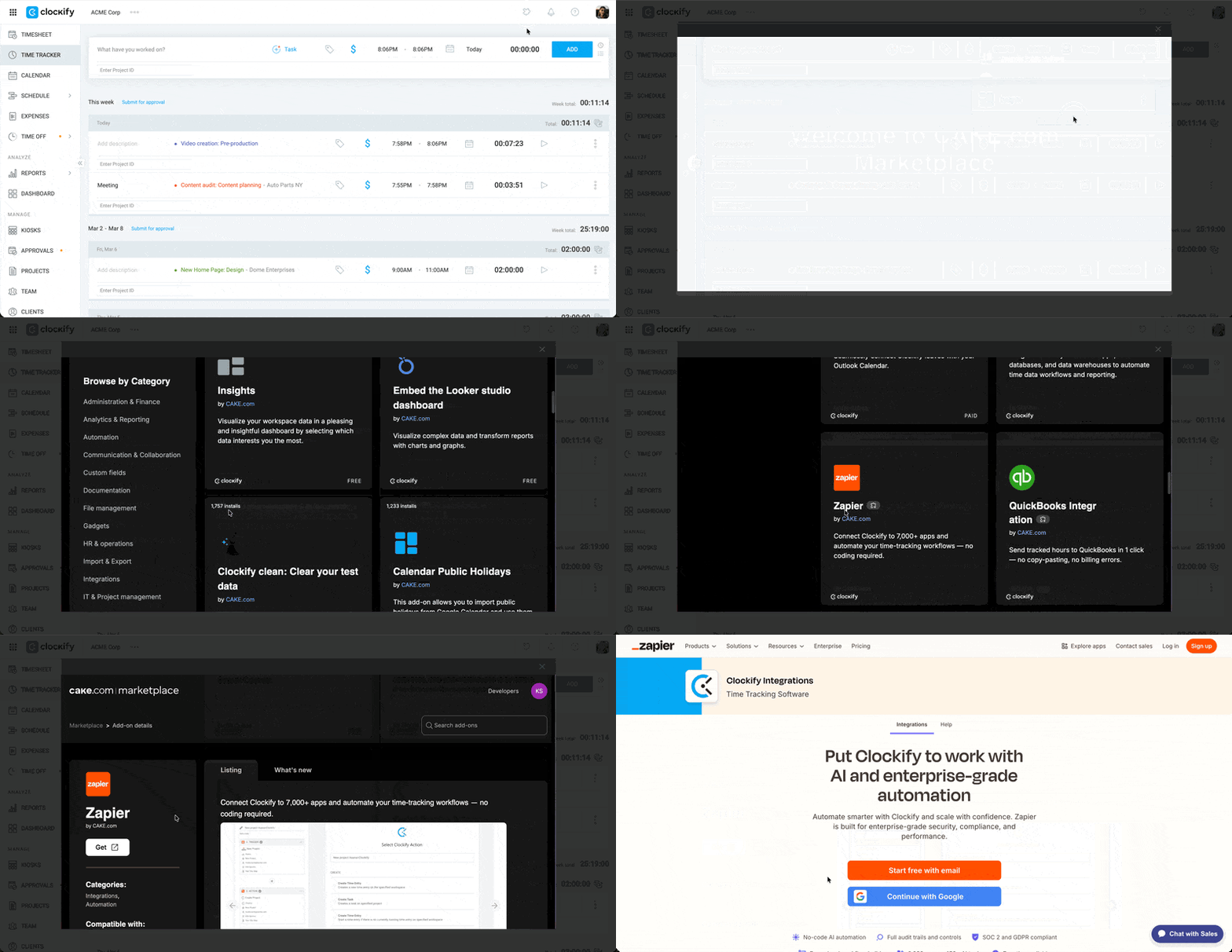
O Clockify utiliza o Marketplace CAKE.com para apresentar integrações e complementos disponíveis.
- Acesse o Marketplace da CAKE.com.
- Encontre o Zapier na lista de integrações disponíveis
- Clique em Get
- Cadastre-se com seu e-mail no site do Zapier
Conectar sua conta #
Para permitir que o Zapier "se comunique" com o Clockify, você precisa usar sua chave de API pessoal.
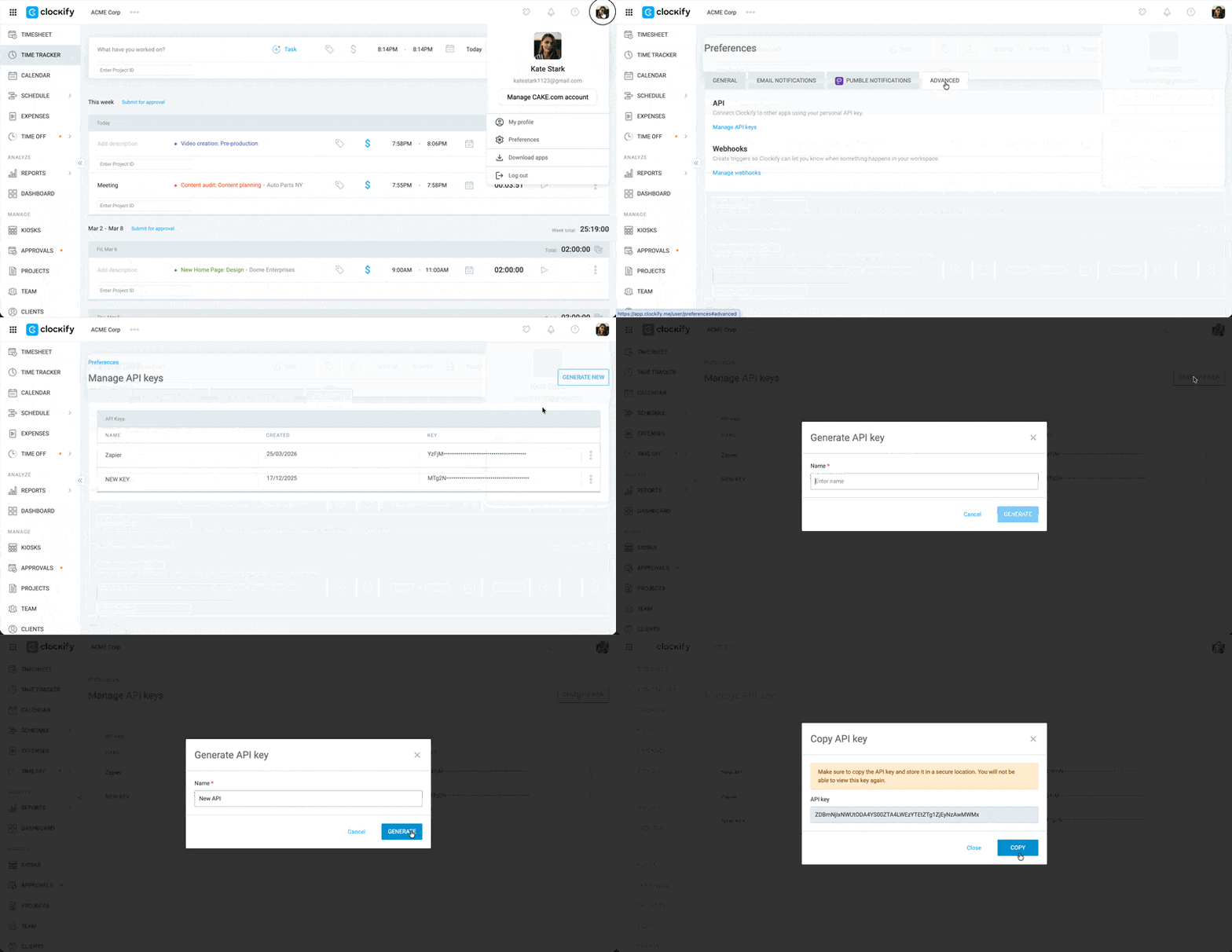
Passo 1: Gerar chave de API no Clockify #
- Faça login na sua conta Clockify
- Clique na sua foto de perfil no canto superior direito
- Acesse Preferências
- Vá até a aba Avançado
- Clique em Gerenciar chaves de API
- Clique em Gerar nova
- Digite um nome para a chave
- Clique em Gerar
- Clique em Copiar
Passo 2: Conectar o Clockify no Zapier #
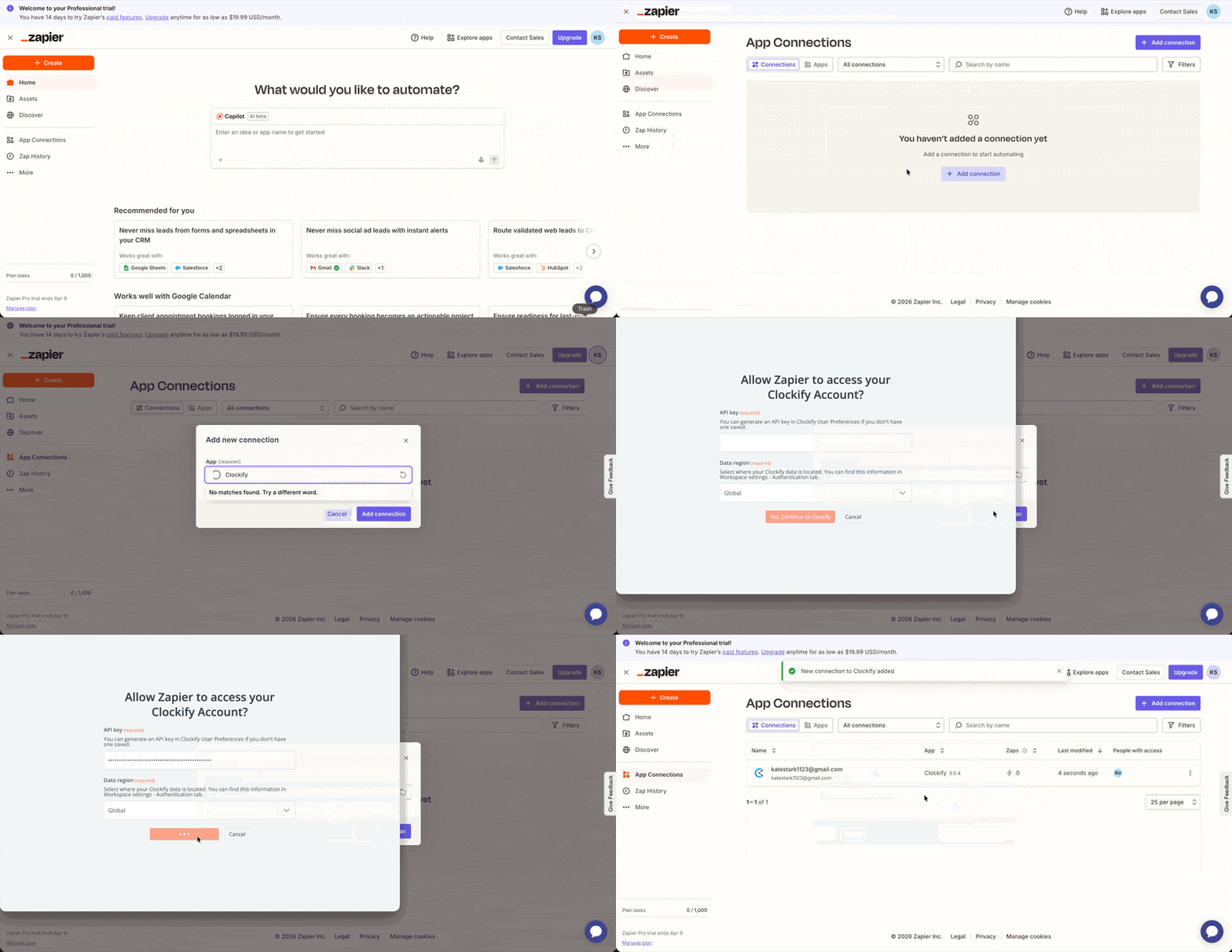
Para adicionar o Clockify às suas integrações no Zapier:
- Selecione App Connections na barra lateral esquerda
- Clique em Add connection
- Procure por Clockify
- Clique em Add connection
- Cole a chave de API do Clockify
- Clique em Yes, Connect to Clockify
Criar um zap básico #
Existem três etapas principais para criar Zaps:
- Definir o gatilho: Escolha um aplicativo e uma ação dentro dele que irá disparar uma nova ação
- Definir a ação: Escolha o aplicativo que responderá ao gatilho e configure a ação desejada
- Mapear as informações: Correspondência dos campos entre os dois aplicativos
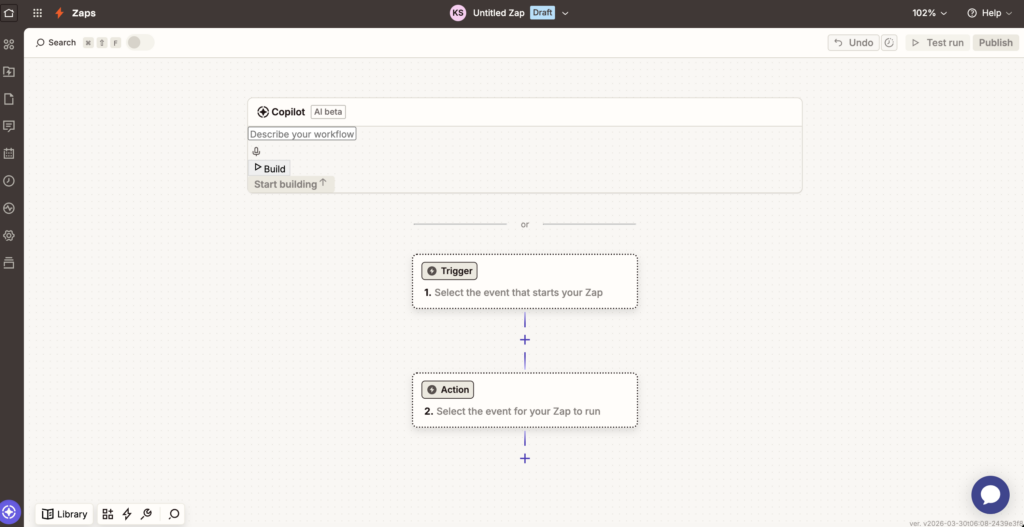
Antes de criar seu primeiro Zap, certifique-se de estar conectado tanto no Clockify quanto no aplicativo de terceiros no mesmo navegador, para agilizar o processo de autenticação.
Iniciar um cronômetro quando uma reunião no Google Agenda começar #
Veja como fazer isso no Zapier:
Conectar o Google Agenda
- Clique em Create > Zaps
- Clique em Trigger
- Selecione Google Calendar
- Clique no menu suspenso de evento do gatilho
- Selecione Event start
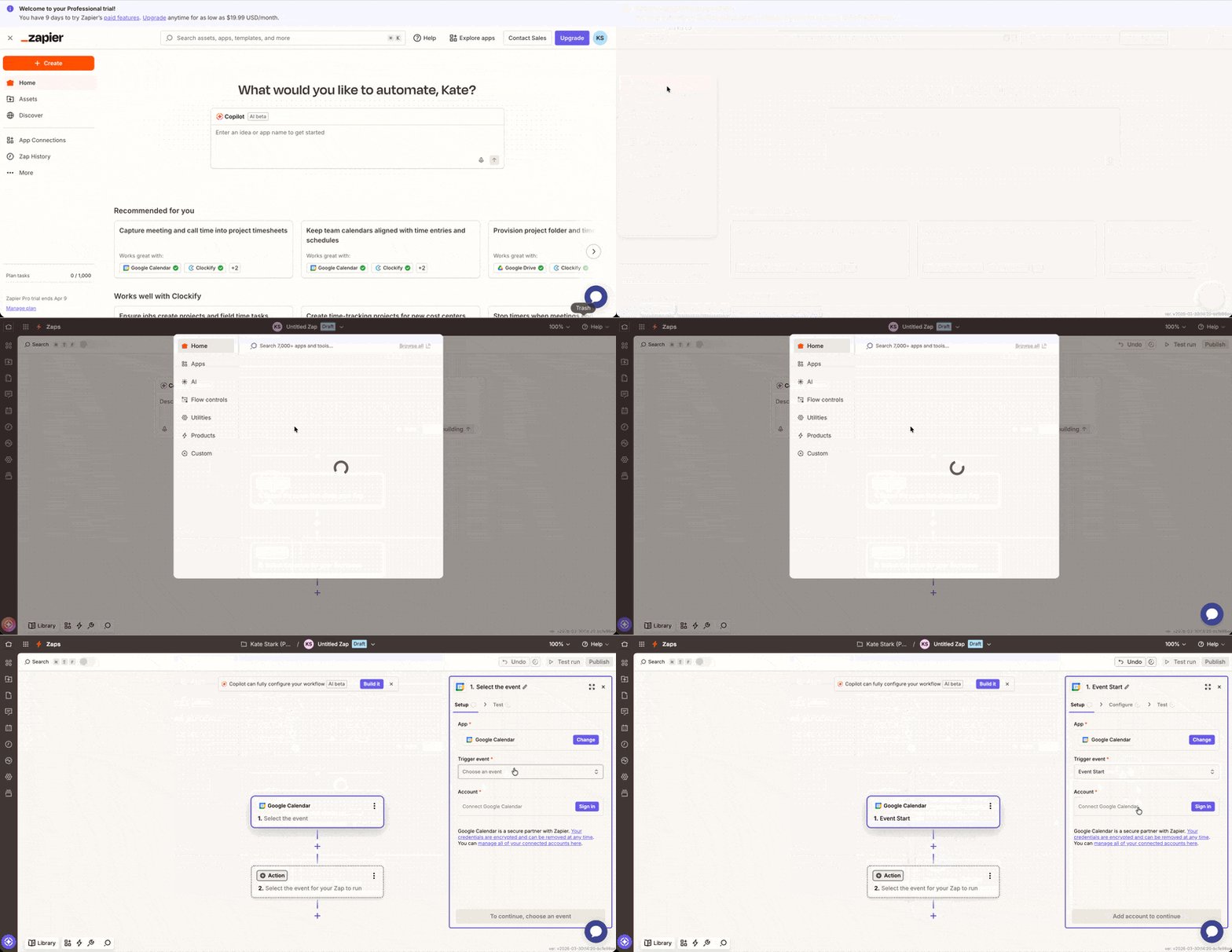
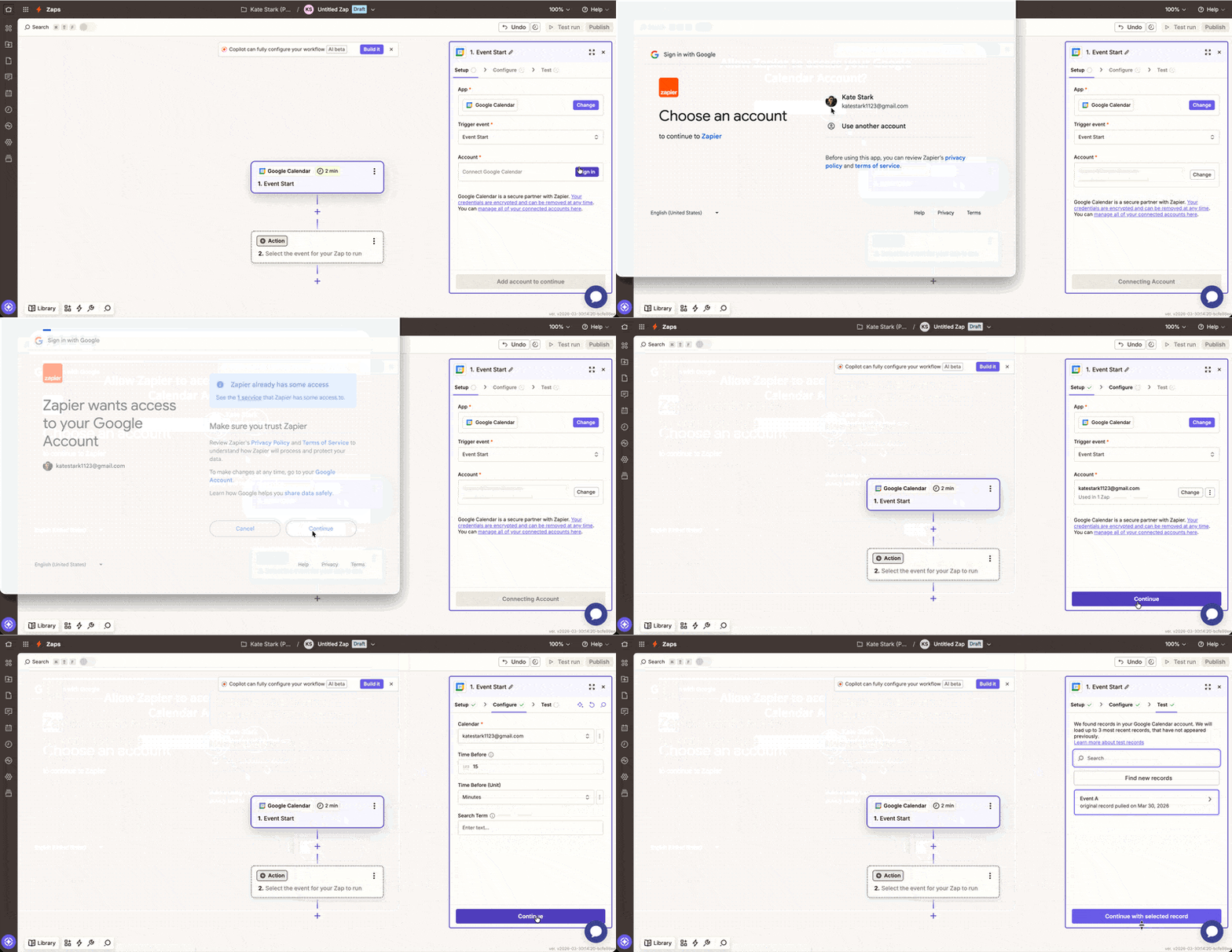
6. Clique em Sign in no campo Account
7. Siga as instruções na janela pop-up para conectar seu Google Agenda
8. Clique em Continue
9. Selecione o calendário correto no menu suspenso Calendar
10. Clique em Continue
11. Clique em Test trigger
Conectar o Clockify
- Clique em Action
- Selecione Clockify
- Selecione Start Timer como evento da ação
- Informe sua conta do Clockify no campo Account
- Clique em Continuar
- Selecione seu espaço de trabalho no menu suspenso
- Preencha projeto, tarefas e etiquetas (opcional)
- Clique em Continuar
- Selecione Test step
- Clique em Publish
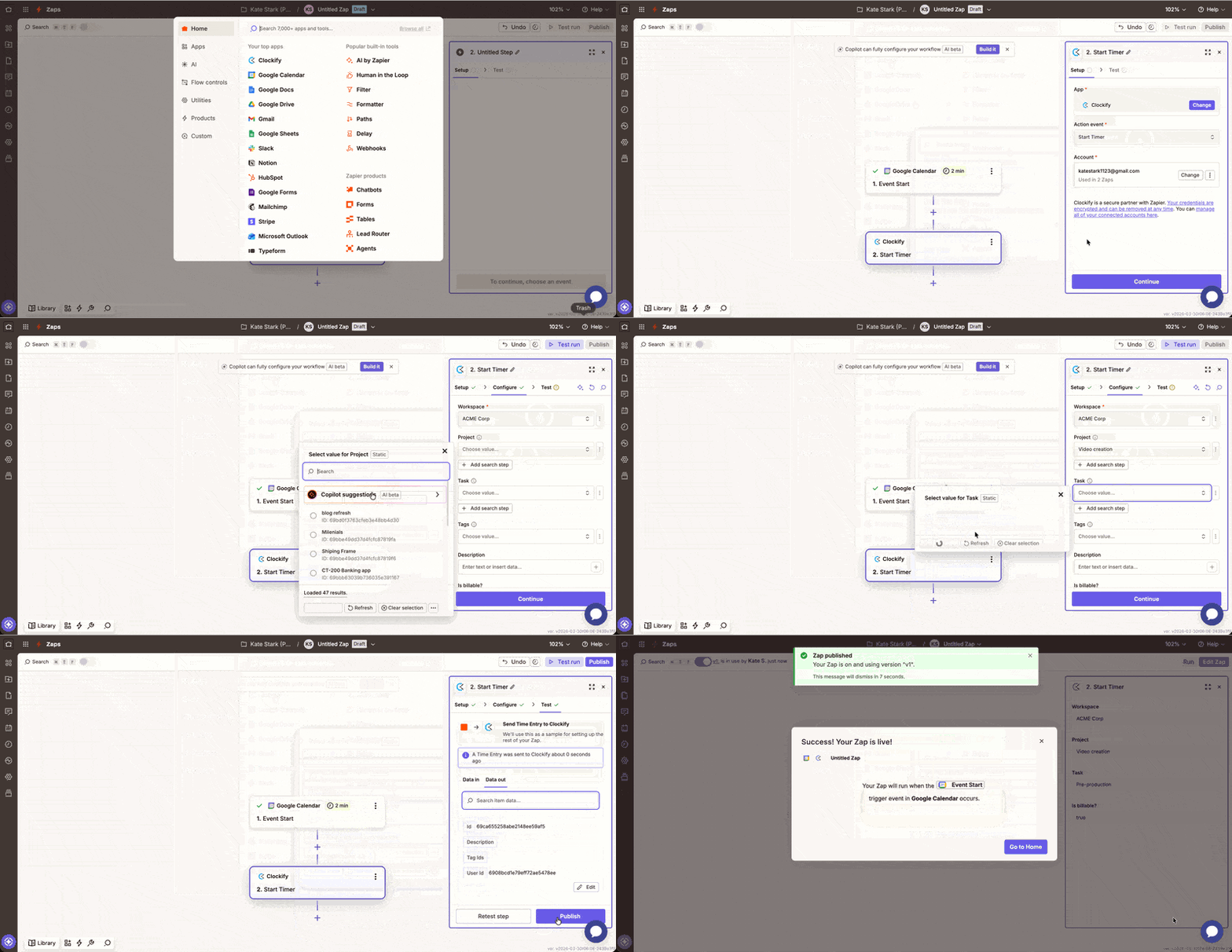
You can test this Zap by creating a meeting in Google Calendar, starting it, and checking if the Clockify timer starts.
Suporte #
Use a tabela abaixo para determinar o melhor ponto de contato.
| Se o problema for… | Contato… | Por quê? |
| Chave de API do Clockify não funciona | Suporte do Clockify | Eles gerenciam as credenciais da sua conta e o acesso ao espaço de trabalho. |
| Um Zap falhou ao executar | Suporte do Zapier | O histórico de tarefas do Zapier mostra exatamente qual etapa falhou e por quê. |
| Os dados não aparecem no Clockify | Suporte do Zapier | Eles podem verificar se os dados foram enviados corretamente a partir do aplicativo de gatilho. |
| Falta de um recurso específico no Clockify | Suporte do Clockify | Eles lidam com solicitações de recursos e funcionalidades nativas do aplicativo. |
| Problemas de login no Zapier.com | Suporte do Zapier | Eles gerenciam sua conta de automação e faturamento. |
Perguntas frequentes #
Posso sincronizar entradas de tempo para toda a minha equipe?
Por padrão, gatilhos do Zapier como "New Time Entry" (Novo Registro de Tempo), rastreiam apenas o usuário cuja chave de API está conectada. Se você for administrador e precisar acompanhar toda a equipe, pode ser necessário usar um Zap com múltiplas etapas usando "Webhooks by Zapier" ou permissões específicas de gerente.
Por que meu Zap do Google Agenda mostra "0 minutos" no Clockify?
Isso acontece se você usar o gatilho "New Event" (Novo Evento), que ainda não tem duração definida. Para corrigir isso, use o gatilho "New Event Started" (Novo evento iniciado) ou defina a ação como “Create Time Entry” (Criar registro de tempo, que inclui um horário de início e término) em vez de "Iniciar Cronômetro".
O Clockify usa horário UTC para o Zapier?
Sim. A API do Clockify funciona em UTC. Se suas entradas de tempo aparecerem com algumas horas de diferença, verifique se as configurações da sua conta do Zapier e do aplicativo de gatilho (como o Google Agenda) estão definidas para o mesmo fuso horário.