Zapier: Integración con Clockify
Integrar Clockify con Zapier te permite conectar tu sistema de seguimiento de tiempo con otras aplicaciones web.
El poder de esta integración reside en los Zaps, flujos de trabajo automatizados que constan de un Desencadenante (Trigger) (cuando ocurre algo) y una Acción (Action) (un evento posterior).
Ejemplos de integración #
Las formas más comunes en que los usuarios integran Zapier con Clockify son:
Sincronización de calendario: Cuando inicias un evento en Google Calendar o Outlook, se inicia automáticamente un temporizador en Clockify.
En lugar de iniciar y detener manualmente un temporizador para cada llamada de Zoom, Zapier detecta cuándo comienza tu evento de Google Calendar e inicia automáticamente un temporizador de Clockify con el título de la reunión.
Gestión de proyectos: Cuando se crea una nueva tarea en Asana, Trello o ClickUp, se crea automáticamente una tarea correspondiente en Clockify.
Tu gerente de proyectos crea un nuevo tablero de “Rediseño de sitio web" en Trello o Asana con veinte tareas individuales. En lugar de volver a escribir manualmente los nombres de las veinte tareas en Clockify para registrar el tiempo dedicado a cada una, este Zap las replica al instante.
Comunicación: Envía un mensaje de Slack o una notificación de Gmail cada vez que un miembro del equipo inicie un nuevo temporizador.
Cuando un consultor inicia un temporizador en Clockify, Zapier envía una notificación rápida a un canal de Slack específico. Esto mantiene a todos informados sobre los proyectos activos y reduce la necesidad de reuniones de "Actualización de estado".
Informes: Añade automáticamente las nuevas entradas de tiempo de Clockify a una fila de Google Sheets para la nómina o los informes personalizados.
Cada vez que se completa una entrada de tiempo en Clockify, los datos (Usuario, Duración, Proyecto y Fecha) se agregan a una hoja de cálculo de Google. Para cuando necesites procesar la nómina o facturar a un cliente, tu hoja de cálculo ya estará completa y formateada para tus cálculos.
Desencadenantes compatibles (en Clockify) #
- Nueva entrada de tiempo: Se ejecuta cuando se añade una nueva entrada de tiempo.
- Nuevo proyecto: Se ejecuta cuando se crea un nuevo proyecto.
- Nuevo cliente: Se ejecuta cuando se añade un nuevo cliente a un espacio de trabajo.
- Nueva tarea: Se ejecuta cuando se añade una nueva tarea a un proyecto.
- Temporizador iniciado: Se ejecuta específicamente cuando se inicia un temporizador y este se encuentra en funcionamiento.
Acciones compatibles (en Clockify) #
- Iniciar temporizador: Inicia una nueva entrada de tiempo con una descripción y un proyecto específicos.
- Crear tarea/proyecto: Configura automáticamente nuevas estructuras organizativas.
- Crear cliente: Añade un nuevo cliente a tu espacio de trabajo.
- Detener temporizador: Finaliza el temporizador que se está ejecutando en tu espacio de trabajo.
Instalar Zapier #
Solo los administradores y los propietarios de espacios de trabajo pueden añadir aplicaciones de terceros para integrarlas con Clockify.
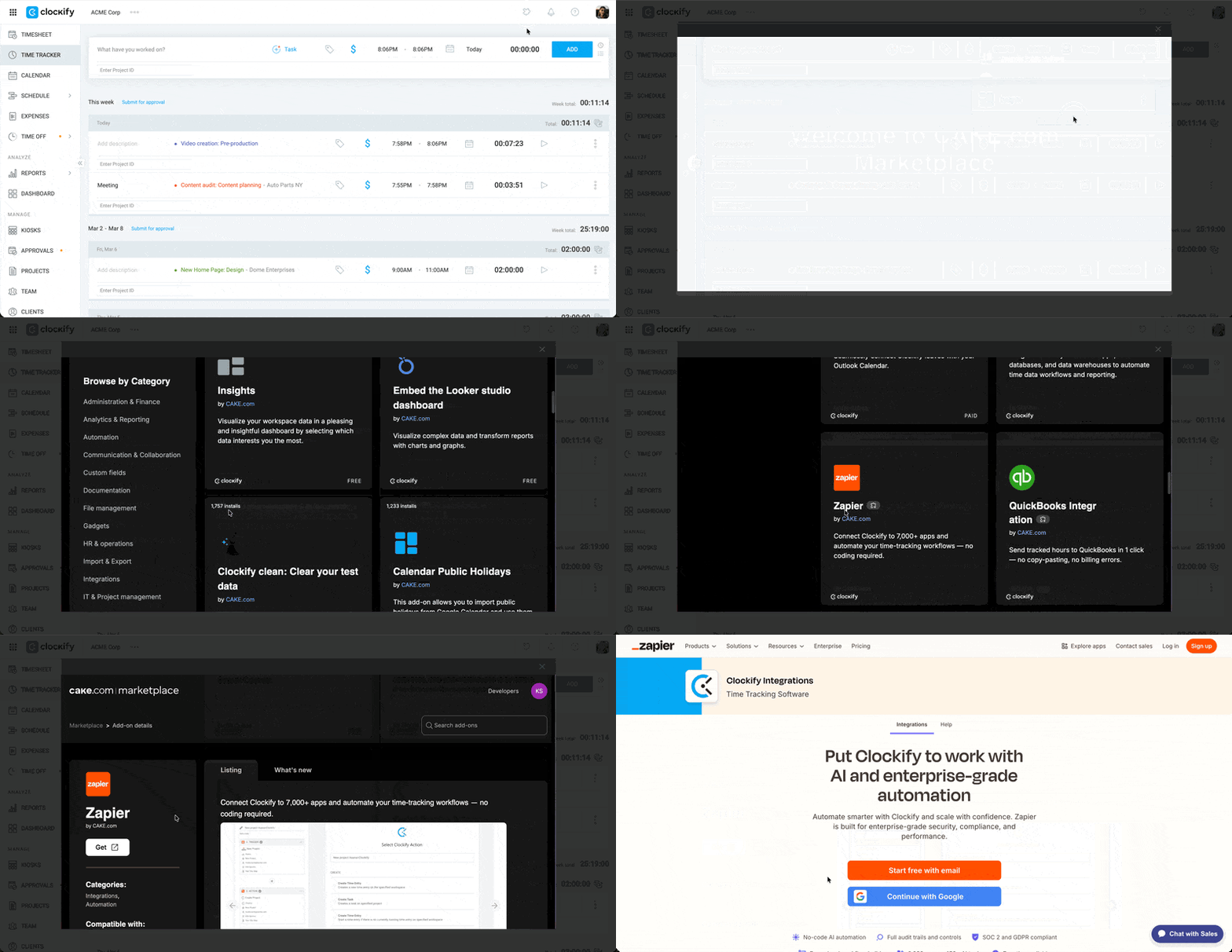
Clockify utiliza el Marketplace de CAKE.com para mostrar las integraciones y complementos disponibles.
- Visita la página del Marketplace de CAKE.com.
- Encuentra Zapier en la lista de integraciones disponibles
- Haz clic en Obtener (Get)
- Regístrate con tu correo electrónico en el sitio web de Zapier
Conectar tu cuenta #
Para que Zapier se comunique con Clockify, necesitas usar tu clave API personal.
Paso 1: Genera la clave API en Clockify #
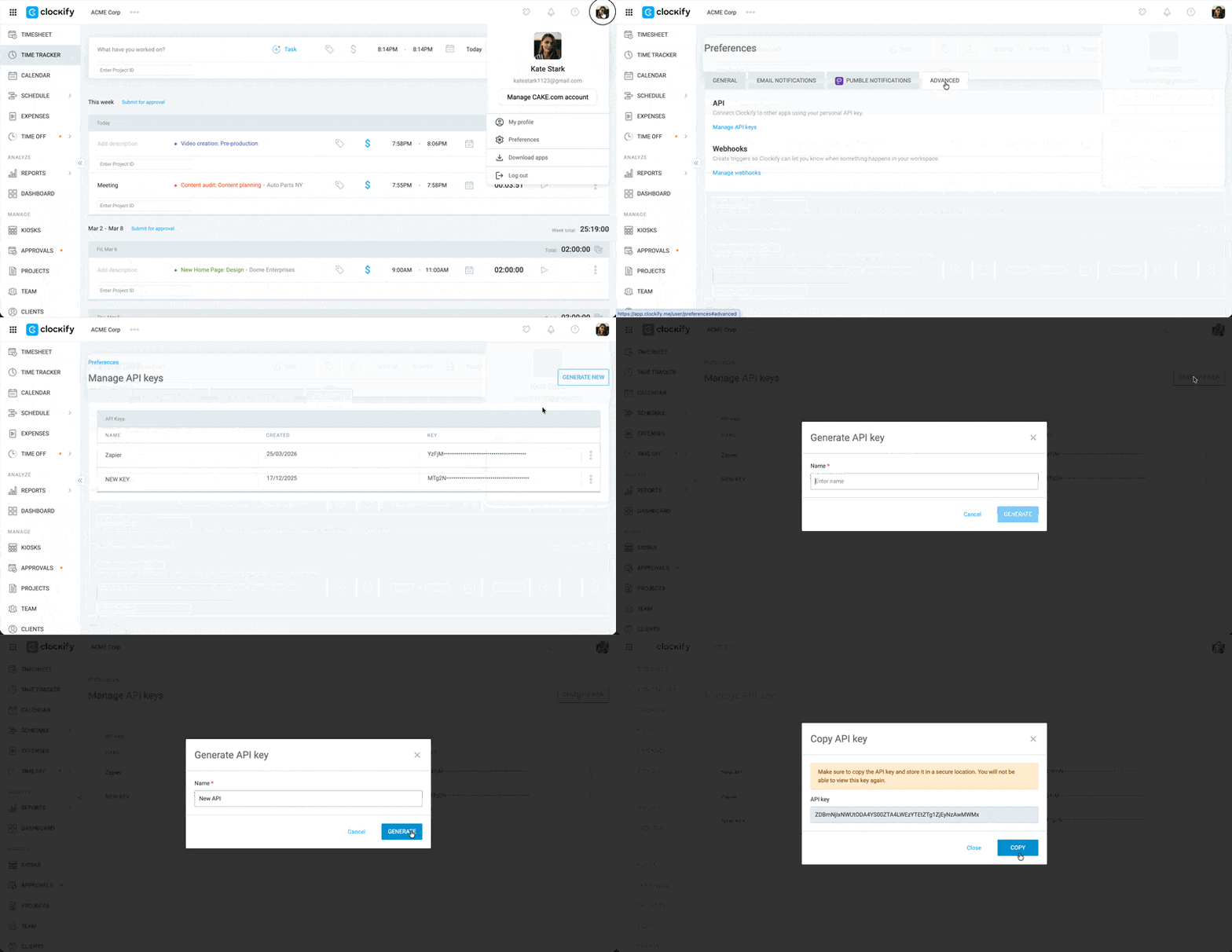
- Inicia sesión en tu cuenta de Clockify
- Haz clic en tu foto de perfil en la esquina superior derecha
- Ve a Preferencias
- Cambia a la pestaña Avanzado
- Haz clic en Gestionar claves API
- Haz clic en Generar nueva
- Escribe un nombre para la clave
- Haz clic en Generar
- Haz clic en Copiar
Paso 2: Conecta Clockify en Zapier #
Para añadir Clockify a tus integraciones de Zapier:
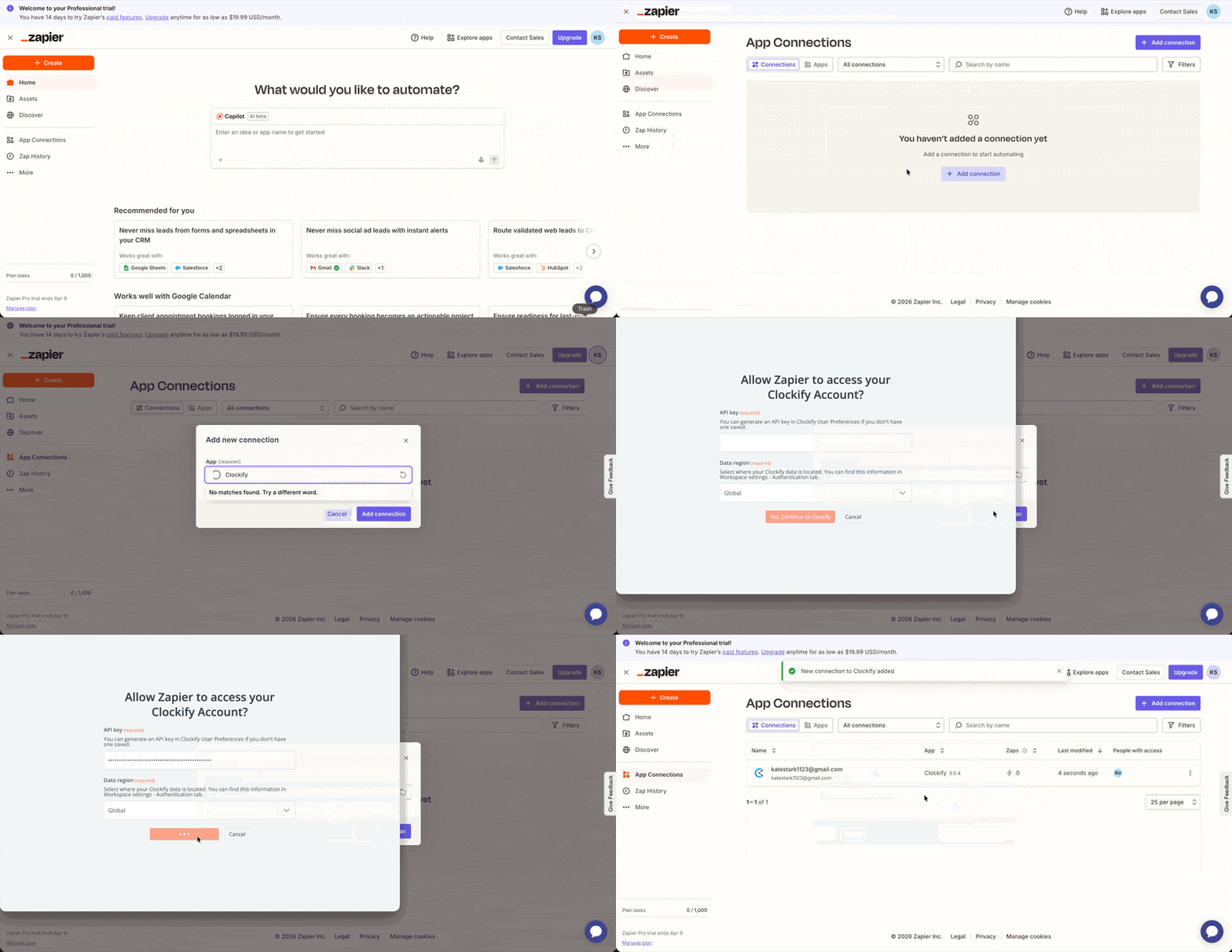
- Selecciona Conexiones de aplicaciones (App Connections) en la barra lateral izquierda
- Haz clic en Añadir conexión (Add connection)
- Busca Clockify
- Haz clic en Añadir conexión (Add connection)
- Pega la clave API de Clockify
- Haz clic en Sí, conectar con Clockify (Yes, Connect to Clockify)
Crear un Zap básico #
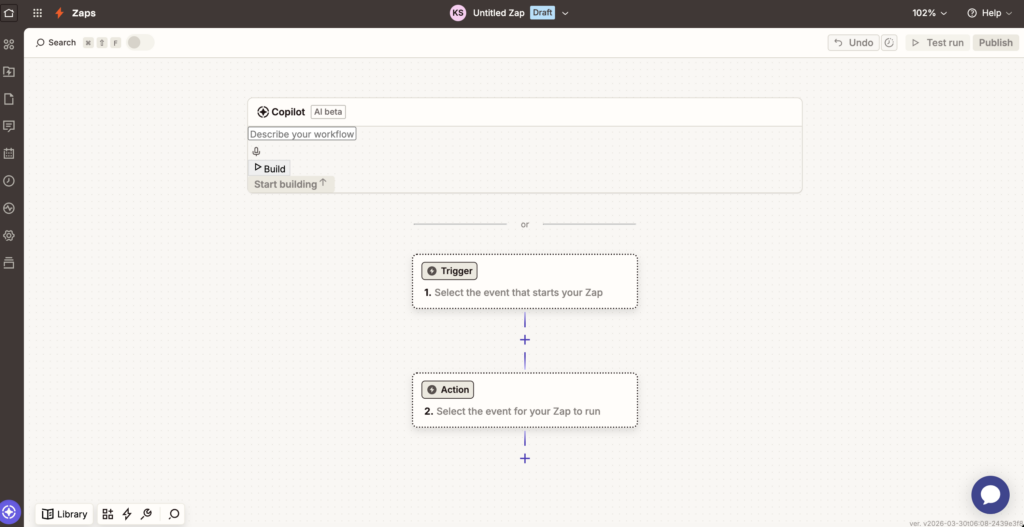
Hay tres pasos principales para crear Zaps:
- Configurar el desencadenante: Elige una app y una acción dentro de la app que activará una nueva acción.
- Configurar la acción: Elige la app que responderá al desencadenante y define una acción específica.
- Asociar los datos: Vincula los datos entre las dos apps
Antes de crear tu primer Zap, asegúrate de haber iniciado sesión en Clockify y en la aplicación de terceros en el mismo navegador para agilizar el proceso de autenticación.
Iniciar un temporizador cuando comience una reunión en Google Calendar #
Así se hace en Zapier:
Conecta Google Calendar
- Haz clic en Crear > Zaps (Create > Zaps)
- Haz clic en Desencadenante (Trigger)
- Selecciona Google Calendar
- Haz clic en el menú desplegable Evento desencadenante (Trigger event dropdown)
- Selecciona Inicio del evento (Event start)
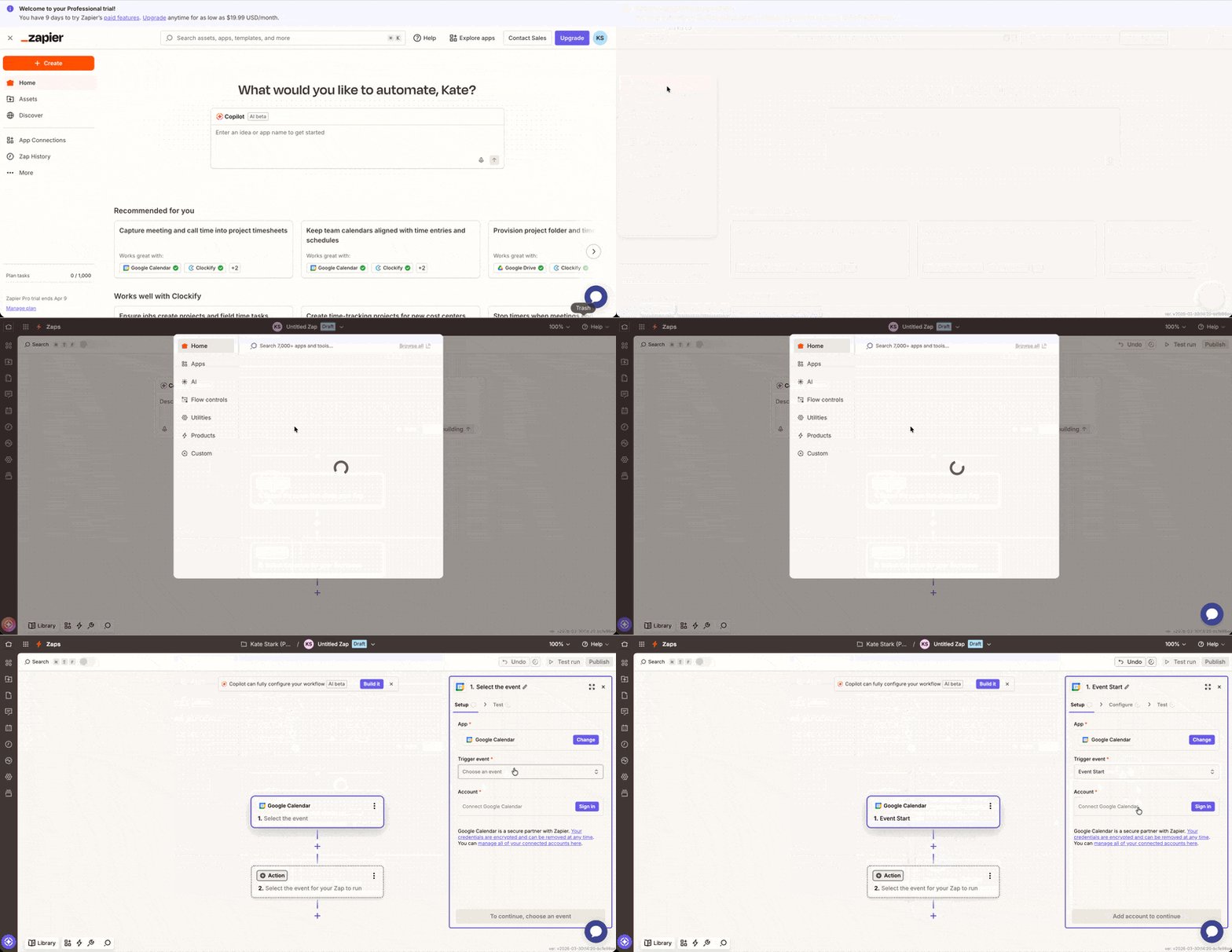
6. Haz clic en Iniciar sesión (Sign in) en el campo Cuenta (Account)
7. Sigue las instrucciones en la ventana emergente para conectar tu Calendario de Google
8. Haz clic en Continuar (Continue)
9. Selecciona el calendario correcto en el menú desplegable Calendario (Calendar) dropdown
10. Haz clic en Continuar (Continue)
11. Haz clic en Probar desencadenante (Test trigger)
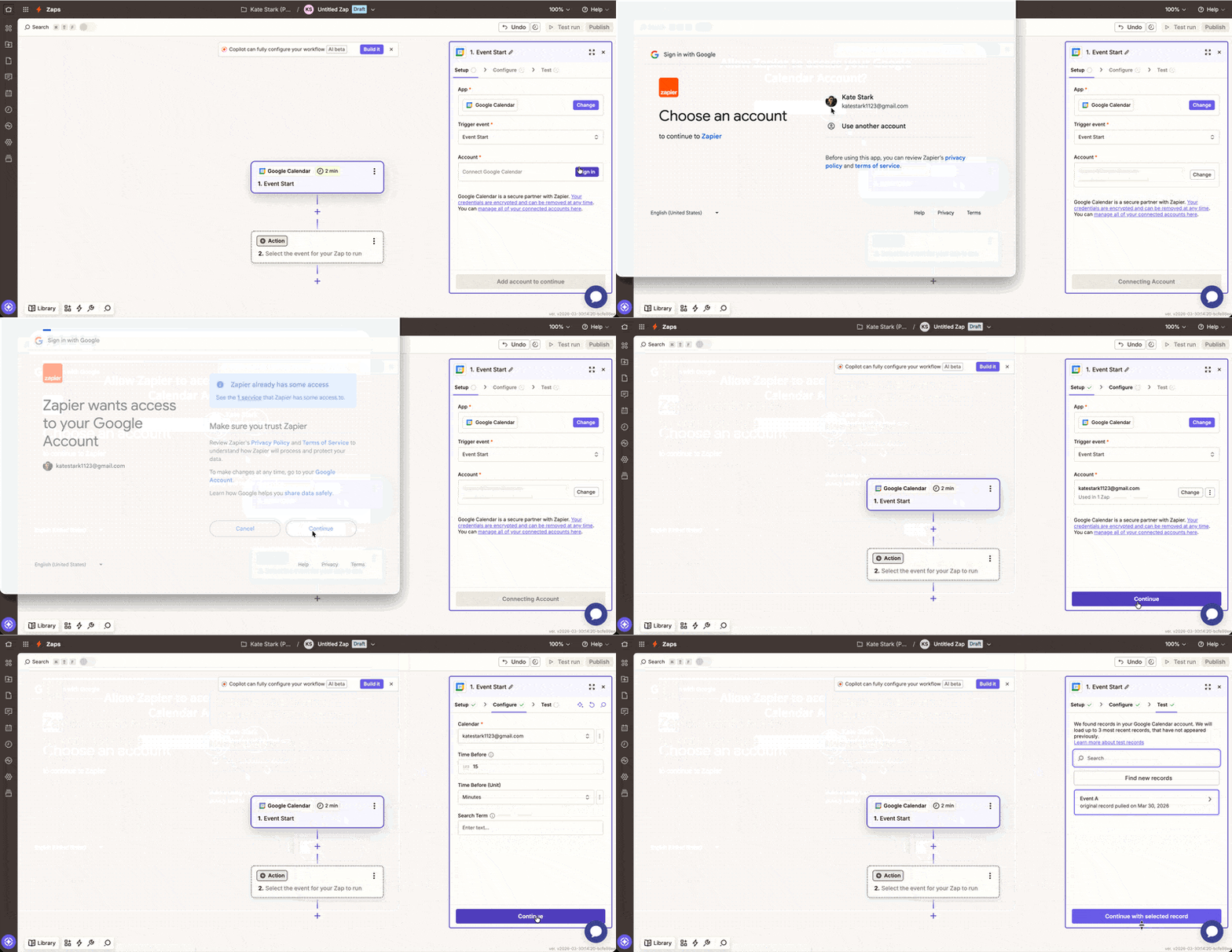
Conectar Clockify
- Haz clic en Acción (Action)
- Selecciona Clockify
- Selecciona Iniciar temporizador (Start Timer) para el Evento de acción (Action event)
- Especifica tu cuenta de Clockify en el campo Cuenta (Account)
- Haz clic en Continuar
- Selecciona tu espacio de trabajo en el menú desplegable
- Completa el proyecto, tareas y etiquetas (project, tasks, and tags) (opcional)
- Haz clic en Continuar
- Selecciona el Paso de prueba (Test step)
- Haz clic en Publicar (Publish)
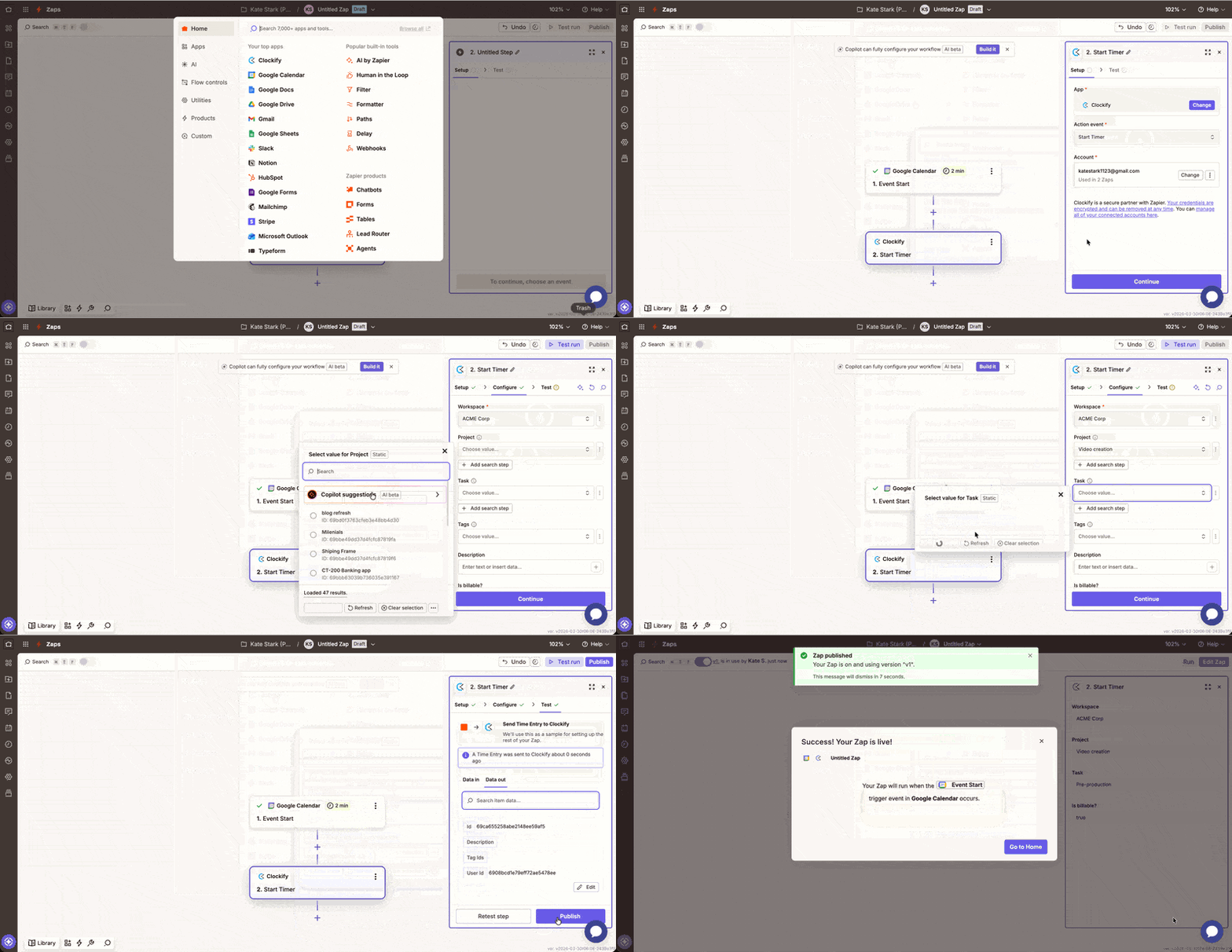
Puedes probar este Zap creando una reunión en Google Calendar, iniciándola y comprobando si se activa el temporizador de Clockify.
Soporte #
Consulta la tabla a continuación para determinar el mejor punto de contacto.
| Si el problema es… | Contacta… | ¿Por qué? |
| La clave API de Clockify no funciona | Soporte de Clockify | Gestiona las credenciales de tu cuenta y el acceso a tu espacio de trabajo. |
| Un Zap no pudo funcionar | Soporte de Zapier | El historial de tareas de Zapier mostrará exactamente qué paso falló y por qué. |
| Los datos no aparecen en Clockify. | Soporte de Zapier | Puede comprobar si los datos se enviaron correctamente desde la aplicación de activación. |
| Falta una función específica en Clockify | Soporte de Clockify | Se encarga de las solicitudes de nuevas funciones y de la funcionalidad nativa de la aplicación. |
| Problemas de inicio de sesión en Zapier.com | Soporte de Zapier | Gestionan tu cuenta de automatización y facturación. |
Preguntas frecuentes #
¿Puedo sincronizar las entradas de tiempo de todo mi equipo?
Por defecto, los desencadenantes de Zapier, como "Nueva entrada de tiempo", solo registran al usuario cuya clave API está conectada. Si eres administrador y necesitas registrar a todo el equipo, es posible que necesites un Zap de varios pasos con "Webhooks by Zapier" o permisos específicos de administrador.
¿Por qué mi Zap de Google Calendar muestra "0 minutos" en Clockify?
Esto sucede si usas el desencadenante "Nuevo evento", que aún no tiene duración. Para solucionarlo, usa el desencadenante "Nuevo evento empezó" o configura la acción como "Crear entrada de tiempo" (que incluye una hora de inicio y una de finalización) en lugar de "Iniciar temporizador".
¿Clockify usa la hora UTC para Zapier?
Sí. La API de Clockify se comunica en UTC. Si tus entradas de tiempo aparecen con un desfase de algunas horas, asegúrate de que la configuración de tu cuenta de Zapier y la aplicación del desencadenante (como Google Calendar) estén configuradas en la misma zona horaria.