Monitoramento de atividades para membros da equipe
O monitoramento de atividades é um aplicativo seguro para desktop que funciona em segundo plano no seu computador para coletar dados passivamente sobre os aplicativos e sites que você usa durante o horário de trabalho.
Use um computador ou notebook para acessar esta funcionalidade, pois ela ainda não está disponível em dispositivos móveis.
Como instalar o agente para desktop #
Siga estes passos para instalar o agente de monitoramento de atividades no seu dispositivo.
Passo 1: Baixe o agente para desktop #
- Clique no link de instalação fornecido pelo proprietário ou administrador do espaço de trabalho, ou pelo gerente da equipe.
- Clique no link correspondente ao Windows ou macOS, dependendo do seu sistema operacional.
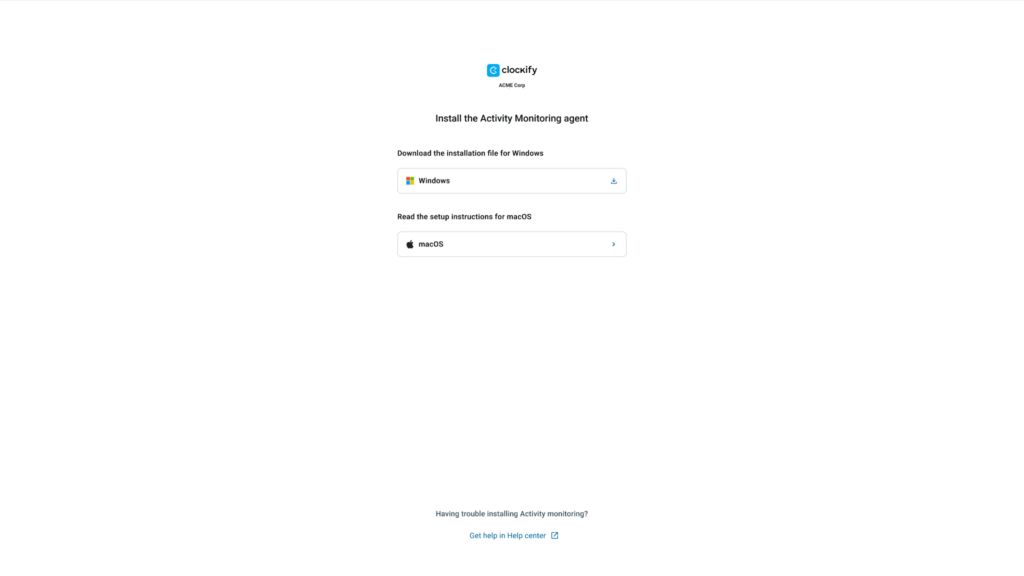
Passo 2: Instale o agente para desktop #
Instalar no macOS #
Para instalar o agente no Mac:
- Clique no link (compartilhado pelo administrador ou gerente do seu espaço de trabalho) para instalar o aplicativo do agente.
- Selecione macOS
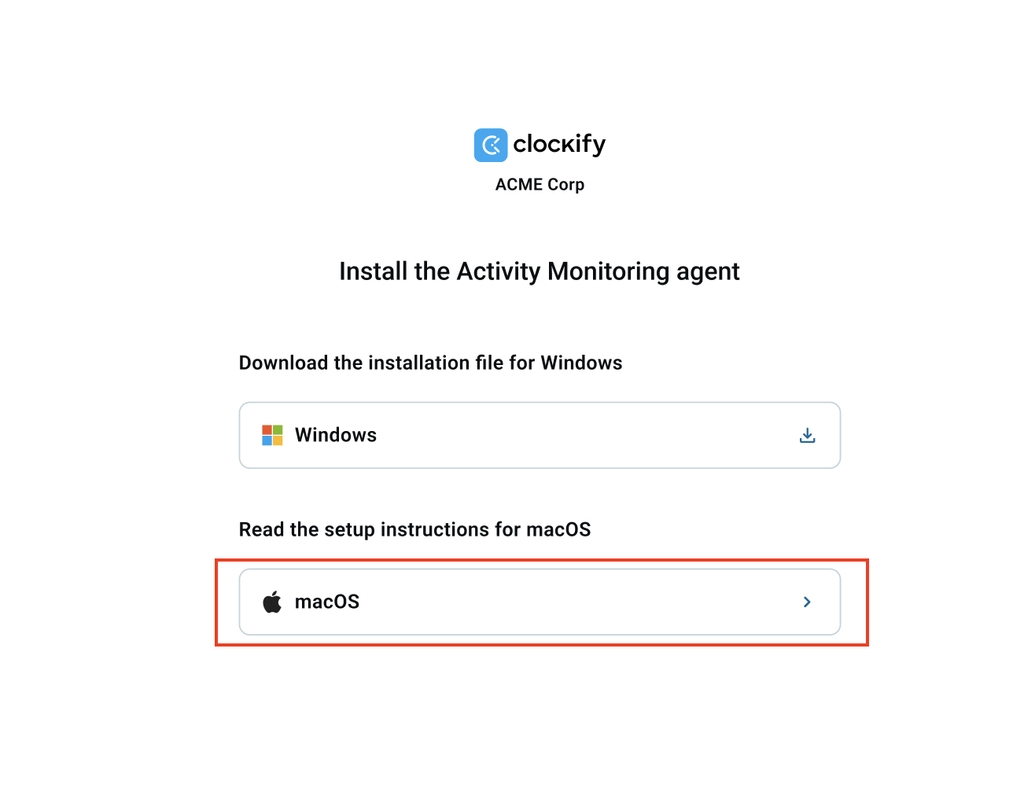
3. Siga as instruções para instalar o agente
Instalar no Windows #
- Clique no link (compartilhado pelo administrador ou gerente do seu espaço de trabalho) para instalar o agente
- Selecione Windows
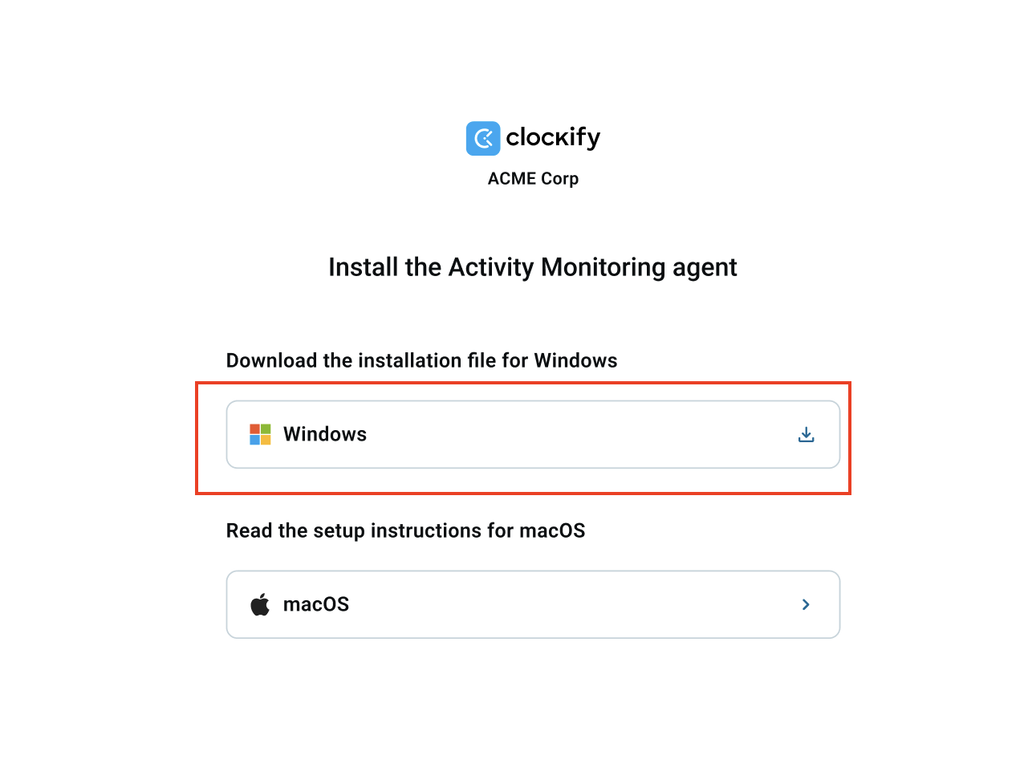
3. Siga as instruções para instalar o agente
Passo 3: Atribua o dispositivo #
Após instalar o agente, seu dispositivo aparecerá na página Aplicativos do agente como Não Atribuído. Um administrador ou gerente deve atribuir seu dispositivo ao aplicativo do agente recém-instalado para começar a registrar os dados de atividade.
Como sua atividade é classificada #
As atividades são categorizadas para medir a produtividade e a utilização:
- Produtivo: Aplicativos e sites marcados como relacionados ao trabalho (por exemplo, Figma, Slack, ferramentas de programação). Esse tempo contribui diretamente para os cálculos de utilização.
- Neutro: Aplicativos ou sites de "área cinzenta" dependentes do contexto (por exemplo, YouTube). Dependendo das configurações do seu espaço de trabalho, esse tempo pode ser considerado produtivo.
- Não produtivo: Aplicativos ou sites não relacionados às tarefas de trabalho (por exemplo, redes sociais, jogos). Esse tempo é excluído das métricas de utilização produtiva.
- Não definido: Atividades sem uma regra explícita atribuída. O sistema registra esses dados, mas eles não contribuem para as pontuações de produtividade.
Você é proprietário ou administrador do espaço de trabalho ou gerente de equipe? Consulte este Guia de configuração rápida.
Perguntas frequentes #
Minhas teclas digitadas ou mensagens privadas são registradas?
Não. O agente para desktop mede apenas o volume físico de suas teclas digitadas e os movimentos do mouse para confirmar que você está ativo. Ele não captura nenhuma tecla digitada, texto digitado ou mensagem privada.
O que acontece com as informações confidenciais exibidas na minha tela?
Para proteger senhas e a privacidade dos funcionários, o sistema usa um recurso chamado Proteção com desfoque suave. Quando as capturas de tela são feitas automaticamente, uma camada de desfoque é aplicada por padrão. Isso oculta textos pessoais confidenciais, mas permite que seu gerente veja a interface geral do aplicativo que você estava usando.
O aplicativo me monitora quando me afasto da minha mesa?
Se o seu computador estiver ligado, mas você parar de digitar ou mover o mouse por um determinado período de tempo, o sistema o marcará como Inativo. No entanto, se você participar passivamente de uma reunião de voz ou vídeo (como no Zoom ou Microsoft Teams), o sistema detecta o uso do seu microfone ou câmera e mantém seu status como "Ativo".
Por quanto tempo os dados das minhas capturas de tela são armazenados?
Para economizar espaço no servidor e proteger sua privacidade, todas as capturas de tela são armazenadas no servidor por exatamente 60 dias. Após esse limite de retenção, elas são excluídas permanentemente do sistema.