Utiliza el servidor MCP de Clockify para conectarte a un agente de IA
Conecta de forma segura tu agente de IA favorito directamente a tu cuenta de Clockify para controlar el tiempo, generar informes y auditar planillas de horarios.
Seguridad y permisos
- El agente de IA hereda tus permisos de usuario exactos de Clockify
- El agente de IA solo puede leer datos o registrar tiempo en proyectos a los que ya tienes acceso
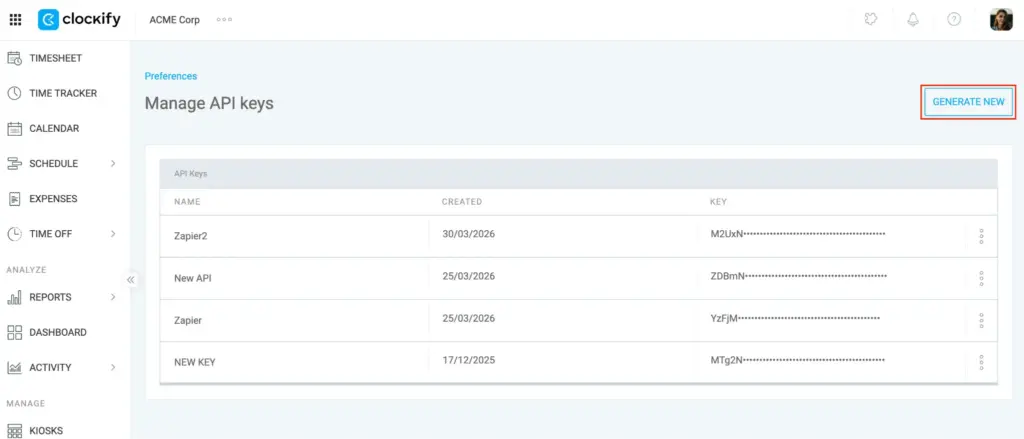
Generar clave API #
Conectarás tu agente de IA a Clockify utilizando tu clave API.
Para generar tu clave API personal:
- Inicia sesión en tu cuenta Clockify
- Haz clic en tu foto en la esquina superior derecha
- Selecciona Preferencias
- Haz clic en la pestaña Avanzado
- Haz clic en Gestionar claves API
- Selecciona Generar nueva
Conectar Clockify MCP con Claude CLI #
Si utilizas Claude CLI, también puedes conectarlo al servidor MCP de Clockify. Para eso, pega el siguiente código en tu archivo .mcp.json:
{
  "mcpServers": {
    "clockify-mcp": {
      "type": "http",
      "url": "https://api.clockify.me/mcp-server/mcp",
      "headers": {
        "x-api-key": "API_KEY"
      }
    }
  }
}
O bien, puedes utilizar el siguiente comando:
claude mcp add clockify-mcp https://api.clockify.me/mcp-server/mcp --transport http --header "x-api-key: API_KEY"Reemplaza API_KEY con la clave de API generada en tu espacio de trabajo.
Conectar Clockify MCP a Codex CLI #
El servidor Clockify MCP también puede conectarse a Codex CLI. Para ello, simplemente pega el siguiente código en tu archivo config.toml:
[mcp_servers.clockify-mcp]
transport = "http"
url = "https://api.clockify.me/mcp-server/mcp"
http_headers = { "x-api-key" = "API_KEY" }
Reemplaza API_KEY con la clave de API generada en tu espacio de trabajo.
Conectar Clockify MCP a Gemini CLI #
Una vez que hayas obtenido tu clave de API, puedes conectarla a Gemini CLI.
- Localiza el archivo settings.json; normalmente se encuentra en el directorio raíz de tu usuario, dentro de la carpeta hidden .gemini (cd ~/.gemini/).
Nota: En macOS, puedes presionar CMD+SHIFT+G y escribir esta ruta para abrir el directorio directamente. - Abre el archivo settings.json y añade el siguiente código:
{
"mcpServers": {
  "posts-api-mcp": {
    "httpUrl": "https://api.clockify.me/mcp-server/mcp",
    "headers": {
      "x-api-key": "API_KEY"
    }
  }
}
3. Reemplaza API_KEY con la clave de API generada en tu espacio de trabajo.
Reinicia Gemini para empezar a utilizar el servidor MCP de Clockify.
O bien, puedes utilizar el siguiente comando:
gemini mcp add --transport http --header "x-api-key: API_KEY" posts-api-mcp https://api.clockify.me/mcp-server/mcpReemplaza API_KEY con la clave de API generada en tu espacio de trabajo.
Si tu espacio de trabajo está alojado en una región de datos específica (como la UE), el servidor MCP de Clockify admite el alojamiento regional. Puedes especificar tu región de datos añadiendo el encabezado de región a tu configuración o comando.
Por ejemplo, si utilizas Claude CLI y necesitas conectarte a la región de datos de la UE, utiliza el siguiente comando:
claude mcp add clockify-mcp https://api.clockify.me/mcp-server/mcp --transport http --header "x-api-key: API_KEY" --header "region: EU"Reemplaza API_KEY con la clave de API generada en tu espacio de trabajo.
Qué puedes hacer #
Las herramientas y acciones disponibles dependen de sus permisos existentes de control de acceso basado en roles (RBAC) de Clockify. Estas son todas las herramientas disponibles que el servidor Clockify MCP te permite utilizar:
Las herramientas son las acciones principales que el agente de IA puede realizar por ti en Clockify:
| Herramienta | Descripción |
| start timer | Inicia el temporizador de forma natural. También puedes retroceder los temporizadores, registrar "Descansos" (si están habilitados en tu espacio de trabajo) o pedirle al agente de IA que adjunte campos personalizados disponibles en tu espacio de trabajo, como kilometraje, gastos, ubicación o departamento. |
| stop timer | Detén el temporizador actual. También puedes pedirle al agente de IA que añada los detalles que faltan cuando lo detienes. |
| log past time | Registra el tiempo histórico. Puedes darle al agente de IA una duración simple, pedirle que divida el tiempo a lo largo de un día completo o darle una secuencia de tareas para que se apilen consecutivamente a partir de tu registro de entrada por la mañana. |
| update time entry | Corrige errores en tus registros anteriores. Simplemente dile al agente de IA qué necesita cambiar y encontrará la entrada y actualizará el proyecto, tarea, etiqueta o descripción. |
| bulk update time entries | Realiza cambios masivos al instante sin disminuir la velocidad. Puedes decir: "Marca todas mis entradas de ayer como facturables" y el agente de IA las actualizará todas a la vez. |
| list time entries | El agente de IA usa esto para comprender referencias conversacionales como "la entrada de ayer por la mañana" para que no tengas que buscar fechas exactas o identificaciones. |
| create client / project / task / tag | Crea nuevos elementos del espacio de trabajo sobre la marcha simplemente pidiéndole al agente de IA que los configure. |
| get current timer | Pregúntale al agente de IA en qué estás trabajando actualmente para obtener una actualización de estado rápida. |
| list custom fields | El agente de IA usa esto para verificar qué campos personalizados (como gastos o menús desplegables) están disponibles en tu espacio de trabajo para que los aplique con precisión. |
| list clients / projects / tasks / tags | El agente de IA busca en estas listas para reconocer instantáneamente los nombres de las cosas en las que está trabajando. |
| get summary report | Haz preguntas conversacionales sobre tu tiempo (“Muéstrame las horas facturables de los últimos 6 meses” o “¿Cuánto tiempo se dedicó al proyecto Apollo en el tercer trimestre?”), y el agente de IA calculará las fechas y obtendrá los totales exactos. |
| get detailed report | Obtén una lista granular de entradas de tiempo individuales para auditar tareas históricas específicas. |
| generate attendance report | Verifica tu capacidad diaria, semanal o mensual exacta, incluidos cálculos precisos de horas extras y horas faltantes (requiere el plan Pro). |
Prompts disponibles (flujos de trabajo predeterminados) #
Los prompts son rutinas inteligentes de varios pasos que el agente de IA puede ejecutar para analizar tu trabajo utilizando tus entradas de tiempo históricas para generar informes, auditar tus planillas de horarios y evaluar la productividad.
Por ejemplo, puedes ejecutar el prompt de auditoría de patrones de productividad para analizar tus entradas de tiempo cronológico del último mes y ver cuándo estás más concentrado.
| Prompt | Descripción |
| generate daily standup | Formatea un resumen profesional que se pueda copiar y pegar de las horas registradas del día laboral anterior para los chats de tu equipo. |
| audit timesheet | Escanea registros recientes para encontrar anomalías comunes como metadatos faltantes (proyectos, clientes, etiquetas y descripción), días no registrados o temporizadores que se dejan encendidos accidentalmente. |
| client billing summary | Genera un desglose pulido de las horas distribuidas en los proyectos de un cliente. |
| project burn rate analyzer | Compara el tiempo real registrado con la estimación original de un proyecto para ver si vas por buen camino o superas el presupuesto. |
| team utilization audit | Revisa las tasas de utilización de un equipo, calcula la eficiencia facturable de cada miembro y la compara con el objetivo esperado. |
| productivity pattern audit | Analiza entradas de tiempo cronológicamente para medir el cambio de contexto, los intervalos de trabajo profundos y el ritmo diario general. |
Recursos disponibles #
El agente de IA lee silenciosamente los siguientes recursos en segundo plano para no tener que preguntarte nunca las mismas cuestiones de configuración:
- user profile: Proporciona al agente de IA tu identidad, la configuración del espacio de trabajo, la zona horaria local, la hora de inicio de la jornada laboral predeterminada, la capacidad diaria y el día en que comienza tu semana laboral.
- recent time entries: Aporta un historial de tus entradas de tiempo recientes para que el agente de IA comprenda tu contexto y hábitos actuales.
Glosario #
- Actions: The specific operations or commands executed by the AI agent to manage your Clockify data, such as logging time, updating entries, or fetching reports.
- AI agent: An artificial intelligence system (accessed via Gemini, Claude, or Codex CLI) that securely connects to your workspace to track time, analyze data, and execute tasks conversationally.
- API Key: A unique security token generated within your Clockify account preferences, used to authenticate and authorize the AI agent’s access to your workspace.
- CLI (Command Line Interface): The text-based terminal environment (e.g., Gemini CLI, Claude CLI, Codex CLI) where you configure the settings to connect your AI agent to the MCP server.
- Custom Fields: Additional categorizations within your Clockify workspace (such as mileage, expenses, location, or department) that the AI agent can automatically attach to your time entries.
- MCP (Model Context Protocol) Server: The secure integration bridge that enables your AI agent to read context and safely execute actions within your Clockify account.
- Prompts (Pre-built Workflows): Smart, multi-step analytical routines the AI agent can run on your behalf, such as auditing timesheets, generating standup reports, or analyzing productivity patterns.
- RBAC (Role-Based Access Control): The security framework in Clockify that determines exactly which projects and permissions your AI agent inherits when interacting with your workspace.
- Resources: Background data such as your user profile, local timezone, daily capacity, and recent time entries that the AI agent silently reads to contextualize your requests without requiring manual setup.
- Tools: The core, built-in functions the AI agent uses to interact with Clockify, ranging from starting and stopping timers to generating detailed billing and attendance reports.