Registrar entrada e saída via quiosque
O quiosque é iniciado em um dispositivo compartilhado para que os usuários possam registrar entrada e acompanhar suas atividades. Apenas usuários atribuídos podem registrar entrada no quiosque.
Registrar entrada / registrar saída
There are two ways to clock in the kiosk depending on the authentication method enabled by your Workspace owner/admin in the workspace.
Registra entrada via código QR #
Para fazer login no quiosque usando o código QR:
- Abra seu aplicativo de quiosque
- Selecione Ler código QR
- Escaneie seu código QR pessoal (enviado por e-mail)
Após escanear o código, você poderá registrar sua entrada no totem de autoatendimento.
Caso o código QR falhe, você pode usar seu PIN de 6 dígitos como alternativa.
Registrar entrada via PIN (4 ou 6 dígitos) #
Para iniciar sessão no quiosque através do código PIN:
- Inicie o quiosque
- Escolha seu perfil
- Digite seu PIN pessoal
- Clique em Registrar entrada
Se você não lembrar do seu PIN, clique no link Esqueceu seu PIN? e confirme a ação. Isso notificará o proprietário/administrador para redefinir o PIN do usuário.
As pessoas que estiverem com entrada registrada terão um ponto verde ao lado na lista do quiosque.
Para ver quem está atualmente com entrada registrada no aplicativo web, vá até o Painel da equipe.
Para encerrar o turno, siga os mesmo passos e clique em Sair.
Lembre-se de que, se você não registrar a saída, o cronômetro continuará em execução mesmo após o bloqueio automático do quiosque. Caso isso aconteça, entre em contato com o administrador para interromper o o seu tempo.
Acompanhar atividades #
Depois de fazer login no quiosque, você pode começar a registrar suas tarefas e atividades.
Escolher projeto/tarefa #
Para escolher um projeto ou tarefa:
- Navegue até o quiosque lançado
- Toque no botão Escolher projeto
- Você receberá uma lista de todos os projetos/tarefas
- Toque para entrar em um projeto ou expanda e escolha uma tarefa específica
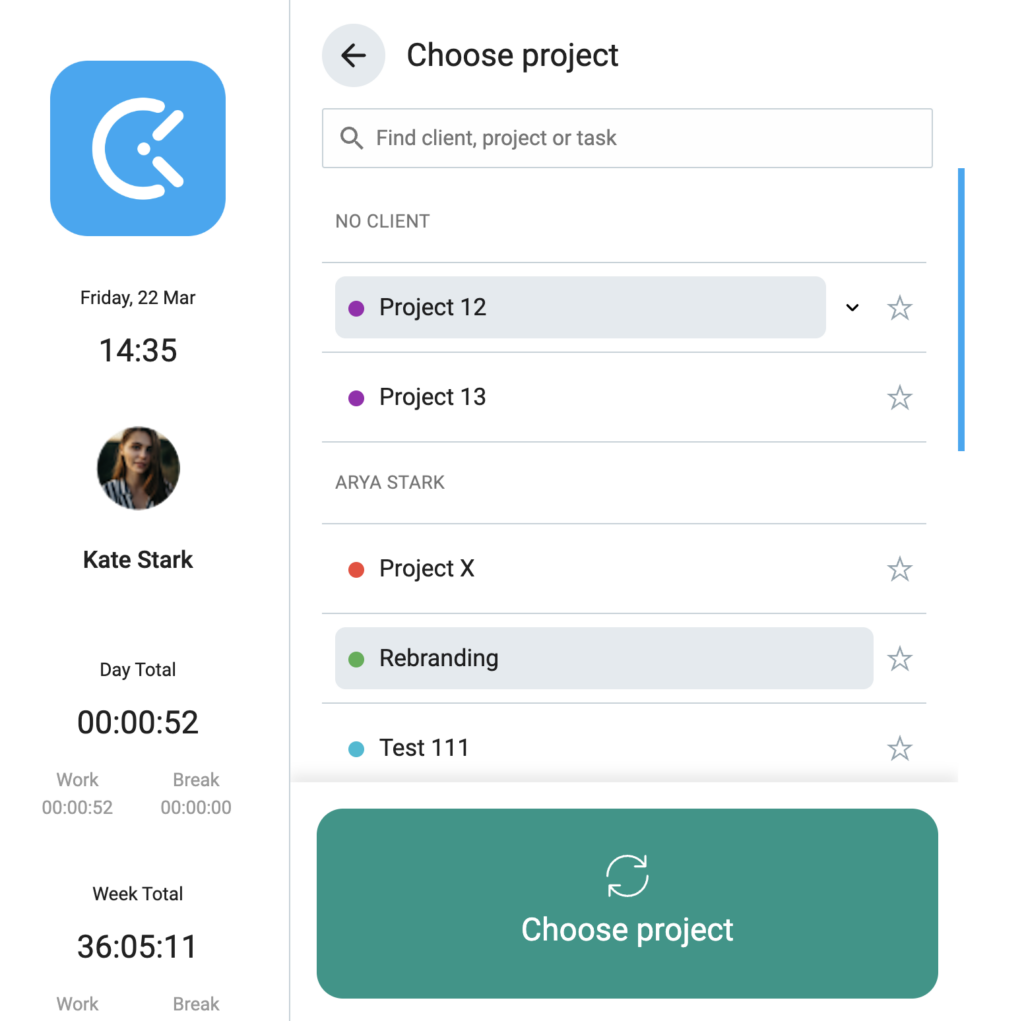
Quaisquer alterações feitas em projetos ou tarefas no quiosque também serão refletidas no aplicativo web.
Alternar entre projeto/tarefa #
Se estiver ativado no espaço de trabalho, você pode alternar do projeto padrão ou tarefa atual para outro enquanto estiver com o tempo ativo no quiosque.
Para trocar de projeto/tarefa:
- Abra a lista de projetos
- Selecione um novo projeto/tarefa
- Toque em Alternar
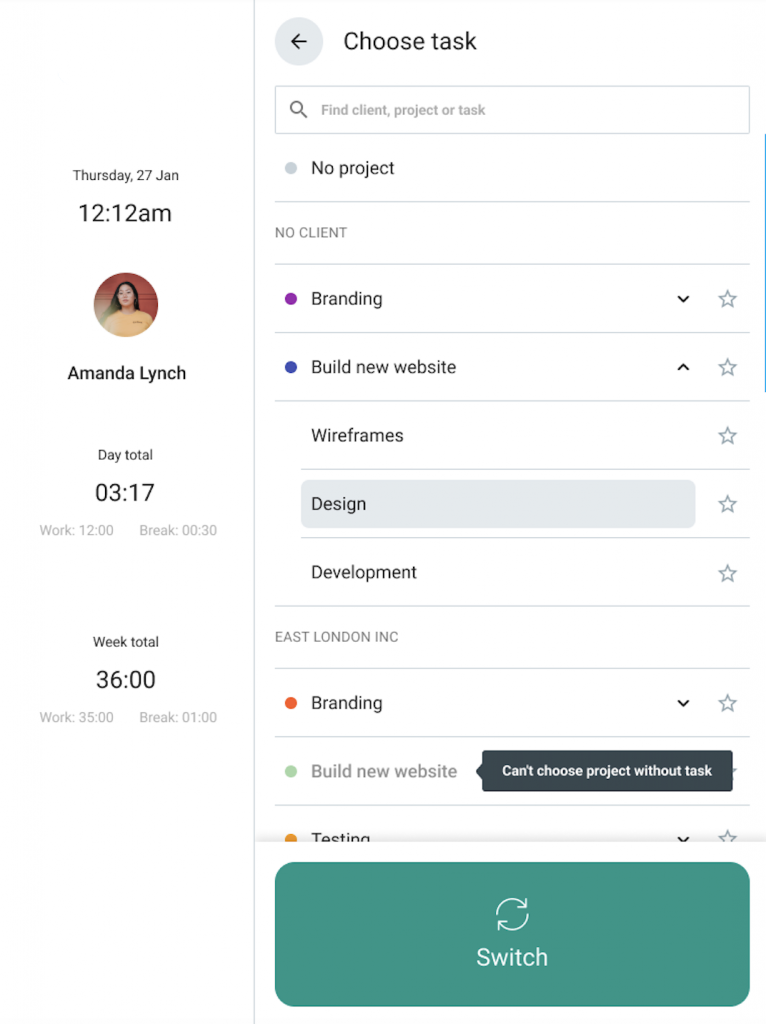
Ao mudar para outro projeto ou tarefa, o registro de tempo atual será interrompido e um novo será iniciado.
Se o recurso de intervalos estiver ativado no seu espaço de trabalho, você poderá iniciar uma pausa ao entrar no quiosque.
Todas as alterações feitas aqui no quiosque são sincronizadas com o seu espaço de trabalho principal do Clockify.