Fichar entrada y salida a través del quiosco
El quiosco se inicia en un dispositivo compartido para que los usuarios puedan fichar su entrada y realizar un seguimiento de sus actividades. Sólo los usuarios asignados pueden registrar la entrada en el quiosco.
Fichar entrada/salida #
There are two ways to clock in the kiosk depending on the authentication method enabled by your Workspace owner/admin in the workspace.
Fichar la entrada mediante código QR #
Para iniciar sesión con el código QR:
- Abre tu aplicación de quiosco
- Selecciona Escanear código QR
- Escanea tu código QR personal (enviado por correo electrónico)
Después de escanearlo, podrás fichar en el quiosco.
Si el QR falla, puedes usar tu PIN de 6 dígitos como plan b.
Fichar la entrada con el código PIN (de 4 o 6 dígitos) #
Para iniciar sesión en el quiosco con el código PIN:
- Abre el quiosco
- Selecciona tu perfil
- Introduce tu PIN personal
- Haz clic en Fichar la entrada
Si no recuerdas tu PIN, haz clic en el enlace ¿Has olvidado tu PIN? y confirma la acción. Esto notificará al propietario/administrador para que restablezca el PIN del miembro.
Las personas que hayan iniciado sesión tendrán un punto verde junto a ellas en la lista del quiosco.
Para ver quién ha iniciado sesión en la aplicación web, ve al Panel del equipo.
Para terminar el turno, sigue los mismos pasos y haz clic en Fichar salida.
Ten en cuenta que si no fichas tu salida, el temporizador seguirá funcionando incluso después de que el quiosco se bloquee automáticamente. Si esto sucede, comunícate con tu administrador para detener el temporizador.
Controlar las actividades #
Una vez que hayas iniciado sesión en el quiosco, puedes comenzar a realizar un seguimiento de tus tareas y actividades.
Elegir proyecto/tarea #
Para elegir un proyecto o tarea:
- Navega hasta el quiosco iniciado
- Pulsa el botón de Elegir proyecto
- Obtendrás una lista de todos los proyectos/tareas
- Toca para fichar en un proyecto, o expande y elige una tarea específica
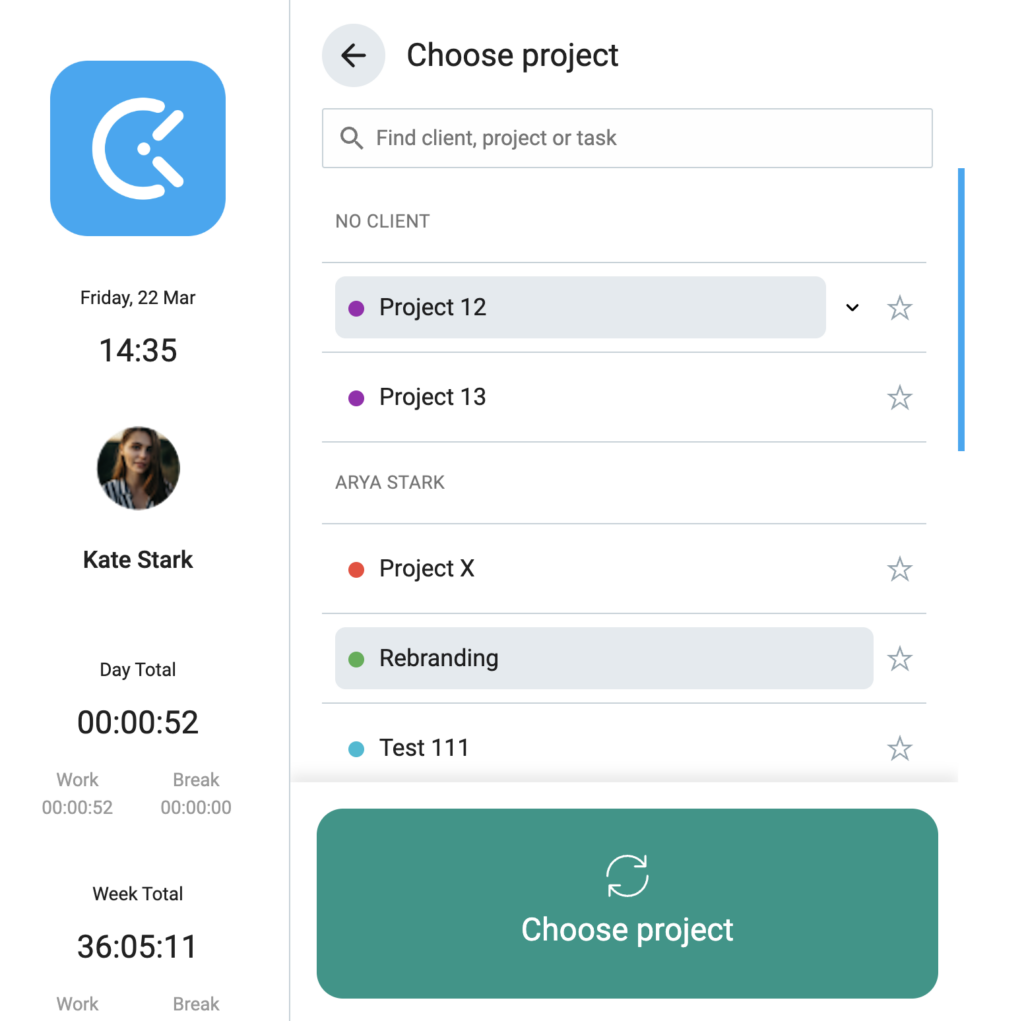
Cualquier modificación realizada a proyectos o tareas en el quiosco también se reflejará en la aplicación web.
Cambiar entre proyecto/tarea #
Si está habilitado en el espacio de trabajo, puedes cambiar del proyecto predeterminado a otro proyecto o tarea mientras estés registrado en el quiosco.
Para cambiar de proyecto/tarea:
- Abre la lista de proyectos
- Selecciona un nuevo proyecto/tarea
- Pulsa Cambiar
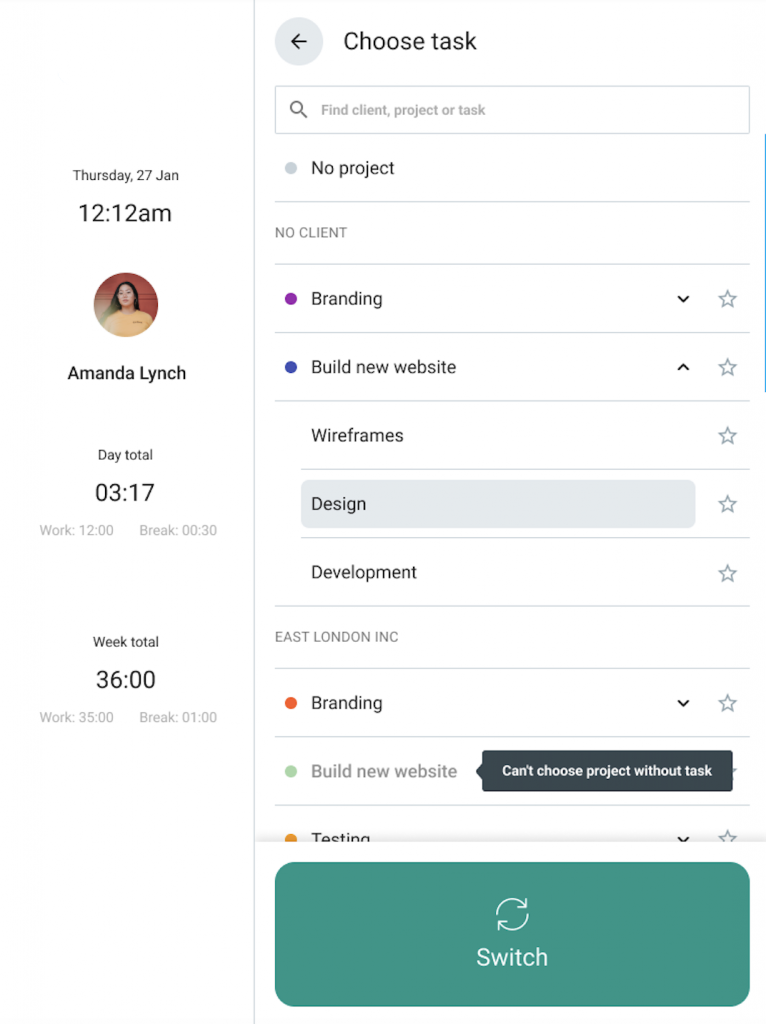
Al cambiar a otro proyecto o tarea, se detendrá el registro de tiempo actual y se iniciará uno nuevo.
Si la función de Descansos está habilitada en tu espacio de trabajo, puedes iniciar un descanso al iniciar sesión en el quiosco.
Todos los cambios realizados en el quiosco se sincronizan con tu espacio de trabajo principal de Clockify.