Ein- und Ausstempeln über den Kiosk
Der Kiosk wird auf einem gemeinsamen Gerät gestartet, damit Nutzer sich an- und abmelden und ihre Aktivitäten erfassen können. Nur zugewiesene Mitglieder können den Kiosk zur Zeiterfassung nutzen.
Ein- / Ausstempeln #
There are two ways to clock in the kiosk depending on the authentication method enabled by your Workspace owner/admin in the workspace.
Einstempeln per QR-Code #
So stempelst du dich über QR-Code am Kiosk ein:
- Öffne deine Kiosk-App
- Wähle QR-Code scannen
- Scanne deinen persönlichen QR-Code (per E-Mail gesendet)
Nachdem du ihn gescannt hast, kannst du dich am Kiosk einstempeln.
Falls der QR-Code fehlschlägt, kannst du als Ersatzlösung deine 6-stellige PIN verwenden.
Einstempeln per PIN (4- oder 6-stellig)
So stempelst dich über PIN-Code am Kiosk ein:
- Kiosk starten
- Wähle dein Profil
- Gib deine persönliche PIN ein
- Klicke auf Einstempeln
Falls du deine PIN vergessen hast, klicke auf den Link PIN vergessen? und bestätige die Aktion. Dadurch wird der Organisations-Besitzer oder Arbeitsbereich-Admin benachrichtigt, um die Mitglieder-PIN zurückzusetzen.
Personen, die angemeldet sind, werden in der Kiosk-Liste mit einem grünen Punkt markiert.
Um in der Web-App zu sehen, wer gerade angemeldet ist, rufe das Dashboard auf.
Um die Schicht zu beenden, folge denselben Schritten und klicke auf Ausstempeln.
Denke daran: Wenn du dich nicht abmeldest, läuft dein Timer weiter, auch wenn der Kiosk automatisch gesperrt wird. In diesem Fall kontaktiere bitte deinen Arbeitsbereich-Admin, um deinen Timer zu stoppen.
Aktivitäten erfassen #
Sobald du am Kiosk angemeldet bist, kannst du mit der Erfassung deiner Aufgaben und Aktivitäten beginnen.
Projekt/Aufgabe auswählen #
Um ein Projekt oder eine Aufgabe zu wählen, solltest du:
- Zum aktivierten Kiosk navigieren
- Auf die Schaltfläche Projekt auswählen tippen
- Du erhältst eine Liste mit allen Projekten/Aufgaben
- Um dich bei einem Projekt anzumelden, solltest du darauf tippen, oder erweitern und eine bestimmte Aufgabe auswählen
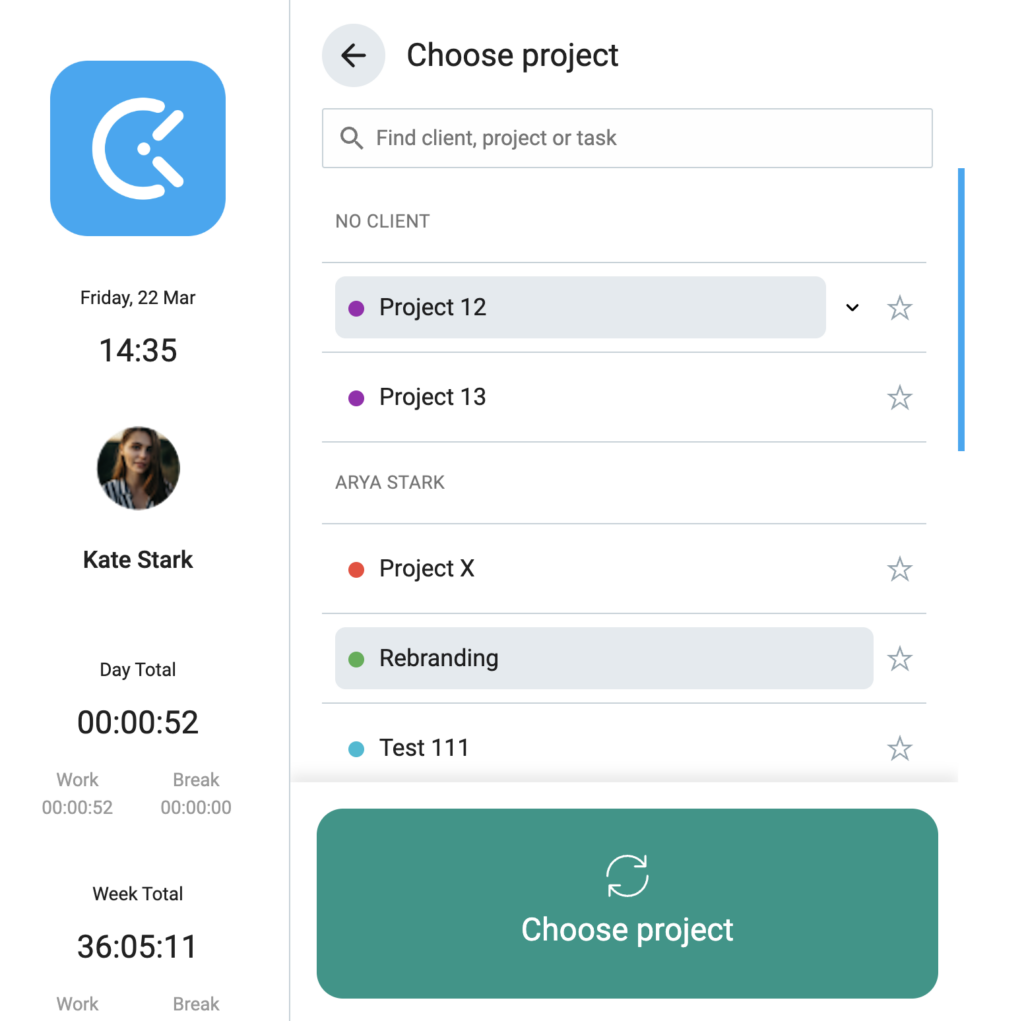
Alle Änderungen, die am Kiosk an Projekten oder Aufgaben vorgenommen werden, werden auch in der Web-App übernommen.
Zwischen Projekt/Aufgabe wechseln #
Falls dies im Arbeitsbereich aktiviert ist, kannst du während der Anmeldung am Kiosk vom Standardprojekt zu einem anderen Projekt oder einer anderen Aufgabe wechseln.
Um das Projekt/die Aufgabe zu wechseln:
- Öffne die Projektliste
- Wähle das neue Projekt/die neue Aufgabe aus
- Tippe auf Wechseln
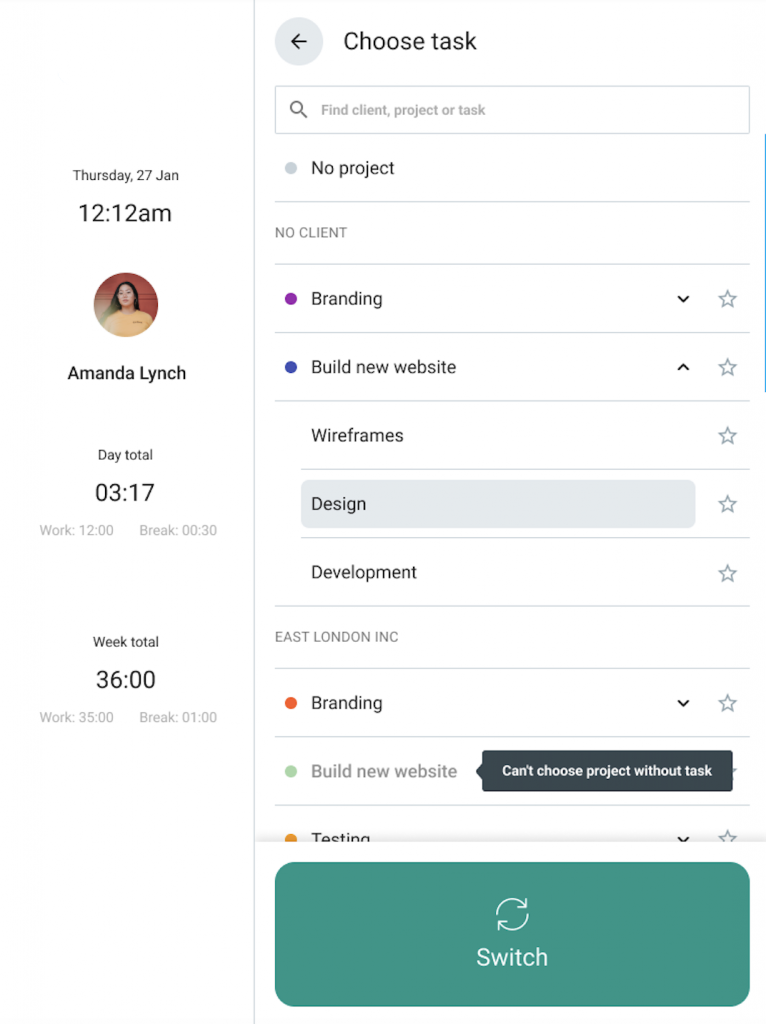
Das Wechseln zu einem anderen Projekt oder einer anderen Aufgabe beendet den aktuellen Zeiteintrag und startet einen neuen.
Falls die Pausen-Funktion in deinem Arbeitsbereich aktiviert ist, kannst du eine Pause starten, sobald du dich am Kiosk angemeldet hast.
Alle hier am Kiosk vorgenommenen Änderungen werden mit deinem Haupt-Clockify-Arbeitsbereich synchronisiert.