Complemento de folha de pagamento do QuickBooks
O complemento QuickBooks Payroll permite conectar seu espaço de trabalho do Clockify para sincronizar o registro de horas, os relatórios financeiros e o processamento da folha de pagamento com o QuickBooks Online.
Este é um complemento pago que requer uma assinatura separada do seu plano do Clockify. O valor da assinatura do complemento é de US$ 6,99 por mês para todo o espaço de trabalho.
Antes de começar #
Para que o Clockify e o QuickBooks se comuniquem corretamente, os nomes dos seus usuários e clientes devem corresponder nos dois sistemas.
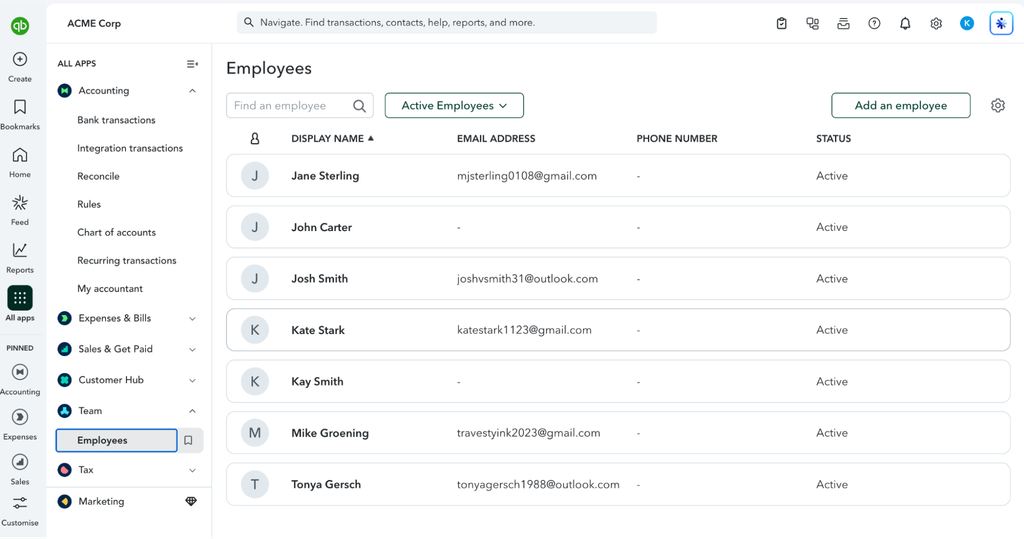
- Correspondência de funcionários: O Nome de Usuário no Clockify (encontrado em Configurações do perfil) deve ser idêntico ao Nome de exibição do funcionário no QuickBooks.
- Correspondência de clientes: O Nome do projeto no Clockify deve ser idêntico ao Nome do cliente (ou Nome do projeto) no QuickBooks.
Para que sua integração continue funcionando sem problemas, lembre-se de que, ao ativar os Projetos Nativos (Native Projects) do QuickBooks Online, o nosso rigoroso sistema de mapeamento de Clientes/Subclientes será ignorado. Por conta disso, é possível que, ocasionalmente, surjam registros duplicados. Caso utilize os Projetos Nativos, certifique-se de conferir seus dados com atenção para garantir a precisão e evitar duplicidades.
Instale o complemento #
Para instalar o complemento:
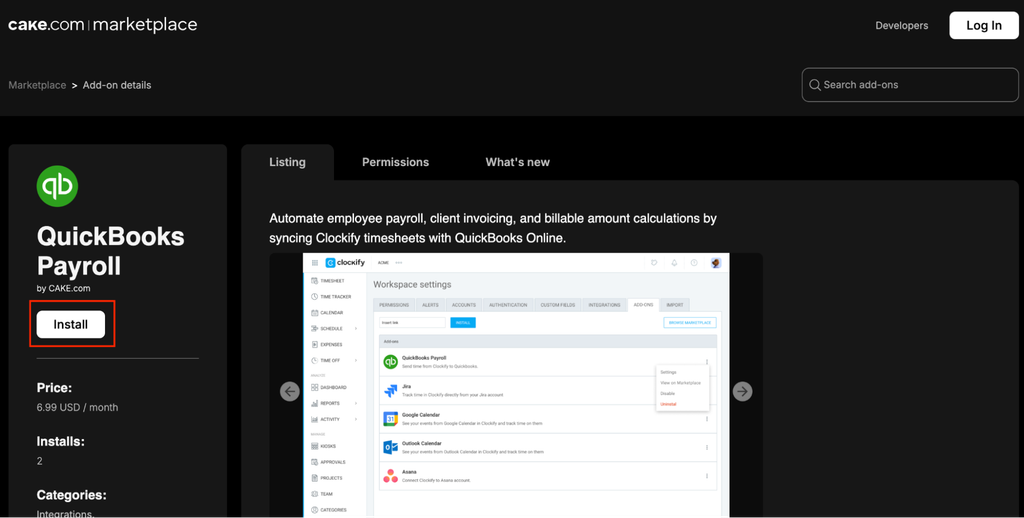
- Acesse o Marketplace da CAKE.com
- Selecione o QuickBooks Payroll na lista de complementos
- Clique em Instalar
- Siga as instruções na tela para concluir a instalação
Como conectar suas contas #
Para começar a conectar sua conta do Clockify ao QuickBooks:
- Entre na sua conta do Clockify
- Clique no ícone de três pontos ao lado do nome do seu espaço de trabalho
- Selecione Configurações do espaço de trabalho
- Clique em Integrações e complementos na barra lateral
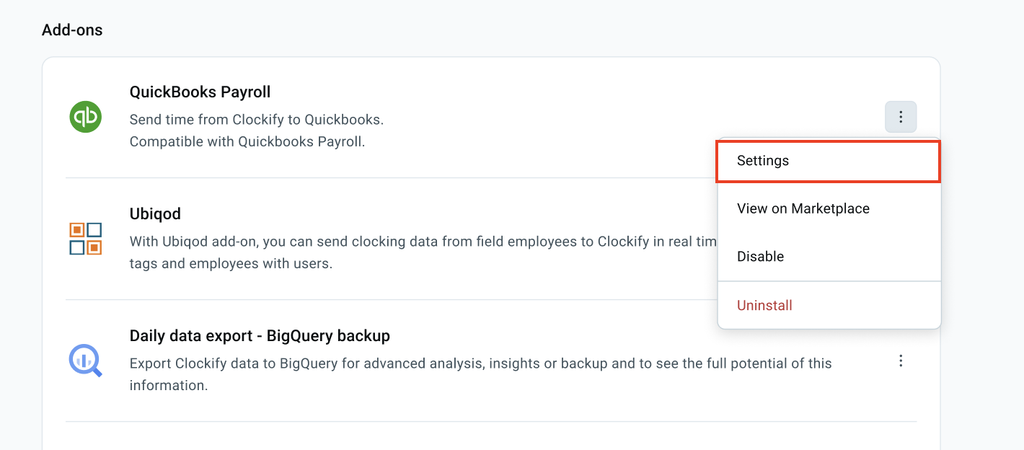
- Clique no ícone de três pontos ao lado de QuickBooks Payroll
- Clique em Configurações
7. Clique em Conectar ao QuickBooks na próxima página seguinte
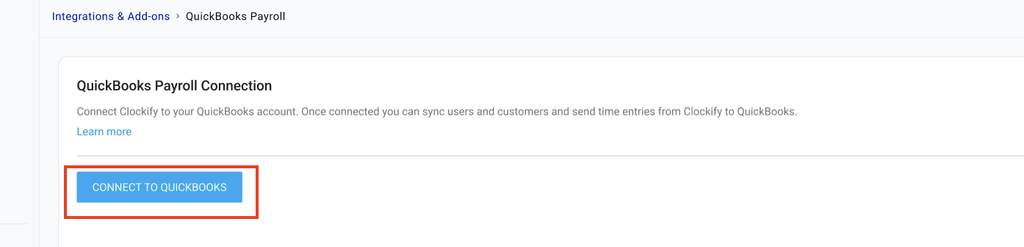
Certifique-se de ter seus dados de login do QuickBooks em mãos para autorizar a conexão com facilidade.
Após concluir a integração com sucesso, você poderá visualizar sua equipe na sua conta do QuickBooks acessando Equipe > Funcionários.
Enviar registros de horas para o QuickBooks #
Para enviar registros de horas do Clockify para o QuickBooks:
- Acesse Relatórios > Detalhado
- Filtre os relatórios conforme necessário (por exemplo, por cliente, membro da equipe, projeto ou intervalo de datas).
- Clique no menu suspenso Ações acima da tabela
- Selecione Enviar para o QuickBooks Payroll
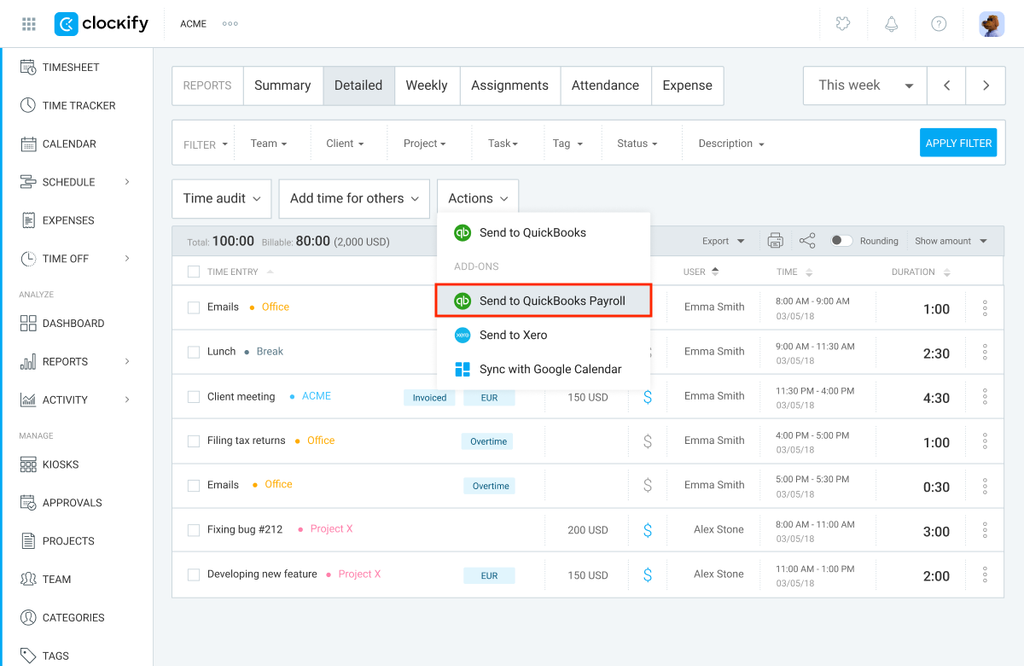
Uma janela pop-up aparecerá para confirmar que os lançamentos foram enviados para o QuickBooks.
O que é enviado?
O Clockify enviará o seguinte:
- Nome do usuário
- Dados:
- Projeto (Cliente)
- Duração
- Descrição
- Status de faturamento
- Valor faturável
Uma vez enviados, os registros serão marcados como “Enviado” no Clockify e não poderão ser enviados novamente.
Para localizar registros enviados no QuickBooks, acesse Relatórios do QuickBooks e abra o Relatório detalhado de atividades de tempo por funcionário.
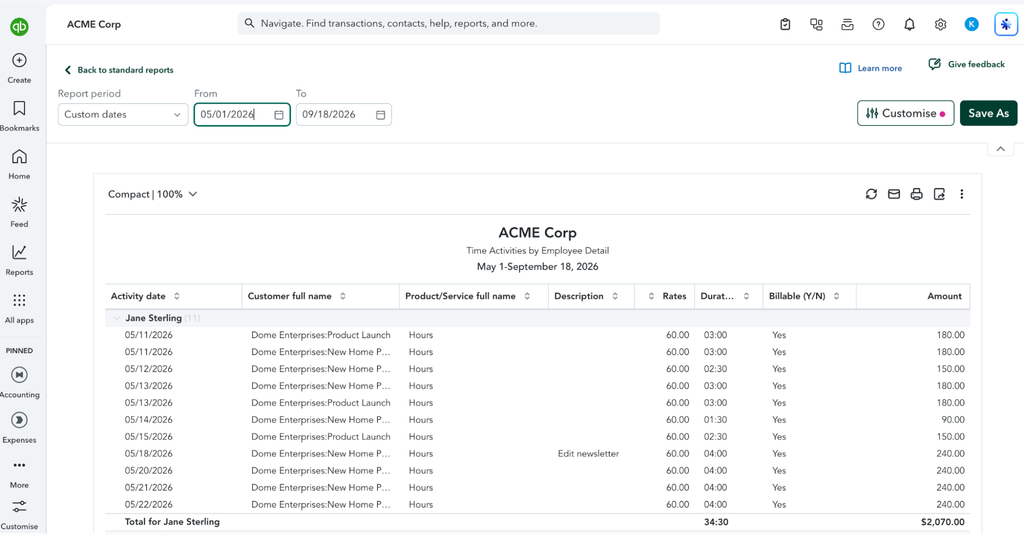
A duração máxima de um único registro de horas que pode ser enviado do Clockify para o QuickBooks é de 23 horas e 55 minutos. Se você tiver um registro que exceda esse limite, ele não será sincronizado com sucesso. Para contornar esse problema, você precisará dividir o tempo registrado em dois ou mais lançamentos separados dentro do Clockify antes de exportar os dados para o QuickBooks.
Filtrar entradas #
Você pode filtrar os registros de tempo no Relatório Detalhado para visualizar os registros enviados e não enviados ao QuickBooks.
1. Vá para Relatórios > Detalhado
2. Defina o intervalo de datas usando o calendário
3. Aplique filtros adicionais de acordo com os dados de que você precisa
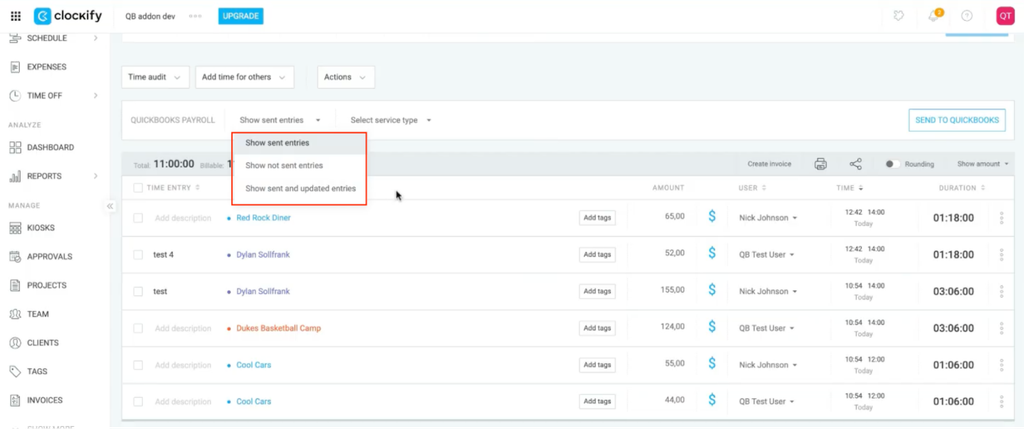
4. Clique em Mostrar registros enviados para expandir o menu suspenso
5. Selecione uma das seguintes opções:
- Mostrar registros enviados: Exibe os registros que foram exportados com sucesso para o QuickBooks.
- Mostrar registros não enviados: Exibe os registros que ainda não foram enviados ou cuja exportação falhou.
- Mostrar registros enviados e atualizados: Exibe os registros que foram exportados anteriormente, mas modificados depois. Se você quiser atualizar esses registros no QuickBooks, precisará enviá-los novamente.
Definir tipos de serviço #
Os tipos de serviço criados no QuickBooks são sincronizados diretamente com o Clockify. Você pode selecionar o tipo de serviço adequado para seus registros antes de enviá-los para o QuickBooks.
1. Vá para Relatórios > Detalhado
2. Filtre os dados que deseja enviar para o QuickBooks
3. Clique no menu suspenso Selecionar tipo de serviço
4. Selecione o tipo de serviço desejado na lista
5. Clique em Enviar para o QuickBooks Payroll
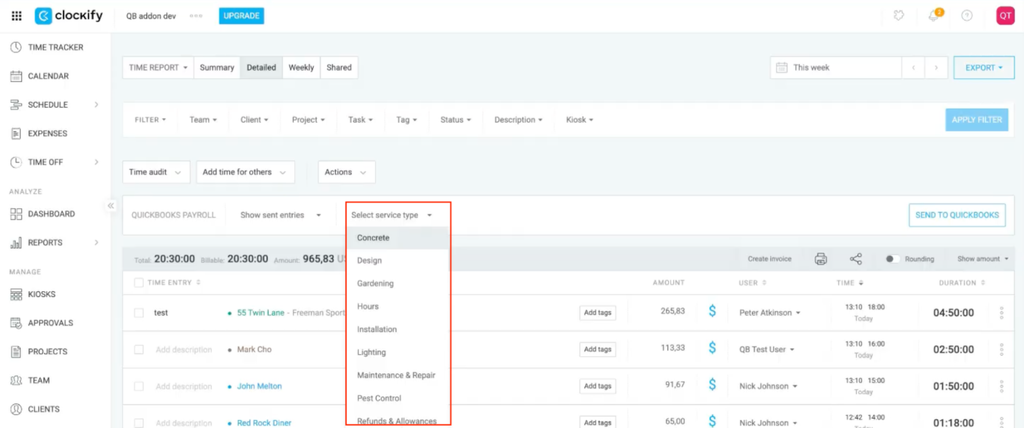
Se você não selecionar um tipo de serviço, o QuickBooks o definirá como a categoria de serviço padrão.
Desinstalar complemento #
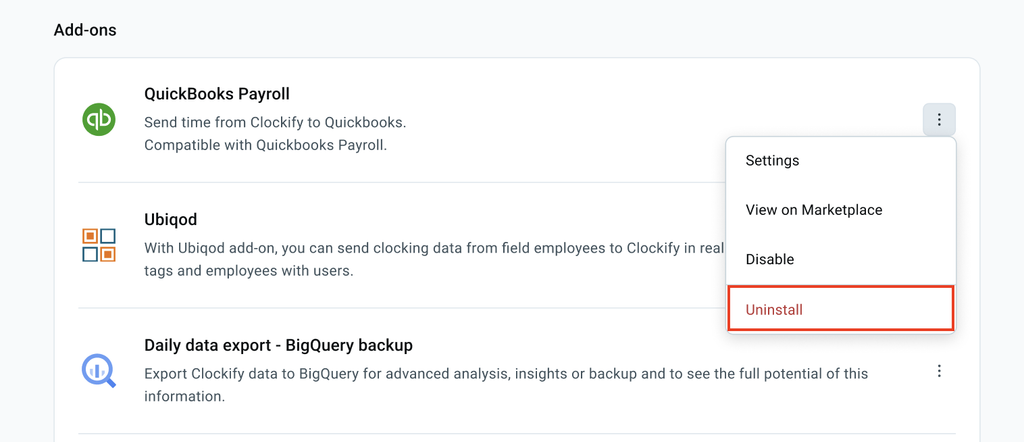
Para desinstalar o complemento do QuickBooks:
- Selecione Configurações do espaço de trabalho
- Clique na página Integrações e complementos
- Clique no ícone de
 três pontos ao lado de QuickBooks Payroll
 - Clique em Desinstalar
- Confirme a ação
Perguntas Frequentes (FAQs) #
O que devo fazer se a integração travar ou se os dados falharem repetidamente ao serem processados?
Se o mapeamento dos seus dados estiver completamente correto, mas a sincronização continuar falhando, redefinir a conexão da API geralmente resolve o problema:
- Acesse, no Clockify, a aba Configurações do espaço de trabalho > Integrações e complementos
- Clique no ícone de três pontos ao lado do complemento QuickBooks Payroll
- Selecione Configurações
- Clique em Desconectar do QuickBooks
- Confirme a ação
- Clique novamente em Conectar ao QuickBooks e siga as instruções para concluir uma nova autorização da conexão.