Filtros de monitorización y límites de retención
Para visualizar los datos con el nivel de detalle exacto que necesitas para el análisis, puedes usar las opciones de filtro disponibles. Puedes filtrar los datos a nivel de espacio de trabajo o profundizar hasta un miembro individual o una aplicación específica.
Filtrar reglas de productividad #
Al acceder a Monitorización de actividad y hacer clic en Productividad en la sección Gestionar, encontrarás tres pestañas que muestran los datos según el ámbito al que se aplica la regla de productividad: Reglas de espacio de trabajo, Reglas de grupo, y Reglas de miembro.
- Reglas del espacio de trabajo: Muestra los datos de todo el espacio de trabajo.
- Reglas del grupo: Muestra los datos de un equipo o grupo específico. Usa la lista desplegable para seleccionar el equipo.

- Reglas del miembro: Muestra los datos de un miembro individual. Usa el campo de búsqueda para localizar al miembro.

Consulta Clasificar aplicaciones y sitios web para obtener una guía paso a paso sobre cómo configurar tus reglas de productividad y cómo el sistema resuelve los conflictos entre reglas.
Filtrar rango de fechas #
Puedes ajustar el rango de fechas cada vez que veas una página de análisis para modificar el período de tiempo de los datos mostrados.
Para hacer esto:
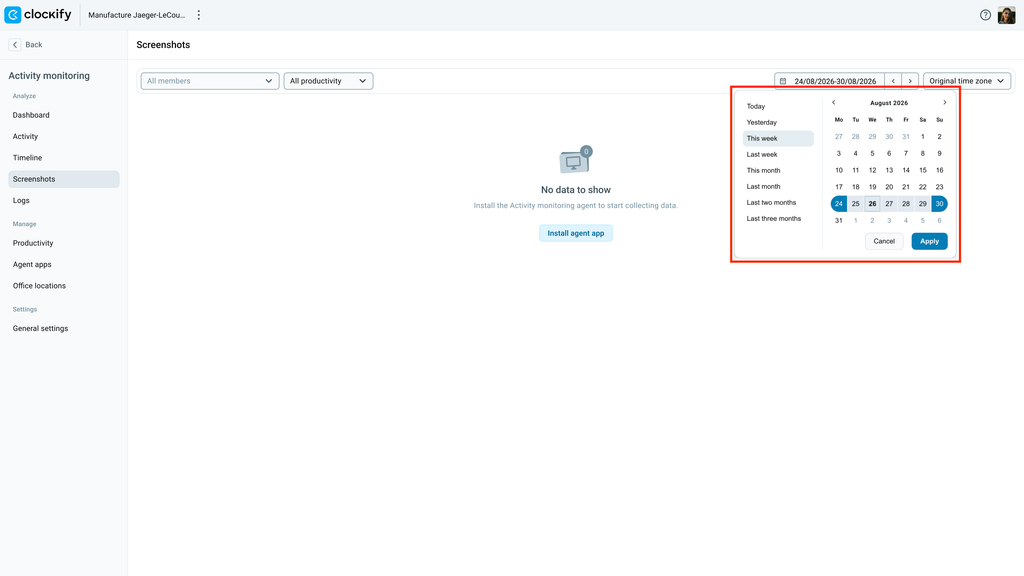
- Haz clic en el rango de fechas actual en la esquina superior derecha para abrir el calendario
- Selecciona entre los rangos de fechas predefinidos (Ayer, Esta semana, Este mes, etc.) o establece una fecha de inicio y una fecha de finalización para personalizar aún más tus datos
- Haz clic en Aplicar
El sistema almacena los siguientes datos durante un período de tiempo limitado.
- Capturas de pantalla: Los datos se almacenan durante los 60 días. Si seleccionas un rango de fechas superior a 2 meses, las vistas previas individuales o masivas estarán vacías y se te pedirá que selecciones un período de tiempo más corto.
- Registros de actividad: Los datos se almacenan durante los 90 días. Si seleccionas un rango de fechas superior a 3 meses, el resultado estará vacío debido a este límite.
Preguntas frecuentes #
¿Por qué veo un estado vacío al seleccionar fechas históricas?
Los datos de monitorización se almacenan durante un período de tiempo limitado en el sistema: las capturas de pantalla se conservan durante los 60 días, mientras que los registros de actividad están disponibles durante los 90 días. Asegúrate de seleccionar un período de tiempo dentro de estos límites.
¿Cómo puedo consultar los datos de los empleados que ya no trabajan en la empresa?
Si quieres consultar los datos de los miembros inactivos, ve a la pestaña Miembros y busca el nombre del miembro para ver su información registrada.