Le fichier exporté affiche un nom différent
Si le nom ou le titre de votre fichier exporté (PDF, Excel ou CSV) s’affiche différemment, découvrez les causes probables de ce problème ainsi que les solutions pour le résoudre.
1. L’espace de travail porte le nom d’un membre de l’équipe #
Dans les rapports PDF exportés, Clockify affiche par défaut le nom de l’espace de travail au tout début du document. Lors de la configuration d’un compte, le système attribue généralement le nom du créateur comme appellation de cet espace.
Si vous avez été invité par un collègue ayant créé l’espace de travail, son nom apparaîtra sur chacun des rapports exportés.
Solution : En tant qu’administrateur, renommez l’espace de travail au nom de votre entreprise ou équipe :
- Cliquez sur les
 trois points a cote de nom de l’espace de travail
 - Sélectionnez Paramètres de l’espace de travail
- Click the Edit button next to Workspace name under Workspace info
- Enter the name of the workspace
- Cliquez sur Enregistrer
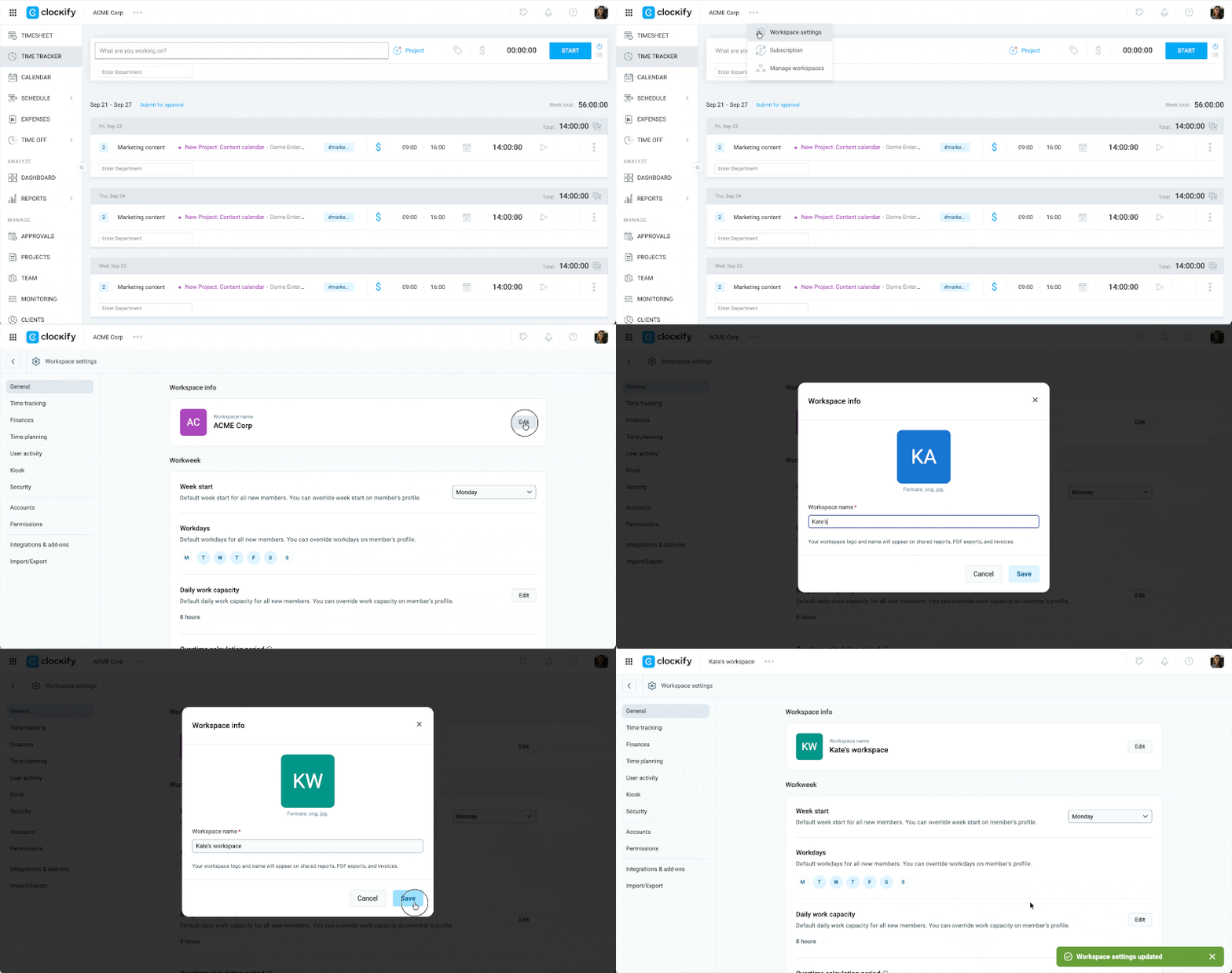
Si vous n'êtes pas administrateur, vous devez demander au propriétaire de l’espace de travail ou à l'administrateur de faire cette modification.
2. Un filtre d’utilisateur actif est appliqué #
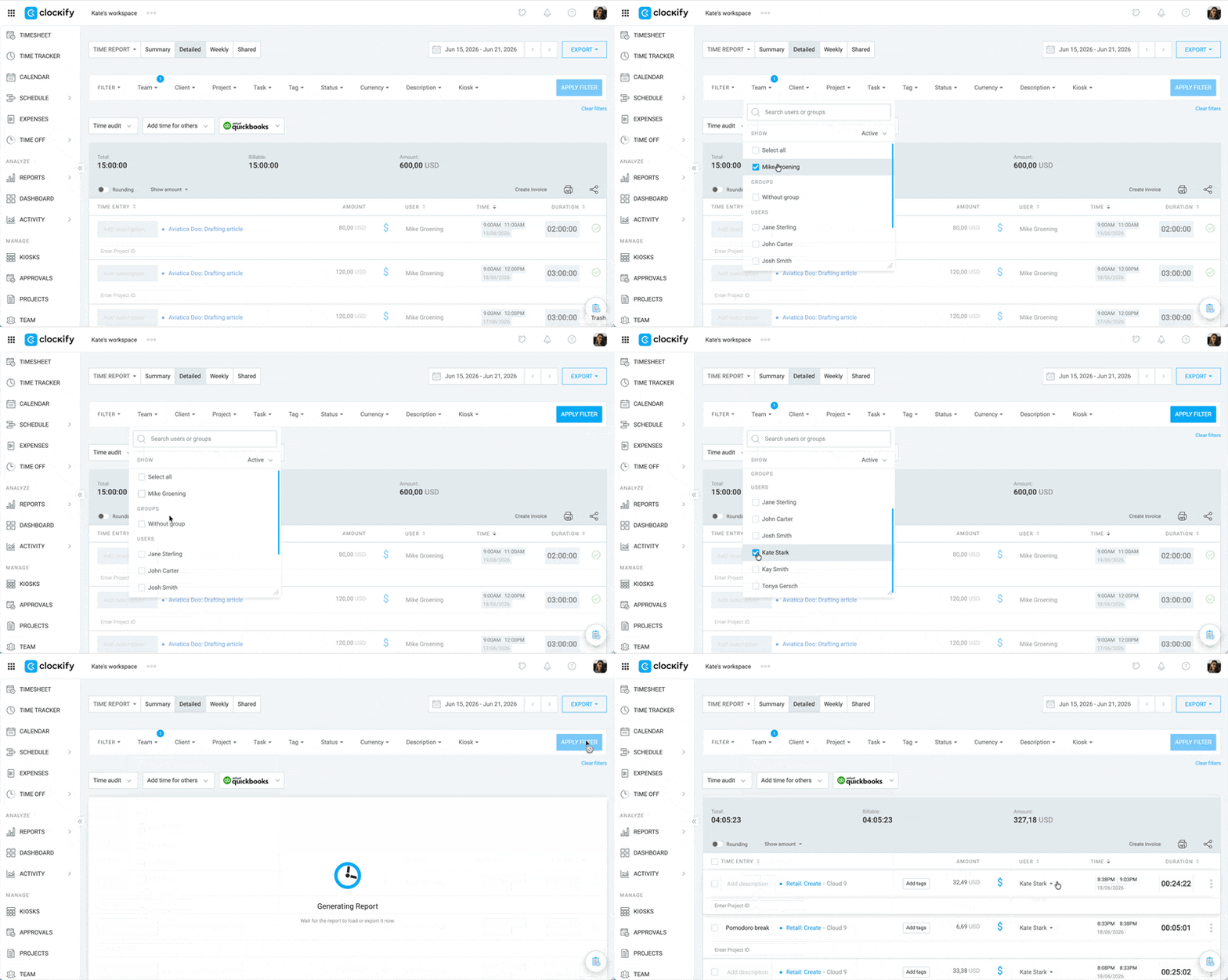
En tant que manageur ou administrateur, vous pouvez voir le temps de travail de l’équipe. Si un filtre incluant un autre membre est resté activé par accident, ses données et son nom apparaîtront dans le rapport.
Comment y remédier :
- Accédez à la page Rapports (résumé, détaillé ou hebdomadaire)
- Cliquez sur le menu déroulant du filtre Équipe/Utilisateur en haut de l’écran
- Assurez-vous que seul votre nom est coché
- Cliquez sur Appliquer le filtre et exportez à nouveau le rapport
3. Un titre d’export personnalisé est enregistré #
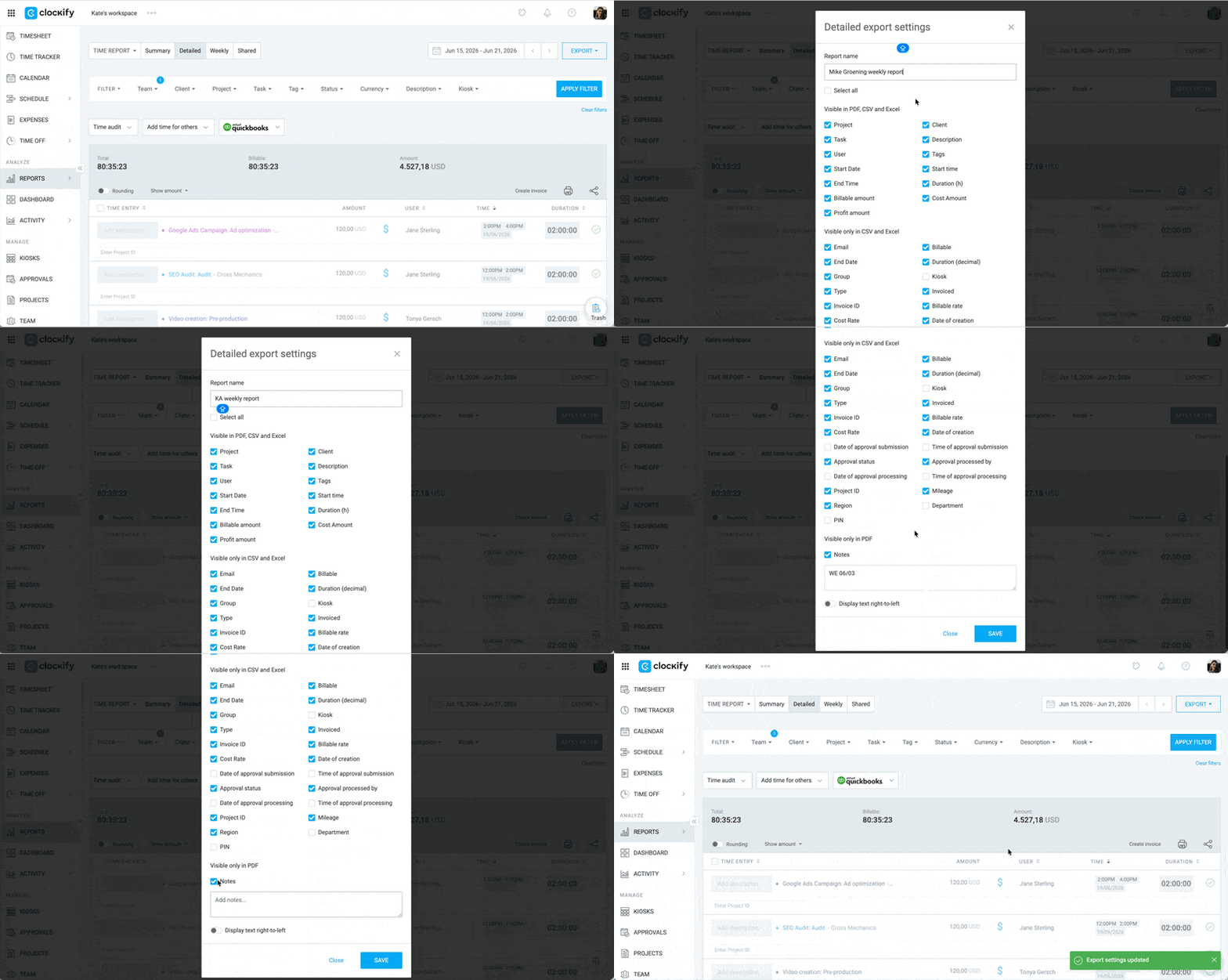
Avec une formule payante, Clockify permet de personnaliser les exports PDF. Un titre ou pied de page personnalisé a pu y être configuré (p. ex. « Heures mensuelles de Jane »).
Cette personnalisation s’appliquant par utilisateur et d’une session à l’autre, chaque PDF exporté contiendra ce texte jusqu’à sa modification ou sa désactivation.
Comment y remédier :
- Accédez à Rapports > Résumé/Détaillé/Hebdomadaire
- Cliquez sur le bouton Exporter situé dans le coin supérieur droit
- Sélectionnez Personnalisation
- Vérifiez si le champ Nom du rapport ou Notes a été remplacé manuellement par le nom de l’autre personne
- Remplacez-le par votre nom ou le titre de votre choix, puis cliquez sur Enregistrer
4. Vous consultez un rapport partagé #
Le titre d’un rapport partagé via un lien reste celui choisi par son créateur d’origine.
Le nom d’un rapport partagé n’est pas modifiable, mais vous pouvez générer le même depuis votre propre compte Clockify.
Comment y remédier :
- Accédez à la section Rapports
- Définissez les plages de dates et les filtres pour générer le rapport
- Cliquez sur le menu déroulant Exporter
- Sélectionnez Enregistrer au format PDF/CSV/Excel
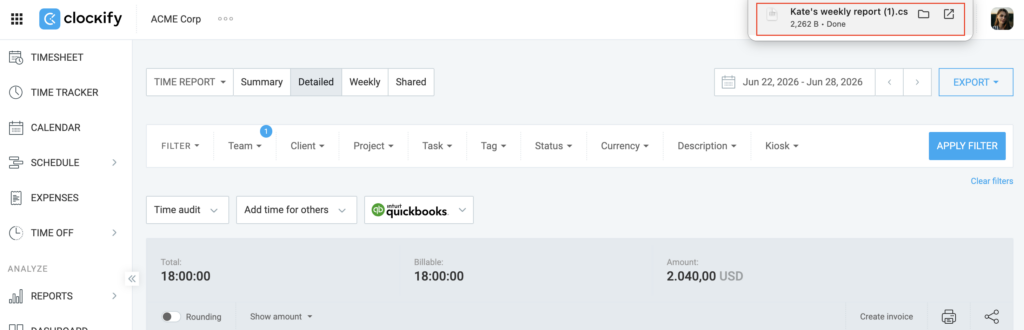
Le rapport devrait alors être exporté sous votre nom.
Vous rencontrez toujours des difficultés ? L’équipe d’assistance de Clockify se fera un plaisir d’examiner votre cas et de vous aider. Veuillez nous contacter à l’adresse support@clockify.me en nous fournissant les informations suivantes :
- Votre adresse email
- Une capture d’écran du rapport exporté ou de toute autre erreur rencontrée
- Votre rôle dans l’espace de travail