Estimations, budgets et alertes liés aux projets
Clockify vous offre plusieurs moyens de suivre l’avancement de vos projets et de rester informé grâce à des estimations de temps, des estimations budgétaires et des alertes. Ces fonctionnalités peuvent vous aider à prendre des décisions éclairées afin de vous assurer que le projet bénéficie d’un soutien suffisant et que le volume de travail est correctement facturé au client. Cet article vous explique le fonctionnement de ces fonctionnalités.
Estimation de temps vs. estimation de budget #
Clockify vous permet de suivre l’avancement d’un projet grâce à deux types d’estimations : les estimations temporelles et les estimations budgétaires.
- Une estimation de temps fait référence au nombre d’heures que vous prévoyez de consacrer à un projet. Elle est basée uniquement sur les heures suivies et est idéale pour gérer la charge de travail interne, la capacité ou l’effort.
- Une estimation de budget fait référence à la valeur monétaire que vous prévoyez de facturer pour un projet. Elle nécessite de définir des taux horaires, soit au niveau du projet, soit au niveau de la tâche.
Vérifier les paramètres de projet #
Pour savoir quel type d’estimation est suivi dans un projet :
- Accédez à la page Projets
- Cliquer sur le projet
- Accédez à l’onglet Paramètres
- Faites défiler vers le bas jusqu’à Estimation du projet
Cette section explique comment l’estimation du projet est configurée : si elle est manuelle, basée sur les tâches ou récurrente.
Si vous passez à une formule gratuite ou si votre période d’essai gratuite a pris fin, l’estimation du projet sera définie sur « Aucune estimation ». Passez à une formule supérieure pour retrouver l’accès à cette fonctionnalité.
Les estimations au niveau de la tâche prennent aussi en charge les alertes #
Vous pouvez attribuer des estimations et des alertes à des tâches, et pas seulement à des projets entiers. Cela vous permet de voir quelle tâche mobilise l’estimation.
Vous pouvez notifier :
- Personnes assignées à la tâche
- Chef de projet
- Administrateur de l’espace de travail
Un seul rôle peut être sélectionné par règle d’alerte, mais vous pouvez créer plusieurs règles pour notifier différents rôles.
Les barres de progression d’estimation peuvent dépasser 100 % #
Clockify continuera à suivre votre temps et votre budget même si ceux-ci dépassent les estimations. Dans ce cas, la barre de progression du projet dépassera les 100 % pour refléter ce dépassement.
- 125 % = 25 % au-delà de l’estimation
- Ce comportement est intentionnel et vous aide à mesurer l’ampleur du dépassement
Les budgets récurrents se réinitialisent automatiquement #
Si vous avez défini une estimation récurrente (hebdomadaire, mensuelle ou annuelle), le budget se réinitialisera automatiquement à la fin de chaque cycle en fonction de la date de début du projet.
Ce que cela signifie :
- Les budgets ne disparaissent pas ; ils repartent simplement à zéro pour la nouvelle période
- Le statut du projet n’affiche la progression que pour le cycle en cours
Comment préserver les données historiques #
Exportez les informations relatives au projet avant la date de réinitialisation :
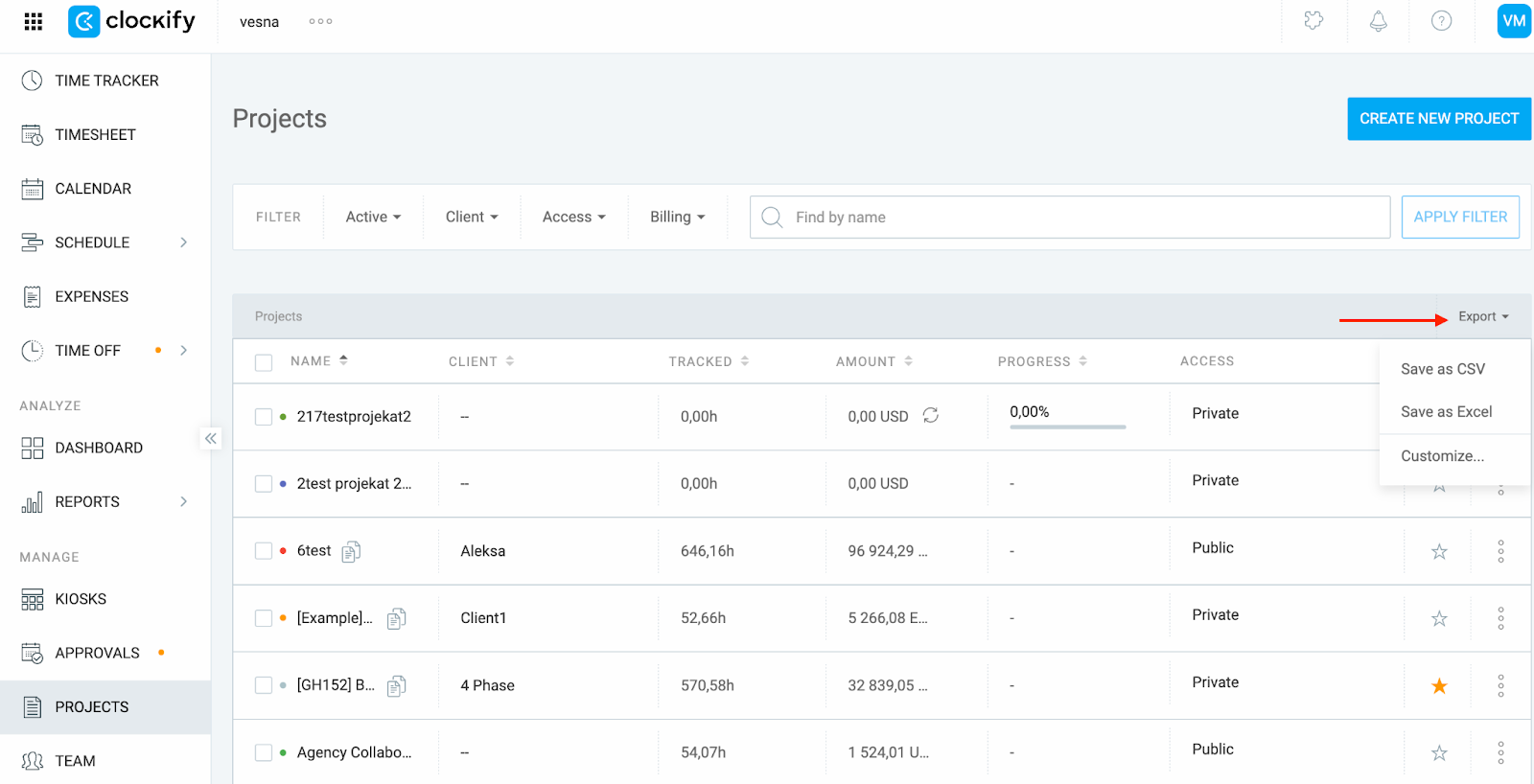
- Allez à la page Projets
- Cliquez sur Exporter (CSV ou Excel)
- Enregistrez le fichier
L’exportation comprend le temps suivi, le budget, les estimations, les dépassements, l’avancement et d’autres informations relatives au projet. Elle sert de sauvegarde ou de référence si vous souhaitez comparer les performances d’une période à l’autre.
Les alertes ne se déclenchent que si elles sont configurées pour un seuil précis #
Les alertes de budget ne sont envoyées que pour les seuils qui ont été explicitement définis.
Exemple :
Si vous avez configuré une alerte à 80 % mais pas à 100 %, vous ne recevrez rien lorsque le budget estimé sera entièrement atteint.
Définir des alertes pour tous les seuils pertinents #
Créez une alerte pour chaque seuil que vous souhaitez surveiller dans le projet :
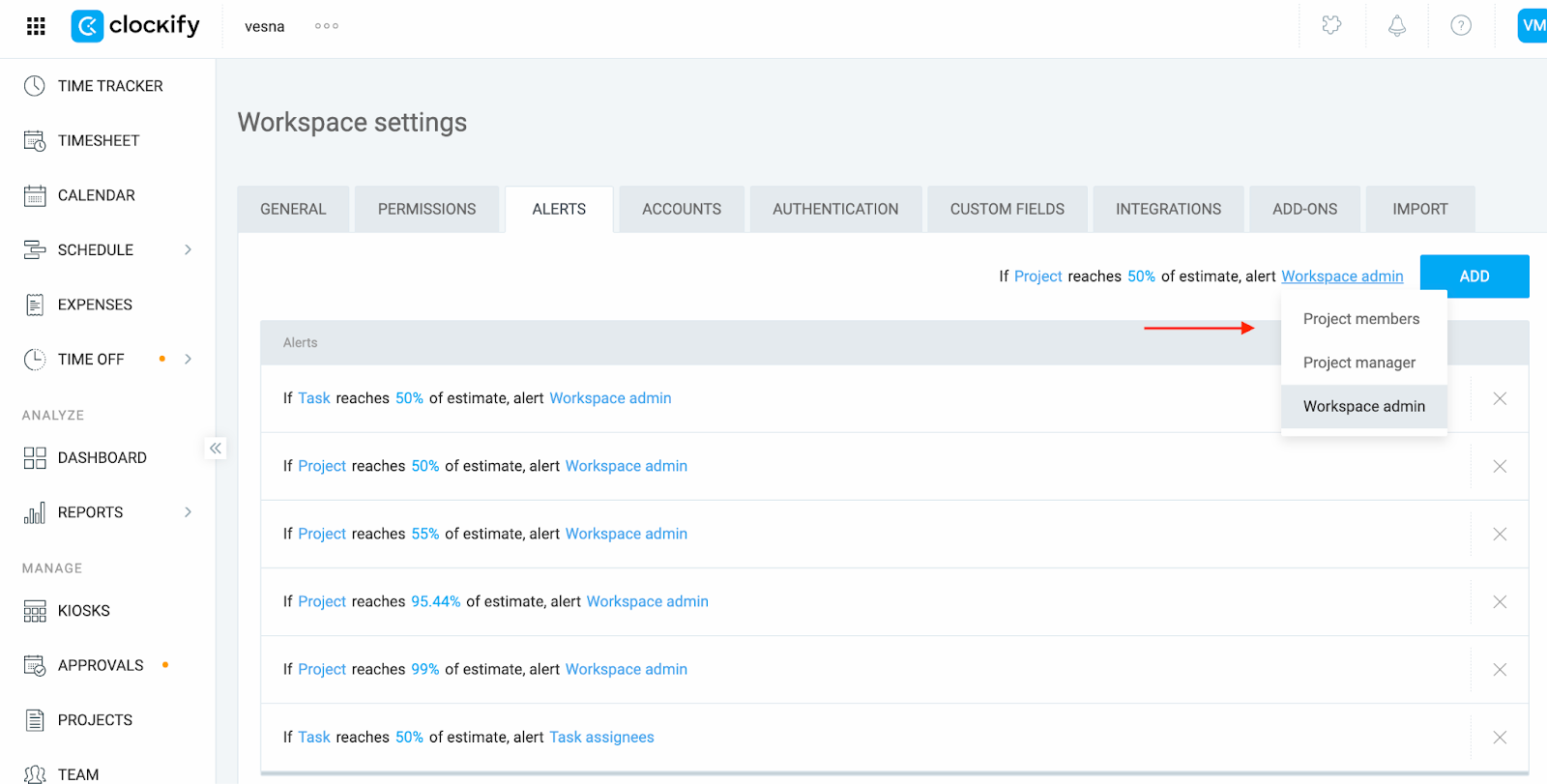
- Accédez aux paramètres de l’espace de travail
- Sélectionnez l’onglet Alertes
- Cliquez sur Ajouter et modifiez la valeur estimée
Répétez la dernière étape pour créer des alertes à tous les seuils pertinents (p. ex. 50 %, 80 %, 100 %).
Les alertes d’estimation ne sont envoyées qu’une seule fois par seuil #
Vous recevrez une seule alerte par seuil (p. ex. 80 %, 100 %). Si la progression dépasse plusieurs seuils en même temps (p. ex. de 75 % à 95 %), seul le seuil le plus élevé déclenchera l’alerte.
Une alerte pour un seuil ne se déclenchera à nouveau que si la progression du projet repasse en dessous de cette valeur puis la franchit à nouveau.
Les alertes ne sont pas rétroactives #
Si vous créez ou modifiez une règle d’alerte après qu’un seuil a déjà été dépassé, Clockify ne déclenchera pas l’alerte de manière rétroactive.
Clockify ne bloque pas le suivi au-delà des estimations #
Les estimations servent uniquement à des fins d’information. Clockify n’empêchera pas automatiquement le suivi du temps sur ces projets une fois qu’une estimation ou un budget est atteint.
Ce que vous pouvez faire à la place :
- Mettre en place des alertes pour être notifié lorsque l’estimation est proche d’être atteinte ou dépassée
- Utiliser la page Projets > Statut pour consulter le statut actuel
- Établir des directives internes claires pour arrêter le travail manuellement
Méthode de contrôle optionnelle :
Une fois que le projet atteint son estimation ou sa limite budgétaire, un administrateur ou un chef de projet peut :
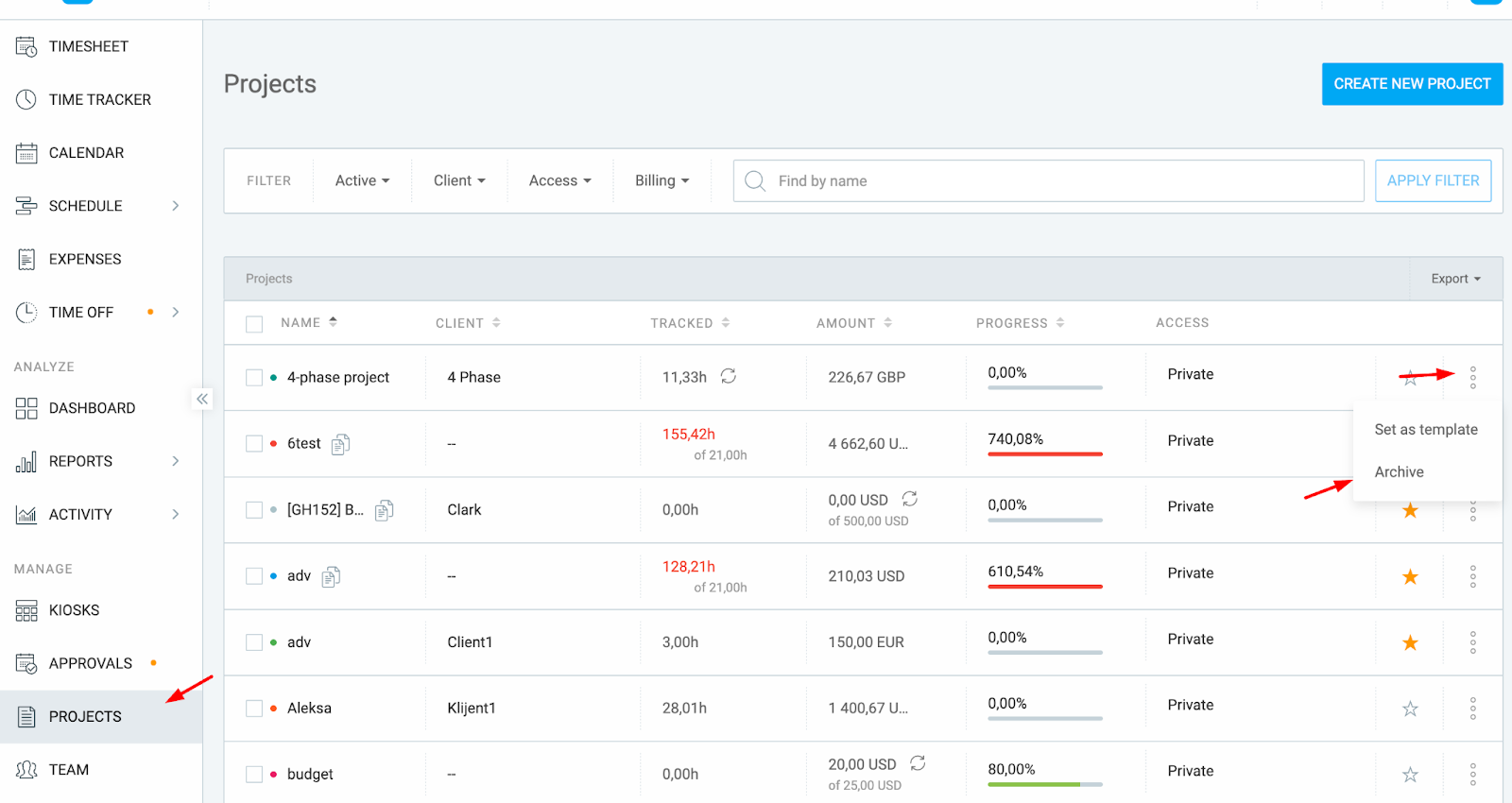
- Allez à la page Projets
- Cliquer sur le projet
- Cliquez sur Archiver
Cela empêchera les membres de l’équipe de suivre du temps supplémentaire sur ce projet, appliquant ainsi un arrêt effectif.