Activar o desactivar miembros del equipo en masa
Utiliza las herramientas de gestión masiva en la página de Equipo para activar o desactivar varios miembros del equipo.
Permisos #
Tanto los propietarios como los administradores pueden usar las funciones de activación y desactivación masiva, pero existen algunas diferencias importantes:
- Los propietarios pueden activar o desactivar a cualquier persona en el espacio de trabajo
- Los administradores pueden gestionar en masa todos los roles habituales (miembros del equipo, gerentes de proyectos, etc.)
- Los administradores no pueden gestionar a los propietarios ni a otros administradores
Cómo activar usuarios en masa #
Si tu espacio de trabajo se ha degradado recientemente al plan Gratuito (que limita automáticamente tu equipo activo al propietario y a los 4 usuarios activos más antiguos), puedes reactivar rápidamente tu equipo una vez que vuelvas a actualizar tu plan.
- Ve a la página de Equipo
- Marca la casilla junto a los nombres de los usuarios desactivados que quieres reactivar
- Haz clic en el botón Activar que aparece en la parte superior de la lista
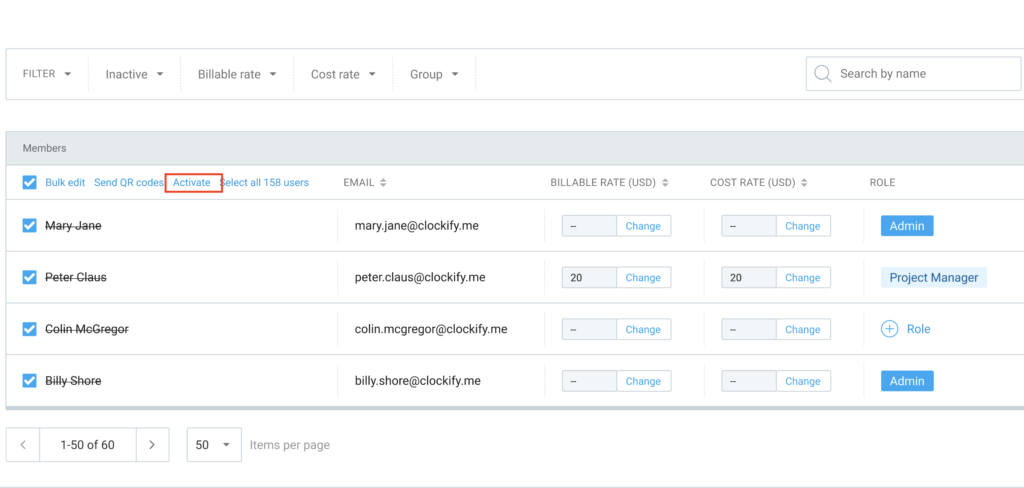
Solo debes seleccionar usuarios actualmente inactivos. El botón Activar no aparecerá si tu selección incluye una combinación de estados activos e inactivos.
Cómo desactivar usuarios en masa #
Desactivar usuarios en masa es una forma rápida de liberar puestos o administrar tu espacio de trabajo después de que finalice un proyecto.
- Ve a la página de Equipo
- Marca la casilla junto a los nombres de los usuarios activos que quieres desactivar
- Haz clic en el botón Desactivar que aparece en la parte superior de la lista
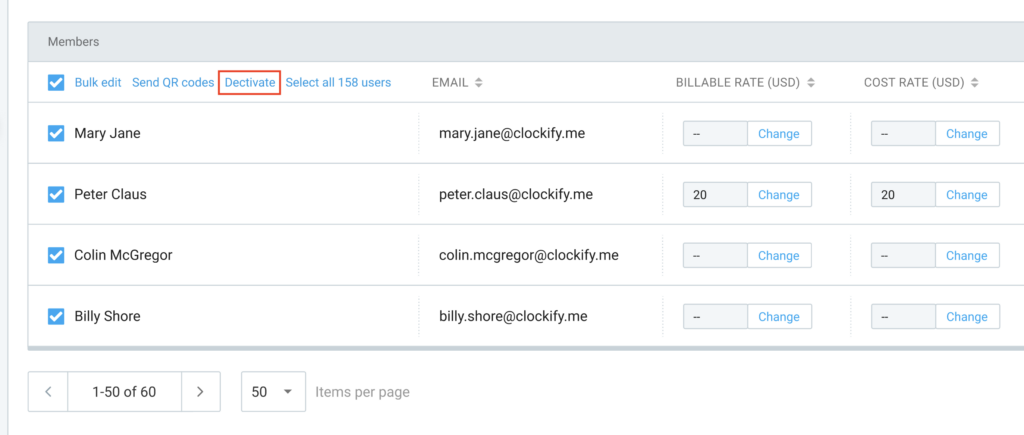
Para ver la opción Desactivar, debes seleccionar únicamente los usuarios actualmente activos. Si seleccionas una combinación de usuarios activos e inactivos, los botones de acción en masa se ocultarán.
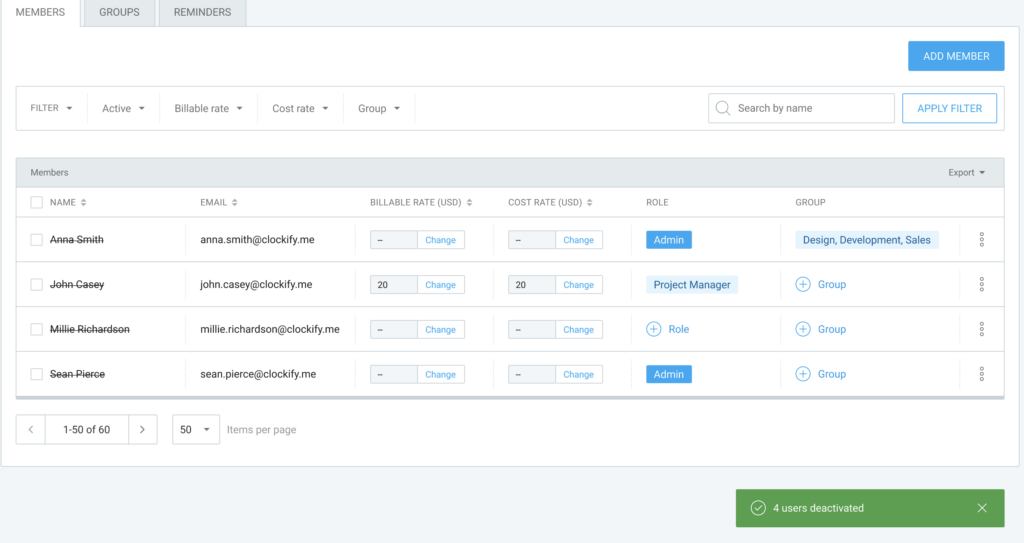
Después de desactivar usuarios, estos permanecerán visibles en tu pantalla independientemente de los filtros actuales. Esto te permite revisar los cambios antes de actualizar la página o salir de ella.
Requisitos de puestos y facturación #
Activar varios usuarios a la vez puede afectar tu facturación, según tu plan actual y los puestos disponibles. Esto es lo que sucede al hacer clic en Activar:
| Escenario | Qué ocurre |
| Tienes el plan gratuito | Puedes activar usuarios hasta el límite del plan gratuito (5 usuarios activos en total, incluido el propietario). |
| Tienes suficientes puestos de pago disponibles | Los usuarios se activarán inmediatamente. |
| No tienes suficientes puestos de pago | Se te pedirá que compres la cantidad exacta de puestos adicionales necesarias para cubrir la activación. |
| Te falta un método de pago (pero tienes puestos disponibles) | Los usuarios se activarán inmediatamente utilizando los puestos disponibles. |
| Te falta un método de pago (y necesitas más puestos) | Se te pedirá que añadas tu información de pago o que contactes con soporte antes de continuar. |
| Tienes una factura pendiente de pago (y necesitas más puestos) | La activación se bloqueará. Verás una explicación y un enlace para revisar y pagar tus facturas pendientes. |
Estas mismas reglas de facturación se aplican si activas un solo usuario mediante el menú de tres puntos junto a su nombre.