Activer ou désactiver en bloc les membres d’une équipe
Utilisez les outils de gestion en bloc de la page Équipe pour activer ou désactiver plusieurs membres de l’équipe.
Autorisations #
Les propriétaires et les administrateurs peuvent tous deux utiliser les fonctionnalités d’activation et de désactivation en bloc, mais il existe quelques différences importantes :
- Les propriétaires peuvent activer ou désactiver n’importe quel utilisateur de l’espace de travail
- Les administrateurs peuvent gérer en bloc tous les rôles standard (membres de l’équipe, chefs de projet, etc.)
- Les administrateurs ne peuvent pas gérer les propriétaires ni les autres administrateurs
Comment activer plusieurs utilisateurs à la fois #
Si votre espace de travail a récemment été rétrogradé vers la formule gratuite (ce qui limite automatiquement votre équipe active au propriétaire et aux 4 utilisateurs actifs les plus anciens), vous pouvez réactiver rapidement votre équipe dès que vous passez à nouveau à une formule supérieure.
- Allez sur la page Équipe
- Cochez la case située à côté des noms des utilisateurs désactivés que vous souhaitez réactiver
- Cliquez sur le bouton Activer qui apparaît en haut de la liste
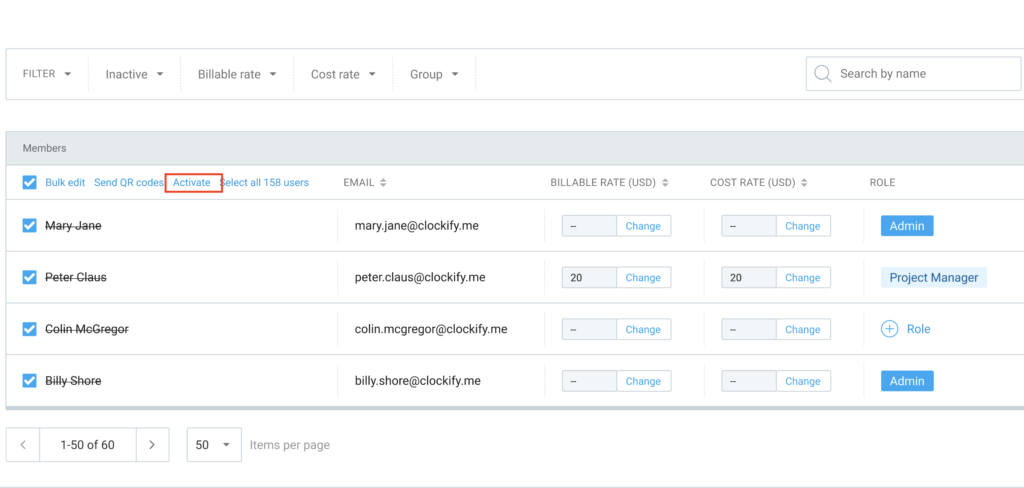
Vous ne devez sélectionner que des utilisateurs actuellement inactifs. Le bouton « Activer » n’apparaîtra pas si votre sélection comprend à la fois des utilisateurs actifs et inactifs.
Comment désactiver plusieurs utilisateurs à la fois #
La désactivation en bloc des utilisateurs est un moyen rapide de libérer des places ou de gérer votre espace de travail à la fin d’un projet.
- Allez sur la page Équipe
- Cochez la case à côté des noms des utilisateurs actifs que vous souhaitez désactiver
- Cliquez sur le bouton Désactiver qui apparaît en haut de la liste
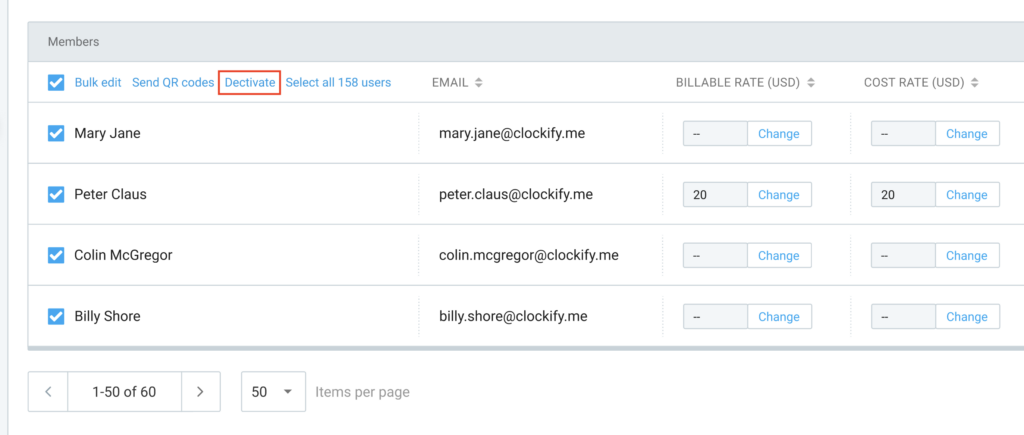
Pour que l’option « Désactiver » s’affiche, vous devez sélectionner uniquement les utilisateurs actuellement actifs. Si vous sélectionnez à la fois des utilisateurs actifs et inactifs, les boutons d’action en bloc seront masqués.
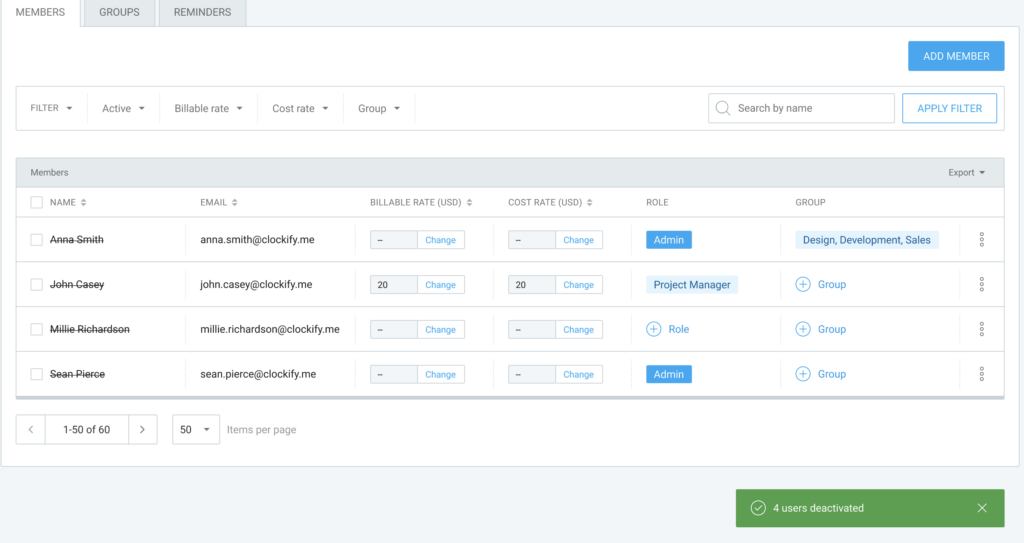
Une fois les utilisateurs désactivés, ils resteront visibles à l’écran, quels que soient les filtres actuellement appliqués. Cela vous permet de vérifier vos modifications avant d’actualiser la page ou de quitter celle-ci.
Conditions de facturation et de places #
L’activation simultanée de plusieurs utilisateurs peut avoir une incidence sur votre facturation, en fonction de votre abonnement actuel et du nombre de places disponibles. Voici ce à quoi vous pouvez vous attendre lorsque vous cliquez sur Activer :
| Scénario | Ce qui se passe |
| Vous bénéficiez actuellement de la formule gratuite | Vous pouvez activer des utilisateurs jusqu’à la limite fixée pour la formule gratuite (5 utilisateurs actifs au total, propriétaire compris) |
| Vous avez suffisamment de places payées mais inoccupées | Les comptes seront activés immédiatement |
| Vous n’avez pas assez de places payantes | Le système vous invitera à acheter le nombre exact de licences supplémentaires nécessaires pour couvrir l’activation |
| Il vous manque un moyen de paiement (mais vous avez des places disponibles) | Les utilisateurs seront activés immédiatement en utilisant vos places disponibles |
| Il vous manque un moyen de paiement (et vous avez besoin de plus de licences) | Le système vous demandera d’ajouter vos informations de paiement ou de contacter le service d’assistance avant de poursuivre |
| Vous avez une facture impayée (et vous avez besoin de places supplémentaires) | L’activation sera bloquée. Vous verrez s’afficher une explication ainsi qu’un lien vous permettant de consulter et de régler vos factures impayées |
Ces mêmes règles de facturation s’appliquent si vous activez un utilisateur individuel via le menu à trois points situé à côté de son nom.