Teammitglieder gesammelt aktivieren oder deaktivieren
Nutze die Tools zur Massenverwaltung auf der Teamseite, um mehrere Teammitglieder gleichzeitig zu aktivieren oder zu deaktivieren.
Berechtigungen #
Sowohl Besitzer als auch Administratoren können die Funktionen zur Massenaktivierung und -deaktivierung nutzen, allerdings gibt es einige wichtige Unterschiede:
- Besitzer können jeden im Arbeitsbereich aktivieren oder deaktivieren
- Administratoren können alle reguläre Rollen (Teammitglieder, Projektmanager, usw.) gesammelt verwalten
- Administratoren können keine Besitzer oder anderen Administratoren verwalten.
So aktivierst du mehrere Benutzer gleichzeitig #
Wenn dein Arbeitsbereich vor Kurzem auf den Free-Plan heruntergestuft wurde (wodurch dein aktives Team automatisch auf den Besitzer und die 4 am längsten aktiven Benutzer beschränkt wird), kannst du dein Team nach einem erneuten Upgrade schnell wieder reaktivieren.
- Gehe zur Seite Team
- Setze ein Häkchen in das Kontrollkästchen neben den Namen der deaktivierten Benutzer, die du reaktivieren möchtest
- Klicke auf die Schaltfläche Aktivieren, die oben in der Liste erscheint
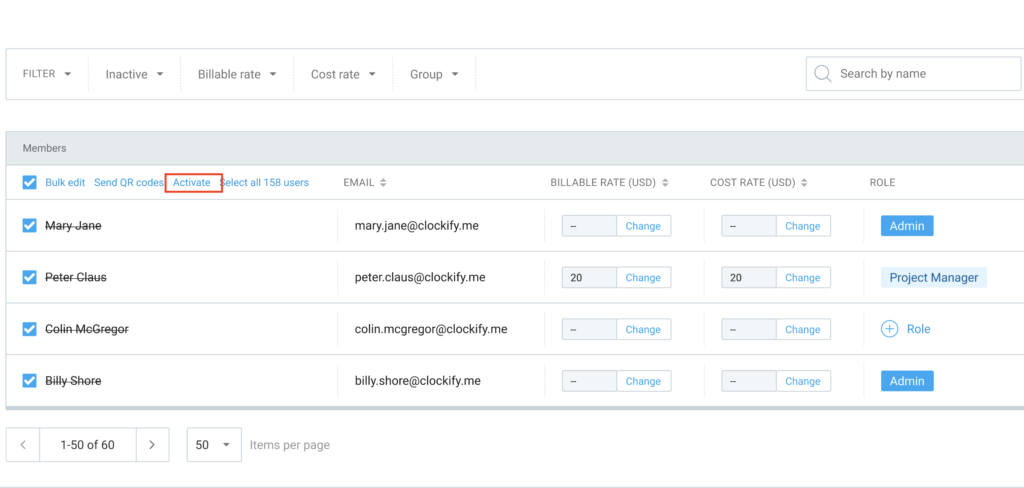
Du musst ausschließlich derzeit inaktive Benutzer auswählen. Die Schaltfläche Aktivieren erscheint nicht, wenn deine Auswahl eine Mischung aus aktiven und inaktiven Status enthält.
So deaktivierst du mehrere Benutzer gleichzeitig #
Das gemeinsame Deaktivieren von Benutzern per Massenaktion ist eine schnelle Methode, um Plätze freizugeben oder deinen Arbeitsbereich nach dem Ende eines Projekts zu verwalten.
- Gehe zur Seite Team
- Setze ein Häkchen in das Kontrollkästchen neben den Namen der aktiven Benutzer, die du deaktivieren möchtest
- Klicke auf die Schaltfläche Deaktivieren, die oben in der Liste erscheint
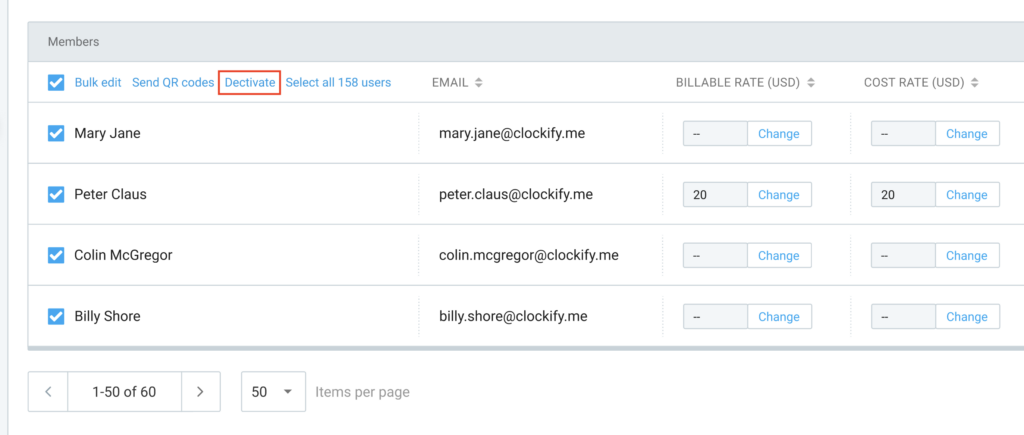
Um die Option Deaktivieren zu sehen, darfst du ausschließlich derzeit aktive Benutzer auswählen. Wenn du eine Mischung aus aktiven und inaktiven Benutzern auswählst, werden die Schaltflächen für die Massenaktionen ausgeblendet.
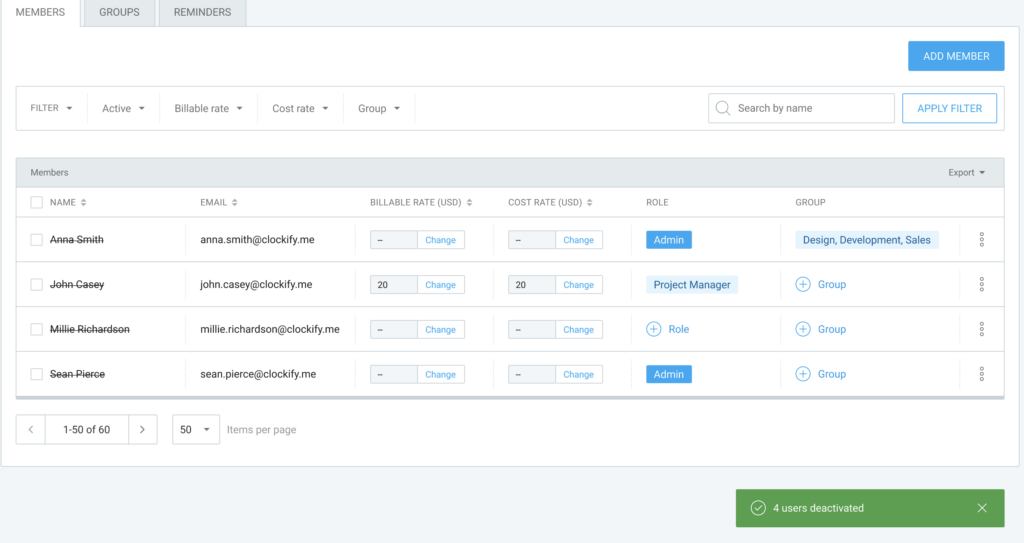
Nach dem Deaktivieren von Benutzern bleiben diese unabhängig von deinen aktuellen Filtereinstellungen auf dem Bildschirm sichtbar. So kannst du deine Änderungen noch einmal überprüfen, bevor du die Seite aktualisierst oder verlässt.
Rechnungsstellung und Platzanforderungen #
Das gleichzeitige Aktivieren mehrerer Benutzer kann sich auf deine Abrechnung auswirken – abhängig von deinem aktuellen Tarif und den verfügbaren Benutzerplätzen. Das passiert, wenn du auf Aktivieren klickst:
| Szenario | Was passiert |
| Du nutzt den Free-Plan | Du kannst Benutzer bis zum Limit des Free-Plans aktivieren (insgesamt 5 aktive Benutzer, einschließlich des Besitzers). |
| Du hast genügend bezahlte, freie Plätze | Die Benutzer werden sofort aktiviert. |
| Du hast nicht genügend bezahlte Plätze | Du wirst aufgefordert, genau die Anzahl an zusätzlichen Plätzen zu kaufen, die für die Aktivierung benötigt wird. |
| Es fehlt eine Zahlungsmethode (aber du hast freie Plätze) | Die Benutzer werden sofort aktiviert und belegen deine verfügbaren freien Plätze. |
| Es fehlt eine Zahlungsmethode (und du brauchst mehr Plätze) | Du wirst aufgefordert, deine Zahlungsinformationen hinzuzufügen oder den Support zu kontaktieren, bevor du fortfahren kannst. |
| Du hast eine unbezahlte Rechnung (und brauchst mehr Plätze) | Die Aktivierung wird blockiert. Du siehst eine Erklärung sowie einen Link, um deine unbezahlten Rechnungen zu prüfen und zu begleichen. |
Dieselben Abrechnungsregeln gelten auch, wenn du einen einzelnen Benutzer über das Drei-Punkte-Menü neben seinem Namen aktivierst.