Comment configurer les localisations de travail
Configurer des localisations de bureau #
La fonctionnalité Localisations de bureau permet aux administrateurs de définir des localisations réseau de confiance. Cette configuration permet de déterminer si les employés travaillent à distance ou depuis le bureau en se basant sur les signaux réseau.
Vous n’avez pas besoin de remplir chaque champ réseau, mais vous devez fournir au moins un identifiant réseau valide (IP publique, plage IP ou adresse MAC du routeur) pour enregistrer la localisation.
Pour configurer une localisation :
- Accédez à Surveillance d’activité > Localisations des bureaux
- Cliquez sur Ajouter une localisation
- Saisissez les informations suivantes :
- Nom de la localisation
- Plage / Adresse IP (facultatif) : Définit l’adresse IP publique d’un bureau unique ou l’ensemble d’une plage réseau à l’aide de la notation CIDR standard
- Cliquez sur Ajouter
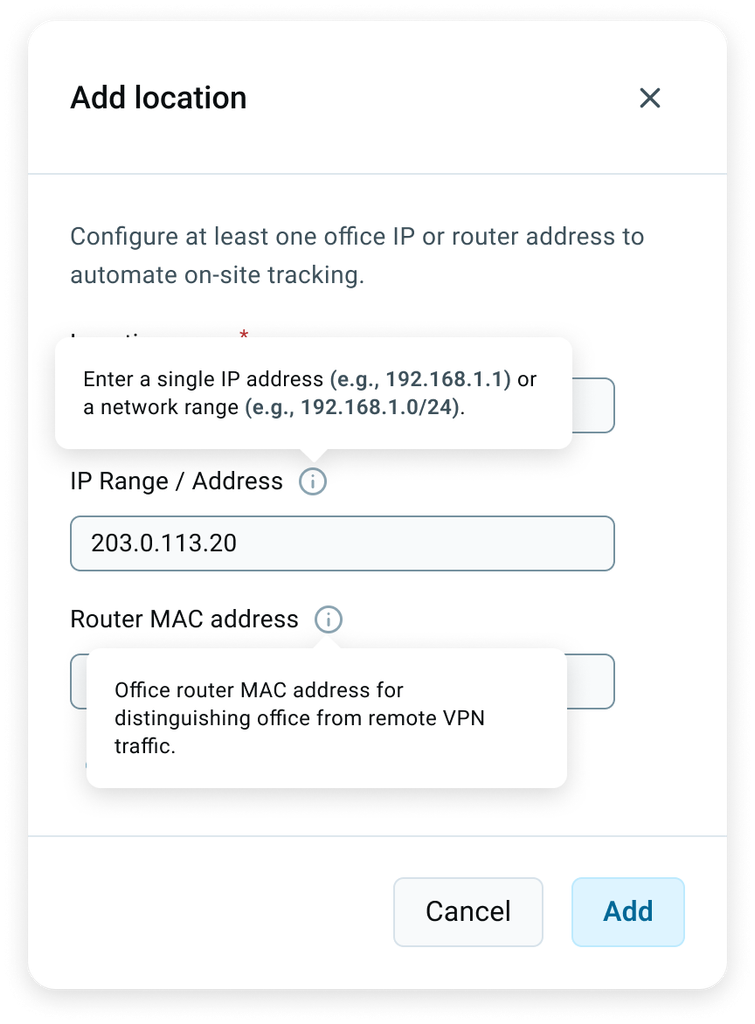
Spécifications pour une adresse IP unique :
- Sous-réseau CIDR IPv4 : p. ex. 203.0.113.0/20 (longueur du préfixe comprise entre /0 et /32)
- Sous-réseau CIDR IPv6 : p. ex. 2001:db8:0a3::/120 (longueur du préfixe comprise entre /0 et /128)
Vous pouvez saisir une adresse IP individuelle (p. ex. 203.0.113.20) ou une notation CIDR (p. ex. 203.0.113.0/20 pour IPv4 ou 2001:db8:0a3::/120 pour IPv6).
Modifier une localisation #
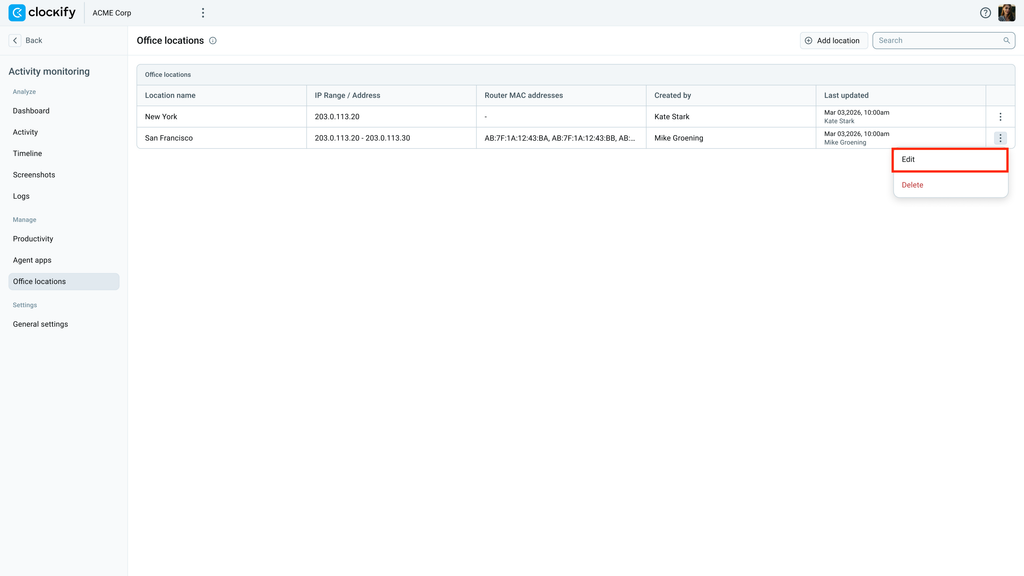
Pour modifier une localisation :
- Accédez à Localisations des bureaux
- Repérez la ligne du réseau concerné dans le tableau
- Cliquez sur les trois points et sélectionnez Modifier
- Modifiez les informations souhaitées
- Cliquez sur Enregistrer
Supprimer une localisation #
Pour supprimer une localisation :
- Accédez à Localisations des bureaux
- Repérez la ligne du réseau concerné dans le tableau
- Cliquez sur les trois points et sélectionnez Supprimer
- Cliquez de nouveau sur Supprimer dans la fenêtre surgissante pour confirmer l’action
La suppression d’une localisation est irréversible. Si vous supprimez une localisation par erreur, vous devrez l’ajouter à nouveau.
Classification des localisations #
Lorsque l’agent de la surveillance envoie en continu des données réseau à la plateforme, il compare les signaux de connexion entrants avec vos localisations de bureau configurées afin de déterminer automatiquement le statut de travail.
L’agent de la surveillance tente d’associer la localisation en suivant une règle de priorité stricte :
- Priorité 1 : Correspondance avec l’adresse MAC du routeur (il s’agit du signal le plus fiable)
- Priorité 2 : Correspondance exacte avec l’IP publique
- Priorité 3 : Correspondance avec la plage IP
Attribution des résultats quotidiens :
- Bureau : Si au moins l’une des règles de correspondance réussit, l’activité est classée comme Bureau.
- À distance : Si aucune localisation de bureau configurée ne correspond au signal de connexion, elle est classée comme À distance.
La localisation n'est pas globale pour la journée : chaque intervalle suivi est évalué séparément. Si un employé alterne entre bureau et domicile, les temps pour Bureau et À distance sont cumulés et affichés séparément pour ce jour.
FAQ #
Pourquoi renseigner l’adresse MAC du routeur lors de la configuration d’une localisation ?
L’adresse MAC du routeur fournit un signal de suivi unique et précis, permettant de distinguer une présence réelle sur site d’un accès distant via le VPN d’entreprise. Cela garantit la fiabilité des analyses de présence au sein de l’espace de travail.
Les chefs d’équipe peuvent-ils ajouter ou configurer de nouvelles localisations de bureau ?
Non. Seuls les administrateurs de l’espace de travail peuvent configurer les empreintes réseau des bureaux, car celles-ci définissent des paramètres globaux. Les chefs d’équipe ne peuvent ni créer, ni modifier, ni supprimer ces enregistrements.
Que se passe-t-il si l’empreinte réseau d’un employé déclenche plusieurs règles de correspondance ?
Les points d’accès réseau sont évalués par ordre de priorité : adresse MAC du routeur, IP exacte, puis plage IP. La validation par rapport à n’importe quelle entrée de confiance résout immédiatement l’évaluation et attribue en toute sécurité l’étiquette Bureau à la session active.
Que se passe-t-il pour les employés actuellement actifs si leur localisation de bureau est supprimée en cours de journée ?
Lorsqu’une localisation est supprimée, elle n’est plus utilisée pour les futures correspondances de localisation, et l’activité ultérieure est automatiquement classée comme À distance. Cependant, toutes les données historiques précédemment classées restent totalement inchangées et conservées.