S’inscrire et se connecter comme utilisateur standard
Si vous êtes un utilisateur standard et que vous souhaitez commencer à utiliser Clockify, ce guide vous expliquera les étapes simples à suivre pour créer un compte et vous connecter afin que vous puissiez commencer immédiatement à suivre vos heures de travail.
To get started, you’ll need to accept a workspace invitation, or log in to your existing one.
Voici ce que vous devez savoir :
Accept a workspace invitation (New users)
Suivez ces étapes simples pour accepter votre invitation et commencer à suivre votre temps de travail :
If you have an existing Clockify account:
- Cliquez sur Accept Invite on the email invitation from Clockify
- Type in your name
- Tick the checkbox to agree with CAKE.com’s Terms of Use
- Cliquez sur Continuer.
You should now see your Clockify home page.
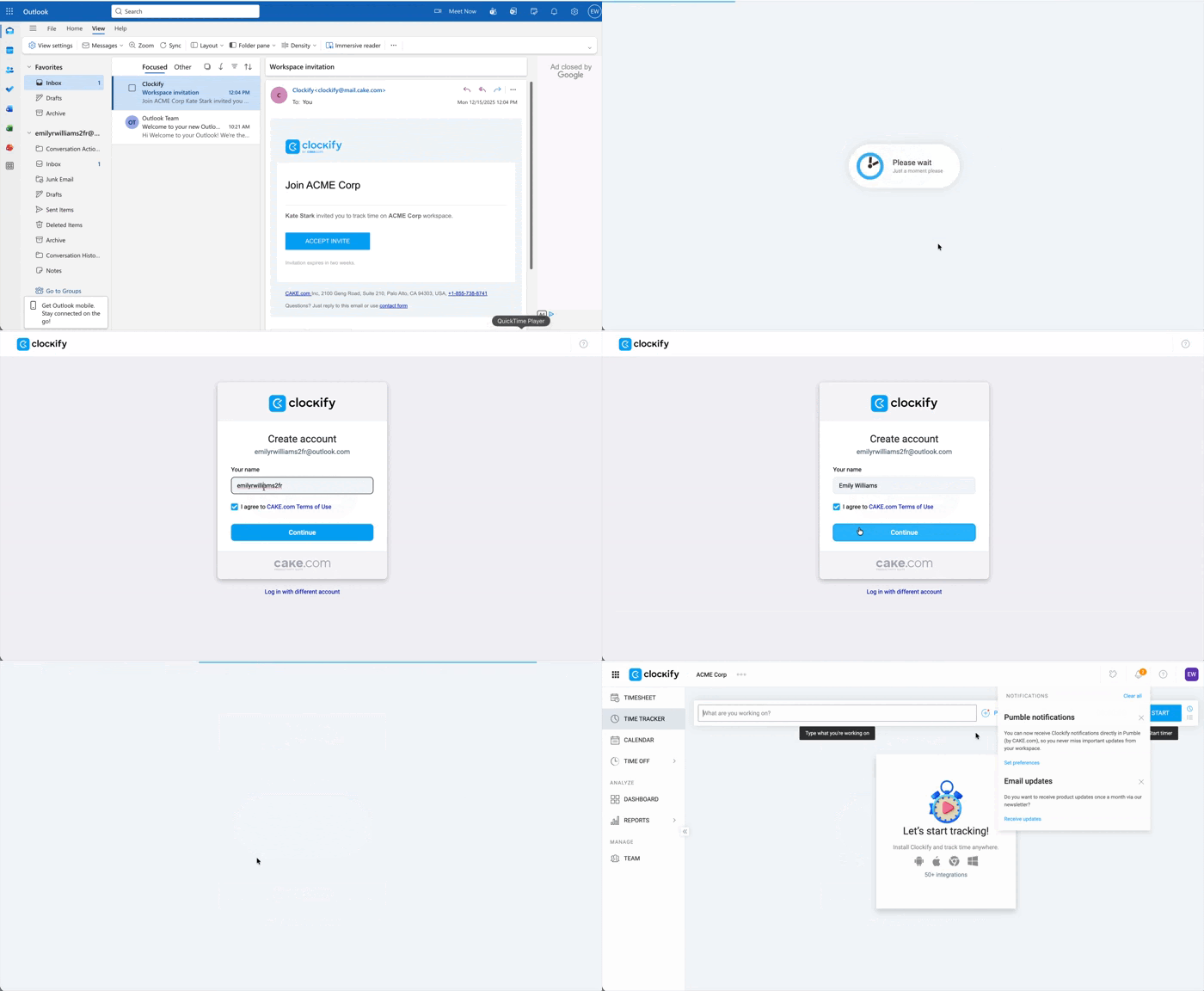
If you are expecting an invitation and haven’t received one, reach out to your company’s system administrator.
Signing up and creating a new account
If you’d like to sign up and create a new account:
- Créer son compte on the signup page you’ve been redirected to.
- Enter your email (or sign up using your Google account).
- A verification code will be sent to your inbox.
- Type in the code in the provided prompts.
You’ll automatically be added to the workspace and can start tracking time immediately.
Accept a workspace invitation (Existing users)
If you already have a Clockify account, click Accept Invite on the email from Clockify and you should be directed to your new workspace.
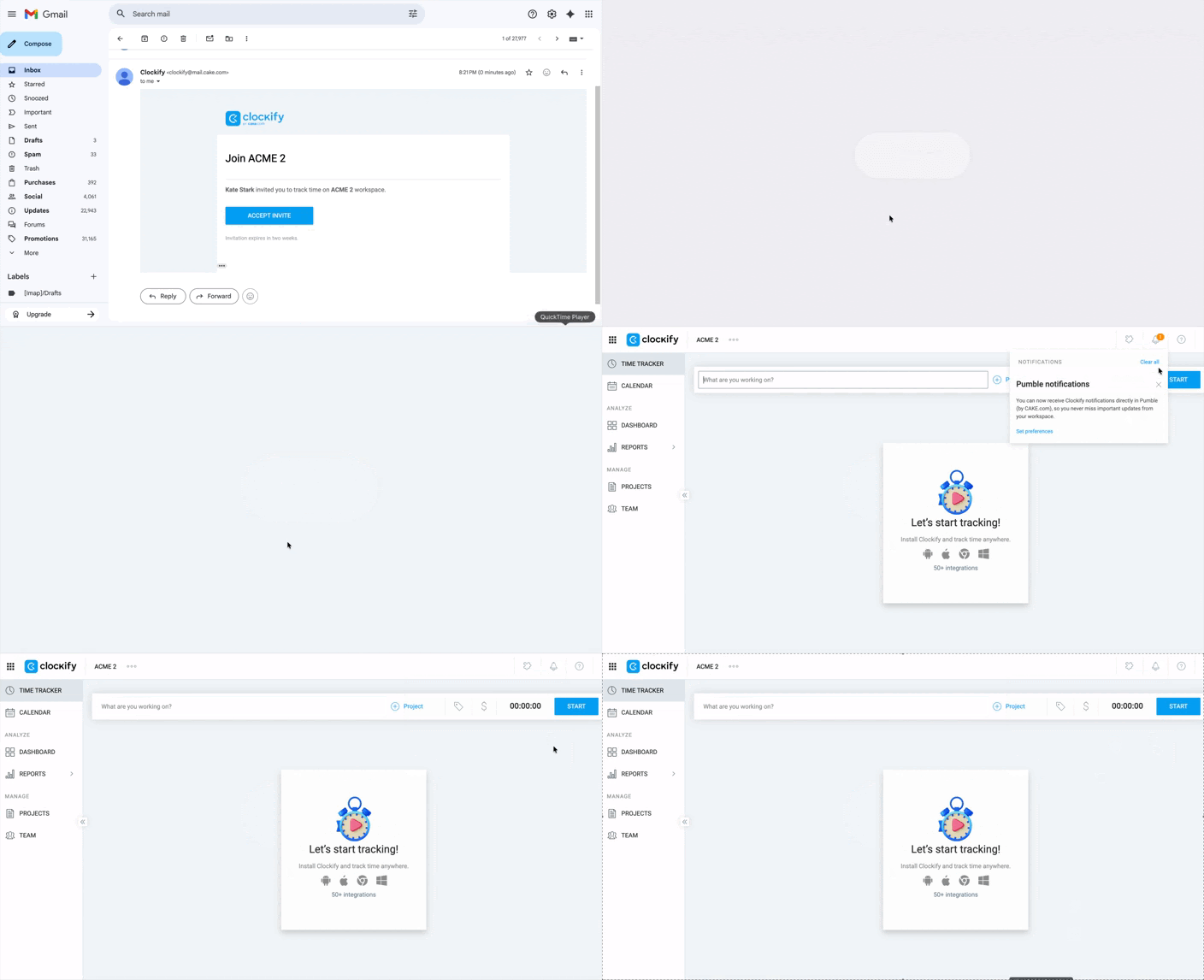
You can’t create a new Clockify account with an email address that’s already in use.
Se connecter
Pour se connecter :
- Go to the Login page.
- Web: Go to Clockify login page.
- Desktop: Open the app and click Log in.
- Mobile (iOS/Android): Open the app and tap Log in.
- Enter your email, or log in using your Google account.
- Check the verification code in your email inbox.
- Type in the code in provided prompts.
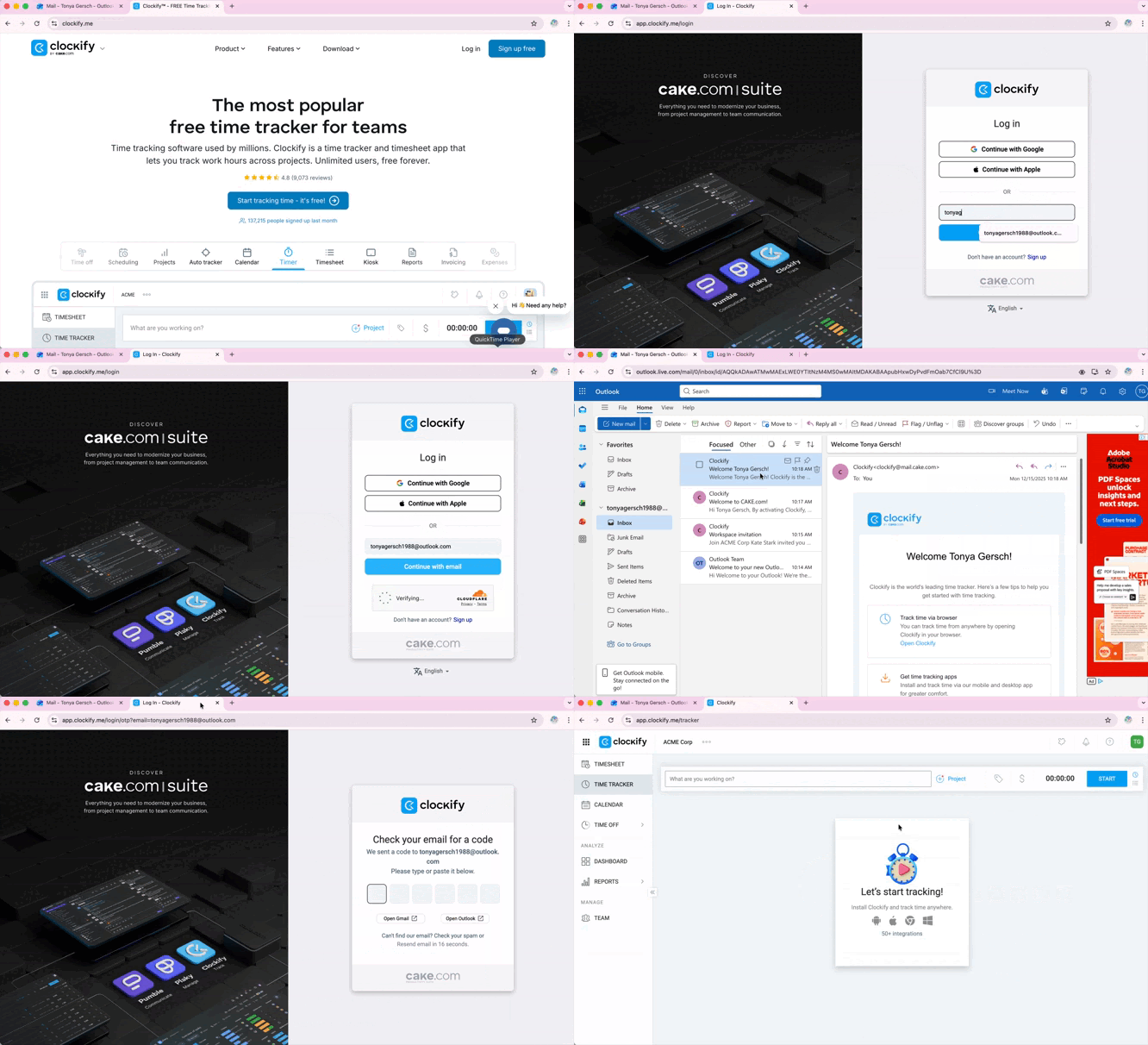
Accéder à Clockify via une adresse Web personnalisée
If your company is using a custom or personalized web address, visit [your_custom_address].clockify.me and follow the same signup/login process.
Once you’re logged in, you’ll be able to start tracking your time and reviewing your work logs while working with your team.
Bookmark the page so you can easily find it the next time you need to log in.
FAQ
What if I don’t receive the verification email?
If you don’t receive the verification OTP code, check your spam or junk folder. If you still can’t find it, try resending the code by selecting the Resend email option on the verification page. If
the issue persists, contact our support team.
Why did my invitation link expire?
Il existe deux raisons principales pour lesquelles votre lien d’invitation peut expirer :
- You’ve already accepted the invite. Once you accept the invitation and create the account, the link becomes invalid. To check if you’ve already accepted, go to clockify.me and try to log in.
- Link has expired. Invitation links expire after 14 days. If you haven’t accepted the invitation during that time, the link is no longer valid. In that case, you need to contact a workspace admin to resolve this issue.