Auditar el uso de aplicaciones o sitios web específicos
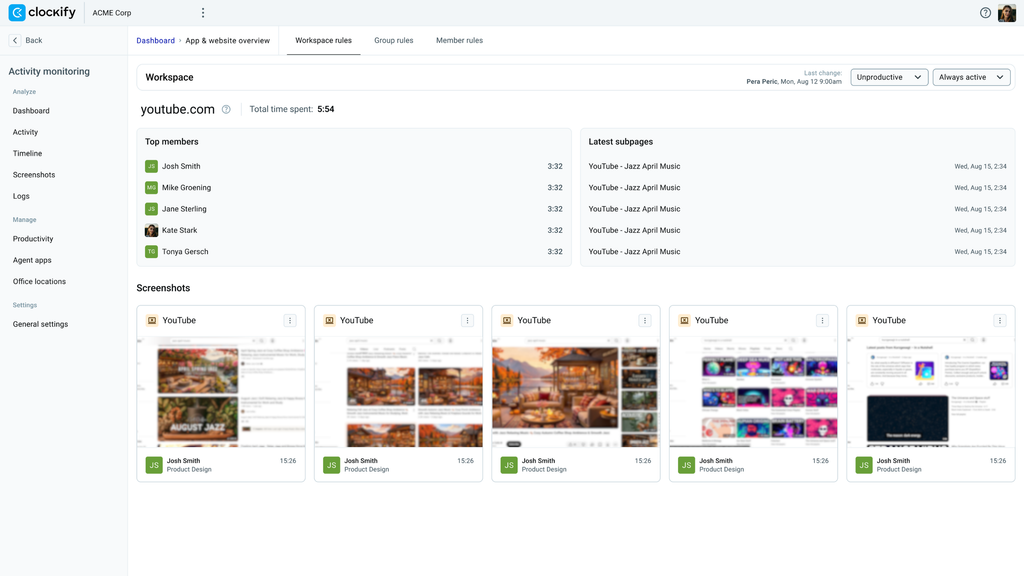
Si eres administrador de un espacio de trabajo o gerente de equipo y quieres un análisis más profundo del impacto de una aplicación específica en la productividad general de los equipos, utiliza la página de Resumen de aplicaciones y sitios web.
Ve a Monitorización > Panel para consultar los miembros del equipo productivos e no productivos y ver las visitas a las páginas (con capturas de pantalla si están habilitadas).
Permisos #
Los administradores y gerentes de equipo tienen los siguientes permisos para modificar la productividad y los tipos de actividad:
| Rol | Permisos |
| Administradores del espacio de trabajo | Pueden cambiar tanto la Categoría de productividad como el Tipo de actividad |
| Gerentes de equipo | Solo pueden cambiar la Categoría de productividad. La opción de Tipo de actividad está oculta para los gerentes de equipo. |
Analizar el uso por alcance #
Los usuarios individuales y los departamentos utilizan las aplicaciones de forma diferente. Revisar los datos en los distintos niveles de la organización te ayuda a identificar patrones de uso generales y detectar anomalías antes de ajustar las reglas.
Cambiar la vista entre equipos y miembros #
Utiliza las pestañas para cambiar el nivel de detalle de los datos mostrados. Cambia entre las Reglas del espacio de trabajo, Reglas del grupo, y Reglas del miembro para comparar el uso de toda la organización con las tendencias departamentales o inspeccionar la actividad de cada usuario.
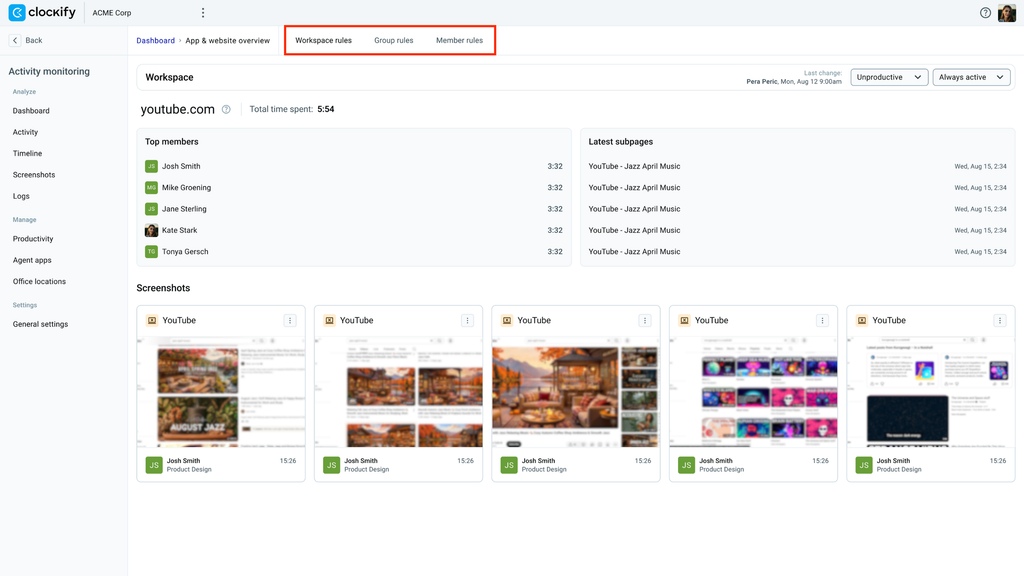
Las reglas de productividad siguen una jerarquía, donde la configuración más específica prevalece sobre la general.
Por ejemplo, si un sitio web específico se clasifica como no productivo en el espacio de trabajo, pero un miembro registra horas productivas en él, debes revisar la pestaña Reglas del miembro para confirmar si una regla específica de miembro prevalece sobre la configuración predeterminada del espacio de trabajo.
Revisar la lista de usuarios principales #
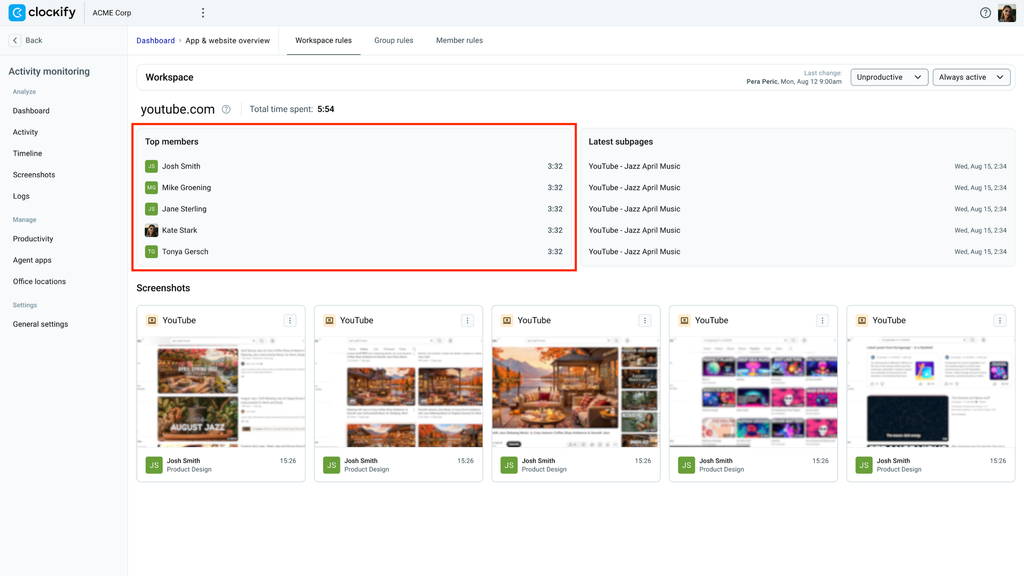
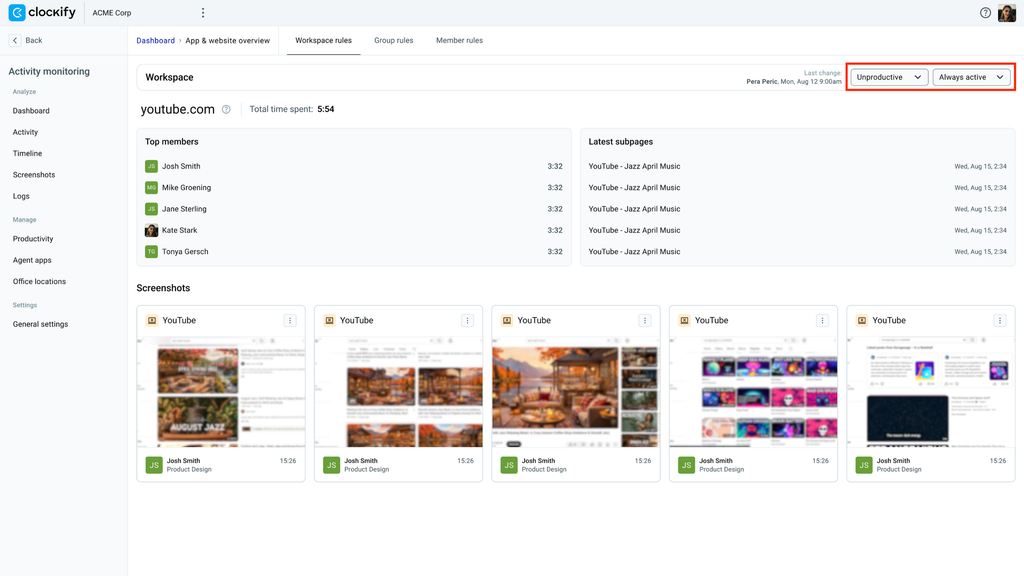
El mosaico Miembros principales muestra la lista de las 5 personas del espacio de trabajo que más utilizan la aplicación o el sitio web en cuestión. Usa esta lista para comprobar cuánto tiempo pasan en la aplicación y luego verifica las páginas visitadas en las secciones Últimas subpáginas y Capturas de pantalla.
Investigar subpáginas y pestañas #
El mosaico Últimas subpáginas muestra detalles adicionales sobre la aplicación o el sitio web, específicamente un desglose de las pestañas o documentos abiertos por los usuarios mientras el sistema registraba su tiempo.
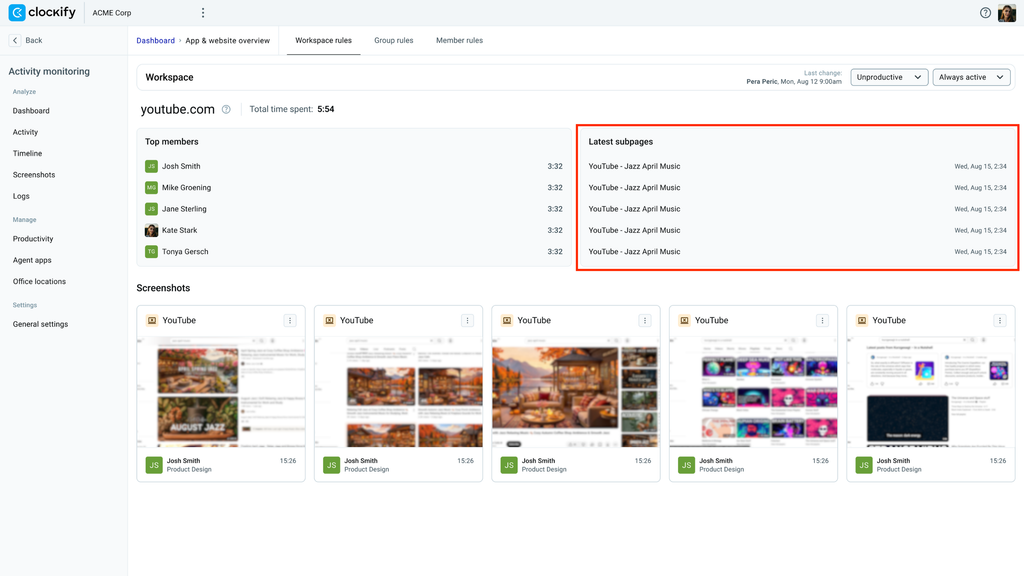
Si encuentras actividad sospechosa, revisa esta lista para verificar la actividad y cómo se utilizó la aplicación según su clasificación. Por ejemplo:
- Navegadores web
Al auditar un navegador como Chrome o Safari, el registro muestra las pestañas abiertas y el perfil (p. ej., Nueva pestaña – Perfil 1 – Google.com), incluyendo la marca de tiempo de su uso (p. ej., mié, 15 de ago, 4:36). - Aplicaciones y sitios web
Al auditar un sitio web comoyoutube.com, se mostrará el título del vídeo activo en pantalla (p. ej., YouTube – When Sunny Gets Blue) y la marca de tiempo de su visualización (p. ej., mié, 15 de ago, 4:36).
Por ejemplo, si abriste la página de un sitio web no especificado, utiliza la lista para verificar la actividad específica durante periodos no definidos y compara las marcas de tiempo con las capturas de pantalla.
Si no ves capturas de pantalla en la página, asegúrate de que la configuración esté activada para capturarlas. Consulta Guía de configuración de Monitorización de actividad para obtener instrucciones sobre cómo habilitar las capturas de pantalla en tu espacio de trabajo.
Gestionar reglas de clasificación y seguimiento #
Una vez que comprendas cómo tus empleados usan la aplicación o el sitio web, puedes actualizar su tipo de productividad asignado y cómo el sistema realiza el seguimiento en los diferentes niveles del espacio de trabajo.
Solo los administradores del espacio de trabajo pueden ver y modificar el tipo de actividad.
Cambiar el tipo de productividad o actividad de aplicación/sitio web #
Hay dos maneras de cambiar los tipos de productividad y actividad de una aplicación.
Usar la pestaña Reglas del espacio de trabajo/grupo/miembro #
Para cambiar la categoría o actividad asignada a una aplicación/sitio web:
- Abre la página de Resumen de la aplicación y sitios web
- Ve a la pestaña del alcance donde quieres actualizar la clasificación (p. ej., Reglas del espacio de trabajo)
- Realiza una de las siguientes acciones:
- Cambia el tipo de productividad: Selecciona la categoría de la lista desplegable (p. ej., Neutral) y confirma el cambio en la ventana de confirmación
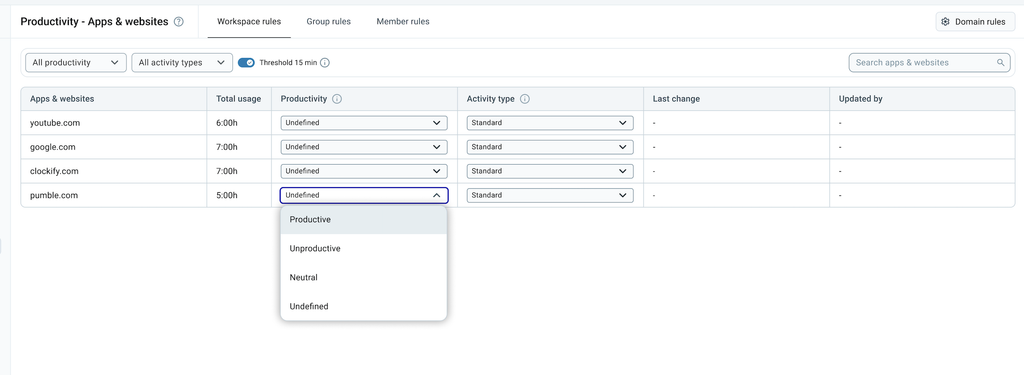
Todas las aplicaciones y sitios web recién detectados se introducen inicialmente al sistema como Sin definir. Una vez que cambies el tipo de productividad de un elemento a Productivo, Neutral o No productivo, no podrás volver a cambiarlo a Sin definir.
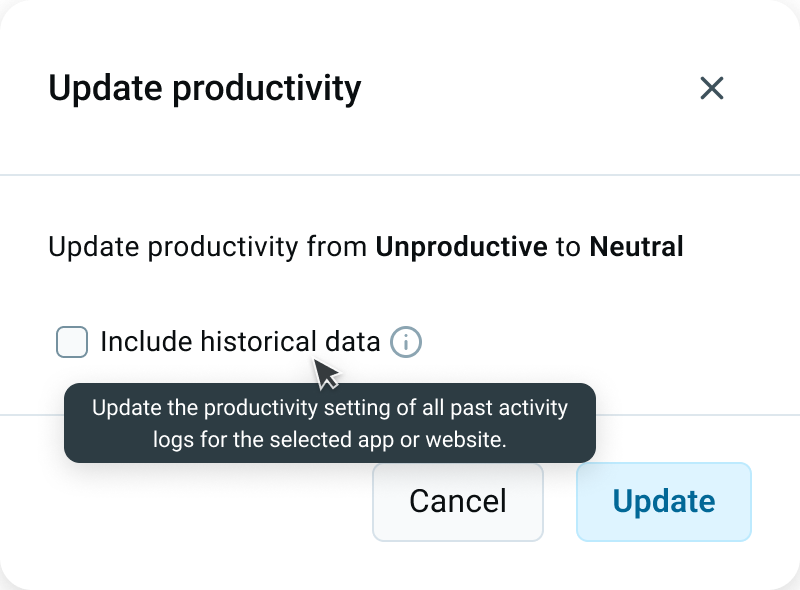
Si al revisar los datos detectas que una aplicación se ha clasificado incorrectamente, puedes aplicar el cambio a las actividades registradas previamente al actualizar el Tipo de productividad.
Para eso, selecciona la casilla Incluir datos históricos antes de hacer clic en Actualizar. Los cambios se aplican de inmediato y afectarán a los cálculos de productividad anteriores.
- Cambia el tipo de actividad: Selecciona la actividad de la lista desplegable (p. ej., Siempre activo).
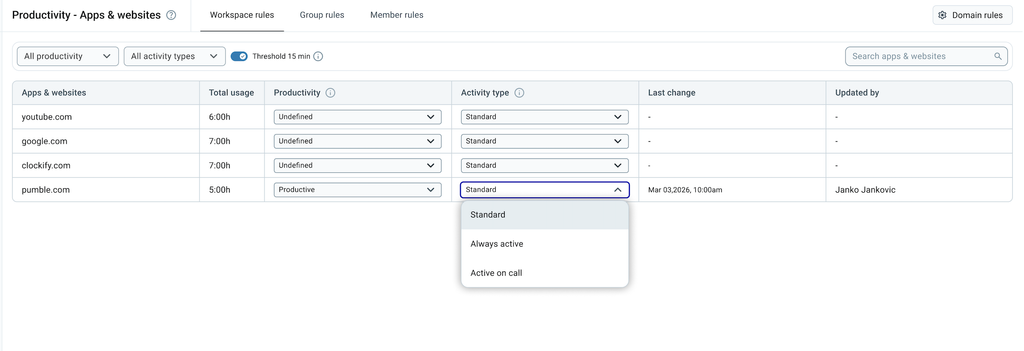
Cualquier cambio realizado en el Tipo de actividad tiene efecto de inmediato, pero solo se aplicará al seguimiento de actividades futuras.
Utilizar el encabezado de la vista general #
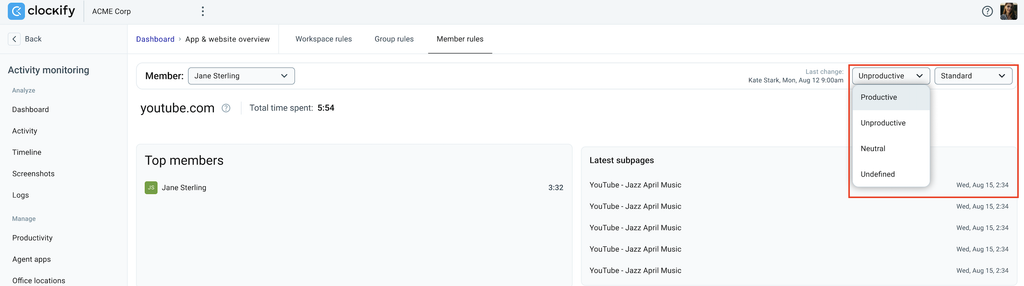
El Tipo de productividad y el Tipo de actividad se pueden editar directamente en el encabezado de Resumen de aplicaciones y sitios web para la entidad o miembro seleccionado.
- Haz clic en la pestaña (Reglas de espacio de trabajo, Reglas de grupo, o Reglas de miembro)
- Haz clic en una aplicación, grupo o miembro específico
- Cambia los tipos de Productividad y Actividad en los menús desplegables de la esquina superior derecha de la página
Preguntas frecuentes #
¿Cómo filtro los datos de uso de las aplicaciones para ver los de un solo equipo en lugar de los de toda la empresa?
Haz clic en la pestaña Reglas de grupo y selecciona el departamento específico de la lista para ver el uso de un equipo en particular.
¿Cómo resuelve el sistema los conflictos en las reglas de categorización de aplicaciones?
El sistema sigue una jerarquía estricta donde se aplica primero la regla más específica: Miembro → Grupo → Espacio de trabajo. Para obtener más información sobre las reglas de categorización, consulta Clasificar aplicaciones y sitios web.