El total de la factura es de 0 $
Si la factura que creaste muestra un total de $0 o ninguna entrada de tiempo, generalmente significa que las entradas de tiempo no tienen una tarifa facturable o no se marcaron como facturables desde el principio. Aquí te mostramos cómo encontrar y solucionar el problema.
Verifica la configuración de tu espacio de trabajo #
Las facturas calculan el importe total en función de las tarifas facturables. Si la configuración de horas facturables no está habilitada en tu espacio de trabajo, los campos de tarifa facturable y el ícono de facturación estarán ocultos.
Para verificar que tu espacio de trabajo esté configurado para registrar las horas facturables:
- Haz clic en el icono de los tres puntos junto al nombre de tu espacio de trabajo
- Ve a Configuración del espacio de trabajo
- Haz clic en Finances en la barra lateral
- Verify that Billable hours toggle is switched ON
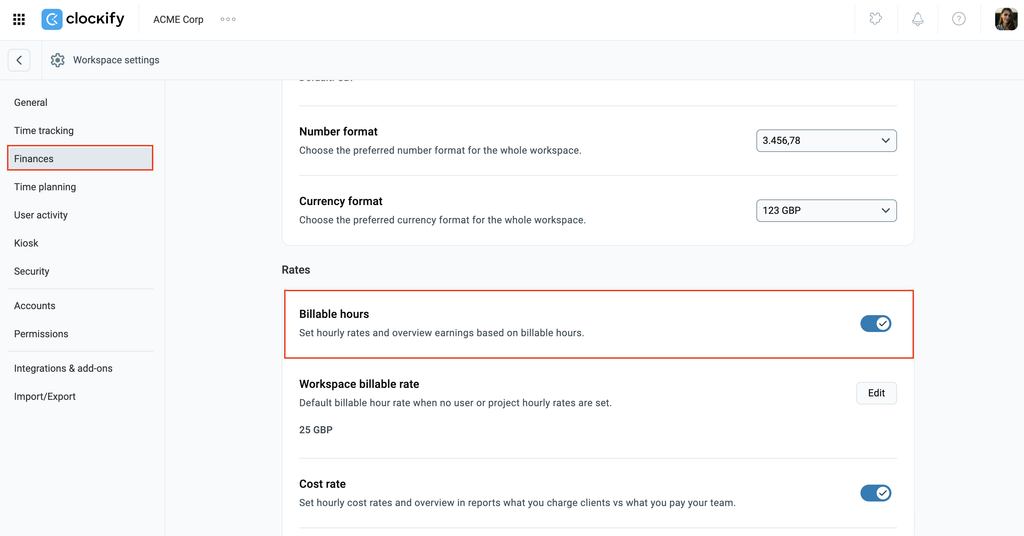
Si cambiaste tu suscripción de pago al plan Gratis o tu prueba gratuita ha finalizado, las horas facturables y la facturación están desactivadas.
- Billable hours toggle is switched OFF (requires Basic plan)
- La página de facturas está deshabilitada (requiere el plan Standard)
Para recuperar el acceso a estas funciones, actualiza al plan Standard o superior. Tus tarifas guardadas se volverán a aplicar a los registros de tiempo tras la actualización.
Entradas de tiempo no facturables no aparecen en las facturas #
Las facturas de Clockify solo incluyen las entradas de tiempo facturables. Si tus entradas fueron registradas como no facturables, no estarán disponibles para importarlas a la factura en absoluto. La factura aparecerá vacía.
Cómo comprobarlo:
- Navega hasta el Informe detallado y selecciona el rango de fechas relevante
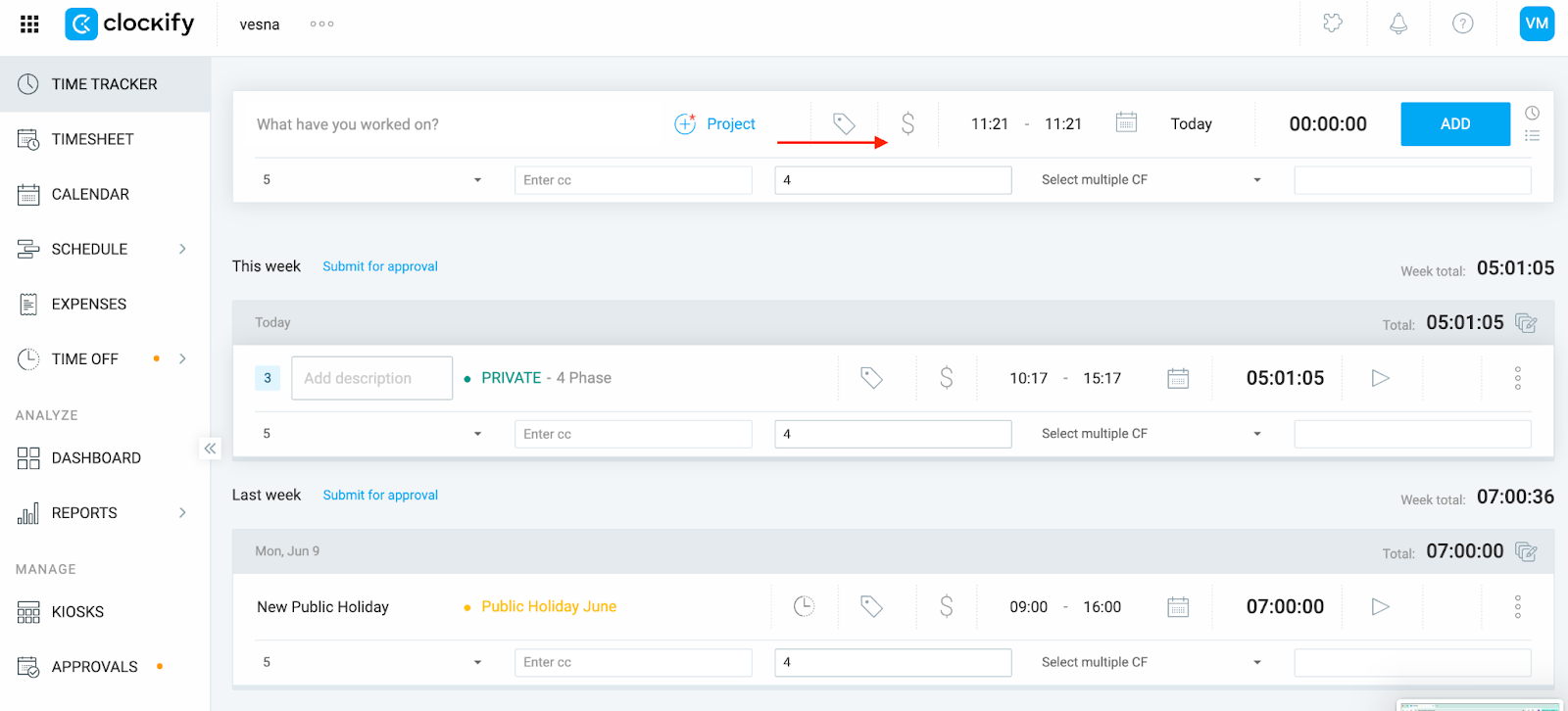
- Busca el ícono de facturación (signo de dólar u otra moneda) junto a tus entradas
- Si el ícono aparece en gris, la entrada no es facturable
Cómo marcar las entradas de tiempo como facturables #
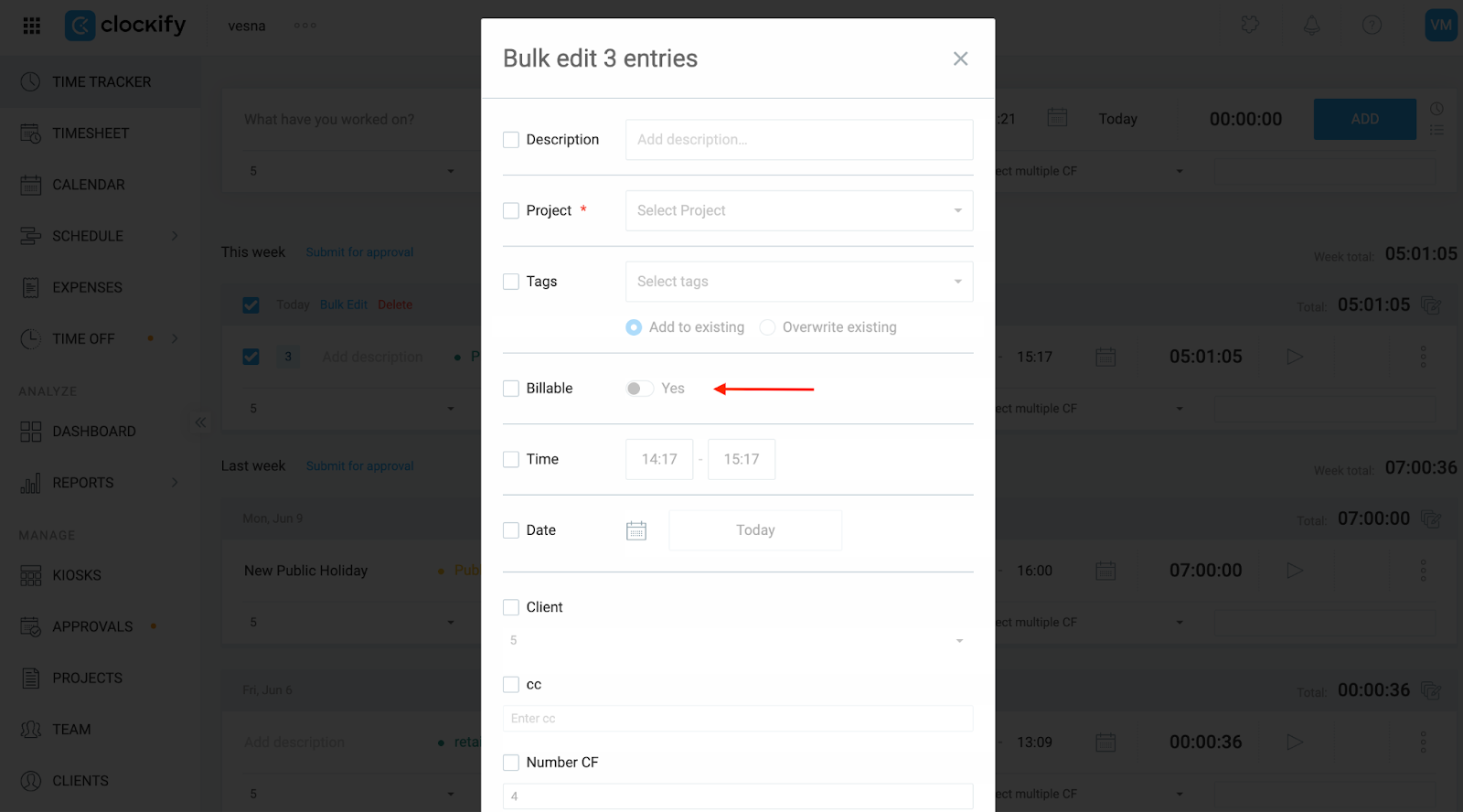
- Haz clic en la casilla junto a Entrada de tiempo para seleccionar las entradas de tiempo disponibles
- Haz clic en Edición masiva
- Marca la casilla Facturable y activa el botón Sí
- Haz clic en Guardar para aplicar los cambios
Después de marcar las entradas como facturables, vuelve a la factura e intenta importarla de nuevo.
La tarifa horaria es de 0 $ #
Si tus entradas son facturables pero aún no muestran un total, la tarifa horaria aplicada está establecida a 0 $. Clockify tratará esto como hora válida sin coste.
Dónde consultar las tarifas facturables #
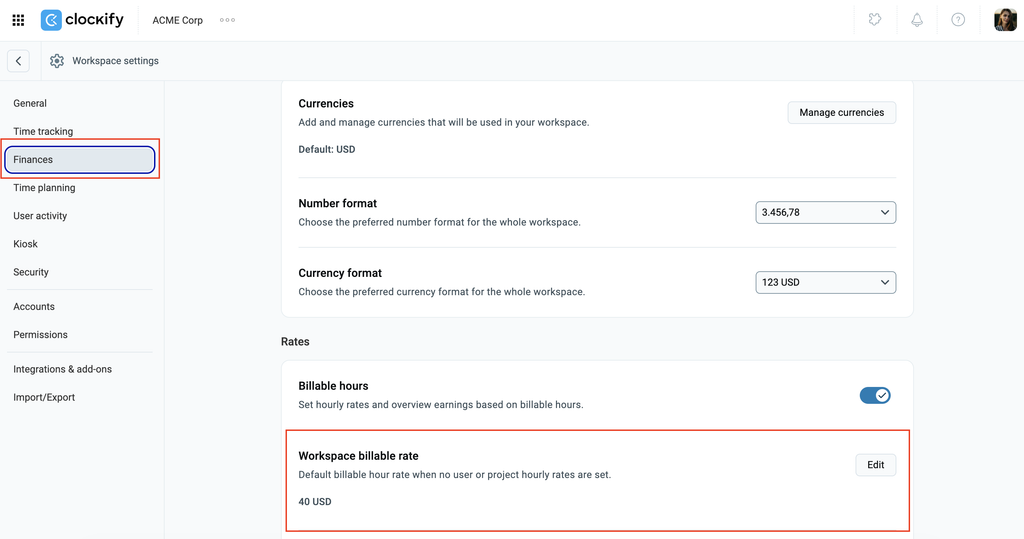
- Tarifa de espacio de trabajo
- Haz clic en los tres puntos junto al nombre del espacio de trabajo
- Haz clic en Configuración del espacio de trabajo
- Select Finances from the sidebar
- Desplázate hacia abajo y consulta la Tarifa facturable del espacio de trabajo
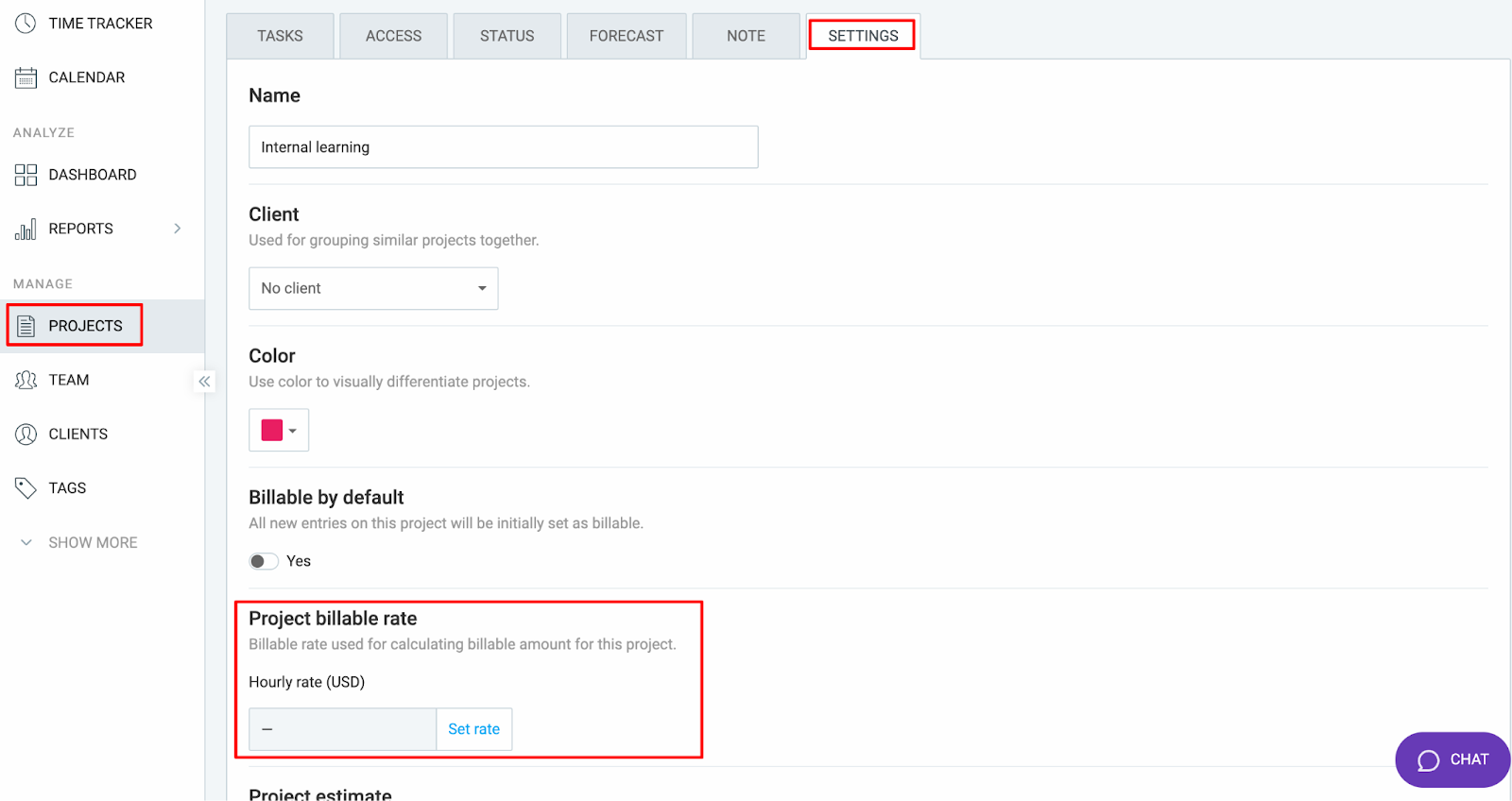
- Tarifa de proyecto
- Navega a la página Proyectos en la barra lateral
- Encuentra el proyecto en la lista y haz clic para abrirlo
- Ve a la pestaña Configuración y verifica la Tarifa facturable del proyecto
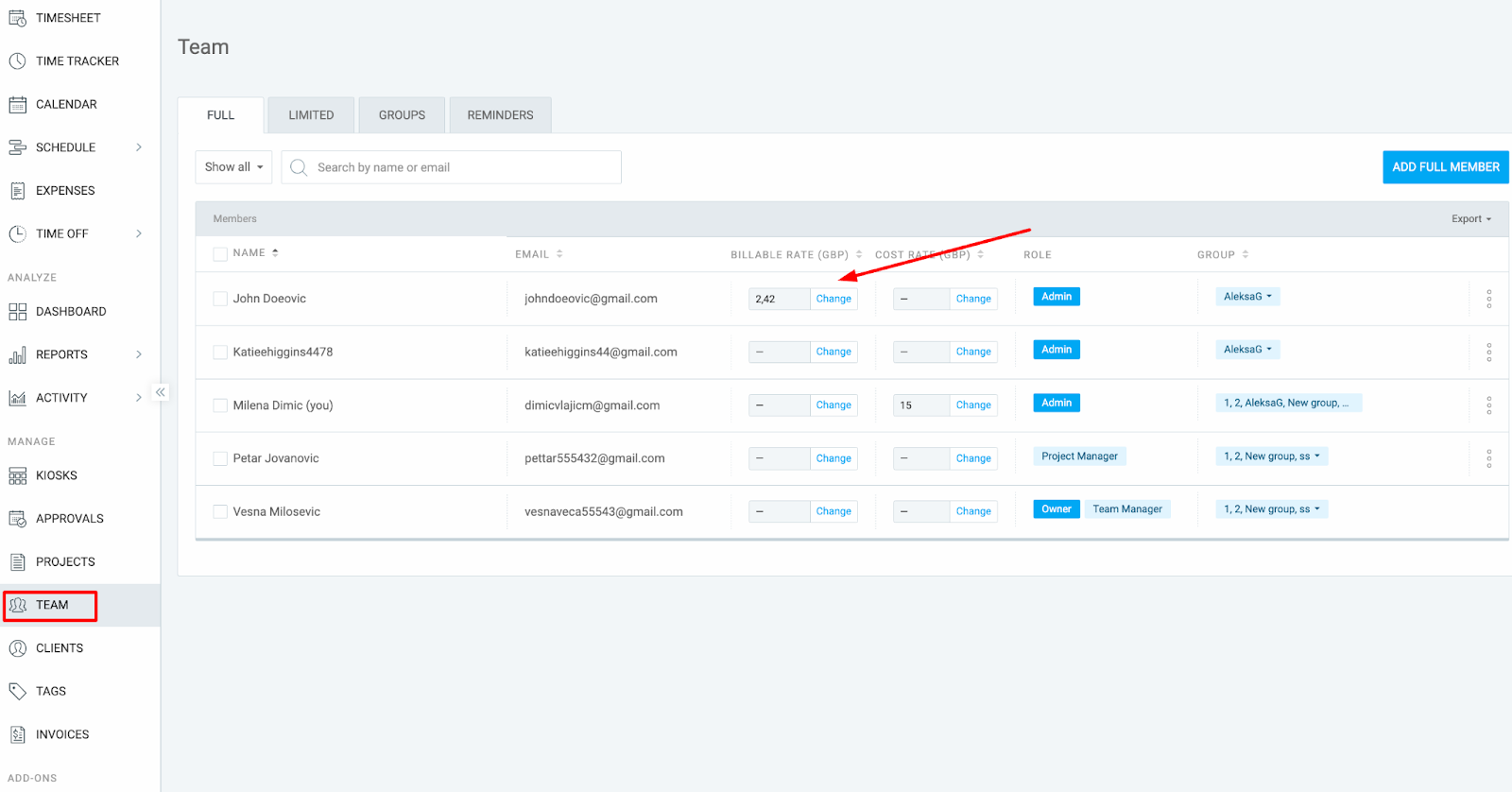
- Tarifa de miembro del equipo
- Navega a la pestaña Equipo en la barra lateral
- Consulta la columna Tarifa facturable junto a cada usuario
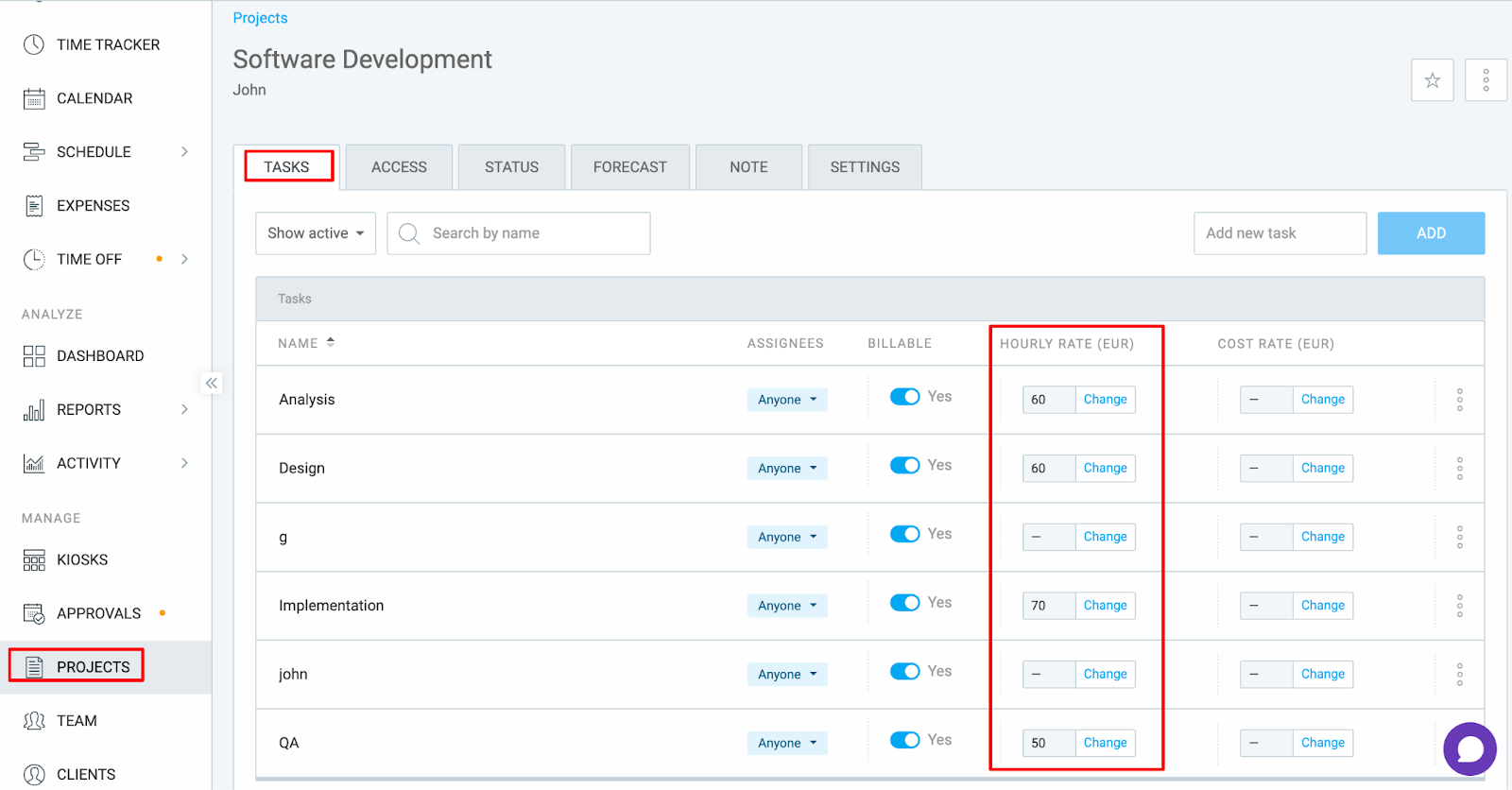
- Tarifa de tarea
- Navega a la página Proyectos en la barra lateral
- Haz clic en el proyecto para abrirlo
- Navega a la pestaña de Tareas
- Comprueba la Tarifa horaria junto a cada tarea
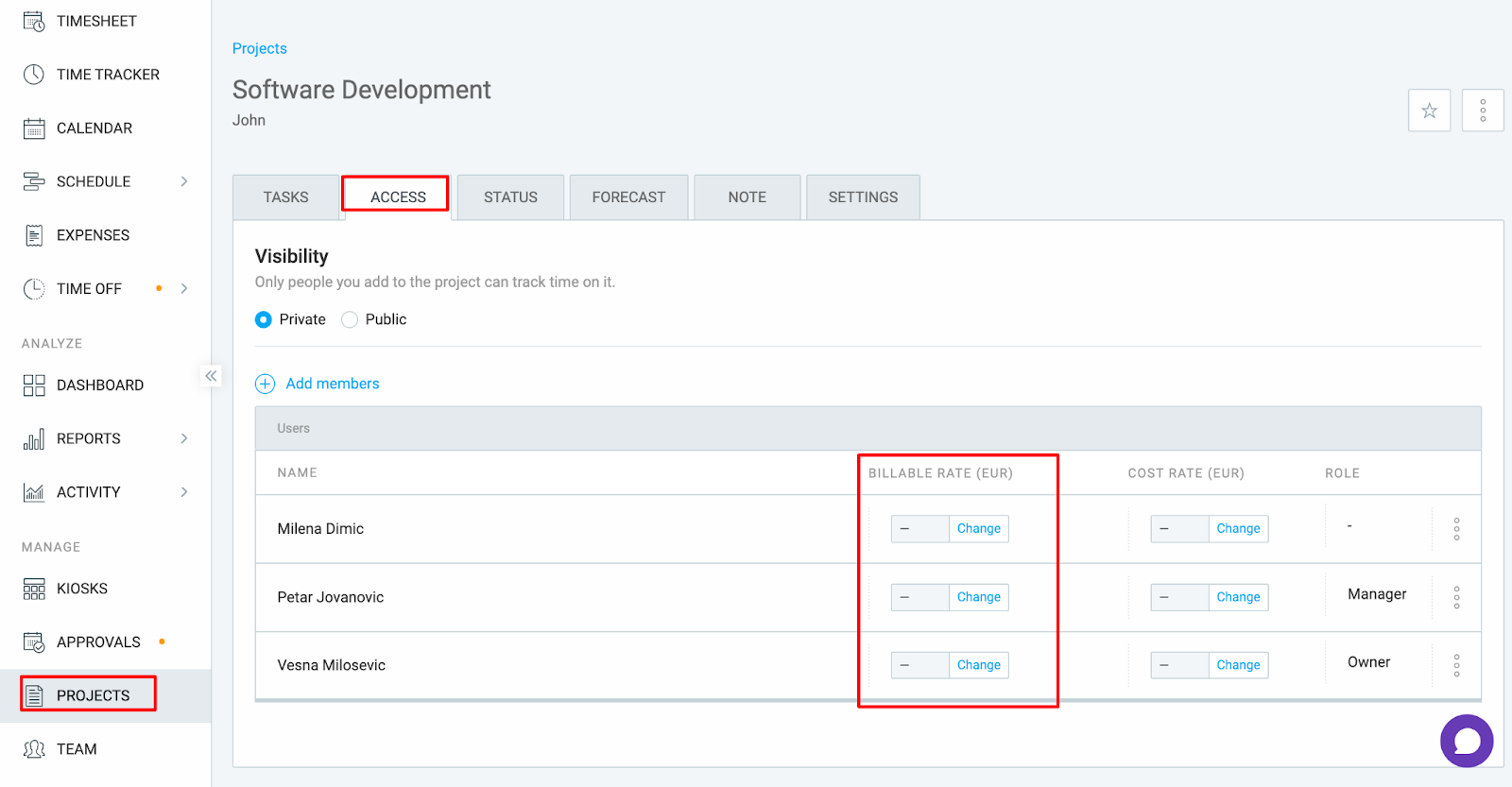
- Tarifa de miembro del proyecto
- Navega a la página de Proyectos
- Haz clic en el proyecto para abrirlo
- Ve a la pestaña de Acceso
- Comprueba o cambia la Tarifa facturable junto a cada usuario
Una tarifa más específica de 0 $ anula tu tarifa deseada #
Clockify sigue una jerarquía de tarifas, donde las tarifas más específicas prevalecen sobre las más generales. Si la tarifa predeterminada no cambia (está en blanco), el importe de la factura se calculará a partir de las tarifas que tengan un valor establecido.
Jerarquía de tarifas de menor a mayor:
- Tarifa de espacio de trabajo (general)
- Tarifa de proyecto
- Tarifa de equipo
- Tarifa de tarea
- Tarifa de miembros del proyecto (más específica)
Por ejemplo, si la tarifa de tu espacio de trabajo está establecida en 5 $ pero la tarifa de miembro del proyecto es 0 $, la tarifa de miembro del proyecto anula la tarifa del espacio de trabajo según la jerarquía y el total de la factura calculado será 0 $.
Verifica tarifas facturables definidas en el espacio de trabajo #
Comprueba si hay tarifas vacías o de 0 $ en la cima de la jerarquía (Tarea o Miembro del proyecto), y ve bajando poco a poco. Estas tarifas anularán las tarifas más generales y conducirán a un total de factura de - $.
¿Sigues teniendo problemas? El equipo de soporte de Clockify estará encantado de revisarlo y ayudarte. Contáctanos en support@clockify.me e incluye la siguiente información:
- Una captura de pantalla de la factura en cuestión
- Una captura del Informe detallado mostrando el tiempo facturable
- Confirmación sobre qué tarifas se establecieron y dónde