Invoice total is $0
If your created invoice shows a total of $0, or no time entries at all, it usually means the time entries are missing a billable rate or weren’t marked as billable to begin with. Here’s how to find and fix the issue.
Check your workspace configuration #
Invoices calculate the total amount based on billable rates. If billable hours setting is not enabled in your workspace, the billable rate fields and the billable icon will be hidden in the workspace.
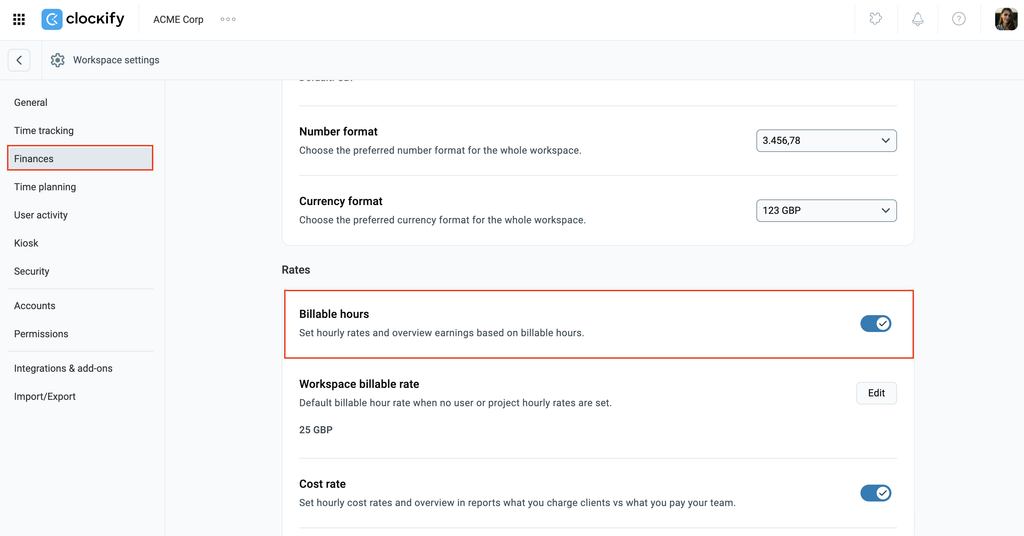
To check that your workspace is configured to track billable hours:
- Click the three dots icon next to your workspace name
- Go to Workspace settings
- Click Finances from the sidebar
- Verify that Billable hours toggle is switched ON
If you downgraded your paid subscription to the Free plan or your Free trial has ended, billable hours and invoicing are deactivated.
- Billable hours toggle is switched OFF (requires Basic plan)
- Invoices page is disabled (requires Standard plan)
To restore access to these features, upgrade to the Standard plan or higher. Your saved rates will be reapplied to the time entries upon upgrade.
Non-billable time entries won’t appear on invoices #
Clockify invoices only include billable time entries. If your entries were tracked as non-billable, they won’t be available for import into the invoice at all. The invoice will appear empty.
How to check:
- Navigate to the Detailed report and select the relevant date range
- Look for the billable icon (dollar sign) next to your entries
- If the icon is grayed out, the entry is not billable
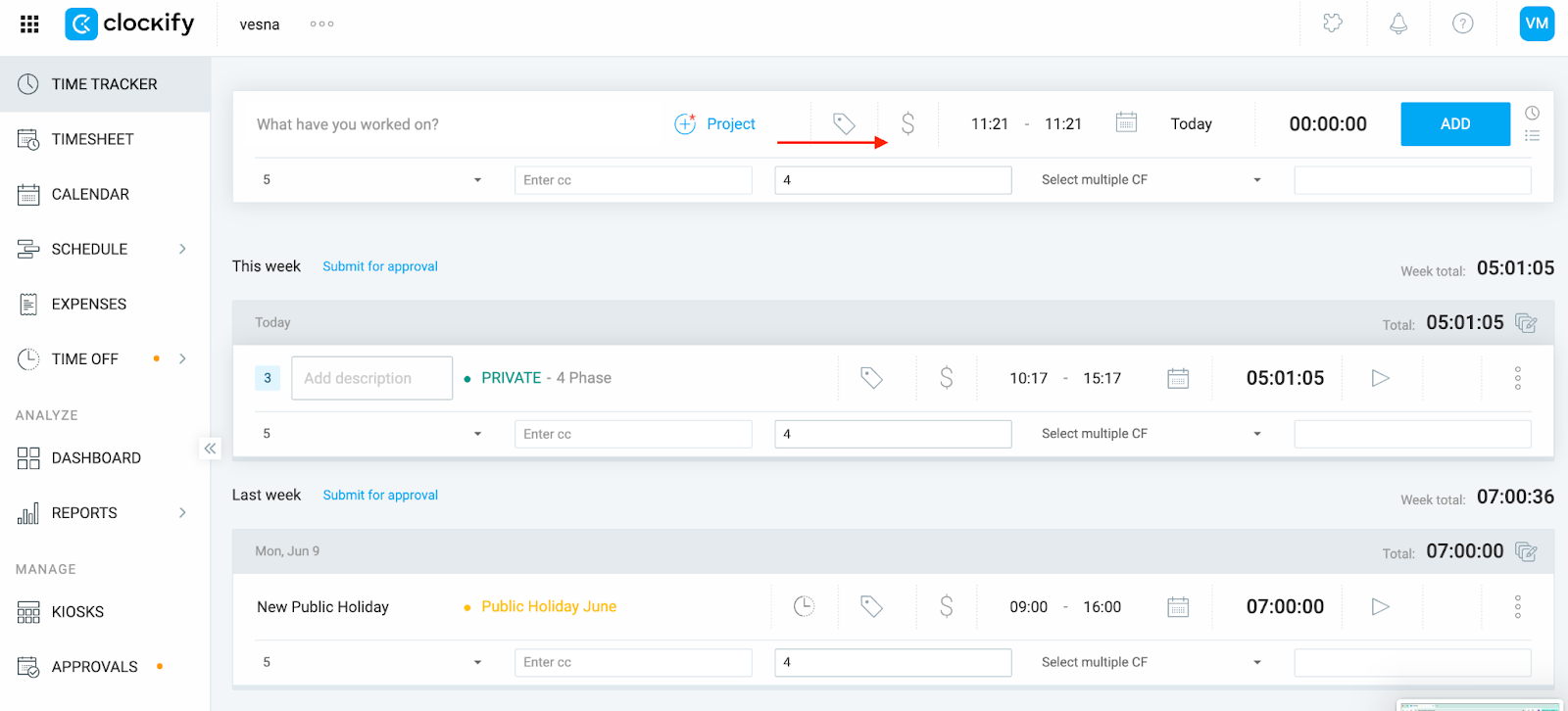
How to mark time entries as billable #
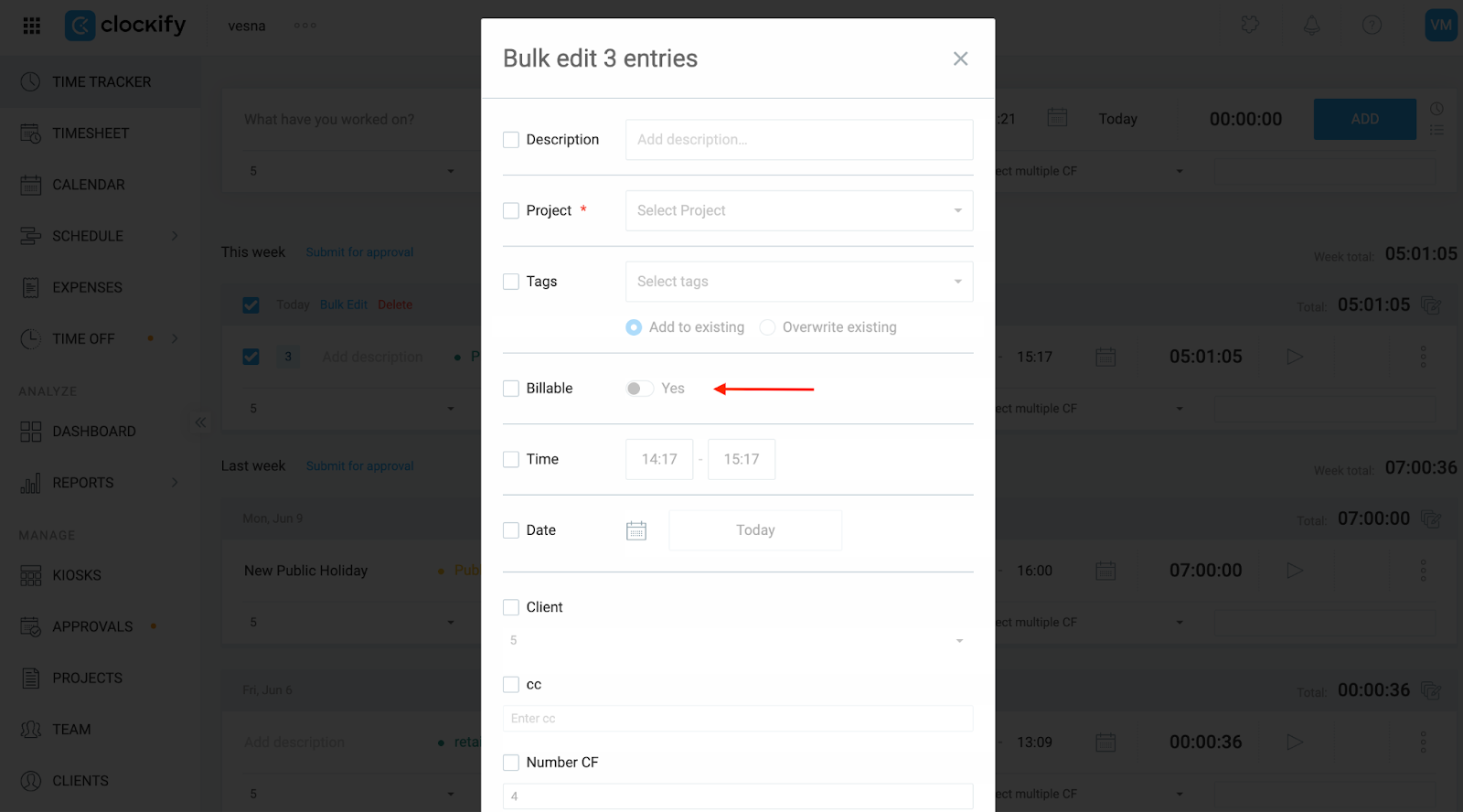
- Click the checkbox next to Time entry to select the available time entries
- Click Bulk Edit
- Check the Billable checkbox and toggle the Yes button
- Click Save to apply the changes
After marking the entries as billable, return to the invoice and try importing again.
The hourly rate is $0 #
If your entries are billable but still not showing a total, the applied hourly rate is likely set to $0. Clockify will treat that as valid time with no cost.
Where to check billable rates #
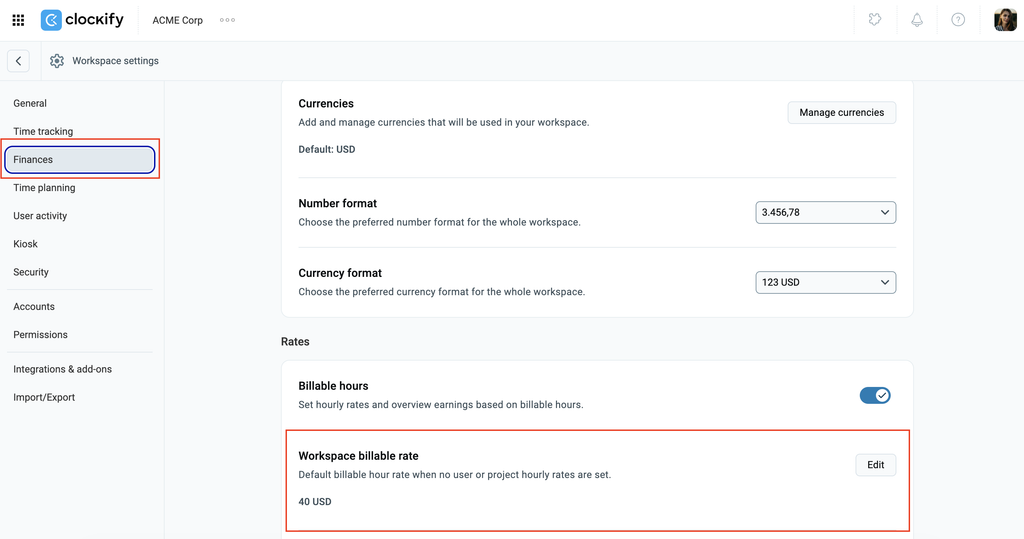
- Workspace rate
- Click on the three dots next to the workspace name
- Click Workspace settings
- Select Finances from the sidebar
- Scroll down and check the Workspace billable rate
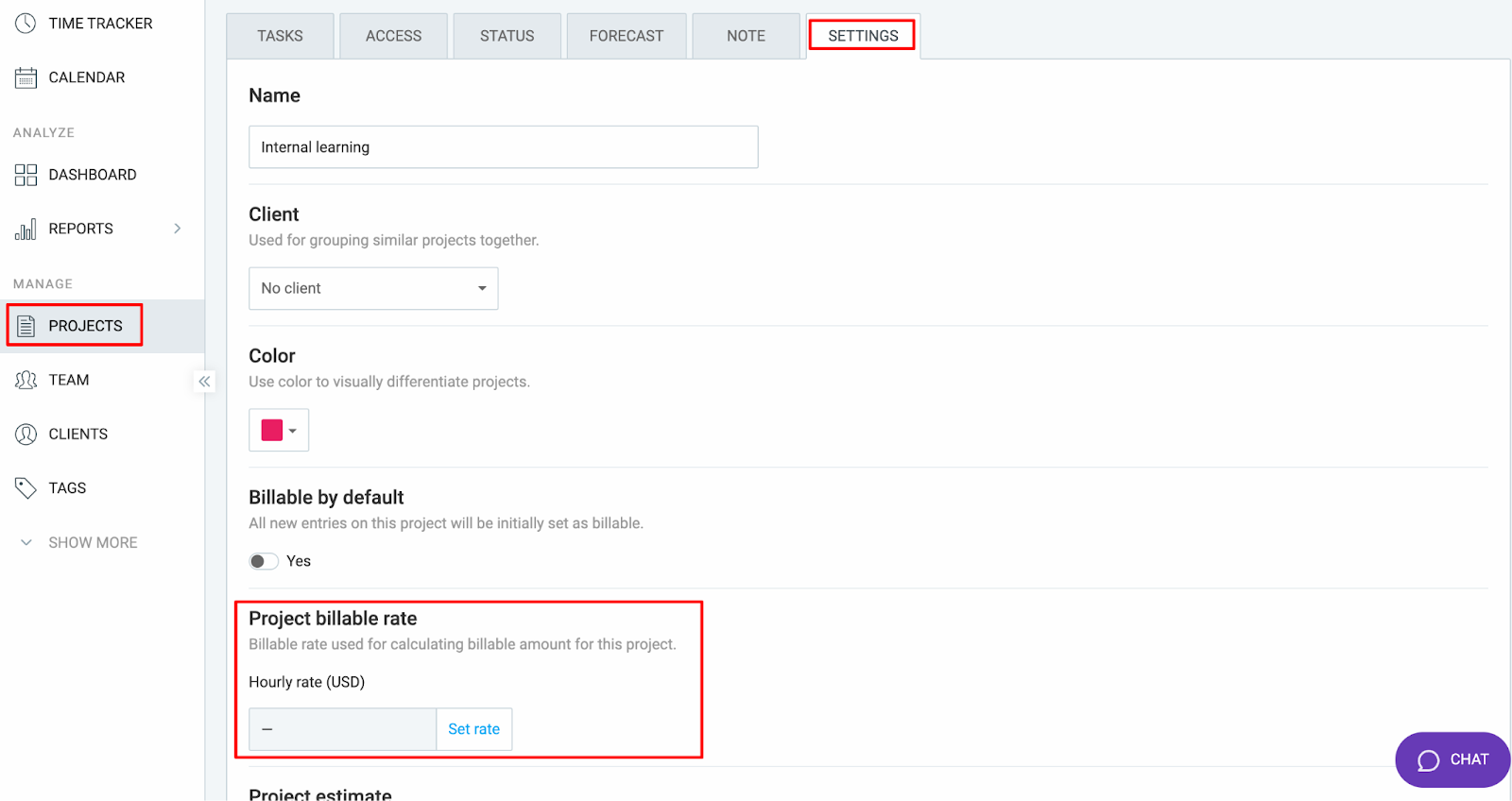
- Project rate
- Navigate to the Projects page from the sidebar
- Find the project from the list and click to open it
- Go to the Settings tab and check the Project billable rate
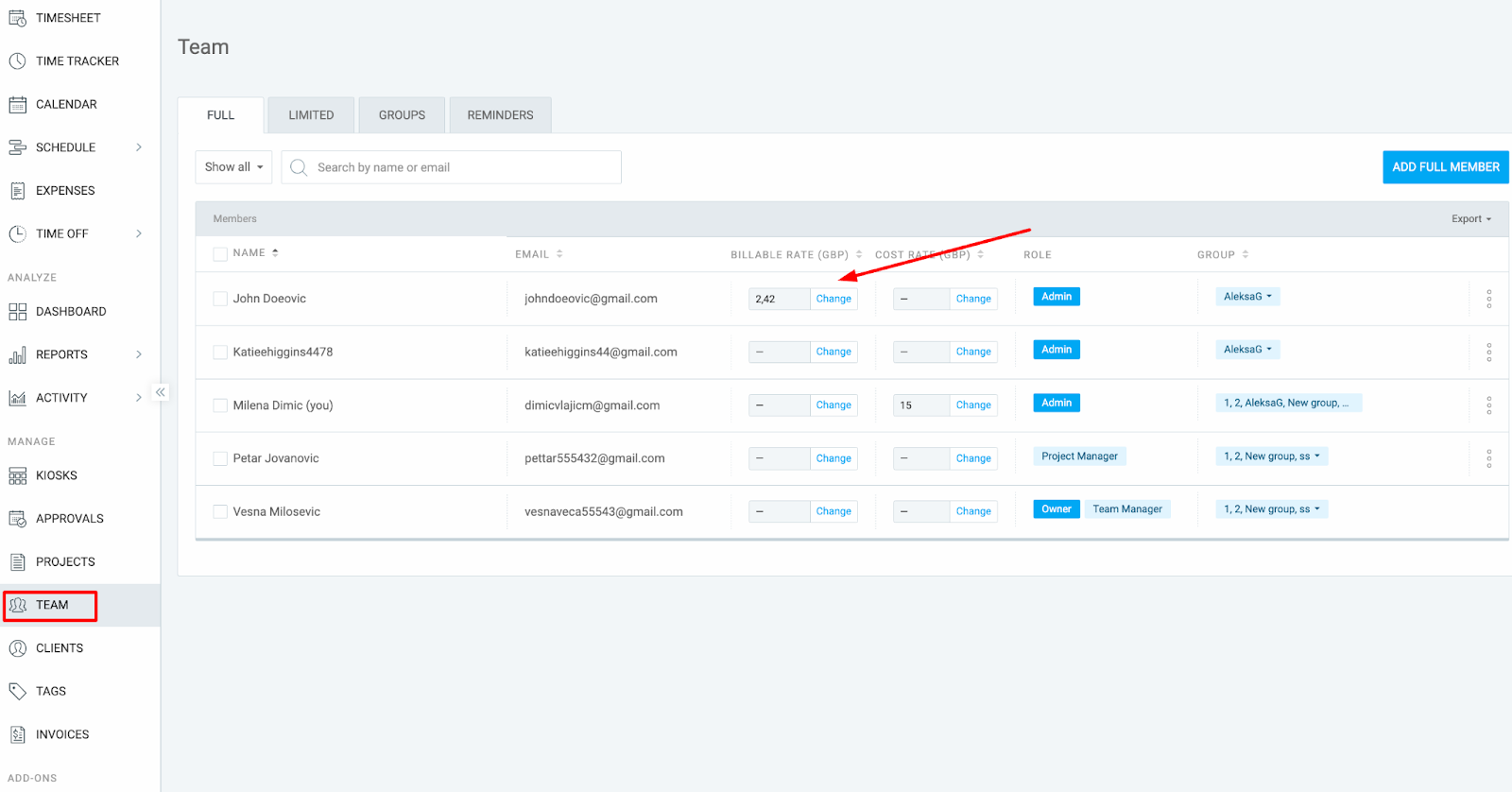
- Team member rate
- Navigate to the Team tab from the sidebar
- Check the Billable Rate column next to each user
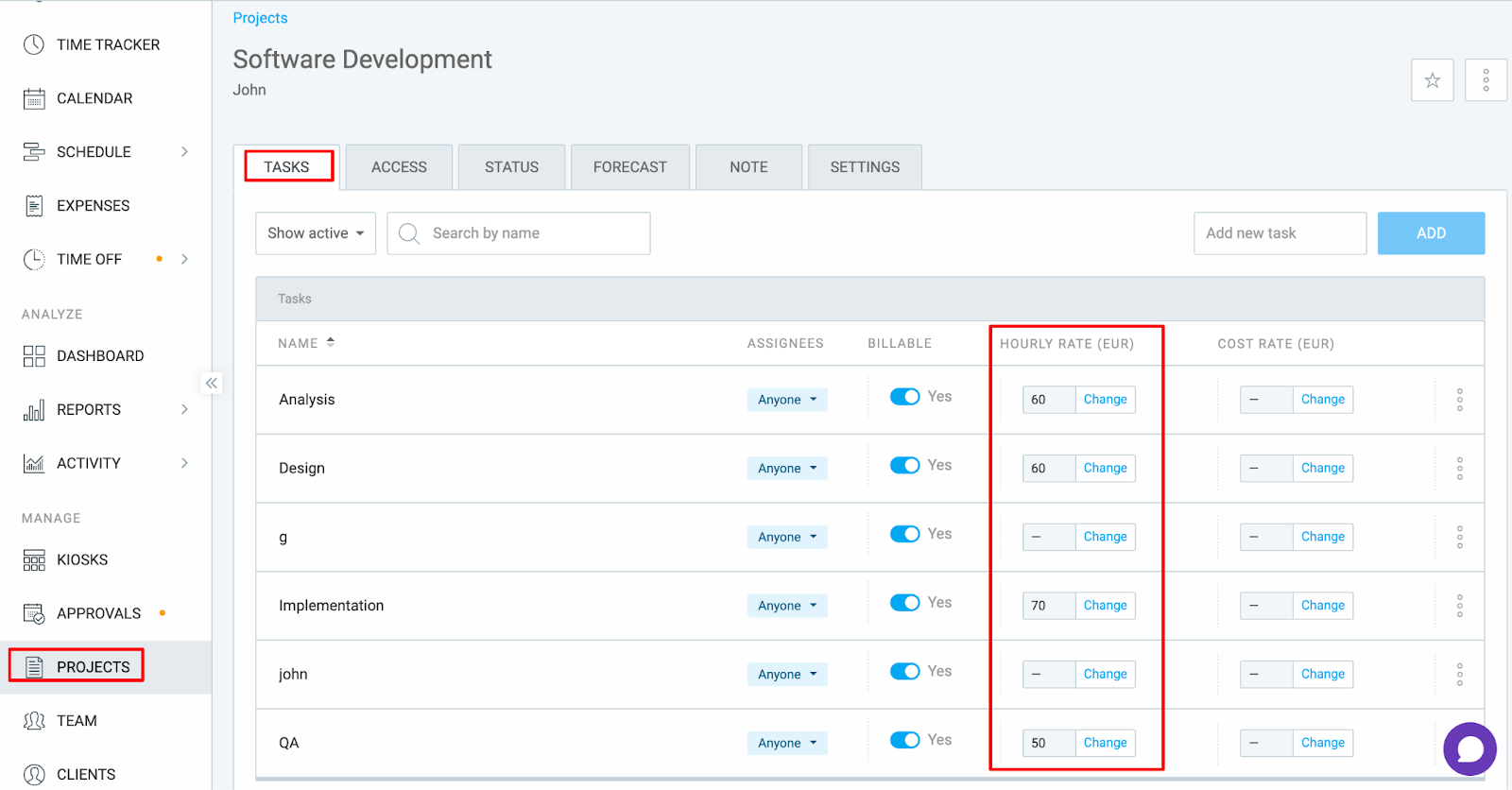
- Task rate
- Navigate to the Projects page from the sidebar
- Click on a project to open it
- Go to the Tasks tab
- Check the Hourly rate next to each task
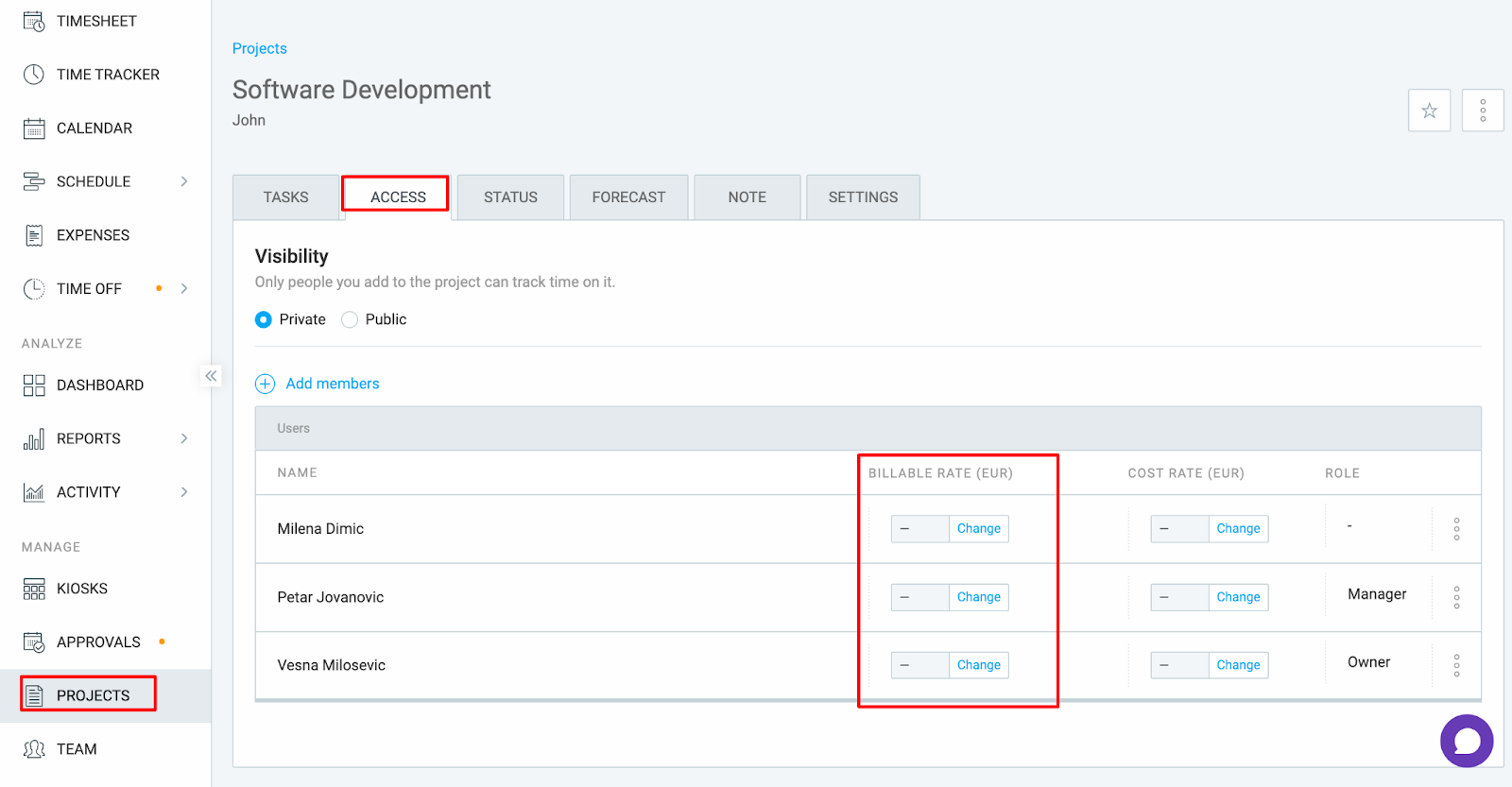
- Project member rate
- Navigate to the Projects page
- Click on the project to open it
- Go to the Access tab
- Check or change the Billable rate next to each user
A more specific $0 rate is overriding your intended rate #
Clockify follows a rate hierarchy, where the more specific rates override more general ones. If the default rate is unchanged (blank), the invoice amount will be calculated from the rates that have a set value.
Rate hierarchy from lowest to highest:
- Workspace rate (general)
- Project rate
- Team rate
- Task rate
- Project member rate (most specific)
For example, if your workspace rate is set to $5 but the project member rate is $0, the project member rate overrides the workspace rate according to the hierarchy, and the invoice total calculated will be $0.
Verify billable rates defined in the workspace #
Start by checking for any blank or 0$ rates at the top of the hierarchy (Task or Project Member), and work your way down. These will override the more general rates and lead to a $- invoice total.
Still having issues? The Clockify Support Team will be happy to look into it and assist you further. Please contact us at support@clockify.me and include the following details:
- A screenshot of the invoice in question
- A screenshot of the Detailed report showing billable time
- Confirmation on which rates were set and where