Surveillance d’activité pour les membres de l’équipe
Surveillance de l’activité est une appli de bureau sécurisée qui s’exécute en arrière-plan sur votre ordinateur afin de collecter de manière passive des données sur les applis et sites web que vous utilisez pendant vos heures de travail.
Cette fonctionnalité est accessible uniquement sur ordinateur. Elle n’est pas encore disponible sur mobile.
Comment installer l’agent de bureau #
Suivez ces étapes pour installer l’agent de bureau Surveillance de l’activité sur votre appareil.
Étape 1 : Télécharger l’agent de bureau #
- Cliquez sur le lien d’installation fourni par votre propriétaire d’espace de travail, administrateur ou chef d’équipe
- Cliquez sur le lien fourni pour Windows ou macOS, selon votre système d’exploitation
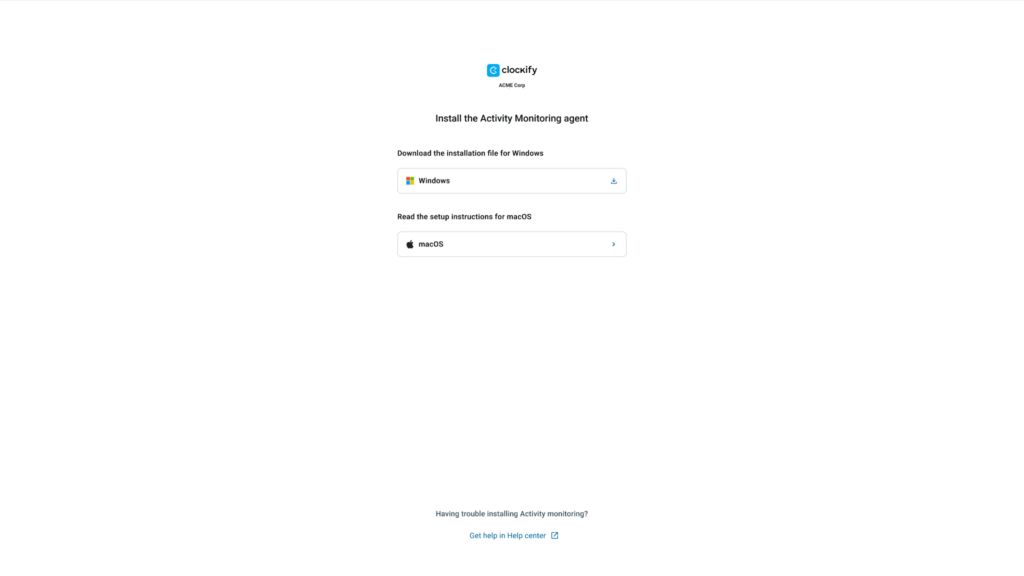
Étape 2 : Installer l’agent de bureau #
Installation sur macOS #
Pour installer l’agent sur votre Mac :
- Cliquez sur le lien (partagé par votre administrateur d’espace de travail ou votre chef d’équipe) pour installer l’appli de l’agent
- Sélectionnez macOS
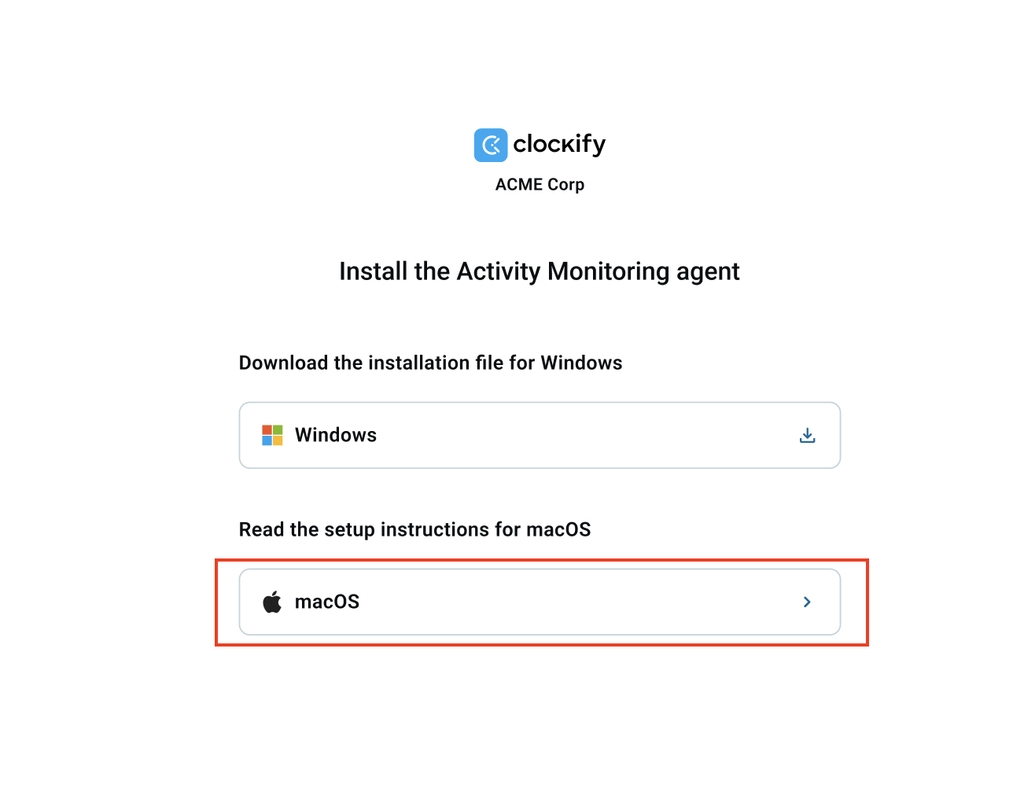
3. Suivez les instructions à l’écran pour installer l’agent
Installation sur Windows #
- Cliquez sur le lien (partagé par votre administrateur d’espace de travail ou votre responsable) pour installer l’agent
- Sélectionnez Windows
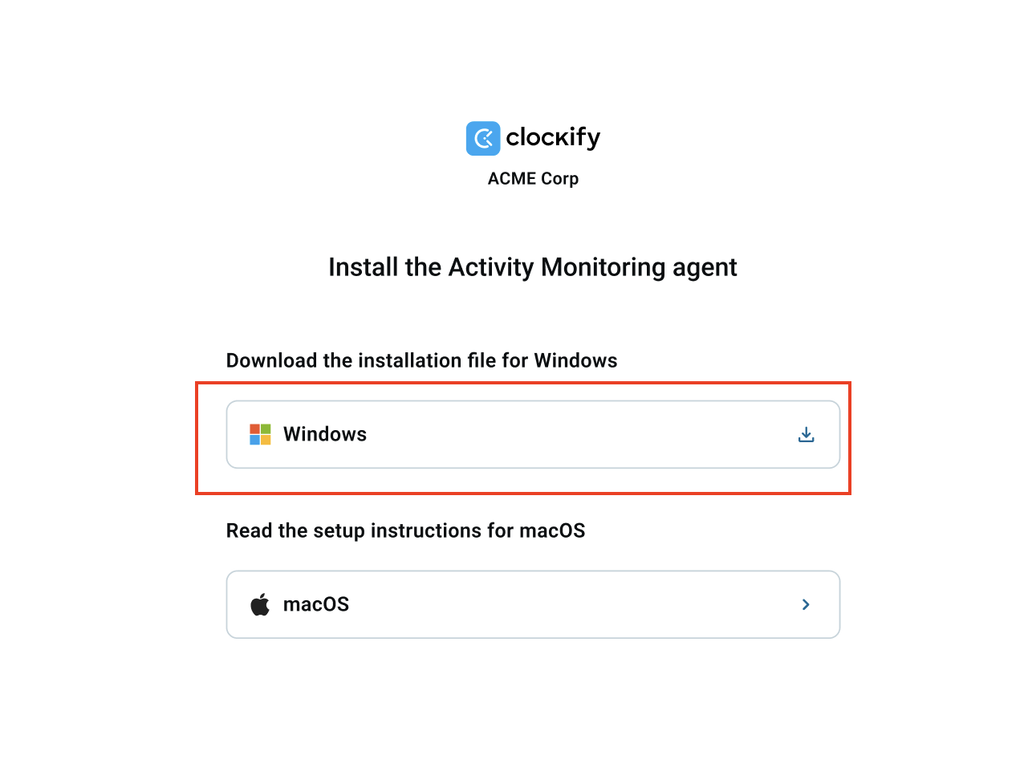
3. Suivez les instructions à l’écran pour installer l’agent
Étape 3 : Attribution de l’appareil #
Une fois l’agent installé, votre appareil apparaît sur la page Applis de l’agent avec le statut Non attribué. Un administrateur ou un responsable doit attribuer votre appareil à l’appli de l’agent nouvellement installée pour commencer le suivi des données d’activité.
Comment votre activité est classée #
Les activités sont catégorisées afin de mesurer la productivité et le taux d’utilisation :
- Productif : Applis et sites web définis comme liés au travail (p. ex. Figma, Slack, outils de développement). Ce temps contribue directement au calcul du taux d’utilisation.
- Neutre : Applis ou sites web « zone grise » dépendant du contexte (p. ex. YouTube). Selon la configuration de l’espace de travail, ce temps peut être comptabilisé comme productif.
- Improductif : Applis ou sites web non liés aux tâches professionnelles (p. ex. réseaux sociaux, jeux vidéo). Ce temps est exclu des métriques d’utilisation productive.
- Non défini : Activités pour lesquelles aucune règle explicite n’a encore été attribuée. Le système enregistre ces données, mais elles ne contribuent pas aux scores de productivité actuellement.
Vous êtes propriétaire d'un espace de travail, administrateur ou responsable d’équipe ? Consultez l’article Configuration rapide de la surveillance d’activité.
FAQ #
Vos frappes au clavier ou messages privés sont-ils enregistrés ?
Non. L’agent de bureau mesure uniquement le volume physique de vos frappes au clavier et les mouvements de votre souris pour vérifier que vous êtes actif. Il n’enregistre absolument aucune frappe, aucun texte saisi ni aucun message privé.
Qu’advient-il des informations sensibles affichées à l’écran ?
Pour protéger les mots de passe et la confidentialité des employés, la protection par flou léger applique par défaut un filtre de flou aux captures d’écran automatiques. Cela masque les données sensibles tout en laissant voir la disposition générale de l’appli.
L’appli me suit-elle lorsque je m’éloigne de mon bureau ?
Si vous cessez d’utiliser votre clavier ou votre souris alors que l’ordinateur reste allumé, votre statut passe à « Inactif ». Toutefois, si vous participez à une réunion vocale ou vidéo (p. ex. Zoom, Microsoft Teams), la détection du micro ou de la caméra maintient votre statut à « Actif ».
Combien de temps les données de captures d’écran sont-elles conservées ?
Afin de préserver l’espace serveur et de protéger la confidentialité, toutes les captures d’écran sont conservées sur le serveur pendant exactement 60 jours. Une fois cette durée de rétention atteinte, elles sont définitivement supprimées du système.