Commencer à utiliser les modules complémentaires
To make the most of your CAKE.com and unlock its vast array of functionalities, you first need to ensure that you’re logged in with your CAKE.com Marketplace account.
Si vous visitez Marketplace depuis Clockify pour la première fois, vous serez automatiquement connecté.
Créer un compte Clockify #
To explore extra features and add-ons for Clockify, you will need to visit the CAKE.com Marketplace.
To access it, first create a Clockify account and ensure you verify your email address. Once your email is verified, you can use your new Clockify credentials to log directly into the Marketplace.
Se connecter #
After creating your Clockify account, you can go to marketplace.cake.com and click Log in.
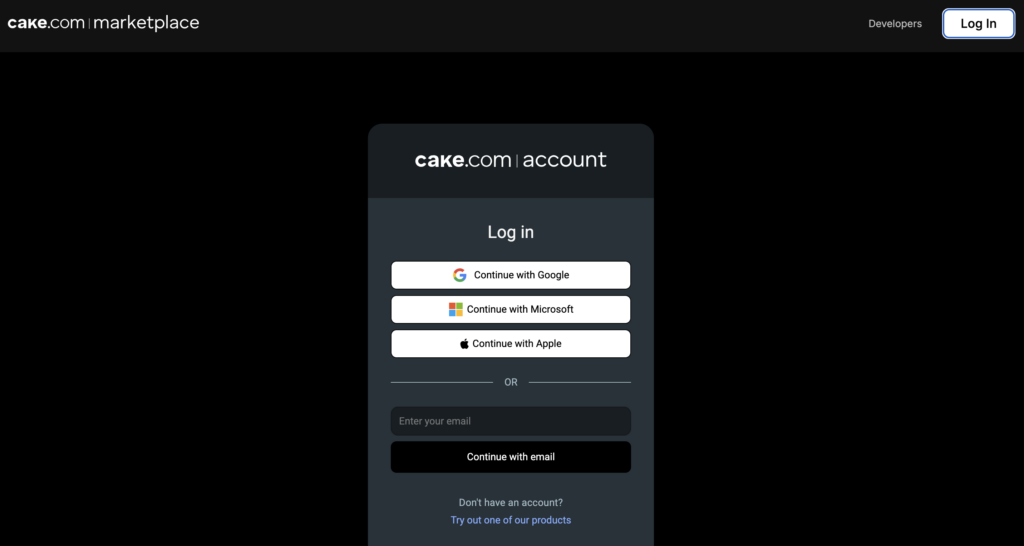
You can log in with Google, Microsoft, Apple, or you can choose to enter your email and click Continuer avec l’email.
Installer des modules complémentaires gratuits #
Ensure that you’re logged in to Clockify and that you’re a workspace owner or admin for the account before installing add-ons.
To install a free add-on:
- Go to marketplace.cake.com
- Search for the add-on
- Click Install on the left panel
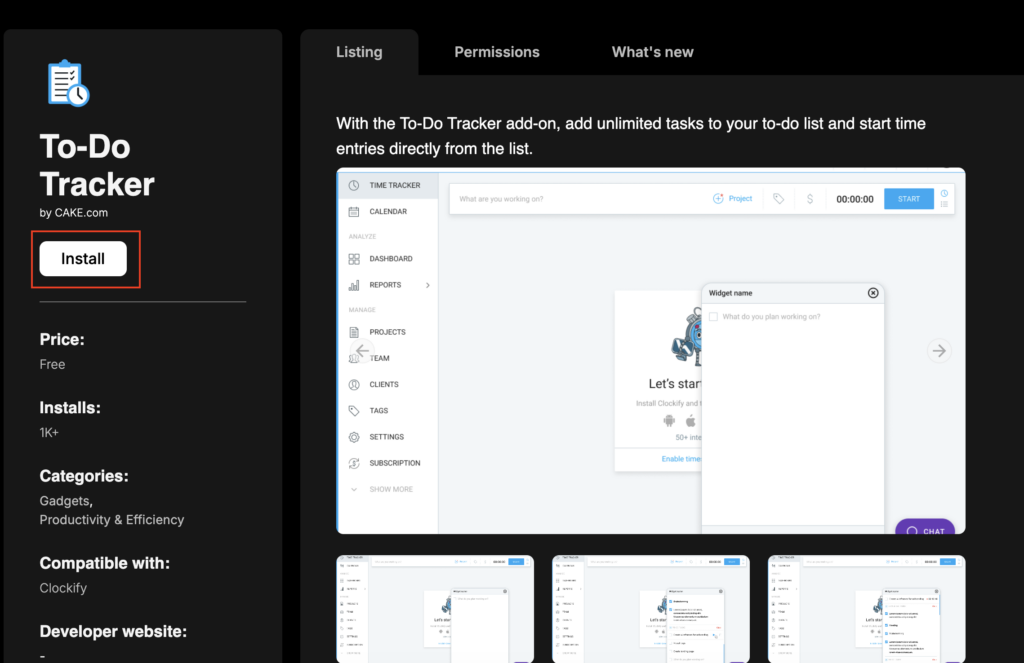
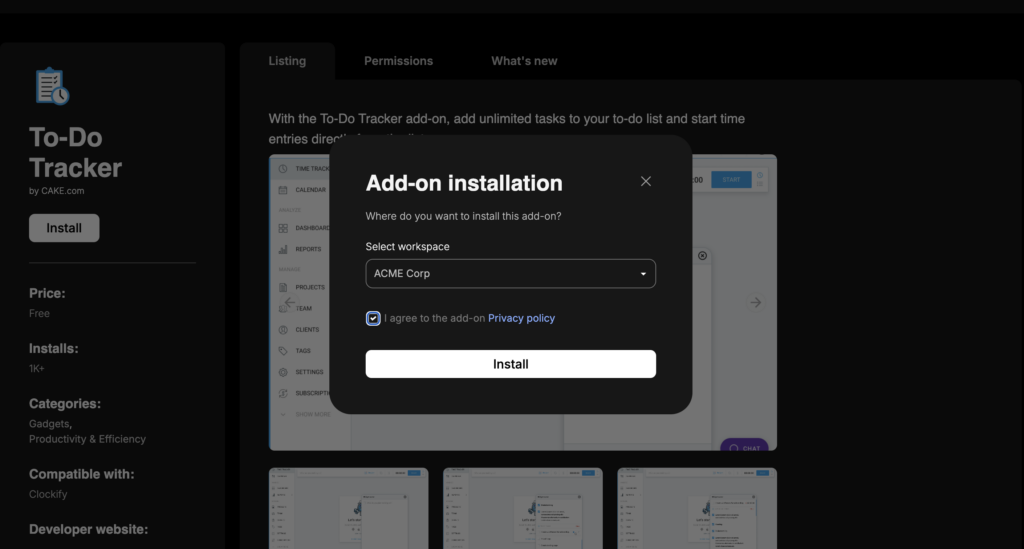
4. Select your workspace
5. Tick the box to agree to the Privacy policy
6. Click Installer
7. Click Test add-on the success message
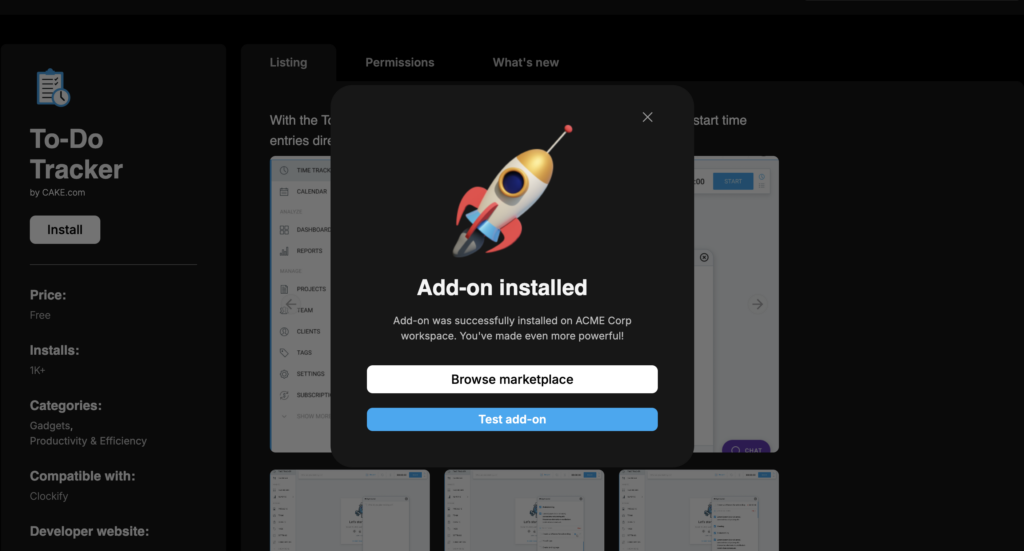
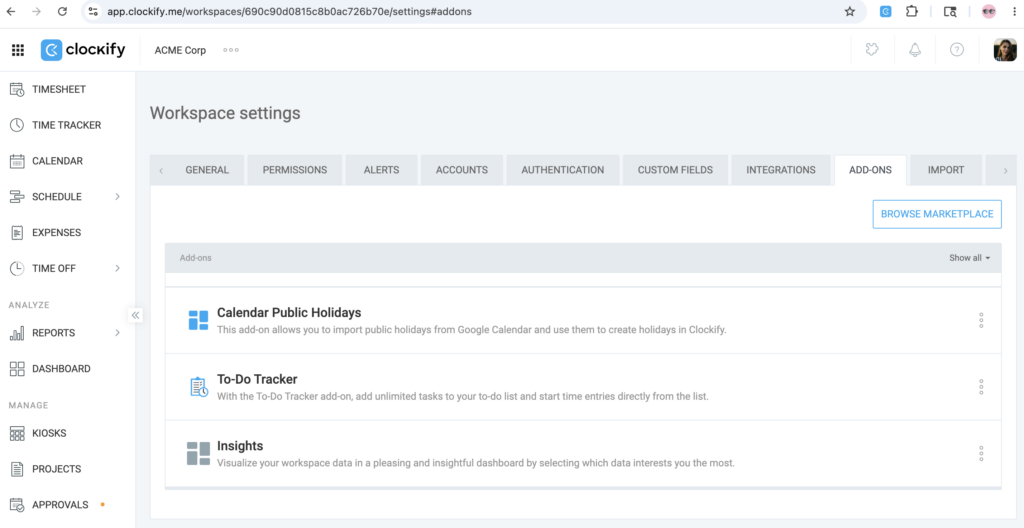
You should be directed to your Clockify account where you can see all installed add-ons.
Installer des modules complémentaires payants #
Currently, paid add-ons are installed and billed at the workspace level, meaning a single flat monthly rate covers your entire workspace.
A “per-seat” option is coming soon, which will allow you to manage and pay for add-ons only for specific users
To install a paid add-on, follow these steps:
- Log in to your Clockify workspace
- Click to install your desired add-on
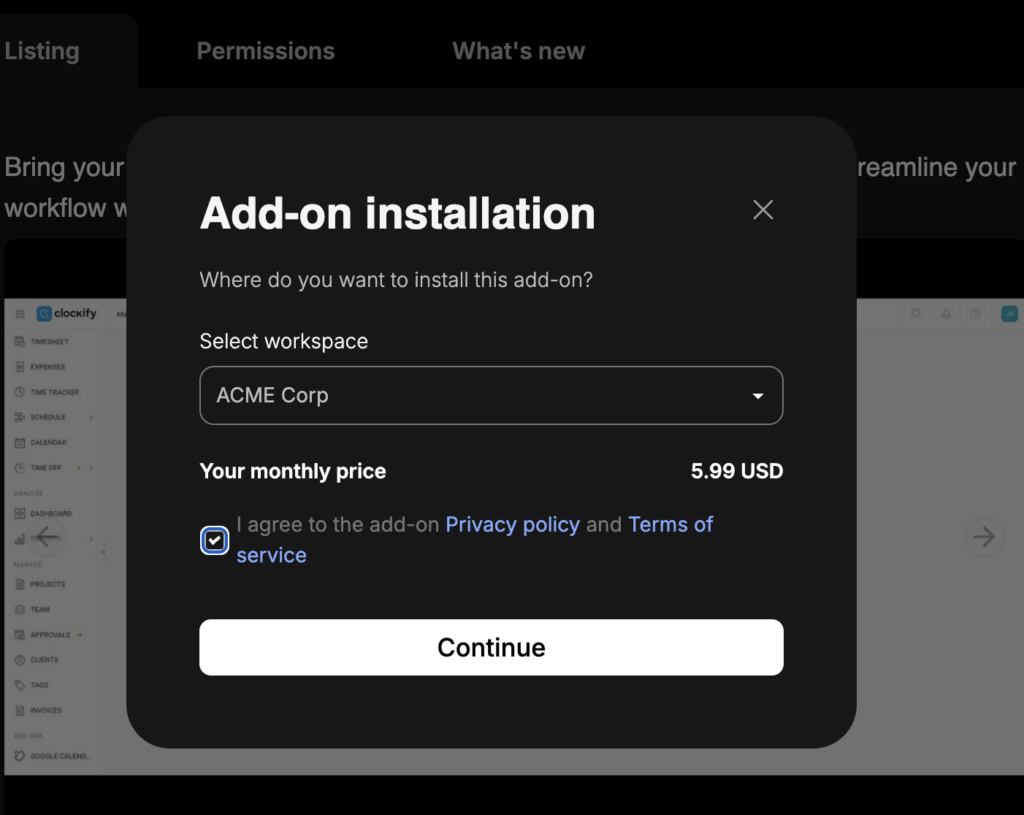
- Select the workspace
- Review the flat-rate monthly price
- Tick the box to agree to the Privacy policy and Terms of service
- Cliquez sur Continuer to complete your setup
View installed add-ons #
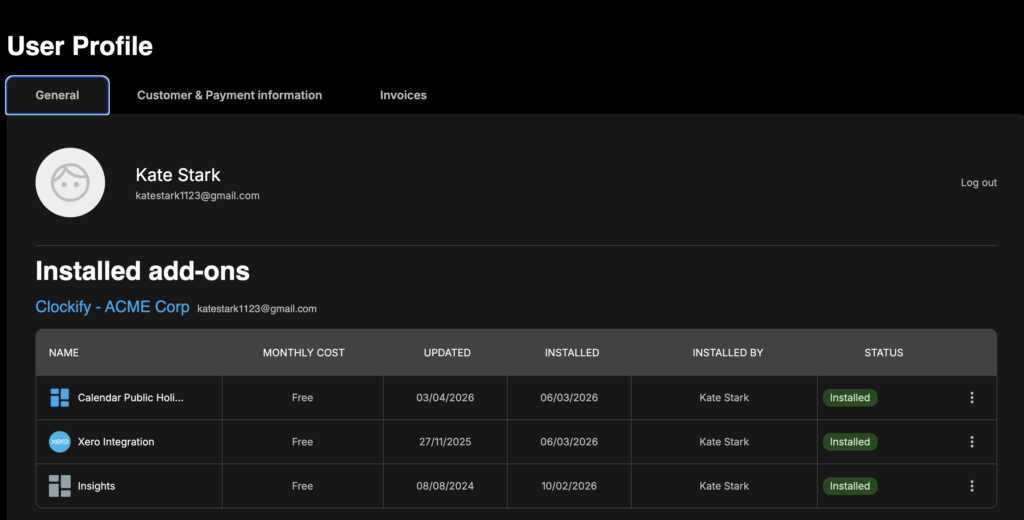
To view all installed add-ons:
1. Click on your profile icon on the top-right corner of the page
2. Select My profile
3. Go to Général .
Deactivate or uninstall add-ons #
To deactivate or uninstall an add-on:
1. Go to your profile
2. Click on the three dots icon next to the add-on
3. Select Désactiver ou Désinstaller
4. Type UNINSTALL again on the confirmation window (if you chose to uninstall)
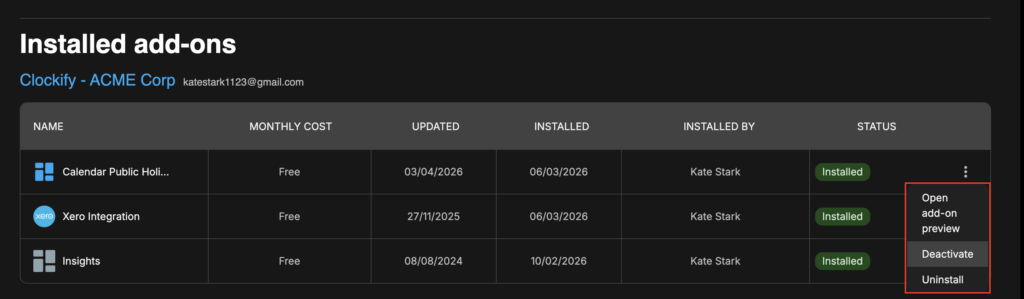
Deactivating an add-on temporarily removes it from your workspace (and it can be reactivated). Uninstalling an add-on permanently removes it from your workspace.
Installer des modules complémentaires privés #
Pour améliorer la sécurité de votre intégration, vous pouvez créer des modules complémentaires privés directement dans le portail Développeur.
N’oubliez pas d’ajouter votre espace de travail Clockify à la liste blanche lors du processus de publication du module complémentaire.
Pour installer et utiliser correctement votre module complémentaire privé, procédez comme suit :
- Ajoutez votre espace de travail Clockify à la liste blanche lors de la création d’un module complémentaire privé dans le portail des développeurs
- Vous recevrez un email confirmant l’ajout à la liste blanche, qui comprend un bouton Afficher le module complémentaire
- Click this button to be redirected to your private add-on’s preview page in the Marketplace
- Click the Install button
- Choisissez votre espace de travail pour terminer l’installation
If you see a This page doesn’t exist error, make sure you’re logged into the CAKE.com Marketplace with the correct Clockify account.
Customer & payment information tab #
Information regarding customer and payment data can be edited at any time, but only workspace owners can edit customer information.
To check or edit your payment information:
1. Click on your profile icon on the top right corner of the page
2. Select Mon profil
3. Go to Customer & Payment information
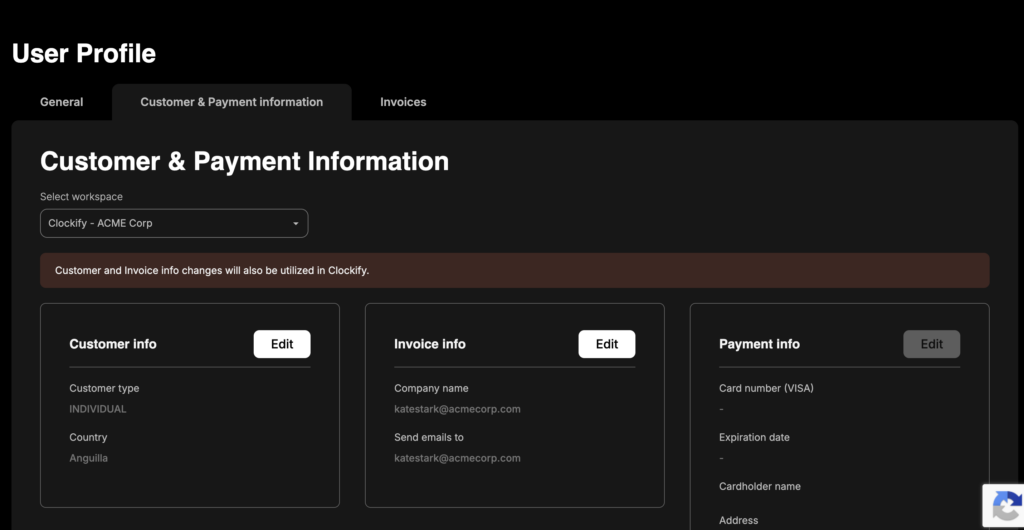
You can select different countries for Customer and Payment info.
Ce qu'il faut retenir #
- Si un module complémentaire est déjà installé dans un espace de travail, cet espace de travail sera désactivé dans la liste déroulante
- Pour les espaces de travail situés dans des régions spécifiques, le module complémentaire peut ne pas sauvegarder les données en raison des réglementations sur la protection des données. Cela signifie que Clockify n'a aucune idée de l'endroit où les données des modules complémentaires sont stockées. Les modules complémentaires peuvent stocker des données dans des régions différentes de celle de l'espace de travail.
Dépannage #
Dans le cas improbable d'une erreur survenant au cours du processus d'installation, un écran de maintenance du module complémentaire s'affichera pour vous informer que l'installation est temporairement indisponible.
Pour plus d'assistance, n'hésitez pas à contacter notre support client.