Erste Schritte mit Add-ons
To make the most of your CAKE.com and unlock its vast array of functionalities, you first need to ensure that you’re logged in with your CAKE.com Marketplace account.
Falls du Marketplace zum ersten Mal von Clockify aus besuchst, wirst du automatisch eingeloggt.
Clockify-Account erstellen #
To explore extra features and add-ons for Clockify, you will need to visit the CAKE.com Marketplace.
To access it, first create a Clockify account and ensure you verify your email address. Once your email is verified, you can use your new Clockify credentials to log directly into the Marketplace.
Anmeldung #
After creating your Clockify account, you can go to marketplace.cake.com and click Log in.
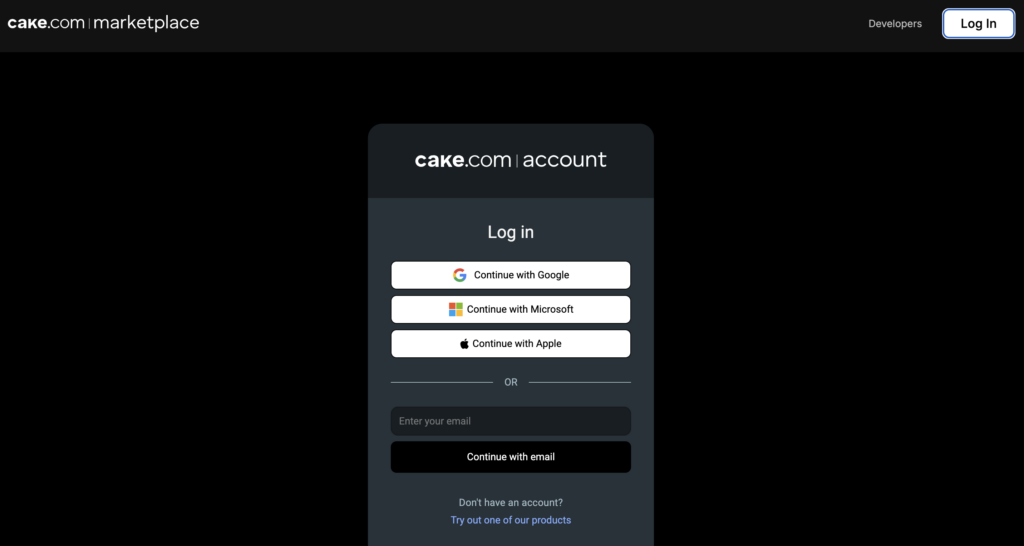
You can log in with Google, Microsoft, Apple, or you can choose to enter your email and click Mit E-Mail fortfahren.
Kostenlose Add-ons installieren #
Ensure that you’re logged in to Clockify and that you’re a workspace owner or admin for the account before installing add-ons.
To install a free add-on:
- Go to marketplace.cake.com
- Search for the add-on
- Click Install on the left panel
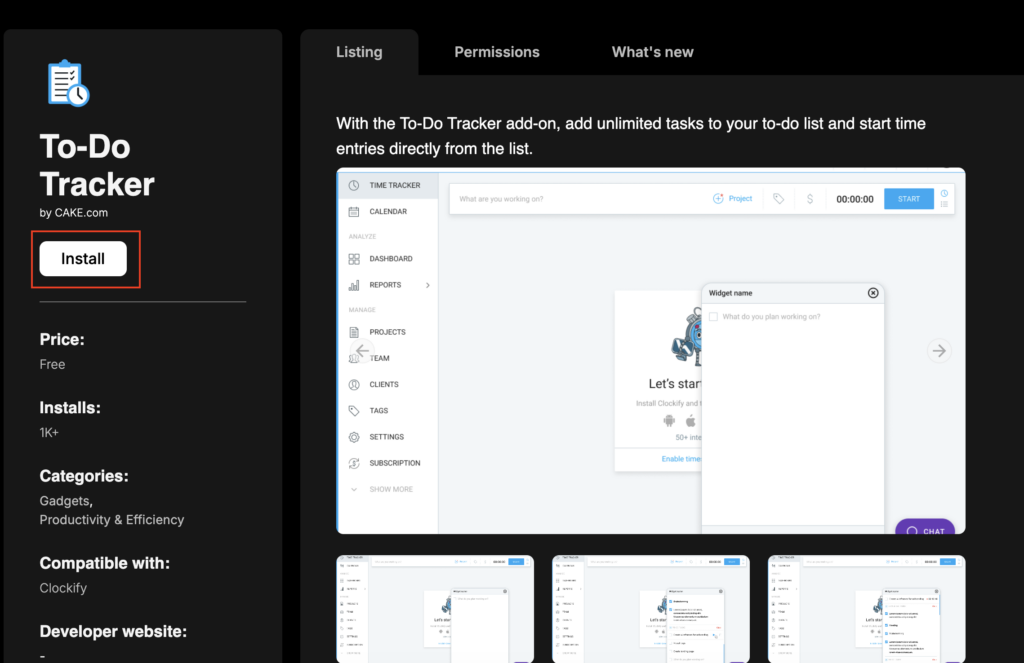
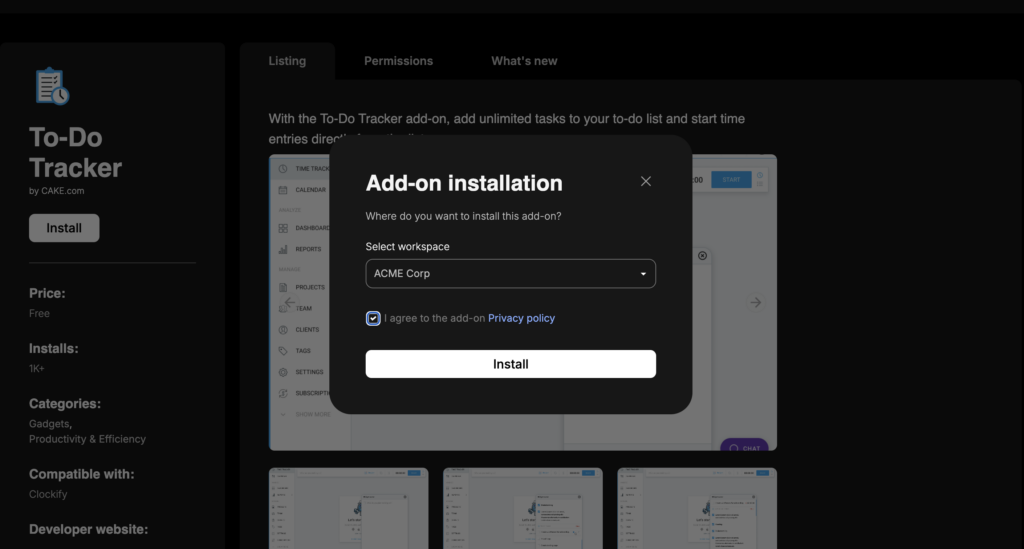
4. Select your workspace
5. Tick the box to agree to the Privacy policy
6. Click Install
7. Click Test add-on the success message
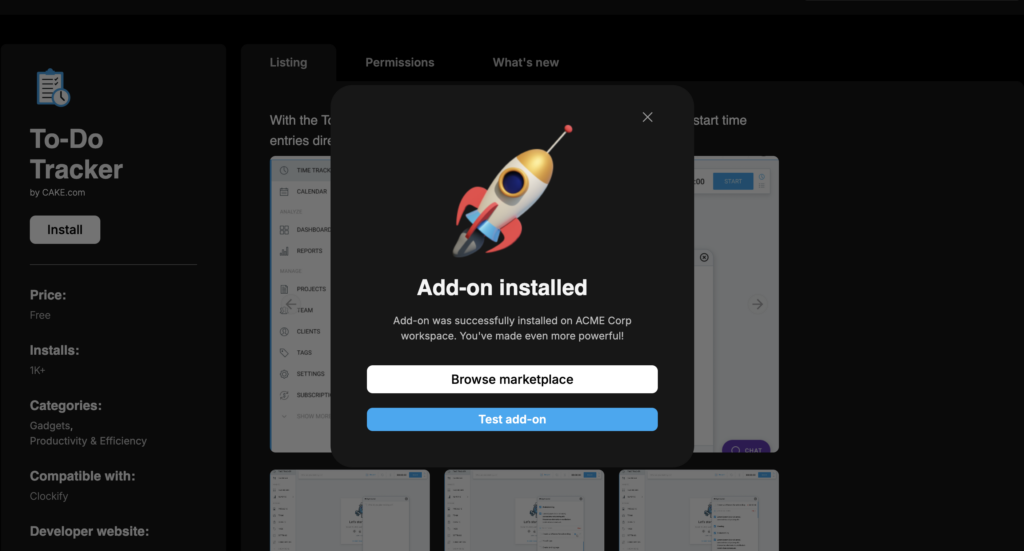
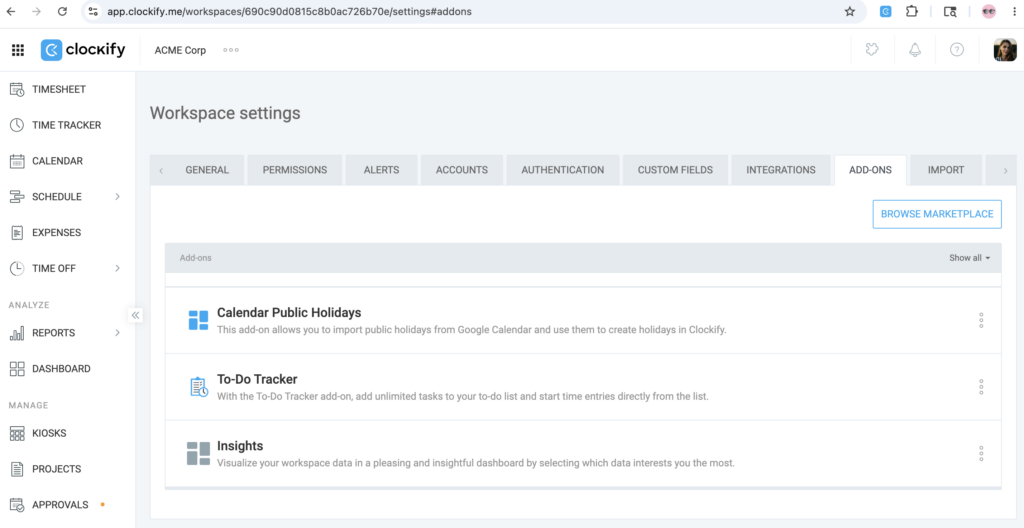
You should be directed to your Clockify account where you can see all installed add-ons.
Kostenpflichtige Add-ons installieren #
Currently, paid add-ons are installed and billed at the workspace level, meaning a single flat monthly rate covers your entire workspace.
A “per-seat” option is coming soon, which will allow you to manage and pay for add-ons only for specific users
To install a paid add-on, follow these steps:
- Log in to your Clockify workspace
- Click to install your desired add-on
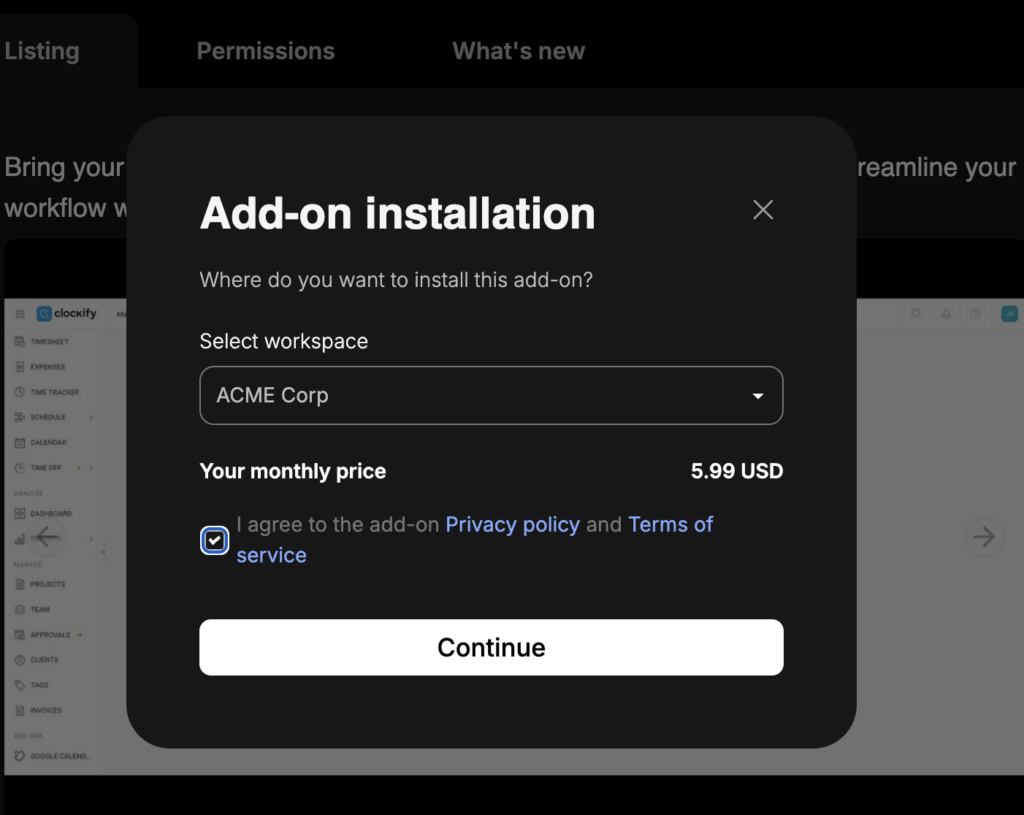
- Select the workspace
- Review the flat-rate monthly price
- Tick the box to agree to the Privacy policy and Terms of service
- Klicke auf Continue to complete your setup
View installed add-ons #
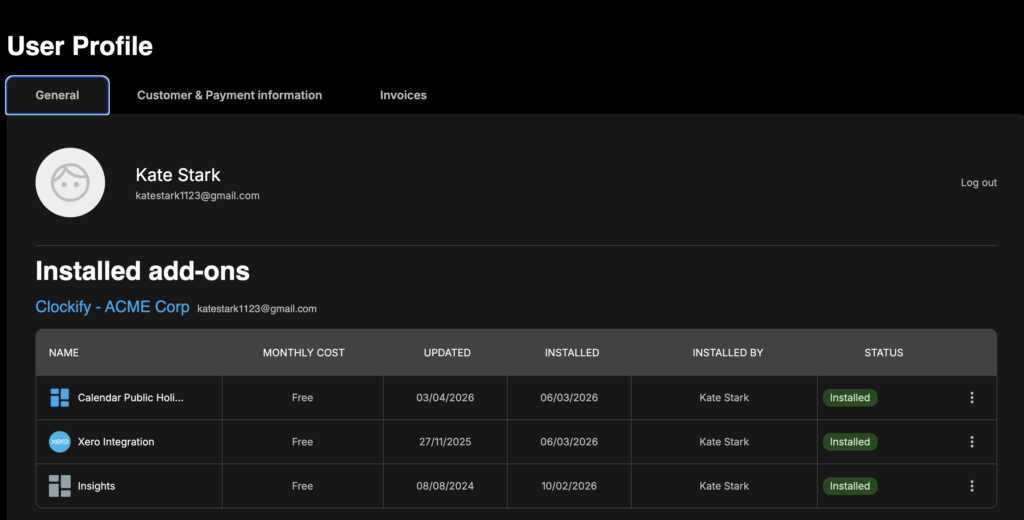
To view all installed add-ons:
1. Click on your profile icon on the top-right corner of the page
2. Select My profile
3. Go to Allgemein -Registerkarte
Deactivate or uninstall add-ons #
To deactivate or uninstall an add-on:
1. Go to your profile
2. Click on the three dots icon next to the add-on
3. Select Deaktivieren oder Deinstallieren
4. Type UNINSTALL again on the confirmation window (if you chose to uninstall)
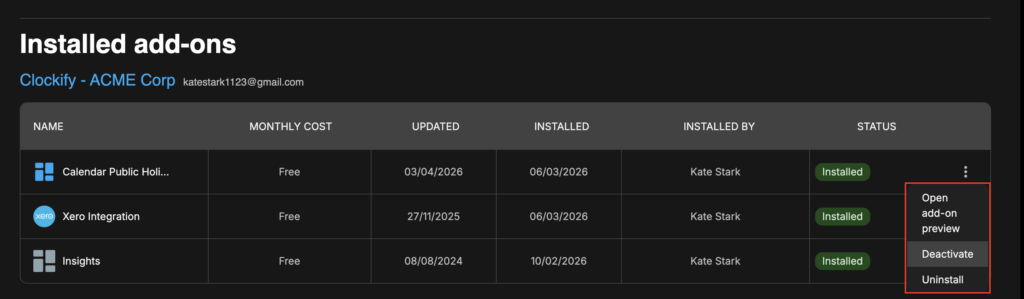
Deactivating an add-on temporarily removes it from your workspace (and it can be reactivated). Uninstalling an add-on permanently removes it from your workspace.
Private Add-ons installieren #
Um die Sicherheit deiner Integration zu verbessern, kannst du private Add-ons direkt im Entwickler-Portal erstellen.
Denke daran, deinen Clockify-Arbeitsbereich während des Add-on-Release-Prozesses auf die Whitelist zu setzen.
Um deine privaten Add-ons erfolgreich zu installieren und zu verwenden, folge diesen Schritten:
- Whiteliste deinen Clockify-Arbeitsbereich beim Erstellen des privaten Add-ons im Developer-Portal
- Du erhältst eine E-Mail zur Bestätigung der Whitelisting. Diese enthält die Schaltfläche zum Add-on anzeigen
- Click this button to be redirected to your private add-on’s preview page in the Marketplace
- Click the Install button
- Wähle deinen Arbeitsbereich, um die Installation abzuschließen
If you see a This page doesn’t exist error, make sure you’re logged into the CAKE.com Marketplace with the correct Clockify account.
Customer & payment information tab #
Information regarding customer and payment data can be edited at any time, but only workspace owners can edit customer information.
To check or edit your payment information:
1. Click on your profile icon on the top right corner of the page
2. Select Mein Profil
3. Go to Customer & Payment information
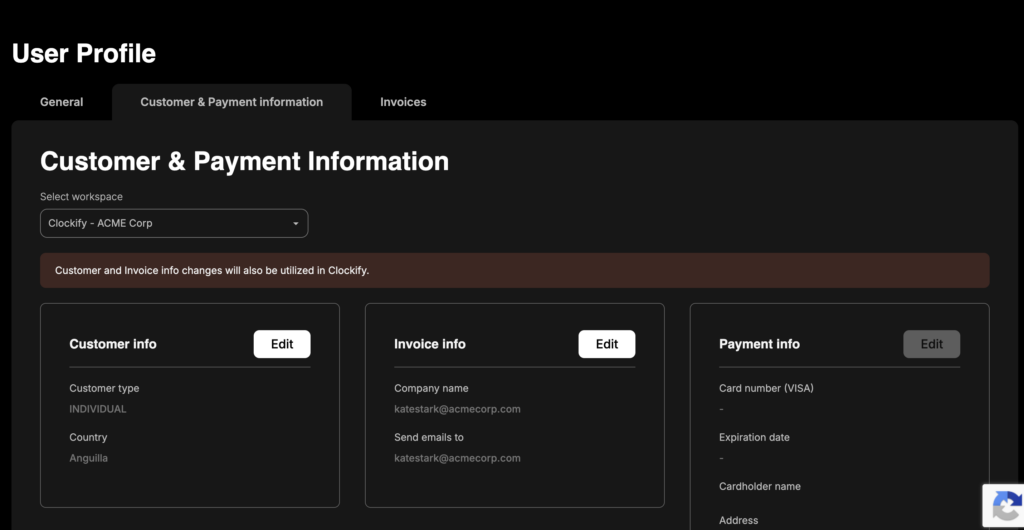
You can select different countries for Customer and Payment info.
Bitte beachten: #
- Wenn ein Add-on in einem Arbeitsbereich bereits installiert ist, wird der Arbeitsbereich im Dropdown-Menü deaktiviert
- In Arbeitsbereichen in bestimmten Regionen speichert das Add-on möglicherweise keine Daten wegen der Datenschutzregeln. Dies bedeutet, dass Clockify keinen Einblick darin hat, wo Add-on-Daten gespeichert sind. Add-ons können Daten in Regionen speichern, die sich von der Region des Arbeitsbereichs unterscheiden.
Problembehebung #
Im unwahrscheinlichen Fall eines Fehlers während eines Installationsvorgangs wird ein Add-on-Wartung-Bildschirm angezeigt, der dich benachrichtigt, dass die Installation derzeit nicht verfügbar ist.
Wende dich für weitere Hilfe an unser Support-Team.