Suivre les pauses
Le mode Pause vous permet de suivre et de gérer vos périodes de repos directement dans le suivi du temps, en les séparant de vos heures de travail facturables.
Le suivi des pauses est une fonctionnalité payante disponible dans tous les abonnements payants.
Activer le mode pause #
Seuls les administrateurs et les propriétaires d’espaces de travail peuvent activer cette fonctionnalité et configurer le projet par défaut.
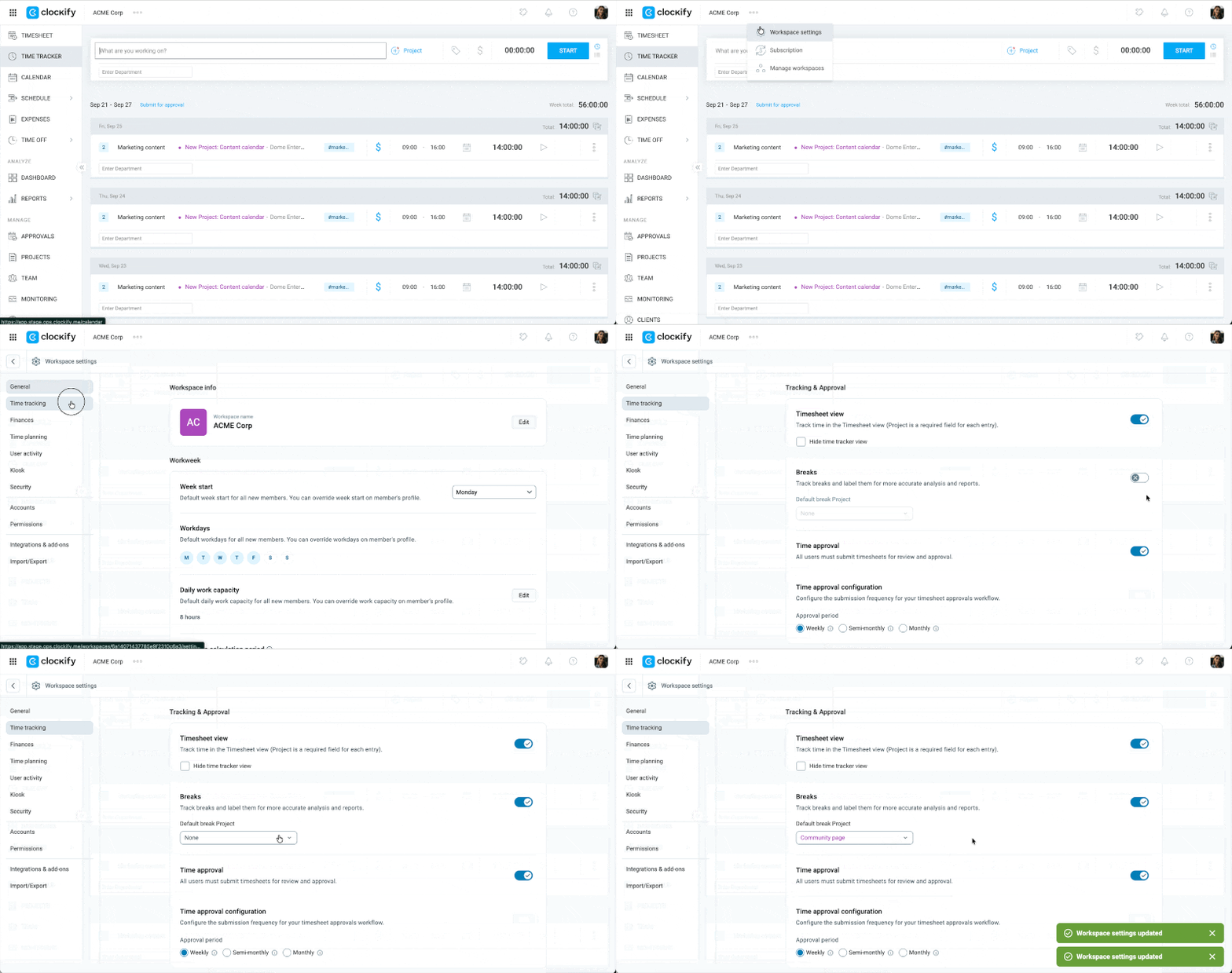
- Cliquez sur les trois points à côté du nom de votre espace de travail
- Sélectionnez Paramètres de l’espace de travail
- Select Time tracking from the sidebar
- Toggle the switch for Breaks to ON
- Choisissez un projet par défaut auquel toutes les saisies de pause seront associées (facultatif)
Commencer une pause #
- Accédez au suivi du temps
- Cliquez sur les trois points à côté du minuteur
- Sélectionnez Pause
- Cliquez sur Commencer la pause pour lancer le minuteur
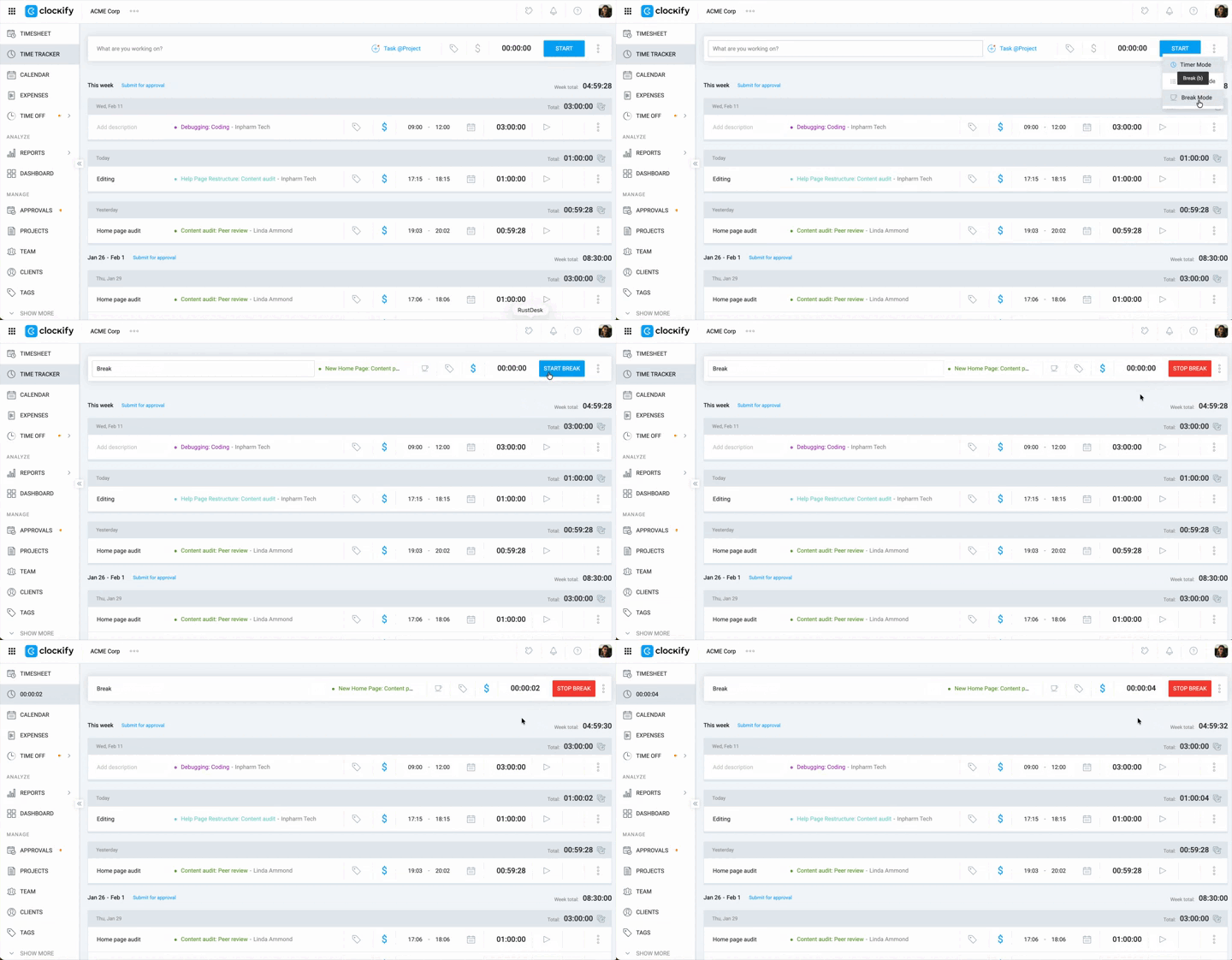
Vous devez sélectionner un projet pour la pause avant que le minuteur puisse démarrer.
Identifier une saisie de pause #
Les pauses sont indiquées par une icône en forme de tasse dans le suivi du temps et le rapport détaillé.

Arrêter la pause #
Cliquez sur le bouton Arrêter la pause lorsque vous êtes prêt à reprendre le travail.
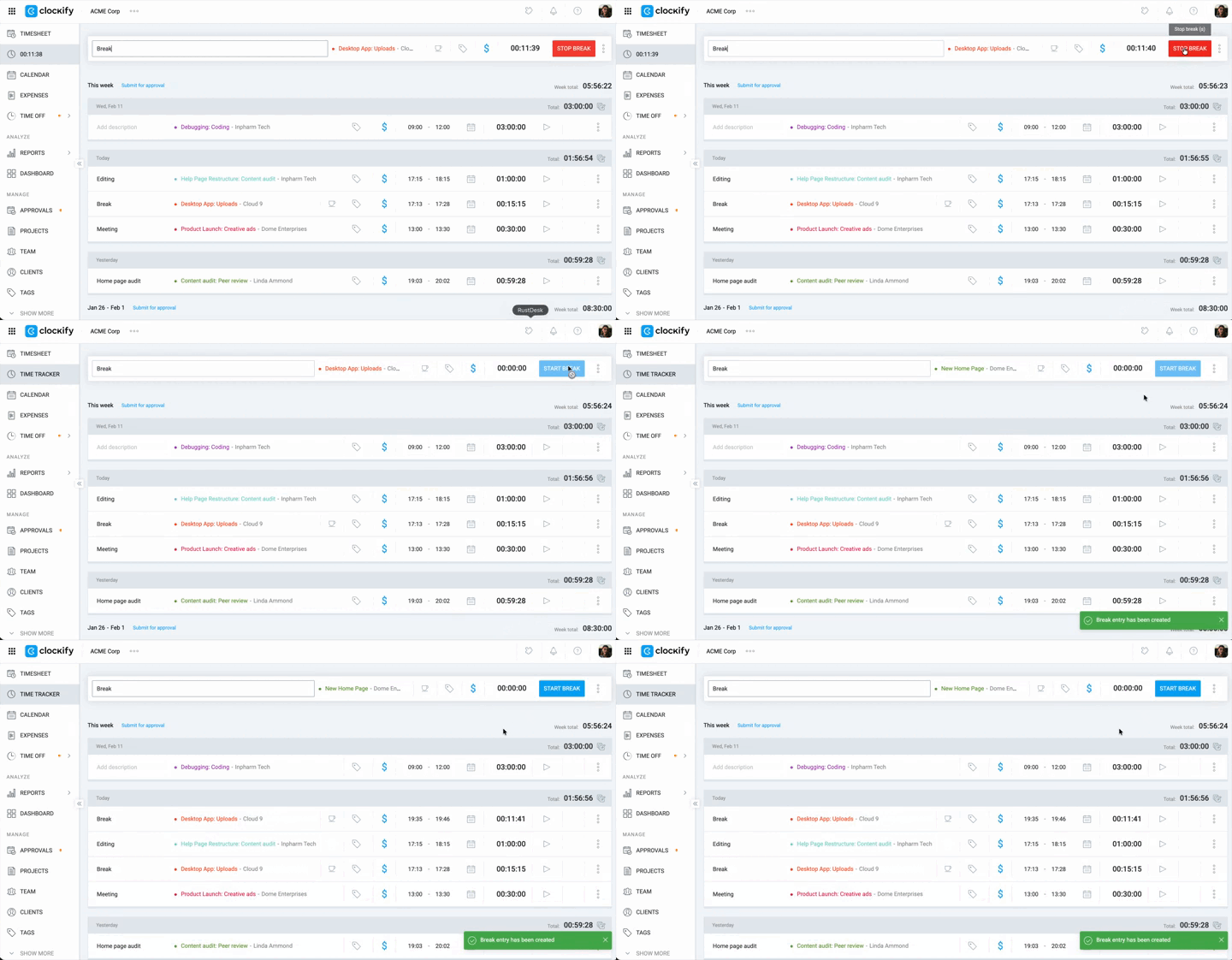
Raccourci : Vous pouvez également appuyer sur la touche « s » de votre clavier pour arrêter instantanément le minuteur de pause actif.
Gérer les saisies de pause #
Vous pouvez convertir des saisies de temps normales en saisies de pause si vous les avez enregistrées de manière incorrecte.
- Allez dans Rapports > Rapport détaillé
- Cliquez sur les trois points à côté de la saisie de temps
- Sélectionnez Marquer comme pause pour convertir une saisie de temps de travail normale en pause
- Sélectionnez Marquer comme saisie normale pour reconvertir une saisie de pause en temps de travail normal
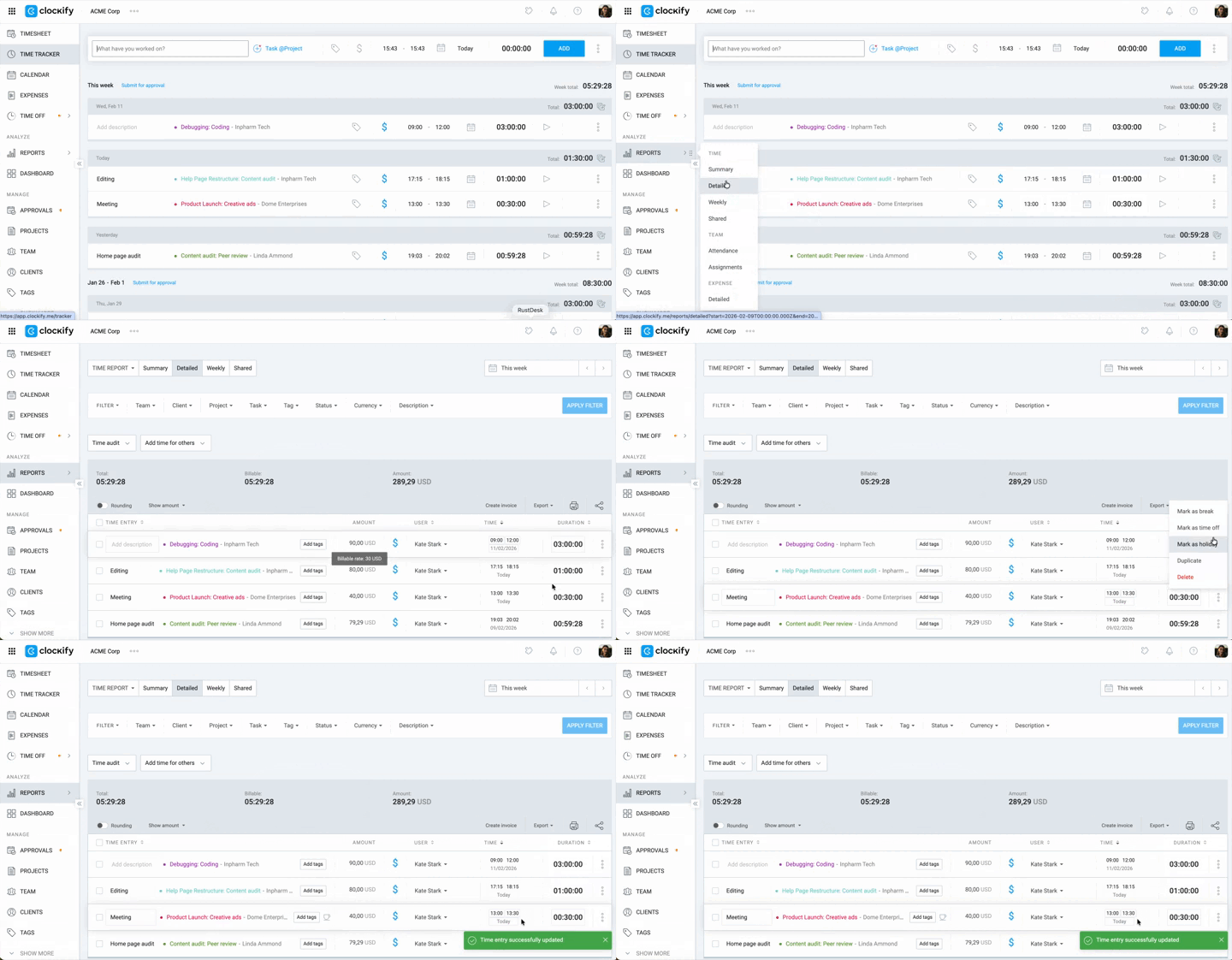
Seuls les administrateurs et les propriétaires d’espaces de travail ont l’autorisation de convertir les saisies entre le statut « pause » et « non-pause ».
FAQ #
Pourquoi l’option permettant de démarrer une pause n’apparaît-elle pas ?
La fonctionnalité Pauses doit être activée par un administrateur dans les paramètres de l’espace de travail et nécessite un abonnement payant. Si l’option est absente, contactez le propriétaire de votre espace ou consultez le guide des paramètres.
Est-il possible de suivre les pauses sur l’appli mobile ?
Oui, suivez vos pauses via les applis Android et iOS. Activez le mode Pause sur l’écran Suivi du temps. Consultez les guides des applis pour plus de détails.