Convertir les heures supplémentaires en repos compensateur (TOIL)
Le repos compensateur vous permet de convertir vos heures supplémentaires accumulées en solde de congé utilisable.
Lorsque vous utilisez cette fonctionnalité, il est utile de comprendre la différence entre ces deux concepts connexes :
- Heures supplémentaires – Durée du travail moins votre capacité journalière, hebdomadaire ou mensuelle.
- Repos compensateur – Politique spécifique permettant de convertir les heures supplémentaires accumulées en congés.
La fonctionnalité Congés doit être activée dans les paramètres de l’espace de travail avant de pouvoir l’utiliser.
À savoir avant de commencer #
Le repos compensateur (TOIL) est calculé selon le paramètre de calcul des heures supplémentaires propre à chaque membre. Pour le vérifier :
1. Cliquez sur les  trois points à côté du nom de votre espace de travail
2. Sélectionnez Paramètres de l’espace de travail
3. Trouvez dans la page Période de calcul des heures supplémentaires
4. Sélectionnez Tous les jours, Hebdomadaire ou Mensuel
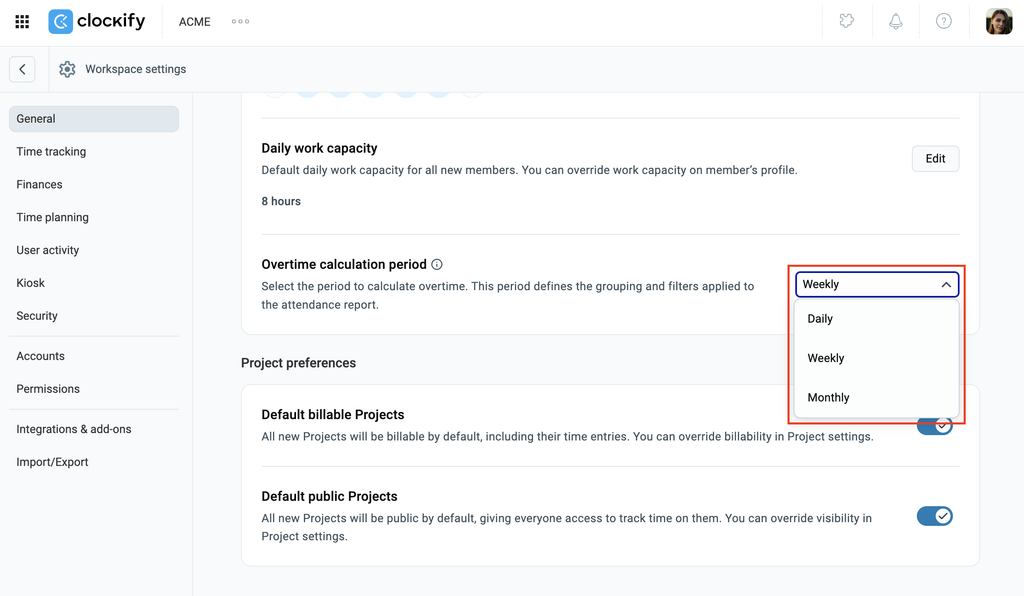
Étant donné que la règle de calcul a un impact direct sur les soldes, toute modification de votre période d’heures supplémentaires dans les paramètres de votre espace de travail affectera immédiatement les soldes TOIL disponibles.
Tout temps enregistré dépassant la capacité d’un utilisateur est comptabilisé comme heures supplémentaires.
La règle de calcul des heures supplémentaires que vous avez choisie (tous les jours, hebdomadaire ou mensuelle) détermine directement votre solde TOIL disponible..
Les différents modes de calcul donnent des totaux différents. Par exemple, un même temps enregistré peut générer 16 heures supplémentaires avec un calcul quotidien, mais seulement 8 heures avec un calcul hebdomadaire.
Autorisations #
Ce que vous pouvez (ou ne pouvez pas) faire avec TOIL dépend de votre rôle au sein de l’espace de travail. Voici une explication détaillée :
| Action | Administrateurs | Chefs d’équipe | Membres |
| Activer le repos compensateur dans les paramètres de l’espace de travail | Oui | Non | Non |
| Créer et gérer les politiques de repos compensateur | Oui | Oui | Non |
| Soumettre des demandes de conversion des heures supplémentaires en repos compensateur | Oui | Oui | Oui |
| Approuver ou refuser les demandes de repos compensateur | Oui | Oui | Non |
| Consulter les heures supplémentaires converties dans le rapport de présence exporté | Oui | Oui | Oui |
Activer le repos compensateur #
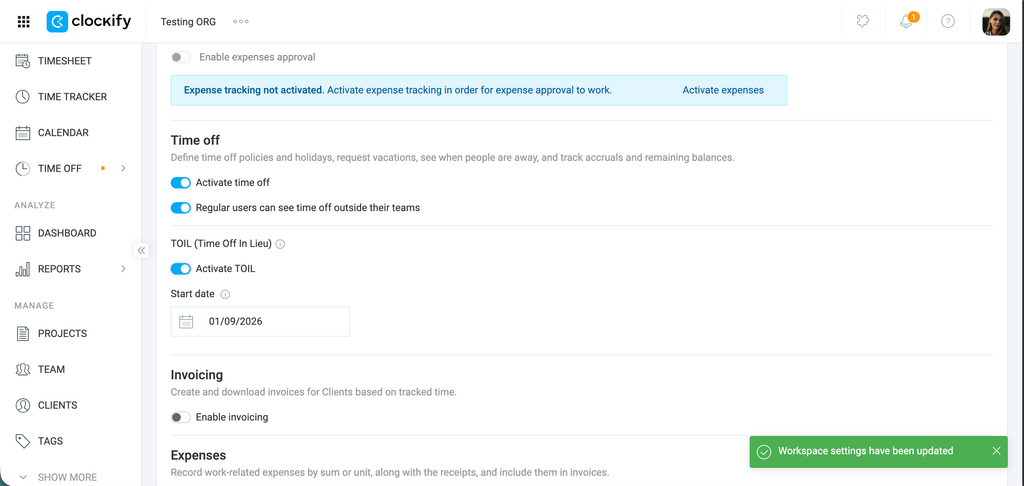
Pour activer le repos compensateur :
- Cliquez sur les trois points situés à côté du nom de votre espace de travail
- Sélectionnez Paramètres de l’espace de travail
- Activez l’option Activer TOIL dans la section Congés
- Sélectionnez une date de début. Il s’agit de la date à partir de laquelle les heures supplémentaires commencent à cumuler du repos compensateur (TOIL).
Configurer la politique TOIL #
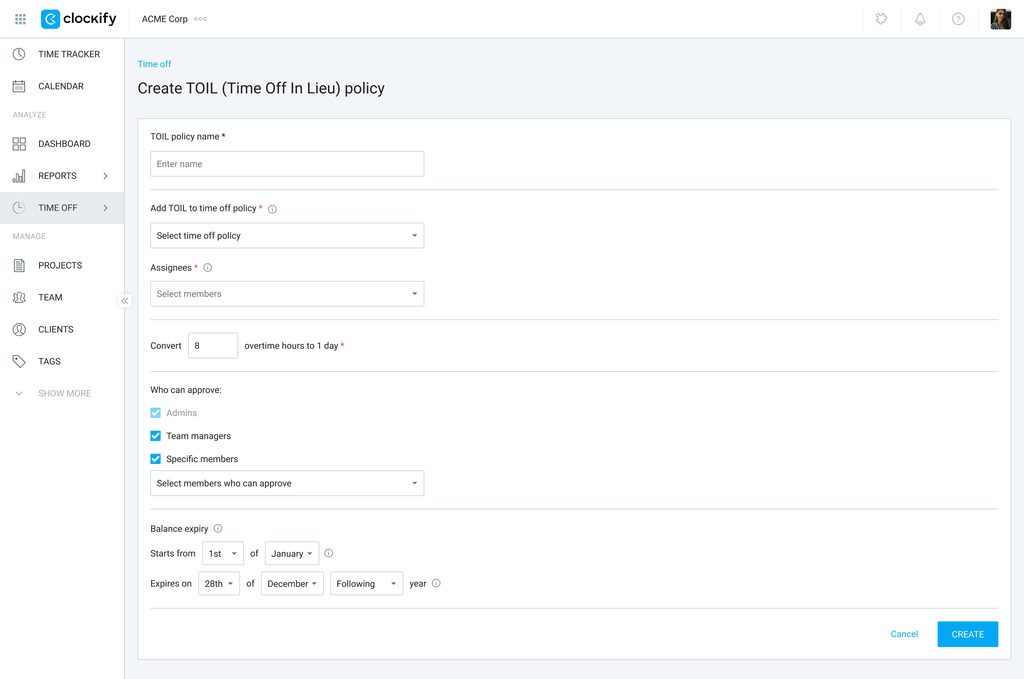
Pour créer une politique de repos compensateur (TOIL) :
- Accédez à la page Congés
- Cliquez sur l’onglet TOIL
- Sélectionnez la politique de congé active à laquelle les heures ou jours convertis seront ajoutés
- Ajoutez les membres de l’équipe couverts par la politique de repos compensateur dans le menu déroulant Assignés
- Définissez le taux de conversion dans Convertir x heures supplémentaires en 1 jour
- Définissez les personnes autorisées à approuver les demandes dans la section Qui peut approuver (Administrateurs, Chefs d’équipe ou Membres spécifiques)
- Définissez une date d’expiration du solde pour les jours de repos compensateur cumulés
- Cliquez sur Créer
Lors de la configuration du calcul de repos compensateur, vous choisirez une date de début précise..
Veuillez noter que si votre date de début se situe au milieu de la période d’heures supplémentaires sélectionnée, cette partie de la période ne sera pas prise en compte pour le calcul de repos compensateur..
Pour un calcul précis, les heures supplémentaires nécessitent une période calendaire complète (p. ex. si vous utilisez une période mensuelle mais que vous définissez la date de début au 13 mai, le mois de mai ne sera pas pris en compte).
Demander le repos compensateur #
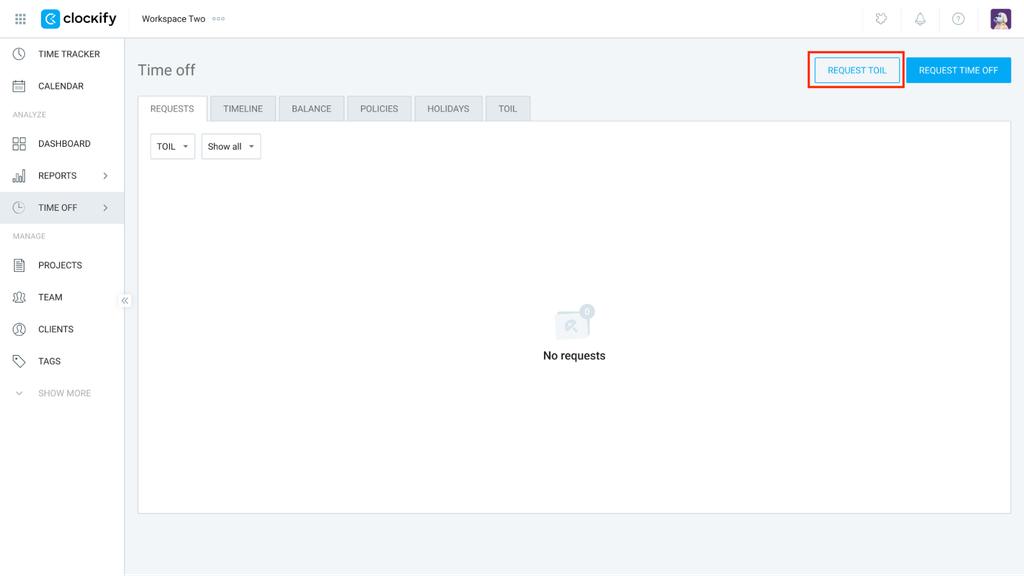
- Accédez à Congés
- Cliquez sur Demander TOIL (en haut à droite)
3. Sélectionnez la politique de repos compensateur souhaitée
4. Choisissez le nombre d’heures à convertir
5. Ajoutez une note à votre demande
6. Cliquez sur Soumettre
Le calcul des heures supplémentaires pour TOIL est en direct, ce qui signifie que vous n’avez pas besoin d’attendre la fin d’une période spécifique pour consulter vos heures supplémentaires disponibles.
Examiner les demandes TOIL #
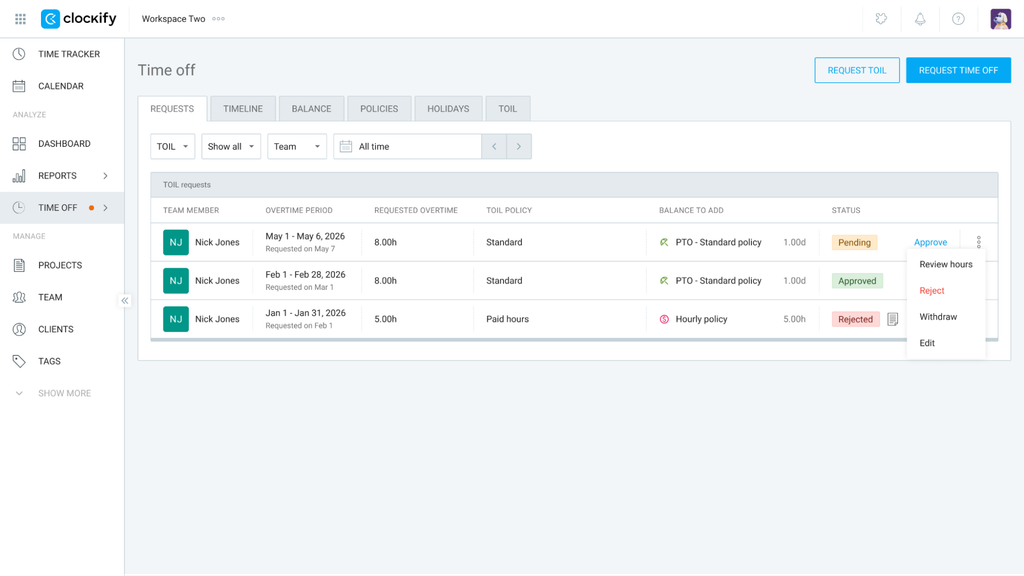
- Accédez à la section Congés
- Assurez-vous que le filtre TOIL est activé dans l’onglet Demandes
- Cliquez sur le bouton Approuver pour valider
- Cliquez sur les trois points et sélectionnez les autres options :
- Vérifier les heures
- Rejeter
- Retirer
- Modifier
Modification de la date de début de votre repos compensateur
Modifier la date de début de votre repos compensateur entraînera l’annulation des demandes de repos en cours. Pour confirmer, saisissez RETIRER et cliquez sur Tout retirer dans la fenêtre contextuelle.
Veuillez également noter que la modification de la date de début du repos compensateur entraîne les conséquences suivantes :
- Les heures supplémentaires accumulées avant la date de début choisie sont exclues du repos compensateur.
- Si la date de début choisie tombe au milieu de votre période de calcul des heures supplémentaires (p. ex. hebdomadaire ou mensuelle), cette période spécifique ne pourra pas être prise en compte pour le repos compensateur.
FAQ #
Que se passe-t-il en cas de modification du temps suivi après conversion en repos compensateur ?
Si le temps est modifié après sa conversion, le suivi des ajustements relève de la responsabilité du gestionnaire. Pour préserver l’exactitude des données, il est possible de verrouiller les saisies afin de bloquer toute modification ultérieure.
Est-il possible de faire partie de plusieurs politiques de repos compensateur ?
Oui, un utilisateur peut être rattaché à plusieurs politiques de repos compensateur. Lors du dépôt d’une demande, la sélection de la politique concernée s’effectue directement dans le formulaire.
Quel est le sort des heures supplémentaires après une demande de repos compensateur et peuvent-elles être transférées deux fois ?
Après approbation, les heures supplémentaires faisant l’objet de la demande sont intégrées à la politique de congé attribuée et identifiées comme converties pour empêcher tout double transfert.
- Les heures converties sont enregistrées dans l’historique du solde et apparaissent dans une colonne « Heures supplémentaires converties (TOIL) » au sein des rapports de présence.
- En cas de refus de la demande, les heures redeviennent disponibles pour une demande ultérieure.
- En cas de modification de la feuille de temps par un utilisateur après la conversion des heures supplémentaires (p. ex. réduction des heures enregistrées), le gestionnaire doit assurer le suivi manuel de l’écart ou utiliser les fonctionnalités de verrouillage du temps et d’approbation pour empêcher toute modification rétroactive.