Überstunden in arbeitsfreie Zeit umwandeln (Freizeitausgleich)
Mit dem Freizeitausgleich kannst du deine aufgelaufenen Überstunden in ein nutzbares Guthaben für arbeitsfreie Zeit umwandeln.
Bei der Nutzung dieser Funktion hilft es, den Unterschied zwischen diesen beiden verwandten Konzepten zu verstehen:
- Überstunden: Die geleistete Arbeitszeit abzüglich deiner festgelegten täglichen, wöchentlichen oder monatlichen Arbeitskapazität.
- Freizeitausgleich: Die spezifische Richtlinie, die es dir ermöglicht, diese aufgelaufenen Überstunden in arbeitsfreie Zeit umzuwandeln.
Auszeit sollte in den Arbeitsbereichseinstellungen aktiviert sein, bevor du diese Funktion nutzen kannst.
Bevor du beginnst #
Der Freizeitausgleich wird entsprechend den Einstellungen zur Überstundenberechnung jedes Mitglieds berechnet. So überprüfst du dies:
1. Klicke auf das  Drei-Punkte-Symbol neben dem Namen deines Arbeitsbereichs
2. Wähle Arbeitsbereichseinstellungen
3. Suche nach Überstunden-Berechnungszeitraum auf der Allgemein-Seite
4. Wähle den Berechnungszeitraum Täglich, Wöchentlich oder Monatlich
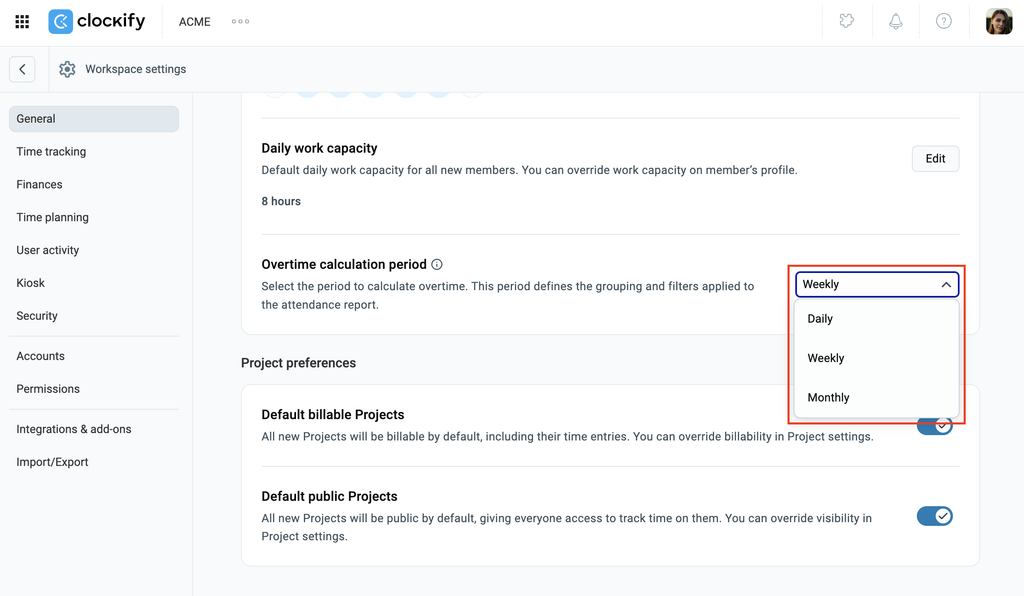
Da sich die Berechnungsregel direkt auf die Guthaben auswirkt, wirkt sich eine Änderung deines Überstundenzeitraums in deinen Arbeitsbereichseinstellungen sofort auf die verfügbaren Freizeitausgleichs-Guthaben aus.
Jede erfasste Zeit, die die Kapazität eines Benutzers überschreitet, zählt als Überstunde.
Deine gewählte Regel zur Überstundenberechnung (täglich, wöchentlich oder monatlich) bestimmt direkt deine verfügbaren Freizeitausgleichs-Guthaben..
Verschiedene Berechnungsregeln führen zu unterschiedlichen Gesamtsummen. Beispielsweise könnte dieselbe erfasste Zeit bei einer täglichen Berechnung 16 Überstunden erzeugen, bei einer wöchentlichen Berechnung jedoch nur 8 Stunden.
Berechtigungen #
Was du mit dem Freizeitausgleich tun (oder nicht tun) kannst, hängt von deiner Rolle im Arbeitsbereich ab. Hier ist eine detaillierte Übersicht:
| Aktion | Admins | Teammanager | Mitglieder |
| Freizeitausgleich in den Arbeitsbereichseinstellungen aktivieren | Ja | Nein | Nein |
| Freizeitausgleichs-Richtlinien erstellen und verwalten | Ja | Ja | Nein |
| Anträge zur Umwandlung von Überstunden in arbeitsfreie Zeit einreichen | Ja | Ja | Ja |
| Freizeitausgleichs-Anträge genehmigen oder ablehnen | Ja | Ja | Nein |
| Umgewandelte Überstunden im exportierten Anwesenheitsbericht anzeigen | Ja | Ja | Ja |
Freizeitausgleich aktivieren #
So aktivierst du diese Funktion:
- Klicke auf das Drei-Punkte-Symbol neben dem Namen deines Arbeitsbereichs
- Wähle Arbeitsbereichseinstellungen
- Schalte im Pop-up-Fenster für arbeitsfreie Zeit die Option Freizeitausgleich aktivieren auf EIN
- Wähle ein Startdatum. Dies ist das spezifische Datum, ab dem Überstunden für den Freizeitausgleich aufgelaufen werden
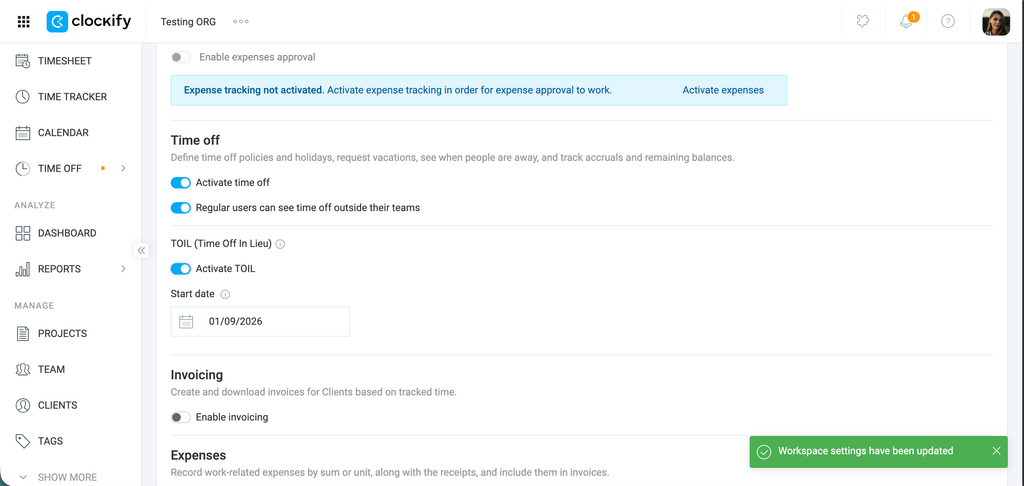
Freizeitausgleichs-Richtlinie einrichten #
So erstellst du eine Freizeitausgleichs-Richtlinie:
- Gehe zur Seite Arbeitsfreie Zeit
- Klicke auf den Tab Freizeitausgleich
- Wähle die aktive Richtlinie für arbeitsfreie Zeit aus, zu der die umgewandelten Stunden oder Tage hinzugefügt werden sollen
- Füge im Dropdown-Menü Zugewiesene Personen Teammitglieder hinzu, die von der Freizeitausgleichs-Richtlinie abgedeckt werden
- Lege den Umrechnungskurs unter Umwandlung von x Überstunden in 1 Tag fest
- Lege im Abschnitt Wer genehmigen kann fest, wer Anträge genehmigen kann (Admins, Teammanager oder Spezifische Mitglieder)
- Lege den Verfall des Guthabens für die angesammelten Freizeitausgleichs-Freitage fest
- Klicke auf Erstellen
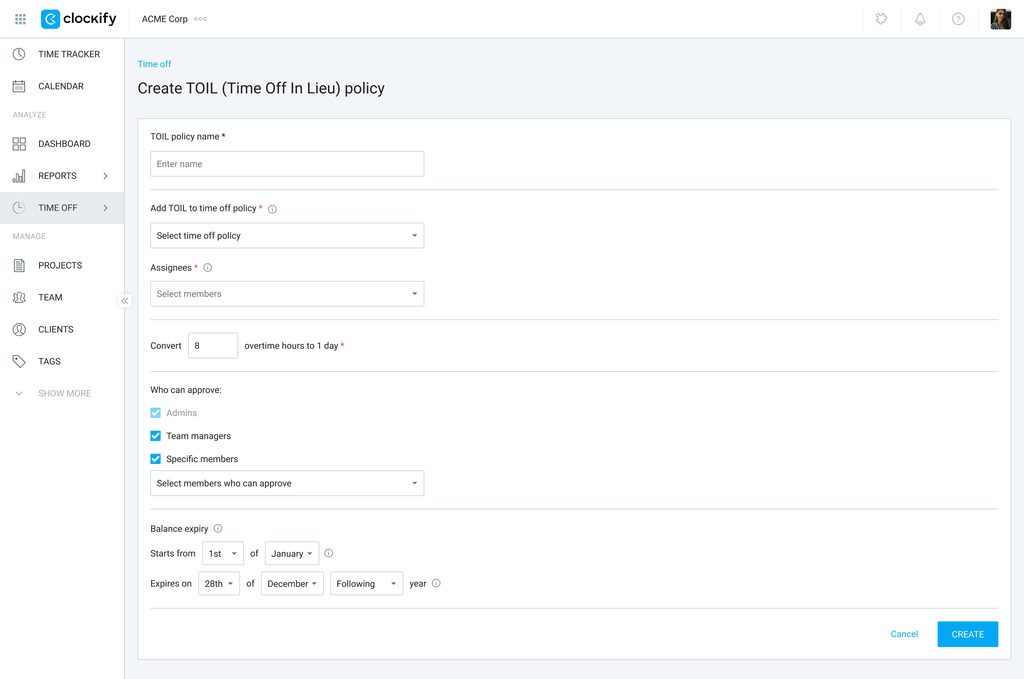
Wenn du den Freizeitausgleich einrichtest, wählst du ein bestimmtes Startdatum aus, ab dem Überstunden angesammelt werden..
Bitte beachte: Wenn dein Startdatum in die Mitte deines gewählten Überstundenzeitraums fällt, kann dieser Teilzeitraum nicht für den Freizeitausgleich berechnet werden..
Überstunden erfordern einen vollen Kalenderzeitraum für eine genaue Berechnung (z. B. wenn du einen monatlichen Zeitraum nutzt, aber das Startdatum auf den 13. Mai legst, wird der Monat Mai nicht berechnet).
Freizeitausgleich beantragen #
- Gehe zu Arbeitsfreie Zeit
- Klicke in der oberen rechten Ecke auf Freizeitausgleich beantragen
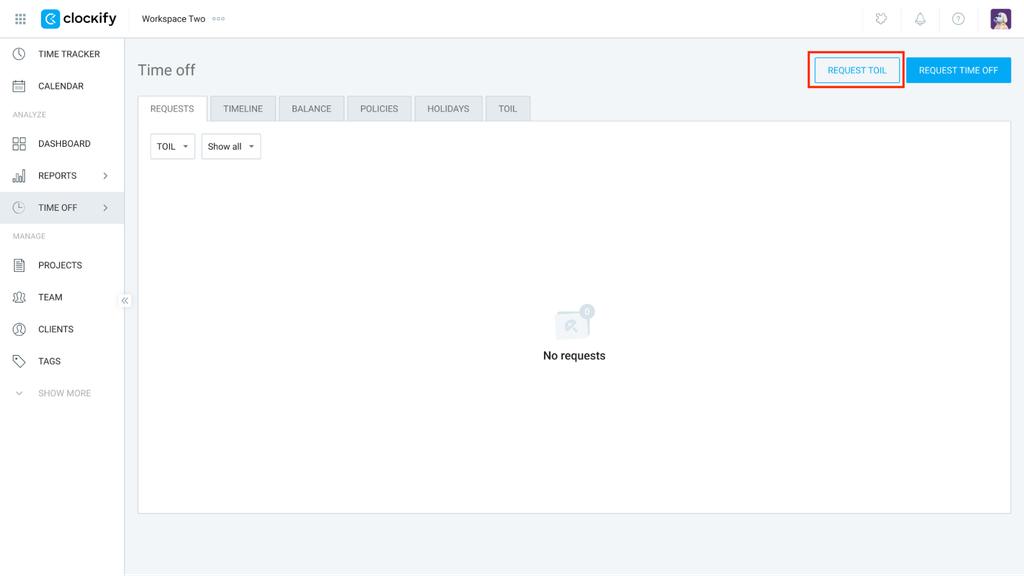
3. Wähle die Freizeitausgleichs-Richtlinie aus, die du verwenden möchtest
4. Wähle die Anzahl der Stunden für die Umwandlung aus
5. Füge deinem Antrag eine Notiz hinzu
6. Klicke auf Einreichen
Überstunden für den Freizeitausgleich werden in Echtzeit berechnet. Das bedeutet, dass du nicht auf das Ende eines bestimmten Zeitraums warten musst, um deine verfügbaren Überstunden einzusehen.
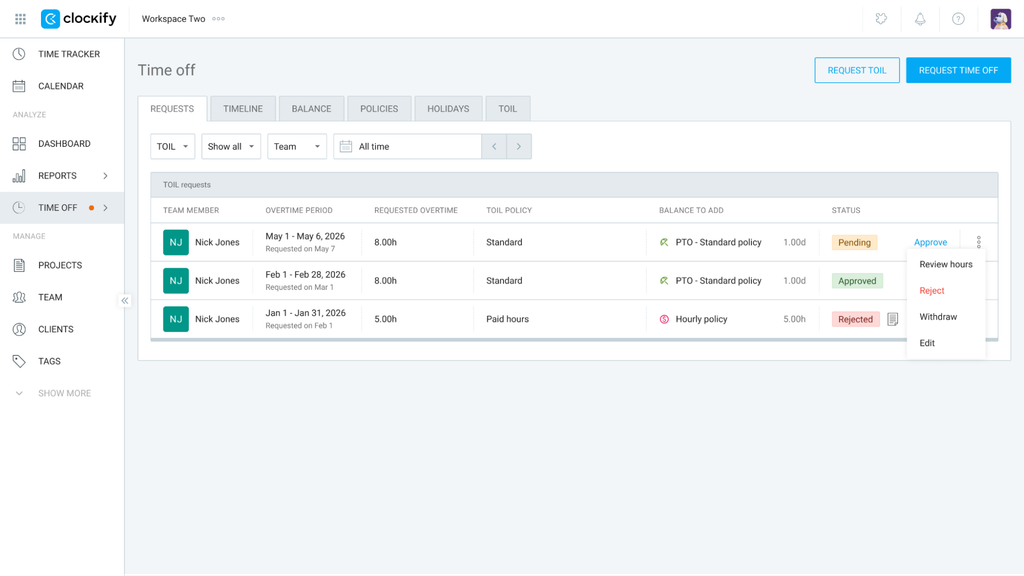
Freizeitausgleichs-Anträge überprüfen #
- Gehe zu Arbeitsfreie Zeit
- Stelle sicher, dass auf dem Tab Anträge der Freizeitausgleich-Filter aktiv ist
- Klicke auf die Schaltfläche Genehmigen, um den Antrag stattzugeben
- Klicke auf das Drei-Punkte-Symbol und wähle weitere Optionen:
- Stunden überprüfen
- Ablehnen
- Genehmigung zurückziehen
- Bearbeiten
Ändern deines Startdatums
Das Ändern deines Freizeitausgleichs-Startdatums führt dazu, dass aktuelle Freizeitausgleichs-Anträge storniert werden. Zur Bestätigung musst du ZURÜCKZIEHEN eingeben und im Pop-up-Fenster auf Alle zurückziehen klicken.
Beachte außerdem, dass die Änderung des Freizeitausgleichs-Startdatums zu Folgendem führt:
- Überstunden, die vor dem gewählten Startdatum aufgelaufen sind, werden vom Freizeitausgleich ausgeschlossen.
- Wenn das gewählte Startdatum in die Mitte deines festgelegten Überstundenzeitraums fällt (z. B. wöchentlich oder monatlich), kann dieser spezifische Zeitraum nicht für den Freizeitausgleich angerechnet werden.
Häufig gestellte Fragen #
Was passiert, wenn ich meine erfasste Zeit bearbeite, nachdem ich sie umgewandelt habe?
Wenn die Zeit nach der Umwandlung geändert wird, ist der Manager dafür verantwortlich, die Anpassungen nachzuverfolgen. Um sicherzustellen, dass deine Daten genau bleiben, kannst du Zeiten sperren, um weitere Änderungen zu verhindern.
Kann ich Teil mehrerer Freizeitausgleichs-Richtlinien sein?
Ja, ein Benutzer kann Mitglied mehrerer Freizeitausgleichs-Richtlinien sein. Beim Beantragen von Freizeitausgleich kannst du einfach die spezifische Richtlinie auswählen, die du nutzen möchtest.
Was passiert mit Überstunden, sobald ein Freizeitausgleich-Antrag gestellt wurde, und können sie zweimal übertragen werden?
Nach der Genehmigung werden die beantragten Überstunden einer zugewiesenen Richtlinie für arbeitsfreie Zeit hinzugefügt und explizit als umgewandelt markiert, um doppelte Übertragungen zu verhindern.
- Umgewandelte Stunden werden in der Guthabenhistorie protokolliert und erscheinen in der Spalte „Umgewandelte Überstunden (Freizeitausgleich)“ in den Anwesenheitsberichten.
- Wird ein Antrag abgelehnt, stehen die Stunden wieder für einen zukünftigen Antrag zur Verfügung.
- Falls ein Benutzer seine Arbeitszeittabelle nach der Umwandlung von Überstunden ändert (z. B. durch Reduzierung der protokollierten Stunden), müssen Manager die Abweichung manuell nachverfolgen oder Zeitsperr-/Genehmigungsfunktionen nutzen, um nachträgliche Änderungen zu verhindern.