Convert overtime to time off (TOIL)
Time Off In Lieu (TOIL) lets you convert your accrued overtime hours into a usable time off balance.
When using this feature, it helps to understand the difference between these two related concepts:
- Overtime: The amount of time worked minus your set daily, weekly, or monthly capacity.
- TOIL: The specific policy that allows you to convert those accrued overtime hours into time off.
Time off should be enabled in Workspace settings before you can use this feature.
Before you start #
TOIL is calculated according to each member’s overtime calculation setting. To check this:
1. Click the  three-dot icon next to your workspace name
2. Select Workspace settings
3. Locate Overtime calculation period in the General page
4. Select a calculation period: Daily, Weekly, or Monthly
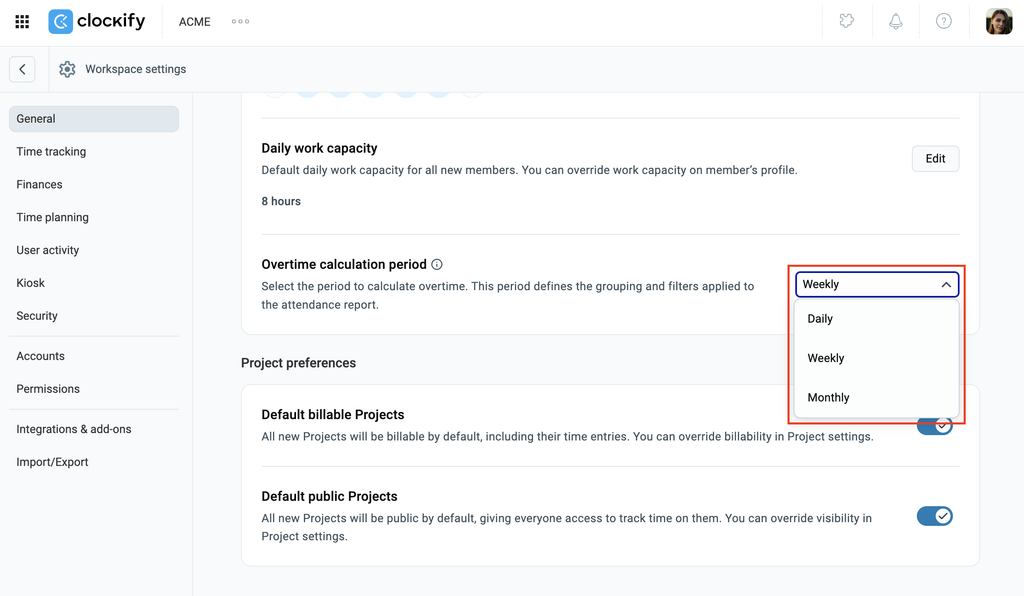
Because the calculation rule directly impacts balances, changing your overtime period in your workspace settings will immediately affect available TOIL balances.
Any tracked time exceeding a user’s capacity counts as overtime.
Your chosen overtime calculation rule (daily, weekly, or monthly) directly determines your available TOIL balances.
Different calculation rules will yield different totals. For example, the same tracked time might generate 16 hours of overtime under a daily calculation, but only 8 hours under a weekly calculation.
Permissions #
What you can (or can not) do with TOIL depends on your role within the workspace. Here is a detailed breakdown:
| Action | Admins | Team managers | Members |
| Turn on TOIL in workspace settings | Yes | No | No |
| Create and manage TOIL policies | Yes | Yes | No |
| Submit requests to convert overtime to TOIL | Yes | Yes | Yes |
| Approve or reject TOIL requests | Yes | Yes | No |
| View converted overtime in the exported Attendance report | Yes | Yes | Yes |
Enable TOIL #
To enable TOIL:
- Click the three-dot icon next to your workspace name
- Select Workspace settings
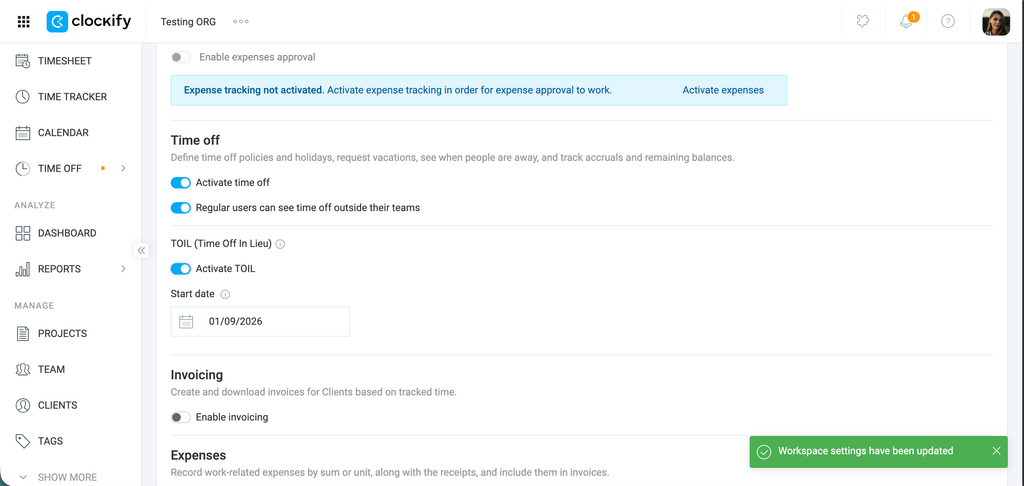
- Toggle Activate TOIL to ON in the Time off section
- Select a start date. This is the specific date from which overtime begins to accrue for TOIL.
Set up TOIL policy #
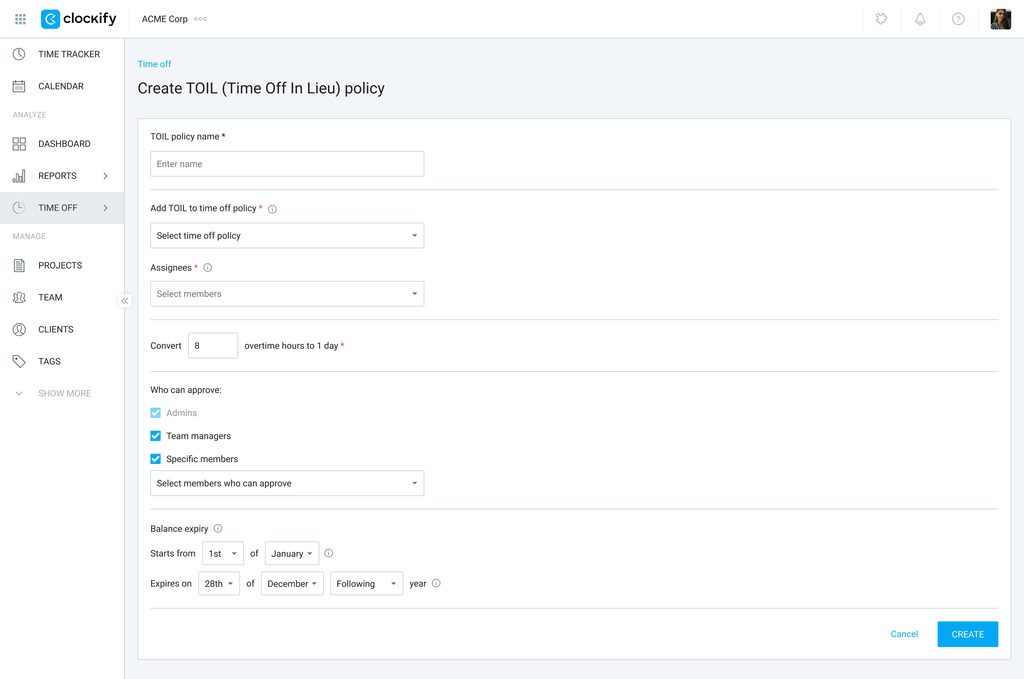
To create a TOIL policy:
- Go to the Time Off page
- Click the TOIL tab
- Select the active time off policy to which the converted hours or days will be added
- Add team members covered by the TOIL policy in the Assignees dropdown
- Define the conversion rate in Convert x overtime hours to 1 day
- Set who can approve requests in the Who can approve section (Admins, Team managers, or Specific members)
- Set a balance expiry for TOIL accumulated days off
- Click Create
When setting up TOIL, you will choose a specific start date to begin accruing overtime.
Please note that if your start date lands in the middle of your selected overtime period, that partial period cannot be calculated for TOIL.
Overtime requires a full calendar period to calculate accurately (e.g., if you use a monthly period but set the start date to May 13th, the month of May will not be calculated).
Request TOIL #
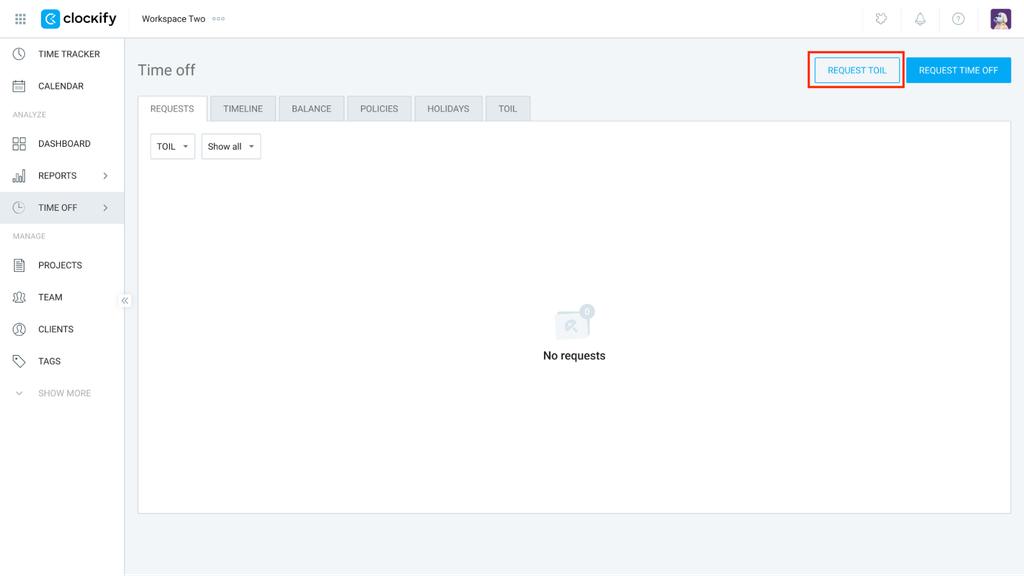
- Go to Time Off
- Click the Request TOIL (upper-right corner)
3. Select the TOIL policy you want to use
4. Choose the number of hours for conversion
5. Add a note to your request
6. Click Submit
Overtime for TOIL is live, meaning you do not need to wait for a specific period to end to view your available overtime hours.
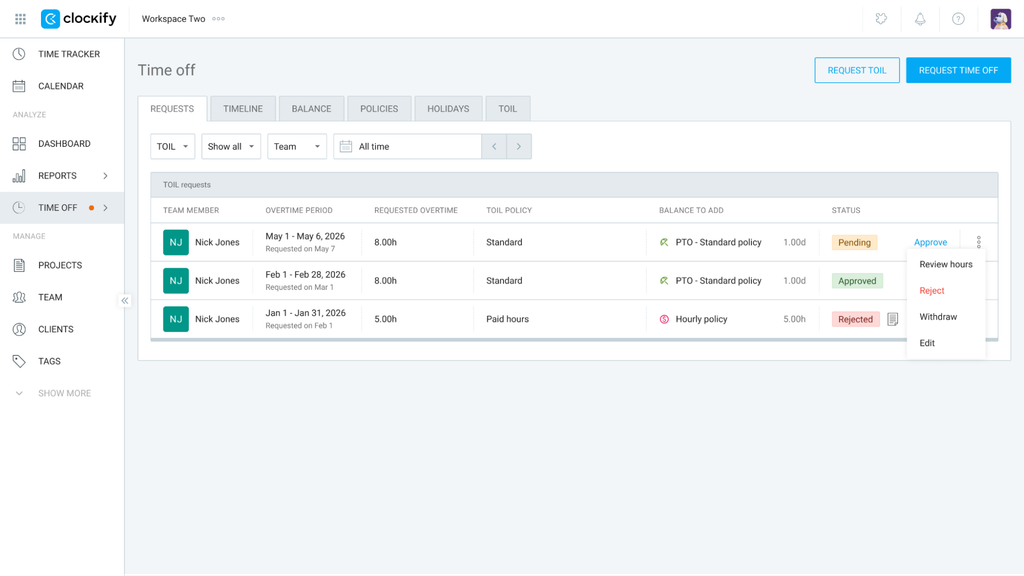
Review TOIL requests #
- Go to Time Off
- Ensure that you have the TOIL filter on the Requests tab
- Click the Approve button to approve
- Click on the three-dot icon and select other options:
- Review hours
- Reject
- Withdraw
- Edit
Changing Your TOIL Start Date
Changing your TOIL start date will cause current TOIL requests to be canceled. To confirm, you need to type WITHDRAW and click Withdraw all on the pop-up window.
Also note that changing the TOIL start date results in the following:
- Overtime hours accrued prior to the chosen start date are excluded from TOIL.
- If the chosen start date lands in the middle of your established overtime period (e.g., weekly or monthly), that specific period cannot be counted toward TOIL.
FAQs #
What happens if I edit my tracked time after converting it to TOIL?
If time is changed after it is converted, the manager is responsible for keeping track of the adjustments. To ensure your data remains accurate, you can lock time to prevent further amendments.
Can I be a part of multiple TOIL policies?
Yes, one user can be a member of multiple TOIL policies. When requesting TOIL, you can simply select the specific policy you want to use.
What happens to overtime hours once a TOIL request is made, and can they be transferred twice?
Once approved, requested overtime hours are added to a designated time off policy and explicitly marked as converted to prevent duplicate transfers.
- Converted hours are logged in the balance history and appear in a “Converted overtime (TOIL)” column in Attendance reports.
- If a request is rejected, the hours revert to being available for a future request.
- If a user alters their timesheet after converting overtime (e.g., reducing logged hours), managers must track the discrepancy manually or use time-locking/approval features to prevent retroactive changes.