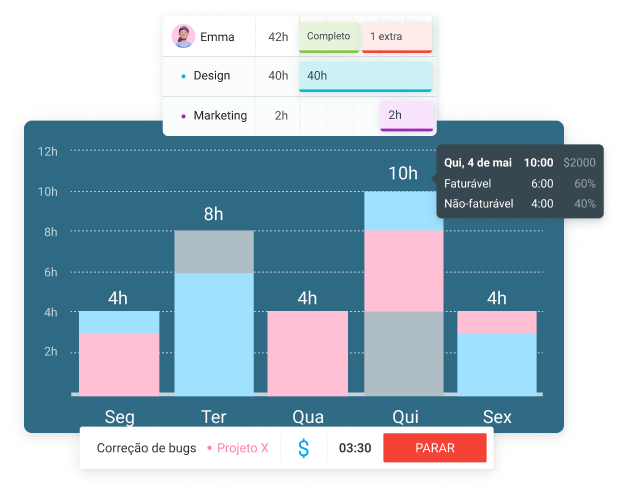
Não sabe como medir com precisão a rentabilidade e monitorá-la em tempo real? Use um sistema único, como o Clockify, para gerenciar tempo, orçamentos e relatórios.
Descubra o que é, como ela é medida e como usar o Clockify para monitorar a rentabilidade do projeto em tempo real.
- A rentabilidade de um projeto é o valor que você ganha com um projeto, após deduzir todos os custos relacionados a ele.
- O lucro bruto é o valor que você recebe após subtrair os custos diretos da receita do projeto.
- O lucro líquido é o valor que você ganha após subtrair todos os custos do projeto, diretos e indiretos, da receita do projeto.
- O Clockify permite que você acompanhe os custos de mão de obra e outras despesas, e calcula o lucro do projeto para você.
O que é a rentabilidade de um projeto?
A rentabilidade de um projeto é o valor que você ganha, como proprietário de uma agência, com um projeto específico. Ela contabiliza o dinheiro gerado pelo projeto — mas somente após o pagamento de todos os custos relacionados a ele.
Como medir a rentabilidade de um projeto
Para medir a rentabilidade de um projeto, você precisa calcular o lucro. Vamos primeiro distinguir entre dois tipos de lucro: lucro bruto e lucro líquido.
O lucro bruto é o valor restante após a subtração dos custos diretamente associados à produção de um produto ou à prestação de um serviço.
Para uma empresa baseada em produtos, isso incluiria o custo dos produtos e os custos diretos de mão de obra para a produção. Uma empresa prestadora de serviços contabilizaria os custos diretos de mão de obra para a prestação do serviço e todos os outros custos diretos, como a compra de equipamentos especiais necessários apenas para aquele projeto específico.
Lucro bruto = Receita – custos diretos do projeto
O lucro líquido refere-se ao valor que sobra após a dedução de todas as despesas — tanto as diretas quanto as indiretas.
As despesas indiretas incluem aluguel, contas de luz e água, e outras despesas incorridas indiretamente durante a execução do projeto — ou seja, são os custos de funcionamento da empresa.
Lucro líquido = Receita – (custos diretos + custos indiretos)
💡 DICA PROFISSIONAL DO CLOCKIFY
Explore as diferenças entre lucro bruto e lucro líquido com mais detalhes lendo este artigo:
Para medir a rentabilidade, você precisa calcular o lucro líquido. Em seguida, você pode determinar a margem de lucro.
A margem de lucro é a rentabilidade do projeto expressa em porcentagem. Aqui está a fórmula para calcular a margem de lucro:
Margem de lucro (%) = (Receita do projeto − custo do projeto) / receita do projeto × 100%
Digamos que seu projeto tenha gerado uma receita de R$ 130.000, e que todos os custos relacionados a ele totalizem R$ 105.000. Veja como você faria o cálculo:
(R$ 130.000 – R$ 105.000) / R$ 130.000 x 100% = 19,23%
Assim, sua margem de lucro seria de 19,23%.
Rentabilidade do projeto vs. rentabilidade do cliente vs. rentabilidade da equipe
A rentabilidade do projeto concentra-se na quantia de dinheiro gerada por um projeto específico após a dedução de todos os custos — mas essa não é a única métrica de rentabilidade.
Você também pode analisar a rentabilidade do cliente e a rentabilidade da equipe. A rentabilidade do cliente mede o lucro que um cliente específico traz para a empresa. A rentabilidade da equipe calcula o lucro gerado por uma equipe específica.

Como usar o Clockify da CAKE.com para monitorar a rentabilidade do projeto
Veja como monitorar a rentabilidade de projetos usando o Clockify em 7 etapas — e melhorar a saúde financeira da sua agência como um todo.
#1: Crie projetos e tarefas
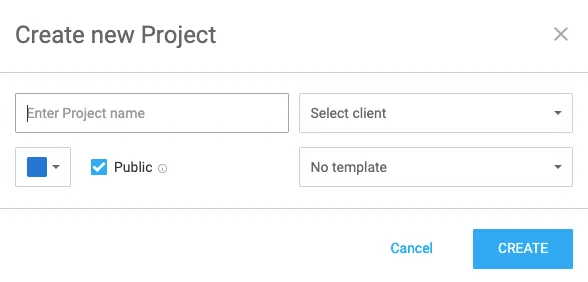
Para monitorar a rentabilidade dos projetos com precisão, primeiro crie seus projetos no Clockify. Abra Projetos e clique em Criar projeto. Em seguida, dê um nome ao seu projeto e, opcionalmente, adicione o cliente.
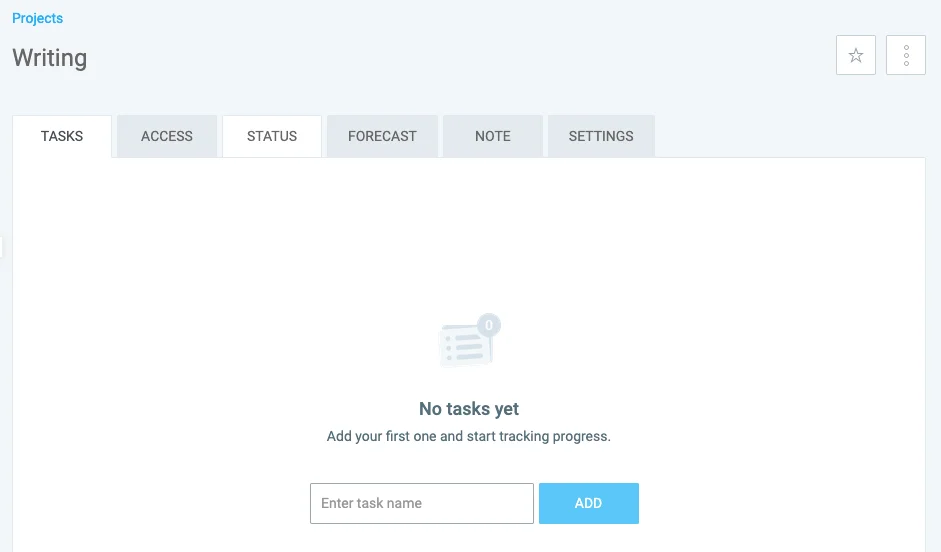
Cada projeto provavelmente é composto por tarefas separadas, portanto, adicione-as aos seus projetos. Para adicionar uma tarefa, acesse a guia Projetos e clique no projeto correspondente. Em seguida, dê um nome à sua tarefa e clique em Adicionar.
Se você tiver muitos projetos diferentes em seu espaço de trabalho, poderá usar a opção Projetos favoritos.
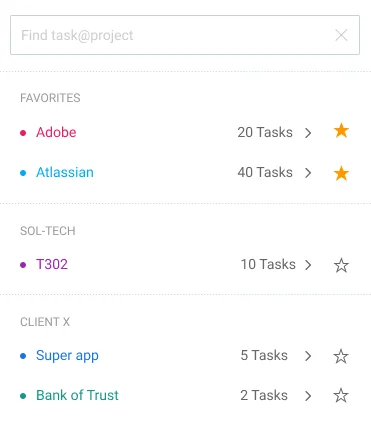
Esta opção permite selecionar os projetos em que você trabalha com mais frequência. Eles aparecerão no topo da lista para facilitar o acesso.
💡 DICA PROFISSIONAL DO CLOCKIFY
Para saber mais detalhes sobre como gerenciar projetos de forma eficaz no Clockify, consulte este guia útil:
#2: Defina estimativas do projeto
Para avaliar como suas estimativas iniciais se comparam ao progresso real, você pode definir estimativas de projeto no Clockify.
O Clockify oferece 2 tipos de estimativas de projeto:
- Estimativa de tempo
- Estimativa de orçamento
A opção de estimativa de tempo permite que você defina uma previsão de quantas horas serão necessárias para concluir o projeto.
A opção de estimativa de orçamento serve para estimar o valor que você acha que custará para concluir o projeto.
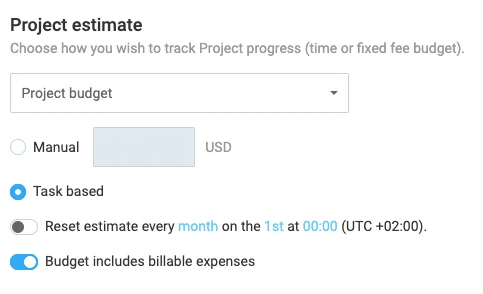
As estimativas de orçamento podem ser manuais ou baseadas em tarefas. A opção de estimativa manual exige que você defina um valor fixo para todo o projeto. A opção baseada em tarefas permite definir estimativas de orçamento para cada tarefa do projeto individualmente.
Para identificar possíveis estouros de orçamento com antecedência, use o recurso de Previsão do Clockify.
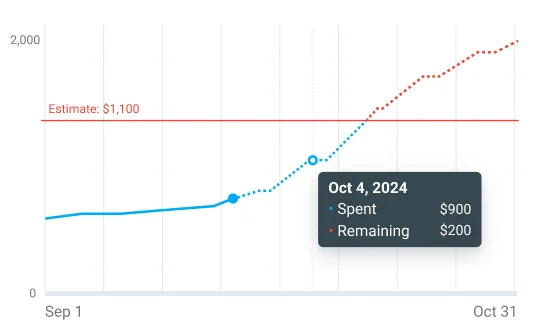
Você pode ver a projeção para um projeto específico clicando na guia Projetos e abrindo o projeto desejado. Em seguida, clique em Previsão. O Clockify mostrará quanto do orçamento já foi gasto com base nas horas de trabalho e despesas registradas. Ele também exibirá o orçamento restante e se há previsão de ultrapassar a estimativa no ritmo atual.
Saber se você está ultrapassando o orçamento permite que você decida como proceder. Por exemplo, você pode descobrir que os custos com mão de obra estão altos porque alguns membros da equipe ficaram presos em uma tarefa. Dessa forma, você pode fazer ajustes na equipe para que os membros mais capacitados para lidar com essa tarefa possam assumir.
💡 DICA PROFISSIONAL DO CLOCKIFY
Se você quiser aprender mais sobre previsão de projetos, aqui está um artigo que explica isso em termos simples:
#3: Defina as taxas de custo e as taxas faturáveis
Para que o Clockify calcule seu lucro, você precisa definir as taxas de custo e as taxas faturáveis. As taxas de custo são os valores por hora que você paga à sua equipe. As taxas faturáveis são os valores cobrados de seus clientes.
No Clockify, as taxas podem ser:
- Baseadas no espaço de trabalho — uma mesma taxa se aplica a todo o espaço de trabalho.
- Baseadas em membros — taxas diferentes se aplicam a diferentes membros da equipe.
- Baseadas em projetos — taxas diferentes se aplicam a diferentes projetos.
- Baseadas em tarefas — taxas diferentes se aplicam a diferentes tarefas.
- Baseadas em membros do projeto — uma taxa específica se aplica a um membro específico da equipe ao trabalhar em determinado projeto.
Se você definir vários tipos de taxas ao mesmo tempo, a taxa mais específica substituirá a menos específica. Na lista acima, os tipos de taxa estão ordenados da menos específica para a mais específica. Por exemplo, se você definir uma taxa para o espaço de trabalho e uma taxa baseada em projeto, o Clockify usará a taxa baseada em projeto para todos os projetos que tiverem uma taxa própria definida.
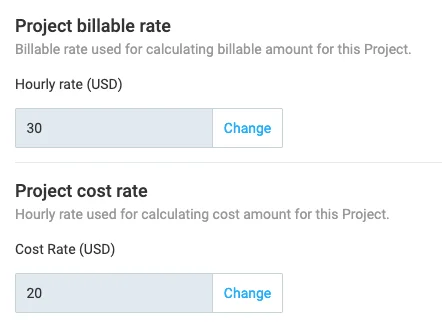
Para monitorar a rentabilidade do projeto, você provavelmente usará as taxas baseadas em projeto com mais frequência. Se você não definir nenhuma taxa, não poderá gerar relatórios de lucro nem identificar quais projetos não são rentáveis.
Acompanhe a faturabilidade e os custos de mão de obra
#4: Classifique projetos como faturáveis/não faturáveis
O Clockify permite que você acompanhe tarefas faturáveis e não faturáveis. O tempo faturável será contabilizado no cálculo do lucro, enquanto as taxas não se aplicarão a projetos não faturáveis.
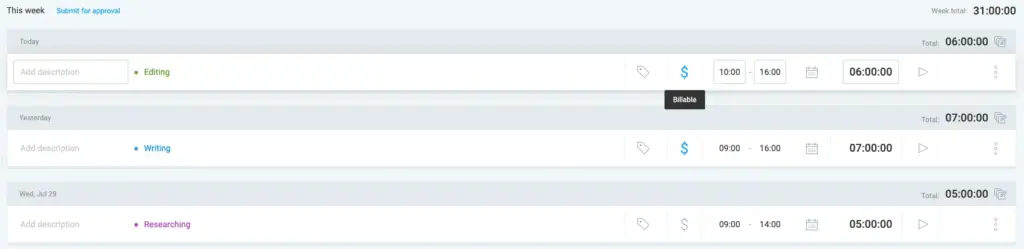
Para configurar as horas faturáveis, clique no símbolo de dólar ($). Se o símbolo estiver azul, seu projeto está marcado como faturável. Se o símbolo estiver cinza, seu projeto é considerado não faturável.
💡 DICA PROFISSIONAL DO CLOCKIFY
Saiba mais sobre a diferença entre horas faturáveis e não faturáveis aqui:
#5: Registre o tempo gasto em tarefas
Para um monitoramento preciso do lucro dos projetos no Clockify, sua equipe precisa registrar o tempo gasto em cada tarefa. Com base no status de faturamento e nas taxas definidas, o Clockify calculará seus custos e seu lucro.
Você pode escolher entre várias opções para registrar o tempo gasto em tarefas:
- Cronômetro — para registrar as horas em tempo real.
- Modo manual — para adicionar entradas individuais manualmente.
- Planilhas de horas — para registrar as horas da semana inteira.
- Calendário — para adicionar blocos de tempo em um calendário.
- Rastreador automático — para rastrear e registrar automaticamente as visitas a aplicativos/sites.
- Quiosque — para registrar a entrada e a saída rapidamente usando um PIN pessoal ou um código QR.
Se você precisar de dados em tempo real para monitorar a rentabilidade dos projetos, o Cronômetro é a opção mais adequada.
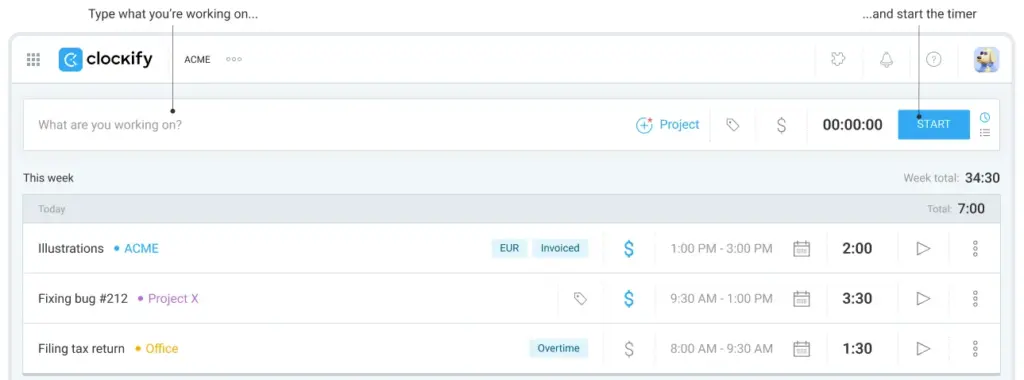
Para usar o Cronômetro, sua equipe precisa selecionar o projeto apropriado e clicar em Iniciar. O cronômetro funcionará até que cliquem em Parar.
Como administrador, você poderá ver todas as horas monitoradas pelos usuários. Você também pode gerenciar permissões para controlar quem vê o quê.
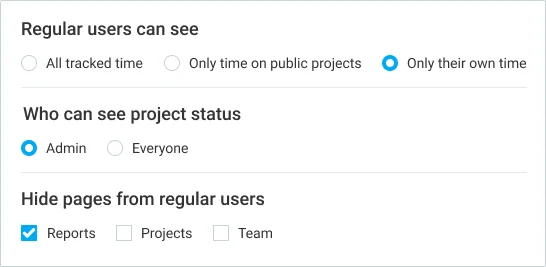
Por exemplo, você pode ocultar o tempo registrado dos usuários comuns, de modo que eles vejam apenas suas próprias horas. Os gerentes de projeto podem ver quem registrou quanto tempo no projeto que gerenciam, enquanto os gerentes de equipe veem os dados registrados pelos membros de sua equipe.

#6: Registre as despesas
Você também deve registrar todas as despesas no Clockify. Os custos de mão de obra não são os únicos custos relacionados ao projeto.
O recurso Despesas permite rastrear diferentes tipos de despesas criando categorias de despesas.
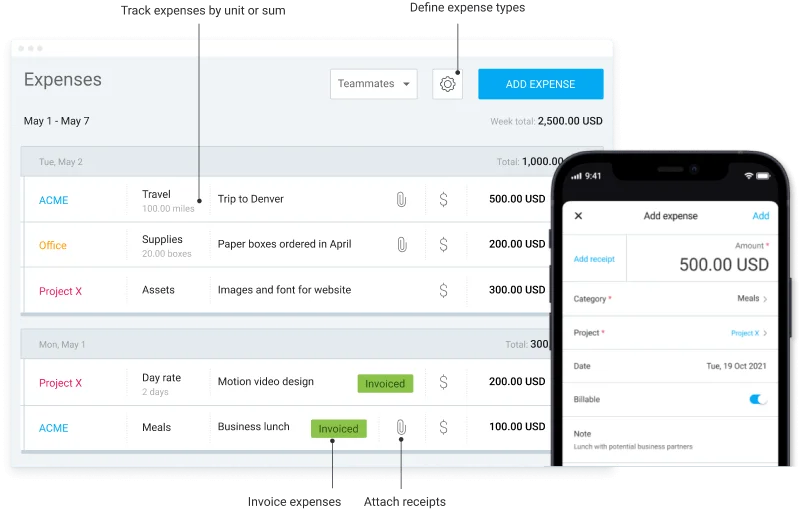
Assim, tudo o que precisa ser comprado para a entrega do projeto pode ser registrado como uma despesa no Clockify. Isso inclui custos diretos, como softwares específicos, e custos indiretos, como aluguel e contas de serviços públicos.
Acompanhar todas as despesas do projeto é essencial para calcular com precisão a sua rentabilidade.
#7: Gere relatórios de projeto
O Clockify apresenta todos os dados de rentabilidade em relatórios organizados de forma clara. Para visualizar o lucro de um projeto específico, abra o Relatório resumido e filtre por projeto.
Em seguida, selecione Mostrar lucro (e, opcionalmente, Mostrar valor e Mostrar custo). Se você selecionar todas as 3 opções, obterá uma análise completa de:
- Duração do projeto
- Valor total arrecadado pelo projeto
- Custo total de execução do projeto
- Lucro
Dessa forma, você pode ver quais projetos geram mais receita e quais estão consumindo seus recursos.
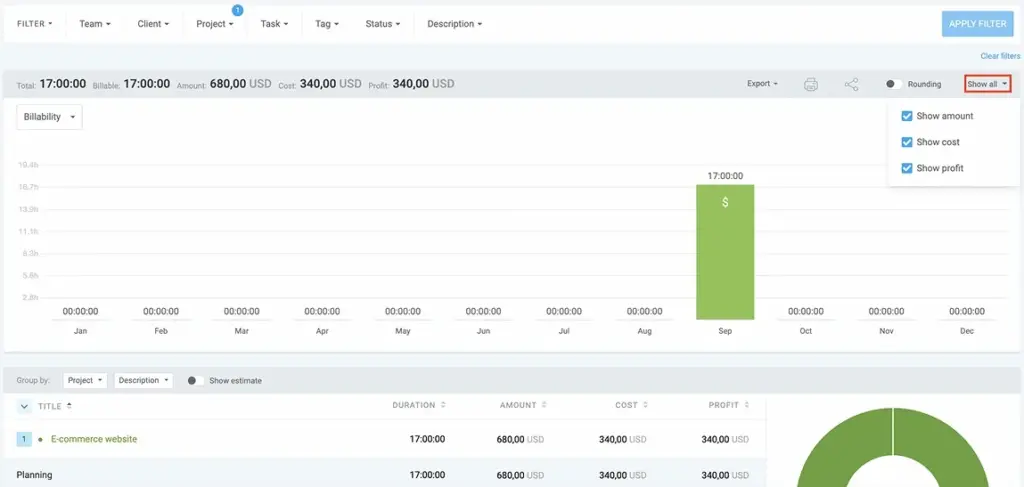
Você também pode analisar os lucros da equipe e a rentabilidade do cliente. Nesse caso, basta filtrar por equipe ou cliente, em vez de projeto. Analisar o lucro nos Relatórios do Clockify ajuda você a tomar decisões baseadas em dados sobre a alocação de projetos e atribuições de membros da equipe.
Por exemplo, você pode identificar equipes que estão com dificuldades para gerar o lucro desejado. Você pode perceber que alguns membros da equipe estão demorando mais do que o esperado para concluir suas tarefas. Nesse caso, você pode distribuir as tarefas de forma diferente para que cada funcionário trabalhe nas tarefas em que é melhor.
Acompanhe a rentabilidade dos seus projetos com o pacote da CAKE.com
O Clockify é apenas uma parte do pacote de produtividade. O pacote da CAKE.com oferece os 3 produtos da CAKE.com, totalmente atualizados, com 53% de desconto.
O pacote CAKE.com inclui:
- Clockify — ferramenta de controle de tempo e despesas
- Plaky — software de gerenciamento de projetos
- Pumble — aplicativo de comunicação para equipes
Juntas, essas 3 ferramentas poderosas ajudam você a gerenciar equipes com eficácia e a acompanhar a rentabilidade dos projetos o tempo todo.
Primeiro, use o Clockify para gerar relatórios de lucro. Segundo, use o Plaky para gerenciamento de projetos e acompanhe todos os projetos, pois você pode monitorar o progresso deles com mais detalhes. Terceiro, o Pumble permite que você se comunique facilmente com sua equipe caso surja algum problema durante o trabalho no projeto.
Você sempre pode experimentar o Clockify primeiro e ver depois se deseja atualizar para o pacote.
Como avaliamos esta publicação: Nossos redatores e editores monitoram as publicações e as atualizam quando novas informações são disponibilizadas para mantê-las atualizadas e relevantes.