Actualización de la función de Tiempo libre: Qué cambió y qué debes comprobar
En Septiembre de 2025, introdujimos actualizaciones a nuestra función de Tiempo libre. Desde entonces, hemos estado escuchando vuestros comentarios en relación a la visibilidad de saldo y la flexibilidad de política.
Para garantizar que tu equipo tenga la experiencia más intuitiva posible, hemos lanzado una serie de mejoras enumeradas en este artículo.
Este artículo explica:
- Qué se ha mejorado
- Cómo funciona ahora el Saldo de tiempo libre
- Qué debes revisar en tus políticas existentes
- Ejemplos y guías para ayudarte a entender la nueva vista de saldo
Qué se ha mejorado #
Para abordar los problemas informados, hemos hecho varias actualizaciones para mejorar la claridad:
- La fecha de vencimiento de saldo ahora es opcional
Puedes elegir si quieres que una política tenga una regla de vencimiento o no
- Mejor visibilidad e historial de saldo
Hemos mejorado cómo se muestran los saldos, incluyendo:
- Vista clara de saldo negativo
- Desglose claro del tiempo acumulado, usado y disponible
- Visibilidad de cualquier saldo negativo restante creado durante la actualización anterior de la función Tiempo libre
Qué debes hacer #
Revisar tus políticas de tiempo libre #
Recomendamos encarecidamente a todos los administradores que revisen sus políticas de tiempo libre para comprobar que todo está configurado adecuadamente después de la actualización. Optamos por no automatizar este proceso para evitar posibles errores o malinterpretaciones de las políticas específicas de tu empresa y para darte control total.
Para comprobar tus políticas de tiempo libre:
1. Ve a la página Bajas
2. Haz clic en el icono de engranaje
3. Selecciona Gestionar políticas
4. Haz clic en el icono de tres puntos al lado de la política que estás revisando
5. Selecciona Editar
6. Comprueba la política según las siguientes opciones:
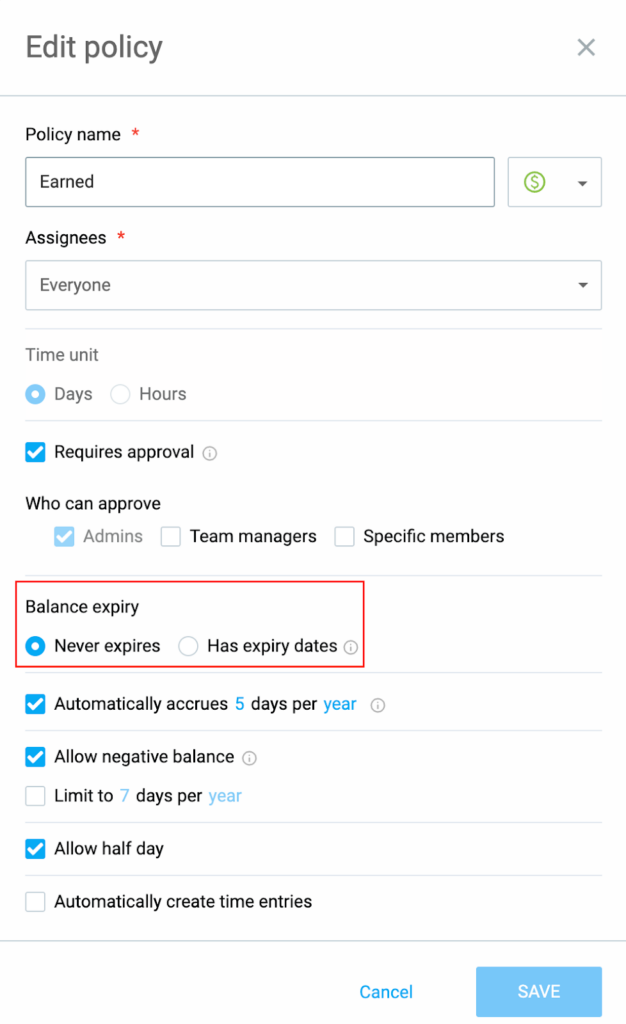
- Vencimiento de la acumulación del saldo
- Acumulación automática
- Saldo negativo y límite (días) al año
- Restablecer saldo negativo
7. Haz clic en Guardar
Revisar la configuración del vencimiento de saldo #
- ¿Esta política realmente necesita una regla de vencimiento?
- Si no, selecciona la opción No vence
Más sobre la configuración de vencimiento
Restablecer saldo negativo #
A la hora de configurar una política de tiempo libre, puedes optar por borrar automáticamente el saldo negativo de tiempo libre de un usuario al final de cada período (mes o año).
Restablecer saldo negativo es opcional y está desactivado por defecto.
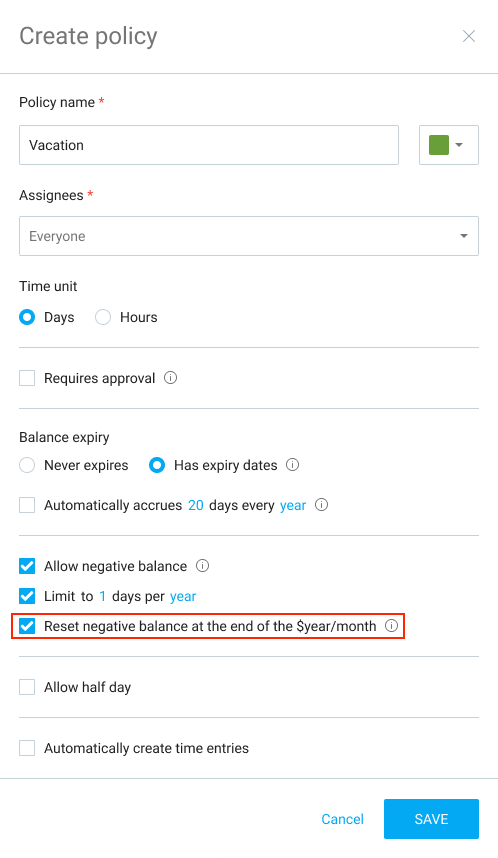
Si Restablecer saldo negativo está activado, cualquier tiempo libre negativo acumulado se borrará y establecerá a 0 al final del período.
Esto no afecta al saldo ganado (positivo) disponible del usuario.
Qué se ve diferente #
Verás pantallas actualizadas que hacen la información de saldo más clara:
Vista de saldo unificado #
Hemos simplificado como se calculan los totales unificando los saldos positivos y negativos en una sola cantidad.
Por ejemplo, si un usuario tiene -5 días, y tú añades 10 días, su nuevo saldo será de 5 días.
Cualquier cantidad “restante” de la versión anterior aparecerá como saldo negativo separado.
Para gestionar el saldo total::
- Consulta la tabla de Saldo para ver el saldo total y cualquier cantidad negativa separada
- Usa Añadir al saldo o Edición masiva para alinear la cantidad con tus necesidades
- Abre el Historial de saldo para ver cómo estos ajustes afectan a la cantidad total
Tabla de saldo #
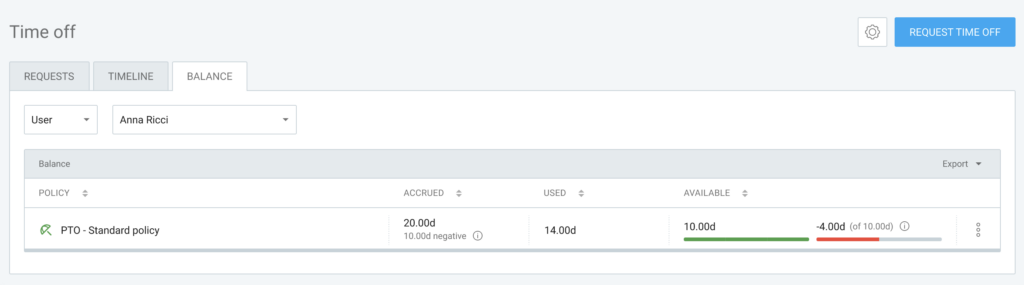
La tabla de saldo te proporciona una vista clara de tu tiempo libre disponible.
Muestra el saldo total (actual, cantidad unificada de tiempo libre) + saldo negativo separado (aparece si el usuario tiene saldo negativo “restante” de la versión anterior).
Detalles de saldo #
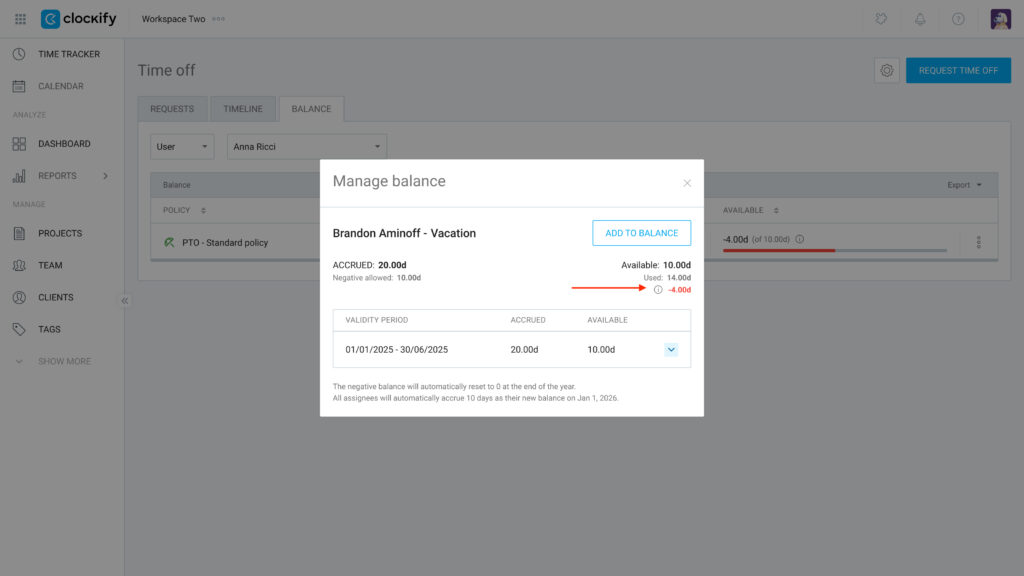
La tabla de detalles de saldo muestra:
- Acumulado
- Usado
- Disponible
- Días negativos
- Acumulaciones próximas
- Si los días negativos se restablecerán
Gestionar saldo #
Los administradores ven todos los componentes de saldo en un solo lugar, incluyendo cualquier saldo negativo separado restante.
Guía rápida de comparación: Cálculo del saldo antes y después de la actualización #
El cambio más significativo es cómo la adición de saldo interactúa con los saldos negativos existentes.
| Función | Antes de la actualización | Después de la actualización |
| Añadir al saldo manualmente | Se añade al saldo positivo. Por ejemplo: Un usuario tiene -5 días. Añades 3 días. Ahora tiene 3 días positivos y -5 días negativos. | Opción para elegir primero si afecta al saldo negativo. Por ejemplo (si se selecciona Afectar saldo negativo): Un usuario tiene -5 días. Añades 3 días. Su saldo es ahora de -2 días |
| Visibilidad de saldo | El saldo negativo no estaba separado visualmente del saldo positivo en la interfaz de usuario | El saldo negativo estará separado visualmente del saldo positivo en la interfaz de usuario. |
| Acumulaciones/Adiciones masivas | Todas las acumulaciones automáticas y adiciones masivas se añadían solo al saldo positivo. | Todas las acumulaciones automáticas y adiciones masivas afectarán primero al saldo negativo. |
| Negativo individual | El saldo negativo solo se podía configurar a nivel de política y era visible solo después de que se hubiera usado por completo el saldo positivo. | La posibilidad de ver un saldo negativo para usuarios individuales en la pestaña Saldo. |
| Restablecimiento negativo | Todos los días negativos se restablecían/eliminaban automáticamente según el período de límite de la política. | Una opción de restablecer todos los días negativos estará disponible según el período de límite. |
Exportaciones #
Los archivos CSV/Excel ahora incluyen una columna de saldo Negativo separado.