Time Off feature update: What changed and what you need to check
In September 2025, we introduced updates to our Time Off feature. Since then, we have been listening closely to your feedback regarding balance visibility and policy flexibility.
To ensure your team has the most intuitive experience possible, we have released a series of improvements listed in this article.
This article explains:
- What was improved
- How Time Off balance works now
- What you need to review in your existing policies
- Examples and guides to help you understand the new balance view
What was improved #
To address reported issues, we’ve made several updates to improve clarity:
- Balance expiry date is now optional
You can now choose whether a policy should have an expiry rule or not
- Better visibility & balance history
We improved how balances are shown, including:
- Clear display of negative balance
- Clear breakdown of accrued, used and available time
- Visibility of any remaining separate negative balance created during the previous Time Off feature update
What you need to do #
Review your Time Off policies #
We strongly recommend that all admins review their Time Off policies to make sure everything is set correctly after the update. . We chose not to automate this process to avoid potential errors or misinterpretations of your specific company policies and to give you full control.
To check your time off policies:
1. Navigate to the Time Off page
2. Click the gear icon
3. Select Manage policies
4. Click on the three-dot icon next to the policy you are reviewing
5. Select Edit
6. Check the policy according to these options:
- Balance accrual expiry
- Automatic accrual
- Negative balance and limit (days) per year
- Reset negative balance
7. Click Save
Review balance expiry settings #
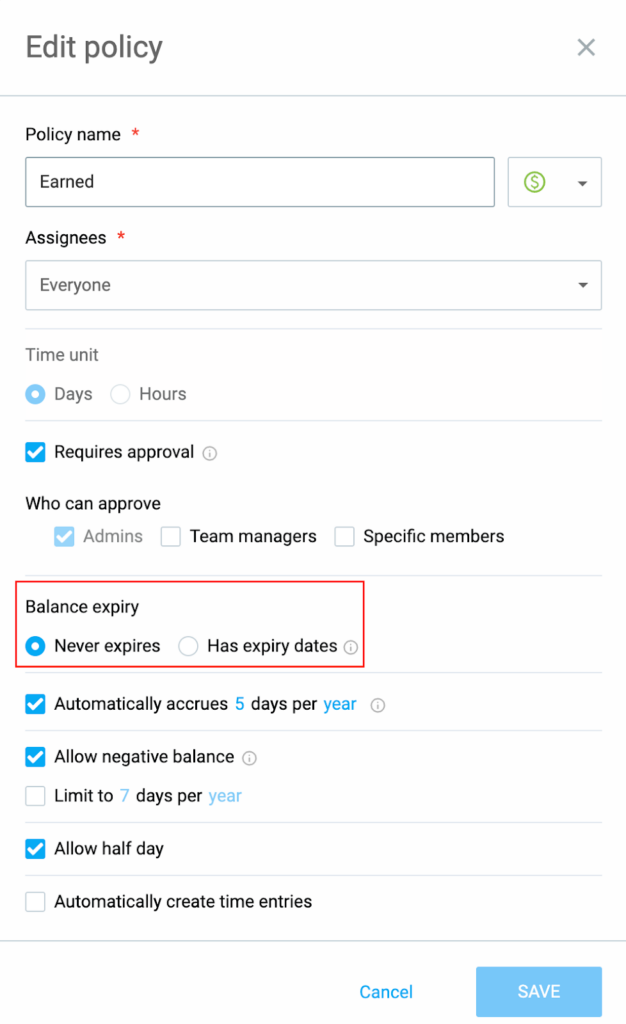
- Does this policy actually require an expiry rule?
- If not, select Never expires option
More on expiry settings
Reset negative balance #
When setting up a time off policy, you can choose to automatically clear the user’s negative time off balance at the end of each period (month or year).
Reset negative balance is optional and is disabled by default.
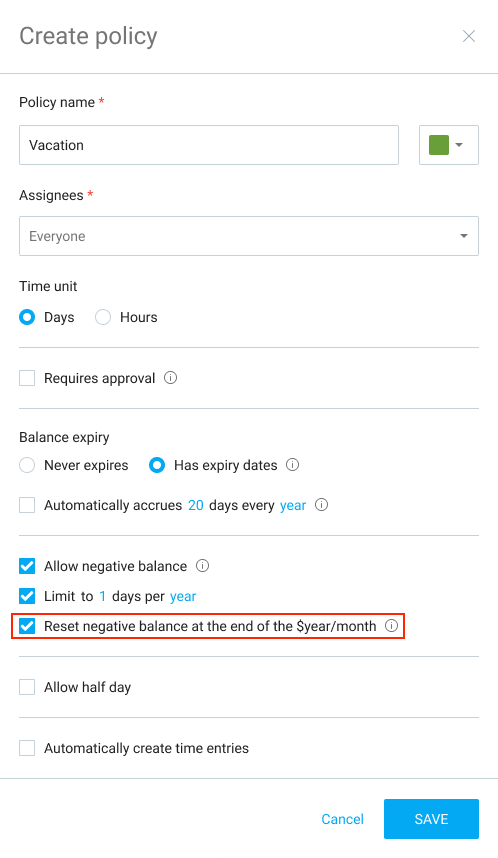
If Reset negative balance is enabled, any negative time off accumulated will be wiped clean and set back to 0 at the end of the period.
This does not affect the user’s earned (positive) available balance.
What looks different #
You will notice updated screens that make balance information easier to understand:
Unified balance view #
We have simplified how totals are calculated by unifying positive and negative balances into a single amount.
For example, if a user has -5 days and you add 10 days, their new balance will be 5 days.
Any “leftover” amount from the previous version, it will appear as a separate negative balance.
To manage total balance:
- Check the Balance table for the total balance and any separate negative amount
- Use Add to balance or Bulk edit to align the amount with your requirements
- Open Balance history to see how these adjustments affect the total amount
Balance table #
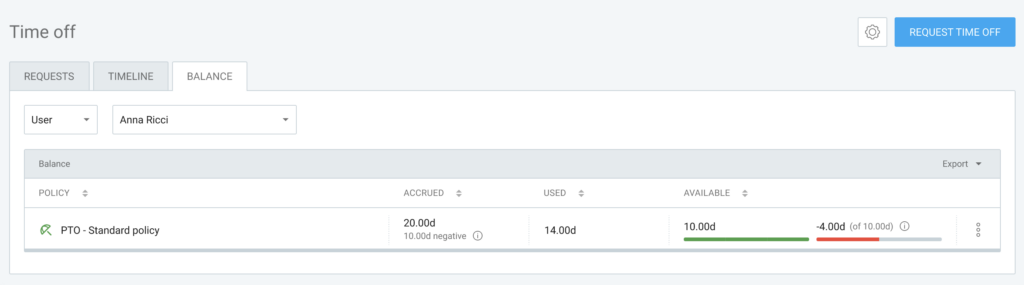
Balance table gives you a clear view of your available time off.
It displays total balance (current, unified amount of time off) + separate negative balance (appears if user has a “leftover” negative balance from the previous version).
Balance details #
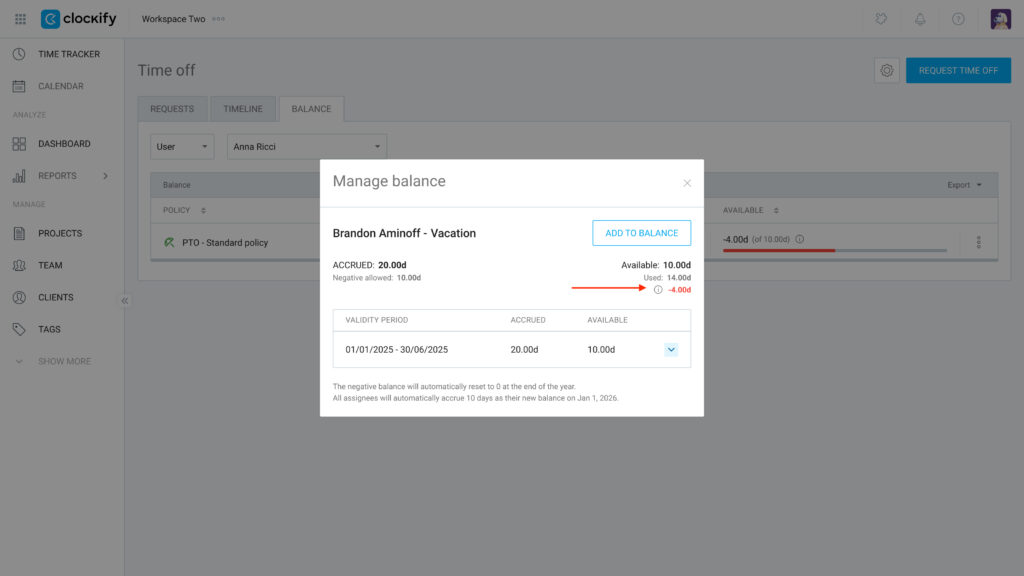
Balance details table displays:
- Accrued
- Used
- Available
- Negative days
- Upcoming accruals
- Whether negative days will reset
Manage balance #
Admins see all balance components in one place, including any remaining separate negative balance.
Quick comparison guide: Balance calculation before & after the update #
The most significant change is how adding balance interacts with the existing negative balances.
| Feature | Before update | After update |
| Add to balance manually | Adds to the positive balance. Example: User has -5 days. You add 3 days. They now have 3 positive days and -5 negative days. | Option to choose if it affects negative balance first. Example (if Affect negative balance is selected): User has -5 days. You add 3 days. Their balance is now -2 days. |
| Balance visibility | Negative balance wasn’t visually separated from the positive balance on the UI. | Negative balance will be separated visually from the positive balance on the UI. |
| Accruals/Bulk adds | All automatic accruals and bulk additions were added only to the positive balance. | All automatic accruals and bulk additions will affect the negative balance first. |
| Individual negative | Negative balance could only be configured at the policy level and was only visible after positive balance was fully used. | Ability to see a negative balance for individual users on the Balance tab. |
| Negative reset | All negative days were automatically reset/deleted based on the policy’s limit period. | An option to reset all negative days will be available based on the limit period. |
Exports #
CSV/Excel files now include a Separate negative balance column.