Pointer à l’arrivée et au départ via un kiosque
Le kiosque est accessible sur un appareil partagé afin que les utilisateurs puissent pointer et suivre leurs activités. Seuls les utilisateurs autorisés peuvent pointer sur le kiosque.
Pointer à l’arrivée / pointer au départ #
There are two ways to clock in the kiosk depending on the authentication method enabled by your Workspace owner/admin in the workspace.
Pointer via un code QR #
Pour vous connecter au kiosque via un code QR :
- Ouvrez votre appli de kiosque
- Sélectionnez Scanner le code QR
- Scannez votre code QR personnel (envoyé par email)
Une fois que vous l’aurez scanné, vous pourrez pointer sur le kiosque.
Si le code QR ne fonctionne pas, vous pouvez utiliser votre code PIN à 6 chiffres à la place.
Pointer via un code PIN (à 4 ou 6 chiffres) #
Pour vous connecter au kiosque à l’aide d’un code PIN :
- Lancer le kiosque
- Choisissez votre profil
- Saisissez votre code PIN personnel
- Cliquez sur Pointer l’arrivée
Si vous ne vous souvenez plus de votre code PIN, cliquez sur le lien Vous avez oublié votre code PIN ? et confirmez l’action. Le propriétaire ou l’administrateur sera alors averti afin de réinitialiser le code PIN du membre.
Les personnes connectées sont signalées par un point vert à côté de leur nom dans la liste du kiosque. Pour voir qui est actuellement connecté dans l’appli web, rendez-vous sur le tableau de bord de l’équipe.
Pour terminer votre service, suivez les mêmes étapes et cliquez sur Pointer au départ.
N’oubliez pas que si vous omettez de pointer votre sortie, le chronomètre restera actif même après l’arrêt automatique du kiosque. Dans ce cas, veuillez contacter votre administrateur pour qu’il arrête votre chronomètre.
Suivre les activités #
Une fois connecté au kiosque, vous pouvez désormais commencer à suivre vos tâches et vos activités.
Choisir un projet/une tâche #
Pour choisir un projet ou une tâche :
- Naviguez vers le kiosque lancé
- Appuyez sur le bouton Choisir un projet
- Vous obtiendrez une liste de tous les projets/tâches
- Appuyez pour pointer sur un projet, ou développez et choisissez une tâche spécifique
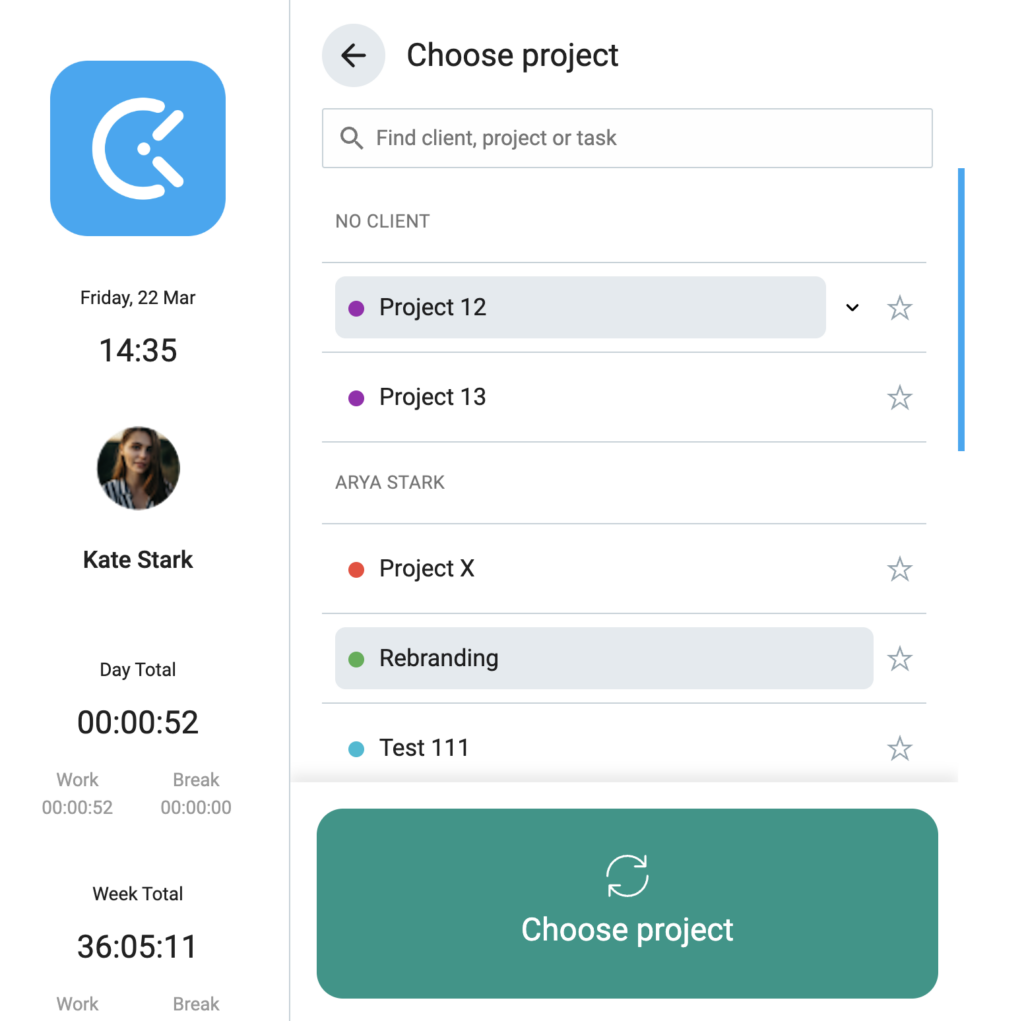
Toute modification apportée aux projets ou aux tâches sur le kiosque sera également répercutée dans l’appli web.
Passer d’un projet à une tâche #
Si cette option est activée dans l’espace de travail, vous pouvez passer du projet par défaut à un autre projet ou à une autre tâche lorsque vous êtes connecté au kiosque.
Pour passer d’un projet à une tâche :
- Ouvrez la liste des projets
- Sélectionnez un nouveau projet ou une nouvelle tâche
- Appuyez sur Passer à
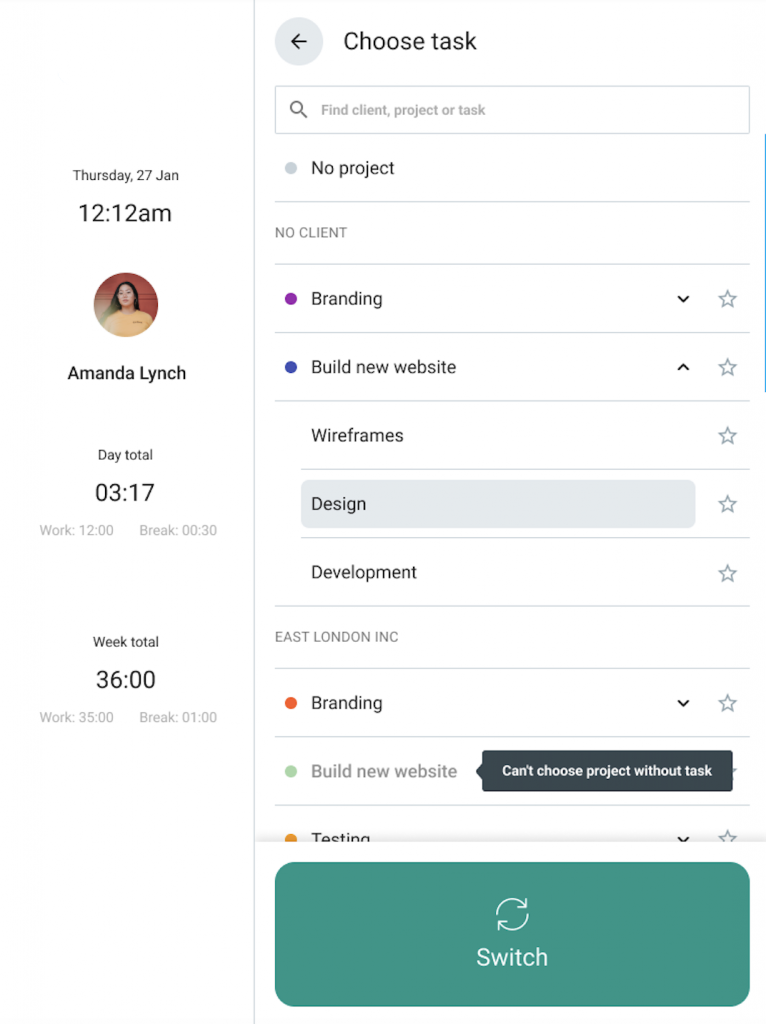
Passer à un autre projet ou à une autre tâche mettra fin à la saisie de temps en cours et en lancera une nouvelle.
Si la fonctionnalité Pauses est activée dans votre espace de travail, vous pouvez commencer une pause lorsque vous vous connectez au kiosque.
Toutes les modifications effectuées ici, dans le kiosque, sont synchronisées avec votre espace de travail Clockify principal.