Peppol-Add-on für E-Rechnungen
Das Peppol-Add-on für E-Rechnungen ermöglicht es dir, digitale Rechnungen über das Peppol-Netzwerk zu versenden. Damit ist deine Rechnungsstellung konform mit lokalen Gesetzgebungen und internationalen Standards (Peppol BIS 3.0).
Um dieses Add-on nutzen zu können, müssen sowohl du als auch dein Kunde bei Peppol registriert sein und über eine gültige Peppol-ID verfügen.
Both versions of the Peppol e-invoicing add-on are paid. The Peppol e-invoicing Starter lets you send up to 20 invoices per month, and Peppol e-invoicing Growth lets you send up to 100 invoices per month.
Peppol-Add-on installieren #
- Rufe https://marketplace.cake.com/ auf
- Melde dich mit deinen Clockify-Zugangsdaten an
- Suche in der Suchleiste nach Peppol e-invoicing
- Select your preferred add-on plan:
- Peppol e-invoicing Starter (send up to 20 invoices per month)
- Peppol e-invoicing Growth (send up to 100 invoices per month)
5. Click Install on the add-on page
6. Select the workspace where you want to install the add-on
Allgemeine Einstellungen #
Nachdem das Add-on installiert wurde, musst du es in deinen Add-on-Einstellungen aktivieren.
- Klicke auf die drei Punkte neben deinem Arbeitsbereichsnamen
- Wähle Arbeitsbereichseinstellungen aus
- Klicke auf den Tab Add-ons
- Klicke auf die drei Punkte neben dem Peppol E-Invoicing Add-on
- Wähle Einstellungen
- Gehe in den Add-on-Einstellungen zum Tab Allgemein
- Fülle die Informationen zum Absender (Rechnung von) aus:
– Firmenname
– Adresse
– Steuernummer
– Peppol-ID - Klicke auf E-Rechnung verbinden
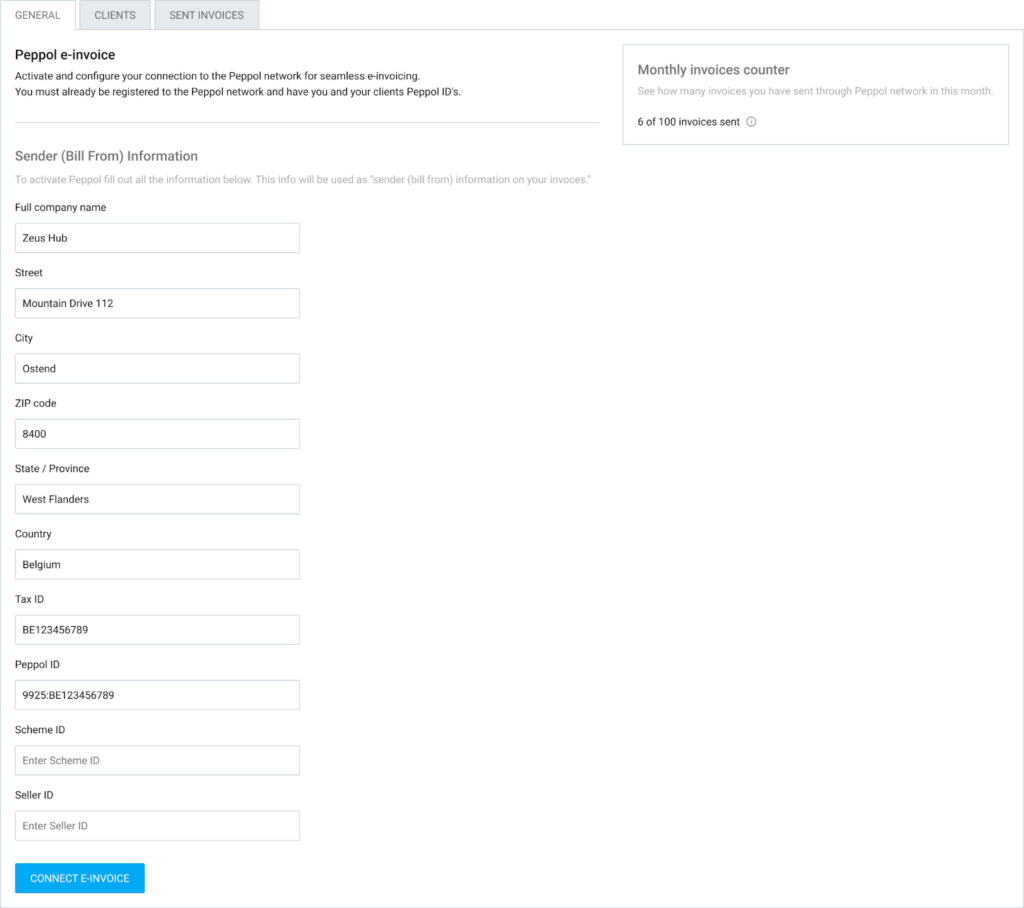
Du kannst deinen Verbrauch über den Zähler für monatliche Rechnungen im Blick behalten. Er zeigt dir an, wie viele Rechnungen du bereits versendet hast und wie hoch dein monatliches Limit ist.
Kunden verwalten #
Bevor du eine E-Rechnung versenden kannst, müssen deine Kunden im Add-on eingerichtet und verifiziert werden.
Um deine Kunden zu verwalten:
- Gehe zum Tab Kunden
- Du siehst eine Liste der Kunden, die aus deinem Clockify-Arbeitsbereich importiert wurden
- Klicke auf die Schaltfläche Einrichten neben dem jeweiligen Kunden
- Gib die Firmendaten des Kunden und dessen Peppol-ID ein
- Klicke auf Kunde einrichten
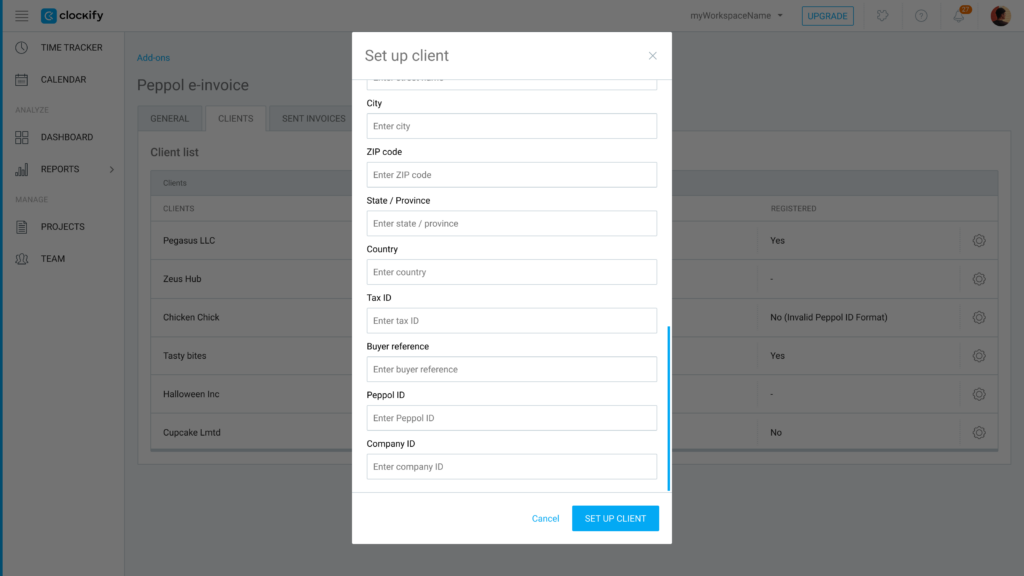
Das System prüft automatisch, ob der Kunde im Peppol-Netzwerk registriert ist.
Falls er nicht registriert ist, erscheint eine Fehlermeldung, die erklärt, warum die Prüfung fehlgeschlagen ist.
Rechnungen versenden #
Sobald dein Unternehmen und deine Kunden konfiguriert sind, ist das Versenden einer E-Rechnung ganz einfach:
- Gehe auf deine Seite Rechnungen
- Öffne die Rechnung, die du versenden möchtest
- Klicke auf das Dropdown-Menü Add-on-Aktionen
- Wähle Über Peppol senden aus
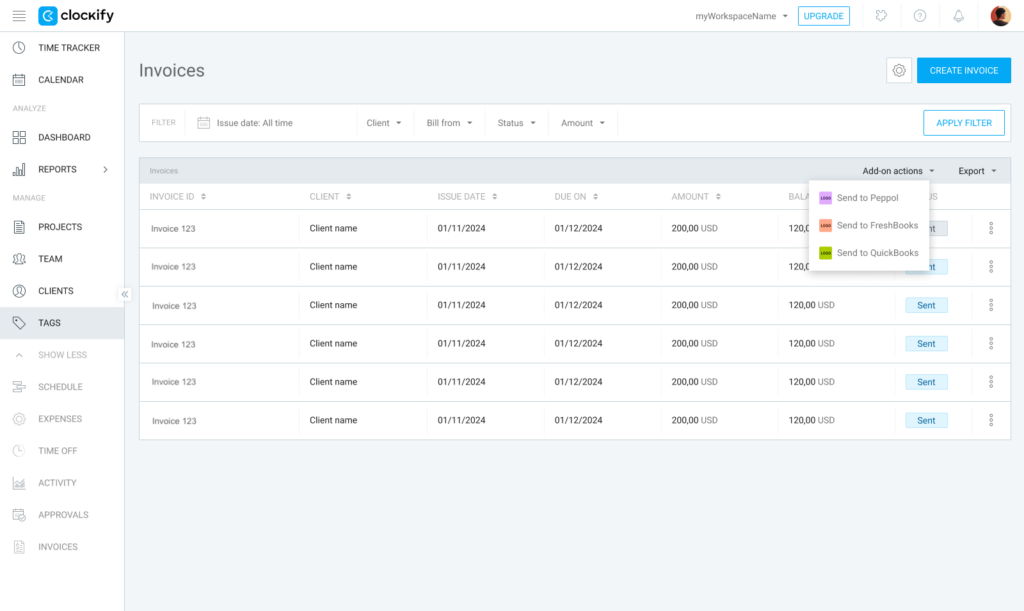
Die Rechnung wird im rechtlich konformen Format Peppol BIS 3.0 versendet.
Wenn du in der Hauptansicht der Rechnungen auf An Peppol senden klickst, werden alle auf der Seite angezeigten Rechnungen versendet.
E-Rechnungen nachverfolgen #
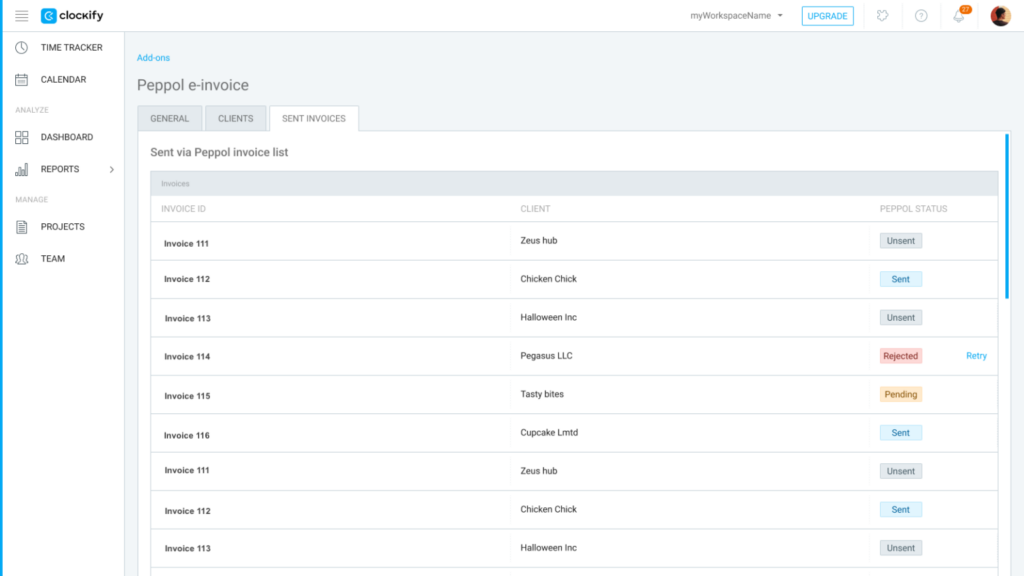
Nutze den Tab Gesendete Rechnungen in den Add-on-Einstellungen, um den Status deiner ausgehenden E-Rechnungen zu überwachen.
Verlauf einsehen:
- Verlauf anzeigen: Hier findest du eine Liste aller versendeten Rechnungen, einschließlich Rechnungs-ID, Kunde und dem spezifischen Peppol-Status.
- Fehlgeschlagene Rechnungen: Falls eine Rechnung nicht zugestellt werden kann, gibt das System einen Grund an (z. B. fehlende Informationen beim Kunden).
- Erneuter Versuch: Du kannst bei jeder nicht erfolgreich versendeten Rechnung auf Wiederholen klicken, sobald du die fehlenden Informationen korrigiert hast.
Häufig gestellte Fragen #
Wer kann das Peppol E-Invoicing Add-on nutzen?
Das Add-on ist für Arbeitsbereiche mit einem Standard-Abonnement oder höher verfügbar. Zusätzlich müssen sowohl du als auch deine Kunden im Peppol-Netzwerk registriert sein und eure jeweiligen Peppol-IDs zur Hand haben, um den Service nutzen zu können.
Woran erkenne ich, ob mein Kunde E-Rechnungen empfangen kann?
Wenn du die Kundendaten und die Peppol-ID im Tab Kunden eingibst, prüft das System automatisch die Registrierung im Peppol-Netzwerk. Falls der Kunde nicht registriert ist, zeigt Clockify eine Fehlermeldung an, die erklärt, warum die Verifizierung fehlgeschlagen ist.
Was passiert, wenn der Versand einer Rechnung fehlschlägt?
Du kannst den Status aller ausgehenden Dokumente im Tab Gesendete Rechnungen überwachen. Falls eine Rechnung fehlschlägt, gibt das System einen spezifischen Grund an (z. B. fehlende Kundeninformationen). Sobald du die Fehler korrigiert hast, kannst du einfach auf Wiederholen klicken, um sie erneut zu senden.
Gibt es ein Limit für die Anzahl der E-Rechnungen, die ich versenden kann?
Ja, deine Nutzung unterliegt einem monatlichen Limit, das von deiner gewählten Add-on-Stufe abhängt. Du kannst deinen aktuellen Verbrauch über den Zähler für monatliche Rechnungen in den allgemeinen Einstellungen des Add-ons im Blick behalten.