Multi-level approval
Multi-level approval allows you to set up an additional layer of review for timesheets and expenses to ensure billing and reporting accuracy.
Before you begin, here is a quick look at the two different approval stages:
- First-level approval: This is the initial review step handled by admins, team managers, or project managers.
- Second-level approval: This provides a secondary review by up to two additional designated approvers before a request is approved.
Set up two-level approval #
- Click the three-dot icon next to your workspace name
- Gehe zur Registerkarte Arbeitsbereichseinstellungen
- Enable the approvals you want
- Enable time approval
- Enable expenses approval
- Check the box next to the roles to set Level 1 approvers
- Admin
- Teammanager
- Projektmanager
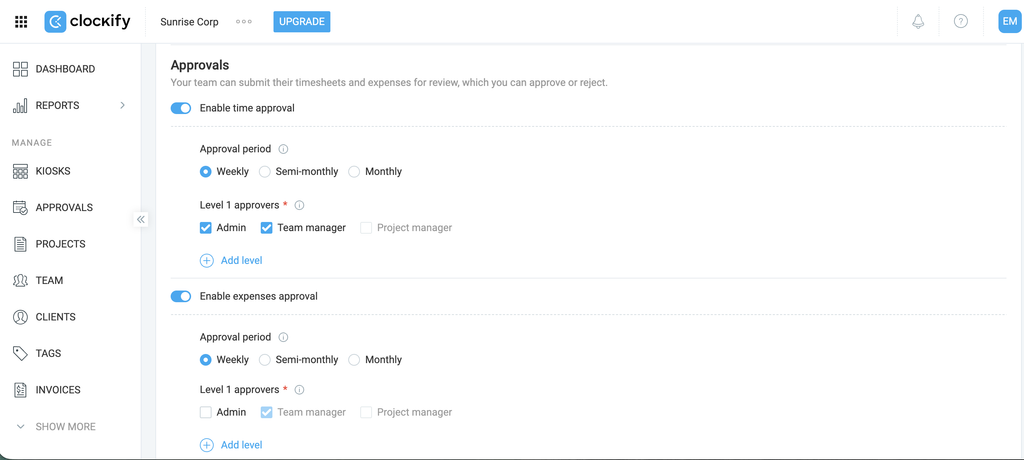
5. Klicke auf Add level to add Level 2 approvers (optional)
6. Check the box next to the role to assign Level 2 approvers
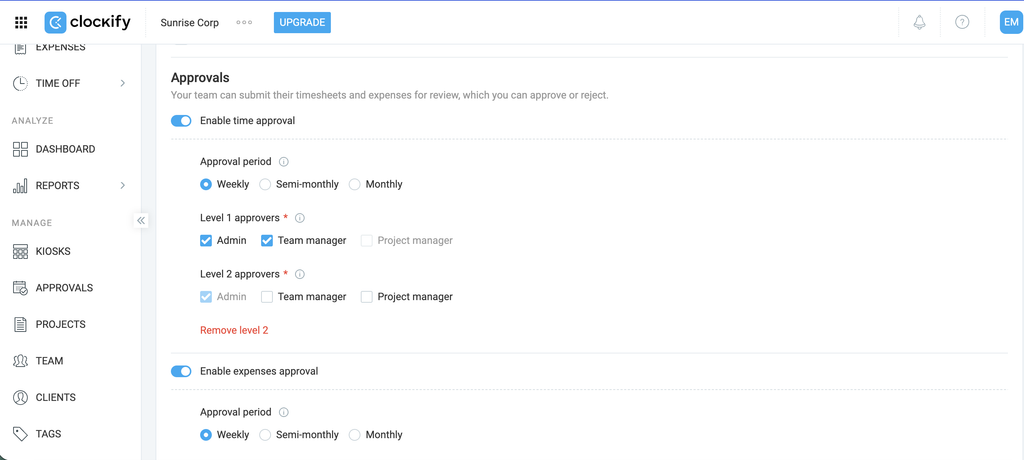
Pending approval requests must be unsubmitted for any workflow changes to take effect.
Manage approval requests (Level 1) #
Level 1 approvers can view and approve or reject requests on the Approvals page.
You need to be assigned to this level to manage approval requests.
To approve requests that need Level 1 approval:
- Gehe zur Registerkarte Genehmigungen gehen
- Die Seite Ausstehend tab to view requests
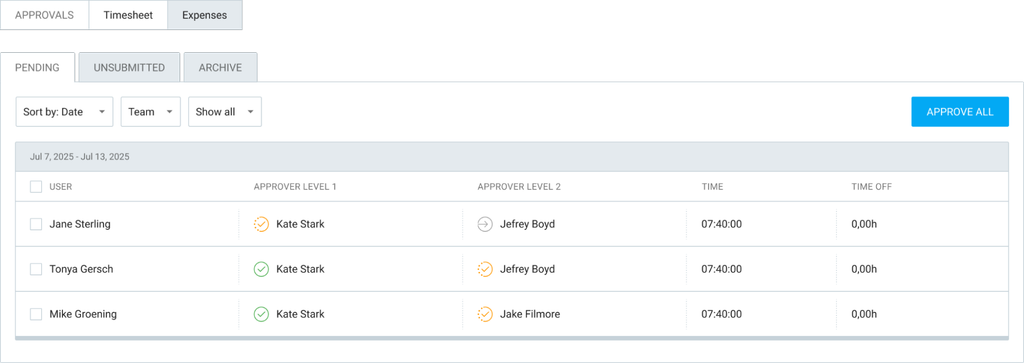
- Klicke auf den Namen des Teammitglieds, um den Antrag zu öffnen
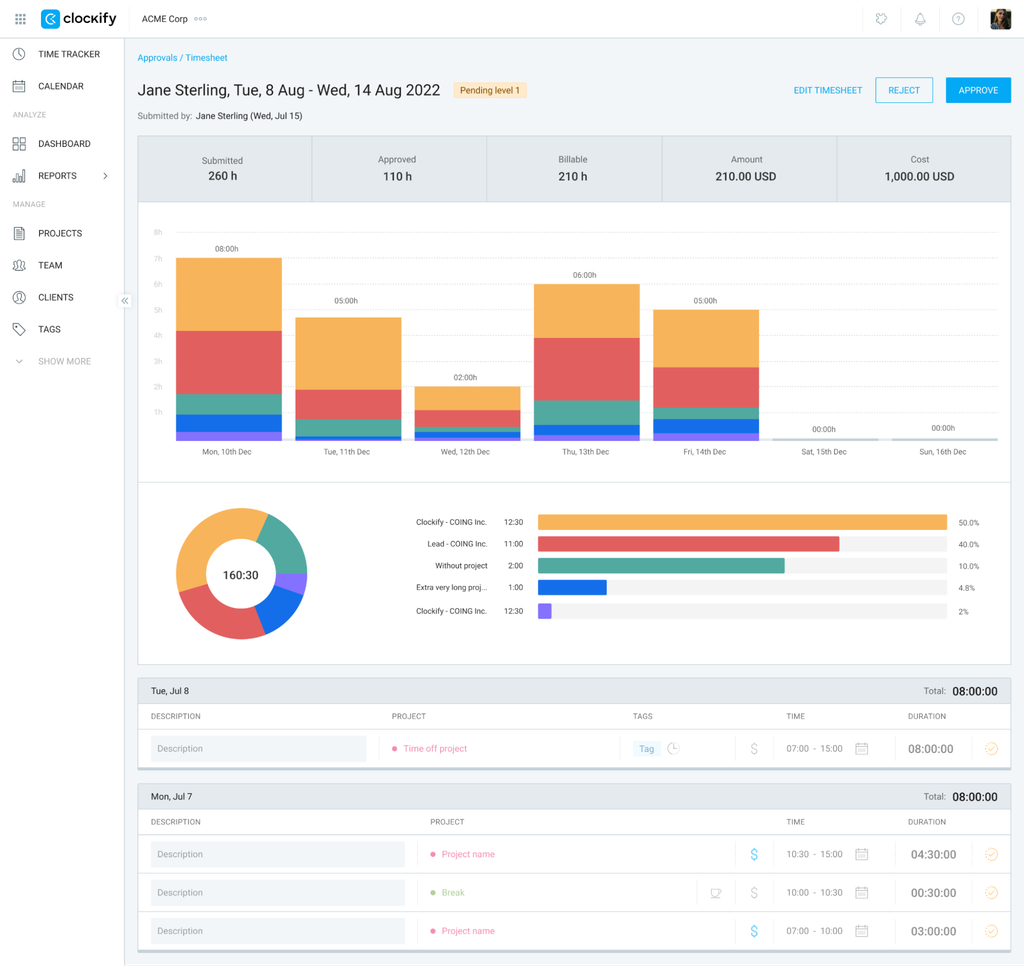
- Klicke auf Genehmigung von oder "Ablehnen",
Tip: If you are an admin, you can view all pending requests and override manager rights to approve, reject, or withdraw requests on their behalf.
Manage approval requests (Level 2) #
After Level 1 approval is complete, requests configured for multi-level approval are routed to the Level 2 approver.
You need to be assigned to this level to manage approval requests.
To approve requests that need Level 2 approval:
- Gehe zur Registerkarte Genehmigungen gehen
- Die Seite Ausstehend tab to view requests
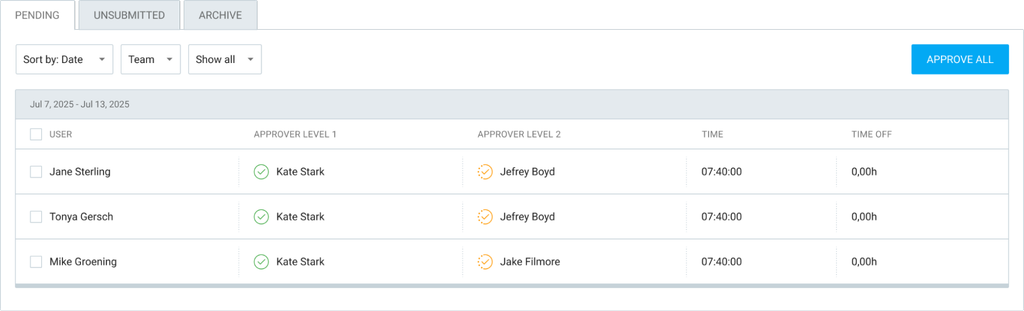
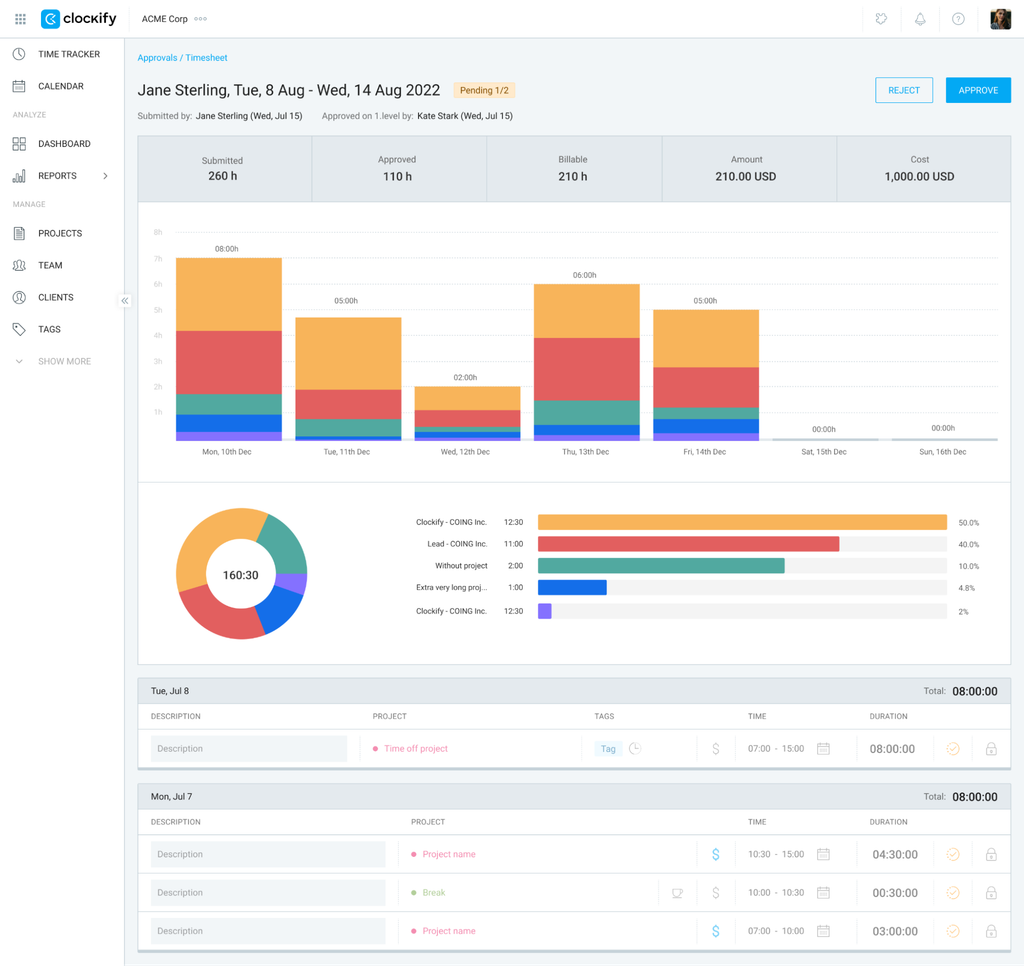
- Klicke auf den Namen des Teammitglieds, um den Antrag zu öffnen
- Wählen Genehmigung von oder "Ablehnen",
Bulk approve requests #
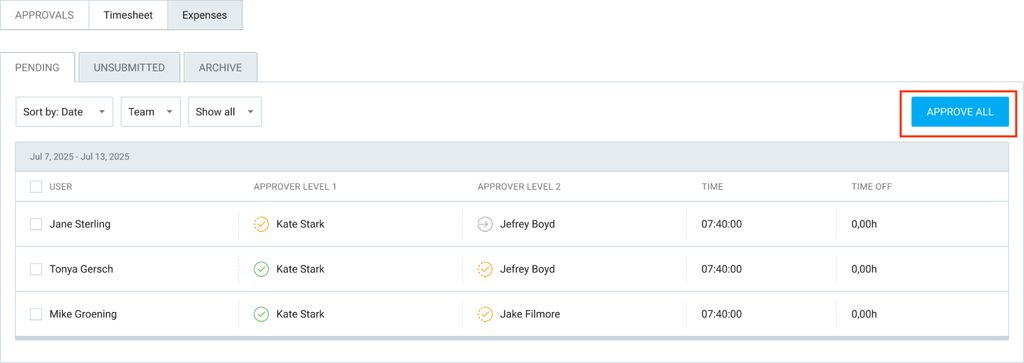
You can approve all requests by clicking the Approve All button on the Approvals > Pending einreichen:
Genehmigung zurückziehen #
To withdraw approval on timesheets or expenses that were previously approved:
- Gehe zu Approvals > Timesheet/Expenses
- Klicke auf Archivieren -Registerkarte
- Select the team member’s name to open the request
- Klicke auf Genehmigung zurückziehen
Approver permissions #
Here is a breakdown of what each role can do in multi-level approval:
| Rolle | Berechtigungen |
| Admin | Can override manager rights to approve, reject, or withdraw requests on any level. |
| Teammanager | Level 1: Can approve or reject requests, and withdraw their approval before the second level is processed.Level 2: Can approve, reject, or withdraw their second-level approval. |
| Projektmanager | Level 1: Can only approve, reject, or withdraw Level 1 requests for time or expense entries related to the specific projects they manage.Level 2: Can only approve, reject, or withdraw Level 2 requests for time or expense entries related to the specific projects they manage. |
Häufig gestellte Fragen #
Will I be notified about pending requests?
Yes, if you are a first-level approver, you receive an email when a user submits an approval request. Second-level approvers receive an email notification as soon as the first-level approver approves the request.
Essentially, you will only get notifications if you are assigned on any level.
Can I withdraw my approval once it’s given?
If you are assigned as an approver on the first level, you can withdraw your approval as long as the second level of approval has not been processed yet. Level 2 approvers can also withdraw their second-level approval. Once the second level is finished, you can no longer withdraw it. Admins can always withdraw approvals given on either level.