

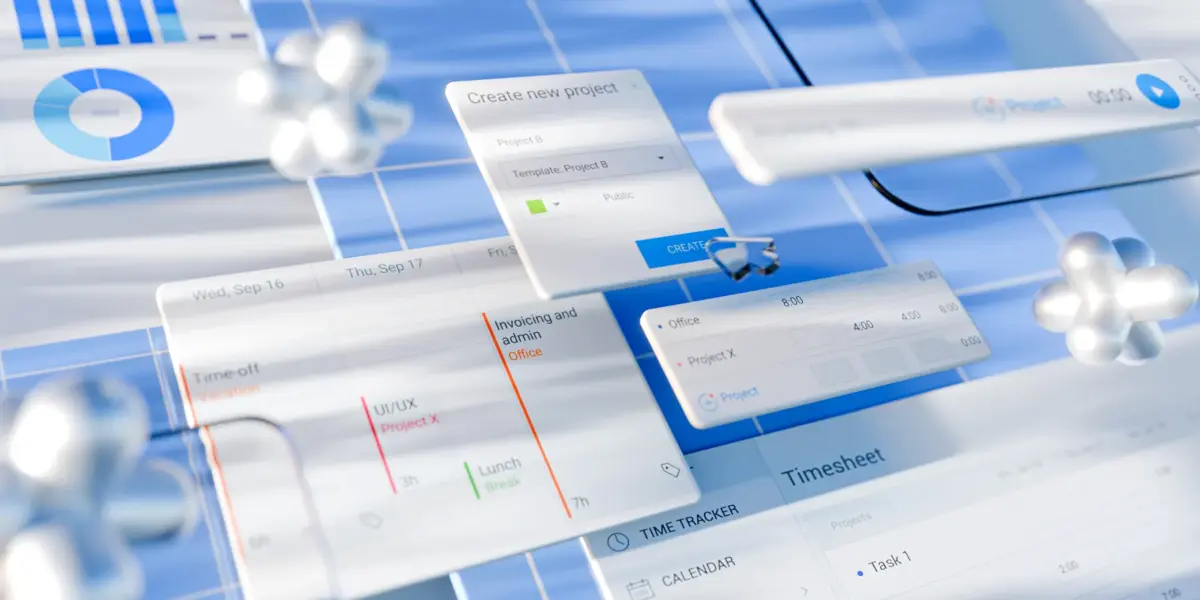
Esta guía proporciona información sobre las funciones del plan gratuito de Clockify, incluyendo breves explicaciones de cómo se utilizan. También abarca el proceso de incorporación para ayudar a los nuevos usuarios a empezar a utilizar Clockify rápidamente.
- El plan Gratis de Clockify ofrece seguimiento del tiempo ilimitado y un número ilimitado de proyectos, tareas y clientes.
- Con el plan gratuito, los usuarios de Clockify pueden registrar su tiempo con aplicaciones de escritorio (macOS, Windows, Linux) y móviles (iOS, Android).
- Clockify cuenta con la certificación ISO/IEC 27001 y cumple con SOC 2 Tipo II y el RGPD.
- Incluso en el plan gratuito, Clockify permite la integración con más de 100 aplicaciones web.
Primeros pasos con Clockify by CAKE.com
Para empezar a usar Clockify, sigue estos 5 sencillos pasos:
- Crea tu cuenta gratuita,
- Añade proyectos y clientes,
- Invita a los miembros de tu equipo a tu espacio de trabajo,
- Empieza a controlar el tiempo de tus empleados, y
- Analiza los datos de tiempo de tu equipo para mejorar la productividad.
Para obtener más información sobre cómo registrarte y crear una cuenta de Clockify, consulta nuestra página de ayuda sobre cómo empezar a usar Clockify.
💡 CONSEJO PRO DE CLOCKIFY
Aprende más sobre cómo personalizar y organizar tu espacio de trabajo en Clockify en el siguiente artículo:
Funciones del plan gratis de Clockify
La versión gratuita de Clockify incluye lo siguiente:
- Seguimiento ilimitado,
- Rastreador del tiempo,
- Planilla de horarios,
- Rastreador automático,
- Calendario,
- Aplicación móvil y de escritorio,
- Temporizador Pomodoro,
- Detección de inactividad y recordatorios,
- Integraciones de seguimiento,
- Actividad del equipo, e
- Informes.
A continuación, te explicaremos cómo tú y tu equipo podéis beneficiaros del uso de las funciones gratuitas de Clockify, ya sea que trabajéis en TI, marketing, contabilidad, consultoría o cualquier otro sector.
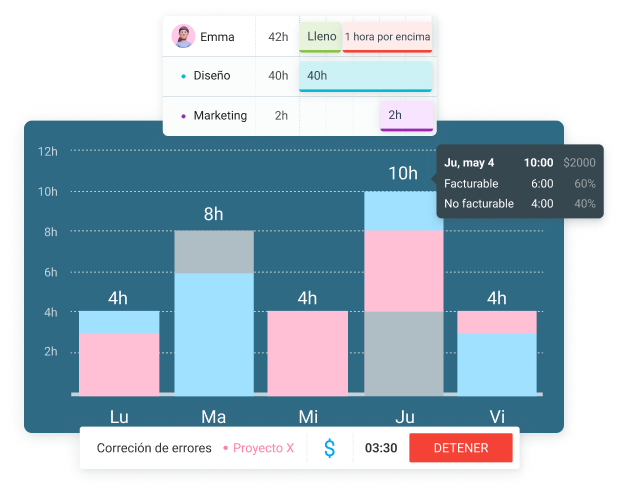
Función gratuita de Clockify 1: Seguimiento ilimitado
Con el plan gratuito de Clockify, obtienes seguimiento ilimitado del tiempo para un número ilimitado de:
- Proyectos,
- Tareas, y
- Clientes.
Esto significa que los miembros de tu equipo pueden seguir cada minuto de su trabajo sin preocuparse por alcanzar un límite, lo que se traduce en una mayor precisión y transparencia.
Imagina que tu equipo de marketing trabaja en varias campañas (temporada navideña, programa de fidelización y promoción de eventos) para varios clientes (una agencia de viajes, una marca minorista y un restaurante local). Dentro de cada proyecto (o campaña), siguen el tiempo dedicado a varias tareas.
El seguimiento ilimitado garantiza que no se pase nada por alto: desde la planificación y la creación de contenido hasta la ejecución de la campaña, cada actividad y hora de trabajo queda registrada. Esto también garantiza la precisión de informes.
Registra el tiempo ilimitado GRATIS
Función gratuita de Clockify 2: Rastreador de tiempo
Como propietario de un negocio, sabes que registrar el tiempo de los empleados con hojas de cálculo en papel puede generar errores fácilmente. Por suerte, Clockify hace que el registro del tiempo sea eficiente y preciso.
En la página de Rastreador de Clockify, los empleados pueden registrar su trabajo en tiempo real utilizando el Temporizador de Clockify. Para registrar el tiempo con el temporizador, indica en qué estás trabajando, selecciona un proyecto y haz clic en Iniciar. Cuando termines, haz clic en Detener.
Todos tus registros de tiempo se almacenan de forma segura en la aplicación.
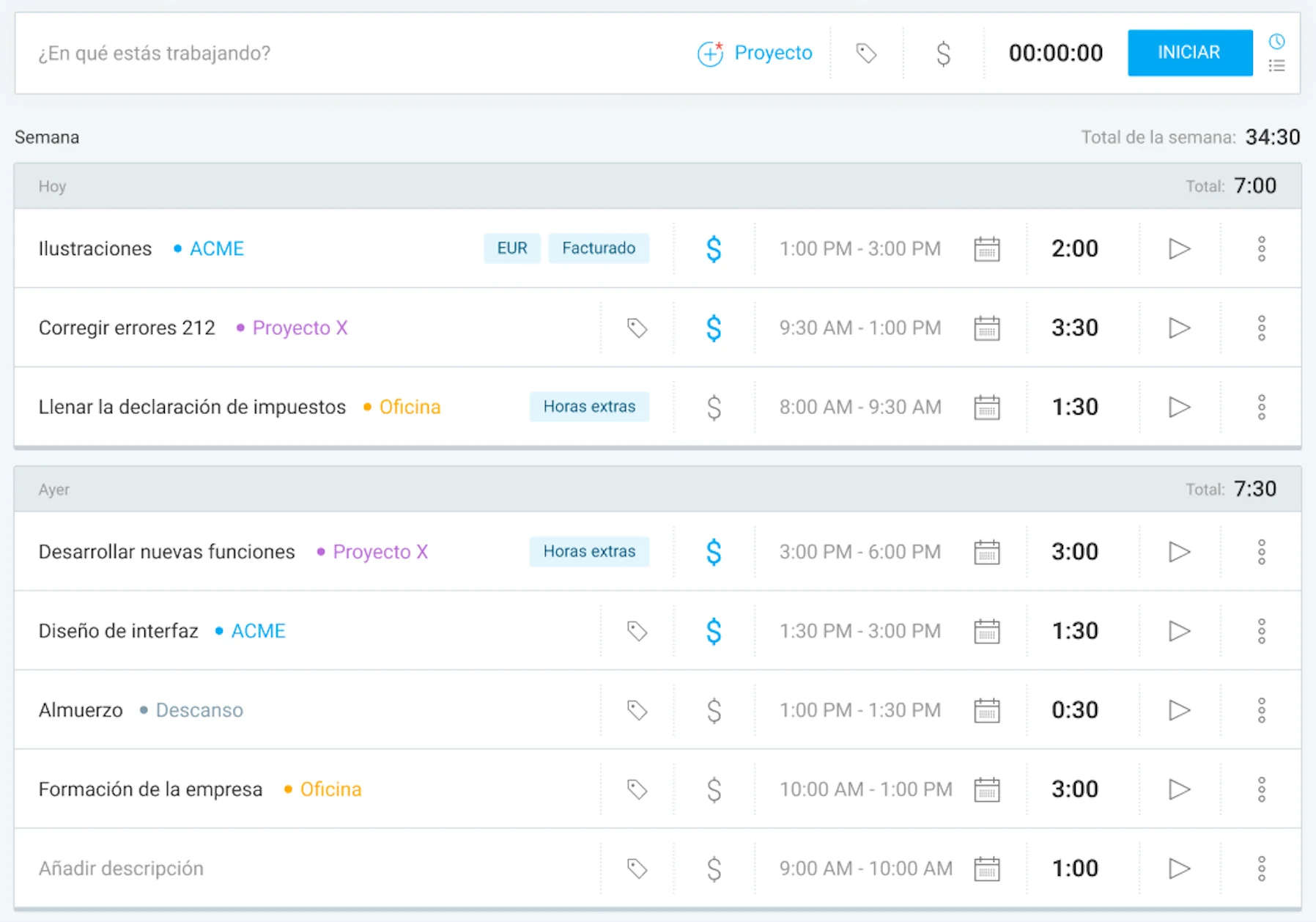
Clockify permite registrar las horas de trabajo de forma rápida, precisa y fiable, sin necesidad de hojas de cálculo complicadas ni conjeturas.
Los miembros de tu equipo también pueden añadir tiempo manualmente dedicado a actividades pasadas. Por ejemplo, si gestionas un equipo de consultoría y uno de tus miembros olvidó iniciar el temporizador para una reunión con un cliente, puede añadir el tiempo una vez finalizada la reunión para garantizar un registro preciso.
Haz clic en el icono de lista en la esquina superior derecha de la página e introduce las tareas en las que has trabajado. A continuación, selecciona un proyecto, introduce la hora de inicio y finalización (o añade el tiempo por duración) y haz clic en Añadir.
Los empleados también pueden editar sus registros de tiempo, duplicarlos para un seguimiento más rápido y mucho más. Para obtener instrucciones, consulta nuestra página de ayuda sobre el seguimiento del tiempo con Clockify.
Obtén Clockify by CAKE.com GRATIS
Función gratuita de Clockify 3: Planilla de horarios
Con la Planilla de Clockify, los empleados pueden registrar sus horas del día o de la semana completa. Por ejemplo, tu equipo creativo puede preferir registrar sus horas al final de la semana laboral. De esta manera, evitan interrumpir su flujo creativo.
Para registrar tus horas de trabajo diarias, selecciona un proyecto e introduce la cantidad de tiempo que trabajaste en la celda correspondiente; así de sencillo.
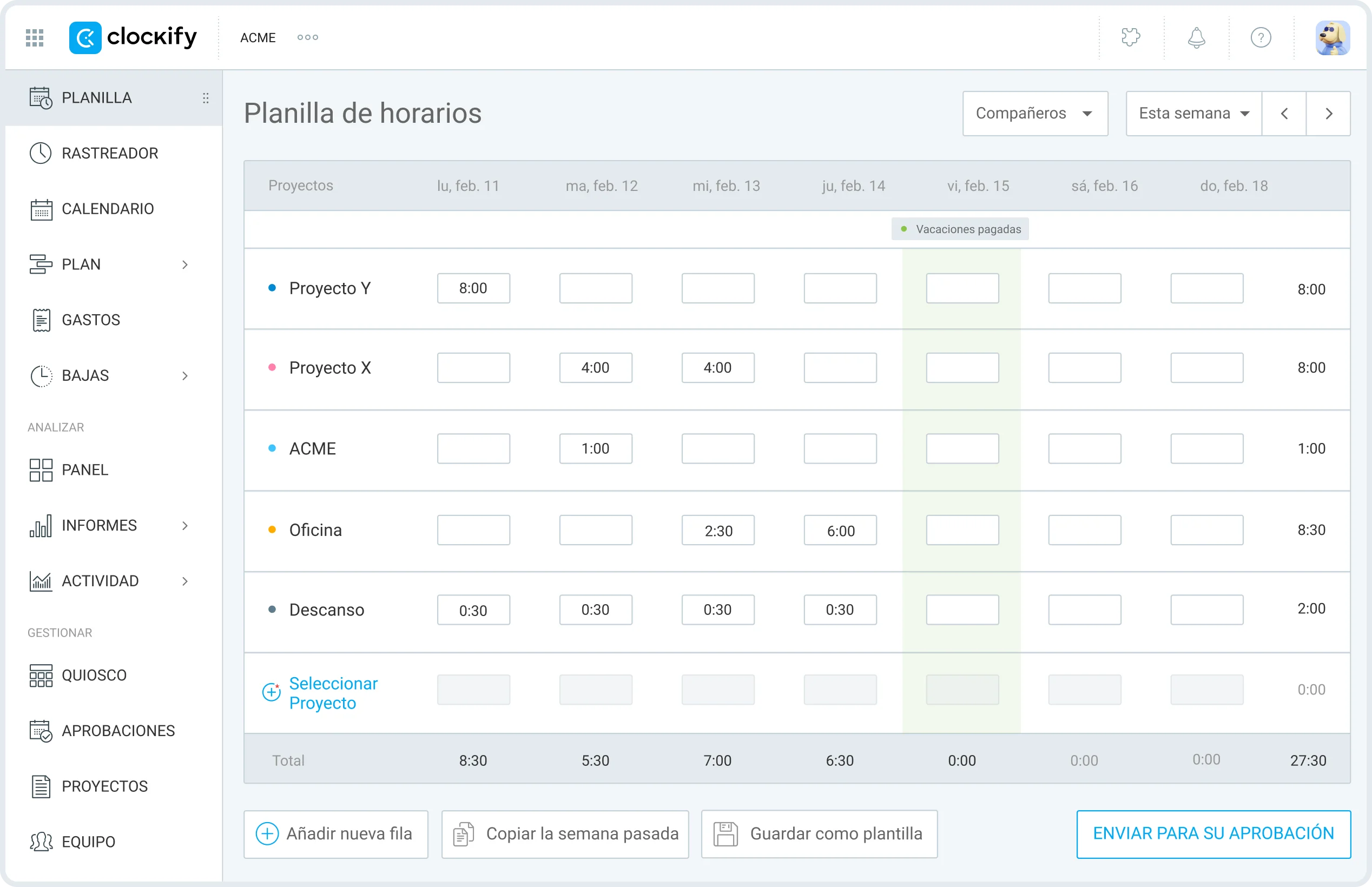
Los empleados también pueden editar los detalles de su entrada, añadiendo la hora de inicio y finalización, una descripción o etiquetas.
Además, Clockify permite guardar los proyectos y tareas (y el tiempo, opcionalmente) de una semana específica como plantilla. Esta plantilla se puede aplicar para aumentar la eficiencia. Esto resulta especialmente útil para los empleados que realizan las mismas tareas semana tras semana (por ejemplo, un desarrollador que escribe código).
Como alternativa, los empleados pueden usar la opción Copiar la semana anterior para completar sus planillas más rápidamente. Pueden copiar solo las actividades o las actividades y el tiempo trabajado.
Registra tus horas fácilmente en Clockify
Función gratuita de Clockify 4: Rastreador automático
Una vez activado, el Rastreador automático de Clockify monitoriza y registra el tiempo que los empleados dedican a diferentes programas y aplicaciones. Además de la duración, el Rastreador automático registra:
- Nombres de las aplicaciones y documentos que utilizan los empleados,
- URLs de los sitios web, y
- Porcentaje de tiempo de inactividad durante los bloques de actividad registrados.
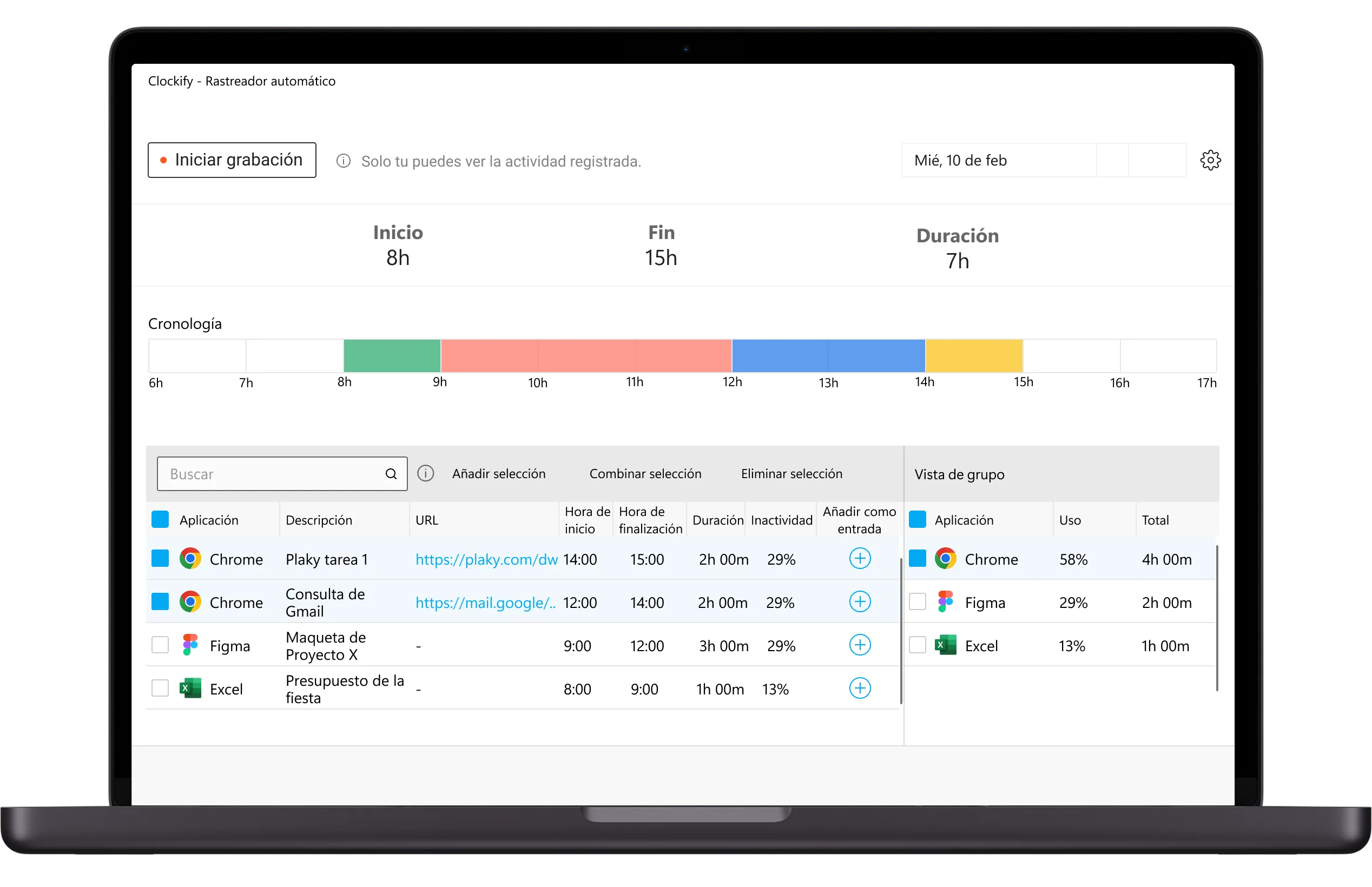
Una vez que los empleados reciben los datos, pueden revisar sus actividades. Esto les ayuda a comprender mejor sus patrones de trabajo. Para optimizar el registro de tiempo, también pueden convertir actividades en entradas de tiempo.
NOTA: Solo el empleado que utiliza el Rastreador automático puede ver sus actividades registradas (privacidad total garantizada).
Supongamos que los miembros de tu equipo de desarrollo de software cambian frecuentemente entre herramientas de prueba, codificación e investigación. El Rastreador automático de Clockify captura automáticamente toda su actividad sin interrumpir sus flujos de trabajo, lo que les ayuda a mantener la productividad.
💡 CONSEJO PRO DE CLOCKIFY
Clockify ayuda a los equipos de desarrollo de software a mantenerse enfocados, trabajar de manera más eficaz y completar proyectos a tiempo y dentro del presupuesto. Obtén más información aquí:
Función gratuita de Clockify 5: Calendario
Los miembros de tu equipo pueden usar el Calendario de Clockify para visualizar su jornada laboral y gestionar sus entradas de tiempo.
En la página del Calendario de Clockify, los empleados ven sus entradas de tiempo como bloques en una línea de tiempo diaria o semanal. Esto facilita la detección de entradas superpuestas o huecos en su agenda. Aquí también pueden:
- Añadir o editar entradas de tiempo,
- Ver los próximos días festivos y vacaciones,
- Conectar su calendario de Google o Outlook para ver todos sus eventos planificados directamente en la página del Calendario, y
- Comparar el tiempo planificado con el tiempo registrado para mejorar la gestión del tiempo.
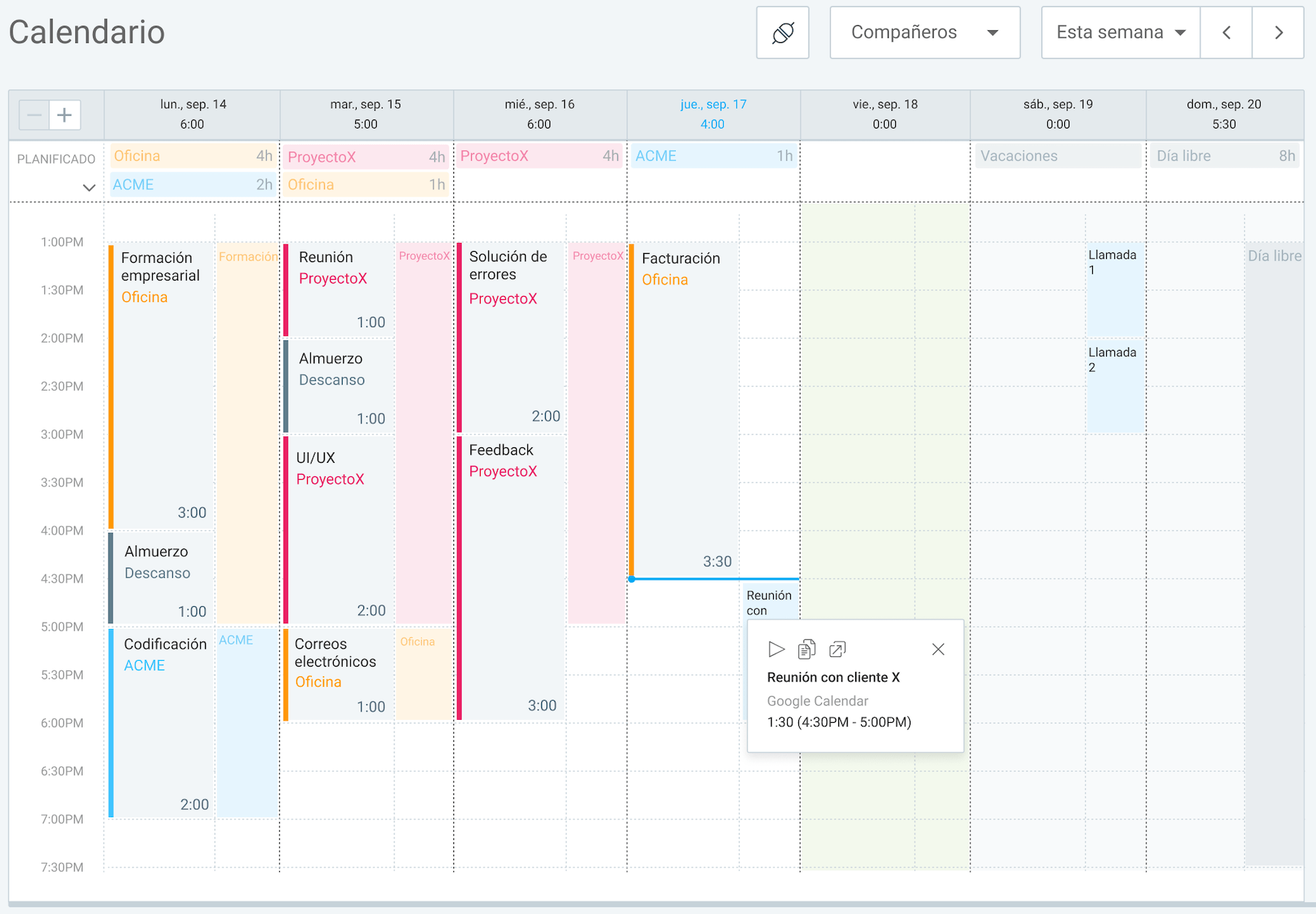
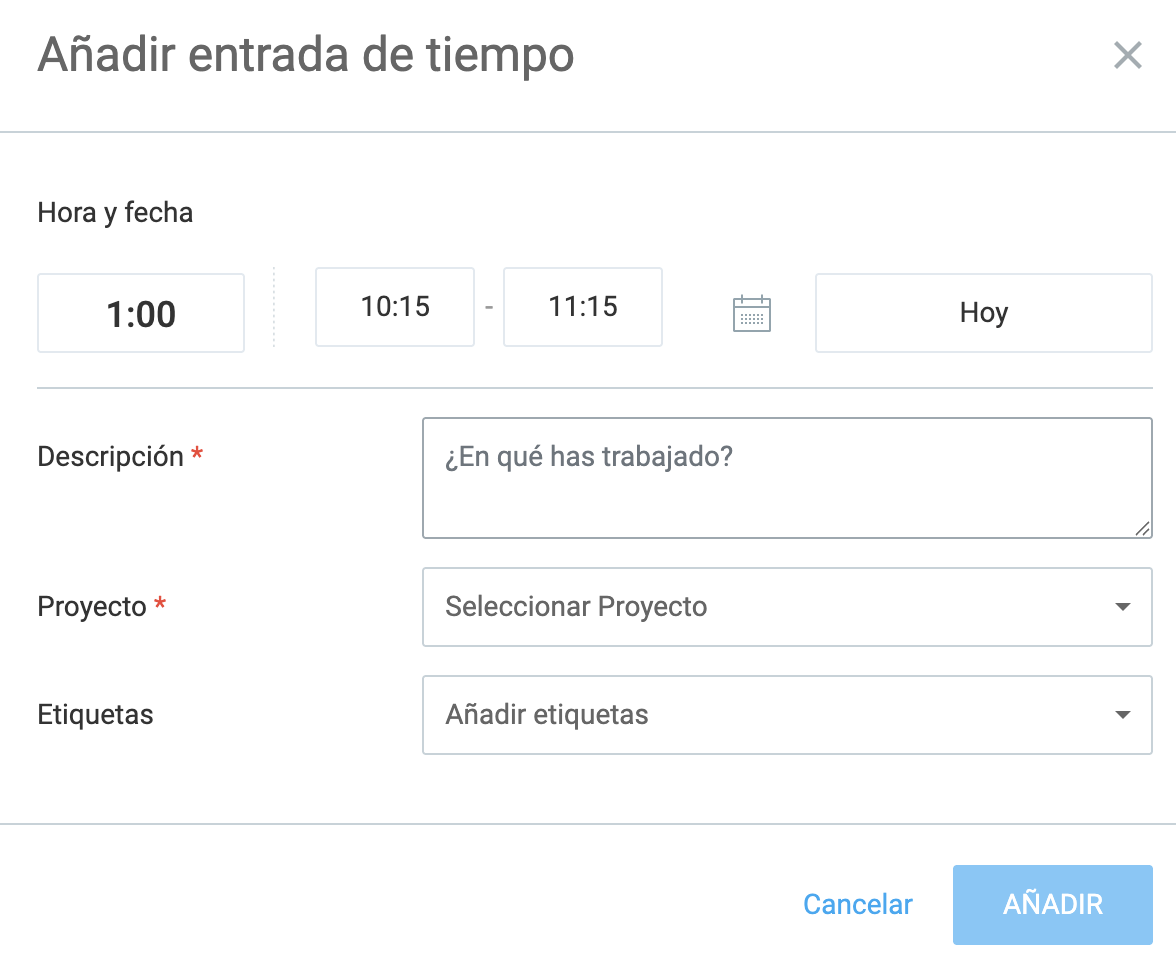
Añadir una entrada de tiempo al calendario es muy sencillo: haz clic en un espacio vacío, introduce la hora de inicio y finalización de tu jornada laboral y selecciona una fecha. A continuación, añade una descripción, etiquetas y un proyecto. Por último, haz clic en Añadir.
Los miembros del equipo pueden iniciar el temporizador en eventos o convertir eventos en registros (siempre que sus calendarios de Google o Outlook estén conectados).
Para editar el tiempo registrado, los empleados pueden cambiar el tamaño de los bloques para modificar la duración o las horas de inicio y finalización de sus registros. Incluso pueden arrastrar y soltar bloques para cambiar la fecha (ver más abajo).
Todos los cambios realizados en la vista de Calendario se actualizan automáticamente en la aplicación.
En una agencia, un diseñador gráfico puede consultar cuánto tiempo ha dedicado a cada reunión, revisión o maqueta durante su semana laboral. El Calendario de Clockify le ayuda a ser más productivo y a organizar mejor su tiempo.
Visualiza tu jornada laboral con Clockify
Función gratuita de Clockify 6: Aplicación móvil y de escritorio
Además de la aplicación web, los empleados pueden registrar su tiempo mediante:
Esto significa que tus empleados pueden registrar su tiempo con Clockify estén donde estén, ya sea que trabajen en la oficina o en la calle.
Además, las aplicaciones de Clockify permiten el seguimiento sin conexión. Imagina que tus trabajadores de la construcción necesitan registrar sus horas, pero se encuentran en una zona sin conexión a internet. Con la aplicación móvil de Clockify, pueden registrar su tiempo incluso sin conexión. Una vez que se reconectan, sus datos se sincronizan automáticamente, garantizando la coherencia.
Clockify también cuenta con extensiones para los navegadores Chrome, Microsoft Edge y Firefox. Estas extensiones permiten a los miembros de tu equipo registrar su tiempo de trabajo con un solo clic.
Con las extensiones de Clockify, los empleados también pueden registrar el tiempo a partir de un texto seleccionado. Selecciona cualquier texto, haz clic derecho sobre él y elige Iniciar temporizador con descripción. El temporizador comenzará a registrar el tiempo para la entrada que contenga el texto seleccionado como descripción.
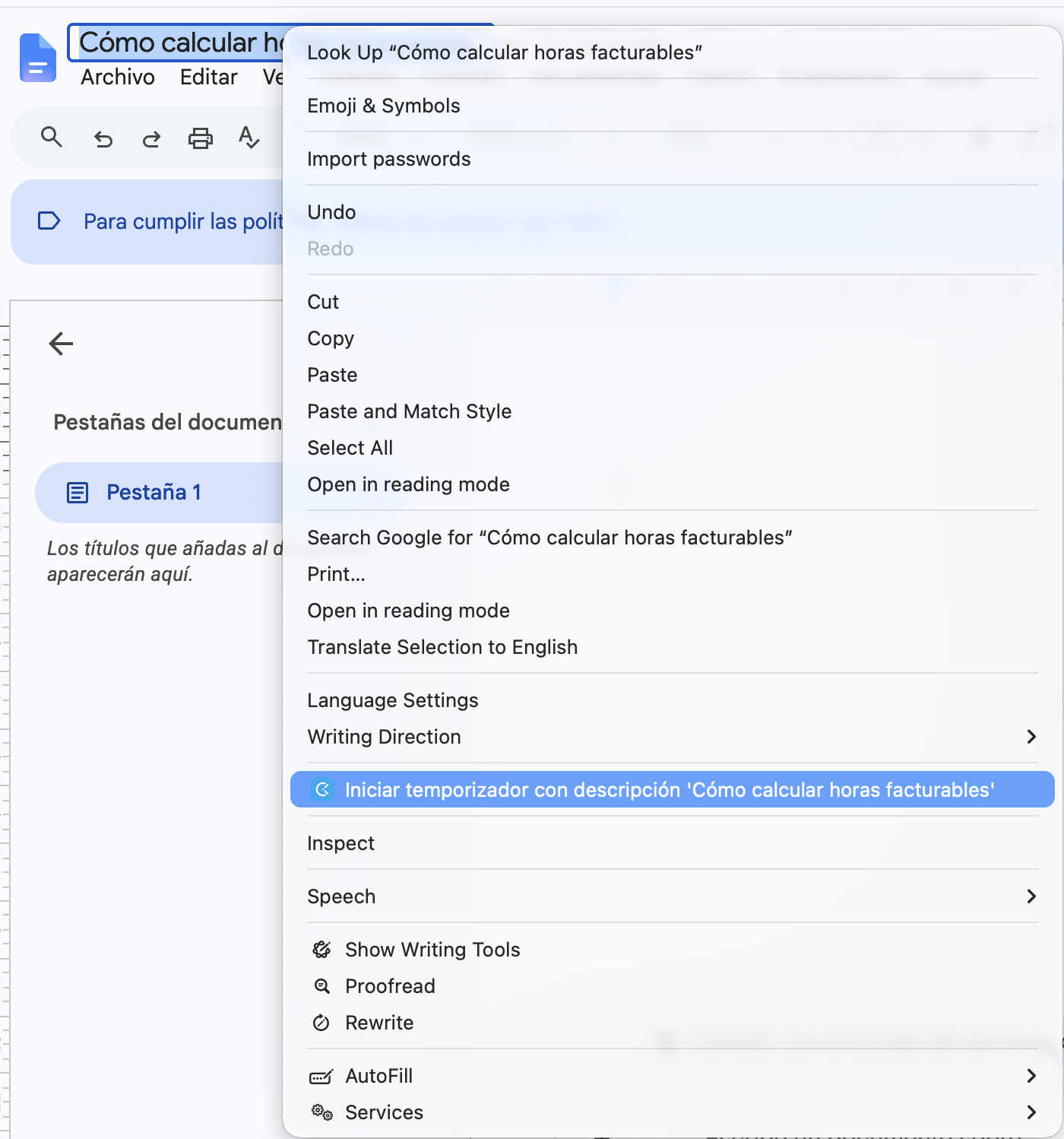
Esto ayuda a tus empleados a ahorrar tiempo al reducir la necesidad de introducir datos manualmente.
💡 CONSEJO PRO DE CLOCKIFY
Para obtener más información sobre cómo instalar y usar las extensiones de navegador de Clockify, consulta los siguientes recursos:
Función gratuita de Clockify 7: Temporizador Pomodoro
Si tus empleados tienen dificultades con la productividad, el Temporizador Pomodoro de Clockify puede ayudarles a evitar la procrastinación y a mantenerse concentrados. Con esta función, los empleados pueden trabajar en intervalos de 25 minutos seguidos de descansos de 5 minutos. De esta forma, pueden prevenir el burnout.
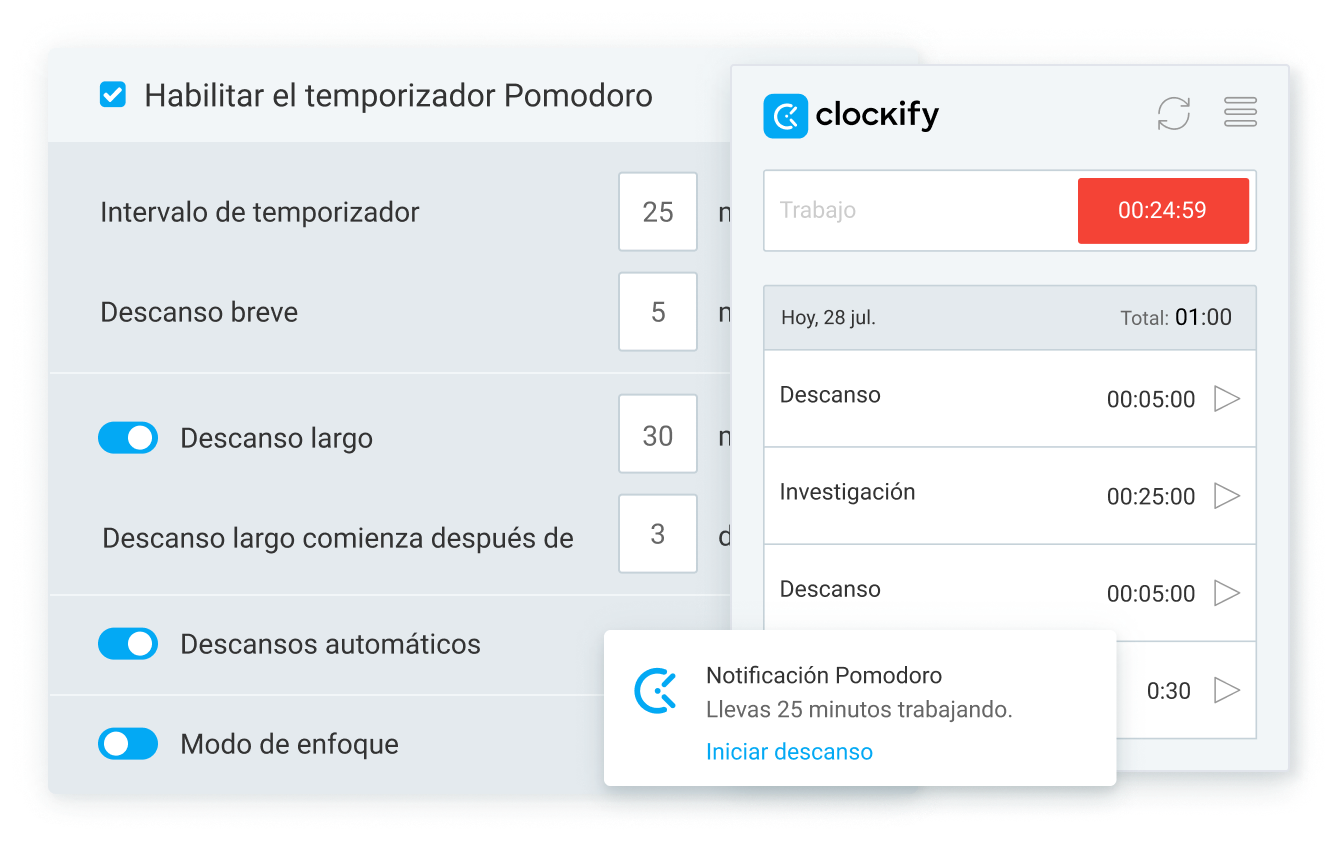
Por ejemplo, un redactor de contenido que trabaja en una entrada de blog puede dividirla en varias secciones (p. ej., introducción, primera mitad del cuerpo, segunda mitad del cuerpo y conclusión).
Después de trabajar en la introducción durante 25 minutos, puede tomar un breve descanso para recargar energías. Tomar descansos después de cada sección le ayudará a mantener la claridad mental durante todo el proceso de escritura, lo que garantiza un trabajo de mayor calidad.
El temporizador Pomodoro de Clockify está disponible en las aplicaciones de escritorio de Clockify (macOS y Windows) y en las extensiones para navegadores (Chrome y Firefox).
💡 CONSEJO PRO DE CLOCKIFY
¿Quieres saber más sobre la técnica Pomodoro y sus ventajas? Lee la siguiente entrada del blog:
Función gratuita de Clockify 8: Detección de inactividad y recordatorios
Al igual que el temporizador Pomodoro, la detección de inactividad y los recordatorios de Clockify están disponibles en las aplicaciones de escritorio de Clockify (macOS y Windows). También se pueden usar en las extensiones de Clockify para Chrome y Firefox.
Una vez activada la detección de inactividad, el sistema detecta cuándo los empleados se ausentan de sus ordenadores mientras el temporizador está en funcionamiento. Si no se registra movimiento del ratón ni entrada de teclado durante X minutos, el temporizador seguirá funcionando, pero considerará esos minutos (y el tiempo posterior) como tiempo de inactividad.
Cuando un empleado regresa a su ordenador y detiene el temporizador, recibirá una notificación como la siguiente:
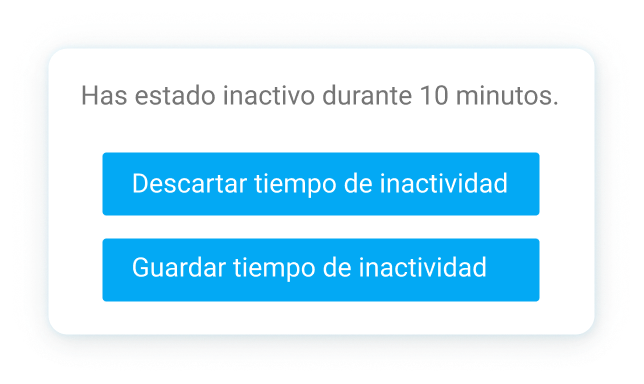
Los empleados pueden elegir cómo gestionar su tiempo de inactividad:
- Descartar el tiempo de inactividad,
- Descartar el tiempo de inactividad y continuar,
- Mantener el tiempo de inactividad, o
- Añadir el tiempo de inactividad como una nueva entrada de tiempo.
De esta forma, pueden mantener registros de tiempo precisos.
Clockify también puede enviar recordatorios a los miembros de tu equipo para que registren su tiempo. Para configurar recordatorios en la extensión de Clockify para Chrome, abre la extensión y haz clic en el icono de menú (tres líneas horizontales) en la esquina superior derecha. A continuación, selecciona Configuración, marca la casilla Recordarme que registre mi tiempo, y ajusta el recordatorio.
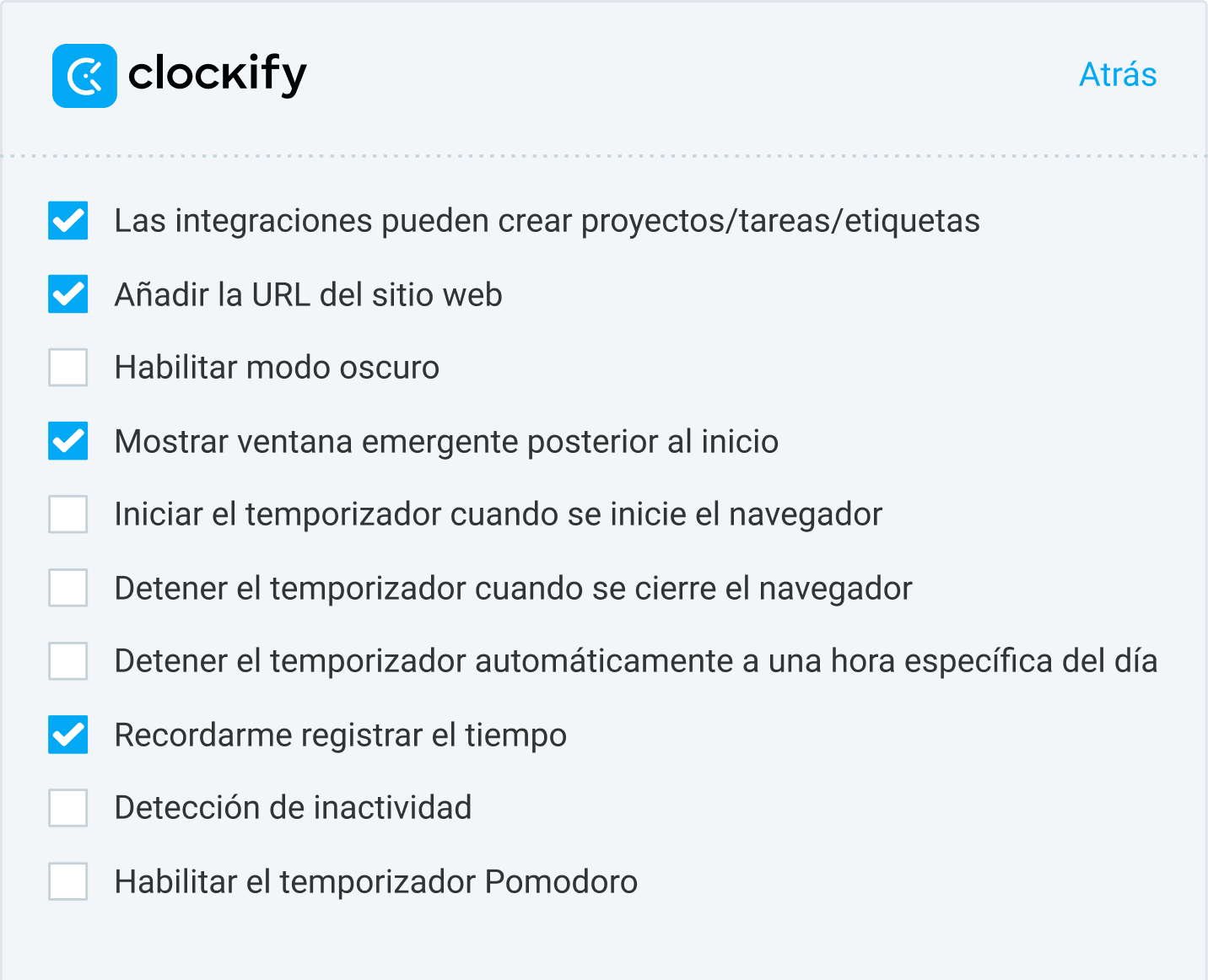
Esta función es útil para los empleados que suelen olvidarse de iniciar el temporizador.
Por ejemplo, si un especialista de RR. HH. trabaja de 9:00 a 17:00, de lunes a viernes, y no inicia el temporizador en los 10 minutos posteriores al comienzo de su jornada laboral, Clockify le recordará que registre el tiempo. Esto reduce el riesgo de perder horas.
Configura recordatorios en Clockify
Función gratuita de Clockify 9: Integraciones de seguimiento
Clockify se integra con más de 100 aplicaciones web, incluyendo:
- Herramientas de gestión de proyectos como Jira, Trello y Asana,
- Aplicaciones de gestión de tareas como TickTick y Todoist,
- Aplicaciones de comunicación y soporte como Freshdesk, Slack y Zendesk. y
- Herramientas CRM como Pipedrive y Salesforce.
Gracias a las integraciones de seguimiento del tiempo de Clockify, los equipos pueden registrar el tiempo directamente en otras herramientas empresariales. Esto les permite optimizar sus flujos de trabajo.
Las integraciones de seguimiento del tiempo también son prácticas para los empleados que quieren evitar cambiar constantemente de aplicación. Por ejemplo, tu equipo de atención al cliente puede registrar fácilmente el tiempo dedicado a los tickets directamente desde Zendesk, sin necesidad de cambiar constantemente de aplicación.
Función gratuita de Clockify 10: Actividad del equipo
Con el plan gratuito de Clockify, también puedes usar funciones de Actividad como el panel Solo yo y el panel de Equipo. El panel de Equipo ayuda a los gerentes a controlar cómo se invierte el tiempo de su equipo. Muestra:
- Tiempo total registrado para todos los miembros del equipo,
- En qué está trabajando cada miembro del equipo,
- Un desglose detallado del tiempo del equipo por proyecto.
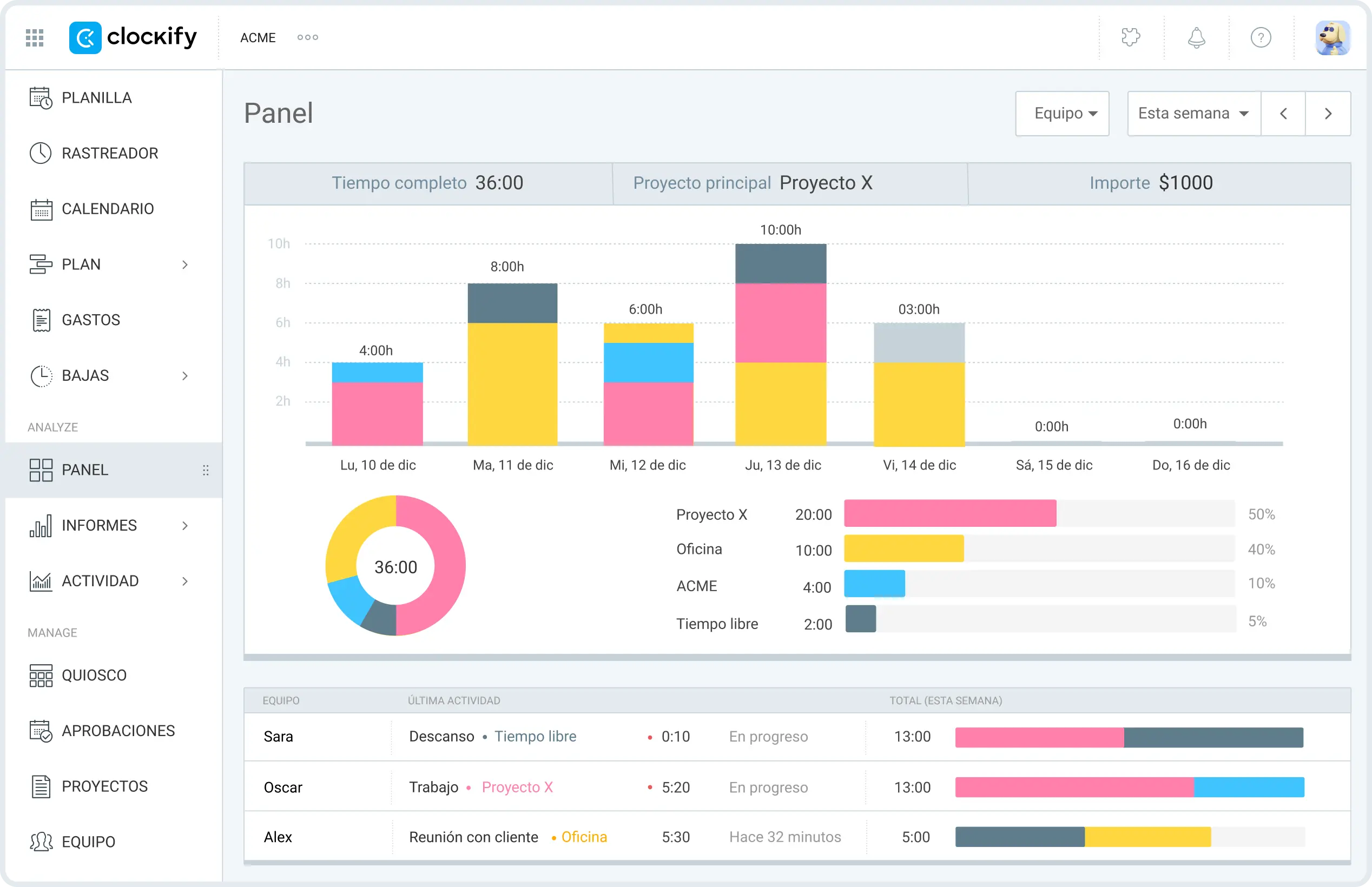
Aunque un empleado no esté registrando su tiempo, los gerentes pueden ver su última actividad registrada para garantizar la responsabilidad.
Imagina que lideras un equipo de consultoría. Con el panel de equipo, puedes identificar quién está trabajando en una tarea menos importante y reasignarlo rápidamente a una de alta prioridad (por ejemplo, una solicitud urgente de un cliente). De esta manera, podrás enfocar los esfuerzos de tus consultores en lo que realmente importa.
En resumen, el panel de equipo de Clockify ayuda a los gerentes a comprender mejor cómo su equipo invierte su tiempo. Así, pueden ayudar a los empleados a mejorar su gestión del tiempo, si es necesario.
💡 CONSEJO PRO DE CLOCKIFY
Consulta la publicación del blog a continuación para encontrar la herramienta de gestión del tiempo ideal para ti y tu equipo:
Función gratuita de Clockify 11: Informes
Si buscas una forma de crear informes para clientes sin esfuerzo manual, puedes hacerlo con Clockify. Los gerentes pueden generar varios tipos de informes de tiempo:
- Informe Detallado,
- Informe Semanal, e
- Informe Resumido.
Con el Informe Resumido, los gerentes pueden ver quién trabajó en qué, cuándo y durante cuánto tiempo. De esta manera, pueden evaluar la eficiencia de los empleados y ayudarlos a mejorar su desempeño.
Para generar un Informe Resumido en Clockify, ve a Informes y selecciona Resumido del menú desplegable. Para ver sólo los datos que necesitas, filtra el informe por:
- Usuario,
- Cliente,
- Proyecto,
- Tarea, o
- Descripción.
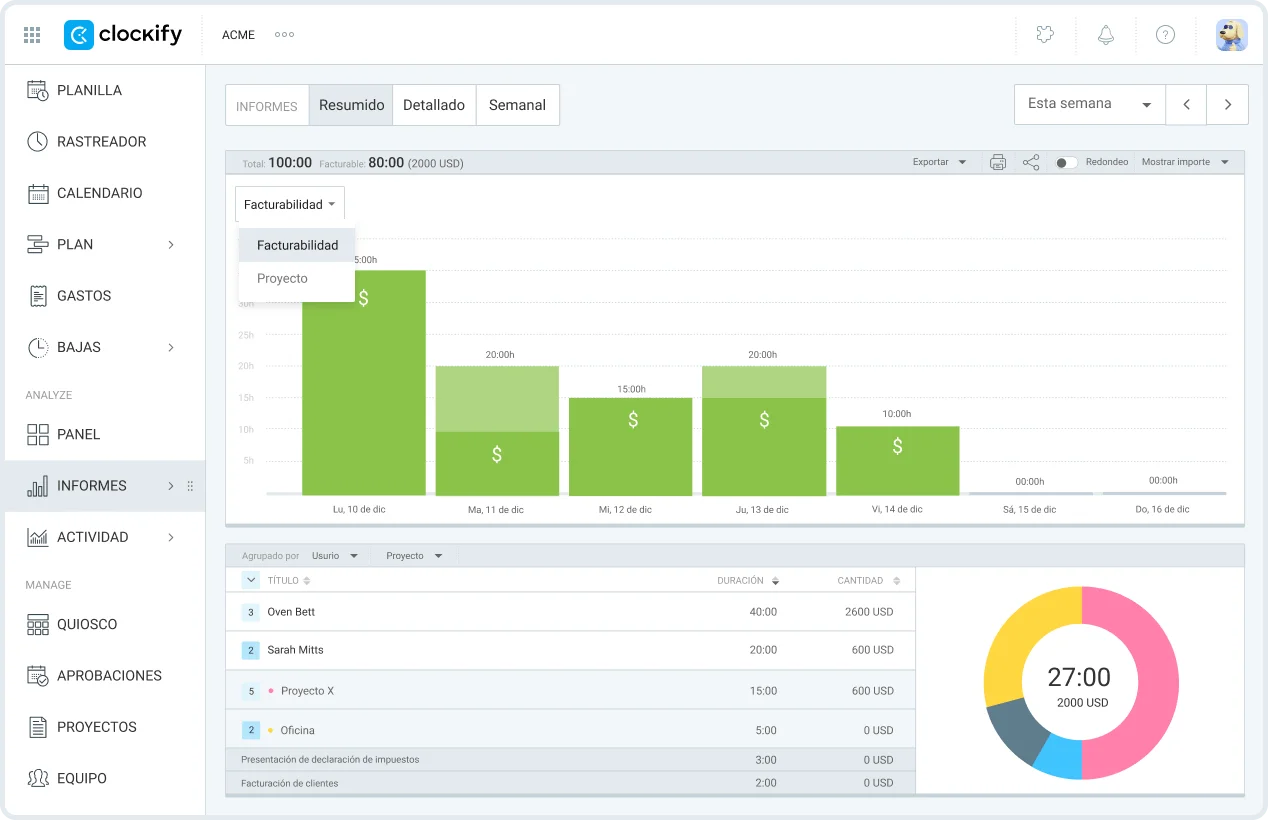
Supongamos que tu equipo de contabilidad trabaja en varios proyectos. Con el Informe Resumido de Clockify, puedes ver cuánto tiempo se dedica a cada tarea y proyecto, o qué tarea consume más tiempo (por ejemplo, la preparación de estados financieros). Esta información te ayuda a planificar mejor tu trabajo y a reorganizar la capacidad del equipo.
Los informes de Clockify no solo son claros y personalizables, sino también visualmente atractivos, lo que facilita su uso. Los gerentes también pueden exportar los datos de tiempo como PDF para compartirlos con los clientes o como copia de seguridad.
NOTA: En el plan gratuito, puedes generar informes para un rango máximo de fechas de 1 mes.
Funciones gratuitas vs. funciones de pago de Clockify
Clockify by CAKE.com ofrece muchas funciones útiles de control de tiempo de forma gratuita. Para ver las ventajas del plan gratuito de Clockify, consulta la tabla a continuación:
| Funciones del plan gratuito de Clockify | Principales beneficios |
|---|---|
| Seguimiento ilimitado | – Registra tu tiempo gratis y sin restricciones |
| Rastreador de tiempo | – Seguimiento eficaz y preciso; olvídate de hojas de cálculo confusas y horas perdidas |
| Planilla de horarios | – Registra tus horas fácilmente completando planillas diarias o semanales |
| Rastreador automático | – Registro automático de la actividad del ordenador de los empleados – Mejora la información sobre la productividad |
| Calendario | – Visualización clara de los patrones de trabajo – Reduce los huecos en la agenda de los empleados |
| Aplicación móvil y de escritorio | – Seguimiento de tiempo gratuito en múltiples plataformas – Mayor flexibilidad |
| Temporizador Pomodoro | – Mejora la concentración de los empleados – Prevención del burnout |
| Detección de inactividad y recordatorios | – Mejor gestión de la productividad – Registros de tiempo precisos |
| Integraciones de seguimiento | – Flujos de trabajo optimizados |
| Actividad del equipo | – Información en tiempo real sobre la actividad de los empleados – Reduce las ineficiencias |
| Informes | – Informes detallados para la evaluación del desempeño de los empleados |
Estas funciones son suficientes para equipos pequeños y medianos que quieren controlar las horas de sus empleados y evaluar su productividad.
Con las funciones de pago de Clockify, puedes controlar el tiempo facturable para evitar pérdidas de ingresos, gestionar las ausencias de los empleados y mucho más. Las funciones de pago de Clockify incluyen:
- Quiosco,
- Tarifas,
- Ubicación,
- Planificación,
- Tiempo libre,
- Aprobación,
- Gastos,
- Facturación, y
- Gestión de equipos.
Con Tarifas de Clockify, los gerentes pueden establecer tarifas por hora para proyectos, tareas o miembros del equipo. Al registrar el tiempo facturable, Clockify calcula automáticamente el importe ganado según las tarifas por hora establecidas. Esto simplifica la facturación a los clientes.
Además de las tarifas facturables, puedes definir tarifas de coste para controlar y comparar los costes y las ganancias entre proyectos. Así sabrás qué proyectos son realmente rentables.
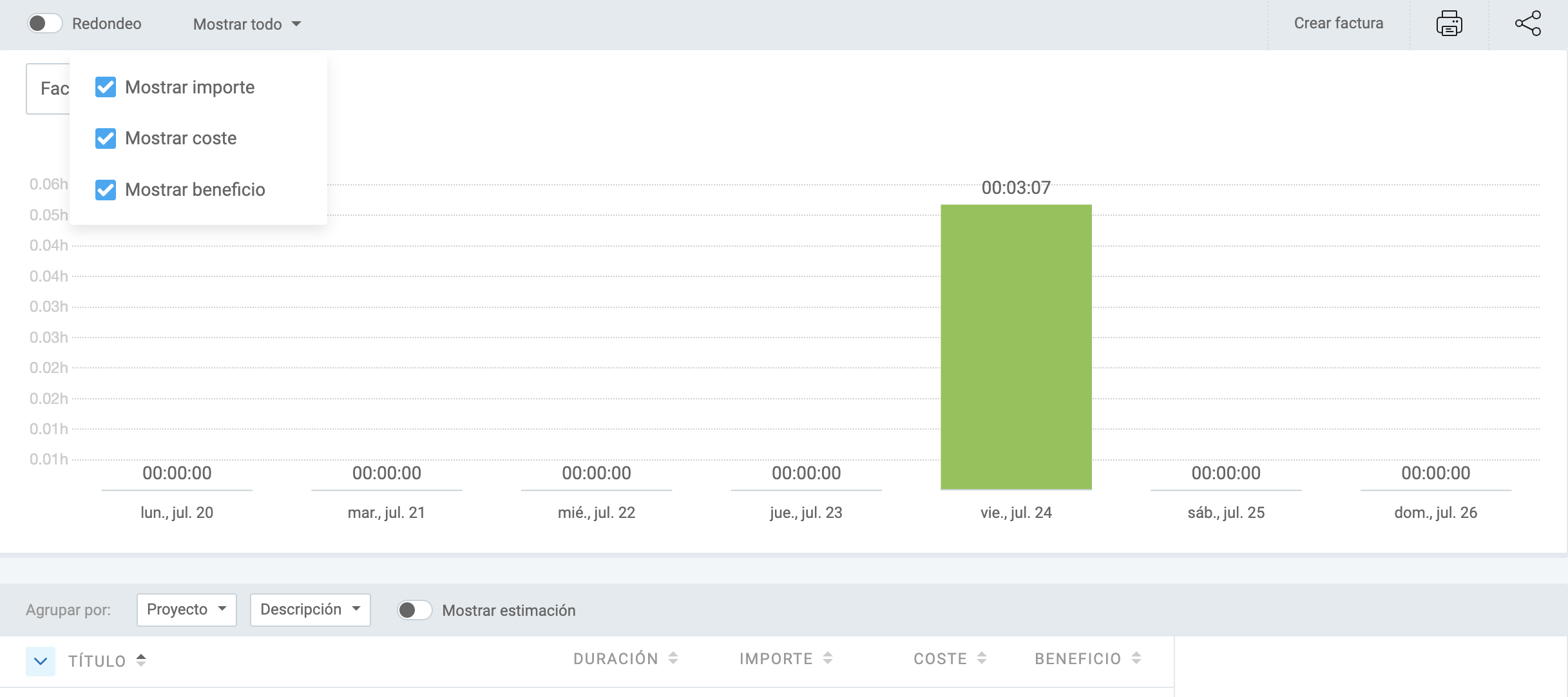
Además, la función de Facturación de Clockify permite a los gerentes crear facturas profesionales basadas en el tiempo y los gastos registrados. De esta manera, tu empresa puede cobrar más rápido.
Según las necesidades de tu equipo, puedes elegir uno de los planes de pago asequibles de Clockify. Para saber qué incluye cada plan, consulta la página de precios de Clockify.
Preguntas frecuentes sobre Clockify
¿Aún tienes preguntas sobre la aplicación de reloj de fichar Clockify? Consulta la siguiente sección.
¿Qué es Clockify?
Clockify es una herramienta de control del tiempo potente y fácil de usar para equipos. Permite a los empleados registrar con precisión el tiempo dedicado a tareas y proyectos.
Controla el tiempo con Clockify
¿Existe una versión gratuita de Clockify?
Sí, Clockify by CAKE.com ofrece un plan gratuito con seguimiento, proyectos y clientes ilimitados. Este plan también incluye funciones esenciales de control horario, informes flexibles e integraciones para el seguimiento del tiempo.
¿Es Clockify 100 % gratuito?
Sí, Clockify tiene una versión totalmente gratuita que te permite registrar todo el tiempo que quieras, sin necesidad de tarjeta de crédito.
¿Cuánto cuesta Clockify al mes?
Los planes de pago de Clockify varían entre 3,99 $ y 11,99 $ por usuario al mes (facturación anual) o entre 4,99 $ y 14,99 $ por usuario al mes (facturación mensual). Para obtener información detallada sobre los precios de suscripción de Clockify, consulta la tabla a continuación:
| Opciones de facturación de Clockify | Plan Basic | Plan Standard | Plan Pro | Plan Enterprise |
|---|---|---|---|---|
| Pago anual | 3,99 $ por usuario/mes | 5,49 $ por usuario/mes | 7,99 $ por usuario/mes | 11,99 $ por usuario/mes |
| Pago mensual | 4,99 $ por usuario/mes | 6,99 $ por usuario/mes | 9,99 $ por usuario/mes | 14,99 $ por usuario/mes |
Como parte de CAKE.com Bundle, puedes obtener Clockify junto con la aplicación de chat en equipo Pumble y el software de gestión de proyectos Plaky, con un 53 % de descuento. El precio de CAKE.com Bundle es de 12,99 $ por usuario/mes con facturación anual (o 15,99 $ por usuario/mes con facturación mensual).

¿Hay un límite de usuarios en la versión gratuita de Clockify?
La versión gratuita de Clockify tiene un límite de 5 usuarios. Para usuarios ilimitados, actualiza al plan Basic. Si decides cancelar tu suscripción o cambiar a un plan de pago más adecuado, puedes hacerlo en cualquier momento.
¿Clockify es seguro?
Yes, Clockify is a safe and reliable tool trusted by millions of users worldwide. It’s certified to ISO/IEC 27001 — an internationally recognized standard for information security. It’s also SOC 2 Type II and GDPR-compliant. Clockify data is hosted on Amazon Web Services (AWS) and protected both physically and electronically.
¿Cómo funciona Clockify?
Clockify by CAKE.com permite a los empleados registrar su tiempo mediante:
- Temporizador: para registrar tus horas de trabajo en tiempo real,
- Modo manual: para añadir tiempo manualmente una vez finalizado el trabajo, y
- Planillas de horarios: para registrar tus horas al final del día o de la semana laboral.
Si quieren registrar automáticamente su actividad en el ordenador y crear entradas a partir de esos datos, los empleados pueden usar el rastreador automático de Clockify. De esta forma, registran el tiempo dedicado a las tareas sin tener que iniciar y detener el temporizador constantemente.
Por último, las empresas con empleados presenciales pueden beneficiarse del Quiosco de Clockify (una función de pago). Este permite a los empleados fichar al entrar y salir del trabajo en un dispositivo compartido (por ejemplo, tableta, teléfono u ordenador) mediante un PIN o un código QR. Esto simplifica el control horario y elimina el fichaje fraudulento, una de las formas más comunes de robo de tiempo.
Obtén Clockify by CAKE.com GRATIS
Cómo revisamos esta publicación: Nuestros escritores y editores monitorean las publicaciones y las actualizan cuando hay nueva información disponible, para mantenerlas frescas y relevantes.