Apps und Websites klassifizieren
Du kannst rohe Aktivitäts-Tracking-Daten in aussagekräftige Erkenntnisse umwandeln, indem du erfasste Anwendungen und Websites im Aktivitätsmonitoring klassifizierst.
So startest du die Klassifizierung von Apps und Websites:
- Navigiere zu Aktivitäts-Tracking
- Wähle Produktivitätsregeln
- Weise jeder App/Website die folgende Klassifizierung zu:
- Produktiv: Wird für arbeitsbezogene Aktivitäten genutzt
- Neutral: Wird für kontextabhängige Aktivitäten genutzt
- Unproduktiv: Wird für nicht-arbeitsbezogene Aktivitäten genutzt
- Nicht definiert: Noch keine Regel für diese App/Website vorhanden
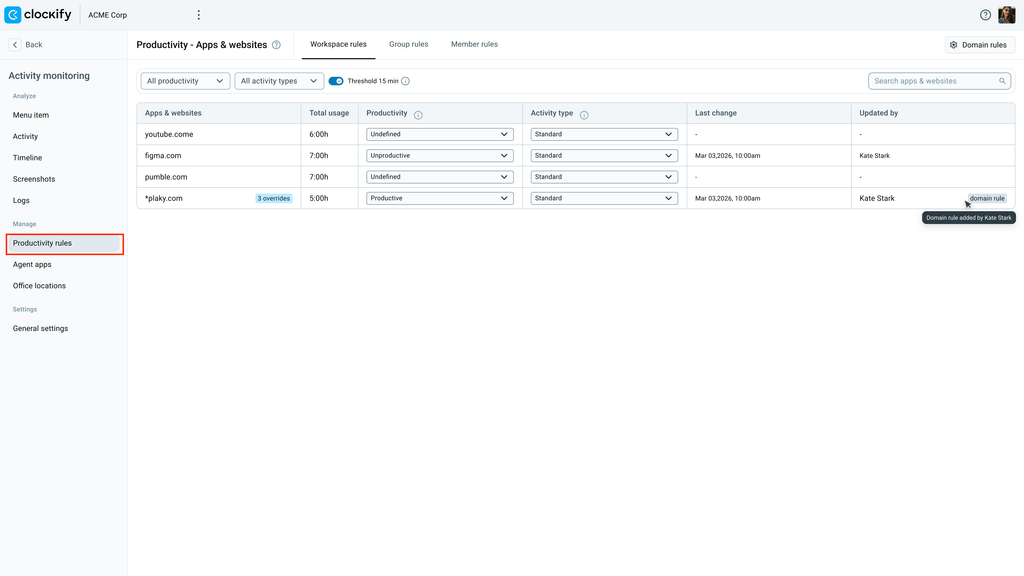
Nutze die Filter über der Tabelle, um die Produktivität und den Aktivitätstyp nach Kategorie anzuzeigen. Aktiviere den Schalter Schwellenwert 15 Min., um Tools mit mehr als 15 Minuten Aktivität zu sehen.
Wichtige Hierarchieregeln #
Um die Benutzeraktivität zu erfassen und zu kategorisieren, wertet das System Produktivitätsregeln anhand von drei Prioritätsstufen aus.
Priorität nach Geltungsbereich #
Produktivitätsregeln werden nach einer festgelegten Prioritätsreihenfolge angewendet: Mitglied → Gruppe → Arbeitsbereich

- Regeln für Mitglieder überschreiben stets Gruppen- und Arbeitsbereichsregeln.
- Regeln für Gruppen überschreiben die Standardkonfigurationen des Arbeitsbereichs.
- Regeln für den Arbeitsbereich dienen als allgemeine Ausweichoption für die gesamte Organisation.
Admins können die Produktivität für diese Regeln auf der Seite Produktivitätsregeln – Apps und Websites klassifizieren.
Konfliktlösung bei länder- oder abteilungsübergreifenden Gruppen #
Wenn ein Mitarbeiter mehreren Gruppen angehört, die dieselbe App oder Website unterschiedlich klassifizieren, löst das System den Konflikt durch Anwendung der am wenigsten restriktiven Regel auf.

Beispiel: Gehört ein Mitarbeiter sowohl zu Gruppe A (wo youtube.com als Unproduktiv markiert ist) als auch zu Gruppe B (wo youtube.com als Produktiv markiert ist), behandelt das System youtube.com als Produktiv.
Diese Regel verhindert, dass abteilungsübergreifend tätige Mitarbeiter bei der Ausführung legitimer Aufgaben in verschiedenen Teams benachteiligt werden, und stellt sicher, dass ihre Produktivitätswerte korrekt bleiben.
Regelpriorität (innerhalb desselben Geltungsbereichs)
Bei der Auswertung von Regeln innerhalb einer einzelnen Geltungsbereichs-Ebene (z. B. auf Arbeitsbereichs-Ebene) haben exakte Treffer Vorrang:

- Spezifische Regel: Exakte Treffer (z. B. docs.google.com) haben immer die höchste Priorität.
- Domain-Wildcard-Regel: Allgemeine Catch-All-Regeln (z. B. *.google.com) greifen nur, wenn keine spezifische Regel existiert.
- Nicht definiert: Letzter Ausweichstatus, falls weder eine spezifische noch eine Wildcard-Regel existiert.
Domain-Wildcard-Regeln verwenden #
Eine Domain-Wildcard-Regel ist eine allgemeine Einstellung, die automatisch eine Klassifizierung auf jede mögliche Subdomain einer Hauptseite anwendet.
Anstatt jede Subdomain (wie mail.google.com und docs.google.com) manuell einzeln zu kategorisieren, deckt eine Wildcard-Regel alle Subdomains sofort ab.
So erstellst du eine Domain-Wildcard-Regel:
- Klicke oben rechts auf der Seite “Produktivitätsregeln” auf Domain-Regeln
- Gib im Feld Domain-Muster unter dem Abschnitt Eingabemuster die Syntax ein. Diese muss strikt mit *.beginnen (z. B. *.plaky.com). Es sind nur Standardzahlen, Kleinbuchstaben, Bindestriche und Punkte erlaubt.
- Wähle die Produktivität (Produktiv, Unproduktiv oder Neutral) sowie den Geltungsbereich (Arbeitsbereich, Gruppe oder Mitglied) aus den Dropdown-Menüs aus
- Klicke auf Regel hinzufügen
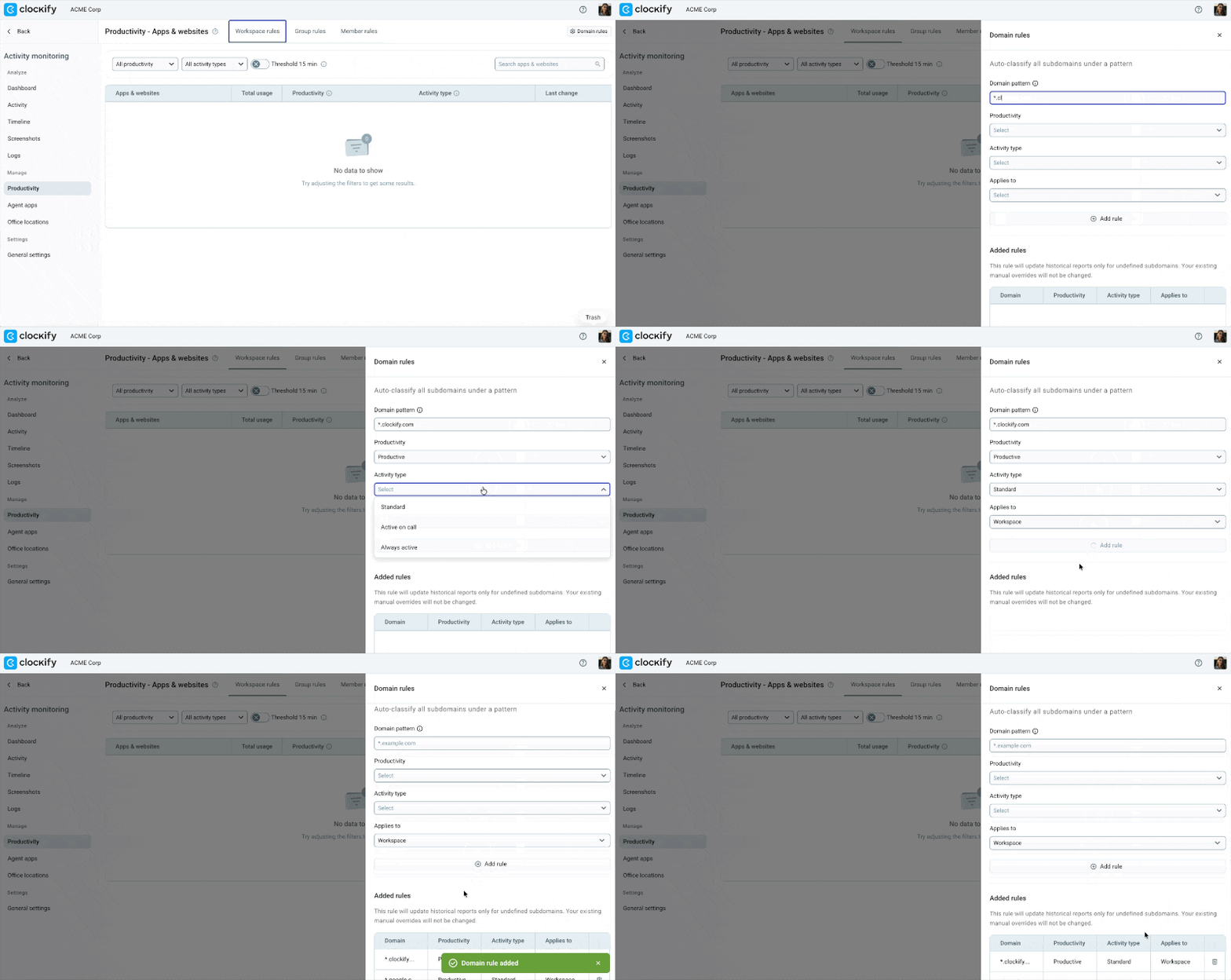
Die neu erstellte Regel ist nun in der Tabelle Hinzugefügte Regeln sichtbar.
Häufig gestellte Fragen #
Was passiert, wenn ein Mitarbeiter mehreren Gruppen mit widersprüchlichen Produktivitätsregeln angehört?
Die Produktivitätsregel wird nach folgender Priorität angewendet: Produktiv überschreibt Neutral, und Neutral überschreibt Unproduktiv. Diese Logik verhindert, dass Mitarbeiter bei abteilungsübergreifenden Aufgaben benachteiligt werden.
Wie erfasst das System die aktive Zeit für verschiedene Anwendungstypen, z. B. Videokonferenz-Tools?
Arbeitsbereichs-Admins können spezifische Aktivitätstypen zuweisen, um festzulegen, wie die aktive Zeit für jede Anwendung oder Website interpretiert wird. Das System nutzt drei Erfassungsmethoden:
- Standard: Erfasst die aktive Zeit strikt basierend auf Tastatur- und Mausbewegungen.
- Im Anruf aktiv: Hält den Benutzer als aktiv geschaltet, solange Mikrofon oder Kamera in Verwendung sind.
- Immer aktiv: Hält den Benutzer als aktiv geschaltet, solange die Anwendung geöffnet und im Fokus auf dem Bildschirm ist.
Können Team-Manager Domain-Wildcard-Regeln für den gesamten Arbeitsbereich einrichten?
Nein. Team-Manager können weder Arbeitsbereichs-Standards ändern noch Domain-Regeln für den Arbeitsbereich erstellen. Sie sind lediglich berechtigt, Regeln für die ihnen zugewiesenen Teams, Gruppen und Mitglieder zu verwalten. Das Erstellen unternehmensweiter Domain-Regeln, das Verwalten von Arbeitsbereichs-Standards und das Auslösen historischer Neuberechnungen ist ausschließlich Admins vorbehalten.
Warum wird eine kürzlich genutzte Anwendung oder Website möglicherweise nicht in der Verzeichnis-Tabelle angezeigt?
Wenn eine Anwendung oder Website eine Gesamtnutzungsdauer von weniger als 15 Minuten aufweist, wird sie in der Hauptverzeichnisansicht automatisch ausgeblendet.