Stundensätze und Schätzungen für Projekte einrichten
Wenn du an einem Projekt mit Festpreis arbeitest, ist die Zeiterfassung entscheidend, um deine tatsächlichen Kosten zu ermitteln und die Rentabilität zu sichern. Wenn du den tatsächlichen Zeitaufwand kennst, kannst du die Genauigkeit deiner ursprünglichen Schätzungen bewerten und bessere Preise für zukünftige Aufträge festlegen.
Zum Beispiel:
Ein Projekt hat einen Festpreis und wird schätzungsweise 50 Stunden bis zum Abschluss benötigen (z. B. 20 Std. für Design, 30 Std. für Programmierung). Wenn die Arbeit letztlich 70 hours dauert – also 20 Stunden mehr als ursprünglich geschätzt – weißt du, dass du die Schätzung überschritten hast.
Die Zeiterfassung ermöglicht es dir:
- Bei Bedarf mit dem Kunden über einen höheren Preis oder weniger Arbeitsumfang zu verhandeln
- Genaue Daten zu nutzen, um bessere Schätzungen für zukünftige Projekte zu erstellen und so deine Rentabilität zu gewährleisten
Bevor du mit dem Projekt beginnst, konfiguriere deinen Clockify-Arbeitsbereich so, dass Zeiteinträge genau kategorisiert und erfasst werden können. Das erreichst du durch:
- Erstellen von Tags, die verschiedene Arten von Aktivitäten repräsentieren (z. B. Projektmanagement).
- Angabe des Kundennamens auf der Seite Kunden.
Projektschätzung manuell festlegen #
Die Schätzung für Projekte ist eine kostenpflichtige Funktion, die du durch das Abonnieren des Basic-Tarifs oder höher aktivieren kannst.
1. Gehe auf die Seite Projekte
2. Klicke auf ein Projekt
3. Klicke auf Einstellungen
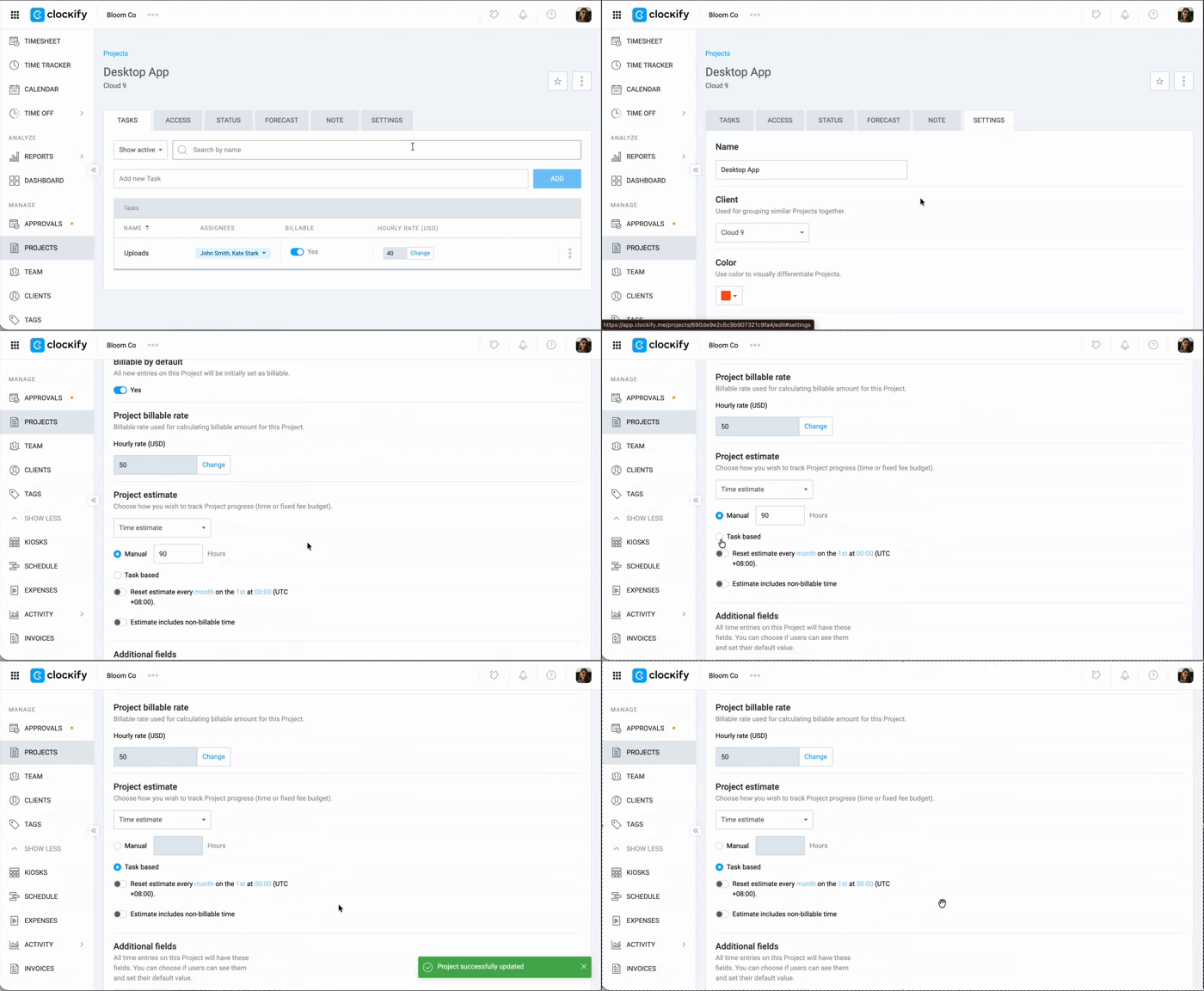
4. Wähle Manuell unter Projektschätzung aus
5. Gib die Anzahl der Stunden ein
Aufgabenbasierte Schätzung festlegen #
1. Gehe zu den Projekteinstellungen
2. Wähle Aufgabenbasiert unter Projektschätzung aus
3. Lege fest, ob die Schätzung wiederholt werden soll und ob nicht-abrechenbare Zeit einbezogen wird (optional)
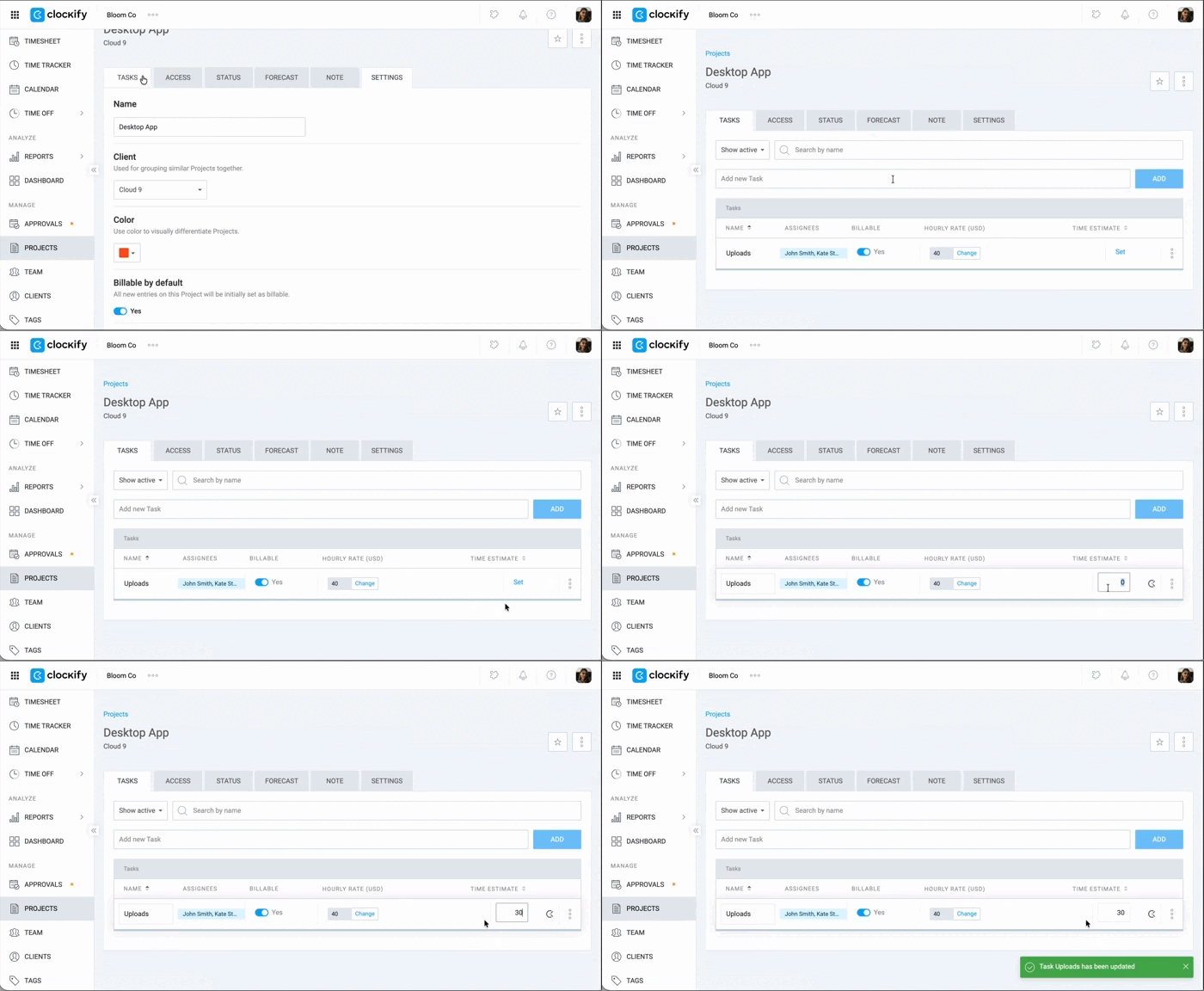
4. Gehe zum Tab Aufgaben
5. Lege für jede Aufgabe in der Liste eine Schätzung fest
Abrechenbaren Stundensatz für Projekte festlegen #
Abrechenbare Stunden ist eine kostenpflichtige Funktion (verfügbar ab dem Basic-Plan)
Um die Felder für den abrechenbaren Stundensatz (z. B. Projektsatz) anzuzeigen, müssen Abrechenbare Stunden im Arbeitsbereich aktiviert sein. Dies lässt sich unter Arbeitsbereichseinstellungen > Finanzen überprüfen. Andernfalls werden die Felder für den abrechenbaren Stundensatz sowie das Abrechenbar-Symbol im Arbeitsbereich ausgeblendet.
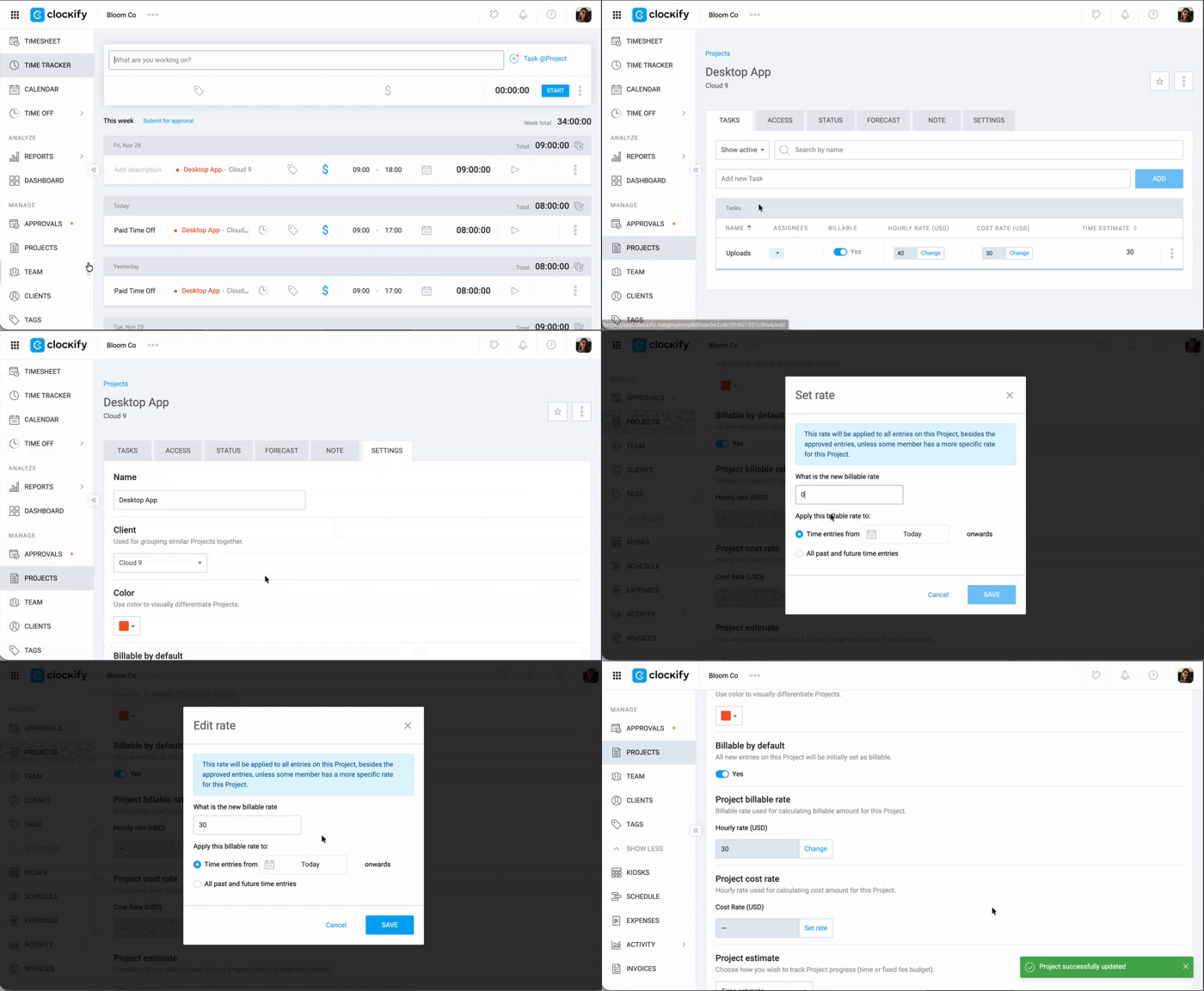
1. Gehe zu den Projekteinstellungen
2. Klicke auf Ändern unter Abrechenbarer Projektsatz
3. Gib den Betrag ein
4. Klicke auf Speichern
Kostensatz festlegen #
Der Kostensatz ist eine kostenpflichtige Funktion, die du durch ein Upgrade deines Arbeitsbereichs auf den Pro oder Enterprise-Plan aktivieren kannst.
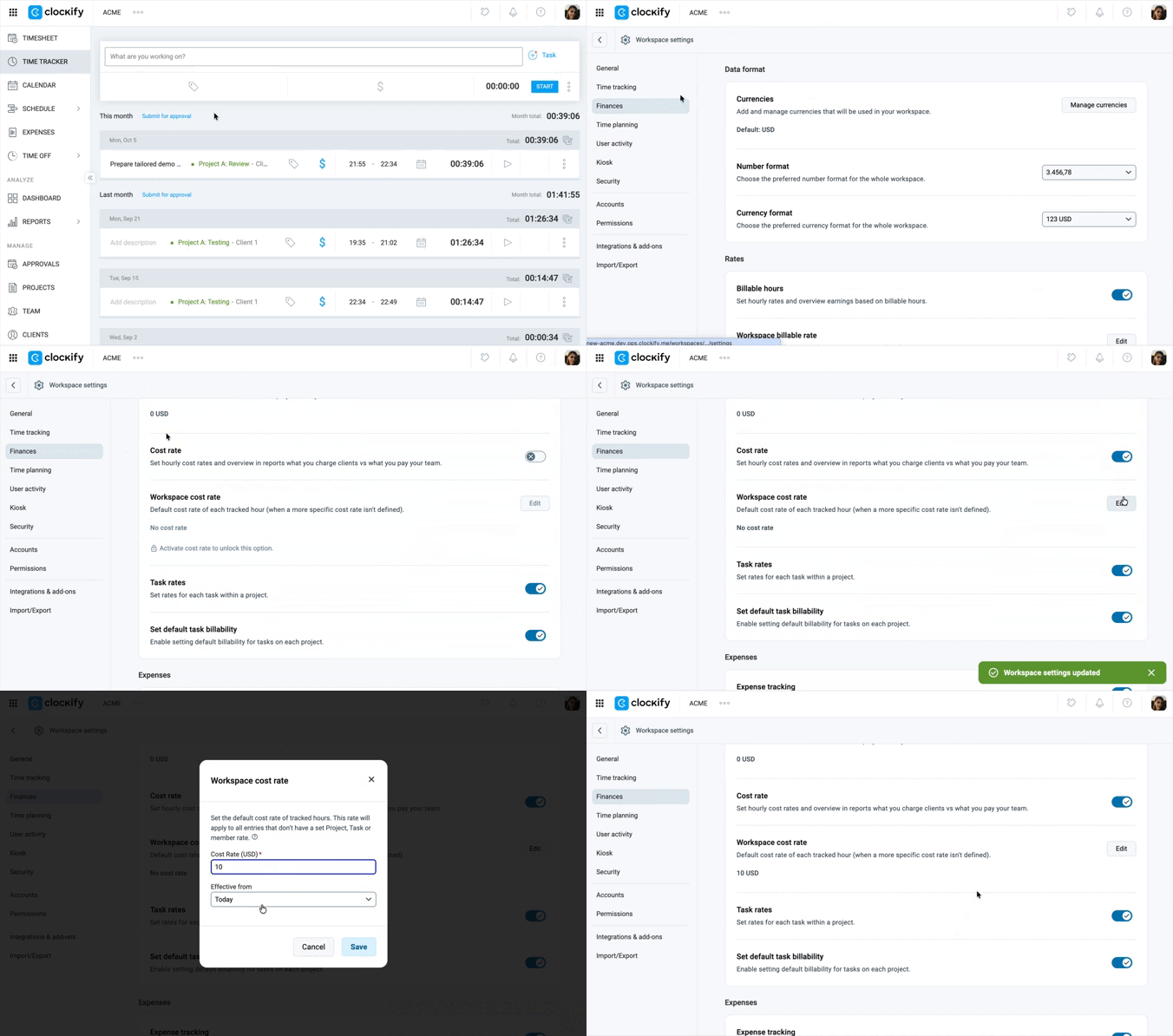
- Gehe zu Arbeitsbereichseinstellungen > Finanzen
- Aktiviere den Schalter Kostensatz im Abschnitt Sätze
- Klicke bei der Option Kostensatz des Arbeitsbereichs auf Bearbeiten
- Gib den Kostensatz ein
- Wähle das Datum für Gültig ab
- Klicke auf Speichern
Tipps für genaue Schätzungen:
- Achte bei der Zeiterfassung darauf, dass jeder Zeiteintrag dem richtigen Projekt und einer spezifischen Aufgabe zugeordnet ist.
- Überprüfe beim Erreichen von Meilensteinen den Projektstatus, um die geschätzte Zeit mit der tatsächlich erfassten Zeit zu vergleichen.
Projektbericht erstellen #
Wenn ein Projekt abgeschlossen ist, nutze Berichte, um die Rentabilität zu analysieren und deine zukünftigen Arbeitsabläufe zu optimieren.
1. Gehe zu den Berichten
2. Wähle den Zusammenfassungsbericht
3. Wende die notwendigen Filter an, z. B. das Filtern nach einem bestimmten Projekt.
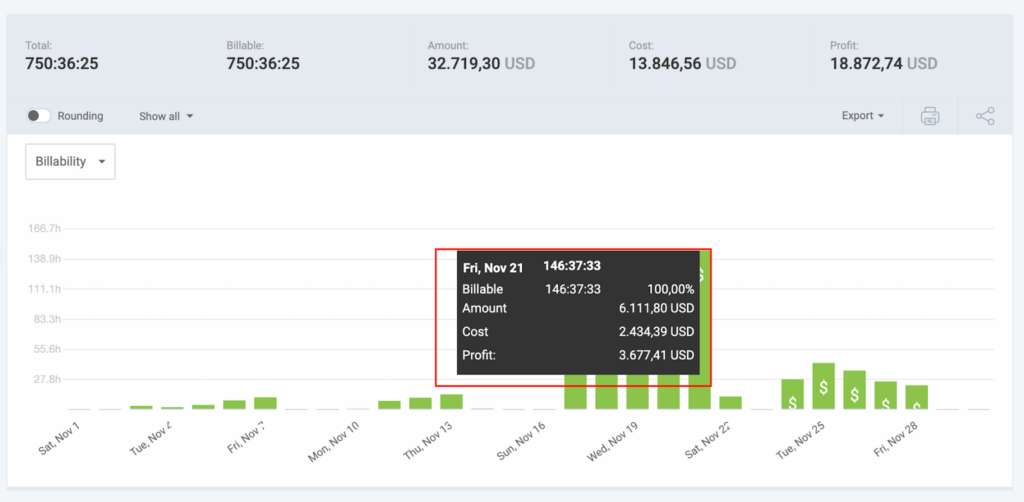
4. Öffne das Dropdown-Menü Alle anzeigen und stelle sicher, dass die Optionen Betrag anzeigen, Kosten anzeigen und Gewinn anzeigen ausgewählt sind.
5. Klicke auf das Dropdown-Menü Exportieren und wähle Als CSV speichern
Du kannst einen Bericht nur dann nach CSV/Excel exportieren, wenn du den Basic-Tarif oder höher abonniert hast. Im kostenlosen Plan kannst du Berichte nur als PDF exportieren.
Anhand des erstellten Berichts kannst du die Daten analysieren, um Aktivitäten zu identifizieren, die die geplante Dauer überschritten haben, die Ursache dafür finden und künftige Schätzungen sowie die Preisgestaltung verbessern. Innerhalb der Berichte kannst du die Zahlen für Abrechnung, Kosten oder Gewinn untersuchen.