Set up project rates & estimates
If you’re working on a fixed-fee project, tracking time is crucial to determining your actual cost and maintaining profitability. Knowing the actual time spent, you can assess the accuracy of your original estimates and set better prices for future work.
For example:
A project has a fixed price and will take 50 hours to finish (e.g., 20h for design, 30h for coding). If the work takes 70 hours to complete, which is 20 hours more than the initial estimate, then you know you went over the estimate.
Time tracking allows you to:
- Negotiate with the client for a higher price or less work, if necessary
- Use accurate data to set better estimates for future projects, ensuring you maintain profitability
Before starting the project, configure your Clockify workspace to accurately categorize and track time entries. You can do this by:
- Creating tags to represent different types of activities (e.g., project management).
- Specifying the client’s name on the Clients page.
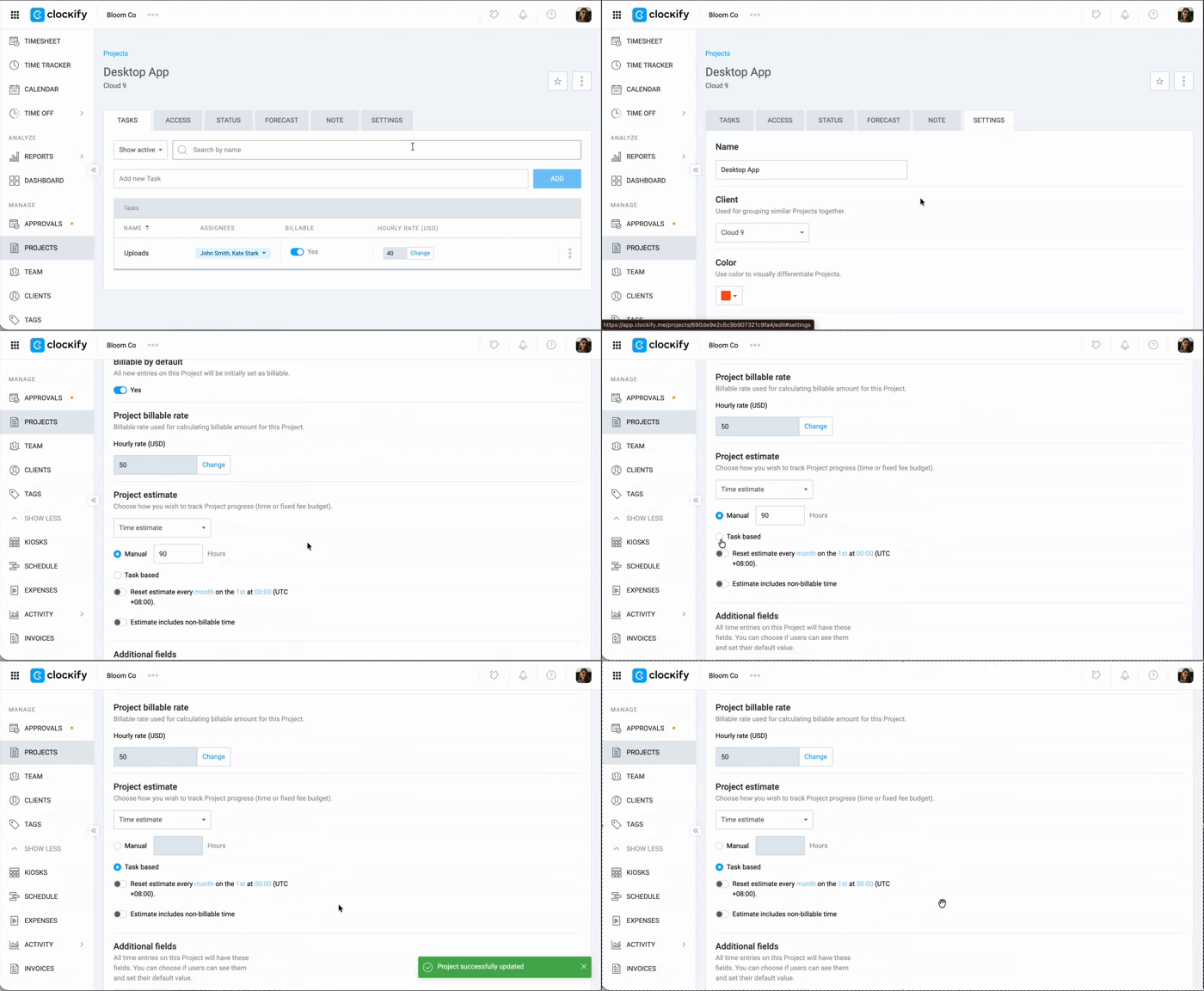
Set manual project estimate #
Project estimate is a paid feature, which you can enable by subscribing to Basic plan or higher.
1. Go to the Projects page
2. Click on a project
3. Click Settings
4. Select Manual under Project Estimate
5. Enter the number of hours
Set task-based estimate #
1. Go to Project settings
2. Select Task-based under Project estimate
3. Set it to recur and include non-billable time (optional)
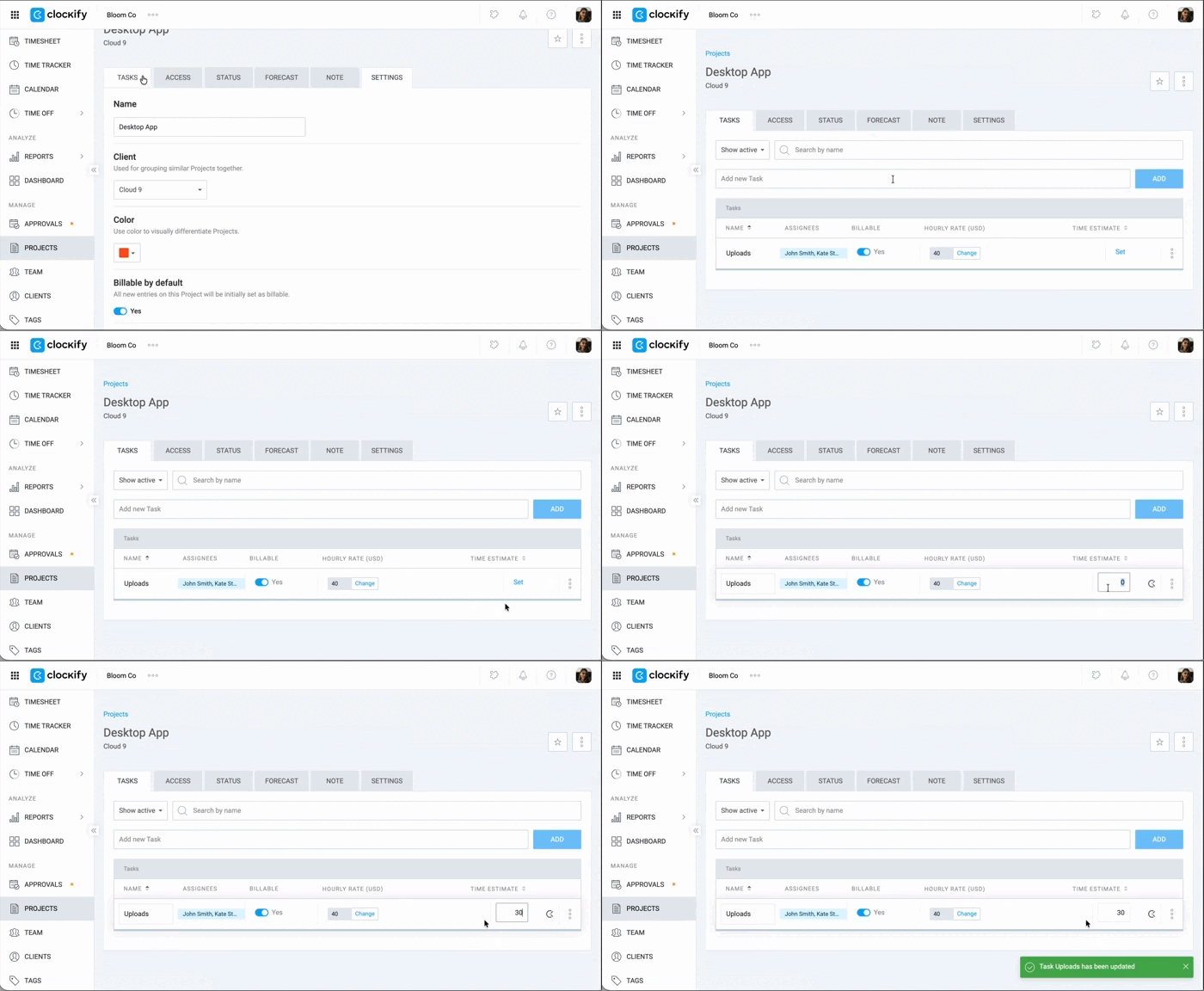
4. Go to the Tasks tab
5. Set an estimate for each task on the list
Set project billable rate #
Billable hours is a paid feature, which you can enable by subscribing to Basic plan or higher.
To view the billable rate fields (e.g. project billable rate), the Activate billable hours must be toggled ON in the Workspace settings. Check your workspace setup by going to Workspace settings > Permissions tab to ensure this is active. Otherwise, the billable rate fields and the billable icon will be hidden in the workspace.
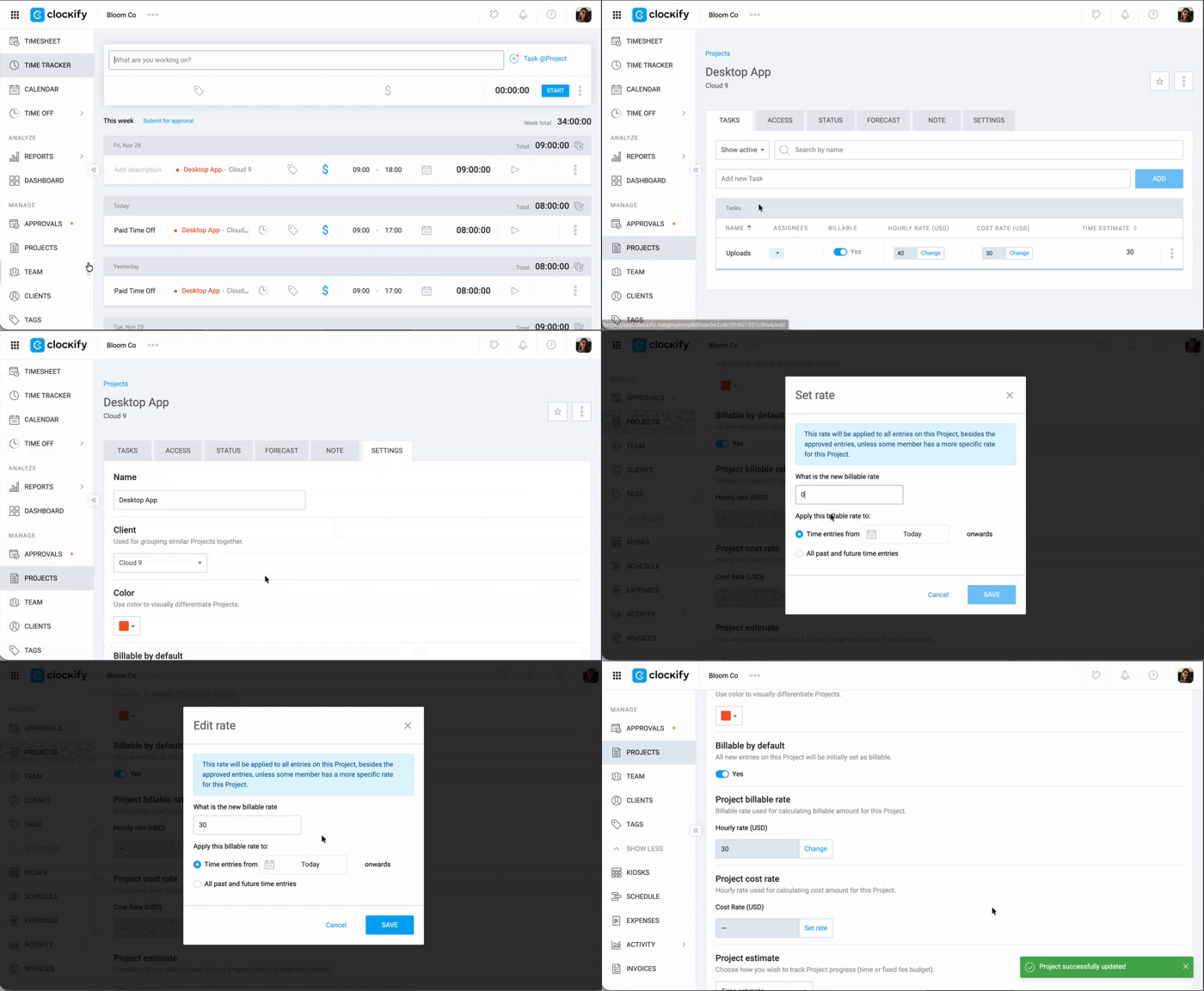
1. Go to Project settings
2. Click Change under Project billable rate
3. Enter the amount
4. Click Save
Set cost rate #
Cost rate is a paid feature, which you can enable by upgrading your workspace to Pro or Enterprise plan.
- Go to Workspace settings
- Enable Activate cost rate under Cost and profit analysis
- Click Change
- Enter the cost rate
- Click Save
Tips for accurate estimates:
- Make sure every time entry is associated with the correct project and a specific task when tracking time.
- Check the project status to compare estimated time versus tracked time when reaching milestones.
Generate project report #
When a project is done, use reports to analyze profitability and refine your future workflow.
1. Go to Reports
2. Select Summary Report
3. Apply the necessary filters, such as filtering by a specific project.
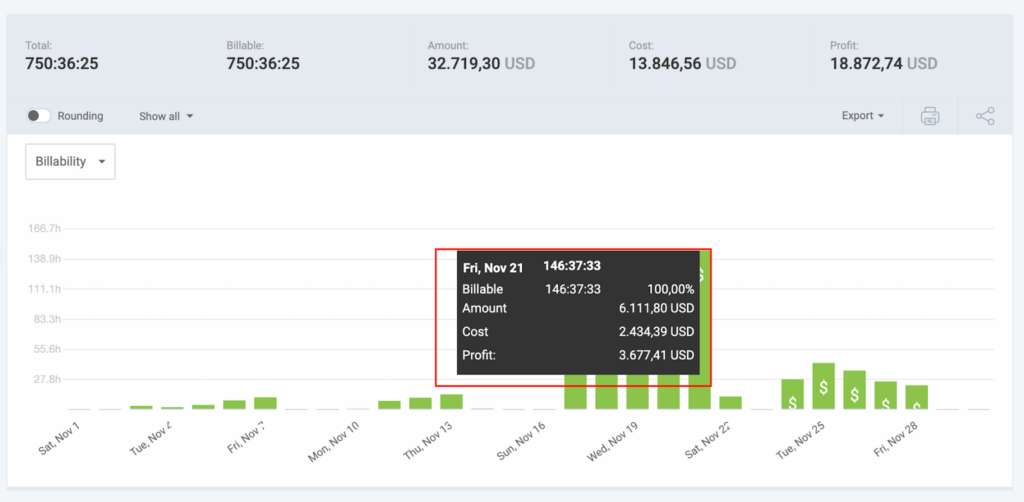
4. Open the Show All settings dropdown and verify that the Show Amount, Show Cost, and Show Profit options are all selected.
5. Click the Export dropdown menu and select Save as CSV
You can only export a report to CSV/Excel if you are subscribed to a Basic plan or higer. If you are on a Free plan, you can only export a report to PDF.
From the generated report, you can analyze data to help identify activities that exceeded the planned duration, find the cause, and improve future estimates and pricing. Within the reports, you can examine figures for billing, cost, or profit.