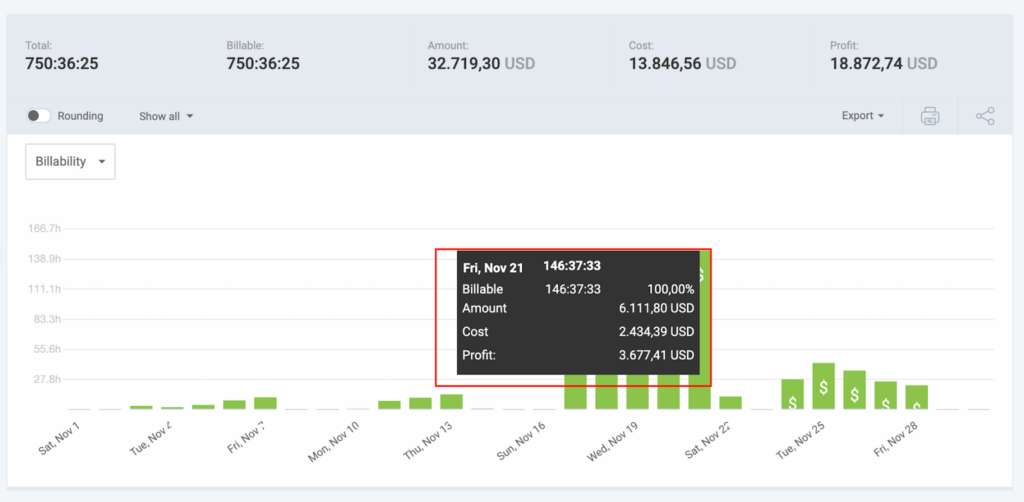
Configurer les taux et les estimations du projet
Si vous travaillez sur un projet à prix fixe, le suivi du temps est essentiel pour déterminer votre coût réel et maintenir votre rentabilité. En connaissant le temps réel passé, vous pouvez évaluer la précision de vos estimations initiales et fixer de meilleurs prix pour vos futurs travaux.
Par exemple :
Un projet a un prix fixe et prendra 50 heures à réaliser (p. ex. 20 heures pour la conception, 30 heures pour le codage). Si le travail prend 70 heures, soit 20 heures de plus que l’estimation initiale, vous savez alors que vous avez dépassé l’estimation.
Le suivi du temps vous permet de :
- Négocier avec le client pour obtenir un prix plus élevé ou moins de travail, si nécessaire
- Utiliser des données précises pour établir de meilleures estimations pour les projets futurs, en veillant à maintenir votre rentabilité
Avant de démarrer le projet, configurez votre espace de travail Clockify afin de classer et de suivre avec précision les saisies de temps. Pour ce faire, procédez comme suit :
- Créez des balises pour représenter différents types d’activités (p. ex. gestion de projet).
- Indiquez le nom du client sur la page Clients.
Définir une estimation manuelle du projet #
Project estimate is a paid feature, which you can enable by subscribing to Basic plan or higher.
1. Accédez à la page Projets
2. Cliquez sur un projet
3. Cliquez sur Paramètres
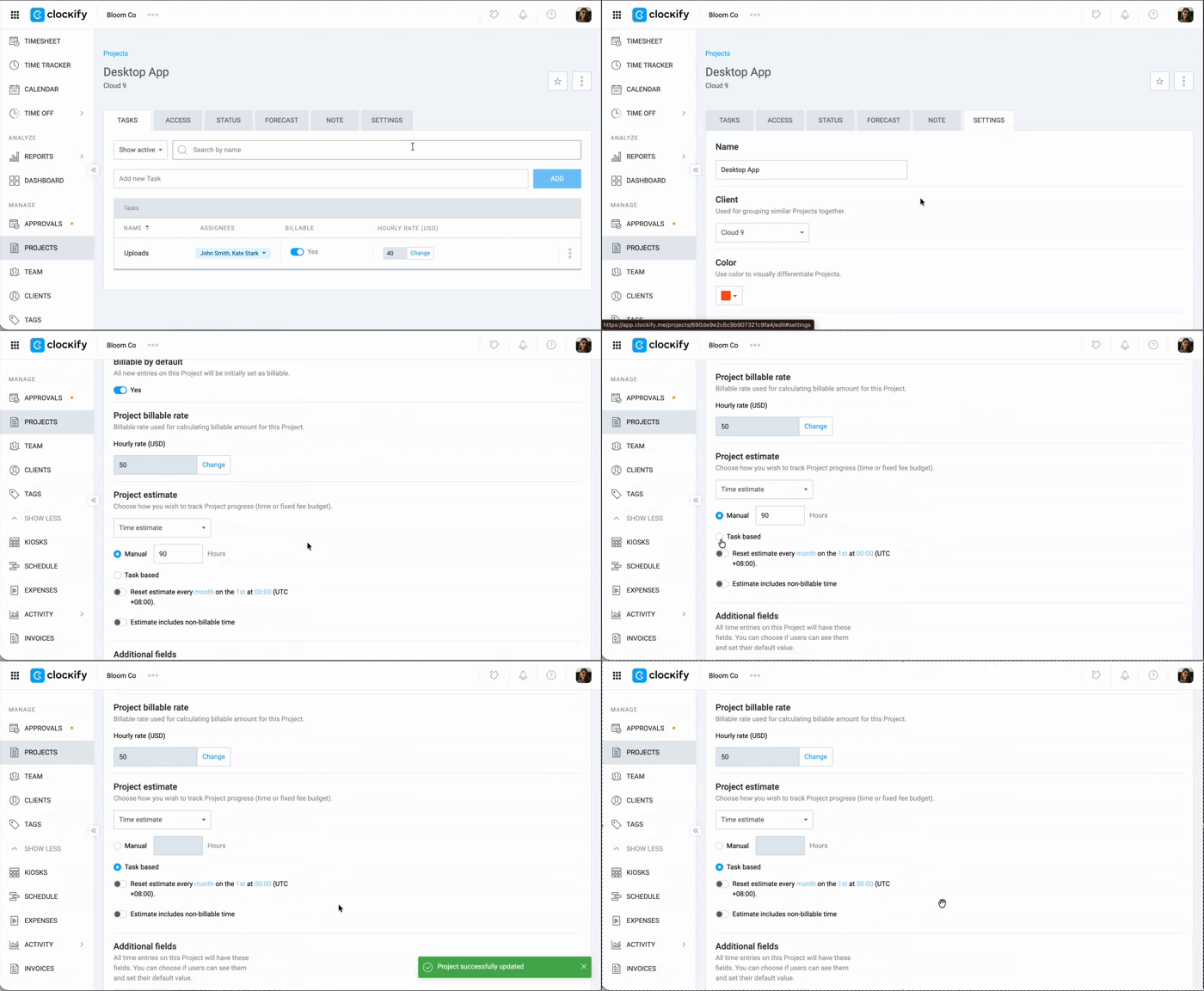
4. Sélectionnez Manuel sous Estimation du projet
5. Saisissez le nombre d’heures
Définir une estimation basée sur les tâches #
1. Accédez aux paramètres du projet
2. Sélectionnez Basé sur les tâches sous Estimation du projet
3. Configurez-le pour qu’il se répète et incluez le temps non facturable (facultatif)
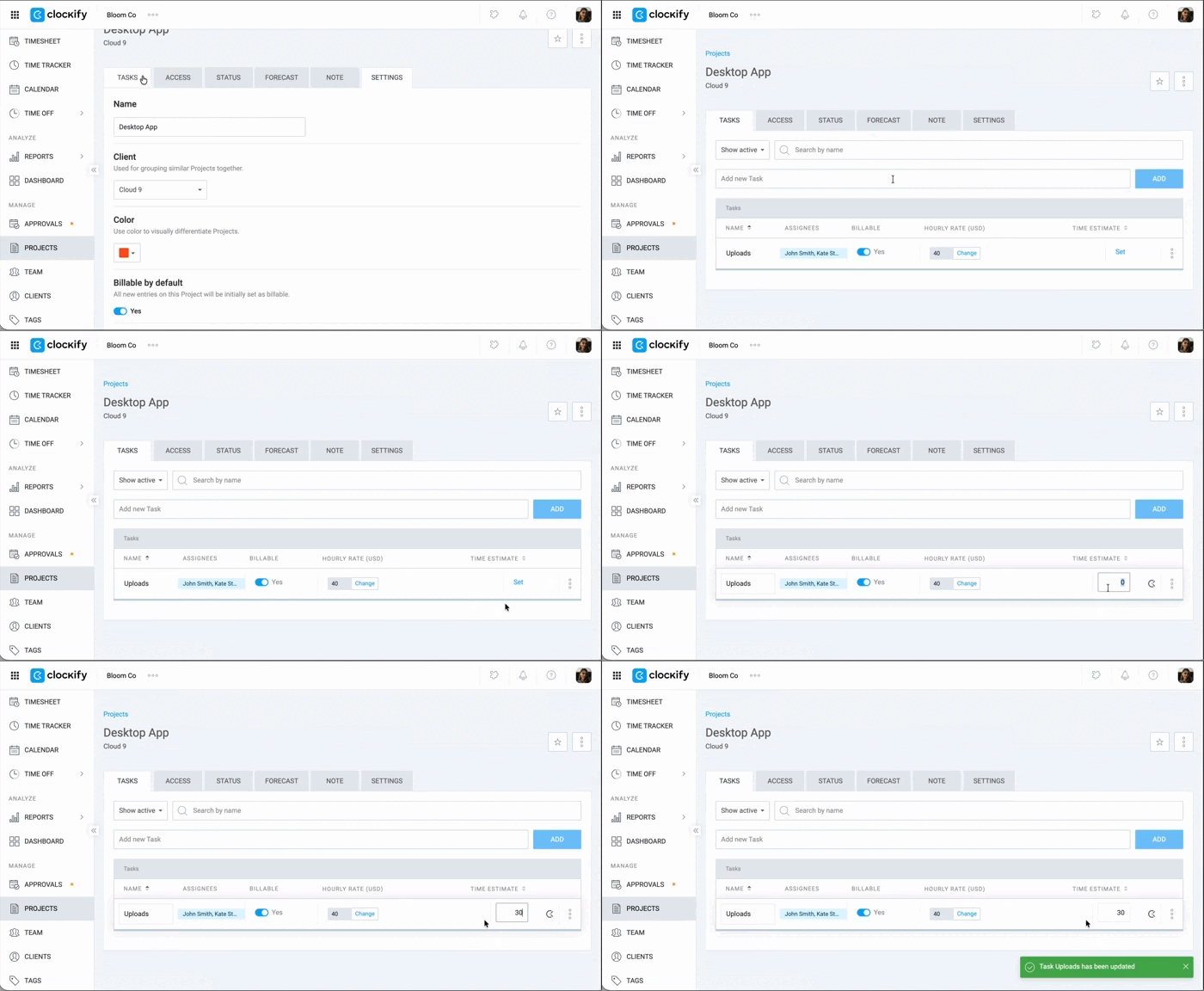
4. Accédez à l’onglet Tâches
5. Définissez une estimation pour chaque tâche de la liste
Définir le taux facturable du projet #
Billable hours is a paid feature, which you can enable by subscribing to Basic plan or higher.
To view the billable rate fields (e.g. project billable rate), Billable hours must be toggled ON in your workspace. Check your workspace setup by going to Workspace settings > Finances to ensure this is active. Otherwise, the billable rate fields and the billable icon will be hidden in the workspace.
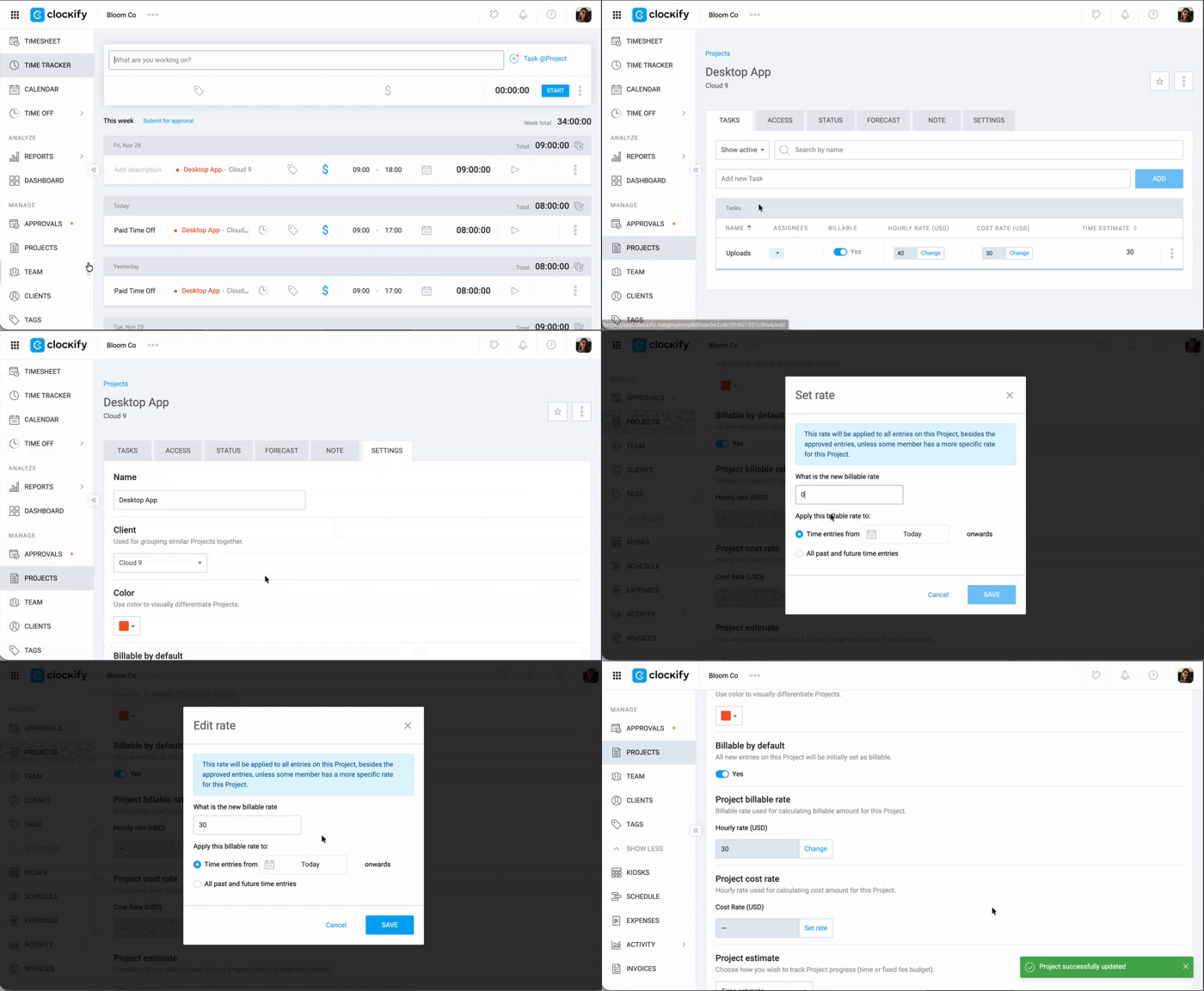
1. Accédez aux paramètres du projet
2. Cliquez sur Modifier sous Taux facturable du projet
3. Saisissez le montant
4. Cliquez sur Enregistrer
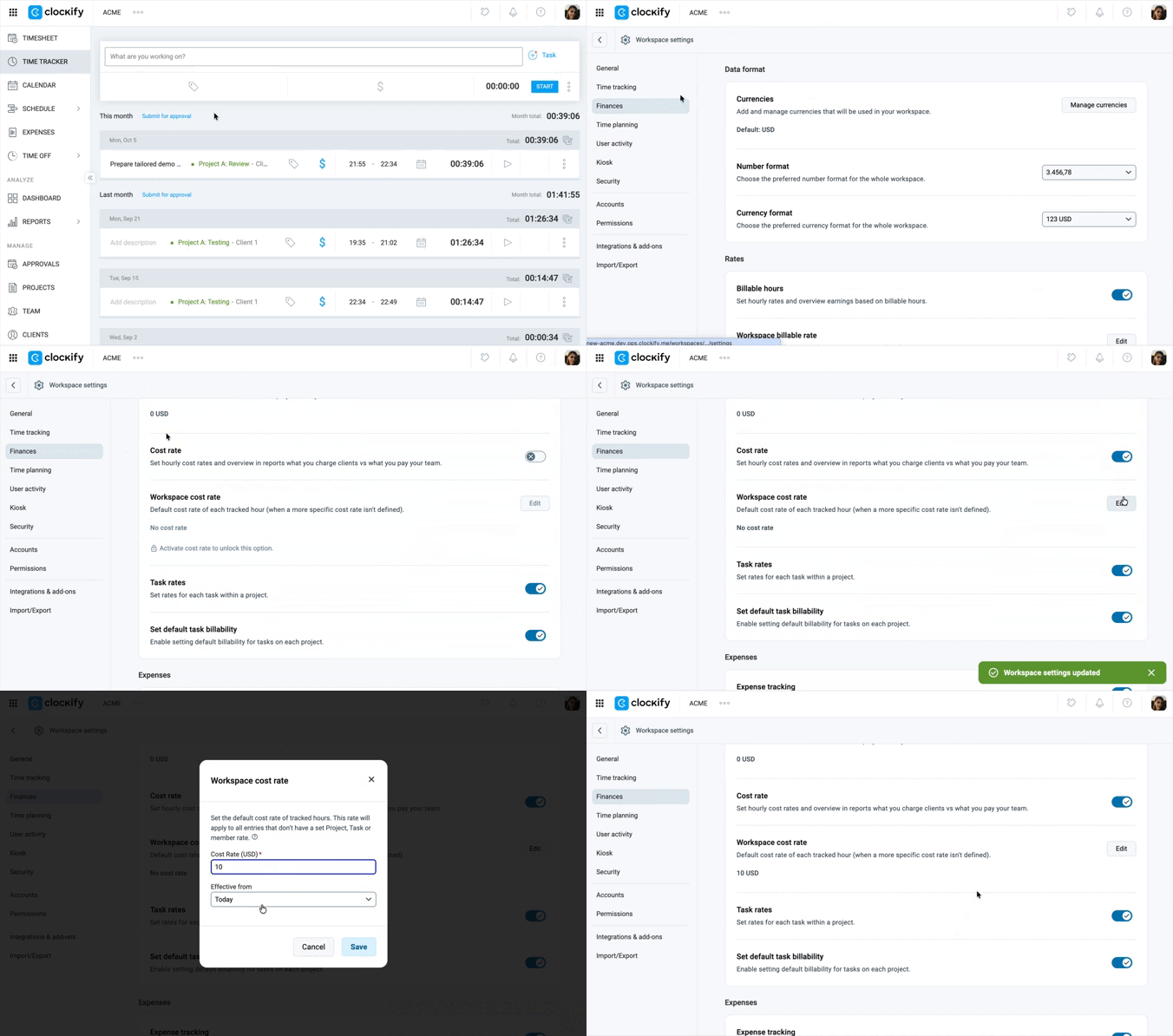
Définir le taux de coût #
Le taux de coût est une fonctionnalité payante que vous pouvez activer en passant à un abonnement Pro ou Enterprise pour votre espace de travail.
- Go to Workspace settings > Finances
- Toggle the Cost rate switch in the Rates section
- Click Edit in the Workspace cost rate option
- Enter the cost rate
- Select the Effective from date
- Cliquez sur Enregistrer
Conseils pour obtenir des estimations précises :
- Lorsque vous effectuez le suivi du temps, assurez-vous que chaque saisie est associée au bon projet et à une tâche spécifique.
- Vérifiez l’état d’avancement du projet afin de comparer le temps estimé et le temps suivi lorsque vous atteignez des étapes importantes.
Générer un rapport de projet #
Une fois le projet terminé, utilisez les rapports pour analyser la rentabilité et affiner votre flux de travail futur.
1. Accédez à Rapports
2. Sélectionnez Rapport résumé
3. Appliquez les filtres nécessaires, tels que le filtrage par projet spécifique
4. Ouvrez le menu déroulant Afficher tous les paramètres et vérifiez que les options Afficher le montant, Afficher le coût et Afficher le bénéfice sont toutes sélectionnées
5. Cliquez sur le menu déroulant Exporter et sélectionnez Enregistrer au format CSV
You can only export a report to CSV/Excel if you are subscribed to a Basic plan or higer. If you are on a Free plan, you can only export a report to PDF.
En vous basant sur le rapport généré, vous pourrez analyser les données pour identifier les activités dont la durée a été dépassée, en comprendre les causes, et ainsi optimiser vos futures estimations et tarifications. Ces rapports vous permettent d’examiner les données chiffrées relatives à la facturation, aux coûts ou aux bénéfices.