Benutzerkonto verwalten
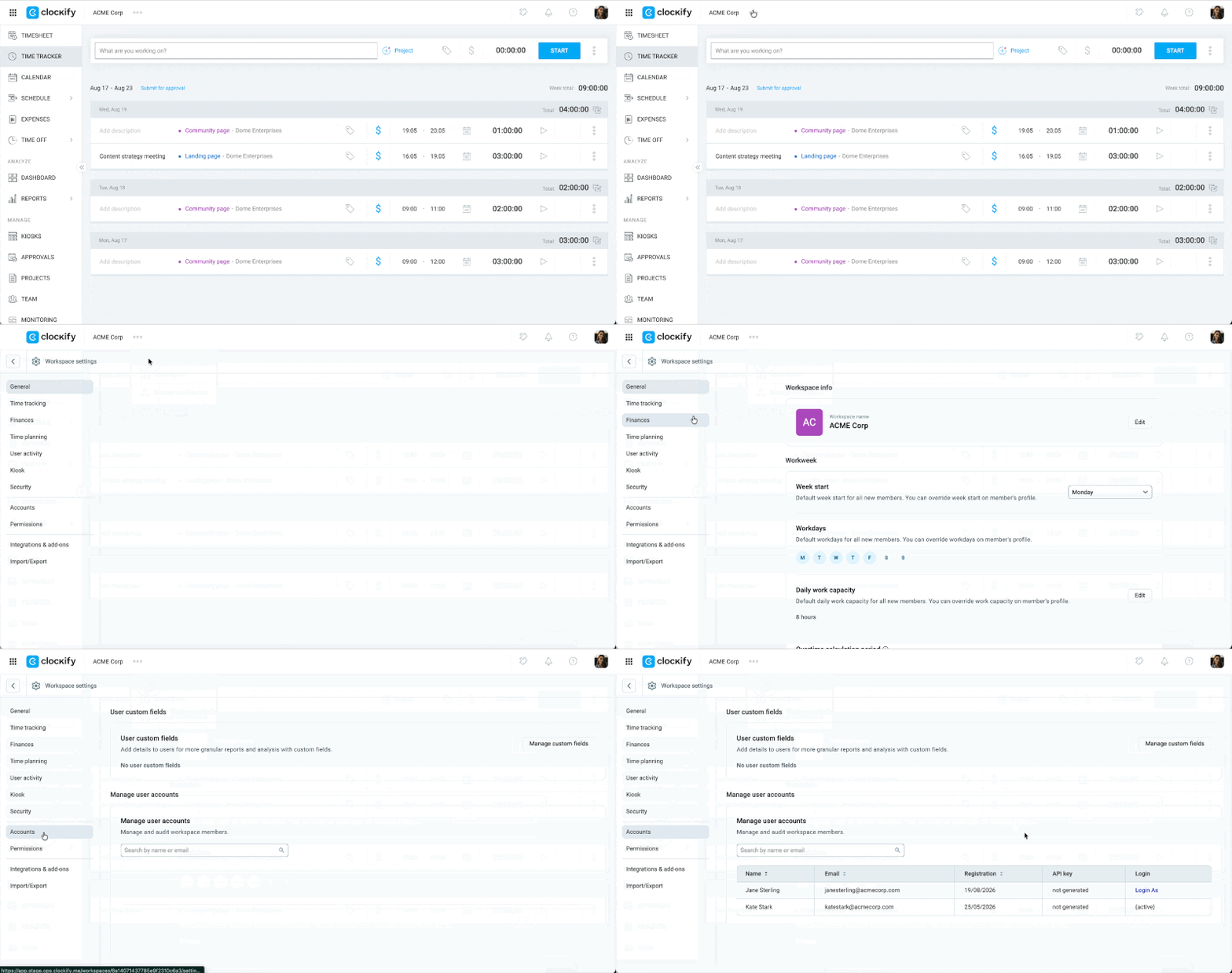
Der Tab Konten in den Arbeitsbereichseinstellungen ermöglicht es Arbeitsbereichsbesitzern, aus verschiedenen Gründen auf Benutzerkonten zuzugreifen – etwa zur Behebung technischer Probleme, zum Stoppen laufender Timer, zum Korrigieren von Zeiteinträgen oder als Sicherheitsmaßnahme.
Zugriff auf den Konten-Tab #
Nur Arbeitsbereichsbesitzer im Enterprise-Abonnement können auf den Tab Konten zugreifen.
- Klicke auf die drei Punkte neben deinem Arbeitsbereichsnamen
- Wähle Arbeitsbereichseinstellungen
- Wähle in der Seitenleiste Konten
Als Benutzer anmelden #
Wenn du ein Admin oder der Besitzer des Arbeitsbereichs bist, kannst du dich zur Fehlerbehebung als ein anderer Benutzer anmelden.
So meldest du dich als anderer Benutzer an:
- Gehe zu Arbeitsbereichseinstellungen > Konten
- Klicke neben dem Namen des Teammitglieds, auf dessen Konto du zugreifen möchtest, auf Anmelden als
- Führe die erforderlichen Aktionen oder die Fehlerbehebung durch
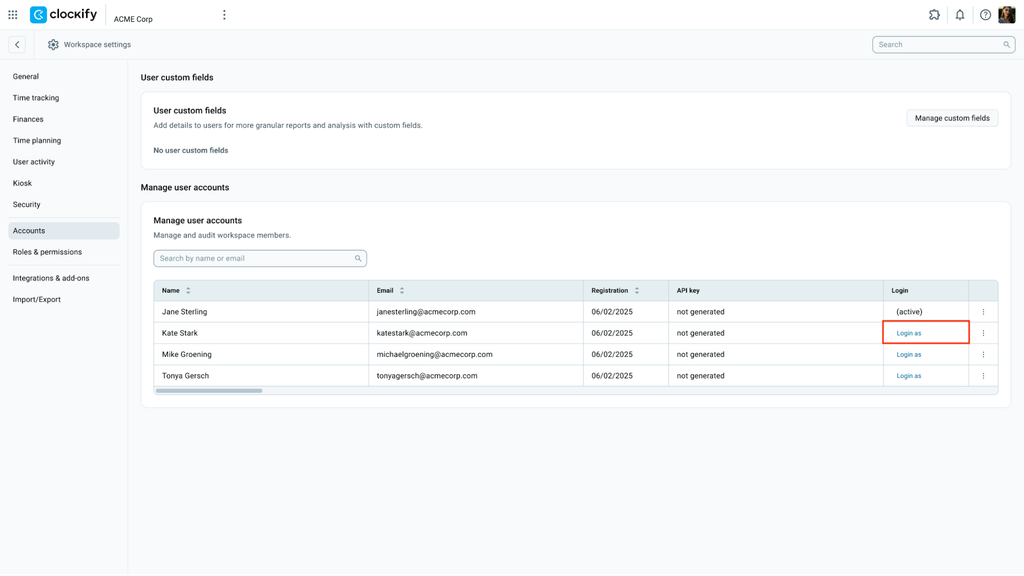
Wenn du eine benutzerdefinierte Subdomain verwendest, kannst du dich nur innerhalb deines eigenen Arbeitsbereichs als dieser Benutzer anmelden.
API-Schlüssel deaktivieren #
- Klicke auf das Drei-Punkte-Menü neben dem entsprechenden Benutzer
- Wähle API-Schlüssel deaktivieren
- Klicke auf Deaktivieren, um die Aktion zu bestätigen
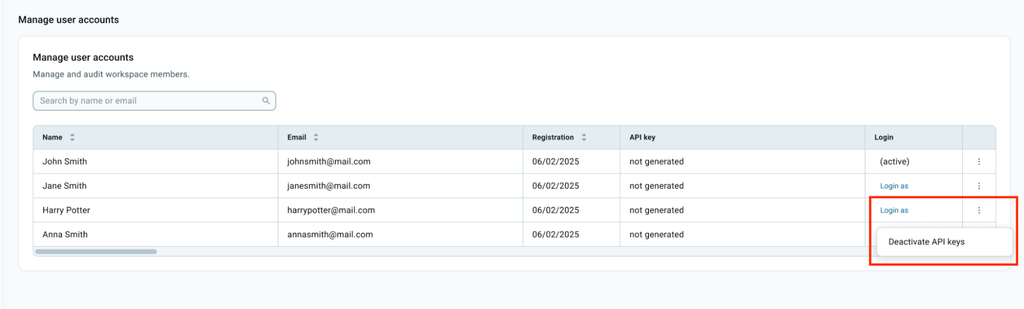
Nach der Deaktivierung kann der Schlüssel nicht mehr verwendet werden. Sein Status wird auf der Seite „API-Schlüssel verwalten“ automatisch aktualisiert.
Timer für einen anderen Benutzer stoppen #
Falls ein Teammitglied vergisst, seinen Timer zu stoppen, kannst du dies für die Person übernehmen, notwendige Korrekturen an der Zeit vornehmen und den Eintrag speichern.
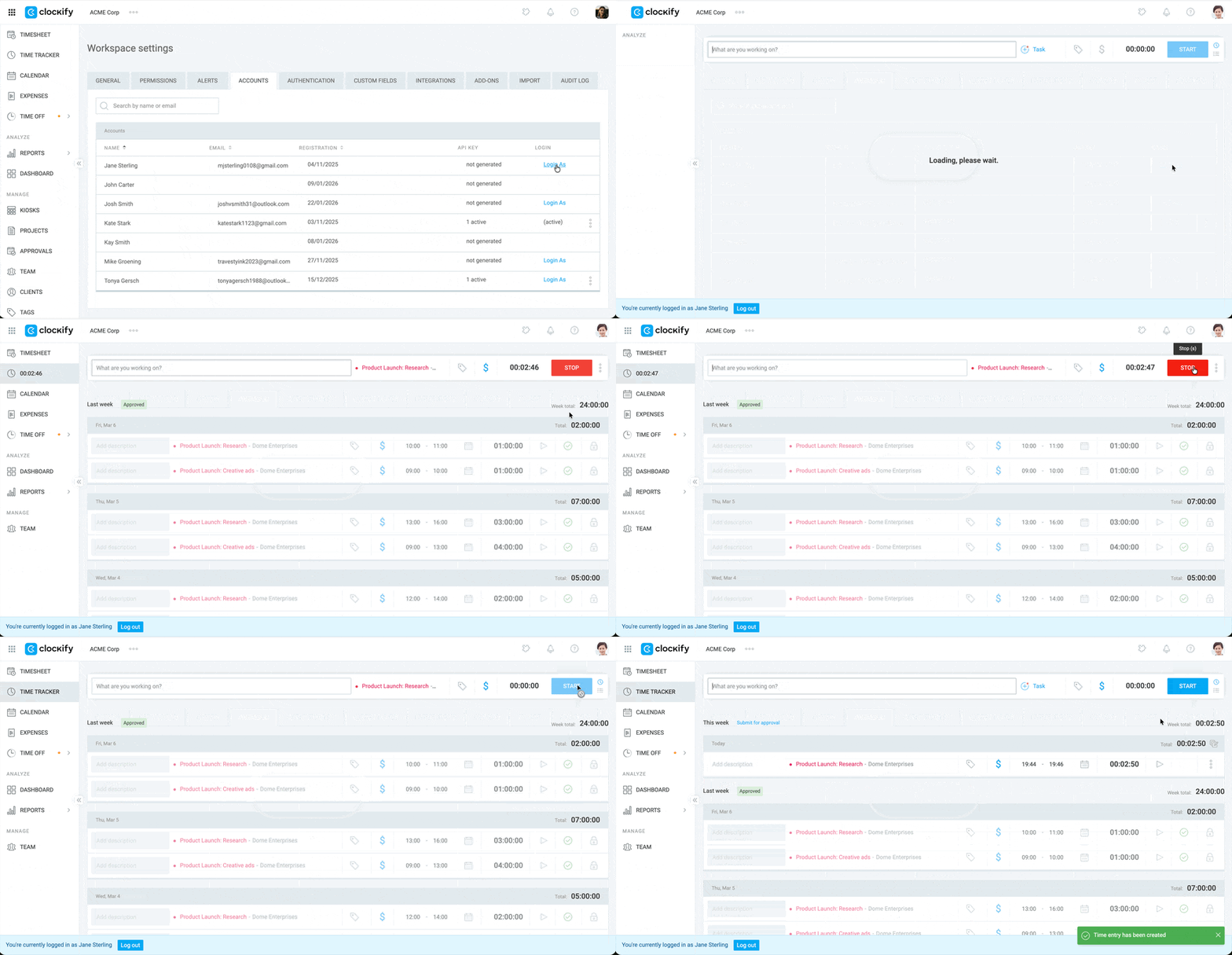
So stoppst du den Timer für einen anderen Benutzer:
- Navigiere zur Seite Konten
- Wähle Anmelden als neben dem Namen des Benutzers
- Klicke auf die Schaltfläche Stopp, um den Timer des Benutzers zu beenden
Häufig gestellte Fragen #
Warum kann ich den Tab „Konten“ nicht sehen?
Dafür kann es zwei Gründe geben:
- Der Konten-Tab ist nur im Enterprise-Abonnement verfügbar.
- Nur Arbeitsbereichsbesitzer können den Tab sehen und darauf zugreifen. Administratoren und andere Benutzerrollen haben keinen Zugriff darauf, selbst wenn das Enterprise-Abo gebucht ist.
Kann ich den tatsächlichen API-Schlüssel eines Benutzers einsehen?
Nein. Aus Sicherheitsgründen zeigt diese Seite nur die Anzahl der aktiven API-Schlüssel eines Benutzers an. Die tatsächliche Zeichenfolge des Schlüssels ist nicht sichtbar, du kannst ihn jedoch bei Bedarf deaktivieren.
Was passiert, wenn ich mich über eine Subdomain als Benutzer anmelde?
Wenn du eine benutzerdefinierte Subdomain verwendest, erlaubt dir die Funktion Als Benutzer anmelden den Zugriff auf das Konto dieses Benutzers ausschließlich im Kontext deines spezifischen Arbeitsbereichs. Du kannst von dort aus nicht zu anderen Arbeitsbereichen des Benutzers außerhalb deiner Subdomain navigieren.
Erfährt ein Benutzer, wenn ich seinen Timer stoppe?
Der Timer wird auf der Seite des Benutzers sofort gestoppt, er erhält jedoch keine spezifische Benachrichtigung darüber, dass du ihn beendet hast. Es ist ratsam, die Person darüber zu informieren, dass du Änderungen vorgenommen hast, damit die Arbeitszeittabellen korrekt bleiben.