Kiosk-Authentifizierung zum Einstempeln
Kiosk ist eine kostenpflichtige Funktion, die in jedem kostenpflichtigen Tarif zur Verfügung steht.
Mit Clockify kannst du dich an einem Kiosk entweder mit einem QR-Code oder einer PIN einstempeln.
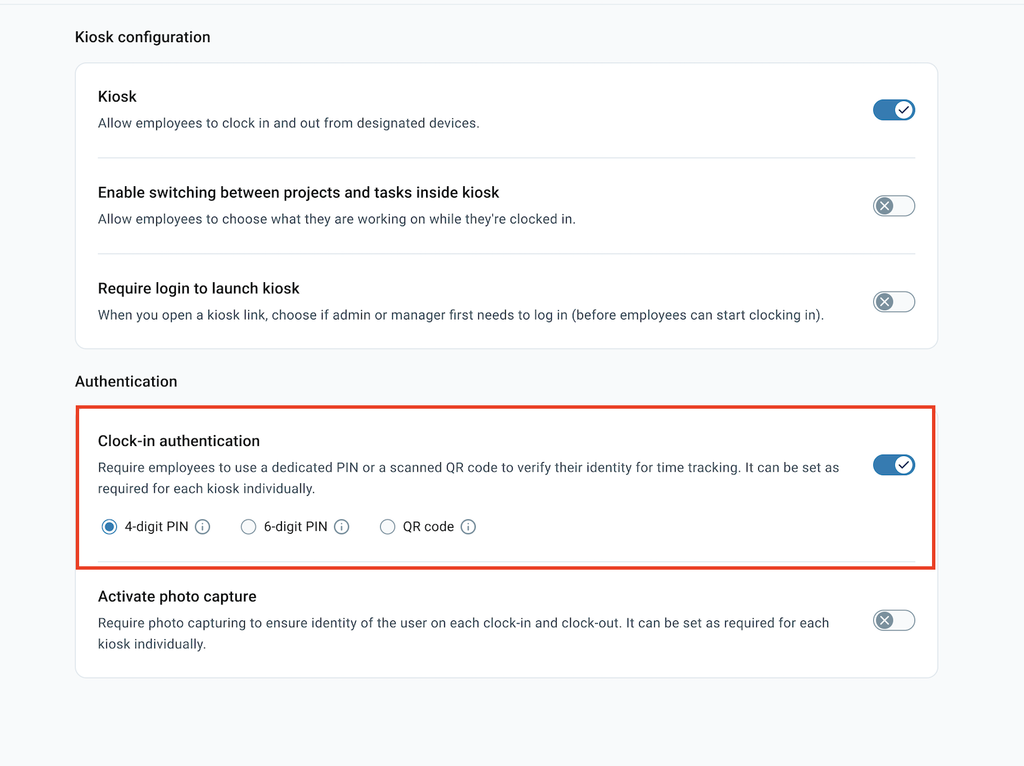
Arbeitsbereichs-Admins wählen in den Arbeitsbereichseinstellungen aus, welche Authentifizierungsmethode verwendet wird.
Um die Authentifizierungsmethode für den Kiosk einzurichten:
- Klicke auf das Drei-Punkte-Symbol neben dem Namen deines Arbeitsbereichs
- Wähle Arbeitsbereichseinstellungen
- Klicke in der Seitenleiste auf Kiosk
- Aktiviere Authentifizierung beim Einstempeln
- Wähle die Authentifizierungsmethode aus: QR-Code oder PIN (4- oder 6-stellig)
Anmelden per QR-Code #
QR-Codes machen das Einstempeln für sowohl eingeschränkte als auch reguläre Benutzer schnell und sicher.
Die Authentifizierung per QR-Code ist im Standard-Abonnement und in höheren Plänen verfügbar.
Bevor du beginnst, aktiviere die QR-Authentifizierung in den Arbeitsbereichseinstellungen.
Um dich per QR-Code einzustempeln:
- Greife auf den Kiosk zu:
- Bei Verwendung eines Kiosks vor Ort (Tablet/Mobilgerät):
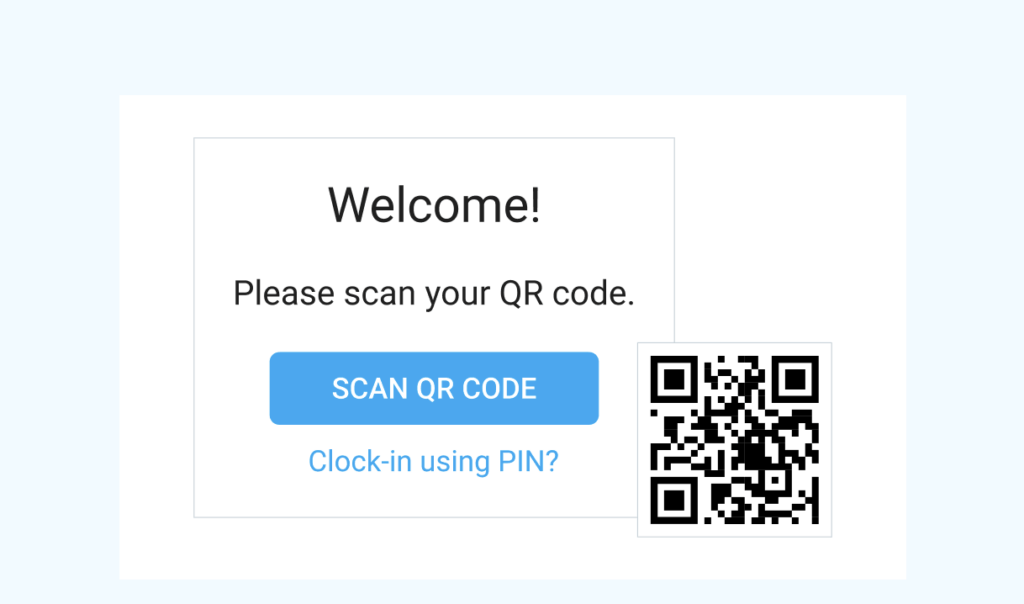
- Öffne die Clockify Kiosk-App auf dem gemeinsam genutzten Gerät. Wenn sie bereits geöffnet ist, tippe auf QR-Code scannen.
- Bei Verwendung eines Kiosks vor Ort (Tablet/Mobilgerät):
- Bei Verwendung der Website / des Kiosk-Links (Computer):
- Öffne den freigegebenen Kiosk-Link in deinem Webbrowser
2. Halte den persönlichen QR-Code bereit, den du per E-Mail erhalten hast (du kannst diesen auf deinem eigenen Smartphone anzeigen oder auf Papier ausdrucken)
3. Halte deinen QR-Code vor die Kamera des Kiosk-Geräts, um ihn zu scannen
Sobald die Kamera deinen Code erfolgreich erfasst hat, wirst du automatisch in dein Profil eingeloggt. Du kannst dich jetzt ein- und ausstempeln oder eine Pause beginnen bzw. beenden.
Was passiert, wenn ich meinen QR-Code nicht dabei habe? #
Falls du dein Smartphone vergessen, deinen ausgedruckten Code verloren hast oder die Kamera deinen QR-Code nicht scannen kann, stehen dir folgende Backup-Optionen zur Verfügung:
- Du kannst dich trotzdem manuell mit deiner persönlichen PIN einstempeln. Wähle dazu einfach dein Profil auf dem Kiosk-Bildschirm aus und gib deine zugewiesene PIN ein, um dich einzuloggen.
- Falls du dich nicht an deine persönliche PIN erinnern kannst, bitte einen Schichtleiter oder Workspace-Admin um Hilfe. Diese können dich über die universelle PIN des Kiosks (eine Master-PIN, mit der sie sich im Namen jedes Benutzers ein- und ausstempeln können) an- und abmelden.
Anmelden per PIN #
PINs ermöglichen schnellen Zugriff, ohne am Kiosk nach deinem Namen suchen zu müssen.
Die Anmeldung mit PIN ist eine kostenpflichtige Funktion, die du durch ein Upgrade deines Kontos auf einen beliebigen kostenpflichtigen Plan freischalten kannst.
Es gibt zwei Arten von PINs, die zur Authentifizierung von Kiosk-Mitgliedern verwendet werden:
- 4-stellige PIN
- 6-stellige PIN (sicherer und bietet mehr einzigartige Kombinationen)
Admins können eine der beiden Optionen auf der Ebene des Arbeitsbereichs erzwingen. Sobald dies festgelegt ist, verwenden alle Kioske denselben PIN-Typ. Danach erhalten Admins eine Datei mit den persönlichen PINs aller Kiosk-Mitglieder und verteilen diese.
Um dich per PIN einzustempeln:
- Öffne den Kiosk
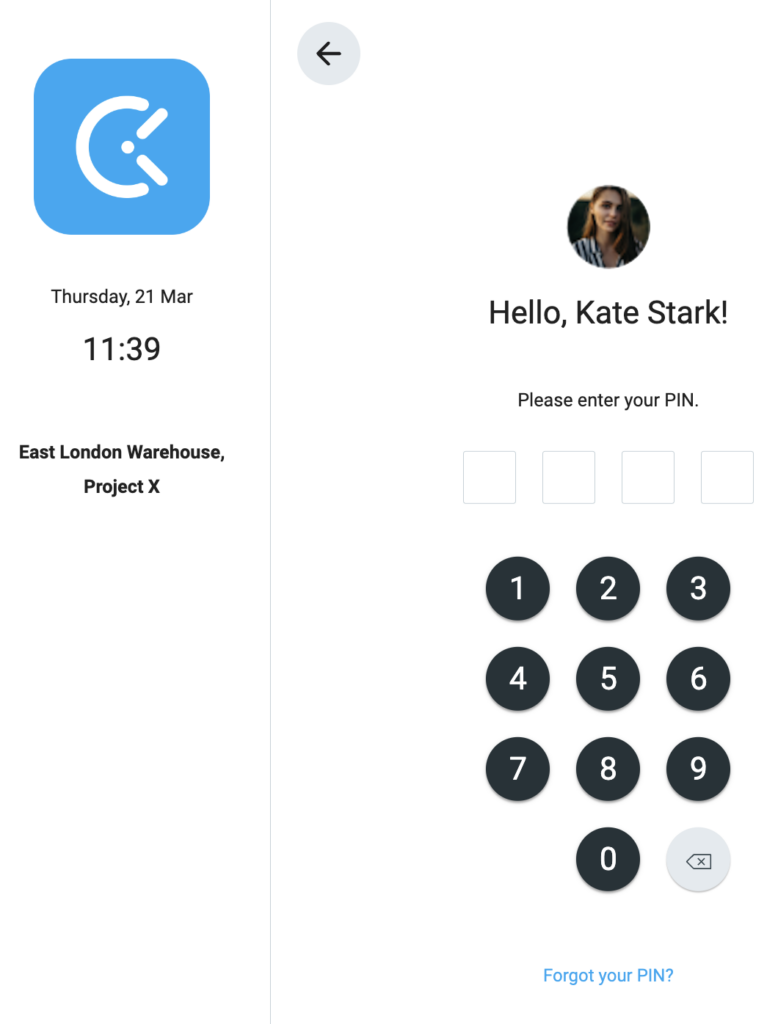
- Gib deine 4-stellige oder 6-stellige PIN ein
- Stempel ein
Nach drei fehlgeschlagenen Anmeldeversuchen solltest du deinen Manager oder Admin kontaktieren.
Fotoaufnahme #
Die Fotofunktion ist für Nutzer im Pro-Tarif und höher verfügbar.
Wenn für deinen Kiosk in deinem Arbeitsbereich die Fotoaufnahme aktiviert ist, musst du jedes Mal ein Foto machen, wenn du dich ein- oder ausstempelst sowie beim Starten oder Beenden von Pausen.
So nimmst du dein Foto auf:
1. Öffne deinen Kiosk-Link
2. Scanne deinen QR-Code, gib deine PIN ein (falls erforderlich) oder wähle deinen Benutzernamen aus der Liste aus, falls keine Authentifizierung nötig ist
3. Klicke auf Einstempeln/Ausstempeln oder Pause starten/Pause beenden
4. Zentriere dein Gesicht im Selfie-Bereich
5. Halte kurz für 3 Sekunden still, während dein Foto aufgenommen wird
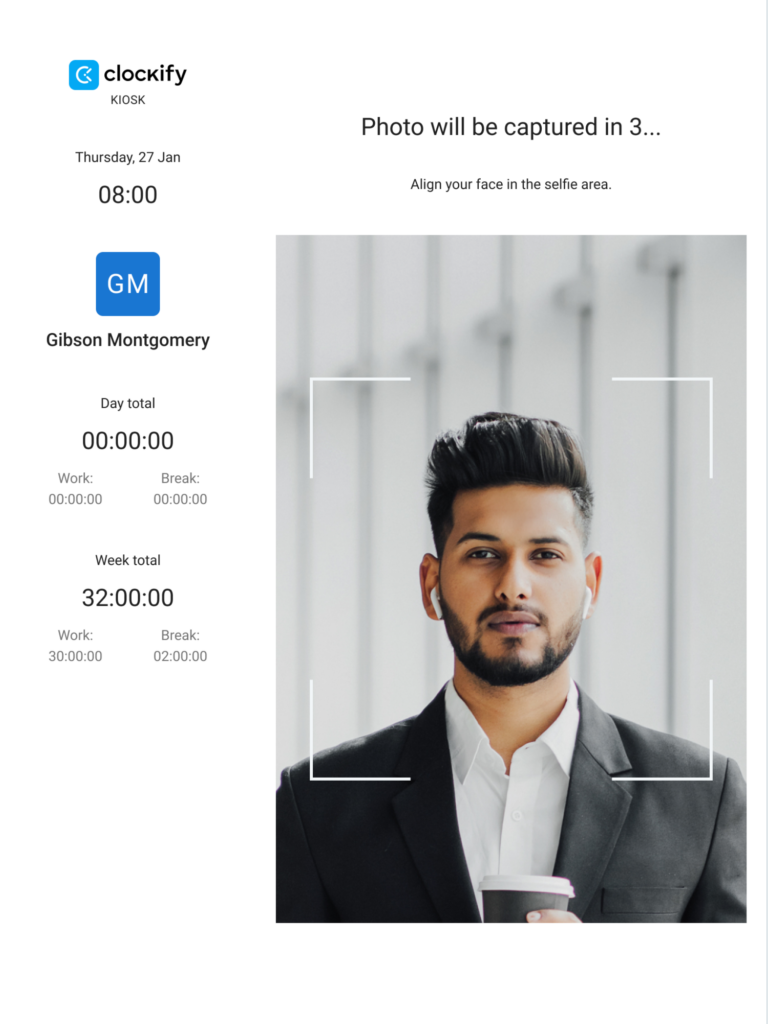
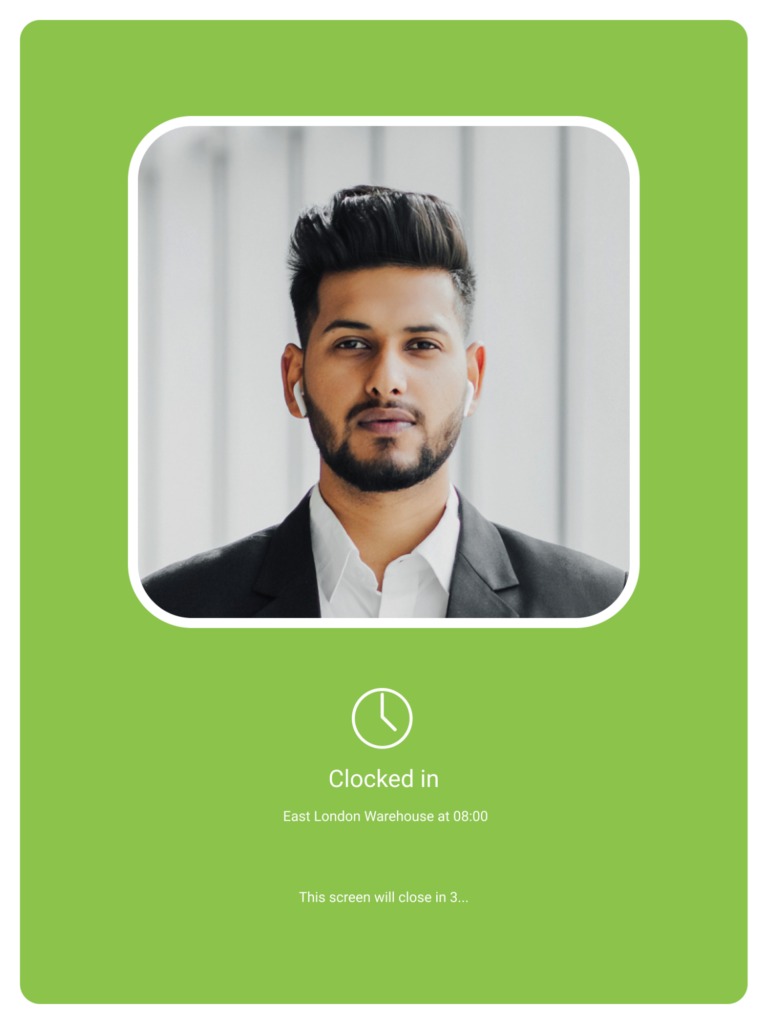
Der nächste Bildschirm sollte die Aktion bestätigen:
Kiosk-Fotos anzeigen #
So überprüfst du deine Kiosk-Fotos:
1. Gehe zu Aktivität > Kiosk-Fotos
2. Bewege den Mauszeiger über ein Foto und klicke auf Anzeigen
Die Fotos werden pro Tag gruppiert. Wenn du ein einzelnes Foto anzeigst, siehst du die Uhrzeit der Aufnahme und den Status (Einstempeln/Ausstempeln oder Pause starten/beenden).
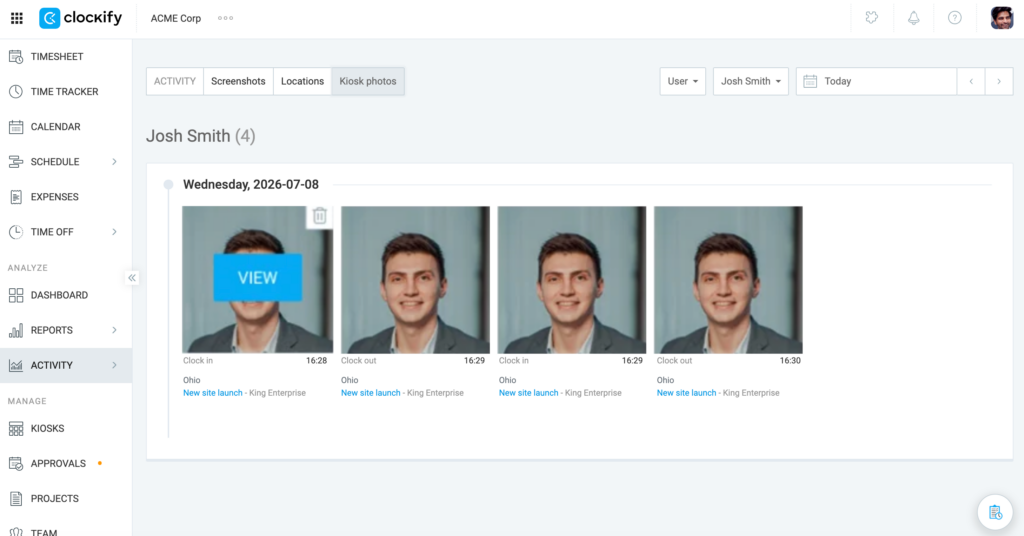
Um ein Foto zu löschen, klicke auf das Mülleimer-Symbol in der oberen rechten Ecke des Fotos und klicke im Bestätigungsfenster auf Löschen.
Fallback-Optionen #
Falls das Scannen deines QR-Codes fehlschlägt, kannst du dich mit deiner persönlichen 6-stelligen PIN einstempeln. Wenn du dich immer noch nicht einstempeln kannst, bitte einen Administrator, dich über die universelle PIN des Kiosks einzuloggen.
Der Admin kann alle QR-Codes und PINs einsehen und herunterladen, auch wenn die Kioske offline sind. Sie können die Authentifizierungsmethoden jederzeit wechseln.
Persönliche vs. Universelle PIN #
Jeder Kiosk hat eine Universal-PIN, mit der du dich für jeden Mitarbeiter (außer Besitzer/Admin) ein- und ausstempeln kannst.
Beispiel: Gib diese PIN einem Schichtleiter, damit er bei Bedarf ein Team einstempeln kann.
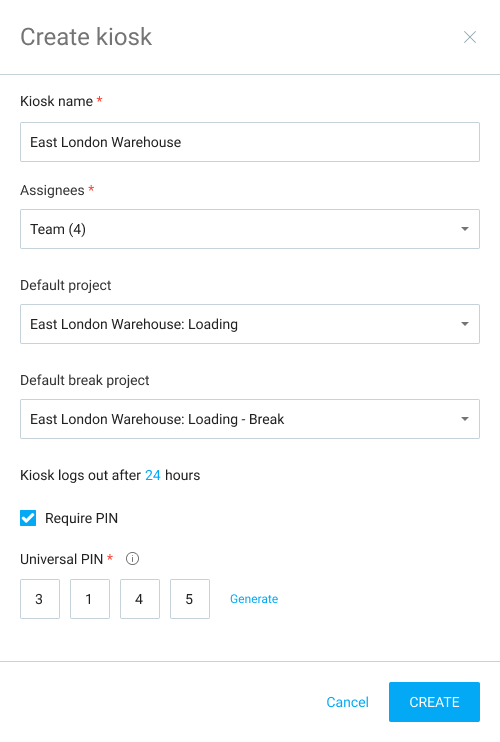
Jeder Mitarbeiter erhält automatisch seinen eigenen persönlichen PIN-Code, sobald er Mitglied wird.
Um sich einzustempeln, wählt ein Teammitglied einfach sein Profil am Kiosk aus und gibt seinen persönlichen PIN-Code ein.
Admins können beim Einstempeln keine universelle PIN verwenden, sondern müssen immer ihre persönliche PIN nutzen.
PINs und QR-Codes verwalten #
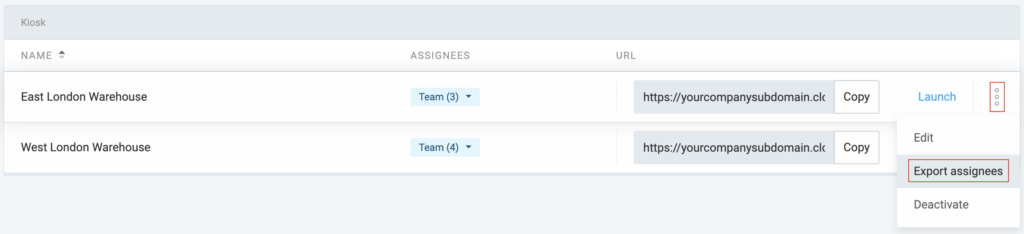
Um die PINs oder QR-Codes für alle Benutzer an einem bestimmten Kiosk einzusehen:
- Gehe zur Seite Kioske
- Klicke auf die drei Punkte neben einem Kiosk
- Klicke auf Zugewiesene exportieren
- Öffne die CSV-Datei, um alle dem Kiosk zugewiesenen Personen und deren PIN-Codes anzusehen
Persönlichen PIN-Code eines Mitglieds bearbeiten:
- Gehe zur Teamseite
- Klicke auf die drei Punkte neben der Person
- Klicke auf PIN/QR-Code bearbeiten
- Klicke auf Generieren / Neu generieren
- Klicke auf Speichern
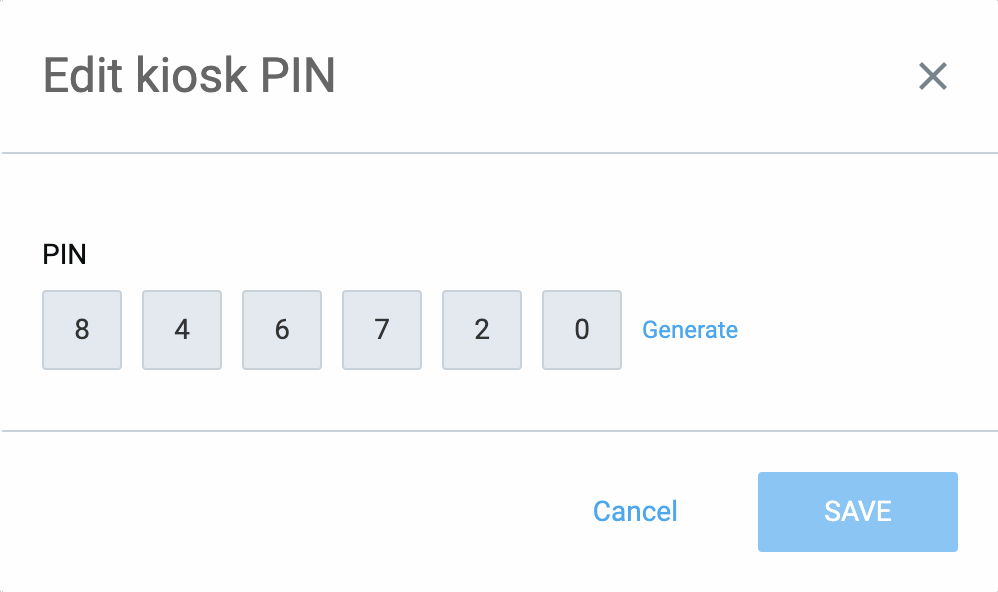
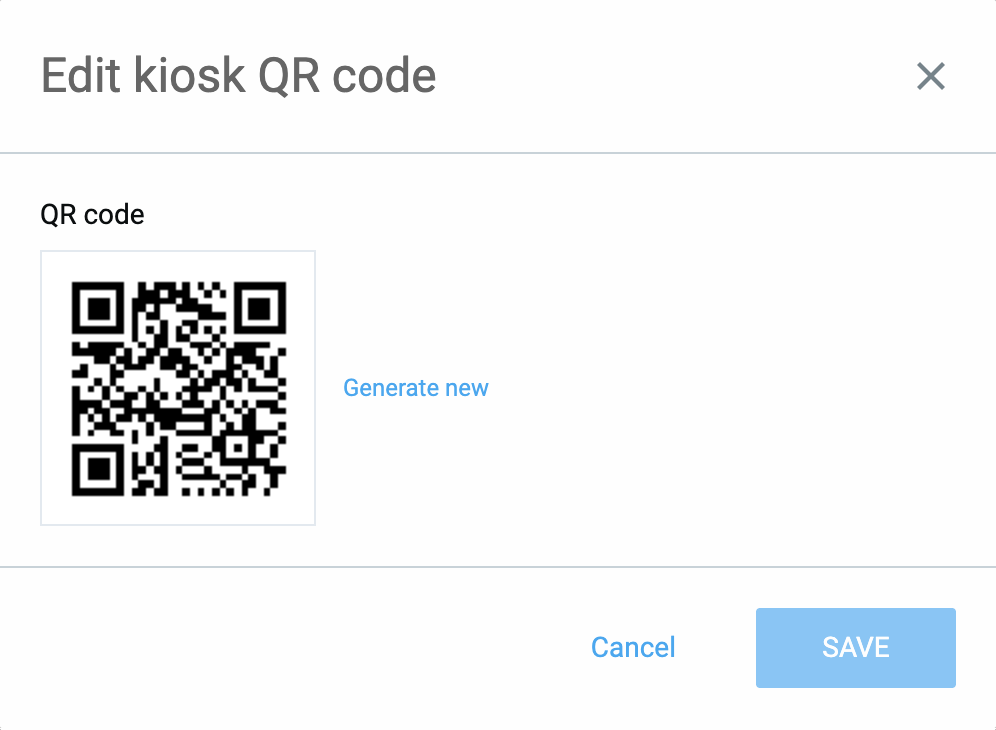
Um universale PIN-Codes für einen Kiosk zu bearbeiten, solltest du:
- Gehe zur Seite Kioske
- Klicke auf die drei Punkte neben einem Kiosk
- Stelle sicher, dass Authentifizierung erforderlich aktiviert ist
- Klicke auf Generieren und speichere die Änderungen
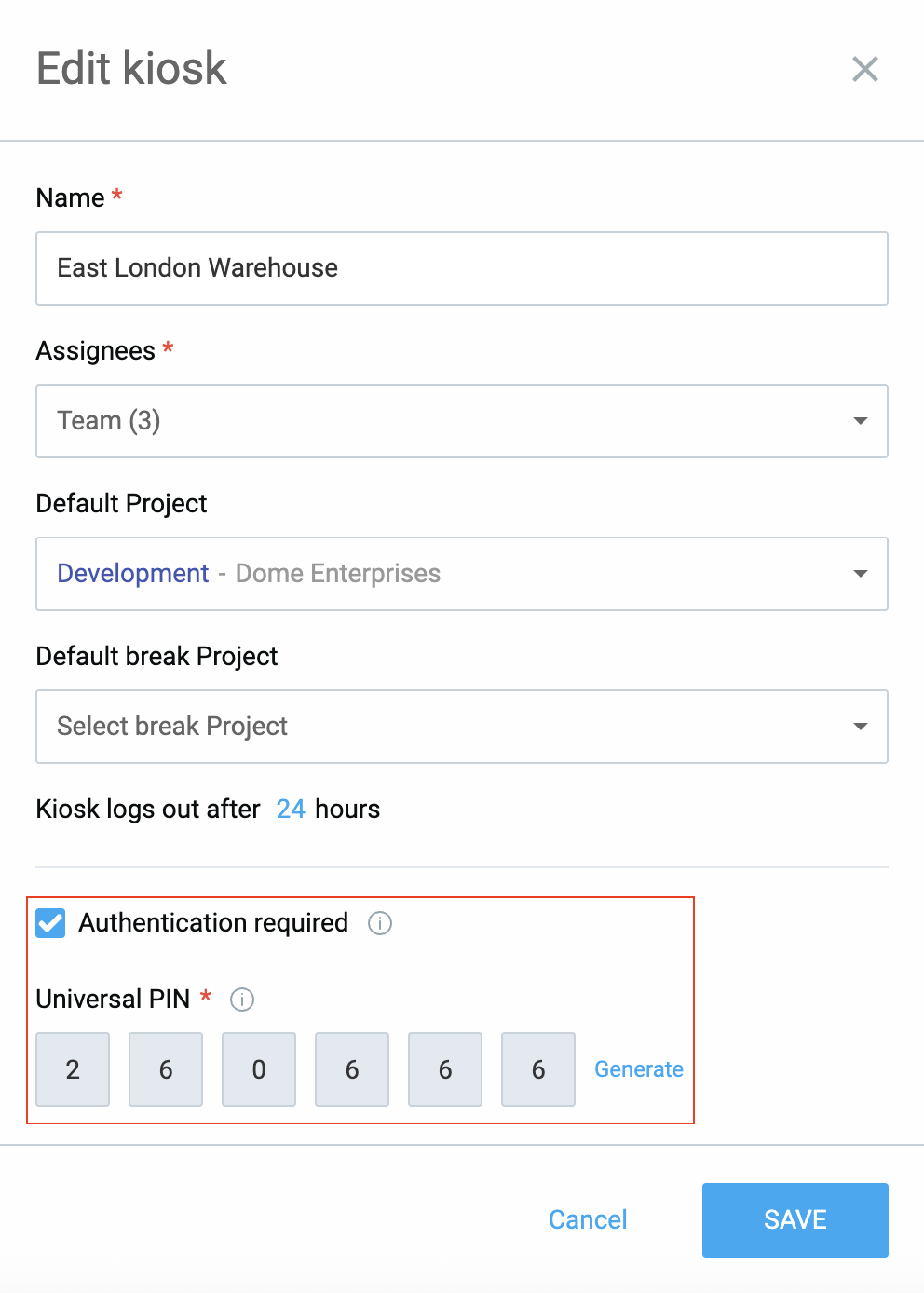
PIN vergessen #
Falls du deine PIN vergessen hast, kannst du auf den "Deine PIN vergessen?"-Link klicken.
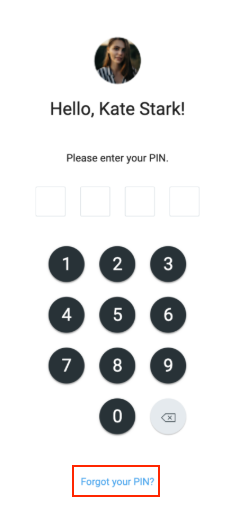
Du solltest die Aktion bestätigen und Admins erhalten eine E-Mail, um dir helfen zu können.
PIN-Code-Anforderungen #
- Ein regulärer Benutzer kann nicht den gleichen PIN-Code haben, wie ein Admin.
- Jeder Kiosk hat einen eindeutigen Universal-PIN-Code.
- Ein Admin kann nicht den gleichen PIN-Code und Universal-PIN-Code des Kiosks haben.
- Kein PIN-Code darf dieselben vier/sechs Ziffern enthalten (z. B. 111111).
QR-Codes per Massenversand senden #
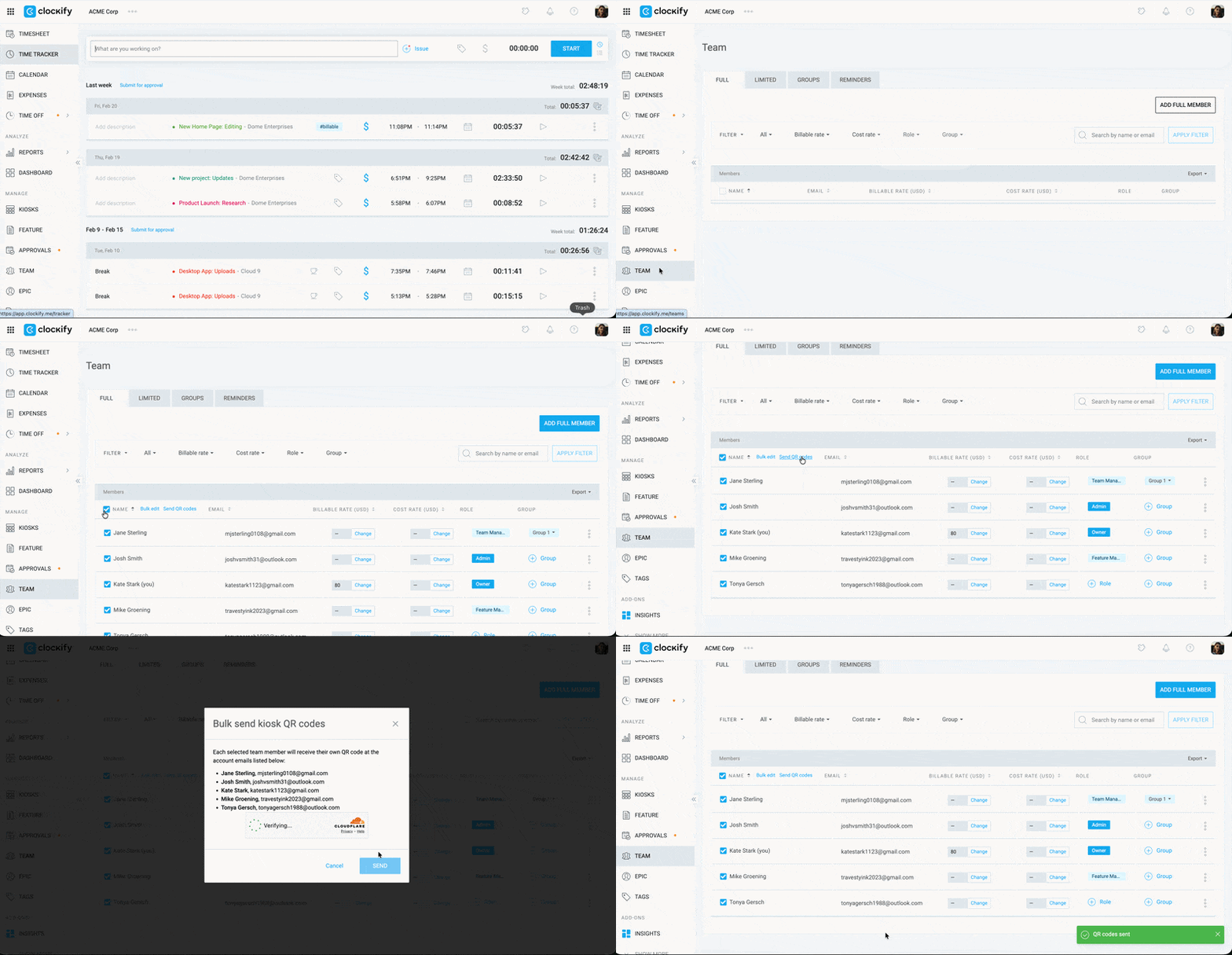
Nutze die Massenversand-Funktion, um QR-Codes an mehrere Voll-Teammitglieder zu senden, die sich über den Kiosk anmelden.
Um QR-Codes an mehrere Teammitglieder zu senden:
- Gehe zur Seite Team
- Aktiviere das Kontrollkästchen neben den Namen der Teammitglieder, an die du QR-Codes senden möchtest
- Klicke auf QR-Codes senden
- Klicke im Bestätigungsfenster auf Senden
Aktiviere das Kontrollkästchen in der oberen rechten Ecke (neben Name), um alle Teammitglieder auszuwählen.
Auch wichtig zu beachten: #
- Admins können neue PINs für Benutzer generieren
- Admins können die PIN eines Mitarbeiters nicht manuell bearbeiten
- Wenn du einen Kiosk deaktivierst/reaktivierst, bleiben die bestehenden PINs gleich
- Wenn du die Authentifizierungsmethode wechselst, erhältst du eine neue PIN für die neue Methode
- Das Zurückschalten auf eine vorherige Authentifizierungsmethode stellt deine vorherige PIN für diese Methode wieder her.