Zeiteinträge für dein Team gesammelt bearbeiten
Die Funktion Massenbearbeitung hilft Managern und Administratoren dabei, mehrere Zeiteinträge oder Arbeitszeittabellen schnell und gleichzeitig zu aktualisieren, zu übermitteln oder zu genehmigen. Dies sorgt für eine präzise und konsistente Zeiterfassung in Ihrem gesamten Team.
Was ist Massenbearbeitung? #
Die Massenbearbeitung ermöglicht es dir, mehrere Zeiteinträge gleichzeitig zu aktualisieren. Dies spart erheblich Zeit, wenn Details wie Projekte, Aufgaben oder Tags angepasst werden müssen.
Zugriffsberechtigungen #
Die Berechtigungen für die Nutzung der Massenbearbeitungs-Funktionen variieren je nach Benutzerrolle innerhalb der Plattform, wie in der folgenden Tabelle im Detail aufgeführt:
| Benutzerrolle | Timer-Seite | Arbeitszeittabelle-Seite |
| Admin | Hat vollen Zugriff auf die Massenbearbeitung und kann alle Einträge löschen. | Hat vollen Zugriff auf Masseneinreichung , Genehmigung und Ablehnung. |
| Teammanager | Kann Zeiteinträge für die zugewiesenen Teammitglieder gesammelt bearbeiten und löschen. | Kann Arbeitszeittabellen für die eigenen Teammitglieder gesammelt übermitteln, genehmigen und ablehnen. |
| Projektmanager | Kann Zeiteinträge nur für eigene Zeiteinträge gesammelt bearbeiten und löschen. | Massenbearbeitung nicht verfügbar |
| Regulärer Benutzer | Kann eigene Zeiteinträge gesammelt bearbeiten und löschen (solange diese nicht gesperrt oder genehmigt sind). | Massenbearbeitung nicht verfügbar |
Einträge gesammelt bearbeiten #
Es gibt zwei Hauptwege für die Massenbearbeitung von Zeiteinträgen, abhängig davon, ob du Einträge für einen einzelnen Tag oder über einen größeren Zeitraum hinweg bearbeitest.
Bearbeiten über die Timer-Seite #
Diese Methode ist ideal für schnelle Korrekturen an den Einträgen eines bestimmten Nutzers für einen einzelnen Tag.
- Gehe zur Seite Timer
- Suche die Liste der Zeiteinträge für den Nutzer und den Tag heraus, den du bearbeiten möchtest
- Klicke auf das Symbol für Massenbearbeitung neben der Gesamtzahl der erfassten Stunden für diesen spezifischen Tag.
- Markiere die Kontrollkästchen neben den Zeiteinträgen, die du bearbeiten möchtest
- Klicke auf Massenbearbeitung
- Bearbeite Einträge im Fenster Massenbearbeitung:
- Beschreibung
- Projekt
- Tags
- Abrechenbar
- Zeit
- Datum
7. Klicke auf Speichern, um diese Änderungen zu übernehmen
Auf der Seite Timer kannst du nur deine eigenen Einträge bearbeiten.
Bearbeiten über den detaillierten Bericht #
Dies ist die effizienteste Methode, um Änderungen für mehrere Nutzer, Projekte oder Zeiträume gleichzeitig vorzunehmen.
- Go to Report > Detailed Report
- Filtere deine Daten nach Projekt, Kunde, Nutzer, Zeitraum oder anderen Kriterien, um die zu ändernden Einträge einzugrenzen
- Markiere die Kontrollkästchen der Zeiteinträge, die du bearbeiten möchtest
- Klicke auf die Schaltfläche Massenbearbeitung, die oberhalb der Tabelle erscheint
- Bearbeite die entsprechenden Felder im Fenster für die Massenbearbeitung
- Klicke auf Speichern, um die Aktualisierungen für alle ausgewählten Zeiteinträge zu übernehmen
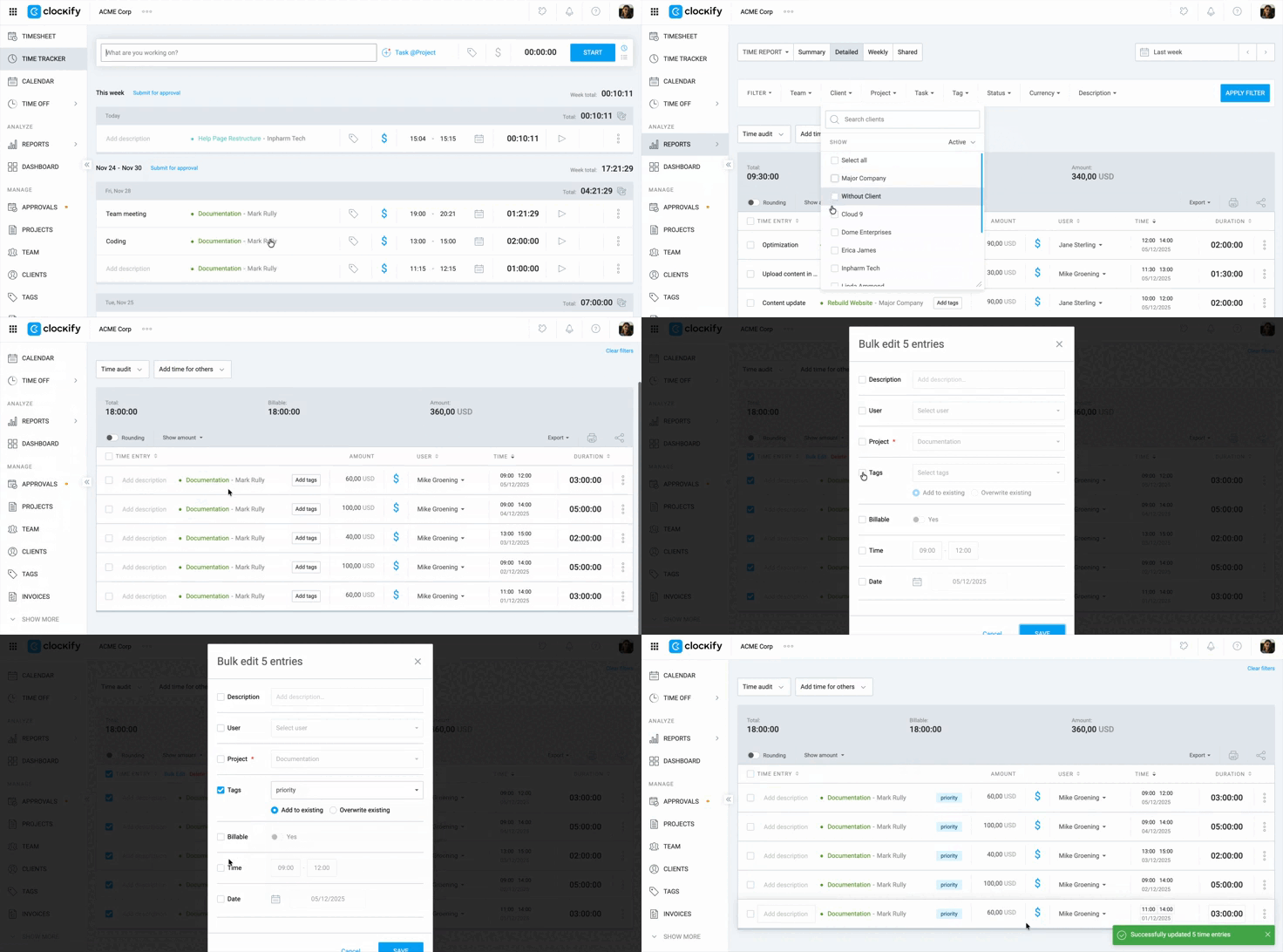
Das Filtern deiner Daten nach Projekt, Nutzer oder Datum vor der Auswahl von Einträgen für die Massenbearbeitung hilft, versehentliche Änderungen an irrelevanten Einträgen zu vermeiden.
Tags für Massenbearbeitung verwenden #
1. Markiere die Zeiteinträge, die du bearbeiten möchtest
2. Gib im Dialogfenster das neue Tag in das Feld Tags ein
3. Wähle aus, wie du das Tag hinzufügen möchtest:
- Zu bestehenden hinzufügen – Weist das neue Tag zusätzlich zu bereits vorhandenen Tags der ausgewählten Einträge zu
- Bestehende überschreiben – Ersetzt die vorhandenen Tags durch den neuen

Zeiteinträge gesammelt löschen #
Um mehrere Einträge gleichzeitig zu entfernen:
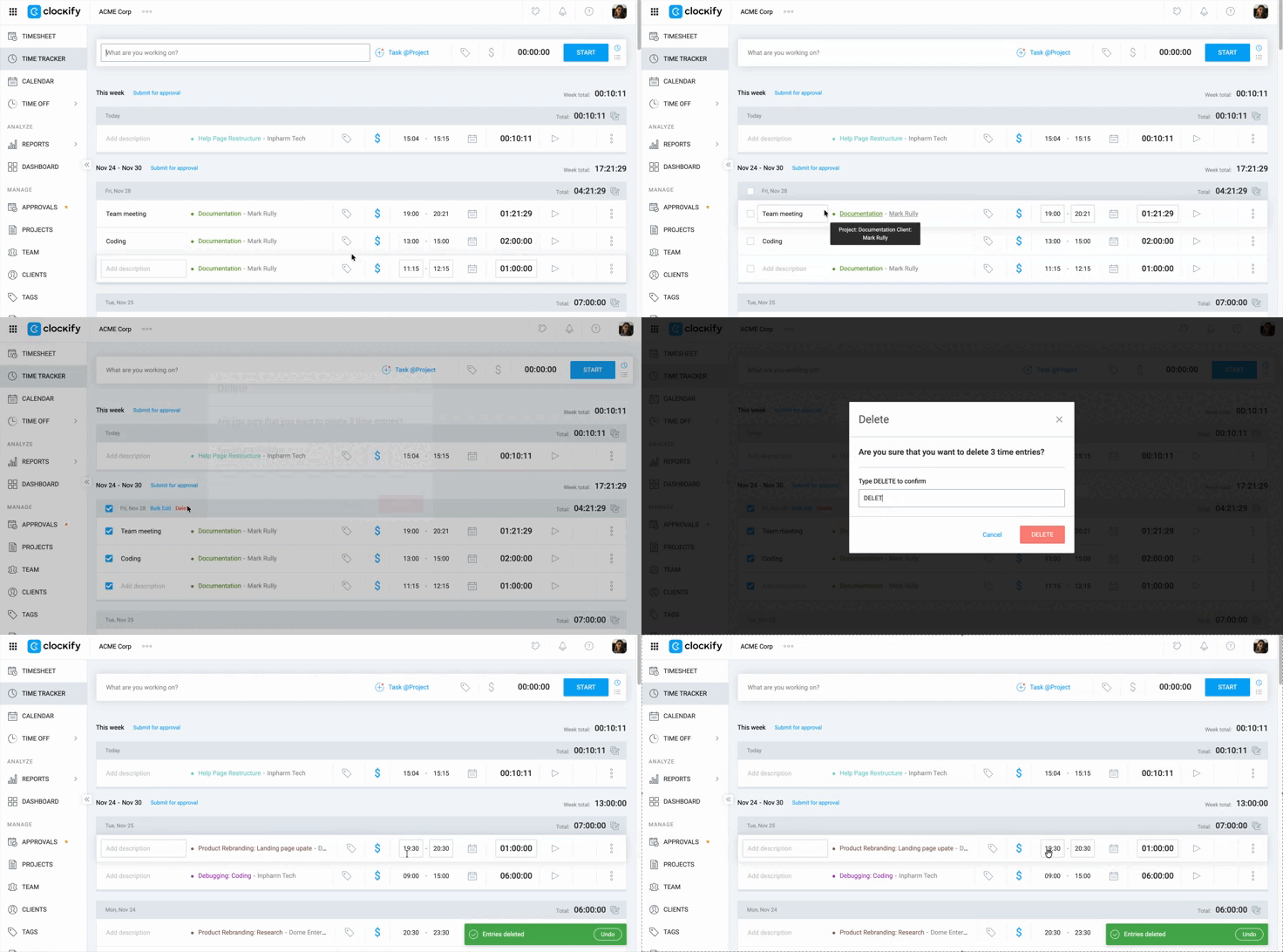
- Markiere die Kontrollkästchen neben den Zeiteinträgen, die du löschen möchtest, oder nutze das Symbol für Massenbearbeitung, um eine Gruppe von Einträgen zu löschen
- Klicke auf Löschen
- Tippe DELETE (oder den entsprechenden Bestätigungsbegriff) in das Pop-up-Fenster ein und klicke auf Löschen, um die Aktion zu bestätigen. Es erscheint eine Nachricht, die bestätigt, dass die Einträge gelöscht wurden
Löschvorgang rückgängig machen #
Um eine Löschung wiederherzustellen, klicke nach dem Löschen der Einträge auf die Schaltfläche Rückgängig in der (grün hinterlegten) Pop-up-Nachricht.
Du hast etwa 20 Sekunden Zeit, um auf „Rückgängig“ zu klicken und den Eintrag mit all seinen ursprünglichen Daten wiederherzustellen.
Arbeitszeittabellen für andere gesammelt übermitteln #
Nur Team-Manager und Admins können Arbeitszeittabellen gesammelt übermitteln und genehmigen.
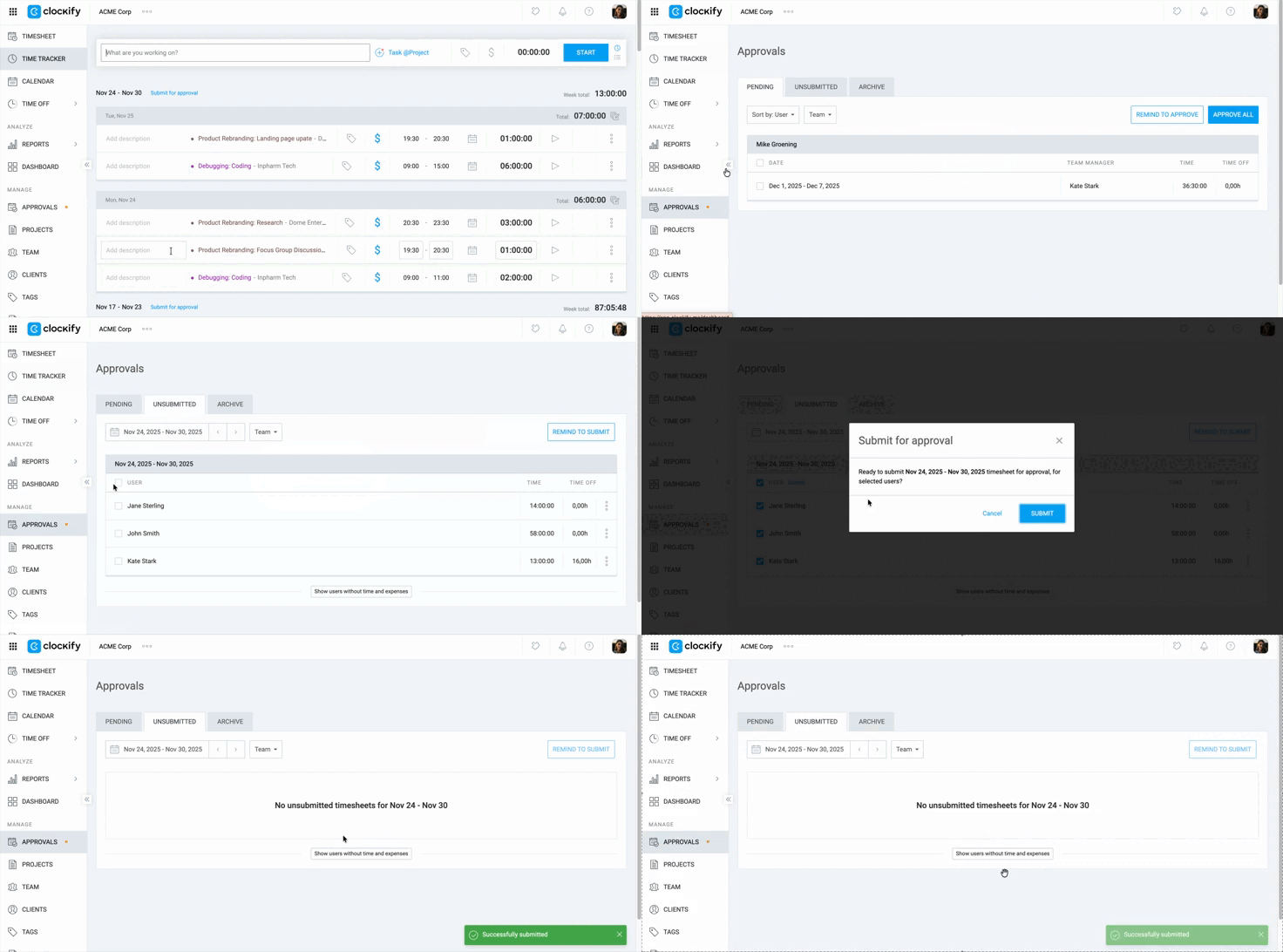
- Gehe zur Seite Genehmigung
- Klicke auf Nicht gesendet
- Markiere die Kontrollkästchen, um die Arbeitszeittabellen auszuwählen, die du übermitteln möchtest
- Klicke auf Einreichen
Arbeitszeittabellen gesammelt genehmigen oder ablehnen #
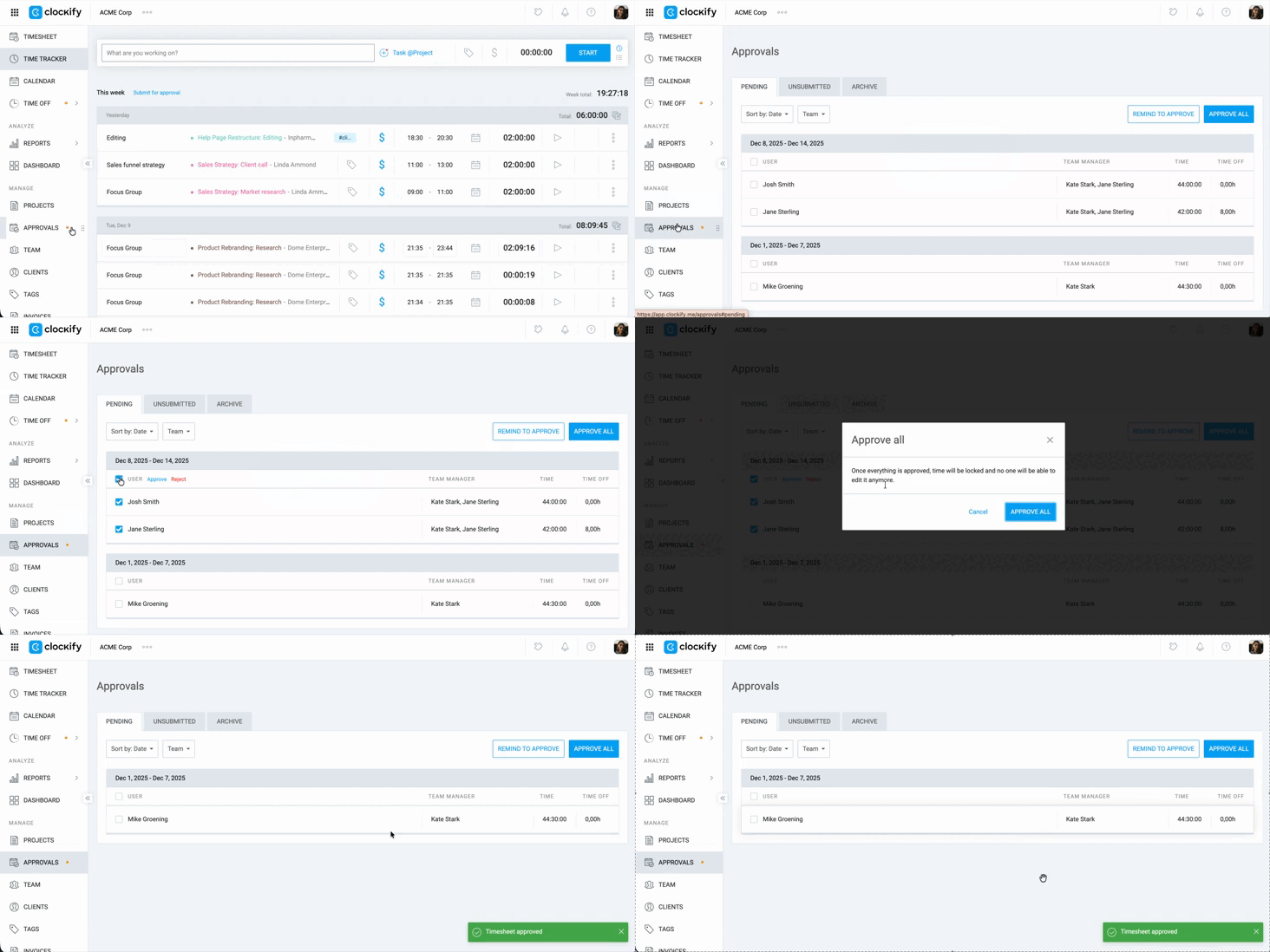
- Gehe zur Seite Genehmigung
- Wähle den Tab Ausstehend aus
- Markiere die Kontrollkästchen, um mehrere ausstehende Arbeitszeittabellen auszuwählen
- Klicke auf die Schaltfläche Genehmigen oder Ablehnen, die daraufhin erscheint
- Klicke zur Bestätigung auf Alle genehmigen oder Alle ablehnen
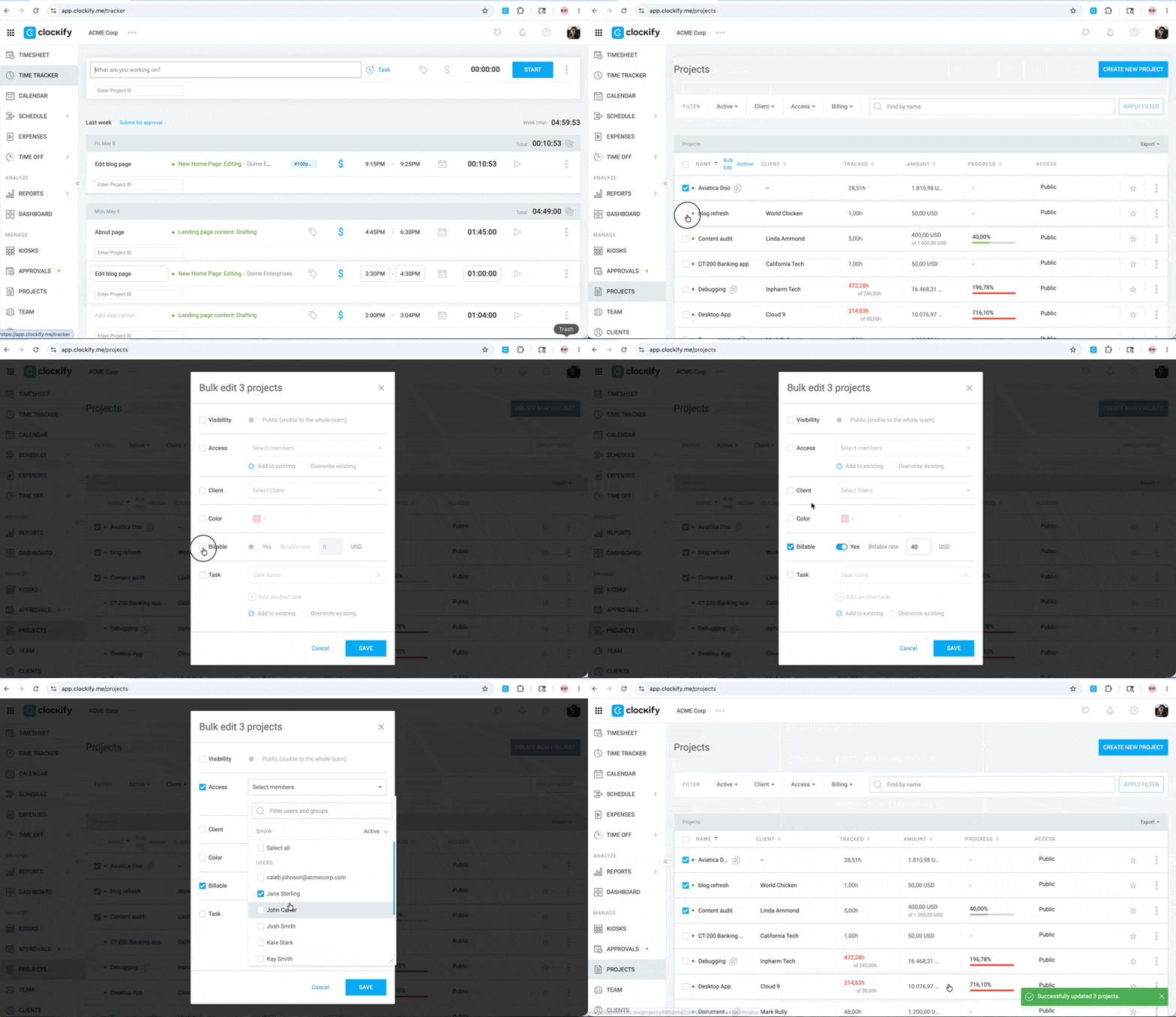
Projekte und Aufgaben gesammelt ändern #
Um Projekte und Aufgaben gesammelt zu bearbeiten:
- Gehe zu Projekte
- Aktiviere die Kontrollkästchen neben den Projekten, die du bearbeiten möchtest
- Klicke oben in der Projektliste auf Massenbearbeitung
- Aktiviere das Kontrollkästchen neben der Einstellung, die du ändern möchtest:
- Sichtbarkeit (Öffentlich/Privat)
- Zugriff: Wähle Teammitglieder aus, die Zugriff auf das Projekt haben sollen
- Zu bestehenden hinzufügen: Füge Mitglieder zur aktuellen Liste der Zugriffsberechtigungen hinzu
- Bestehende überschreiben: Gewähre nur den neu ausgewählten Mitgliedern Zugriff und entferne alle bisherigen
- Kunde: Ordne die Projekte einem Kunden zu
- Farbe
- Abrechenbar (Ja/Nein)/Stundensatz
- Aufgabe: Füge den Projekten eine spezifische Aufgabe hinzu
- Zu bestehenden hinzufügen: Füge die Aufgabe zu den bereits in den Projekten vorhandenen Aufgaben hinzu
- Bestehende überschreiben: Füge die neue Aufgabe hinzu und lösche alle anderen Aufgaben in den Projekten (erfordert einen zusätzlichen Bestätigungsschritt)
5. Nimm die gewünschten Änderungen vor
6. Klicke auf Speichern
Das Überschreiben von Aufgaben mit einer neuen Aufgabe löscht alle aktiven und abgeschlossenen Aufgaben in den betreffenden Projekten.