Pomodoro, détection d’inactivité, rappels
Optimisez la précision de votre suivi du temps et analysez votre utilisation réelle du temps grâce à des fonctionnalités telles que la détection des temps d’inactivité, la technique Pomodoro, l’enregistrement automatique des heures d’arrivée et de départ, et les rappels.
Disponibilité des fonctionnalités #
La détection d’inactivité, les rappels et le minuteur Pomodoro sont des fonctionnalités disponibles dans les versions suivantes de Clockify :
- Extension de navigateur (Chrome/Firefox)
- Appli de bureau pour Mac
- Appli de bureau pour Windows
Voici une liste des fonctionnalités et des versions de l’appli dans lesquelles elles sont disponibles :
| Fonctionnalité | Mac | Windows | Extension de navigateur |
| Minuteur Pomodoro | ✔ | ✔ | ✔ |
| Pause | ✔ | ✔ | ✔ |
| Détection du temps d’inactivité | ✔ | ✔ | ✔ |
| Pause longue | ✘ | ✘ | ✔ |
| Rappel | ✔ | ✔ | ✔ |
| Arrêt automatique | ✔ | ✘ | ✔ |
| Démarrage automatique | ✔ | ✘ | ✔ |
| Mode Concentration | ✘ | ✘ | ✔ |
Impossible de voir les notifications ? #
Si vous ne voyez pas les notifications pour le temps d’inactivité, les rappels ou Pomodoro, vous devez autoriser le navigateur à envoyer des notifications.
Pour activer les notifications sur Windows :
- Allez dans Notifications et actions
- Activez l’option Obtenir des notifications des applis et des émetteurs
- Assurez-vous que votre navigateur (Chrome ou Firefox) dans la liste des applications est également réglé sur ON
- Activez les notifications de Clockify dans Chrome
Détection d’inactivité #
Clockify peut détecter si vous laissez accidentellement un minuteur en marche lorsque vous quittez votre bureau, et vous permet de supprimer le temps d’inactivité afin que vos feuilles de temps restent précises.
La détection d’inactivité est un outil d’autogestion de la productivité. Les données restent strictement confidentielles sur votre ordinateur, inaccessibles aux autres membres de l’espace de travail, y compris les administrateurs.
Comment fonctionne la détection d’inactivité #
Si aucun mouvement de souris ou frappe n’est détecté pendant X minutes, le minuteur passe en mode inactif, continuant à fonctionner mais marquant ces minutes comme inactives. Une fois l’activité reprise, une notification demandera quoi faire de ce temps d’inactivité.
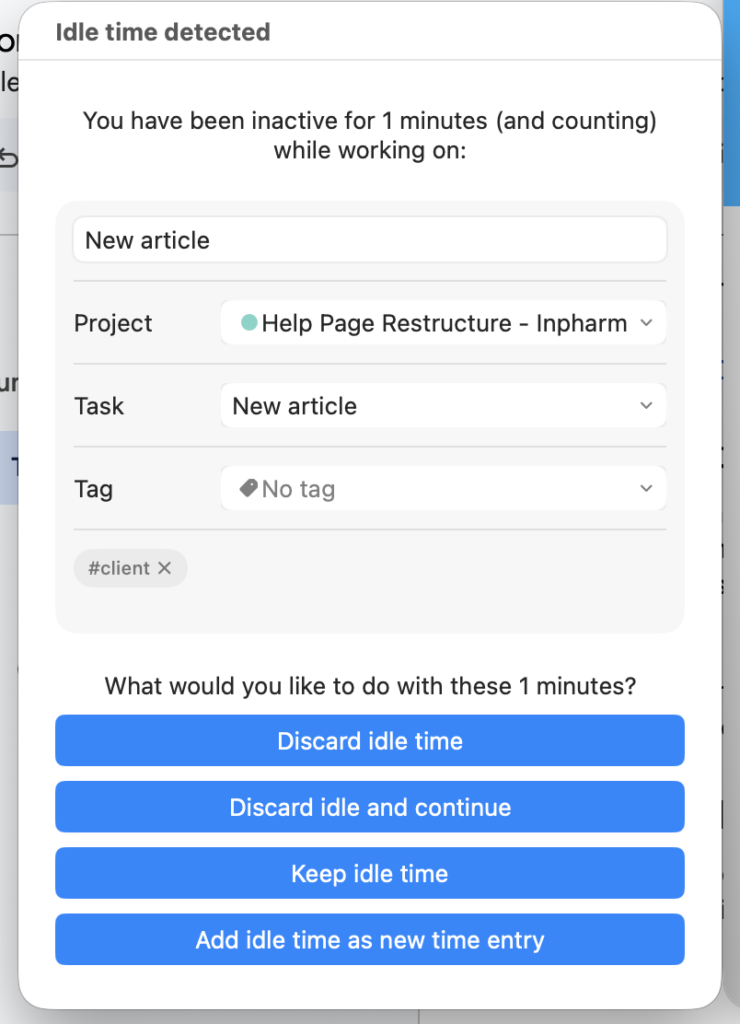
Vous pouvez choisir de :
- Rejeter le temps d’inactivité – Le minuteur sera arrêté et le temps d’inactivité détecté sera éliminé.
- Rejeter et continuer – Le minuteur en cours sera arrêté, le temps d’inactivité détecté sera supprimé et un nouveau minuteur démarrera immédiatement pour la même activité.
- Maintenir le temps d’inactivité – Le minuteur continuera à fonctionner tel quel. Pour conserver le temps d’inactivité dans l’extension Chrome, il suffit de fermer ou de rejeter la notification.
Ce qui sera rejeté : Si vous avez été actif pendant 1h, inactif pendant 30m, et que le temps d’inactivité se déclenche après 15m, Clockify rejettera 30m (le temps nécessaire pour que le temps d’inactivité se déclenche et le temps suivant), vous laissant avec une saisie de 1h.
Si vous vous êtes éloigné de l’ordinateur mais que vous avez arrêté le minuteur via un autre appareil entre-temps, la fenêtre contextuelle de détection d’inactivité n’apparaîtra pas.
La détection d’inactivité ne fait pas la distinction entre un mouvement accidentel de la souris et une activité normale. Ainsi, si votre bureau est accidentellement heurté en votre absence, le mouvement sera enregistré comme une activité normale par le système de détection.
Consultez ces liens pour en savoir plus sur la configuration de la détection d’inactivité :
La détection d’inactivité n’est pas disponible dans la version de Clockify pour Mac téléchargée depuis l’App Store. Pour accéder à cette fonctionnalité, veuillez télécharger la version dotée de la détection d’inactivité.
Minuteur Pomodoro #
La technique de productivité Pomodoro consiste à alterner des périodes de travail intensif de 25 minutes avec de courtes pauses de 5 minutes. Après avoir complété quatre de ces cycles, une pause plus longue, de 15 à 30 minutes, est recommandée.
Si vous avez recours à notre extension de navigateur ou à l’appli de bureau dédiée (Windows ou Mac), le minuteur Pomodoro peut vous envoyer des notifications. Cela vous permet d’être averti lorsqu’il est temps de prendre la courte pause que vous avez programmée.
Activer le minuteur Pomodoro dans l’extension #
- Cliquez sur l’icône Clockify
- Cliquez sur l’icône en forme de hamburger et sélectionnez Paramètres
- Cochez la case à côté de Activer le minuteur Pomodoro
- Modifiez la durée pour les paramètres suivants :
- Intervalle de temps – La durée de votre période de travail concentré
- Courte pause – Une pause de quelques minutes qui s’enclenche après un intervalle de temps
- Longue pause – Une période de repos prolongée (généralement de 15 à 30 minutes)
- Longue pause commence après – Le nombre d’intervalles de travail à effectuer avant que le système ne propose une longue pause plutôt qu’une courte pause
Pour que la fonction « Longue pause » fonctionne, utilisez la fenêtre contextuelle de notification pour démarrer et arrêter le minuteur. Si vous l’arrêtez manuellement, le minuteur de la « Courte pause » se réinitialise.
Mode Concentration #
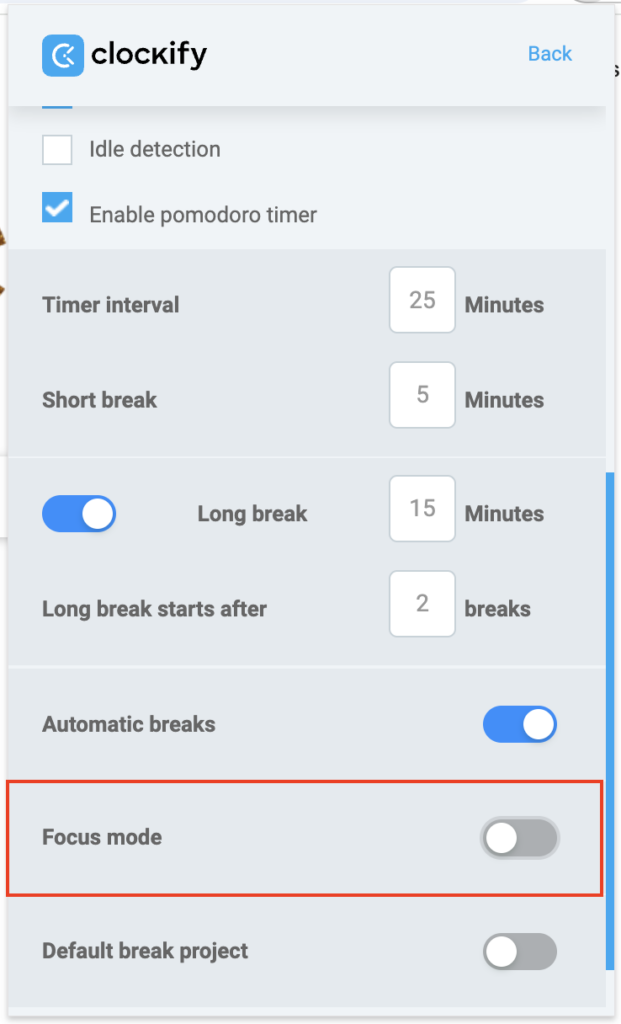
Utilisez le mode Concentration pour masquer votre journal de temps et n’afficher que le temps restant pour votre session de travail en cours. Une fois activé, ce mode masque votre historique d’activité et vos chronomètres récents, pour n’afficher que le chronomètre actif et le projet sur lequel vous travaillez actuellement.
Pour activer le mode Concentration :
1. Cliquez sur les trois points
2. Accédez aux Paramètres
3. Activez le mode Concentration
Activer Pomodoro sur Mac #
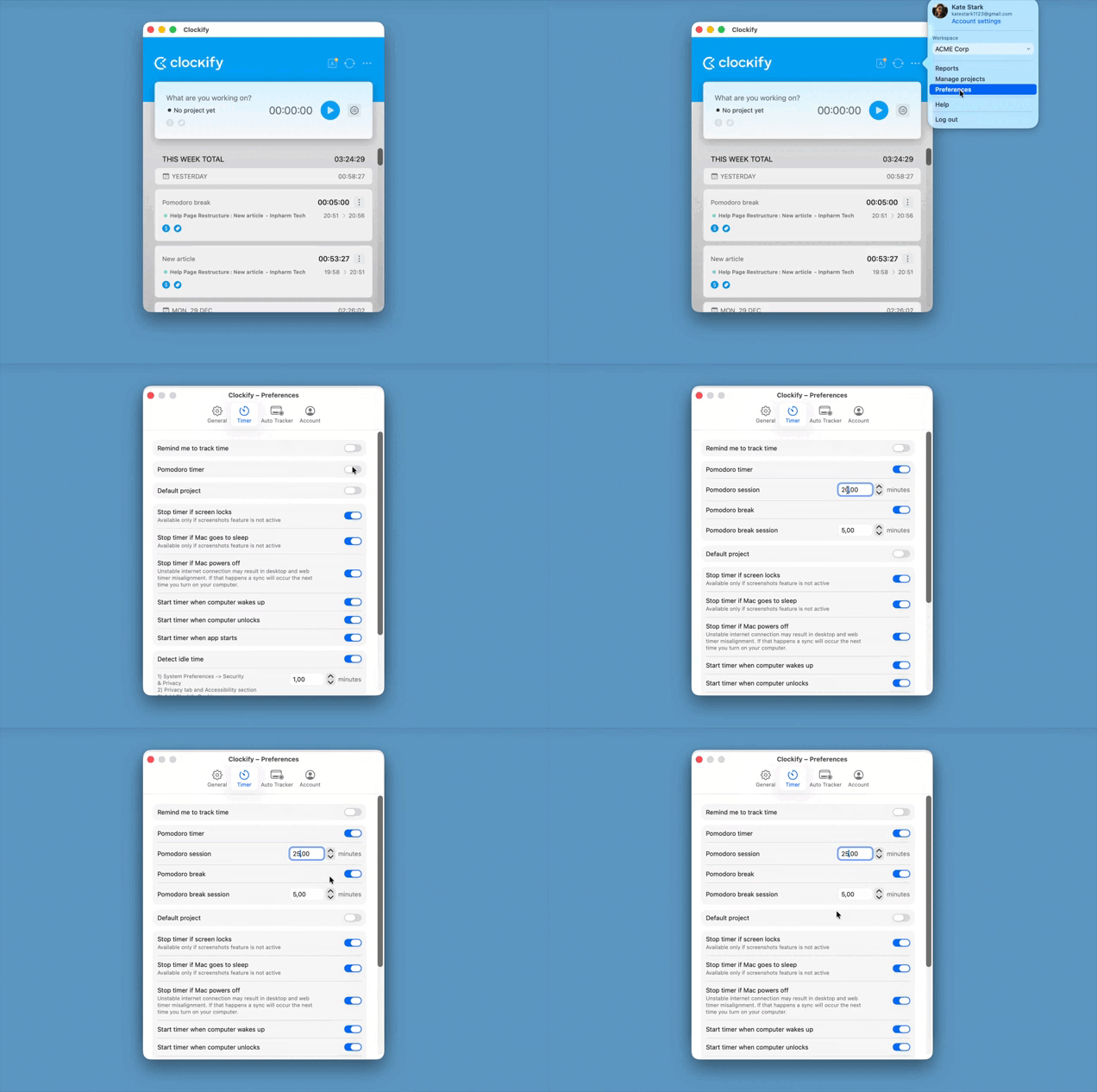
1. Cliquez sur les trois points et sélectionnez Préférences
2. Cliquez sur l’onglet Minuteur
3. Activez l’option Minuteur Pomodoro
4. Définissez la durée en minutes avant que le minuteur ne s'arrête
5. Activez la pause Pomodoro (facultatif)
6. Définissez la durée de la pause en minutes (facultatif)
Activer Pomodoro sur Windows #
1. Cliquez sur les trois points dans le coin supérieur droit de la fenêtre de l’appli
2. Sélectionnez Préférences
3. Cliquez sur l’onglet Suivi du temps
4. Activez le minuteur Pomodoro
5. Définissez la durée du minuteur Pomodoro et de la courte pause
Une fois cette petite pause terminée, vous pouvez reprendre immédiatement l’activité que vous étiez en train de suivre ou commencer à chronométrer une nouvelle tâche.
Démarrage et arrêt automatique #
Le minuteur peut être configuré pour démarrer et s’arrêter automatiquement dans l’extension de navigateur et dans l’appli de bureau pour Mac.
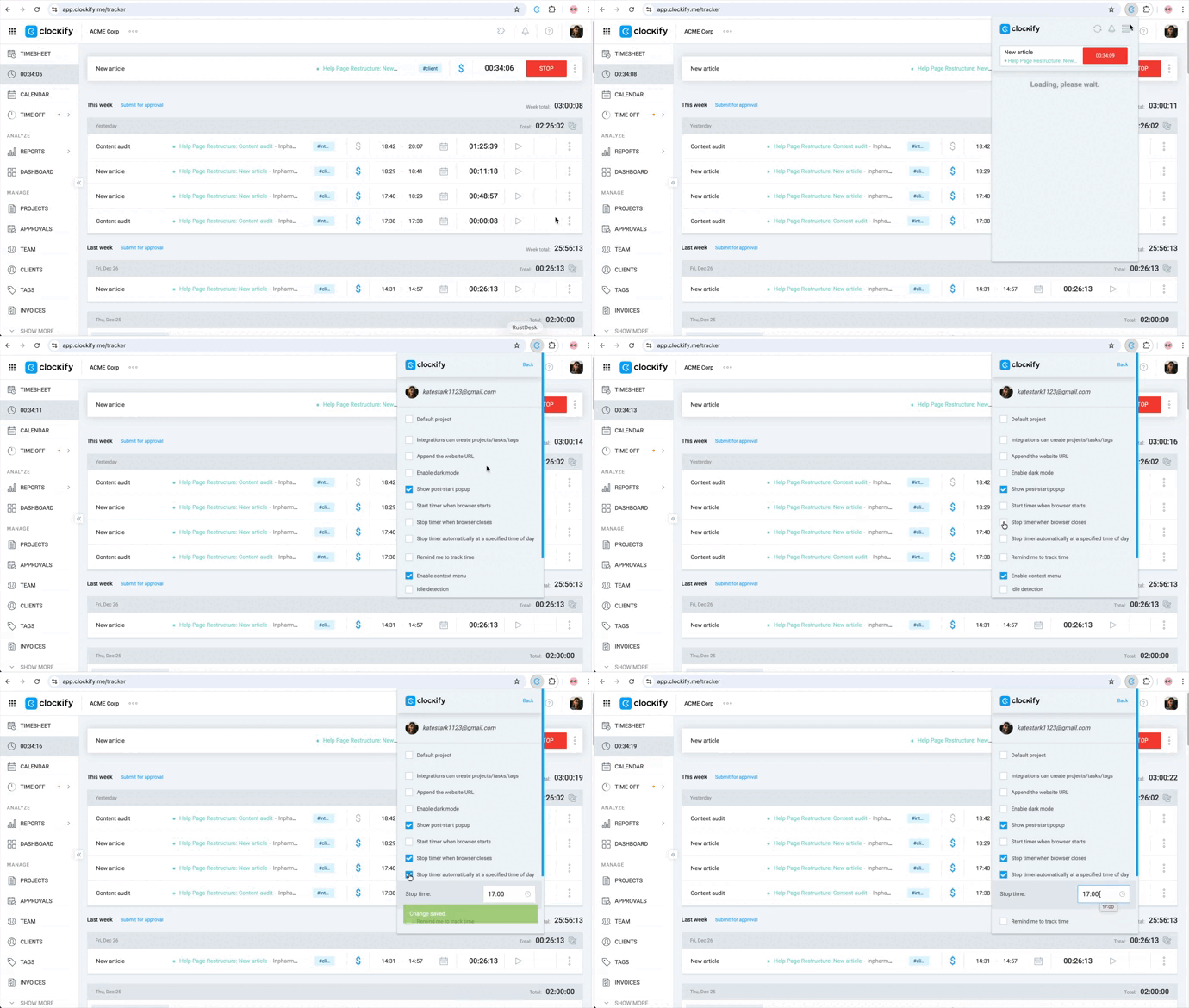
Pour démarrer ou arrêter automatiquement le minuteur dans le navigateur :
- Cliquez sur l’icône de l’extension Clockify en haut à droite de votre navigateur
- Cliquez sur l’icône en forme de hamburger et sélectionnez Paramètres
- Activez les options suivantes :
- Démarrer le minuteur au lancement du navigateur
- Arrêter le minuteur à la fermeture du navigateur
Si vous le souhaitez, vous pouvez également activer l’option permettant d’arrêter le minuteur à l’heure que vous aurez indiquée.
Pour démarrer ou arrêter automatiquement le minuteur sur Mac :
- Cliquez sur les trois points dans le coin supérieur droit
- Sélectionnez Préférences
- Cliquez sur l’onglet Minuteur
- Activez toutes les options suivantes ou l’une d’entre elles :
- Paramètres d’arrêt automatique
- Arrêter le minuteur si l’écran se verrouille – Le minuteur en cours s’arrête automatiquement dès que vous verrouillez votre Mac ou fermez le couvercle de l’ordinateur portable
- Arrêter le minuteur si le Mac se met en veille – Le minuteur cesse de compter lorsque l’ordinateur passe en mode veille
- Arrêter le minuteur si le Mac s’éteint – Le minuteur s’arrête lorsque le Mac est éteint ou redémarré
- Paramètres de démarrage automatique
- Démarrer le minuteur à la sortie de veille de l’ordinateur – Reprend ou démarre un nouveau minuteur dès que le système sort du mode veille
- Démarrer le minuteur au déverrouillage de l’ordinateur – Le minuteur démarre dès que vous vous reconnectez à votre compte utilisateur après le verrouillage de l'écran
- Démarrer le minuteur au lancement de l’appli – Le minuteur démarre lorsque vous lancez l’appli de bureau Clockify
Si la détection d’inactivité et l’arrêt automatique sont tous deux activés, la détection d’inactivité ne s’activera pas si le minuteur s’arrête automatiquement. Par conséquent, le temps d’inactivité sera conservé.
Vous pouvez également démarrer ou arrêter automatiquement le minuteur à une heure précise de la journée à l’aide de Zapier (p. ex. démarrer automatiquement le minuteur à 9 h et arrêter tout minuteur en cours à 17 h).
Rappels #
Si vous oubliez toujours de lancer un minuteur, Clockify peut vous envoyer des rappels pour le faire.
Pour activer les rappels :
- Cliquez sur l’icône Clockify
- Cliquez sur l’icône en forme de hamburger et sélectionnez Paramètres
- Cochez la case Me rappeler de saisir le temps
- Sélectionnez les jours, l’heure de début et de fin, ainsi que la fréquence du rappel
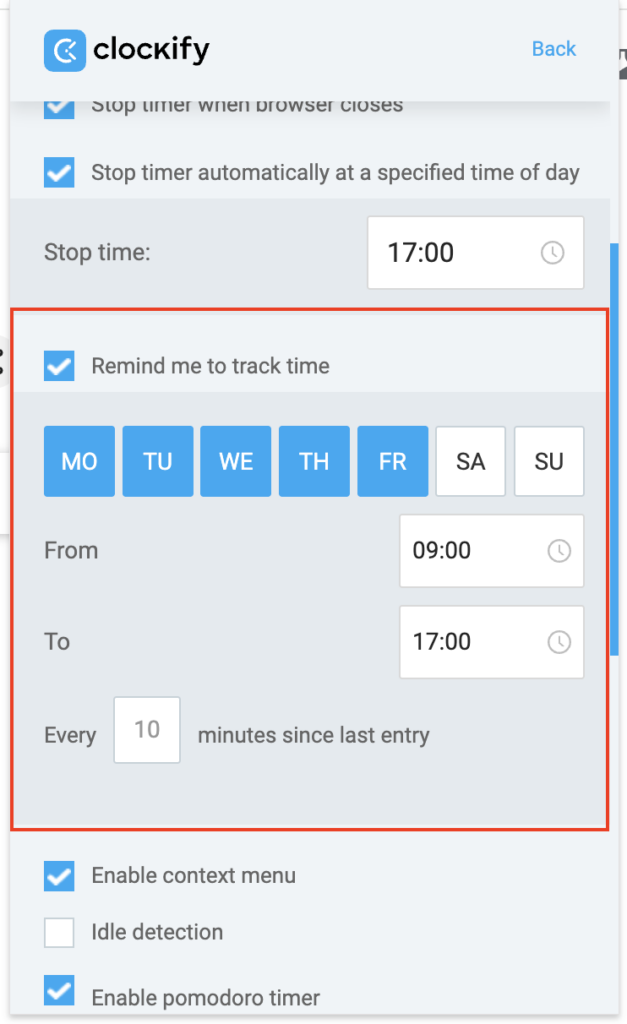
Par exemple :
Si c’est du lundi au vendredi entre 9 h et 17 h et que vous n’avez pas lancé le minuteur depuis 30 minutes, vous recevrez une notification. Vous pouvez alors lancer un nouveau minuteur ou continuer le précédent.
En plus des notifications de rappel de suivi du temps, Clockify peut également envoyer à votre équipe des rappels quotidiens et hebdomadaires par email (p. ex. si quelqu’un n’enregistre pas son objectif de 40h/semaine).