Approuver les saisies de temps de l’équipe
As a Team or Project manager, you can ensure that your team’s time entries are accurately tracked, reviewed, and approved in the Approvals page. This guide walks you through the process of managing time entry approvals, so that time and budget allocations for projects are correctly recorded.
Qu’est-ce que l’approbation des saisies de temps ? #
Approving time entries is the process where Admins, Project managers, or Team managers review and approve or reject time entries submitted by team members. The goal is to ensure that time spent on projects is correctly tracked, budgeted, and allocated for accurate reporting and invoicing.
Time approvals are available on Standard and higher subscription plans. The ability to approve expenses requires a Pro or higher plan.
Rôles et autorisations #
Dans votre espace de travail, la possibilité d’approuver les heures et les dépenses dépend de votre rôle et de vos autorisations.
| Rôle | Autorisation |
| Propriétaires et administrateurs de l’espace de travail | Can approve all time entries and expenses |
| Team manager (if enabled) | Can approve time entries and expenses for users they manage |
| Project managers (if enabled) | Can approve time entries for team members working on projects they manage |
Admins can modify these permissions by navigating to the Workspace Settings > Permissions page and configuring the Who can approve submitted timesheets section.
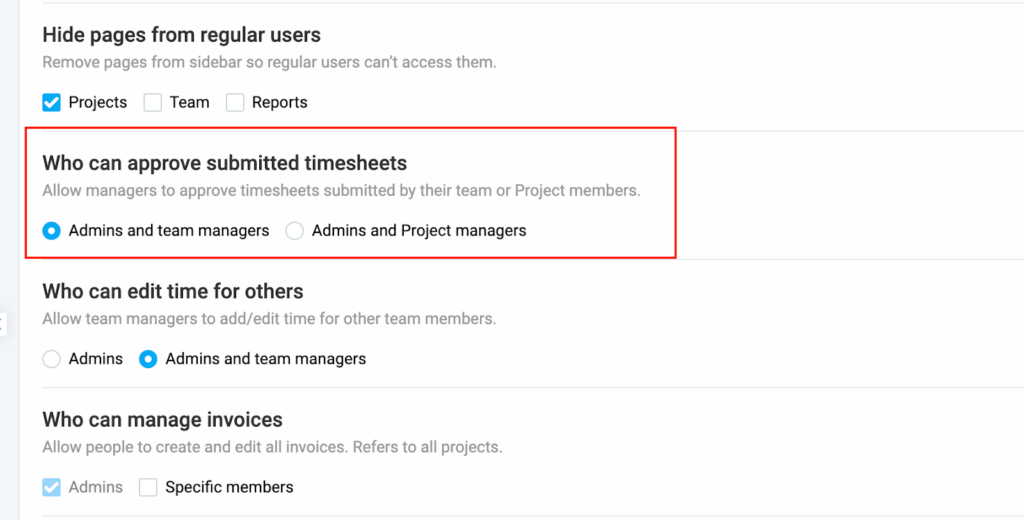
If a user holds both the Team manager and Project manager roles, only one role can have permission to approve/reject time entries as you can only choose one of the following options:
- Administrateurs et chefs d’équipe
- Admins and Project managers
Approuver les saisies de temps #
Time entries submitted for approval appear in the Approvals section. Here’s how to approve time entries:
Étapes à suivre pour approuver les saisies de temps :
- Click on the Approvals page in the sidebar
- Switch to the Pending tab
- Filter the timesheets by User or Group (optional)
- Click on the team member’s name to open the request
- Click on the Approve button and click Approve again on the confirmation window
- Or Select Approve all to approve all pending requests at once
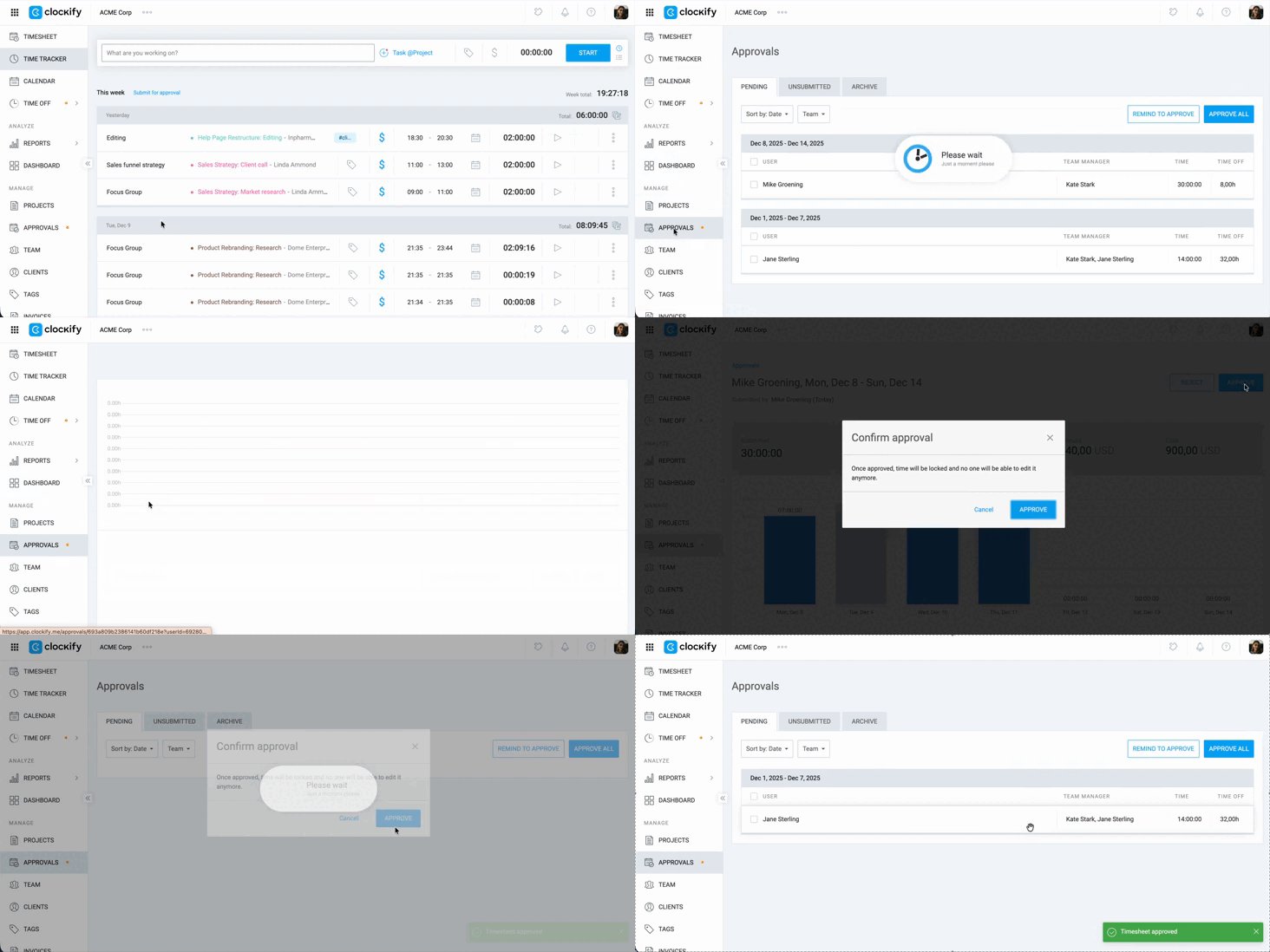
Admins can send reminders to Team or Project managers to approve their team’s timesheets by clicking the Remind to approve button on the Approvals page.
Modifier les saisies de temps en attente #
As an Admin, Team manager, you may need to edit time entries before approving them. Note that Project Managers cannot edit pending time entries, but can only approve or reject them.
Pour modifier une saisie de temps en attente :
- Go to the Approvals page
- Navigate to the Pending tab
- Click on the team member’s name to open the timesheet
- Click the edit pen icon next to the entry you want to edit
- Make the necessary changes:
- You can update the following details:
- Time and date
- Description
- Project
- Billability
- You can also duplicate or delete entries
- You can update the following details:
6. Click Save to apply the changes
Rejeter les saisies de temps #
If you come across time entries that are incorrect or do not meet the requirements, you can reject them.
Rejecting a request will delete the entry from the approval queue, and the user will be notified via email.
Étapes à suivre pour rejeter une saisie de temps :
- Accédez à la page Approbations
- Switch to the Pending tab
- Click on team member’s name to open their timesheet
- Click Reject in the upper-right corner
- Provide a reason for the rejection in the pop-up window
- Cliquez sur Rejeter pour finaliser l’action
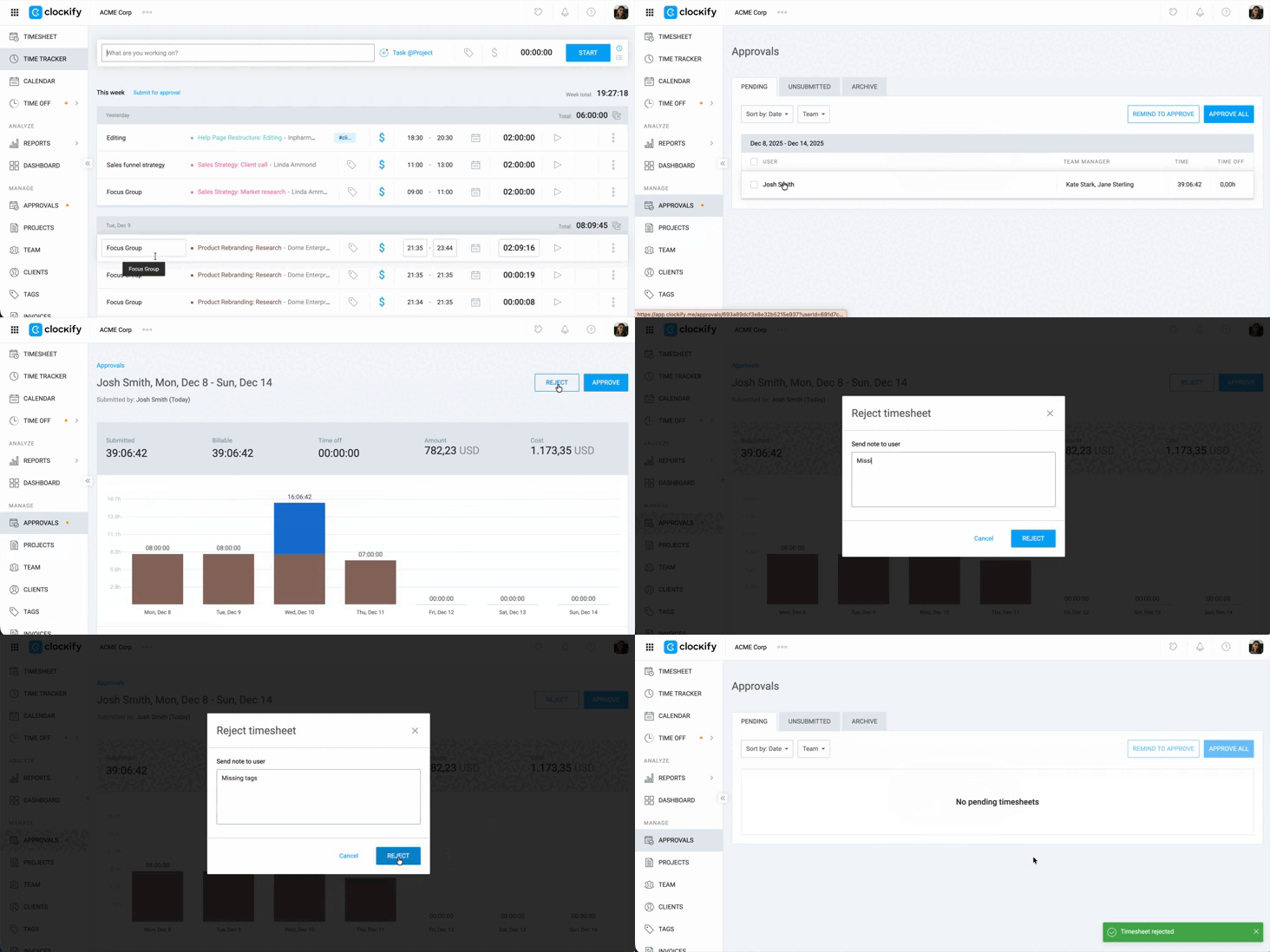
L’utilisateur recevra alors un email avec le motif du rejet et le statut En attente sera retiré de la saisie.
Approuver/rejeter en bloc les saisies de temps #
You can quickly approve multiple pending timesheets and expenses from the Approval page.
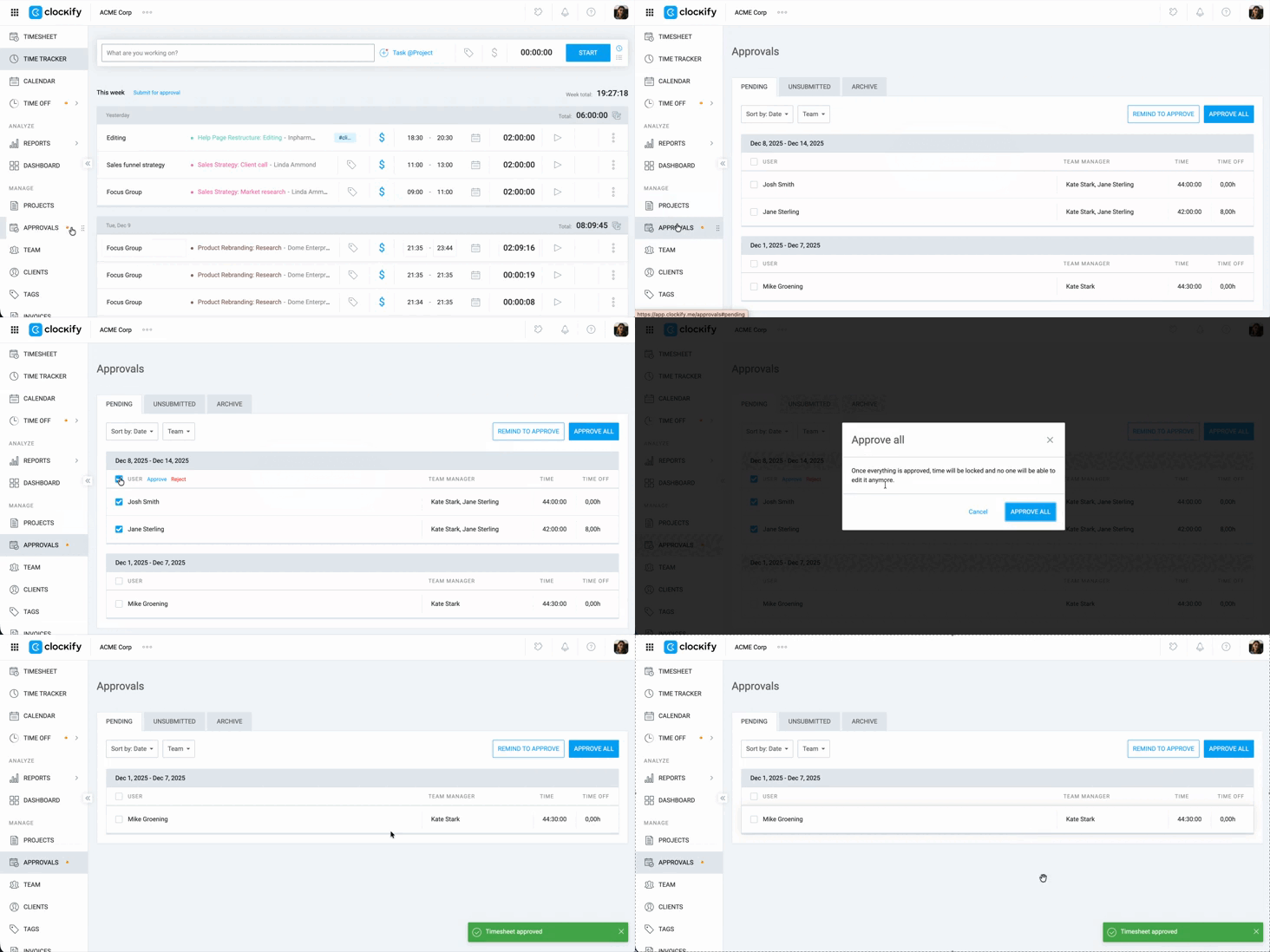
Étapes à suivre pour effectuer une action en bloc :
- Accédez à la page Approbation
- Make sure you’re on the Pending tab
- Check the boxes next to the timesheet you want to process. You can choose multiple across different submission periods.
- Click Approve/Reject button that appears
- Click Approve and then confirm the action in the pop-up.
- Si vous cliquez sur Rejeter, une fenêtre contextuelle apparaîtra vous demandant d’ajouter une note avant de confirmer.
Notifications #
- The user’s manager is notified when a timesheet is submitted.
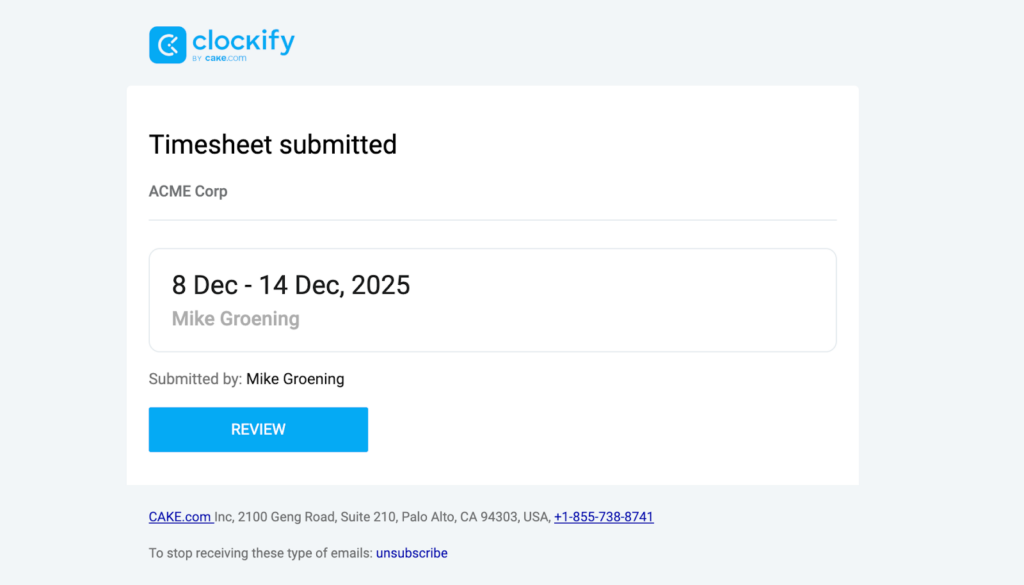
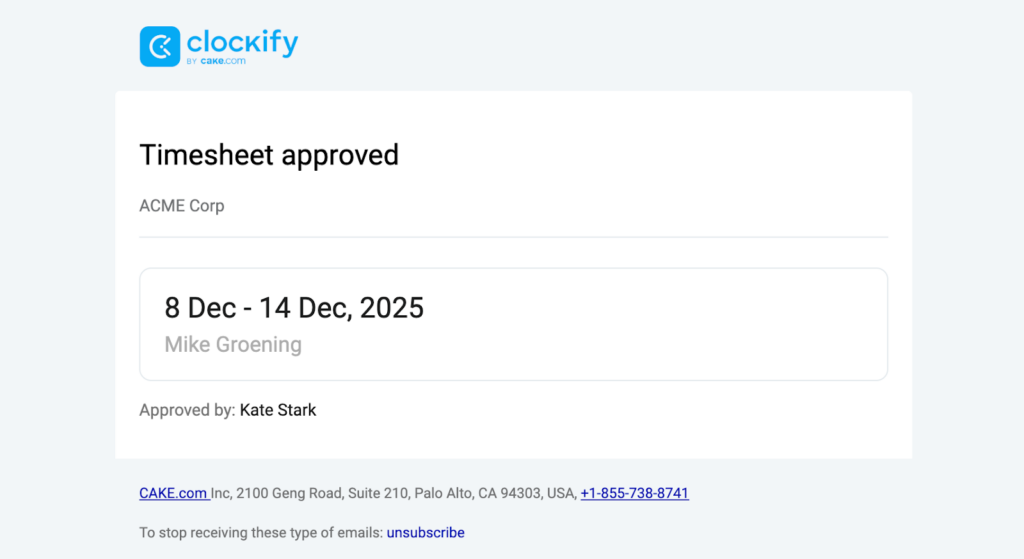
- The user is notified when their timesheet is approved, rejected, or withdrawn.
- Admins are notified when a timesheet is submitted, depending on their role in the workspace.
Retirer l’approbation #
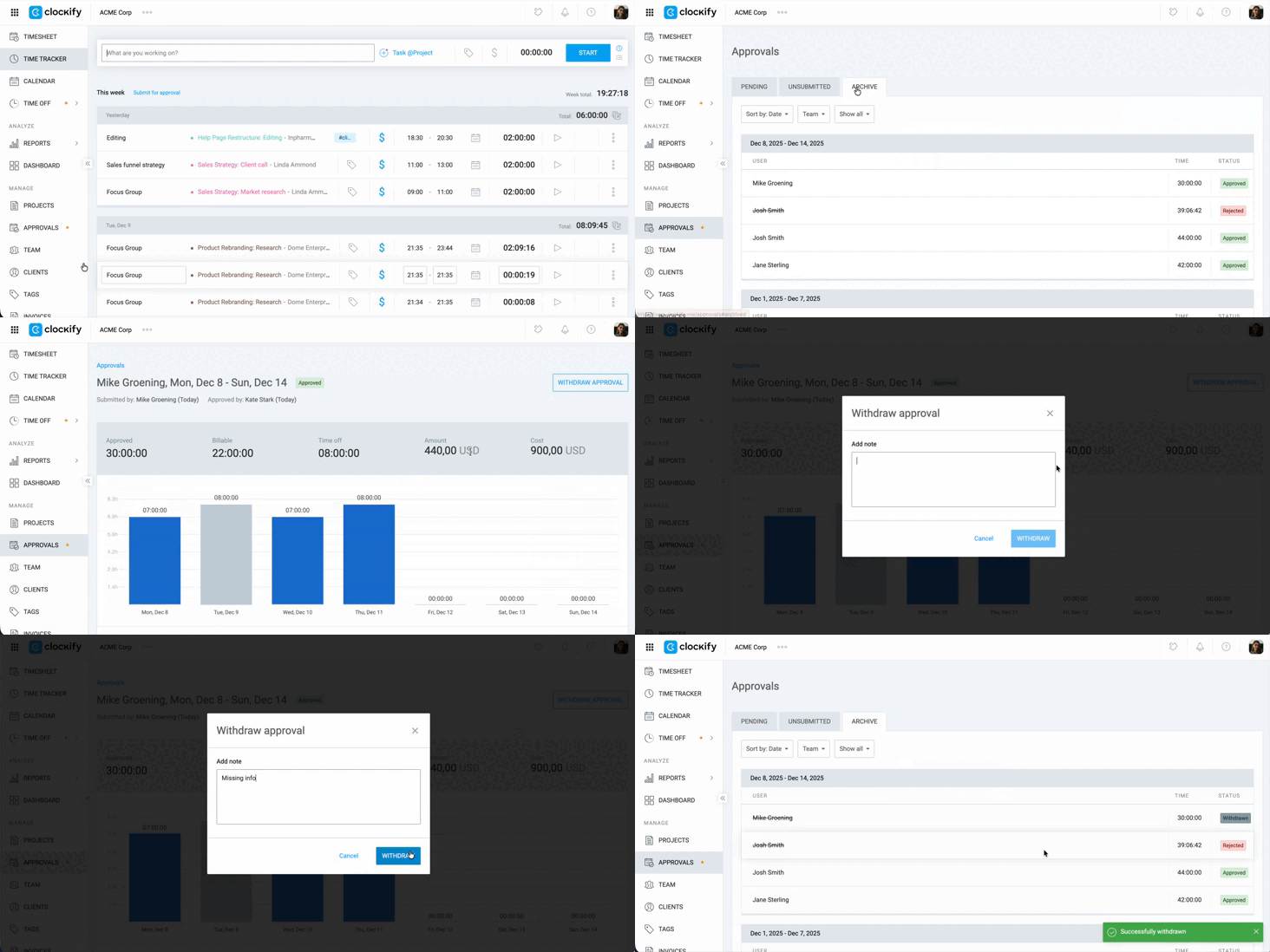
If you mistakenly approve a timesheet or need to revoke approval, you can withdraw approval from the Approvals page. This action will notify both the user and all admins.
To withdraw approval:
- Go to the Approvals page
- Switch to the Archive tab
- Click on the team member’s name to open the timesheet
- Click the Withdraw approval button in the top-right corner
- Provide a reason for the withdrawal in the text field
- Click Withdraw to confirm the action
FAQ #
Comment savoir qu’une saisie de temps est en attente d’approbation ?
When there are pending time entries waiting for your approval, you will see an orange dot indicator next to the Approvals page in the sidebar. All pending requests will appear in the Pending tab.
Que se passe-t-il quand on rejette une saisie de temps ?
Lorsque vous rejetez une saisie de temps, celle-ci est supprimée de la liste d’approbation et l’utilisateur reçoit une notification par email expliquant la raison du rejet. La saisie est alors marquée comme Rejetée et déplacée vers l’onglet Archives.
If you need to edit a rejected timesheet, you can manually correct it in Detailed report or allow the user to edit and resubmit the entry.
Comment attribuer les rôles de responsable d’équipe ou de chef de projet pour l’approbation des temps ?
To assign Team manager or Project manager roles, follow these steps:
- Allez sur la page Équipe
- Sélectionnez l’utilisateur à qui attribuer un rôle
- Cliquez sur + Rôle et cochez soit Chef d’équipe soit Chef de projet
- Select the users, groups, or projects they will manage
- Save your changes
Une fois le rôle attribué, le responsable aura accès à la page Approbations pour son équipe ou son projet.
Que se passe-t-il si une saisie de temps inclut du travail de nuit ?
If a time entry spans multiple days (for example, it starts in the evening and ends the next morning), the system will display a superscript number next to the end time. This indicates how many additional days the entry covers.