Este guia aborda as principais funcionalidades pagas do Clockify no terceiro trimestre de 2026 — o que cada um faz, qual problema resolve e em qual plano ele está disponível. Assim, você pode decidir se o upgrade vale a pena para sua equipe.
- O Clockify oferece um plano gratuito e quatro planos pagos: Cada plano inclui todos os recursos do plano imediatamente inferior.
- O Clockify está disponível como parte de um pacote da CAKE.com com o Plaky para gerenciamento de projetos e o Pumble para comunicação em equipe.
- Nos planos Pro e Entreprise, o Clockify faz capturas de tela pelo aplicativo para desktop enquanto o cronômetro está em execução.
- Folgas, faturamento e aprovação de planilhas de horas são recursos do plano Standard.
- Agendamento, previsão, relatórios de custos de mão de obra e rastreamento por GPS são recursos do plano Pro.
- Todas as funcionalidades do plano Pro estão disponíveis durante um período de teste gratuito de 7 dias, sem necessidade de cartão de crédito. Os usuários podem até estender esse período de teste gratuito entrando em contato com o suporte do Clockify.
Quais recursos adicionais estão incluídos em cada plano?
O Clockify oferece cinco planos:
O plano gratuito do Clockify permite o controle de horas para equipes de até 5 pessoas. Quando sua equipe crescer, ou você precisar de recursos como faturamento, aprovação de planilha de horas ou capturas de tela, é necessário usar um plano pago.
Cada plano pago inclui os recursos do plano anterior, portanto, o plano Pro inclui tudo o que está no plano Standard e o plano Enterprise inclui tudo o que está no plano Pro.
Nota: os preços da tabela estão em dólares americanos e são por usuário/mês, considerando faturamento anual.
| Funcionalidade | Gratuito | Basic $3.99 | Standard $5.49 | Pro $7.99 | Enterprise $11.99 |
|---|---|---|---|---|---|
| Adicionar tempo para outros | ❌ | ✅ | ✅ | ✅ | ✅ |
| Registro de horas | ❌ | ✅ | ✅ | ✅ | ✅ |
| Edição em massa | ❌ | ✅ | ✅ | ✅ | ✅ |
| Modelos de projeto | ❌ | ✅ | ✅ | ✅ | ✅ |
| Folgas | ❌ | ❌ | ✅ | ✅ | ✅ |
| Faturamento | ❌ | ❌ | ✅ | ✅ | ✅ |
| Aprovação | ❌ | ❌ | ✅ | ✅ | ✅ |
| Relatórios de frequência e horas extras | ❌ | ❌ | ✅ | ✅ | ✅ |
| Integração com QuickBooks | ❌ | ❌ | ✅ | ✅ | ✅ |
| Planejamento | ❌ | ❌ | ❌ | ✅ | ✅ |
| Projeção | ❌ | ❌ | ❌ | ✅ | ✅ |
| Despesas | ❌ | ❌ | ❌ | ✅ | ✅ |
| Custo da mão de obra e lucro | ❌ | ❌ | ❌ | ✅ | ✅ |
| Rastreamento por GPS | ❌ | ❌ | ❌ | ✅ | ✅ |
| Monitoramento de atividades | ❌ | ❌ | ❌ | ✅ | ✅ |
| Login único (SSO) | ❌ | ❌ | ❌ | ❌ | ✅ |
| Registro de auditoria | ❌ | ❌ | ❌ | ❌ | ✅ |
Há também o pacote CAKE.com, disponível por US$12,99 por usuário/mês (cobrado anualmente), que inclui os recursos do plano Enterprise do Clockify e mais duas ferramentas: Plaky, para gerenciamento de projetos, e Pumble, para comunicação em equipe.

Recursos de rastreamento
Os recursos pagos de rastreamento oferecem mais controle sobre:
- Como o tempo é registrado
- Quem o registra
- Quais informações são associadas a ele
Os recursos de rastreamento tornam-se relevantes quando o rastreamento Basic de início e parada não é suficiente para suas necessidades de relatórios ou faturamento.
Monitoramento de atividades
O Monitoramento de atividades do Clockify rastreia a utilização da equipe, informando quais funcionários dedicam seu tempo a atividades produtivas e quais não. Esse recurso ajuda os gerentes a entender quais aplicativos consomem recursos da empresa com distrações no ambiente de trabalho.
Melhore o controle de custos
Obtenha os dados necessários para cancelar software não utilizado, reavaliar processos e reatribuir os melhores desempenhos a tarefas de alto valor.

Além disso, o Clockify captura telas que são borradas por padrão e são registradas a cada poucos minutos enquanto o cronômetro está em execução. Todos os membros da equipe recebem uma notificação assim que o recurso é ativado.
O recurso Capturas de tela do Clockify oferece aos gerentes um registro visual do trabalho em andamento, em vez de vigilância constante. Cada captura de tela é desfocada, a menos que um administrador selecione uma configuração de resolução mais alta. Os administradores podem ativar ou desativar o recurso para cada espaço de trabalho a qualquer momento. E ninguém tem sua tela capturada sem saber, já que a notificação aparece instantaneamente quando a configuração é alterada.
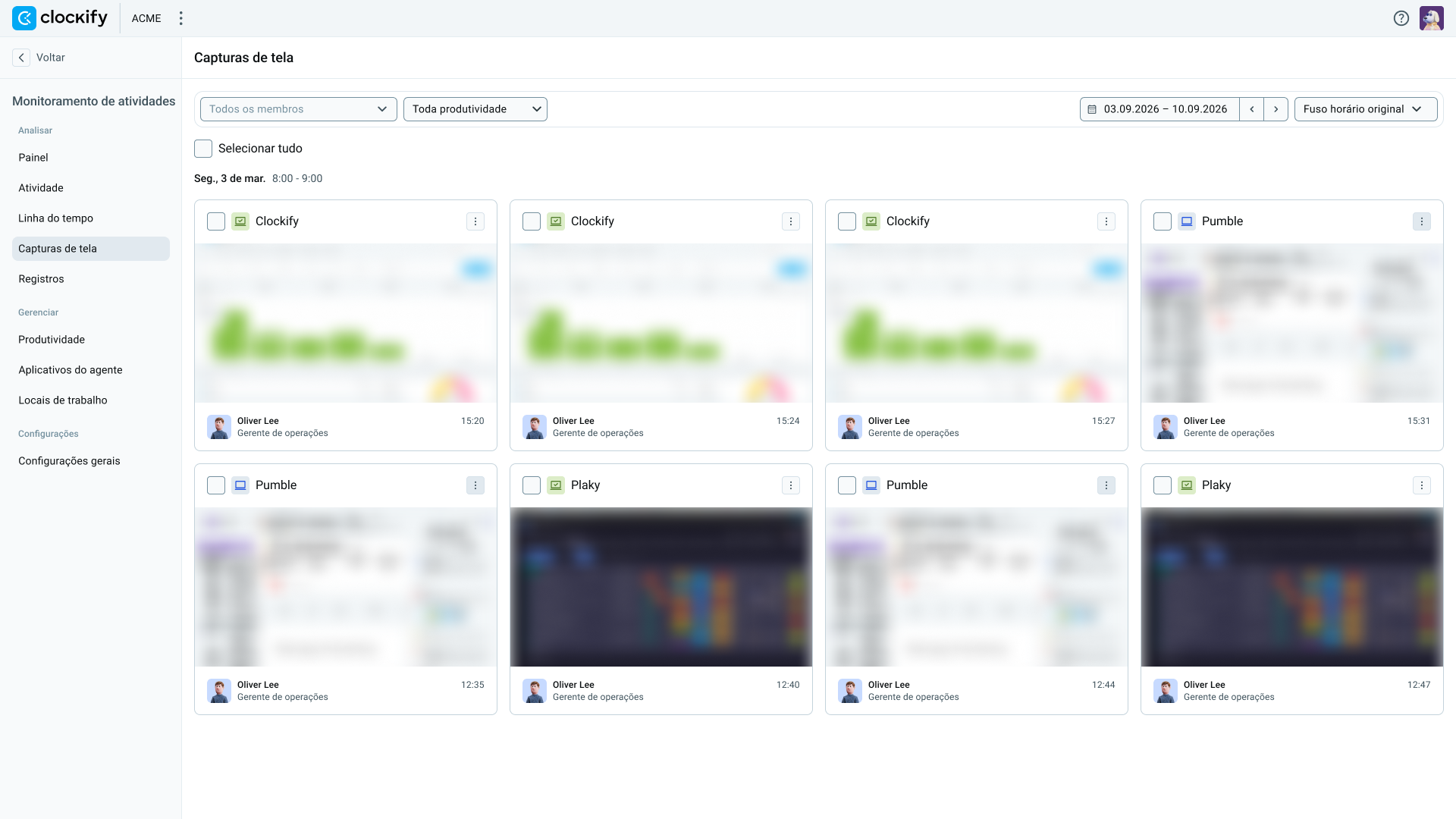
Se você gerencia uma equipe remota e precisa de comprovação do trabalho para faturar clientes, as capturas de tela combinadas com os registros de tempo fornecem ambas informações em um único relatório.
Disponível em: plano Pro e superiores.
Experimente o Clockify GRATUITAMENTE
Metas e lembretes
O Clockify permite definir metas diárias, semanais ou mensais de controle de tempo por pessoa ou equipe e, em seguida, notifica automaticamente qualquer pessoa que registre muito pouco ou muito tempo.
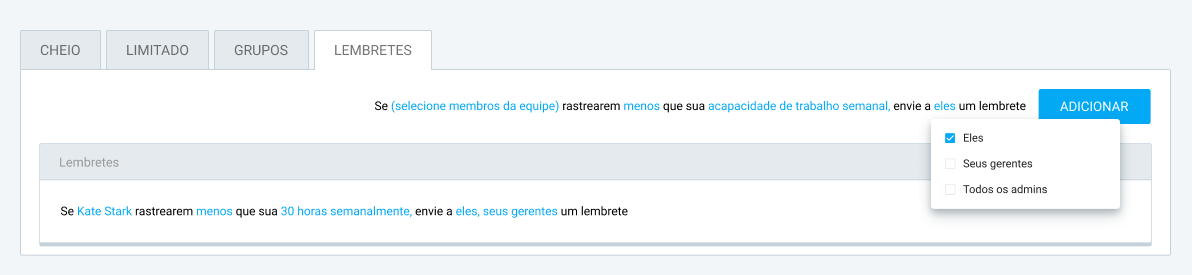
Funcionários de meio período podem ter uma meta diária de 4 horas, enquanto funcionários de tempo integral têm uma meta diária de 8 horas e uma meta semanal de 40 horas. Se alguém não atingir ou ultrapassar a meta, o Clockify envia um lembrete.
Também é possível escolher quem será notificado — apenas o funcionário, seu gerente ou todos os administradores — o que elimina a necessidade de verificar manualmente quem ultrapassou ou não atingiu a meta de horas a cada semana.
Disponível em: plano Standard e superiores.
Intervalos
Registre o tempo de pausa da mesma forma que registra o tempo de trabalho. Existem 3 maneiras de registrar pausas no Clockify:
- Alterne seu rastreador do modo Trabalho para o modo Intervalo
- Selecione o modo Intervalo em um quiosque
- Registre o tempo de pausa diretamente em sua planilha de horas usando um projeto de pausa padrão
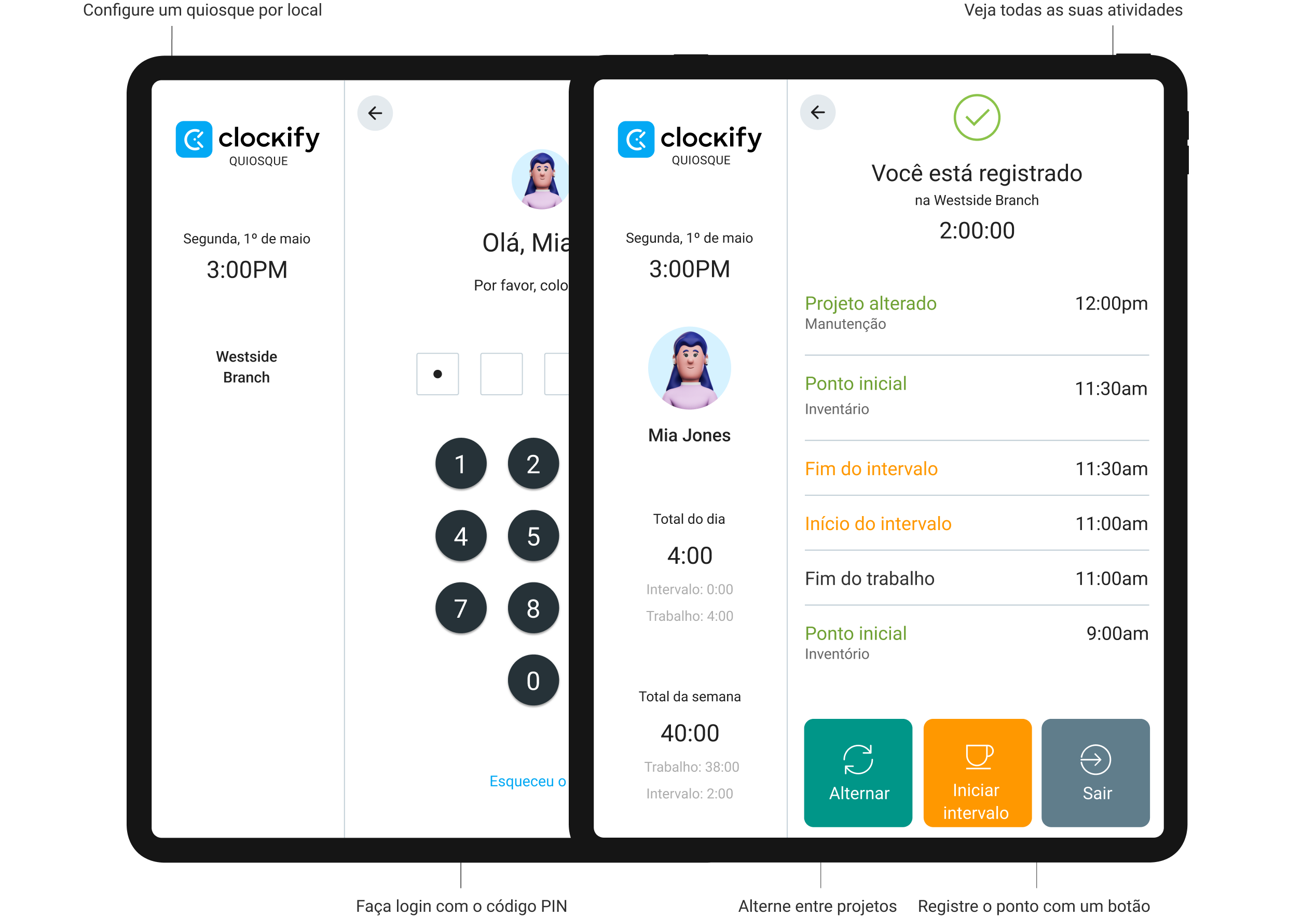
Registrar o tempo de intervalo separadamente do tempo de trabalho fornece uma visão mais precisa das horas produtivas reais, o que é importante na hora de cobrar dos clientes por hora ou calcular os custos de mão de obra.
Disponível em: plano Basic e superiores.
Monitore o trabalho e as pausas no Clockify
Campos personalizados e campos obrigatórios
Com os campos personalizados do Clockify, você pode anexar informações extras a registros de tempo ou perfis de usuário na forma de texto, números, links, botões de alternância ou listas de seleção única ou múltipla. Você controla quais projetos exibem um determinado campo e qual é o seu valor padrão.
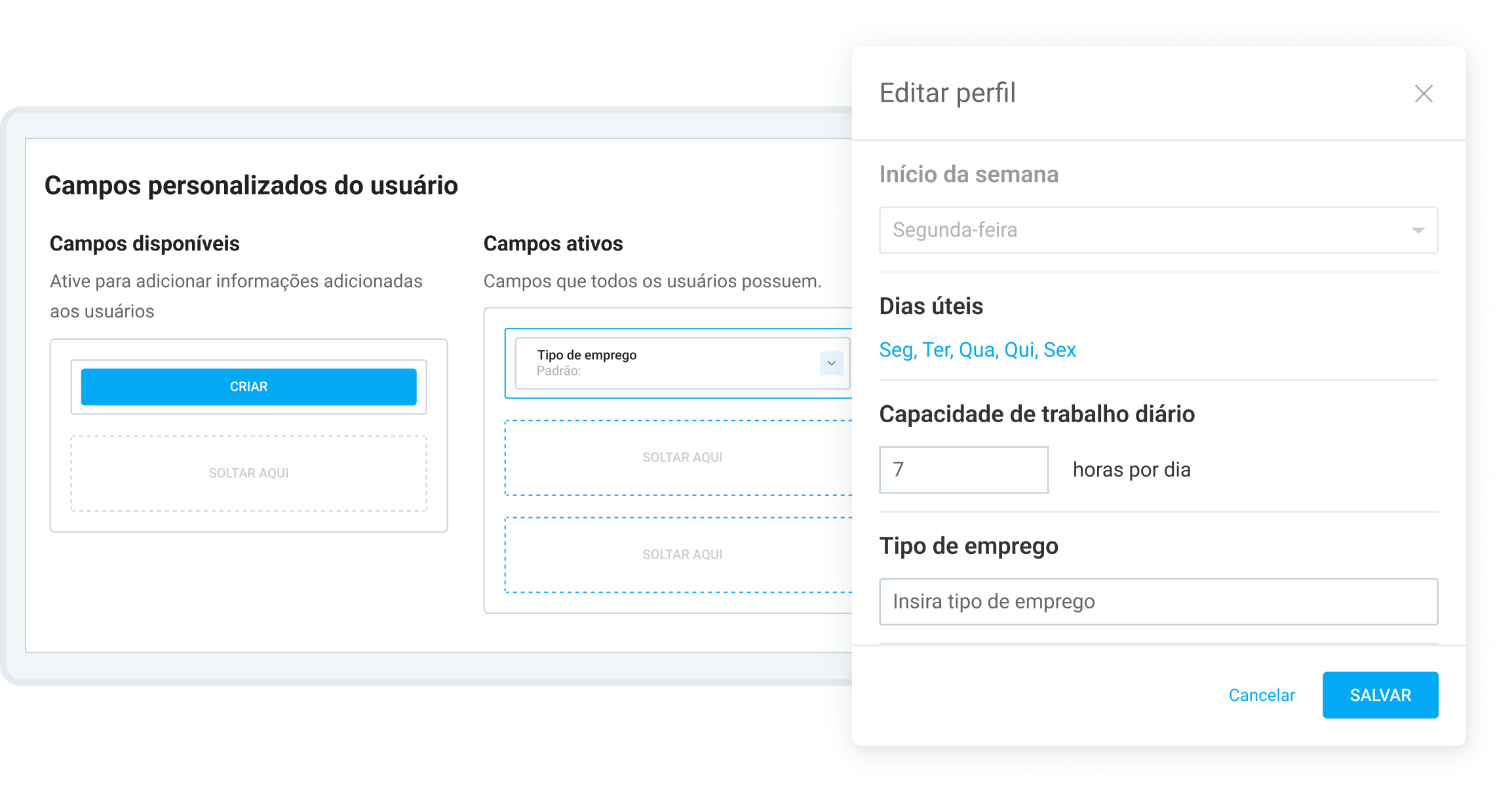
Se o seu processo de faturamento exige um código de trabalho, número de referência do cliente ou fase do projeto em cada registro, os campos personalizados mantêm esses dados vinculados aos registros corretos sem depender da memória ou de planilhas separadas.
Além disso, os campos obrigatórios impedem que os registros sejam salvos se um projeto, tarefa, etiqueta ou campo personalizado estiver faltando. Isso é especialmente importante para equipes que precisam de dados consistentes para faturamento, folha de pagamento ou auditorias de conformidade.
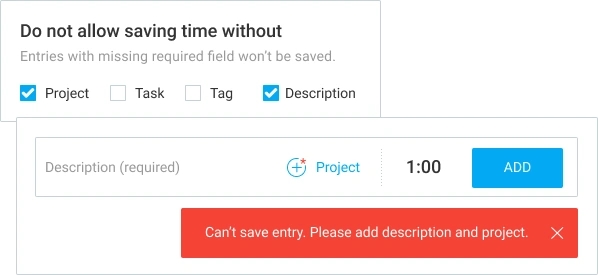
Disponível em: Campos personalizados no plano Pro e superiores. Campos obrigatórios no plano Basic ou superior.
Importar tempo e usuários
Se você estiver migrando de outra ferramenta de controle de tempo, poderá importar suas planilhas de horas e membros da equipe existentes para o Clockify a partir de um arquivo CSV, em vez de digitar tudo manualmente.
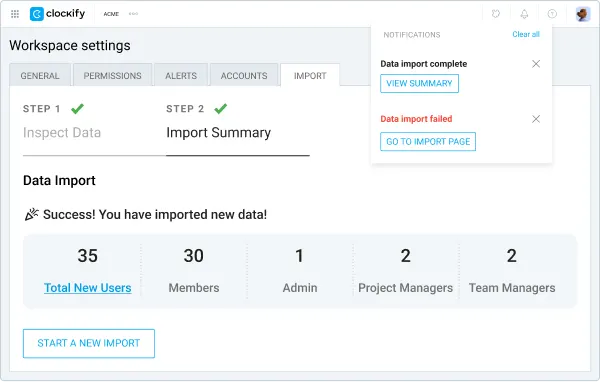
Disponível em: plano Basic e superiores.
💡 DICA PROFISSIONAL DO CLOCKIFY
Está migrando de outra ferramenta para o Clockify? Aprenda como fazer isso, incluindo a importação de dados:
Personalização do quiosque, captura de foto, PIN e código QR
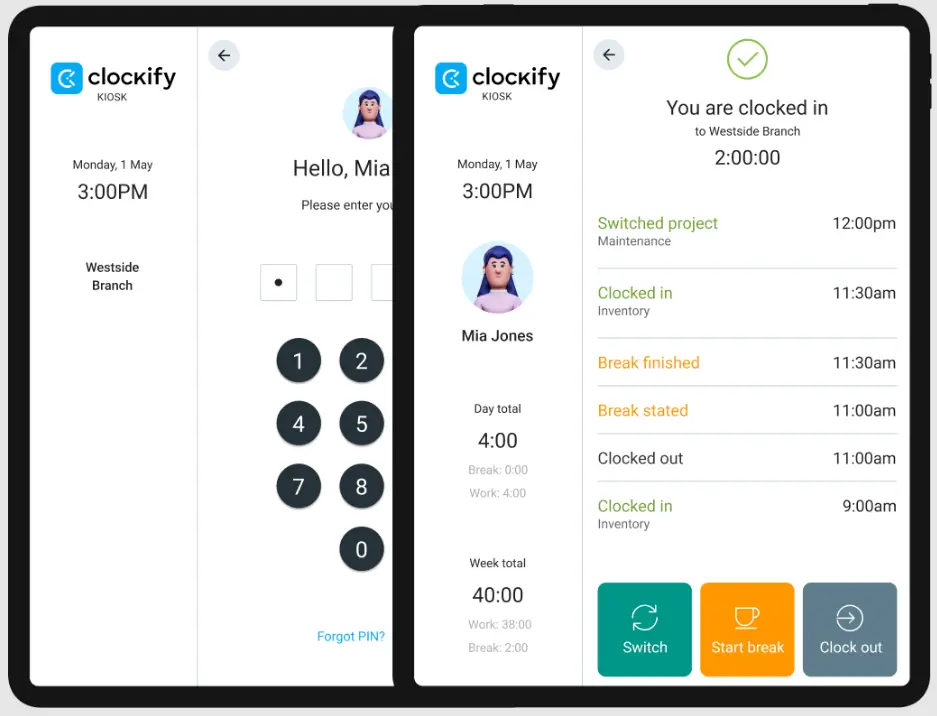
Com o Quiosque, você pode transformar qualquer dispositivo conectado à internet em uma estação de registro de ponto compartilhada, o que é útil para equipes com várias filiais ou escalas de trabalho.
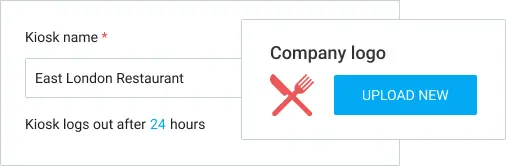
A personalização do quiosque permite adicionar o logotipo da sua empresa e escolher por quanto tempo o quiosque permanecerá aberto após a inicialização.
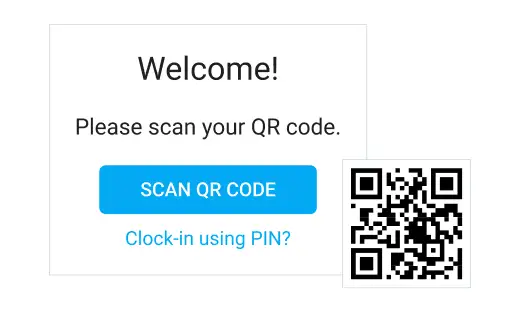
Os códigos PIN pessoais permitem que os membros da sua equipe façam login para registrar o tempo em um quiosque com seu código PIN, enquanto o código QR permite que os funcionários acessem o quiosque com seu código QR pessoal. Isso aumenta a segurança e a precisão do registro de tempo.
Para evitar ainda mais o registro de ponto fraudulento e aumentar a responsabilização, você também pode usar a captura de foto do quiosque no Clockify.
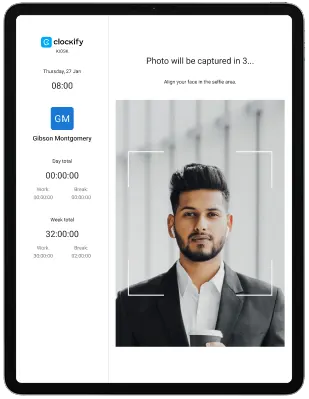
Disponível em: PIN do quiosque no plano Basic ou superior. Personalização do quiosque e código QR no plano Standard e superiores. Captura de foto do quiosque no plano Pro ou superior.
Integração com QuickBooks
Para maior eficiência, o Clockify se integra ao QuickBooks, sincronizando o tempo registrado, os usuários e os dados do projeto para facilitar a emissão de faturas e a folha de pagamento. A integração elimina o trabalho manual de reinserir os dados do Clockify no QuickBooks e reduz os erros de faturamento causados por erros de copiar e colar.
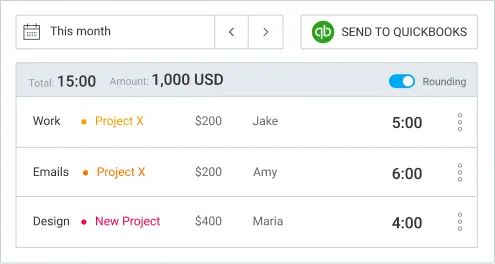
Disponível em: plano Standard e superiores.
Para obter informações mais detalhadas leia o guia de integração com o QuickBooks ➜
Funcionalidades de relatórios
Esses recursos adicionais de relatório transformam o tempo registrado em dados úteis para decisões relacionadas a orçamento, faturamento e decisões de pessoal.
Estimativas e alertas
Graças às estimativas de tempo do Clockify, você pode definir um orçamento total de tempo para um projeto ou para tarefas individuais dentro dele — e redefinir mensalmente.
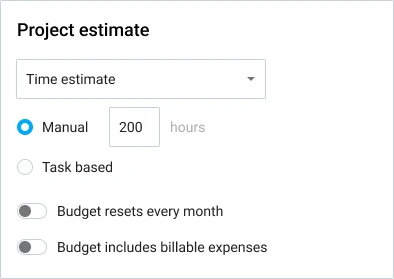
Com as estimativas de orçamento, você define um orçamento financeiro para um projeto ou tarefas individuais, que também pode incluir despesas faturáveis.
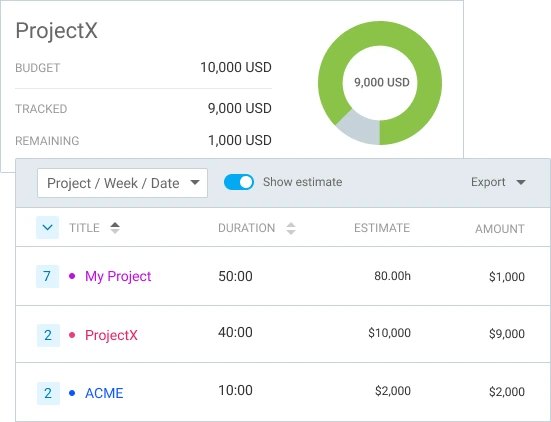
Por fim, você pode configurar alertas de projeto para ser notificado automaticamente quando um projeto se aproximar ou atingir sua estimativa.
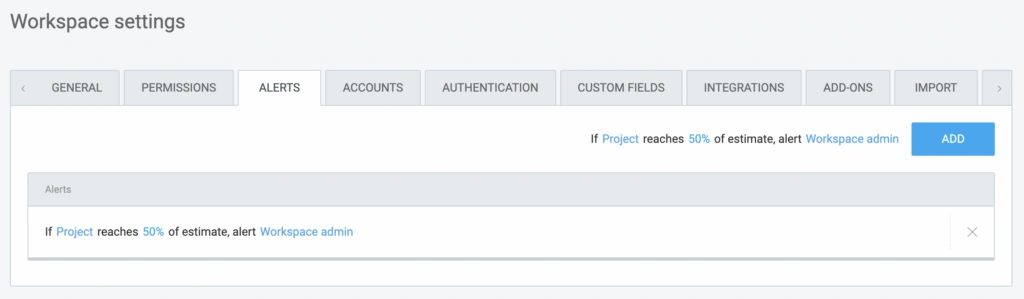
Se você gerencia clientes com contrato de retenção, pode redefinir o controle do orçamento do projeto mensalmente, para saber exatamente quando um projeto está se aproximando de um aumento de escopo.
Disponível em: estimativas de tempo no plano Basic e superiores. Estimativas de orçamento e alertas no plano Pro e superiores.
Estime o tempo de um projeto com o Clockify
Custo de mão de obra e lucro
Defina taxas faturáveis para calcular a receita e valor de custo para calcular o custo de mão de obra no nível da organização, equipe, projeto, tarefa ou cliente. À medida que sua equipe monitora o tempo, o Clockify calcula receita, custo e lucro automaticamente em relatórios, que você pode exportar para análises mais detalhadas.
As agências podem usar os dados de custo e o lucro da mão de obra para comparar o que cobram de um cliente com o que pagam ao prestador que faz o trabalho, projeto por projeto.
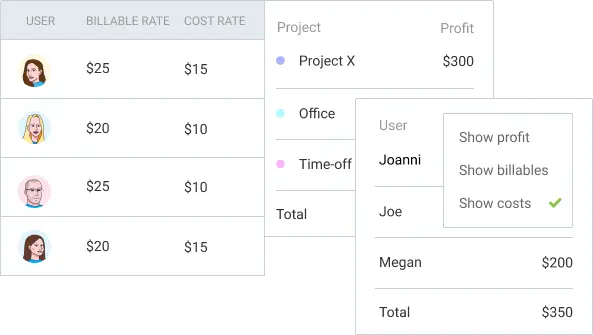
Disponível em: plano Pro e superiores.
Relatórios da equipe: Frequência e atribuições
O relatório de Frequência do Clockify mostra, para cada funcionário:
- Horário diário de início e término
- Capacidade de trabalho vs. horas efetivamente trabalhadas
- Folgas
- Horas extras
O relatório de Atribuições compara as horas programadas com as horas registradas e inclui uma barra de progresso visual.
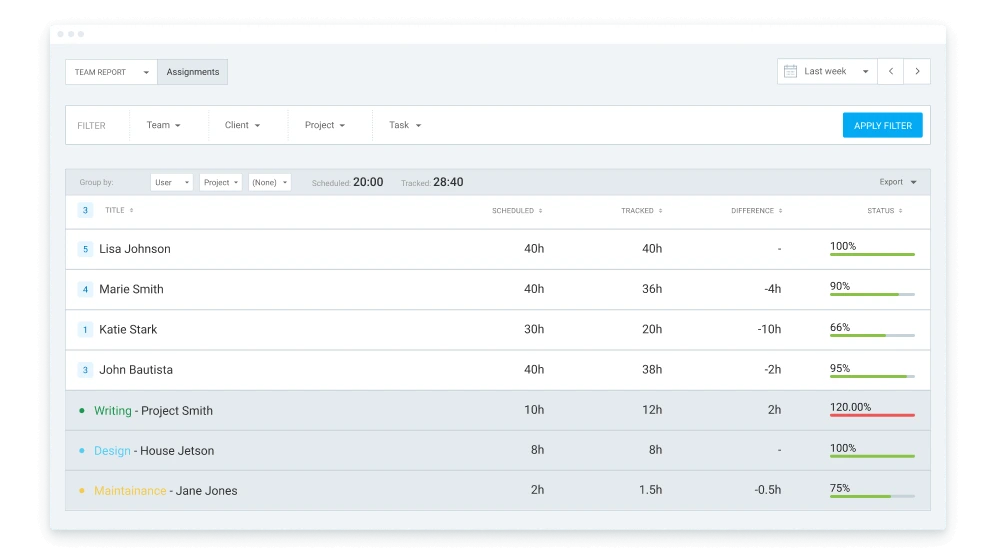
Ambos os relatórios podem ser filtrados por data, membro da equipe ou intervalo de horas e exportados para CSV, Excel ou PDF.
Juntos, os relatórios de Atribuições e Frequência permitem identificar problemas de presença e planejamento (por exemplo, quem está constantemente atrasado em relação às horas atribuídas) antes que a situação saia do controle.
Disponível em: Relatório de Frequência no plano Standard e superiores. Relatório de Atribuições no plano Pro e superiores.
Relatório de despesas
Com o relatório de Despesas do Clockify, você pode visualizar todas as despesas registradas em um só lugar. Basta filtrar por equipe, cliente, projeto, categoria, status ou data e, em seguida, exportar os resultados.
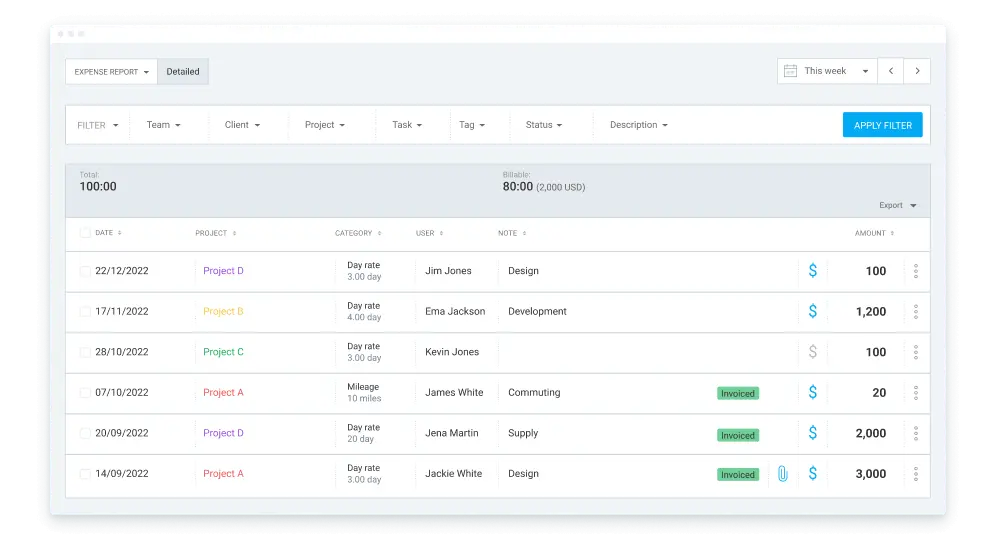
Em vez de procurar recibos em e-mails e planilhas, tudo está no Clockify e pronto para ser incluído em uma fatura para o cliente ou em uma revisão de orçamento.
Disponível em: plano Pro e superiores.
Rastreamento por GPS
No Clockify, o rastreamento por GPS mostra onde os funcionários que trabalham em campo estão atualmente e quando estiveram ativos pela última vez, com registros feitos pelo aplicativo móvel do Clockify para iOS ou Android.
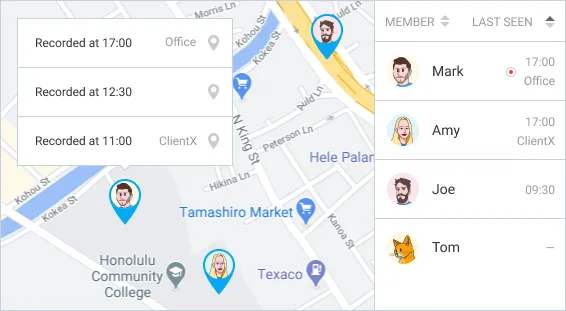
Equipes de construção, serviços de campo e entregas podem usar o rastreamento por GPS do Clockify para confirmar se os funcionários estão no local, reproduzir as rotas diárias e identificar deslocamentos ineficientes entre diferentes trabalhos.
Disponível em: plano Pro e superiores.
Registro de auditoria e auditoria de tempo
Com a auditoria de tempo do Clockify, você pode encontrar registros que sejam muito curtos, muito longos, ou que estejam faltando um projeto ou tarefa, permitindo que você corrija relatórios antes de enviá-los a um cliente ou para a folha de pagamento.

O registro de auditoria grava todas as alterações feitas em um registro de tempo, quem as fez e quando. Isso é importante para setores como contratos governamentais, onde estruturas de conformidade como a DCAA exigem um histórico de auditoria documentado para quaisquer alterações nas horas registradas.
Registros com mais de um ano são excluídos automaticamente; portanto, exporte-os regularmente se precisar de registros de longo prazo.
Disponível em: Auditoria de tempo no plano Basic e superiores. Registro de auditoria no plano Enterprise.
Relatórios agendados
Com os relatórios agendados do Clockify, você pode receber automaticamente um relatório personalizado por e-mail diariamente, semanalmente ou mensalmente. Dessa forma, você não precisa filtrar e exportar manualmente os mesmos dados repetidamente.
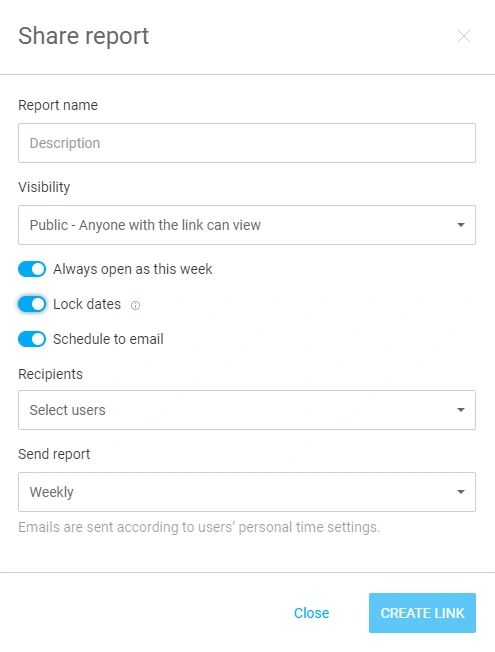
Disponível em: plano Pro e superiores.
Modelos de projeto
Se sua equipe trabalha frequentemente em projetos semelhantes, você pode organizar o trabalho com muito mais facilidade usando os modelos de projeto:
- Salve a estrutura de tarefas e as configurações de um projeto como um modelo.
- Reutilize-o na próxima vez que iniciar um projeto semelhante, em vez de recriá-lo do zero.

Disponível em: plano Basic e superiores.
💡 DICA PROFISSIONAL DO CLOCKIFY
Aprenda como registrar as horas trabalhadas em projetos, monitorar o progresso e agendar trabalhos futuros em diversos projetos:
Projeção
A funcionalidade de Projeção do Clockify combina suas estimativas, cronogramas e tempo registrado para prever se um projeto será concluído no prazo, antes ou depois do previsto.
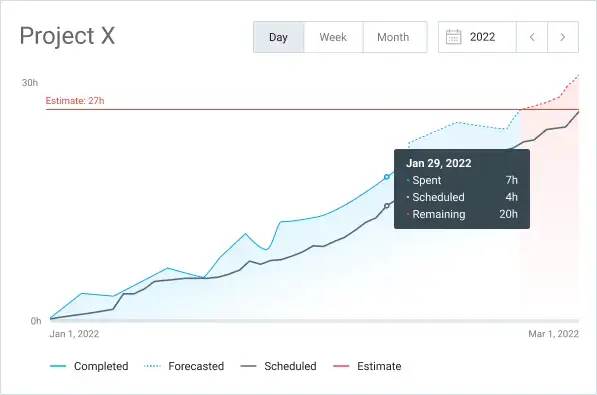
Use a Projeção para ajustar estimativas ou reorganizar sua equipe antes que um prazo seja perdido.
Disponível em: plano Pro e superiores.
Acompanhe o progresso do projeto no Clockify
Personalizar relatórios e arredondamento de tempo
Além da filtragem, o Clockify da CAKE.com permite que você personalize ainda mais os relatórios a cada exportação.
Você pode escolher quais colunas aparecem ao exportar para CSV, Excel ou PDF. Isso é útil quando você precisa compartilhar um relatório externamente e deseja omitir dados internos, como IDs de funcionários.
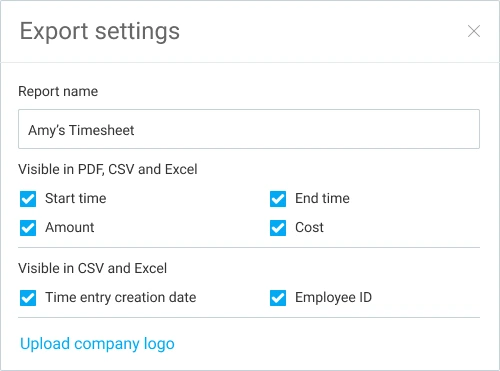
Além disso, o arredondamento de tempo permite arredondar as entradas para cima, para baixo ou para o valor definido mais próximo, para relatórios mais claros e fáceis de ler.
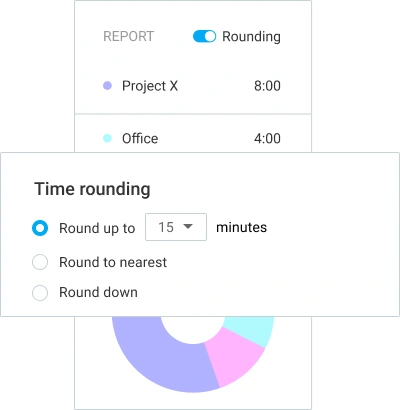
Disponível em: Personalização de relatórios no plano Basic e superiores. Arredondamento de tempo no plano Standard e superiores.
Formato decimal
Ativar o formato decimal no Clockify permite visualizar, inserir e exportar o tempo em formato decimal — em vez de horas e minutos.
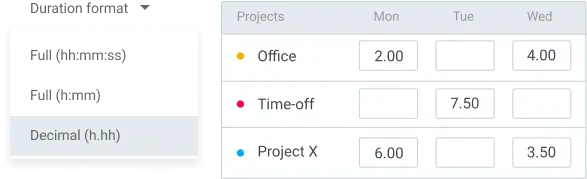
Se você inserir dados do Clockify para um sistema de folha de pagamento ou uma planilha, o formato decimal significa que os números estão prontos para uso sem conversão manual.
Disponível em: plano Basic e superiores.
💡 DICA PROFISSIONAL DO CLOCKIFY
Converta horas e minutos de trabalho em decimais com nossa calculadora confiável de conversão de horas para decimais:
Recursos de gerenciamento
As funcionalidades de gerenciamento cuidam do lado operacional da administração de uma equipe:
- Quem está disponível
- Quem está ausente
- O que foi aprovado
- Quem tem acesso a quê
Folgas
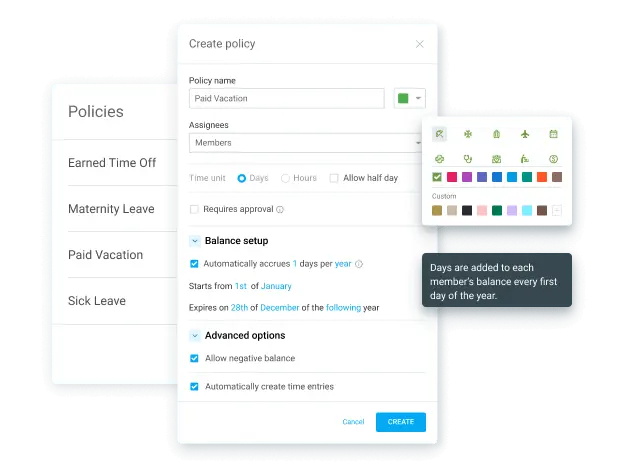
Observe que a funcionalidade de Folgas do Clockify funciona com duas estruturas: Feriados (sem necessidade de aprovação) e Políticas (geralmente exigem aprovação). Cada uma tem sua própria cor e se aplica a um grupo definido de pessoas.
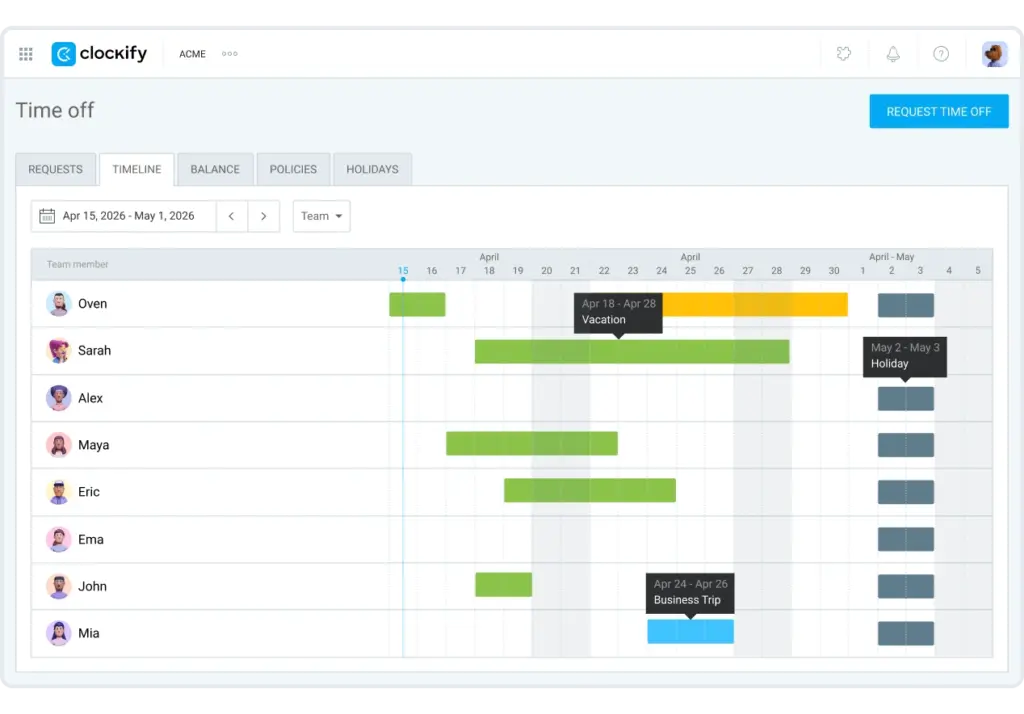
Os feriados podem ser configurados para se repetirem anualmente em datas selecionadas. As políticas de férias podem ser ainda mais personalizadas por meio de:
- Definição em dias ou horas
- Permissão de saldo negativo, para que as pessoas possam solicitar folga antes que ela seja acumulada
- Configurações de acúmulo automático anual
- Permissão de solicitações de meio período
A aba Linha do tempo mostra quem está de folga, por quanto tempo e sob qual política.
A aba Saldo acompanha os dias utilizados e restantes, com ajustes manuais e histórico exportável.
Para equipes com mais de 10 funcionários, o recurso de Folgas do Clockify elimina a troca de mensagens entre funcionários e RH sobre os dias restantes e quem está ausente em cada período.
Disponível em: plano Standard e superiores.

Aprovação
No Clockify da CAKE.com, a Aprovação de planilhas de horas funciona como um ponto de verificação entre o tempo registrado e o tempo pago:
- Os membros da equipe registram o tempo usando o Cronômetro, a Planilha de horas ou o Quiosque.
- Os membros da equipe enviam suas planilhas de horas e quaisquer despesas para revisão.
- As entradas enviadas recebem o rótulo “aprovação pendente” e ficam bloqueadas para novas edições.
- Os gerentes aprovam ou rejeitam as entradas individualmente ou podem aprovar várias de uma só vez.
- Os itens aprovados ou rejeitados são movidos para a guia Arquivo e podem ser filtrados por data, equipe ou status.
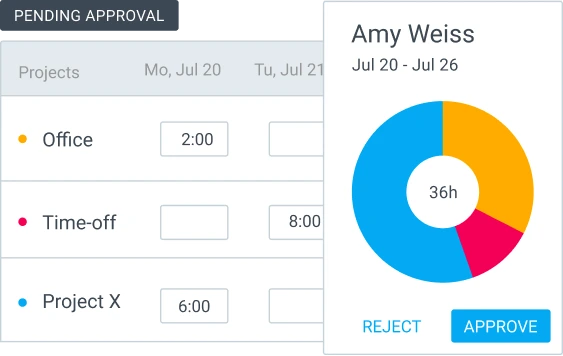
Os gerentes podem enviar lembretes para membros da equipe que ainda não enviaram suas planilhas de horas e também a outros gerentes que ainda não as revisaram. Após a aprovação com a funcionalidade de Aprovação do Clockify, as planilhas de horas estão prontas para exportação para a folha de pagamento.
Disponível em: plano Standard e superiores.
Planejamento
Com a funcionalidade de planejamento do Clockify, você pode criar cronogramas de duas maneiras:
- Ao alocar pessoas a projetos (Visualização de Projeto)
- Alocando projetos a pessoas (Visualização da Equipe)
A visualização de projeto é ideal quando você parte de um prazo ou de uma estimativa de tempo e precisa alocar horas diariamente, semanalmente ou mensalmente. A visualização de equipe é uma boa opção quando você precisa atribuir projetos às pessoas com base na capacidade de trabalho delas.
Ambas as visualizações permitem:
- Adicionar marcos
- Marcar tarefas como faturáveis
- Repetir uma tarefa por um número definido de semanas
- Anexar notas
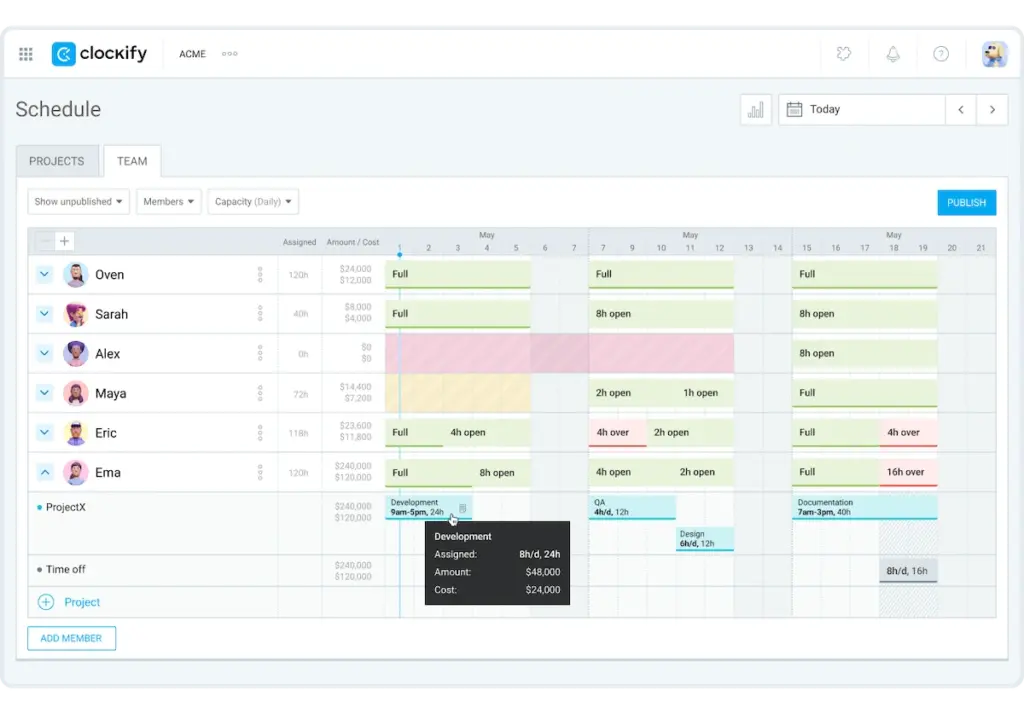
Se você agendar alguém além da capacidade disponível, o Clockify avisa antes da confirmação. Dessa forma, um líder de projeto que gerencia oito pessoas em três projetos de clientes diferentes pode identificar uma sobrecarga antes que ela aconteça.
Disponível em: plano Pro e superiores.
Despesas
Seja para faturar aos clientes ou para registros internos, o controle de despesas oferece informações valiosas sobre a gestão do seu orçamento.
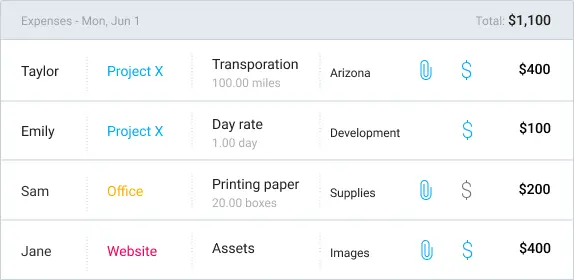
Você pode categorizar as despesas por tipo e registrá-las como um valor fixo ou por preço unitário. As despesas faturáveis são contabilizadas automaticamente no orçamento do projeto. As despesas também podem ser enviadas para aprovação, da mesma forma que as planilhas de horas.
Registrar as despesas à medida que ocorrem, em vez de reconstruí-las no momento da emissão da fatura, significa menos despesas faturáveis perdidas e dados de lucratividade do projeto mais precisos.
Disponível em: plano Pro e superiores.
Acompanhe as despesas no Clockify
Faturamento
O Clockify permite que você cobre dos seus clientes por serviços e despesas diretamente pelo aplicativo.
Gere faturas diretamente a partir do tempo registrado e das despesas faturáveis. Você escolhe o cliente, o projeto e a moeda, bem como a entidade legal da qual está faturando, caso opere com mais de uma. Com a funcionalidade de Faturamento do Clockify, você também pode:
- Adicionar impostos ou descontos
- Personalizar o modelo de e-mail
- Acompanhar o status da fatura (não enviada, paga, parcialmente paga e vencida)
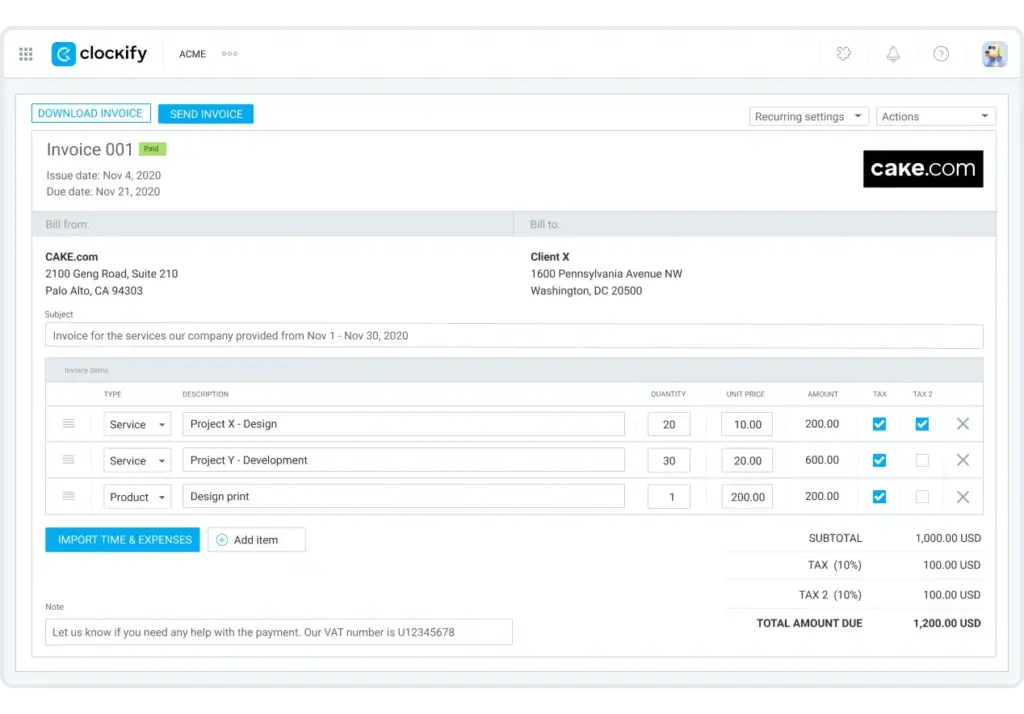
Faturas parcialmente pagas mostram a data do pagamento e o valor que ainda está pendente. Como as faturas são geradas diretamente a partir do tempo e das despesas já registradas no Clockify, não há risco de subfaturamento ou de esquecer alguma atividade faturável.
Faturas recorrentes automatizam todo esse processo de acordo com uma programação definida.
Disponível em: plano Standard e superiores.
Observação: você pode encontrar muitos complementos úteis no Marketplace da CAKE.com para personalizar ainda mais suas faturas, como o Peppol para faturamento eletrônico, o Better Invoices para uma aparência profissional, o Contractor Invoice Generator e muitos outros.

Funcionalidades úteis: Edição em massa, bloqueio de tempo e adição de tempo para outras pessoas
No Clockify, a edição em massa permite atualizar várias entradas de tempo, projetos ou usuários em uma única ação (por exemplo, atualizar a capacidade de trabalho de dez pessoas de uma só vez).
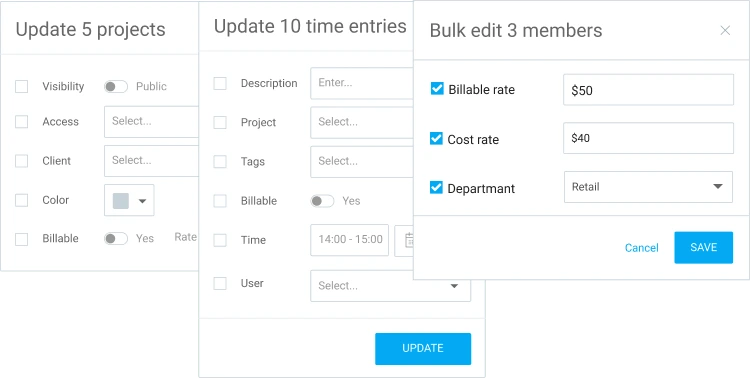
Além disso, o bloqueio de planilha de horas impede que usuários comuns editem entradas após uma data definida, o que é útil quando as planilha de horas são finalizadas para a folha de pagamento.
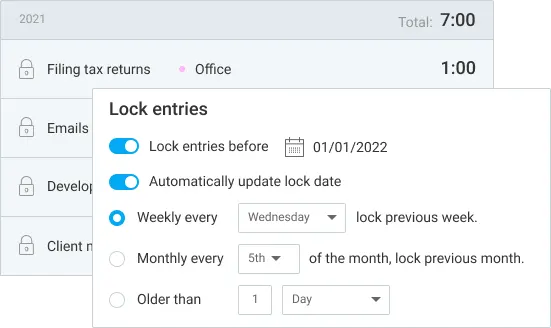
A funcionalidade Adicionar tempo para outros permite que os administradores registrem o tempo em nome de um membro da equipe, mesmo depois que as entradas do membro da equipe forem bloqueadas. Isso mantém os registros precisos quando um trabalhador de campo não tem acesso ao aplicativo ou quando um membro da equipe se esquece de registrar as horas antes do bloqueio da Planilha de horas.
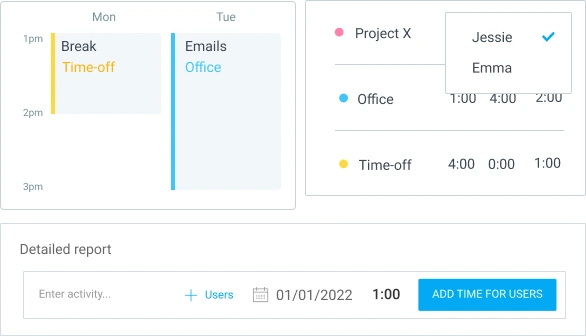
Disponível em: Edição em massa e Adição de tempo para outros no plano Basic e superiores. Bloqueio de tempo no plano Standard e superiores.
Funções de gerenciamento
O Clockify possui cinco níveis de função, com diferentes permissões de usuário:
- O proprietário é o criador da conta com acesso total a todas as configurações, faturamento e dados. Há apenas um proprietário por espaço de trabalho.
- O administrador tem as mesmas permissões que o proprietário, exceto que não pode excluir o espaço de trabalho.
- O gerente de projeto pode criar e gerenciar projetos, tarefas e atribuições de equipe dentro dos projetos que supervisiona, sem acesso às configurações gerais do espaço de trabalho.
- O gerente de equipe pode visualizar e aprovar planilha de horas e folgas dos membros específicos da equipe que foram atribuídos a ele.
- O usuário comum só pode registrar seu próprio tempo, enviar planilha de horas e solicitar folga.
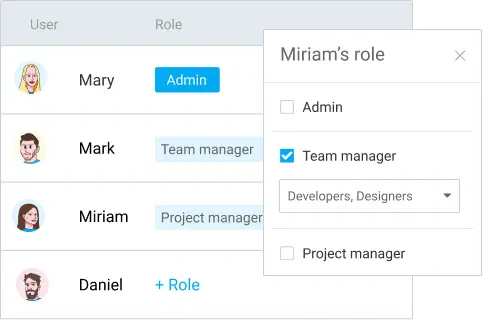
Atribuir funções de gerente acelera as aprovações e melhora as decisões de agendamento e orçamento. Dessa forma, as pessoas diretamente envolvidas em um projeto podem agir sem encaminhar todas as solicitações para um administrador.
Disponível em: plano Standard e superiores.
Ocultar tempo e páginas
No Clockify, a funcionalidade de Ocultar horário e páginas restringe o que os usuários regulares podem ver, incluindo relatórios ou entradas de tempo de outras pessoas.
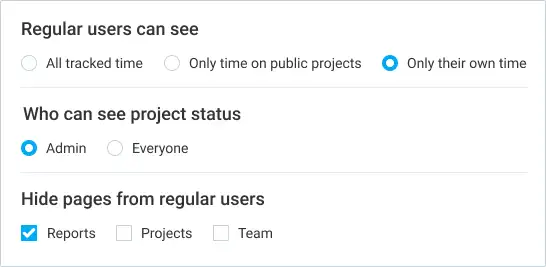
Isso é útil quando a maioria dos funcionários precisa apenas registrar seu próprio horário e não precisa de visibilidade dos dados de toda a empresa.
Disponível em: plano Basic e superiores.
Login único (SSO)
Em vez de uma senha separada do Clockify, o login único (SSO) permite que sua equipe entre no Clockify usando o provedor de identidade existente da sua empresa (incluindo Okta, Azure e Google).
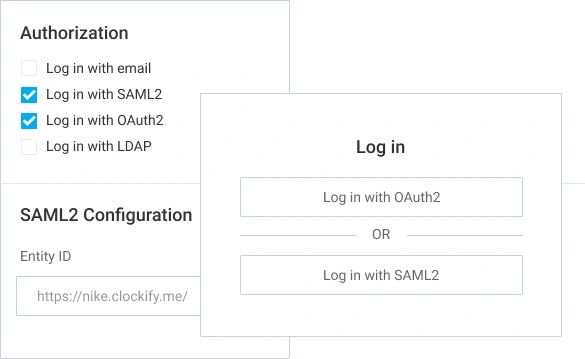
O Clockify oferece suporte a SAML 2.0 e OAuth2. A configuração requer um subdomínio personalizado para sua organização, que também está incluído no plano Enterprise.
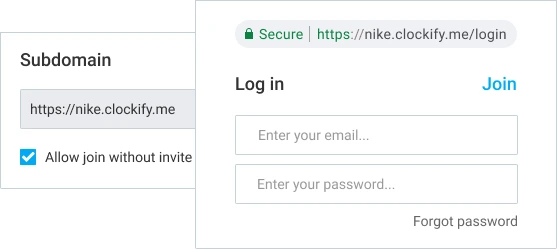
Para equipes de TI que gerenciam o acesso a várias ferramentas, isso significa uma senha a menos para gerenciar e um ponto de ataque a menos para se preocupar. Além disso, o desligamento de um usuário desativa automaticamente o acesso dele ao Clockify.
Disponível em: plano Enterprise.
Experimente o Clockify GRATUITAMENTE hoje mesmo!
Perguntas frequentes sobre as funcionalidades pagas do Clockify
Agora, vamos analisar algumas das perguntas que costumam surgir quando as equipes avaliam uma atualização.
O Clockify faz capturas de tela?
Sim, o Clockify pode fazer capturas de tela. Ele funciona apenas em computadores e faz uma captura a cada 5 minutos enquanto o cronômetro está em execução. As capturas ficam desfocadas por padrão.
Qual plano inclui capturas de tela?
O recurso de captura de tela está disponível nos planos Pro e Enterprise do Clockify.
Como saber se o Clockify está fazendo capturas de tela?
Os usuários recebem uma notificação no momento em que o administrador ativa as capturas de tela para seu espaço de trabalho. O Clockify não faz capturas de tela sem avisar.
O Clockify pode ver minha tela?
Não, o Clockify não pode ver a tela do usuário em tempo real. O aplicativo captura uma imagem estática, não uma transmissão ao vivo da tela, e somente enquanto o cronômetro está em execução. As capturas de tela ficam desfocadas por padrão, a menos que um administrador defina uma resolução maior, e somente administradores com a permissão adequada podem visualizá-las.
O Clockify monitora funcionários?
O Clockify oferece 2 recursos opcionais de monitoramento de funcionários — Capturas de tela e rastreamento por GPS — ambos disponíveis no plano Pro ou superior. Além disso, ambos os recursos do Clockify:
- São controladas pelos administradores
- Notificam os usuários quando ativos
- Podem ser desativadas completamente se sua equipe não precisar delas
O que está incluído no plano Pro do Clockify?
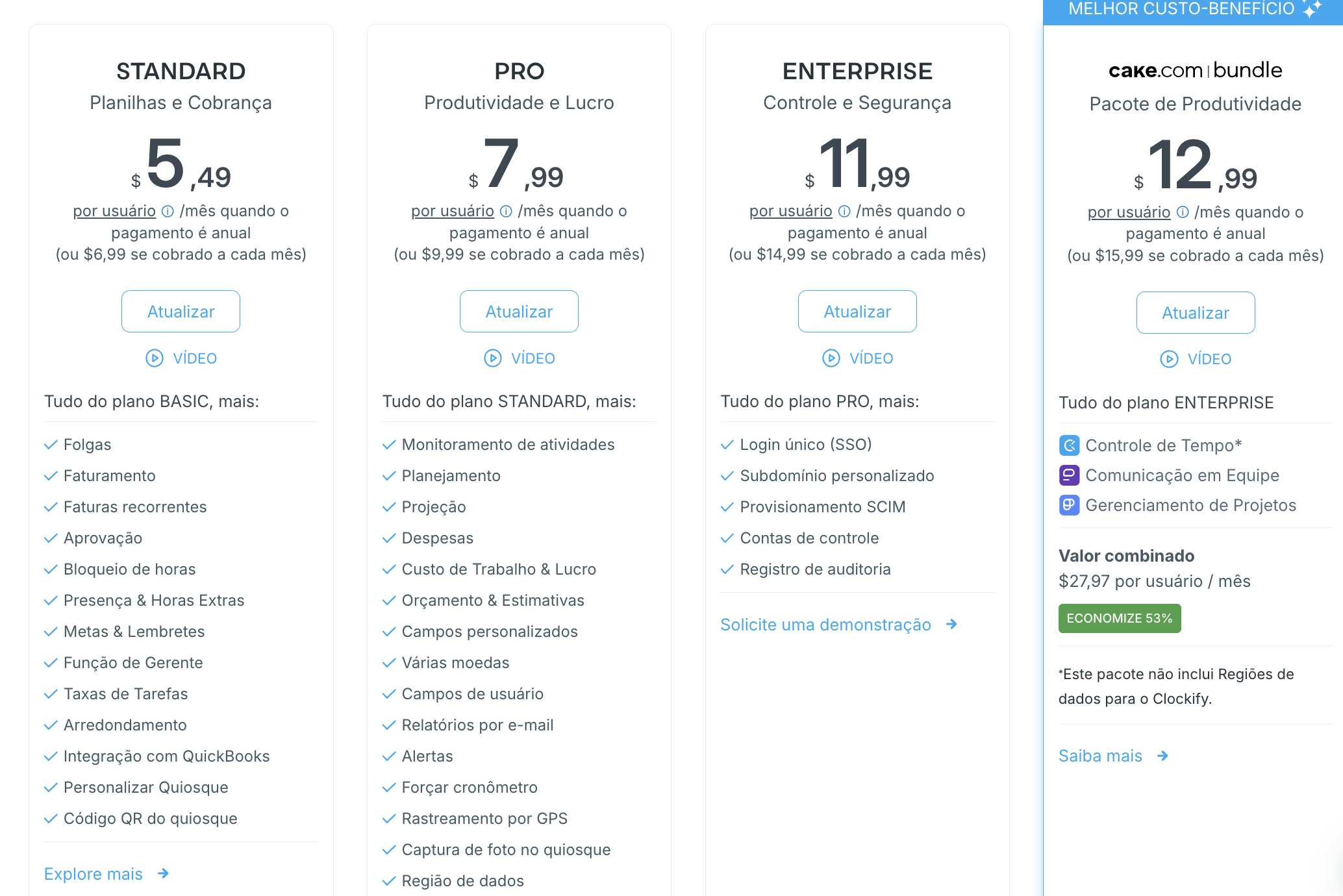
O plano Pro inclui tudo o que está disponível no plano Standard, além de: Agendamento, Projeção, Despesas, Controle de custos e lucros da mão de obra, Estimativas de orçamento, Campos personalizados, Múltiplas moedas, Rastreamento por GPS e Capturas de tela.
Qual é a diferença entre os planos Basic, Standard, Pro e Enterprise?
A diferença entre os planos Basic, Standard, Pro e Enterprise está na quantidade de recursos e funcionalidades disponíveis. Os planos pagos do Clockify vão acrescentando recursos aos oferecidos pelo plano anterior, ou seja, cada plano inclui os recursos do anterior e acrescenta novos:
- O plano Basic adiciona Edição em Massa, Auditoria de tempo, Taxas faturáveis e Quiosque.
- O plano Standard adiciona Gerenciamento de folgas, Faturamento e Aprovação.
- O plano Pro adiciona Agendamento, Projeção, Rastreamento por GPS e Capturas de tela.
- O plano Enterprise adiciona ferramentas de segurança como SSO, Provisionamento SCIM e
Como posso testar os recursos pagos antes de fazer um upgrade?
Para testar os recursos pagos do Clockify, inicie uma avaliação gratuita de 7 dias. Não é necessário informar um cartão de crédito, e a avaliação dá acesso a todos os recursos do plano Pro para que você possa testar o que sua equipe realmente precisa antes de se comprometer com um plano.
Cadastre-se no Clockify GRATUITAMENTE
Como avaliamos esta publicação: Nossos redatores e editores monitoram as publicações e as atualizam quando novas informações são disponibilizadas para mantê-las atualizadas e relevantes.