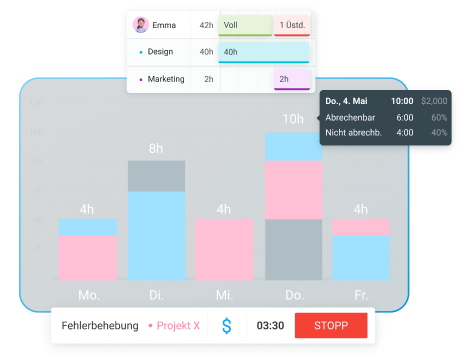
Dieser Leitfaden deckt die wichtigsten kostenpflichtigen Funktionen von Clockify ab dem 3. Quartal 2026 — was sie bewirken, welche Probleme sie lösen und in welchem Tarif sie enthalten sind. So kannst du entscheiden, ob sich ein Upgrade für dein Team lohnt.
- Clockify bietet einen kostenlosen Tarif sowie 4 kostenpflichtige Stufen: Basic, Standard, Pro und Enterprise. Jede Stufe enthält alle Funktionen der jeweils darunter liegenden.
- Clockify ist auch als Teil des CAKE.com-Bundles zusammen mit Plaky für Projektmanagement und Pumble für Teamkommunikation erhältlich.
- In den Tarifen Pro und Enterprise erstellt Clockify über die Desktop-App Screenshots, während der Timer läuft.
- Abwesenheiten, Rechnungsstellung und Genehmigung von Arbeitszeittabellen sind Funktionen des Standard-Tarifs.
- Einsatzplanung, Prognosen, Personalkosten-Berichte und GPS-Tracking sind Funktionen des Pro-Tarifs.
- Alle Pro-Funktionen stehen während einer 7-tägigen kostenlosen Testversion zur Verfügung, ohne dass eine Kreditkarte erforderlich ist. Benutzer können diese Testphase nach Kontaktaufnahme mit dem Clockify-Support sogar verlängern.
Welche Zusatzfunktionen sind in welchem Tarif enthalten?
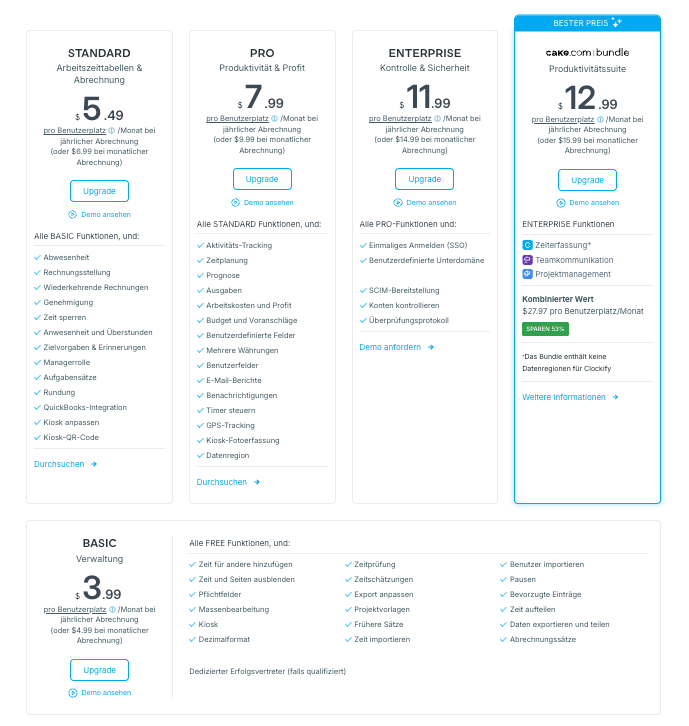
Clockify bietet 5 Tarife:
Der Free-Tarif von Clockify deckt die Zeiterfassung für Teams von bis zu 5 Personen ab. Sobald dein Team darüber hinaus wächst oder du Funktionen wie Rechnungsstellung, Arbeitszeittabellen-Genehmigungen oder Screenshot-Erfassung benötigst, ist ein kostenpflichtiger Tarif erforderlich.
Jede kostenpflichtige Stufe baut auf der darunter liegenden auf — Pro enthält also alle Funktionen von Standard und Enterprise alle Funktionen von Pro.
Hinweis: Die Preise in der Tabelle gelten pro Benutzer und Monat bei der jährlichen Abrechnung.
| Funktion | Free | Basic 3.99$ | Standard 5.49$ | Pro 7.99$ | Enterprise 11.99$ |
|---|---|---|---|---|---|
| Zeit für andere hinzufügen | ❌ | ✅ | ✅ | ✅ | ✅ |
| Zeit-Audit | ❌ | ✅ | ✅ | ✅ | ✅ |
| Massenbearb. | ❌ | ✅ | ✅ | ✅ | ✅ |
| Projektvorlagen | ❌ | ✅ | ✅ | ✅ | ✅ |
| Abwesenheiten | ❌ | ❌ | ✅ | ✅ | ✅ |
| Abrechnung | ❌ | ❌ | ✅ | ✅ | ✅ |
| Genehmigung | ❌ | ❌ | ✅ | ✅ | ✅ |
| Anwesenheits- & ÜStd.-Bericht | ❌ | ❌ | ✅ | ✅ | ✅ |
| QuickBooks-Integration | ❌ | ❌ | ✅ | ✅ | ✅ |
| Zeitplanung | ❌ | ❌ | ❌ | ✅ | ✅ |
| Prognosen | ❌ | ❌ | ❌ | ✅ | ✅ |
| Ausgaben | ❌ | ❌ | ❌ | ✅ | ✅ |
| Arbeitskosten & Gewinn | ❌ | ❌ | ❌ | ✅ | ✅ |
| GPS-Tracking | ❌ | ❌ | ❌ | ✅ | ✅ |
| Aktivitäts-Tracking | ❌ | ❌ | ❌ | ✅ | ✅ |
| Single Sign-On (SSO) | ❌ | ❌ | ❌ | ❌ | ✅ |
| Aktivitätsprotokoll | ❌ | ❌ | ❌ | ❌ | ✅ |
Es ist auch das CAKE.com-Bundle für 12,99 $ pro Benutzer und Monat (bei jährlicher Abrechnung) erhältlich. Es enthält die Enterprise-Funktionen für Clockify sowie zwei weitere Tools - Plaky für Projektmanagement und Pumble für Teamkommunikation.

Erfassungsfunktionen
Die kostenpflichtigen Erfassungsfunktionen geben dir mehr Kontrolle darüber:
- Wie Zeit erfasst wird
- Wer sie erfasst
- Welche Informationen daran angehängt werden
Erfassungsfunktionen werden relevant, sobald die einfache Start-Stopp-Zeiterfassung für deine Berichterstattung oder Abrechnung nicht mehr ausreicht.
Aktivitäts-Tracking
Das Aktivitäts-Tracking von Clockify erfasst die Auslastung deines Teams und zeigt dir, welche Mitarbeitenden ihre Zeit mit produktiven oder unproduktiven Aktivitäten verbringen. So erkennen Führungskräfte schnell, welche Apps durch Ablenkungen am Arbeitsplatz Unternehmensgelder verschwenden.
Kostenkontrolle verbessern
Erhalte die Daten, die du benötigst, um ungenutzte Software zu kündigen, Prozesse neu zu bewerten und Leistungsträger hochwertigen Aufgaben zuzuweisen.

Zudem erstellt Clockify Screenshots, die standardmäßig unscharf sind und alle paar Minuten aufgenommen werden, solange der Timer läuft. Jedes Teammitglied erhält sofort eine Benachrichtigung, sobald diese Funktion aktiviert wird.
Die Screenshot-Funktion von Clockify bietet Führungskräften einen visuellen Nachweis über den aktuellen Arbeitsfortschritt – keine dauerhafte Überwachung. Jeder Screenshot bleibt unscharf, es sei denn, ein Admin wählt eine höhere Auflösung. Admins können das Feature jederzeit für den gesamten Arbeitsbereich ein- oder ausschalten. Und niemand wird ohne sein Wissen erfasst, da die Benachrichtigung in dem Moment erscheint, in dem die Einstellung geändert wird.
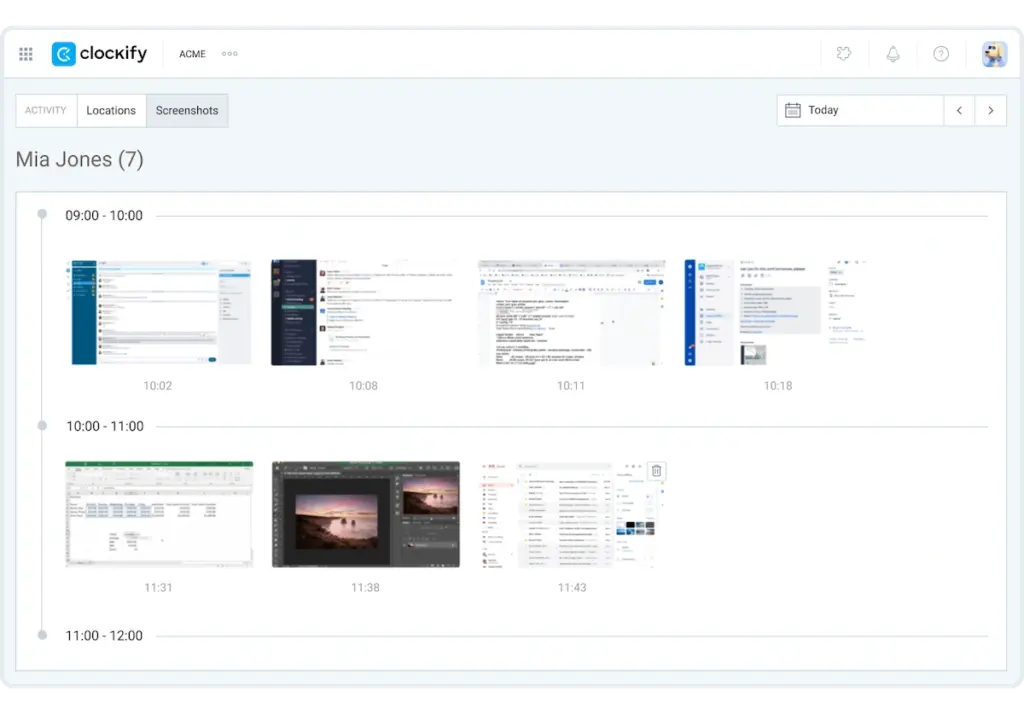
Wenn du ein Remote-Team leitest und Leistungsnachweise für die Kundenabrechnung benötigst, liefern dir Screenshots zusammen mit den Zeiteinträgen beide Belege in einem einzigen Bericht.
Verfügbar ab: Pro-Tarif
Ziele und Erinnerungen
Mit Clockify kannst du tägliche, wöchentliche oder monatliche Zeiterfassungsziele pro Person oder Team festlegen und dann automatisch jeden benachrichtigen, der zu wenig oder zu viel Zeit erfasst.
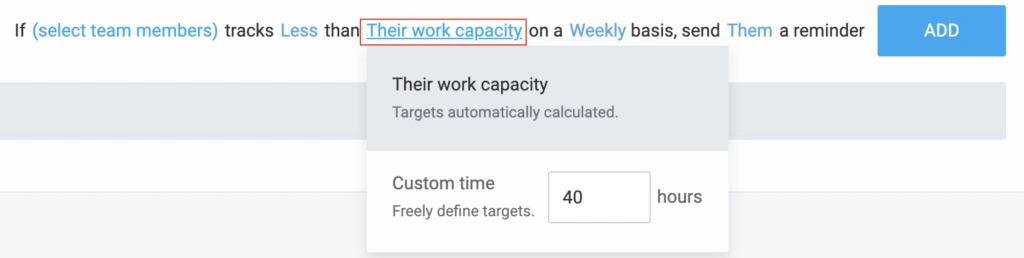
Teilzeitkräfte haben möglicherweise ein Tagesziel von 4 Stunden, während Vollzeitkräfte ein Tagesziel von 8 Stunden und ein Wochenziel von 40 Stunden haben. Wenn jemand sein Ziel unter- oder überschreitet, sendet Clockify eine Erinnerung.
Du kannst außerdem festlegen, wer benachrichtigt wird — nur der Mitarbeiter, dessen Manager oder alle Admins. Dadurch entfällt die manuelle Überprüfung, wer jede Woche seine Stunden unter- oder überschritten hat.
Verfügbar ab: Standard-Tarif.
Pausen
Erfasse Pausenzeiten genauso wie deine Arbeitszeit. Es gibt 3 Möglichkeiten, Pausen in Clockify zu erfassen:
- Schalte im Timer vom Arbeitsmodus in den Pausenmodus um
- Wähle den Pausenmodus an einem Kiosk aus
- Trage Pausenzeiten direkt in deine Arbeitszeittabelle über ein Standard-Pausenprojekt ein
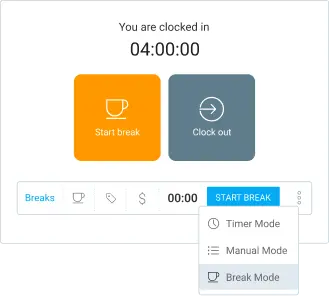
Die getrennte Erfassung von Pausenzeiten und Arbeitszeiten gibt dir ein genaueres Bild der tatsächlich produktiven Stunden. Das ist besonders wichtig, wenn du Kunden auf Stundensatzbasis abrechnest oder Personalkosten berechnest.
Verfügbar ab: Basic-Tarif.
Arbeits- und Pausenzeiten in Clockify erfassen
Benutzerdefinierte Felder und Pflichtfelder
Mit den benutzerdefinierten Feldern in Clockify kannst du Zeiteinträgen oder Benutzerprofilen zusätzliche Informationen hinzufügen — in Form von Text, Zahlen, Links, Schaltern oder Einfach- bzw. Mehrfachauswahllisten. Du steuerst, welche Projekte ein bestimmtes Feld anzeigen und wie dessen Standardwert lautet.
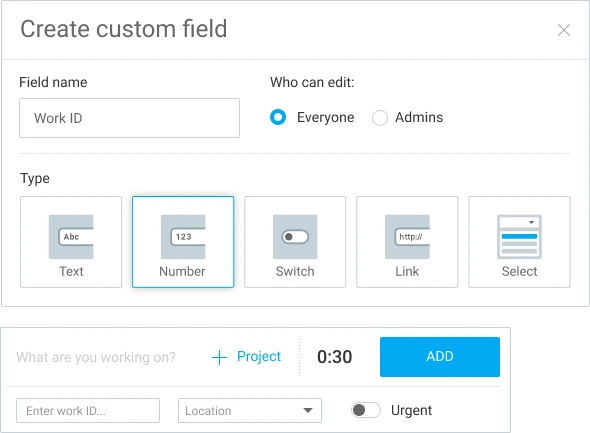
Wenn dein Abrechnungsprozess für jeden Eintrag einen Jobcode, eine Referenznummer des Kunden oder eine Projektphase erfordert, sorgen benutzerdefinierte Felder dafür, dass diese Daten direkt an den richtigen Datensätzen angehängt bleiben — ganz ohne Gedächtnisstützen oder separate Tabellen.
Zusätzlich verhindern Pflichtfelder das Speichern von Einträgen, wenn ein Projekt, eine Aufgabe, ein Tag oder ein benutzerdefiniertes Feld fehlt. Dies ist vor allem für Teams wichtig, die konsistente Daten für die Abrechnung, die Lohnbuchhaltung oder Compliance-Audits benötigen.
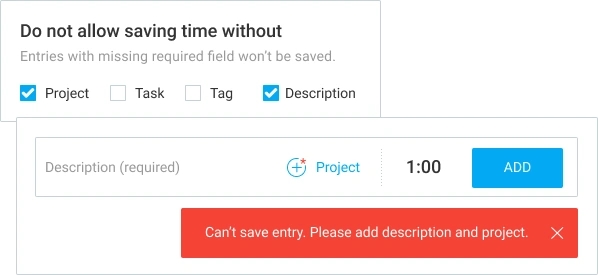
Verfügbar ab: Benutzerdefinierte Felder sind ab dem Pro-Tarif und Pflichtfelder ab dem Basic-Tarif verfügbar.
Zeiten und Benutzer importieren
Wenn du von einem anderen Zeiterfassungstool wechselst, kannst du deine vorhandenen Arbeitszeittabelle und Teammitglieder über eine CSV-Datei in Clockify importieren, anstatt alles manuell neu einzugeben.
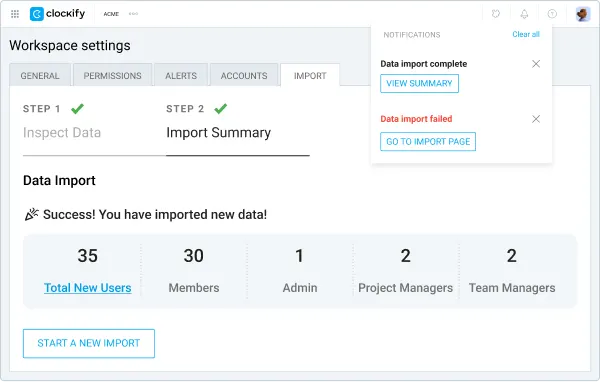
Verfügbar ab: Basic-Tarif.
💡 CLOCKIFY-PRO-TIPP
Du wechselst von einem anderen Tool zu Clockify? Erfahre, wie das funktioniert – inklusive Datenimport:
Kiosk-Anpassung, Fotoerfassung, PIN und QR-Code
Mit dem Clockify-Kiosk kannst du jedes internetfähige Gerät in eine gemeinsame Stempelstation verwandeln – ideal für Teams an mehreren Standorten oder mit Schichtbetrieb.
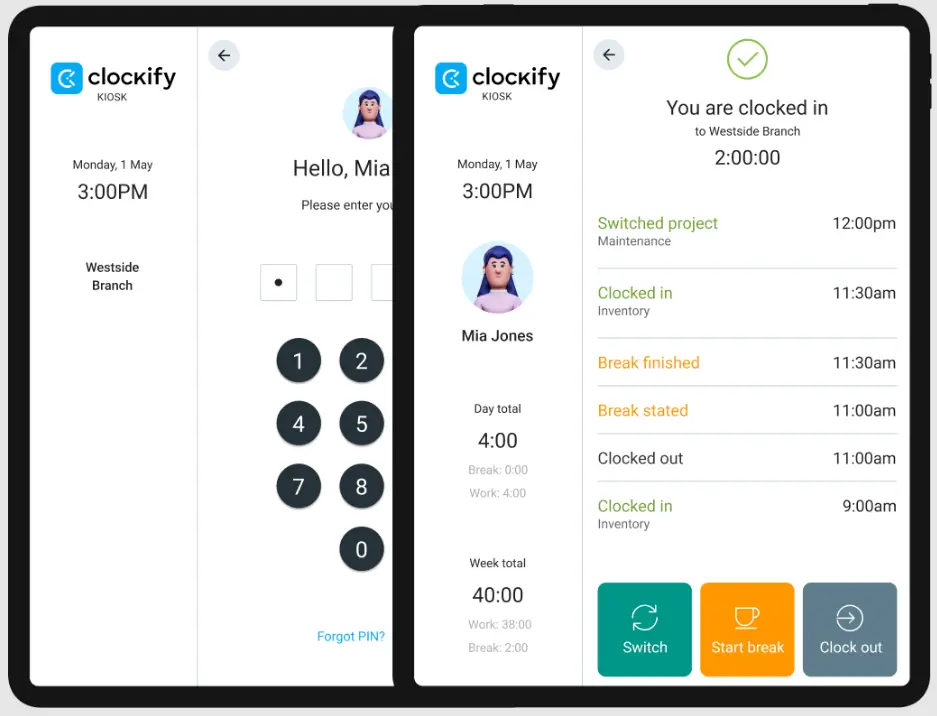
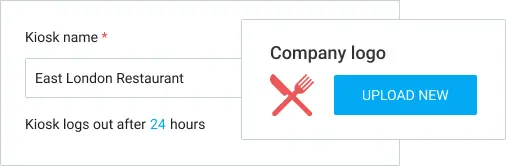
Die Kiosk-Anpassung ermöglicht es dir, dein Firmenlogo einzubinden und festzulegen, wie lange der Kiosk nach dem Start geöffnet bleibt.
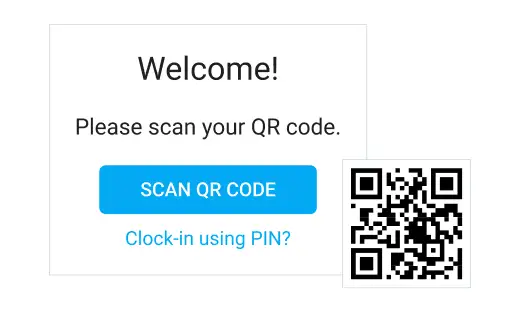
Persönliche PIN-Codes ermöglichen es deinen Teammitgliedern, sich mit ihrer PIN am Kiosk anzumelden, um ihre Arbeitszeit zu erfassen. Mit dem QR-Code wiederum können sich Mitarbeiter über ihren persönlichen QR-Code am Kiosk einloggen. Dies erhöht die Gesamtsicherheit und die Genauigkeit der Zeiterfassung.
Um gegenseitiges Stempeln noch effektiver zu verhindern und die Nachvollziehbarkeit zu erhöhen, steht dir in Clockify auch die Kiosk-Fotoerfassung zur Verfügung.
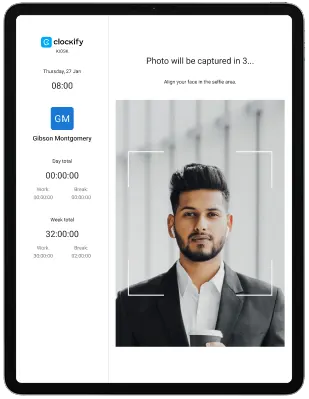
Verfügbar ab: Kiosk-PIN ab Basic-Tarif. Kiosk-Anpassung und QR-Code ab Standard-Tarif. Kiosk-Fotoerfassung ab Pro-Tarif.
QuickBooks-Integration
Für noch mehr Effizienz lässt sich Clockify mit QuickBooks integrieren. Dabei werden erfasste Zeiten, Benutzer und Projektdaten synchronisiert, um die Rechnungsstellung und Lohnabrechnung zu unterstützen. Die Integration erspart das manuelle Übertragen von Clockify-Daten nach QuickBooks und reduziert Abrechnungsfehler durch Kopieren und Einfügen.
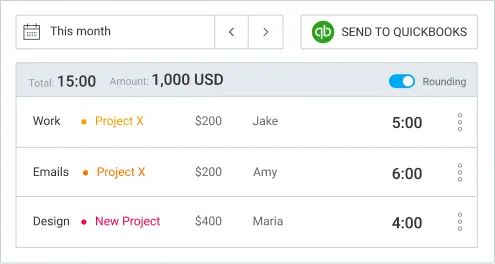
Verfügbar ab: Standard-Tarif.
Detaillierte Informationen findest du im Leitfaden zur QuickBooks-Integration ➜
Berichtsfunktionen
Diese zusätzlichen Berichtsfunktionen verwandeln deine erfassten Zeiten in nutzbare Daten für Budgetierungs-, Abrechnungs- und Personalentscheidungen.
Schätzungen und Benachrichtigungen
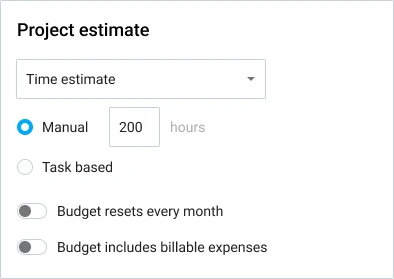
Dank den Zeitschätzungen in Clockify kannst du ein gesamtes Zeitbudget für ein Projekt oder für einzelne Aufgaben darin festlegen – und dieses jeden Monat zurücksetzen.
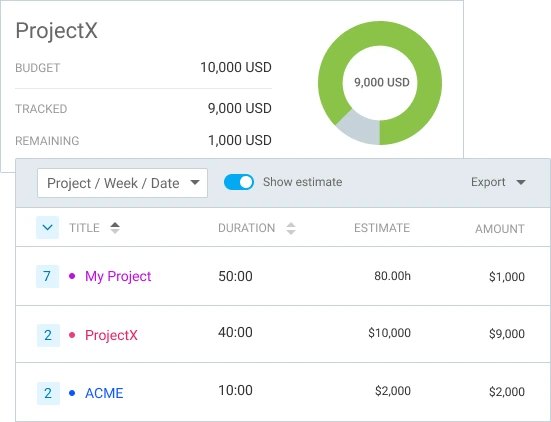
Mit Budget-Schätzungen legst du ein Geldbudget für ein Projekt oder einzelne Aufgaben fest, das auch abrechenbare Ausgaben beinhalten kann.
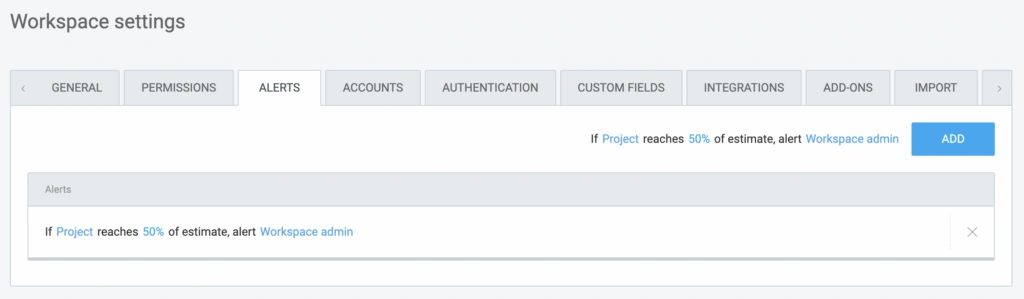
Schließlich kannst du Projekt-Warnmeldungen einrichten, um automatisch benachrichtigt zu werden, wenn ein Projekt kurz vor Erreichen der Schätzung steht oder diese erreicht.
Wenn du Retainer-Kunden betreust, kannst du das Projektbudget-Tracking jeden Monat zurücksetzen. So weißt du genau, wann ein Projekt vom ursprünglichen Umfang abzuweichen droht.
Verfügbar ab: Zeitschätzungen ab Basic-Tarif. Budget-Schätzungen und Warnmeldungen ab Pro-Tarif.
Projektdauer mit Clockify schätzen
Arbeitskosten und Gewinn
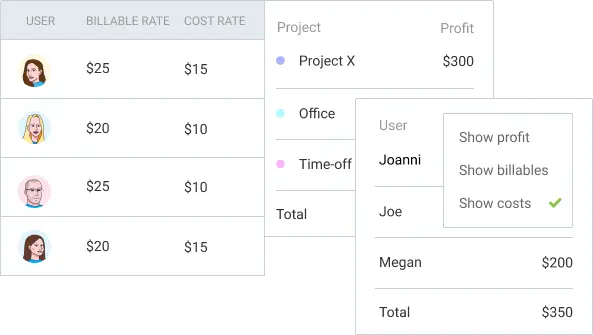
Lege abrechenbare Stundensätze für Einnahmen und Kostensätze für Arbeitskosten auf Organisations-, Team-, Projekt-, Aufgaben- oder Kundenebene fest. Während dein Team Zeiten erfasst, berechnet Clockify Einnahmen, Kosten und Gewinn automatisch in den Berichten, die du für weitere Analysen exportieren kannst.
Agenturen können Arbeitskosten und Gewinn nutzen, um projektbezogen zu vergleichen, was sie einem Kunden in Rechnung stellen und was sie dem ausführenden Auftragnehmer zahlen.
Verfügbar ab: Pro-Tarif
Teamberichte: Anwesenheit und Aufgaben
Der Anwesenheitsbericht in Clockify zeigt für jeden Mitarbeiter:
- Tägliche Start- und Endzeit
- Soll-Arbeitszeit im Vergleich zu den tatsächlichen Stunden
- Abwesenheiten
- Überstunden
Der Aufgabenbericht vergleicht die geplanten mit den tatsächlich erfassten Stunden und enthält einen visuellen Fortschrittsbalken.
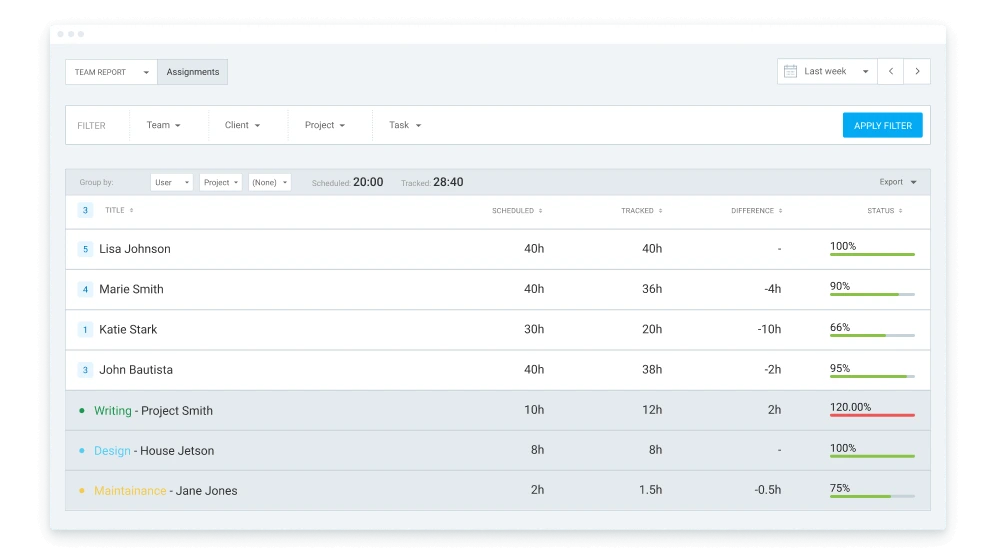
Beide Berichte lassen sich nach Datum, Teammitglied oder Stundenbereich filtern und als CSV, Excel oder PDF exportieren.
Zusammen helfen dir der Aufgaben- und der Anwesenheits-Bericht dabei, Anwesenheits- und Terminplanungsprobleme (z. B. wer seinen zugewiesenen Stunden wiederholt hinterherhinkt) frühzeitig zu erkennen, bevor sie außer Kontrolle geraten.
Verfügbar für: Der Anwesenheitsbericht ab dem Standardtarif und der Aufgabenbereich ab dem Pro-Tarif.
Ausgabenbericht
Mit dem Ausgabenbericht in Clockify kannst du alle erfassten Ausgaben an einem Ort einsehen. Filter einfach nach Team, Kunde, Projekt, Kategorie, Status oder Datum und exportiere anschließend die Ergebnisse.
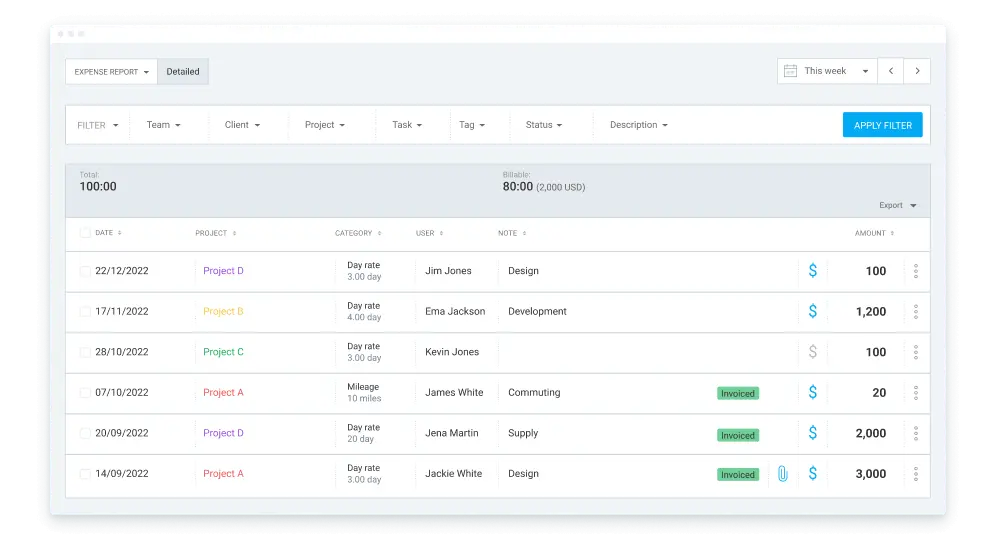
Anstatt Belegen in E-Mails und Tabellen hinterherzujagen, ist in Clockify alles an einem Ort – bereit für die Kundenabrechnung oder Budgetüberprüfung.
Verfügbar ab: Pro-Tarif
GPS-Tracking
In Clockify zeigt die GPS-Standortverfolgung, wo sich Außendienstmitarbeiter aktuell befinden und wann sie zuletzt aktiv waren – erfasst über die mobile App von Clockify für iOS oder Android.
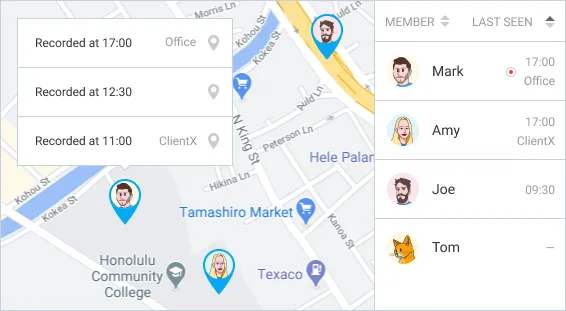
Bauunternehmen, Außendienste und Lieferdienste können die GPS-Ortung von Clockify nutzen, um zu überprüfen, ob Mitarbeiter vor Ort sind, oder um Tagesrouten nachzuvollziehen und unrentable Fahrzeiten zwischen Einsätzen zu erkennen.
Verfügbar ab: Pro-Tarif
Aktivitätenprotokoll und Zeitprüfung
Dank der Zeitprüfung in Clockify kannst du Einträge finden, die zu kurz oder zu lang sind oder denen ein Projekt oder eine Aufgabe fehlt – so kannst du Berichte bereinigen, bevor sie an Kunden gehen oder in die Lohnabrechnung fließen.

Das Aktivitätenprotokoll zeichnet jede Änderung an einem Zeiteintrag auf – wer sie wann vorgenommen hat. Das ist wichtig für Branchen wie das öffentliche Auftragswesen, wo Compliance-Vorgaben wie DCAA einen dokumentierten Prüfpfad für sämtliche Änderungen an erfassten Stunden verlangen.
Einträge, die älter als ein Jahr sind, werden automatisch gelöscht. Exportiere sie daher regelmäßig, wenn du langfristige Nachweise benötigst.
Verfügbar für: Zeitprüfung ab dem Basic-Tarif. Aktivitätenprotokoll im Enterprise-Tarif.
Geplante Berichte
Mit den geplanten Berichten in Clockify kannst du dir einen benutzerdefinierten Bericht täglich, wöchentlich oder monatlich per E-Mail automatisch zuschicken lassen. So musst du dieselben Daten nicht immer wieder manuell filtern und exportieren.
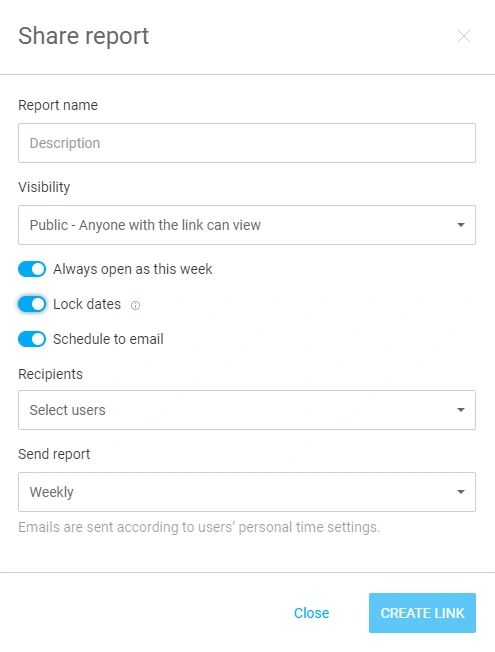
Verfügbar ab: Pro-Tarif
Projektvorlagen
Wenn dein Team häufig an ähnlichen Projekten arbeitet, kannst du die Arbeit mit Projektvorlagen deutlich einfacher organisieren:
- Speichere die Aufgabenstruktur und die Einstellungen eines Projekts als Vorlage
- Verwende sie beim nächsten ähnlichen Projekt einfach wieder, anstatt alles von Grund auf neu zu erstellen

Verfügbar ab: Basic-Tarif.
💡 CLOCKIFY-PRO-TIPP
Erfahre, wie du Projektstunden erfasst, den Fortschritt überwachst und zukünftige Arbeiten projektübergreifend planst:
Prognosen
Die Prognose-Funktion von Clockify kombiniert deine Schätzungen, Zeitpläne und erfassten Zeiten, um vorherzusagen, ob ein Projekt pünktlich, früher oder verspätet abgeschlossen wird.
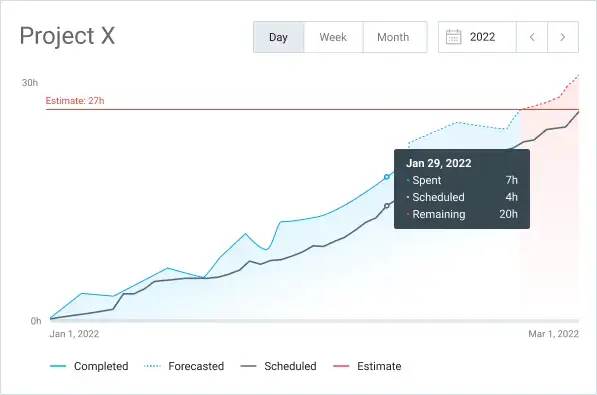
Nutze die Prognose, um Schätzungen anzupassen oder dein Team umzuplanen, bevor eine Frist tatsächlich überschritten wird.
Verfügbar ab: Pro-Tarif
Projektfortschritt in Clockify verfolgen
Berichte anpassen und Zeiten runden
Neben den Filtern bietet dir Clockify by CAKE.com die Möglichkeit, Berichte bei jedem Export weiter anzupassen.
Du kannst auswählen, welche Spalten beim Export nach CSV, Excel oder PDF angezeigt werden. Das ist nützlich, wenn du einen Bericht extern teilen und interne Daten wie Mitarbeiter-IDs ausblenden möchtest.
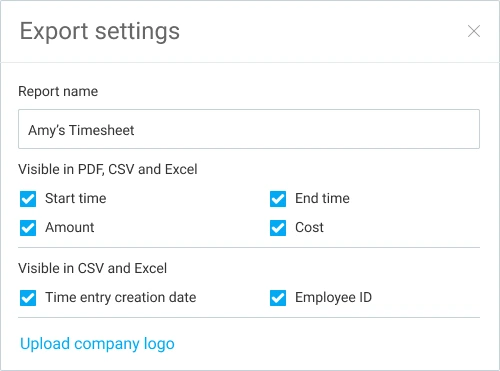
Zudem ermöglicht dir die Zeitrundung das Aufrunden, Abrunden oder Runden von Einträgen auf den nächsten festgelegten Wert – für übersichtlichere und leichter lesbare Berichte.
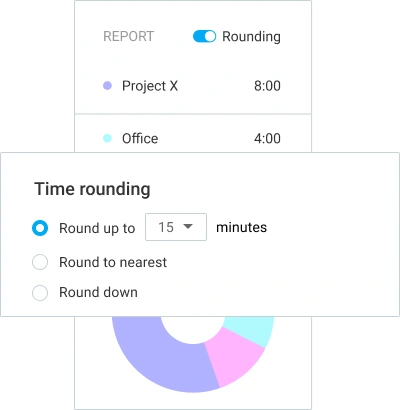
Verfügbar für: Berichtsanpassung ab dem Basic-Tarif. Zeitrundung ab dem Standard-Tarif.
Dezimalformat
Wenn du das Dezimalformat in Clockify aktivierst, kannst du Zeiten im Dezimalformat statt in Stunden und Minuten anzeigen, eingeben und exportieren.
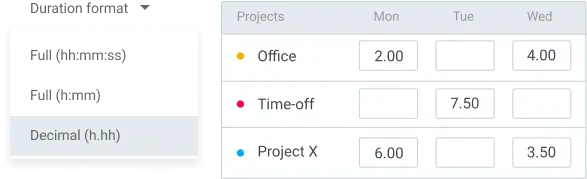
Wenn du Clockify-Daten in ein Lohnabrechnungssystem oder eine Tabelle überträgst, sorgt das Dezimalformat dafür, dass die Zahlen ohne mehraufwendige Umrechnung direkt verwendbar sind.
Verfügbar ab: Basic-Tarif.
💡 CLOCKIFY-PRO-TIPP
Wandle Arbeitsstunden und Minuten mit unserem zuverlässigen Stunden-in-Dezimal-Rechner in Dezimalwerte um:
Verwaltungsfunktionen
Verwaltungsfunktionen decken den operativen Teil der Teamführung ab:
- Wer da ist
- Wer abwesend ist
- Was genehmigt wurde
- Wer worauf Zugriff hat
Abwesenheiten
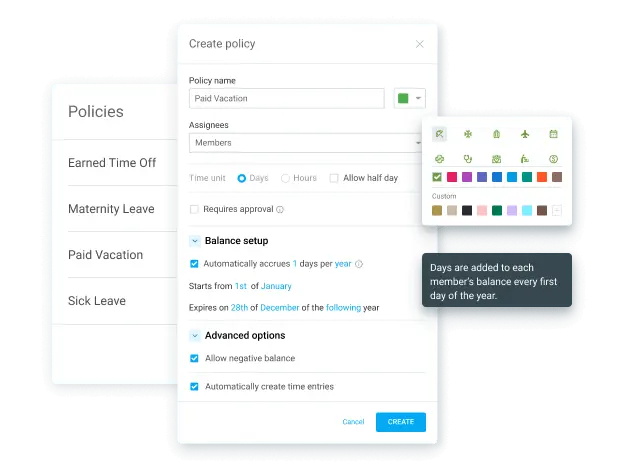
Beachte, dass die Abwesenheitsfunktion von Clockify auf zwei Strukturen basiert: Feiertage (keine Genehmigung erforderlich) und Richtlinien (erfordern in der Regel eine Genehmigung). Beide erhalten eine eigene Farbe und gelten für eine festgelegte Personengruppe.
Feiertage können so eingestellt werden, dass sie sich jährlich an ausgewählten Datumsangaben wiederholen. Abwesenheitsrichtlinien lassen sich noch weiter anpassen durch:
- Festlegung in Tagen oder Stunden
- Erlauben von Negativsalden, damit Personen Abwesenheit vor der Ansammlung anfragen können
- Festlegung eines jährlichen automatischen Ansparens
- Erlauben von Halbtagsanfragen
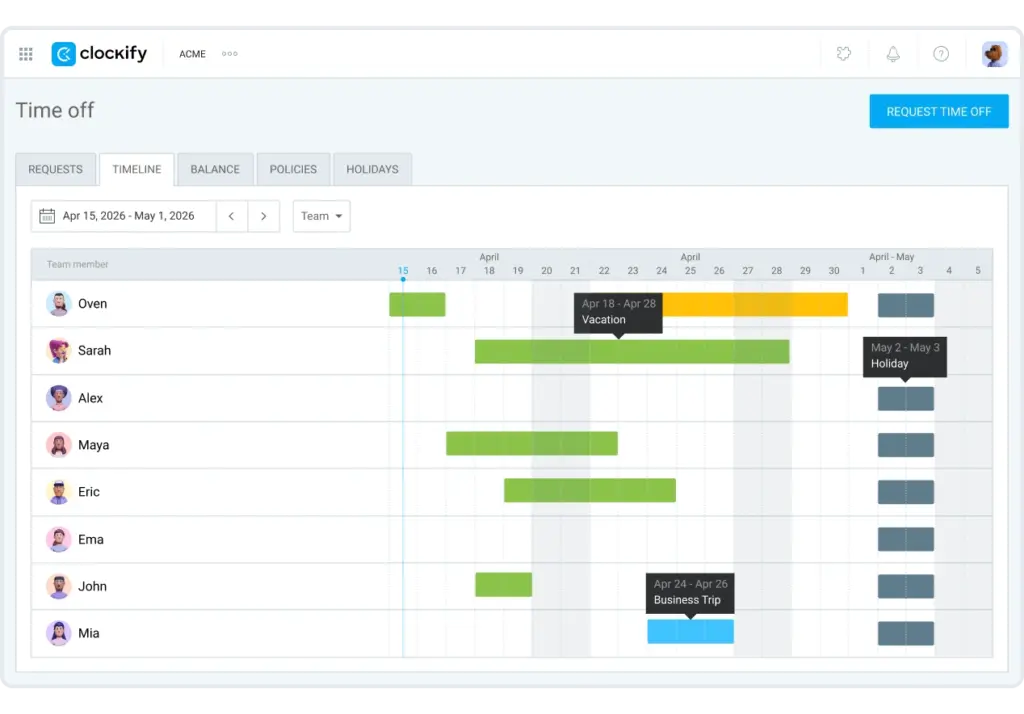
Der Tab Zeitachse zeigt, wer abwesend ist, wie lange und unter welcher Richtlinie.
Der Tab Saldo erfasst genutzte und verbleibende Tage – inklusive manueller Anpassungen und exportierbarem Verlauf.
Für Teams ab 10 Mitarbeitenden macht die Abwesenheitsfunktion in Clockify das ständige Nachfragen zwischen Mitarbeitenden und HR zu verbleibenden Tagen und Abwesenheiten überflüssig.
Verfügbar ab: Standard-Tarif.

Genehmigung
In Clockify von CAKE.com fungiert die Arbeitszeittabellen-Genehmigung als Kontrollpunkt zwischen erfasster Arbeitszeit und vergüteter Zeit:
- Teammitglieder erfassen ihre Zeit über den Timer, die Arbeitszeittabelle oder den Kiosk.
- Teammitglieder reichen ihre Arbeitszeittabellen und etwaige Ausgaben zur Überprüfung ein.
- Eingereichte Einträge erhalten das Label „Ausstehende Genehmigung“ und werden für weitere Bearbeitungen gesperrt.
- Manager genehmigen oder lehnen Einträge einzeln ab oder genehmigen mehrere auf einmal.
- Genehmigte oder abgelehnte Elemente werden in den Tab „Archiv“ verschoben und können nach Datum, Team oder Status gefiltert werden.
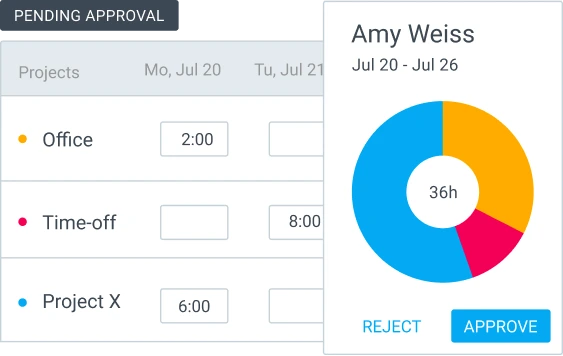
Manager können Erinnerungen an Teammitglieder senden, die ihre Arbeitszeittabellen noch nicht eingereicht haben, sowie an andere Manager, die die Arbeitszeittabellen noch nicht überprüft haben. Sobald die Arbeitszeittabellen mit der Genehmigungsfunktion von Clockify genehmigt wurden, stehen sie für den Lohnabrechnungsexport bereit.
Verfügbar ab: Standard-Tarif.
Zeitplanung
Mit der Zeitplanung von Clockify kannst du Pläne auf zwei Arten erstellen:
- Durch Zuweisung von Personen zu Projekten (Projektansicht)
- Durch Zuweisung von Projekten zu Personen (Teamansicht)
Die Projektansicht ist ideal, wenn du von einer Frist oder einer Zeitschätzung ausgehst und Stunden täglich, wöchentlich oder monatlich zuteilen musst. Die Teamansicht ist eine gute Wahl, wenn du Personen Projekte basierend auf ihrer Arbeitskapazität zuweisen möchtest.
Beide Ansichten ermöglichen dir:
- Meilensteine hinzuzufügen
- Zuweisungen als abrechenbar zu markieren
- Eine Zuweisung für eine bestimmte Anzahl von Wochen zu wiederholen
- Notizen anzuhängen
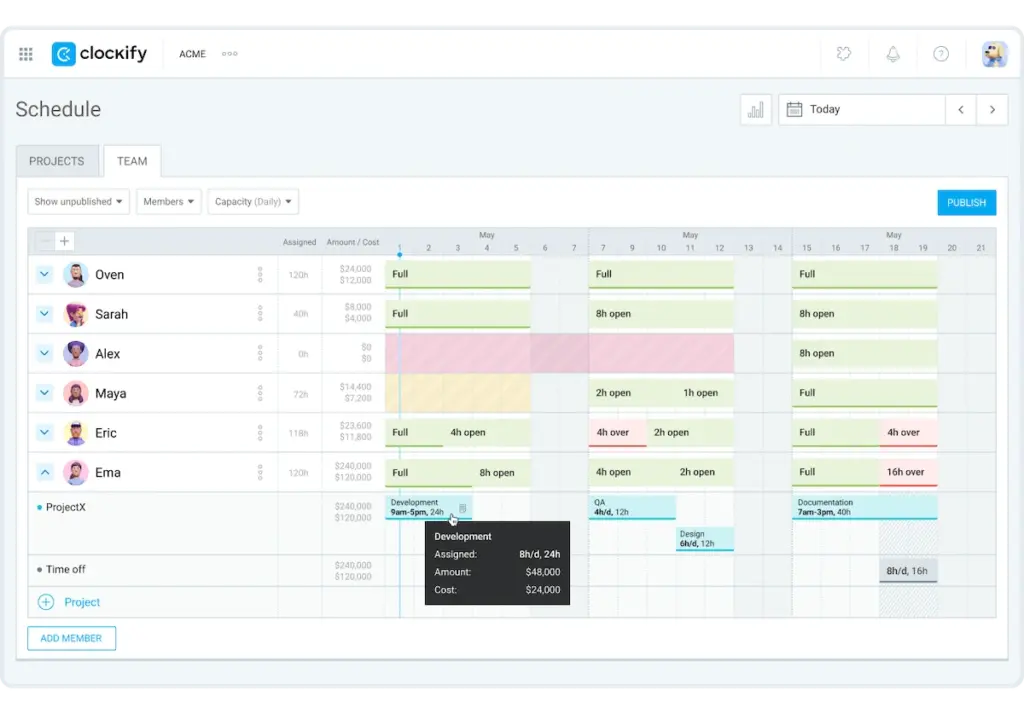
Wenn du jemanden über dessen verfügbare Kapazität hinaus einteilst, warnt dich Clockify, bevor du die Buchung bestätigst. Auf diese Weise kann eine Projektleitung, die beispielsweise 8 Personen auf 3 Kundenprojekte verteilt, eine Überlastung erkennen, bevor sie entsteht.
Verfügbar ab: Pro-Tarif
Ausgaben
Egal, ob du Ausgaben erfasst, um sie Kundinnen und Kunden in Rechnung zu stellen oder für interne Unterlagen: Die Nachverfolgung bietet wertvolle Einblicke in dein Budgetmanagement.
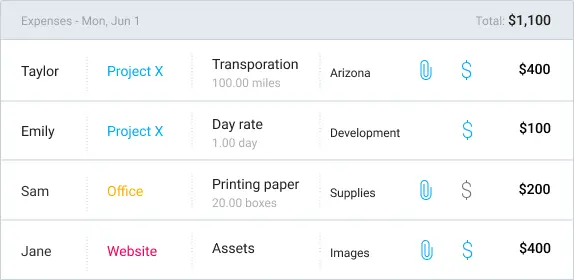
Du kannst Ausgaben nach Typ kategorisieren und sie entweder als Pauschalbetrag oder nach Stückpreis erfassen. Abrechenbare Ausgaben werden automatisch auf das Budget eines Projekts angerechnet. Ausgaben können auch zur Genehmigung eingereicht werden genau wie Arbeitszeittabellen.
Wenn du Ausgaben direkt beim Entstehen erfasst, anstatt sie erst bei der Rechnungsstellung zu rekonstruieren, gehen weniger abrechenbare Beträge verloren und du erhältst genauere Zahlen zur Projektrentabilität.
Verfügbar ab: Pro-Tarif
Abrechnung
Mit Clockify kannst du deinen Kundinnen und Kunden Dienstleistungen und Ausgaben direkt aus der App heraus in Rechnung stellen.
Erstelle Rechnungen direkt aus erfassten Zeiten und abrechenbaren Ausgaben. Du wählst Kunden, Projekt und Währung sowie die juristische Person aus, über die du abrechnest, falls du mehr als eine betreibst. Mit der Rechnungsfunktion von Clockify kannst du außerdem:
- Steuern oder Rabatte hinzufügen
- Die E-Mail-Vorlage anpassen
- Den Rechnungsstatus verfolgen (nicht gesendet, bezahlt, teilweise bezahlt und überfällig)
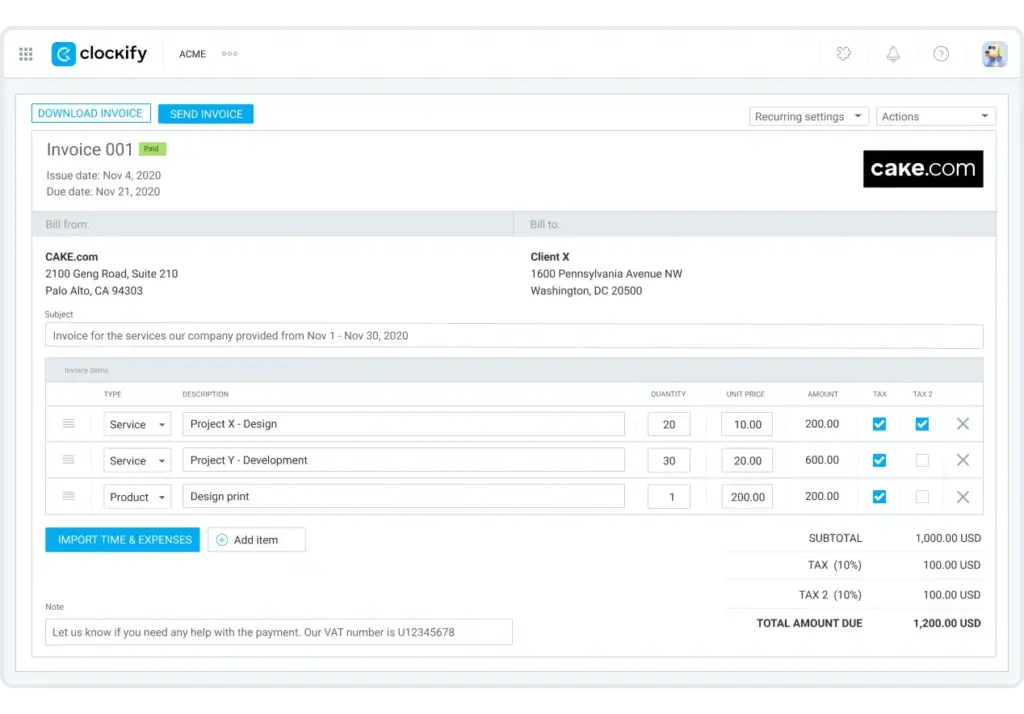
Teilweise bezahlte Rechnungen zeigen das Zahlungsdatum und den noch offenen Betrag an. Da Rechnungen direkt aus den bereits in Clockify erfassten Zeiten und Ausgaben erstellt werden, besteht kein Risiko, zu wenig abzurechnen oder eine abrechenbare Aktivität zu vergessen.
Wiederkehrende Rechnungen automatisieren diesen gesamten Prozess nach einem festen Zeitplan.
Verfügbar ab: Standard-Tarif.
Hinweis: Im CAKE.com-Marketplace findest du viele nützliche Add-ons, um deine Rechnungen weiter anzupassen – wie Peppol für E-Rechnungen, Better Invoices für einen professionellen Look, den Contractor Invoice Generator und viele mehr.

Nützliche Funktionen: Massenbearbeitung, Zeiten sperren und Zeit für andere hinzufügen
Mit der Massenbearbeitung kannst du in Clockify mehrere Zeiteinträge, Projekte oder Benutzer in einem einzigen Schritt aktualisieren (z. B. die Arbeitskapazität für 10 Personen auf einmal anpassen).
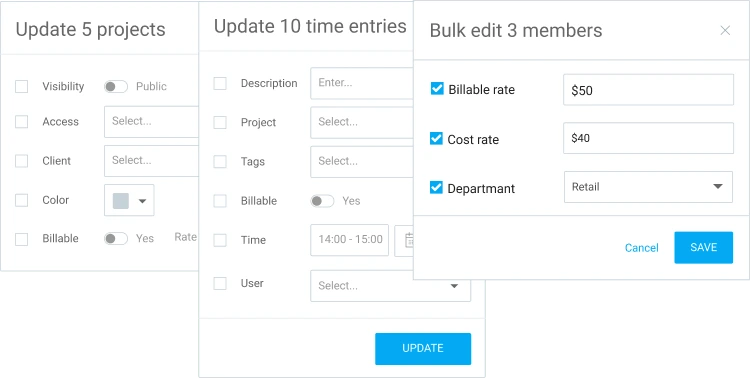
Zusätzlich verhindert das Sperren von Arbeitszeittabellen, dass reguläre Benutzer Einträge nach einem festgelegten Datum bearbeiten. Das ist besonders nützlich, sobald die Arbeitszeittabellen für die Lohnabrechnung finalisiert wurden.
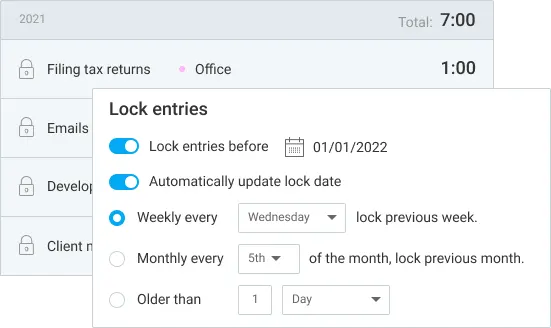
Und die Funktion Zeit für andere hinzufügen ermöglicht es Admins, Zeit im Namen eines Teammitglieds zu erfassen – selbst wenn die Einträge dieses Teammitglieds bereits gesperrt sind. Das sorgt für genaue Aufzeichnungen, wenn eine Person im Außendienst keinen App-Zugriff hat oder vergessen hat, die Arbeitszeiten vor der Sperrung der Arbeitszeittabelle einzutragen.
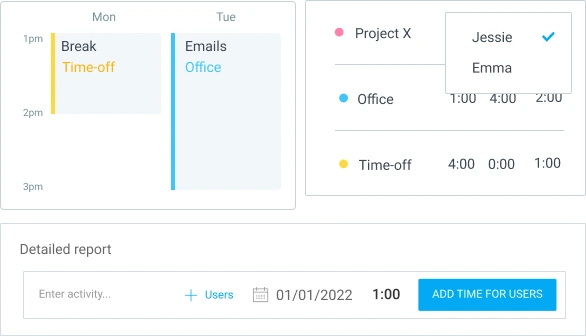
Verfügbar für: Massenbearbeitung und „Zeit für andere hinzufügen“ ab dem Basic-Tarif. Zeiten sperren ab dem Standard-Tarif.
Manager-Rollen
Clockify bietet 5 Rollenstufen mit unterschiedlichen Benutzerberechtigungen:
- Besitzer ist die Person, die das Konto erstellt hat, und hat vollen Zugriff auf alle Einstellungen, die Abrechnung und sämtliche Daten. Es gibt nur einen Besitzer pro Arbeitsbereich.
- Administrator hat dieselben Berechtigungen wie der Inhaber, kann jedoch den Arbeitsbereich nicht löschen.
- Projektmanager kann Projekte, Aufgaben und Teamzuweisungen für die von ihm verwalteten Projekte erstellen und steuern, hat jedoch keinen Zugriff auf arbeitsbereichsweite Einstellungen.
- Teammanager kann Arbeitszeittabellen und Abwesenheitsanträge für die ihm zugewiesenen Teammitglieder einsehen und genehmigen.
- Standard-Benutzer kann nur die eigene Arbeitszeit erfassen, eigene Arbeitszeittabellen einreichen und Urlaub beantragen.
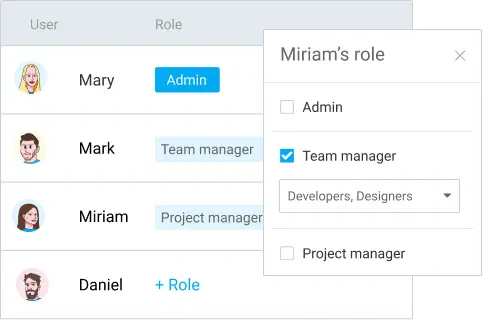
Die Zuweisung von Manager-Rollen beschleunigt Genehmigungen und verbessert Entscheidungen bei der Zeitplanung sowie Budgetierung. Auf diese Weise können direkt an einem Projekt beteiligte Personen handeln, ohne jede Anfrage an einen Administrator eskalieren zu müssen.
Verfügbar ab: Standard-Tarif.
Zeiten und Seiten ausblenden
In Clockify schränkt die Funktion Zeiten und Seiten ausblenden ein, was reguläre Benutzer sehen können – darunter Berichte oder die Zeiteinträge anderer Personen.
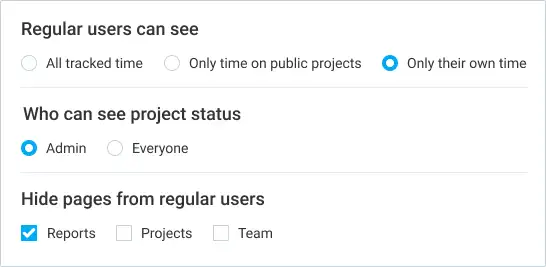
Dies ist nützlich, wenn die meisten Mitarbeitenden nur ihre eigenen Stunden erfassen müssen und keinen Einblick in unternehmensweite Daten benötigen.
Verfügbar ab: Basic-Tarif.
Single Sign-On (SSO)
Anstelle eines separaten Clockify-Passworts ermöglicht das Single Sign-on (SSO) deinem Team, sich über den bestehenden Identity-Provider deines Unternehmens (darunter Okta, Azure und Google) bei Clockify anzumelden.
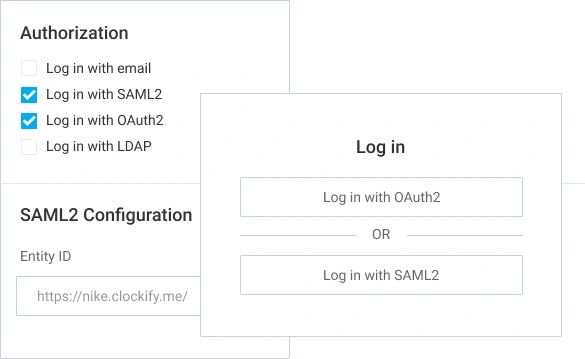
Clockify unterstützt sowohl SAML 2.0 als auch OAuth2. Für die Einrichtung ist eine benutzerdefinierte Subdomain für deine Organisation erforderlich, die ebenfalls im Enterprise-Tarif enthalten ist.
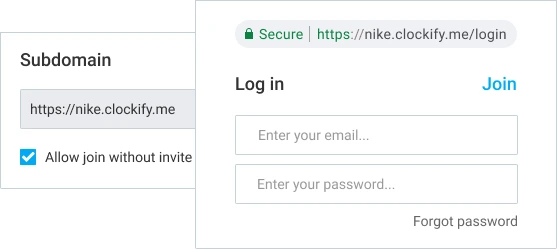
Für IT-Teams, die Zugriffe über mehrere Tools hinweg verwalten, bedeutet dies ein Passwort weniger zu verwalten und einen potenziellen Angriffsvektor weniger, um den man sich Sorgen machen muss. Zudem deaktiviert das Offboarding einer Person automatisch deren Clockify-Zugriff.
Verfügbar ab: Enterprise-Tarif.
Clockify noch heute KOSTENLOS testen
Häufig gestellte Fragen zu kostenpflichtigen Clockify-Funktionen
Werfen wir nun einen Blick auf einige Fragen, die häufig auftauchen, wenn Teams ein Upgrade in Betracht ziehen.
Erstellt Clockify Screenshots?
Ja, Clockify kann Screenshots erstellen. Dies funktioniert nur auf dem Desktop und erfasst alle 5 Minuten eine Aufnahme, während der Timer läuft. Screenshots sind standardmäßig unscharf.
Welcher Tarif enthält Screenshots?
Die Screenshot-Funktion ist in Clockify in den Tarifen Pro und Enterprise verfügbar.
Woher weiß man, ob Clockify Screenshots erstellt?
Benutzende erhalten eine Benachrichtigung in dem Moment, in dem ein Admin Screenshots für ihren Arbeitsbereich aktiviert. Clockify erstellt keine Screenshots, ohne dich darüber zu informieren.
Kann Clockify meinen Bildschirm sehen?
Nein, Clockify kann den Bildschirm der Benutzenden nicht sehen. Die App erfasst lediglich einen Stand-Screenshot, keinen Live-Screenfeed, und das auch nur, während der Timer läuft. Screenshots sind standardmäßig unscharf, es sei denn, ein Admin stellt eine höhere Auflösung ein, und nur Admins mit den entsprechenden Berechtigungen können diese einsehen.
Überwacht Clockify Mitarbeitende?
Clockify bietet 2 optionale Funktionen zur Aktivitätserfassung – Screenshots und GPS-Tracking –, die beide ab dem Pro-Tarif verfügbar sind. Zudem gilt für beide Clockify-Funktionen:
- Sie werden von Admins gesteuert
- Sie benachrichtigen Benutzende, wenn sie aktiv sind
- Sie können vollständig ausgeschaltet werden, wenn dein Team sie nicht benötigt
Was ist im Clockify Pro-Tarif enthalten?
Der Pro-Tarif in Clockify enthält alles aus dem Standard-Tarif sowie Zeitplanung, Prognosen, Ausgaben, Personalkosten- und Gewinn-Tracking, Budget-Schätzungen, benutzerdefinierte Felder, mehrere Währungen, GPS-Tracking und Screenshots.
Was ist der Unterschied zwischen den Tarifen Basic, Standard, Pro und Enterprise?
Der Unterschied zwischen den Tarifen Basic, Standard, Pro und Enterprise liegt in der Anzahl der verfügbaren Clockify-Funktionen und -Möglichkeiten. Die kostenpflichtigen Tarife von Clockify bauen aufeinander auf:
- Der Basic-Tarif erweitert den Funktionsumfang um Tools wie Massenbearbeitung, Zeitprüfung, abrechenbare Stundensätze und Kiosk.
- Der Standard-Tarif ergänzt die Abwesenheitsverwaltung, Rechnungsstellung und Genehmigungen.
- Der Pro-Tarif fügt Zeitplanung, Prognosen, GPS-Tracking und Screenshots hinzu.
- Der Enterprise-Tarif bietet zusätzlich Sicherheits-Tools wie SSO, SCIM-Bereitstellung und Audit-Protokolle.
Wie kann ich kostenpflichtige Funktionen vor einem Upgrade testen?
Um die kostenpflichtigen Funktionen von Clockify zu testen, starte eine 7-tägige kostenlose Testversion. Es ist keine Kreditkarte erforderlich, und die Testversion gewährt deinen Zugriff auf jede Funktion des Pro-Tarifs. So kannst du genau testen, was dein Team tatsächlich benötigt, bevor du dich für einen Tarif entscheidest.
KOSTENLOSE Clockify-Testversion starten
So haben wir diesen Beitrag überprüft: Unsere Autoren und Redakteure überwachen die Beiträge und aktualisieren sie, wenn neue Informationen verfügbar werden, um sie aktuell und relevant zu halten.