Plaky: Clockify integration
With the Clockify & Plaky integration, you can track time for your Plaky boards, items, and subitems, and have that time logged as Clockify projects and tasks without switching between the apps.
If you have at least one active workspace in both apps within the same CAKE.com organization, this integration is automatically enabled.
How it works #
With the Clockify-Plaky integration, you can track time for your projects and tasks directly from Plaky’s boards, items, and subitems. By connecting a Plaky board with a Clockify project, you create a direct link between your Plaky items/subitems and Clockify tasks.
Connect Clockify project with Plaky board #
To track time on your Plaky items and subitems, you, as a board owner, must have access to at least one Clockify workspace in the same CAKE.com organization and connect it to your Plaky board.
Create Plaky board #
If you already have a board, skip to Connect to Clockify.
To create Plaky board:
- Click + in the menu of the left
- Choose New Board
- Choose Create from scratch, file or template
- Name your board and click Create Board
Connect to Clockify #
To connect your Plaky board to Clockify:
- Go to your Plaky board settings and click on Time tracking
- In the settings, you’ll see a list of Clockify projects you have access to
- Choose the one you want to connect to your board
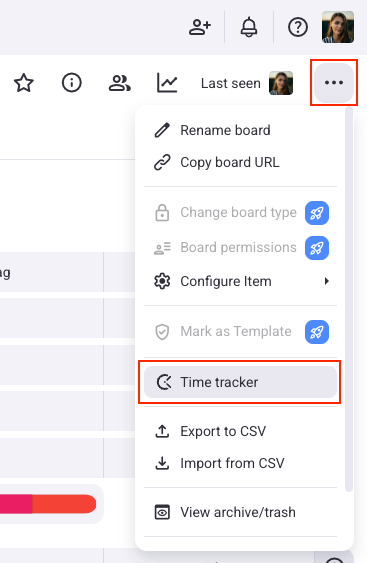
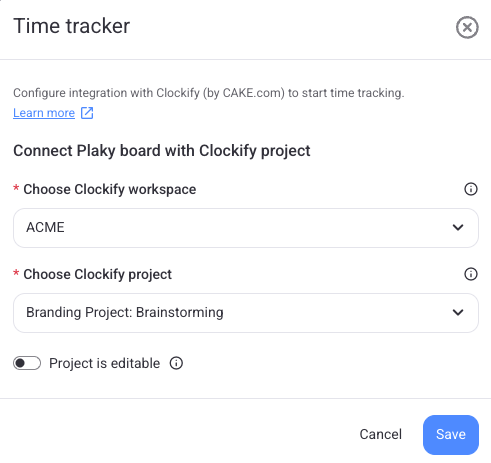
One Plaky board can only be connected to one Clockify project.
Once you connect the Plaky board to the Clockify project, there is a direct connection between your Plaky items/subitems and Clockify tasks and the entire time tracked on this board will be logged under the connected Clockify project.
After connecting your board, you can also choose to lock it for other board members. This prevents them from editing the selected board.
If you don’t have access to Clockify workspace in your CAKE.com organization, you can create one directly from the Plaky integration settings.
Track time from an item #
Once the Plaky board is connected to the Clockify project, a board owner can configure the integration settings directly from the item sidebar, in a Time tracking tab.
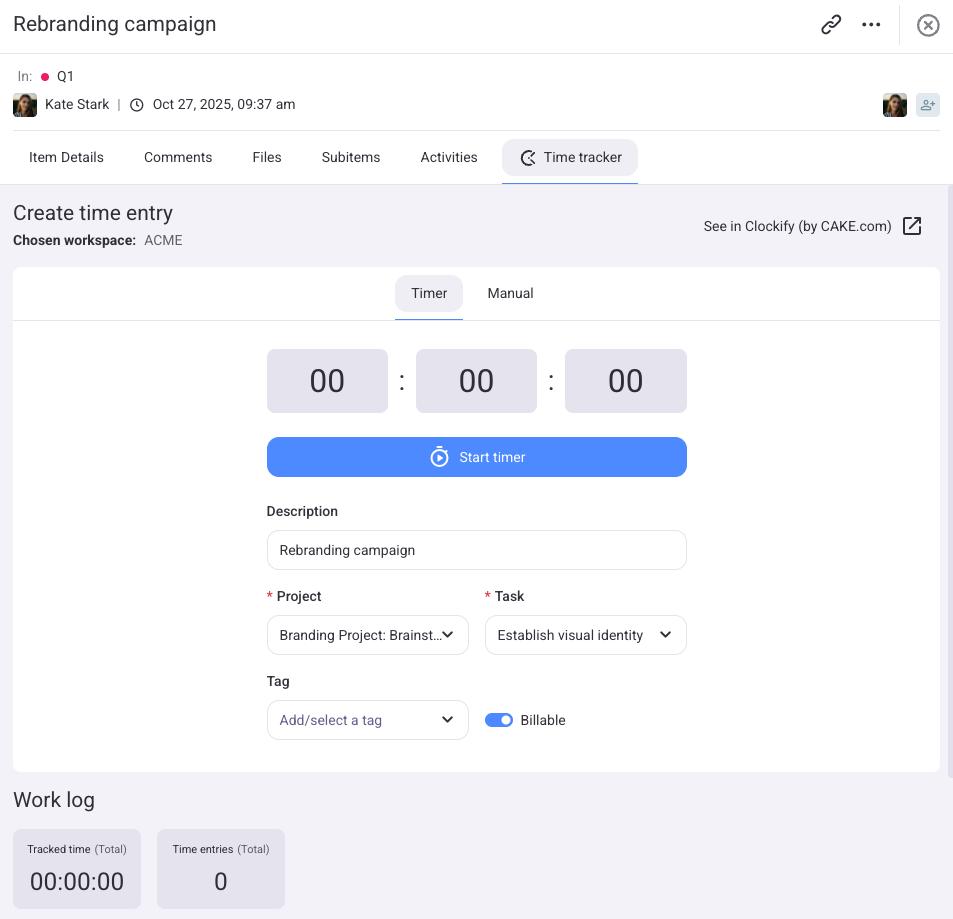
Users with access to the connected Clockify project will see a Time tracking tab with predefined settings, including Clockify project, task, and billability.
Users without access will be notified that time tracking is not possible and should reach out to an admin.
Track time via Time tracker #
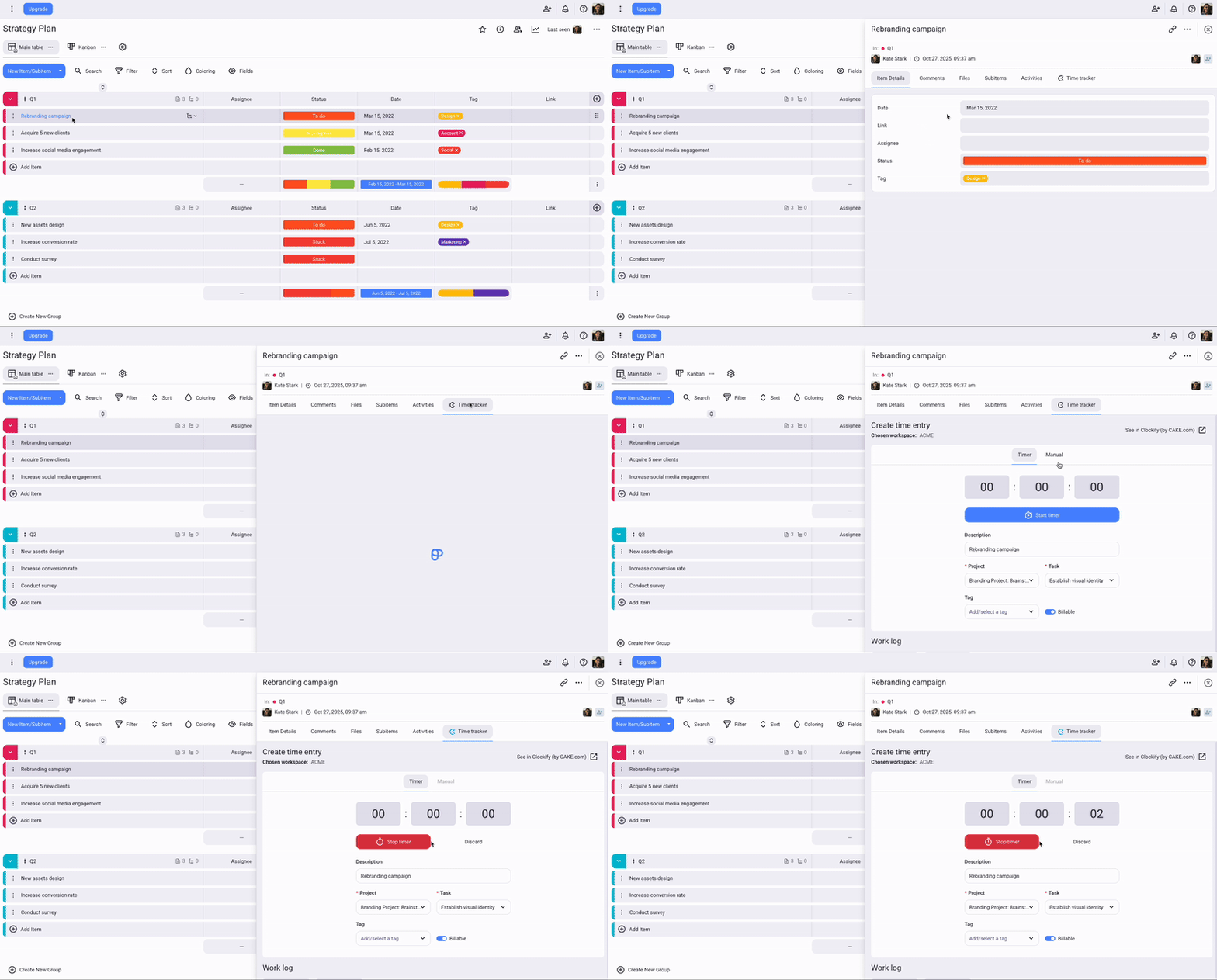
When you click the Start timer in Plaky, a timer also starts in Clockify. Any changes you make (e.g. update description or task) will automatically sync between both apps.
To use Time tracker:
- Go to your board and open an item/subitem
- Choose Time tracker > Timer tab
- Enter project, task and other necessary details
- Click Start timer to start tracking time
- Stop timer when you’re done
Track time in Manual mode #
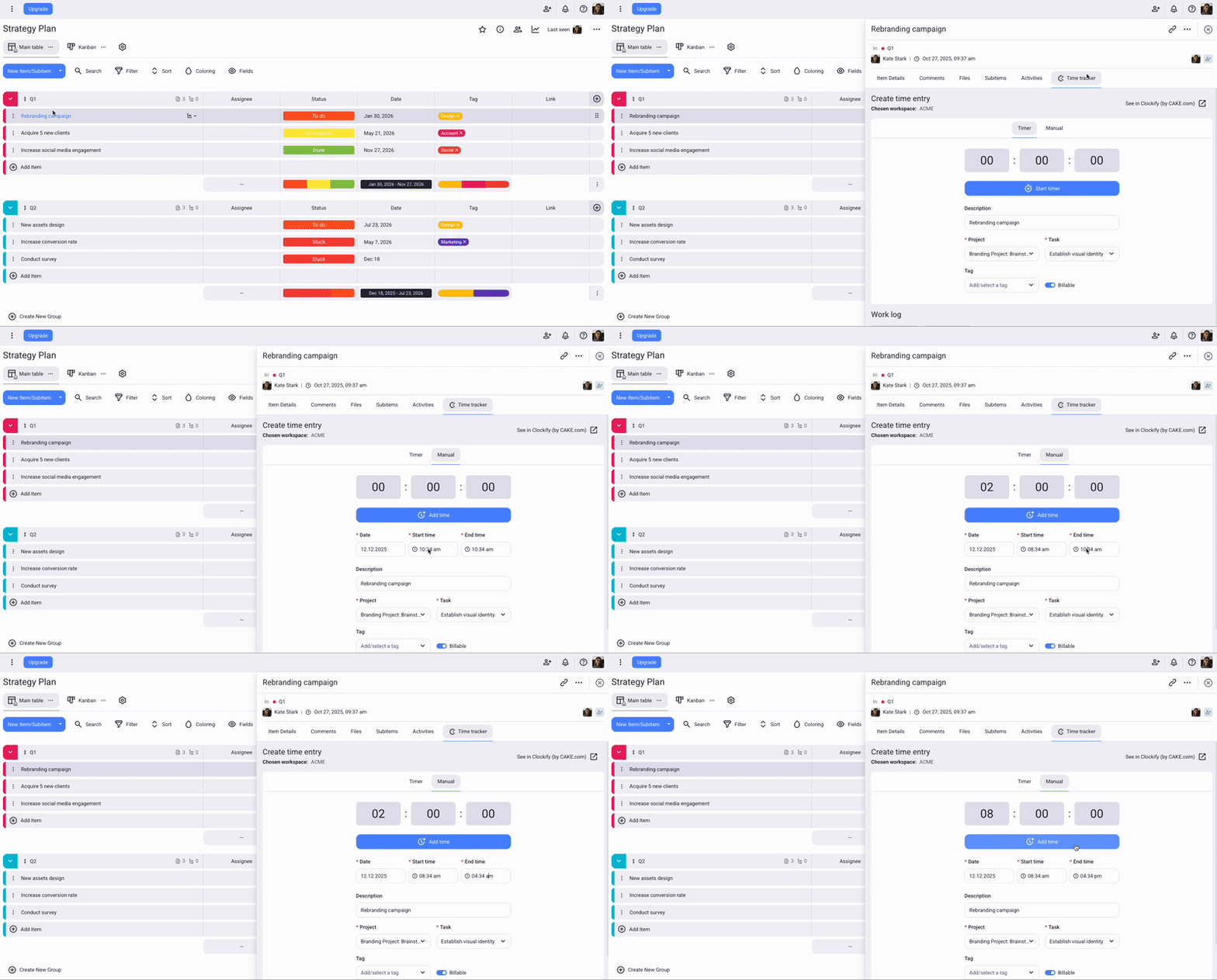
Manual mode lets you enter start and end time for your time entry.
To add time manually:
- Go to your board and open an item/subitem
- Choose Time tracker > Manual tab
You’ll see a form with predefined details, which you can adjust as needed. - Enter date, start time, end time, project, task and other necessary details
- Click Add time to complete the action
To add and edit time manually, the Force timer option needs to be disabled in the Workspace settings.
Use Plaky to manage your projects #
Plaky is a free project management tool that helps you with your projects, teams, and tasks.
Manage projects & tasks
Create and manage projects and tasks using unlimited Boards and Items. Break down larger tasks into smaller components with Subitems.
Collaborate with your team
Work with team members in shared Workspaces and Spaces. You can invite members to specific Boards and share Items with them.
Organize your work
Add multiple Boards and organize Items into groups. Customize your boards by making them Public or Private, and by setting specific permissions for other users.

For more information about the integration, check out this article from the Plaky Help Center.
If you’d like to learn more about Plaky, check out Plaky website and sign up for free.