

Alex Beadon
Founder of Together We Launch
"We use Clockify to see where our time is going and how to solve any problems. It’s just so beneficial."
More stories

Find new apps that fit you team's needs
Calculate weekly work hours, overtime, and pay to streamline payroll.
-
Total hours:
0.00
|
Day |
Start time |
Break start |
Break end |
End time |
Break deduction |
Total |
|
Monday |
||||||
|
Tuesday |
||||||
|
Wednesday |
||||||
|
Thursday |
||||||
|
Friday |
||||||
|
Saturday |
||||||
|
Sunday |
||||||
|
Total pay:
$ 0 Overtime pay:$ 0.00 Total hours: 0.00 Overtime hours: 0.00 |
||||||
Note:
Add custom note:

Base pay rate & currency
per hour
Overtime after
Overtime rate
times base rate
A time card is a tool used to record the start and end times of an employee's workday.
Employees can enter this data manually in:
When filling out a time card, employees typically need to add:
Sometimes, time card templates include lunch breaks, too. Breaks are deducted when calculating the total number of work hours.
Here’s an example of a typical time card template:
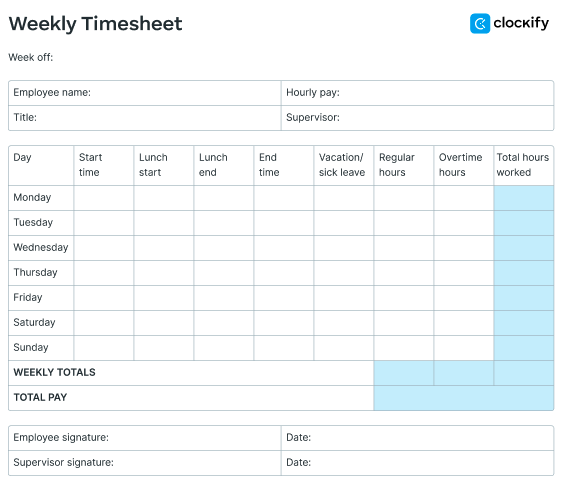
Clockify by CAKE.com offers a handful of timesheet templates you can download and print.
Time card calculators give employees a sum of their daily and weekly work hours.
You could make your own time card calculator in Excel from a template. However, you'd have to define the formulas, which is a time-consuming and error-prone process.
A faster and more effective way is to use an online time card calculator.
Clockify’s free time card calculator helps you:
Relying on a time card calculator for timekeeping allows you to monitor employee attendance and absences, and helps employees become more productive.
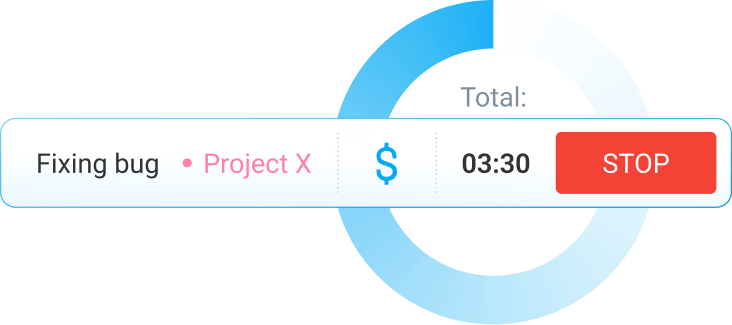
Let's go over a step-by-step process of using Clockify’s free online time card calculator so that you can make the most out of it.
You and your team members can enter the name in the top left corner of the calculator, and select the appropriate date range. The Add custom note in print option allows you to insert a custom note that will appear on paper/PDF.
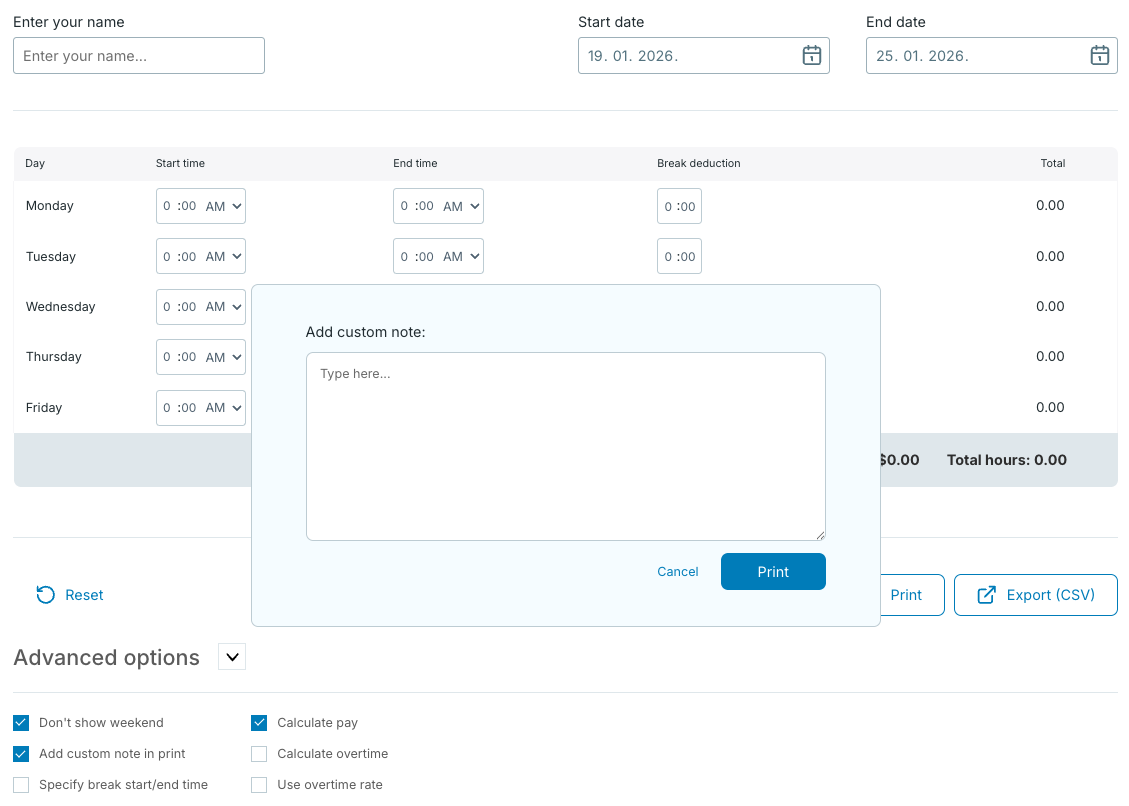
Users who don’t work weekends can switch to the 5-day workweek by checking off the Don’t show weekend option — and Saturday and Sunday won't be displayed.
To calculate the total number of hours for each day, enter start and end times (or select the time from the dropdown menu).
You can also add the time spent on breaks — in one of the following 2 ways:
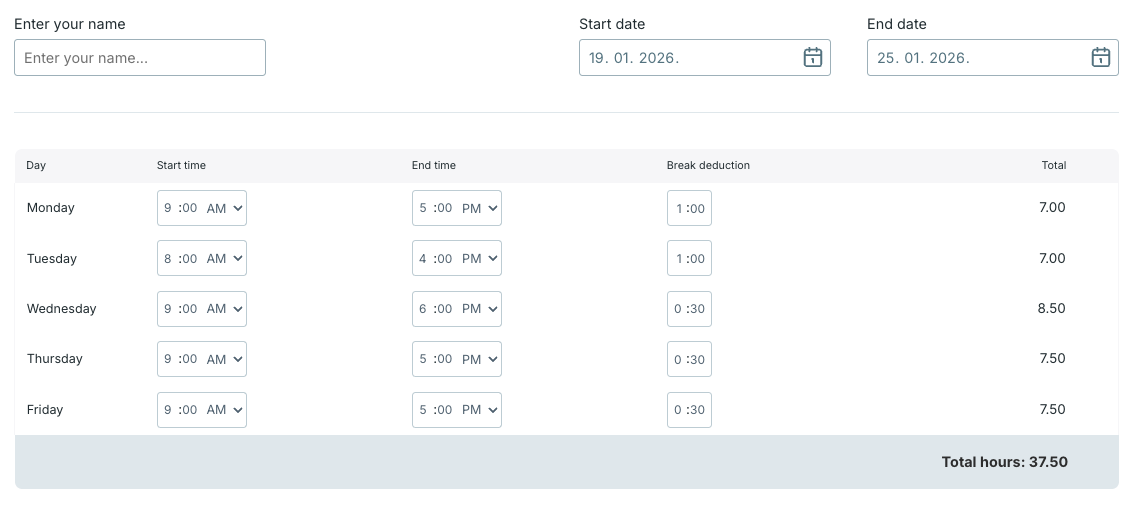
The work time calculator will automatically deduct break time from the total hours.
The time card calculator can calculate payroll based on billable hours and the hourly rate.
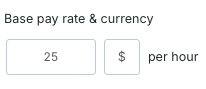
All you need to do is enable the Calculate pay option, enter the hourly rate (and currency). Then, the calculator will display the total payment.
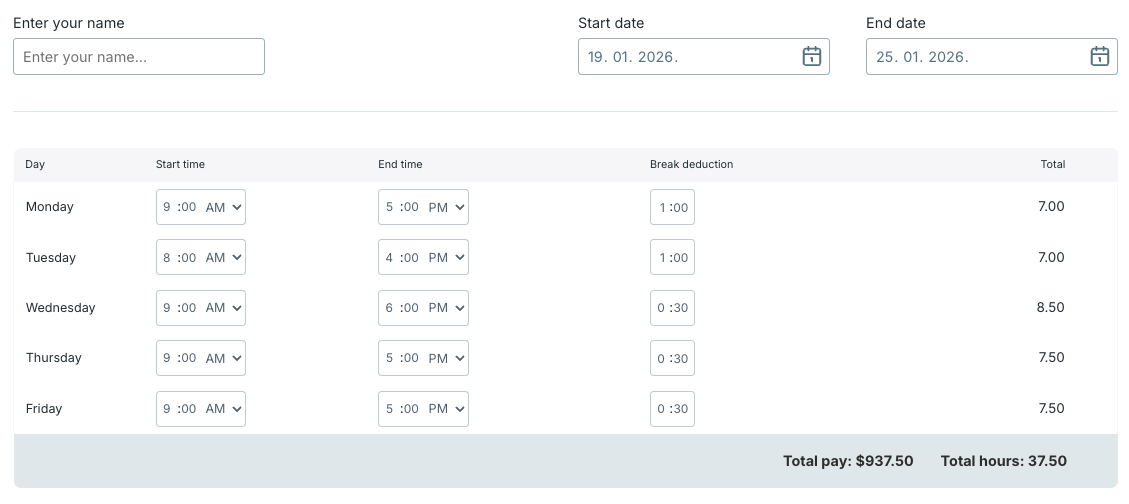
Using the time card calculator to calculate payroll gives you transparency and minimizes the chances of billing errors.
🎓 How to Do Payroll for Small Business
Our free time calculator with overtime displays the number of overtime hours. To use this option, enable Use overtime rate.
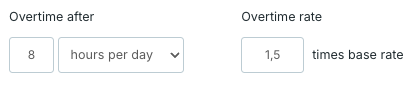
You can manually select the point when the work hours calculator begins counting your hours as overtime. The options include:
The Use overtime rate option allows you to add a different hourly rate for overtime hours when calculating overtime pay.
Having compiled all the data, you can print the employee time card.
You can also download the time card in CSV format (which can be opened in Excel) or save it as a PDF.
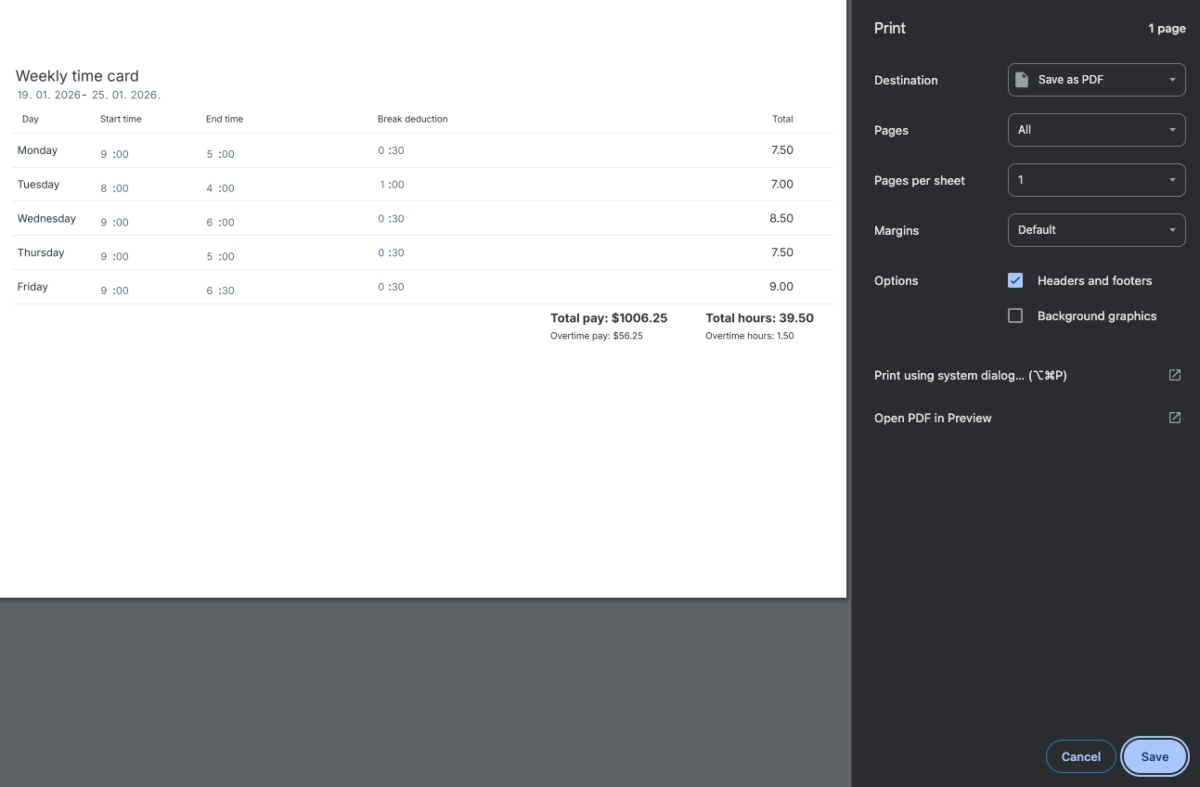
To save the time card as a PDF in Chrome:
🎓 How Timekeeping Evolved Over the Ages and in Business
To compensate staff members fairly and according to the law, you should be familiar with the employee classification. The distinction relevant for payroll includes 2 main categories — exempt and non-exempt employees.
To determine which staff members are exempt and which aren’t, take into account the following:
Exempt employees are those who:
Non-exempt employees are typically paid by the hour, and most commonly perform manual or skilled work. These workers are eligible for overtime pay and minimum wage, while exempt employees aren’t.
If you want to learn more about the time card system and calculations, read these answers to some of the most frequently asked questions.
Calculating pay when work time includes minutes and not just hours requires you to convert this time into decimal hours.
A time card calculator converts the hours for you. Here’s a quick decimal hours cheat sheet if you go the manual route:
For more precise data, use this decimal hours converter.
Otherwise, you can round the time. The Fair Labor Standards Act (FLSA) allows time clock rounding — just keep in mind that you must meet the minimum wage and overtime pay requirements.
One form of time clock rounding is the 7-minute rule — rounding the time to the nearest quarter of an hour.
This is how it works:
An employee who works from 9.00 am clocks in at 9.06 am. Given that this falls under the first 7 minutes, the employer is supposed to round the time down to 9.00.
If another employee whose workday also starts at 9.00 am clocks in at 9.10 am, the employer can round the time up to 9.15 am.
Essentially, if the employees’ clock-in and clock-out times fall under 1-7 minutes, these minutes are rounded down to 0. Anything within the 8-15 range is counted as 15.
The main difference between a time card and a timesheet is the information they contain. Time cards typically include only work start and end times.
On the other hand, timesheets offer more detail about the work hours, so there can be more than one time entry per day. Usually, each time entry describes what project (and task) these hours are associated with.
No, an employer can’t legally remove the time worked from submitted time cards. The only exception is when the time card clearly contains inaccurate information. In that case, the employer is allowed to modify the time card to reflect the actual hours worked.
If you’re looking for a polished and enhanced time card calculator — try the Clockify app.
Clockify’s powerful features allow you to simplify calculations of work hours. This intuitive software functions as a reliable clock-in and out system.
Forget the exhausting process of having your employees fill out time cards, print them, and hand them in for review. You can save precious time, stay compliant, and ensure accuracy with time approval in Clockify.
First, employees need to log their time. Clockify has many time tracking features, including digital timesheets. To add work hours in timesheet mode, the users simply:
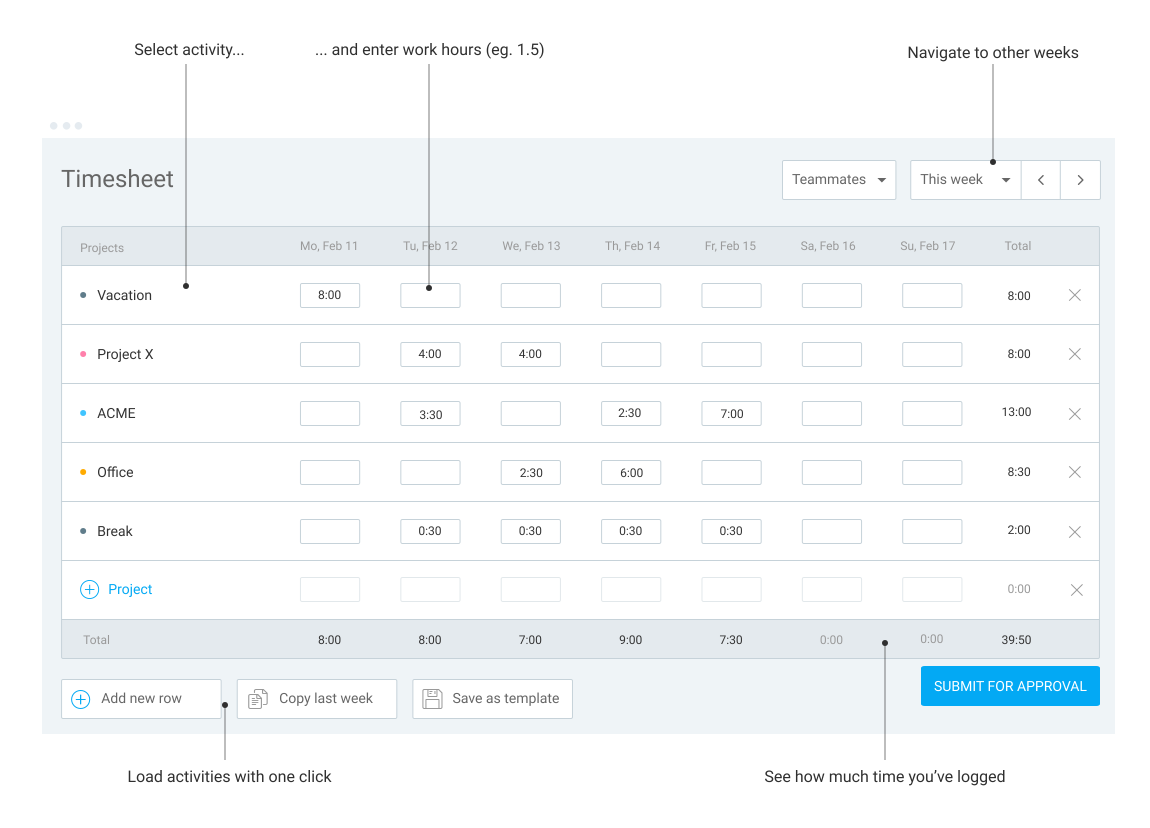
This feature allows users to add hours for the entire week — like on a traditional time card.
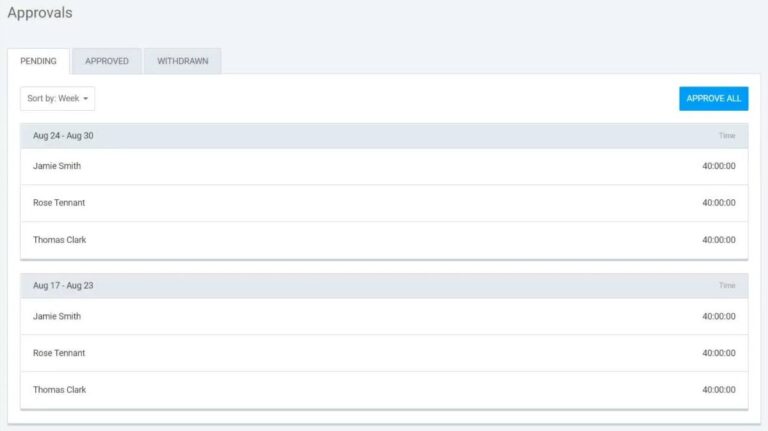
Once team members submit their timesheets by selecting Submit for approval, you get to review them. You can quickly approve every submitted timesheet at once by clicking Approve all.
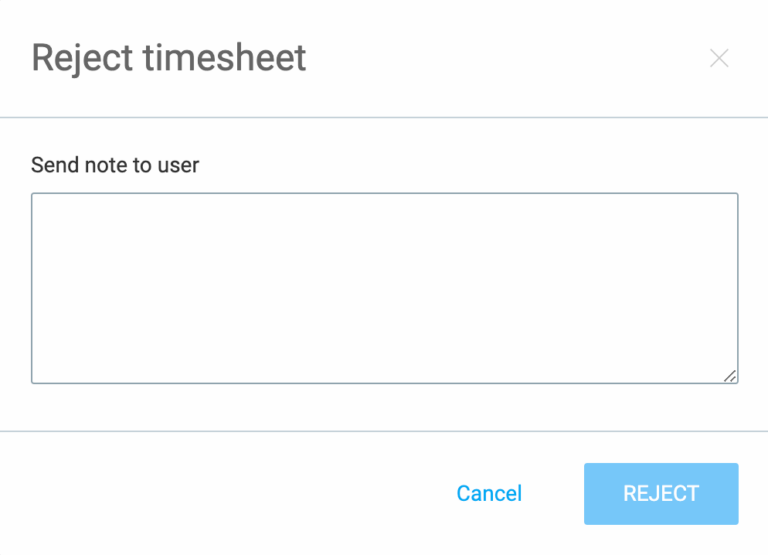
In case you spot an inaccurate timesheet, click on Reject. You can also add a note explaining what the worker needs to edit so that the timesheet gets approved.
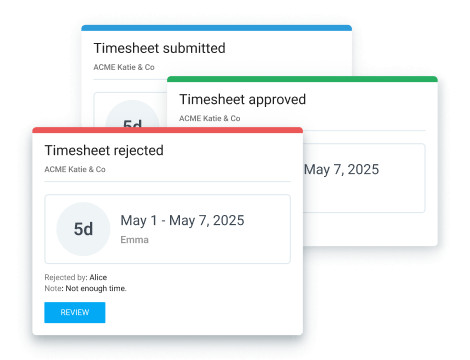
To ensure that users see the status of their timesheet approval request on time, enable notifications. Then, approvers will be notified whenever a timesheet is submitted, while employees get alerts when their time is approved/rejected.
Additionally, you can see the tracked data, including the billable amount and total hours, in reports.
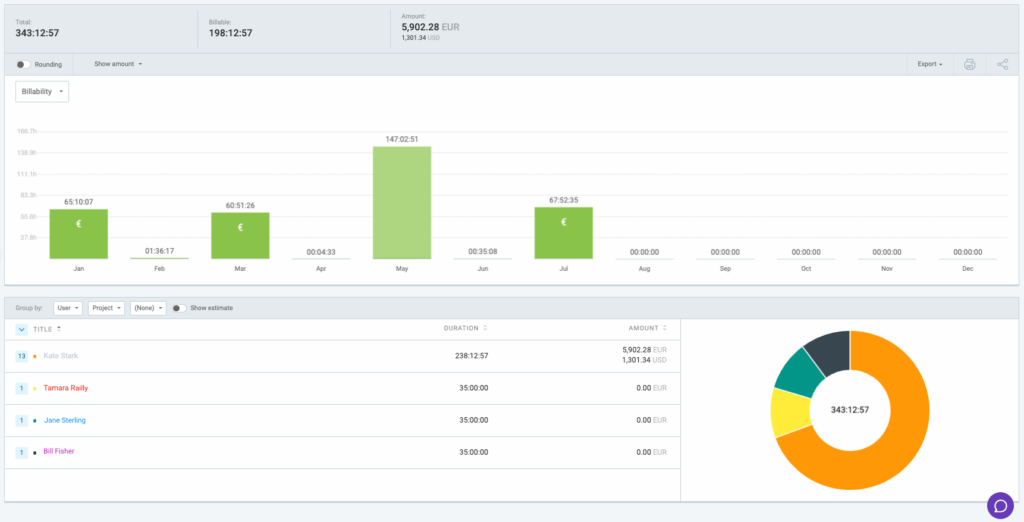
You can customize reports, save them as PDF, CSV, or Excel, and share them.
The Clockify app has all the capabilities of a time card calculator — plus a lot more! Track employee work hours and breaks, calculate payroll, approve timesheets, and generate reports all within a single platform.
Disclaimer: We hope this calculator/guide has been helpful. We strongly advise you to consult with relevant institutions or certified representatives before taking action on legal matters. Clockify is not responsible for any losses or risks incurred.
