Harvest addon
The Harvest to Clockify Migrator is a free addon that lets you import your Harvest account history directly into your Clockify workspace.
This feature is available on all Clockify plans, including the Free plan.
You can migrate your data using the Harvest addon in two different methods depending on your preference:
- Harvest API: The main path that securely connects your Harvest account directly to Clockify using an access token.
- Harvest CSV exports: An alternative method where you manually upload your Harvest export files directly into the system.
Both options are available within the Harvest addon.
Install addon #
To install the Harvest to Clockify Migrator on your workspace:
- Go to marketplace.cake.com
- Look for Harvest to Clockify Migrator
- Click Install from the sidebar
- Select your workspace
- Tick the box to agree to the Privacy policy
- Click Install
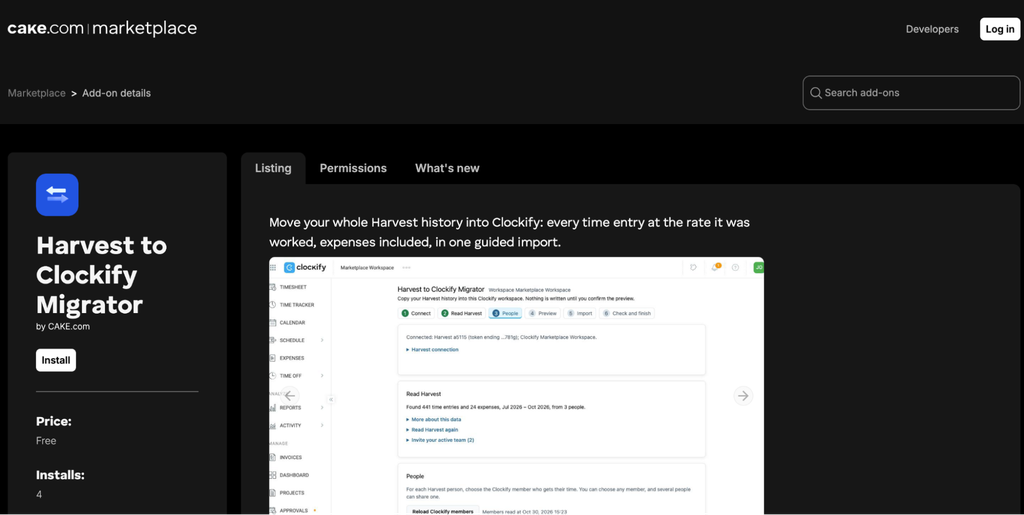
You should now see the addon on your Clockify sidebar and by going to Workspace settings > Integrations & addons.
Import data using the Harvest API #
- Click Harvest Migrator from the Clockify sidebar
- Enter your Harvest Personal Access Token and account ID to connect your account
- Click Test connection
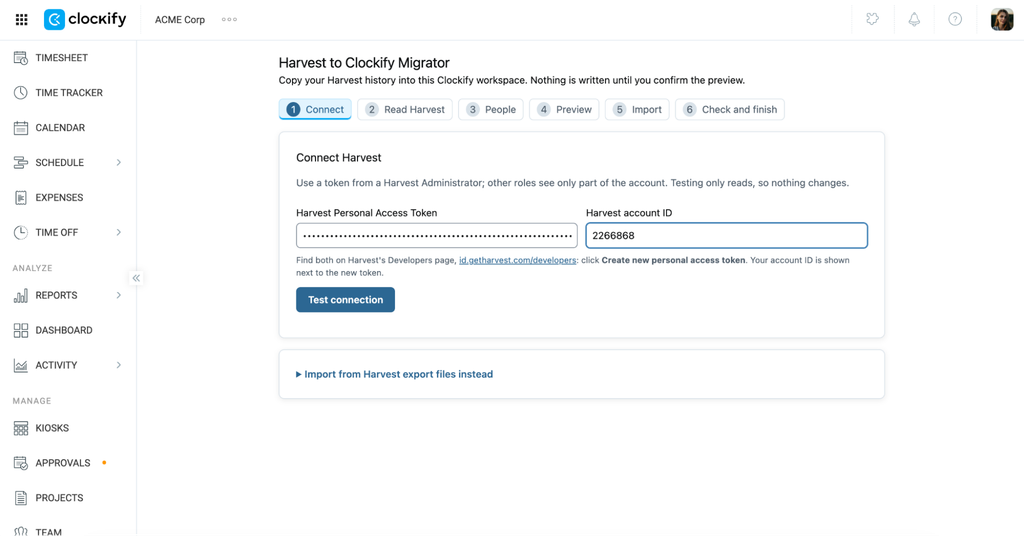
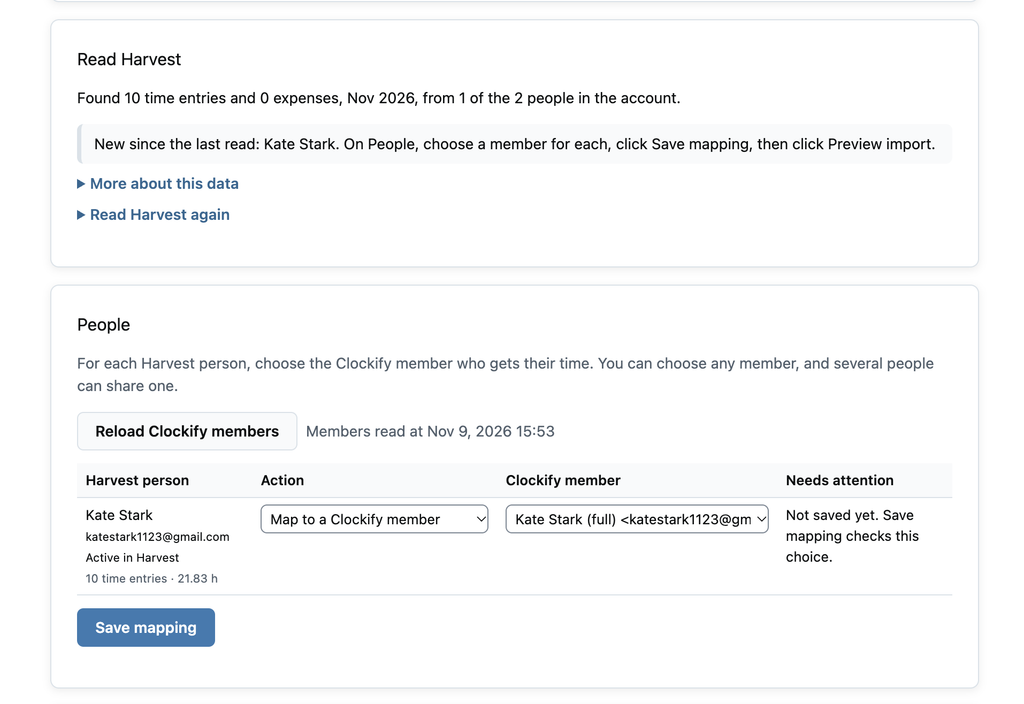
4. Click Read Harvest to generate the data for the import
5. Map each Harvest user to an existing Clockify team member
6. Click Save mapping
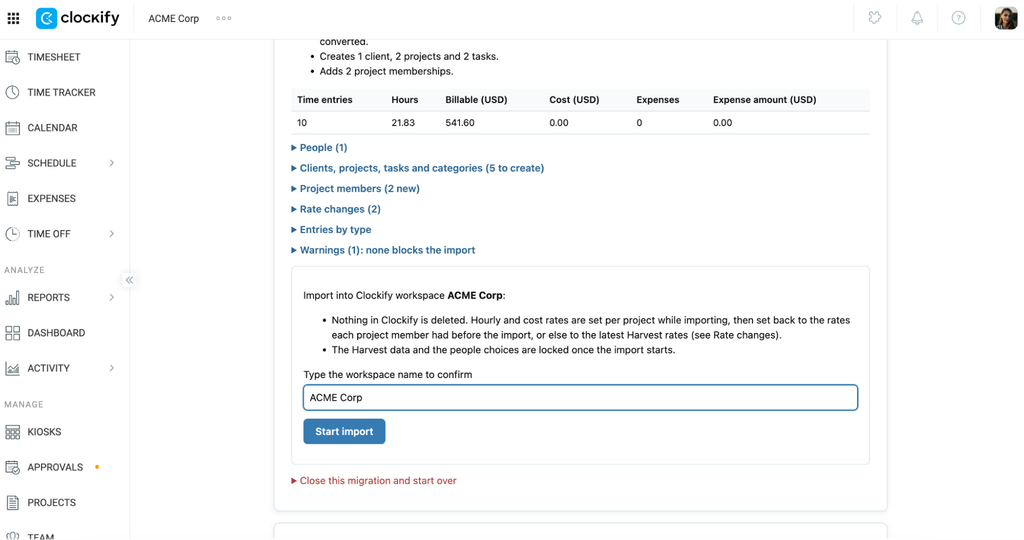
7. Review the preview screen to see what data will be imported
8. Type your workspace name to confirm the import
9. Click Start import
10. Click Compare with Harvest to check if the data in Clockify matches with Harvest
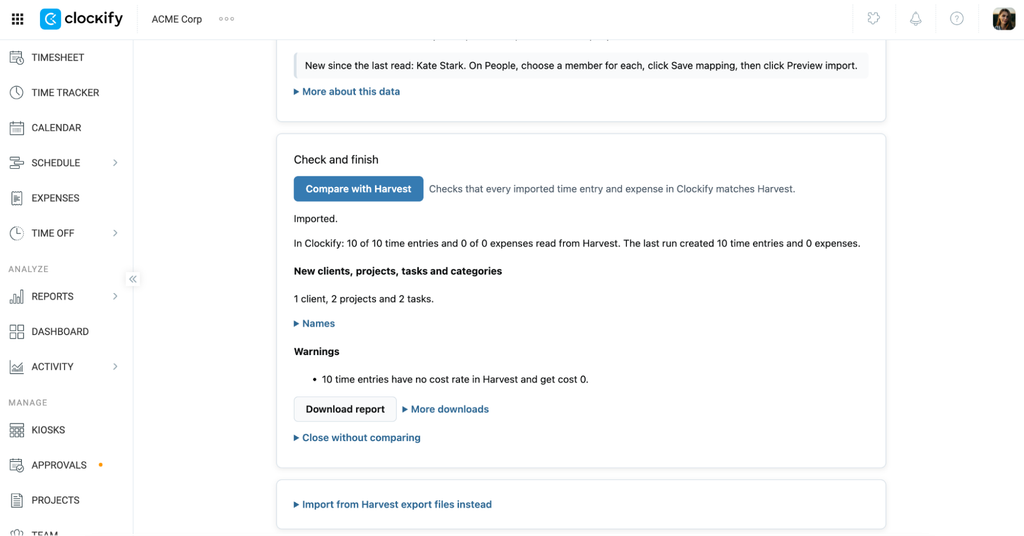
11. Read the import summary and click Finish migration if everything looks good
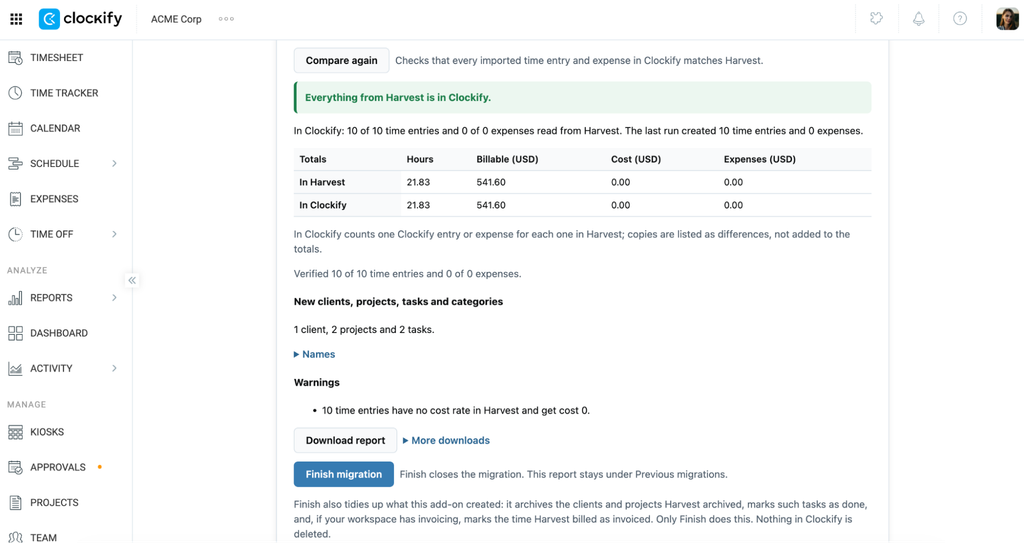
You can also select Download report to download a CSV file containing all imported data.
A single email match is preselected for you automatically, but you will need to manually confirm any team members matched by name only.
Import data using CSV files #
You can generate a detailed CSV report from Harvest and import it into Clockify.
To do this:
- Click Harvest Migrator from the sidebar in Clockify
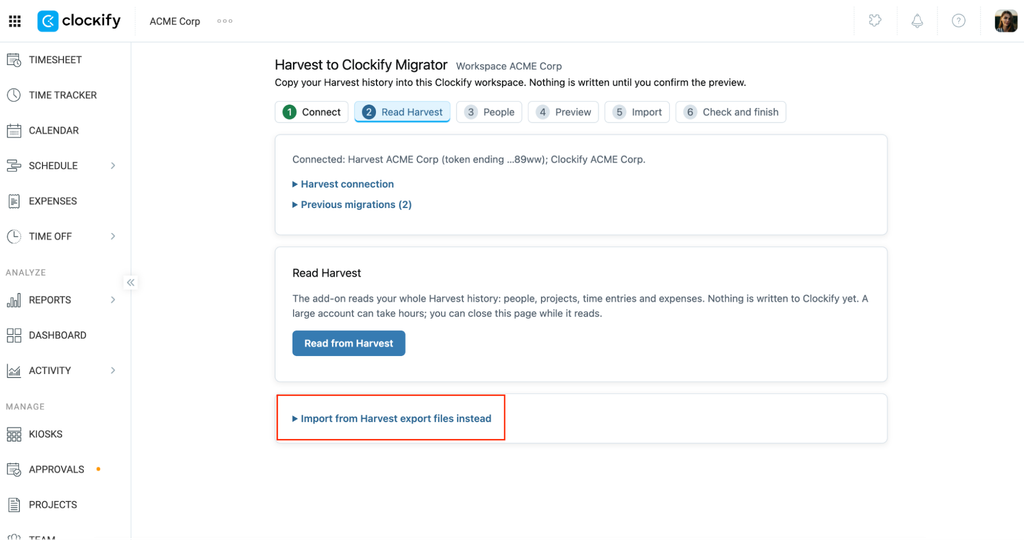
- Click Import from Harvest export files instead
3. Click Choose files and select the export file
4. Select Check files
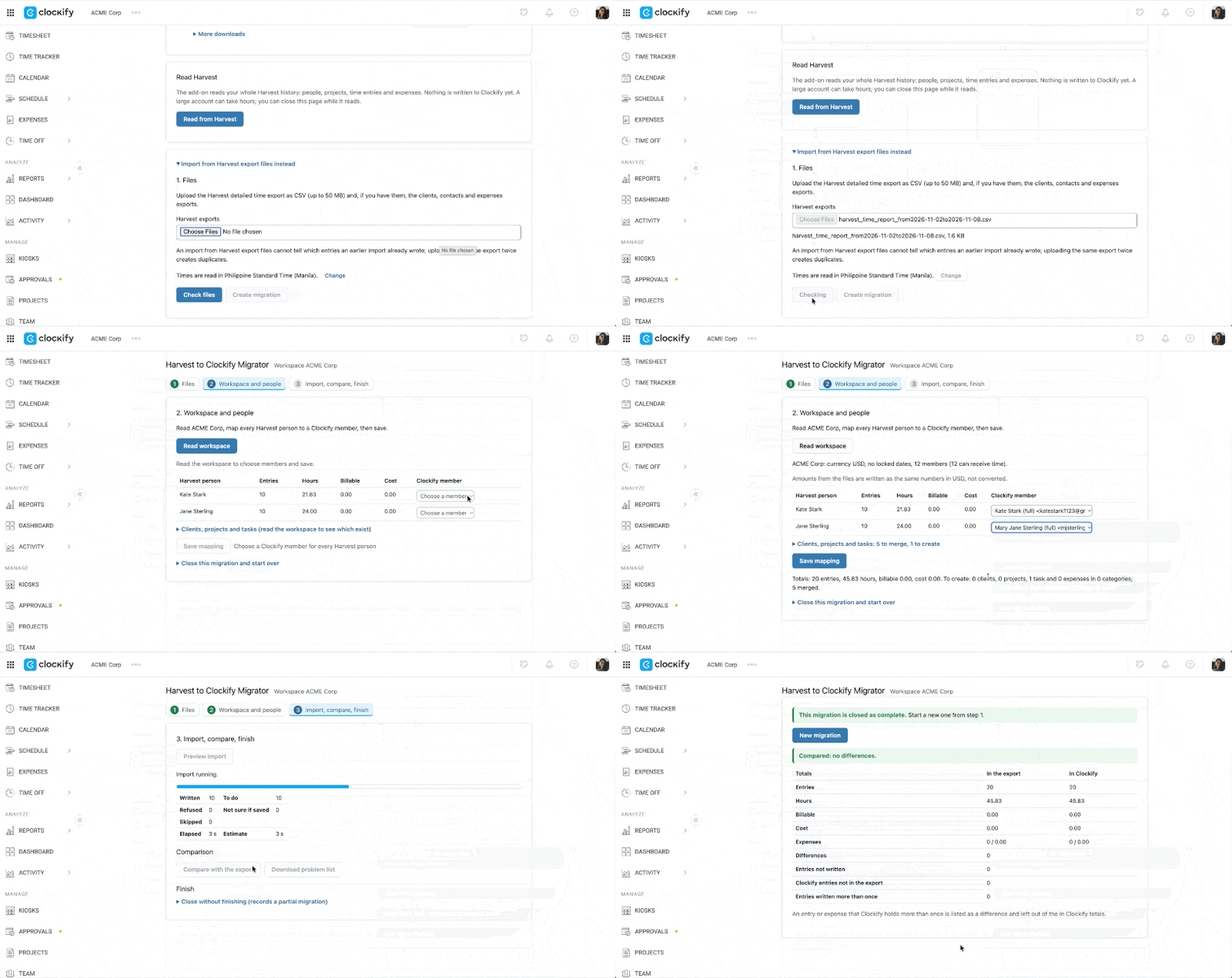
5. Click File details to see a summary of the data found in the export file
6. Click Create migration
7. Click Read workspace
8. Use the drop down menus to map Harvest users to Clockify team members
9. Click Save mapping
10. Click Preview import and tick the box next to the summary statement about the import
11. Click Start import
12. Click Compare with the export to cross check imported data with the export file
13. Click Close migration when everything looks good on the import summary table
You must upload the detailed time report to use this method, but the expenses, clients, and contacts files are optional.
Supported data types #
To help you prepare your workspace, here is a breakdown of what moves over during the migration and what stays behind.
| Data category | Supported items |
| Imported to Clockify | Clients (including addresses and contacts), projects, tasks, and expense categories. Project memberships, project-member rates, time entries, and expenses. |
| Not imported | Harvest invoices, estimates, receipts, attachments, and roles. Clockify tags and custom-field values. |
The migrator adapts to your current Clockify plan. If your plan does not include features like expenses or cost rates, those specific items are skipped during the import process.