Activity Monitoring activation
Activity Monitoring allows you to track app usage, capture screenshots, and monitor team productivity in real time.
Below is a guide to understanding the different onboarding states and how to activate Activity Monitoring for your workspace.
Upgrade to access Activity Monitoring #
This option applies if you are on a Free, Basic, or Standard plan.
If your workspace is on a plan that does not include Activity Monitoring, the Monitoring tab (located at the sidebar) shows an option to upgrade to a qualifying plan (Pro or Enterprise).
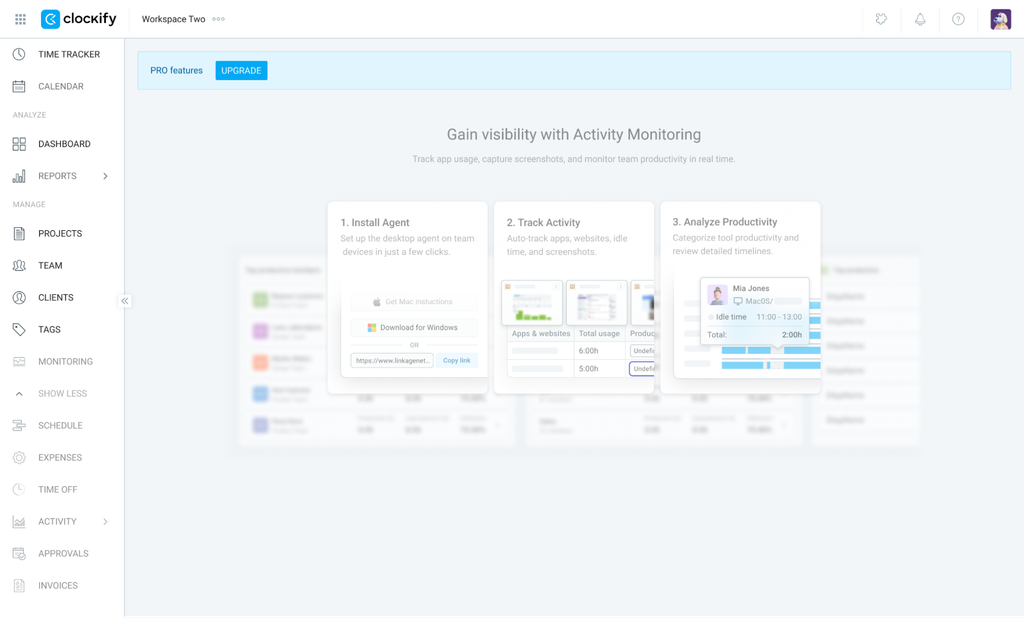
Click UPGRADE to upgrade to a qualifying plan (Pro or Enterprise) and gain access to Activity Monitoring.
Enable Activity Monitoring (For qualified plans) #
This option applies if you are in Pro, Enterprise, Bundle, or an active free trial.
If your workspace is on an eligible plan, the Monitoring page lets you enable Activity Monitoring by toggling it on.
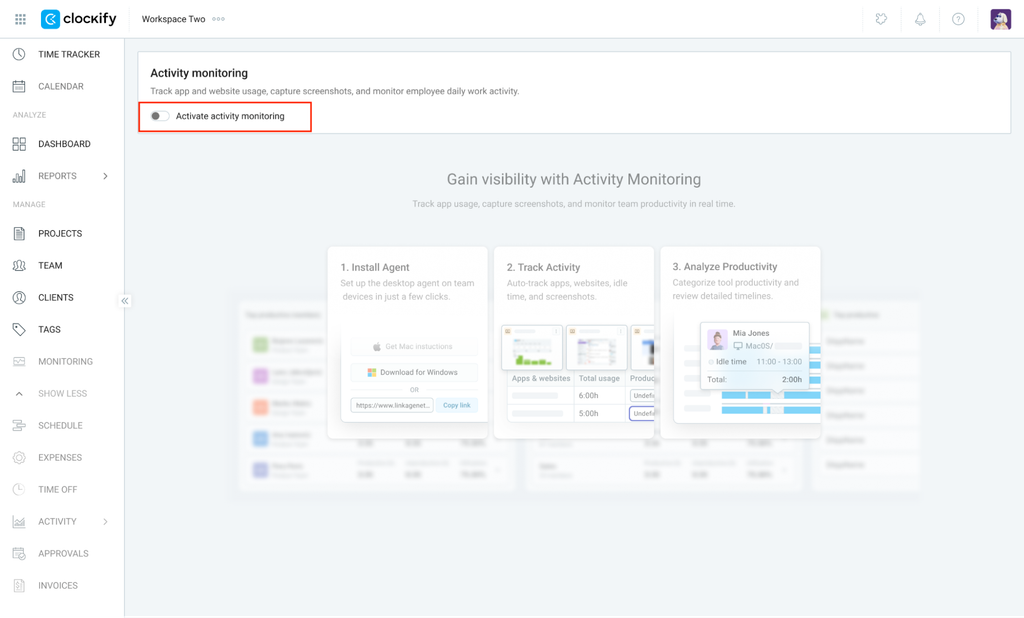
Only Workspace owners can activate Activity Monitoring.
Enable Activity Monitoring #
You can also enable activity monitoring from your Workspace settings.
To do this:
- Click on the three dots icon next to your workspace name
- Select Workspace settings
- Click the Activate Activity Monitoring toggle switch to turn it ON.
- Click Confirm
- Click I AGREE to consent and activate the feature
What information does Activity Monitoring collect? #
Activity Monitoring collects device activity via the activity monitoring agent installed in a user’s device. While the agent is running, it records:
- Keyboard activity
- Mouse activity
- Active applications
- Active websites
- Idle periods
- Screenshots (when enabled)
Frequently asked questions (FAQs) #
What happens after activation?
- If activated from the Monitoring page: Activity Monitoring is globally enabled for the workspace, and you will be redirected immediately to your live Activity Monitoring Dashboard.
- If activated from Workspace Settings: The feature activates globally, and a success message (“Workspace settings have been updated”) will appear. The Monitoring page will appear in the left sidebar navigation for all authorized roles.